7 Best Document Receipt Scanner

7 Best Document Receipt Scanner Article updated:

Quick guide: verify paper, software and the saved file

Match the exact scanner’s feed limits to your receipts and documents, including narrow paper, thickness and duplex needs. Confirm the supported operating system, software and export route. Scan a representative sample, inspect every page and verify recognized numbers instead of assuming perfect OCR. Decide where sensitive files go and test a separate recoverable backup before relying on the archive.

1
RapidReceipt RR-600W Wireless Document Receipt Scanner
Brand: Epson
Features / Highlights
  • Scans both sides of documents in one pass.
  • Wireless connectivity reduces dependence on a permanently connected computer.
  • 100 page automatic document feeder handles larger scanning batches.
  • 4.3 inch touchscreen supports convenient standalone scanning controls.
  • - Receipt software extracts useful transaction data from scanned receipts.
Our Score
9.81
CHECK PRICE

The RR-600W is built for the pile of receipts you kept avoiding

The Epson RapidReceipt RR-600W is a wireless desktop document and receipt scanner built for people who need to process more than the occasional sheet of paper. When looking for the best document receipt scanner, its combination of duplex scanning, a 100 page automatic document feeder and a 4.3 inch touchscreen makes it particularly useful for offices where receipts, invoices and normal documents all end up in the same scanning workflow.

The automatic document feeder is a major advantage when dealing with accumulated paperwork. Instead of placing every page individually onto a scanner, you can load a stack and let the machine process multiple sheets in sequence.

That matters during expense reporting. Twenty or thirty documents can turn a simple administrative job into a tedious afternoon if every page needs to be positioned, scanned, removed and replaced manually.

The RR-600W also scans both sides of a document in one pass. Single-pass duplex scanning saves real working time, especially when processing invoices, contracts or forms that contain useful information on both sides.

For receipt work, speed is only half the problem. The information inside those receipts needs to become useful afterward, which is where Epson's RapidReceipt software and data extraction features become important.

The receipt software is what turns scanning into actual organization

A scanned receipt is useful as a digital record, but manually typing the merchant, date, amount and other transaction details into another system defeats part of the reason for buying a dedicated receipt scanner. The RR-600W is designed to extract receipt information so those records can become easier to organize and work with.

Think about a small business owner returning from a month of client meetings. There may be restaurant receipts, fuel purchases, parking slips and office expenses mixed together, and manually entering every transaction creates another opportunity for mistakes.

Automated data extraction can reduce that repetitive work. Receipt information becomes easier to organize digitally, particularly when expenses need to be prepared for bookkeeping or tax records.

The 4.3 inch touchscreen adds another practical advantage. Basic scanning jobs can be controlled directly from the scanner rather than forcing the user to interact with a computer for every single operation.

Wireless connectivity also gives the scanner more freedom around the office. It does not have to live immediately beside one computer simply because that machine is the only place where scanning happens.

Paper preparation still matters. Receipts should be unfolded, obvious creases flattened and staples removed before they enter the automatic document feeder.

This is especially important when scanning mixed paperwork. Proper document preparation reduces feeding problems, because bent corners, adhesive material and attached staples can interrupt an otherwise fast batch scanning job.

Very small or damaged receipts may need additional attention too. Automatic feeders are excellent for volume, but irregular pieces of paper naturally require more care than clean full size office documents.

Why we believe the RR-600W deserves our number one position

The strongest argument for the Epson RapidReceipt RR-600W is that it addresses the complete document workflow rather than simply creating image files. It scans batches, captures both sides, handles ordinary office documents and includes receipt focused software for extracting useful transaction information.

The 100 page automatic document feeder is a big reason it ranks first. High capacity batch scanning reduces manual handling, which becomes increasingly important as the number of receipts and documents grows.

The touchscreen also makes the scanner easier to use as a shared office device. Someone can walk up to the unit and handle routine scanning without treating the scanner as an accessory permanently controlled by one person's computer.

Wireless connectivity strengthens that shared setup. In a small office, the scanner can occupy a sensible central location rather than consuming valuable desk space beside a specific workstation.

The RR-600W is still a desktop scanner, so it is not the smallest option for someone who only needs to scan an occasional travel receipt. Its larger feeder and touchscreen make more sense when scanning is a recurring administrative task.

Receipt recognition also needs realistic expectations. Automated extraction can save time, but unusual layouts, damaged printing or badly faded thermal receipts may still require somebody to check the captured information for accuracy.

That verification step matters for accounting. A fast scanner does not remove the need to review important financial records, particularly when transaction totals and dates will later be used for bookkeeping or tax preparation.

For regular office use, though, the overall package is difficult to ignore. The scanner can handle the physical paperwork quickly and then help turn that paperwork into organized digital information instead of leaving users with hundreds of unnamed image files.

That is why we believe the Epson RapidReceipt RR-600W deserves the number one position in our Best Document Receipt Scanner ranking. Its 100 page feeder and duplex scanning capability, combined with a 4.3 inch touchscreen, wireless connectivity and receipt data extraction software, make it a particularly complete choice for businesses and home offices that need to process receipts and everyday documents efficiently.


2
iX2500 Wireless Document Receipt Scanner with Touchscreen
Brand: ScanSnap
Features / Highlights
  • High speed duplex scanning processes both document sides efficiently.
  • Large touchscreen provides convenient access to scanning profiles.
  • Wireless connectivity supports flexible scanning without constant USB connection.
  • Automatic document feeder handles multi page scanning jobs efficiently.
  • - ScanSnap software helps organize receipts and everyday business documents.
Our Score
9.68
CHECK PRICE

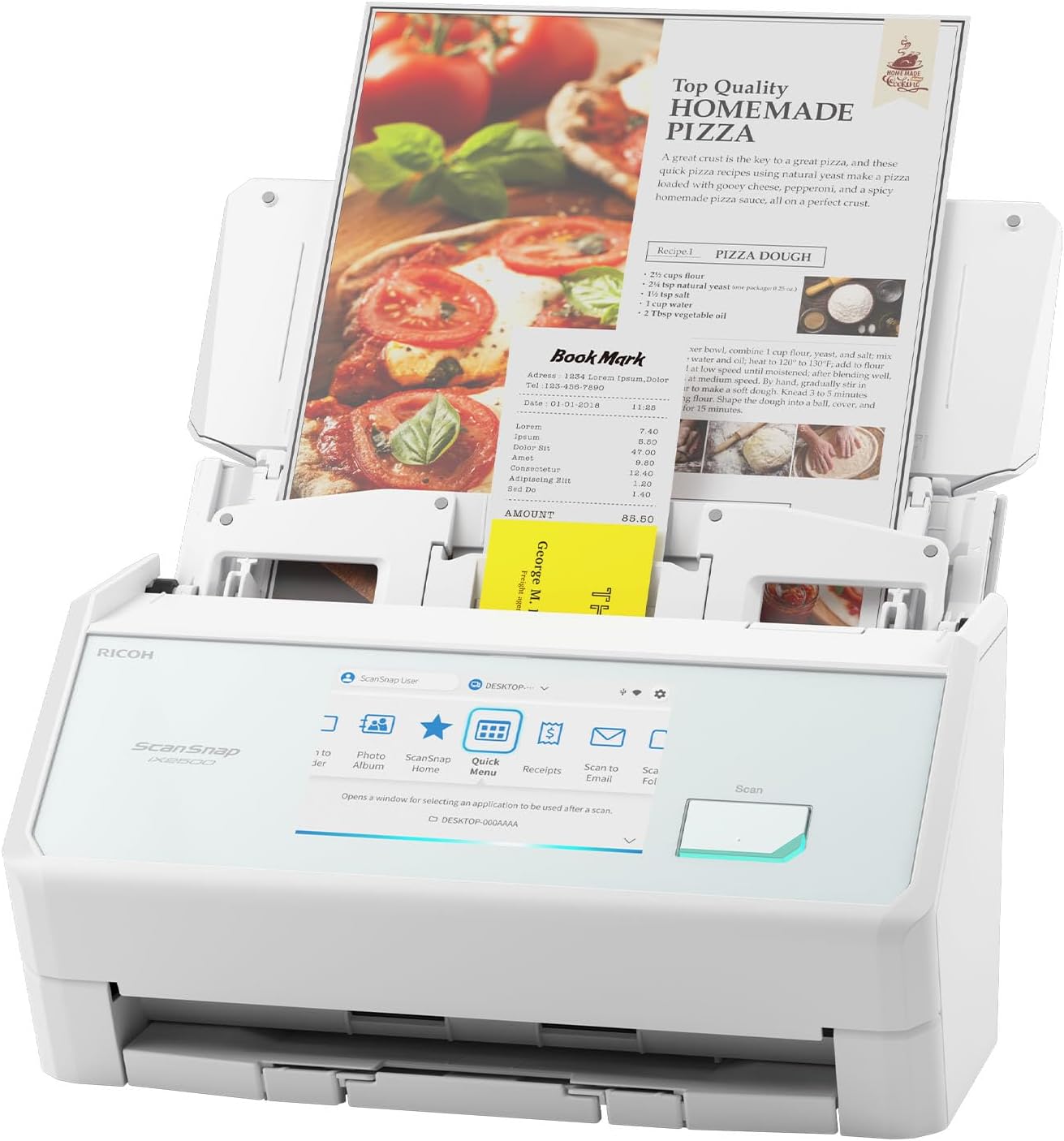
The iX2500 feels designed for people who scan every day

The ScanSnap iX2500 is a high speed wireless document scanner built for offices and home workspaces where scanning is a regular part of the day rather than an occasional task. When comparing the best document receipt scanner options, its combination of fast duplex scanning, touchscreen controls, wireless connectivity and automated document handling makes it particularly useful for turning stacks of paperwork into organized digital files.

The duplex system captures both sides of a document during the same scanning process. That matters when dealing with contracts, invoices, statements and forms where important information may appear on the reverse side.

Without duplex scanning, somebody has to scan one side, turn the pages over and repeat the process. That becomes tedious very quickly once a stack contains dozens of documents.

The automatic document feeder makes batch work easier as well. Multiple pages can be processed with less handling, so the user spends less time feeding individual sheets and more time checking that the resulting digital files are actually organized correctly.

This is where a dedicated document scanner starts making more sense than using a phone camera. A phone is convenient for one receipt, but scanning an entire month of business paperwork that way can become slow and inconsistent.

The touchscreen is useful when several people share the scanner

The iX2500 includes a large touchscreen that gives users direct access to scanning functions and profiles. This can make a real difference in a shared office where different people need documents sent to different destinations.

A recurring scan workflow can be configured around the task instead of requiring every user to rebuild settings manually. One profile might handle receipts while another is intended for general office documents or another regular filing process.

That reduces small mistakes during repetitive work. Scanning profiles make routine jobs more consistent, especially when the person operating the scanner is not the same person who originally configured it.

Wireless connectivity provides more freedom when positioning the scanner. It does not necessarily have to remain attached by USB to one computer on one particular desk.

That works well in a shared office. The scanner can sit in a central location where paperwork naturally accumulates rather than forcing employees to carry documents to whichever workstation has the scanner connected.

Receipts still require some preparation before batch scanning. Folded paper should be flattened, staples removed and heavily curled receipts handled carefully before they enter the feeder.

This matters because receipt paper is not always cooperative. Proper paper preparation reduces feeder interruptions, particularly when a batch contains a mixture of thin receipts and normal office sheets.

Old thermal receipts deserve special attention too. Thermal printing can fade over time, so scanning important receipts while the text remains clearly visible is better than waiting until tax season and discovering that half the transaction information has become difficult to read.

Why the iX2500 takes our number two position

The ScanSnap iX2500 earns a high position because it combines speed with a workflow that is designed around repeated document scanning. Duplex capture, an automatic feeder, touchscreen controls and wireless connectivity all address problems that appear when scanning moves beyond the occasional single page.

The touchscreen is particularly useful for repeatable office workflows. Direct controls make shared scanning much easier, because users can access familiar scanning tasks without digging through software settings before every job.

The ScanSnap ecosystem also helps turn scanning into an organizational process rather than simply creating image files. Receipts and normal documents can be captured, processed and prepared for digital filing instead of remaining as another pile of paper on the desk.

The reason we place the iX2500 at number two rather than number one is that the Epson RapidReceipt RR-600W above it is particularly focused on the receipt workflow. Epson combines a 100 page feeder with receipt data extraction features that make it especially compelling for bookkeeping and expense management.

The ScanSnap is arguably a broader document scanner. That versatility can actually make it the more appropriate choice for an office where receipts represent only one part of a much larger scanning workload.

There are still some practical limitations. A high speed desktop scanner takes more desk space than a portable model, and businesses that only scan a handful of receipts each month may not take full advantage of its capabilities.

Users should also resist the temptation to scan everything into one generic folder. A fast scanner can create hundreds of files very quickly, but poor naming and filing habits simply replace physical clutter with digital clutter.

A simple folder structure by year, month, client or expense category can make the scanner considerably more useful. Searchable documents and consistent file organization become increasingly valuable as the archive grows.

That is why we believe the ScanSnap iX2500 deserves the number two position in our Best Document Receipt Scanner ranking. It falls just behind our first choice in receipt specific data extraction and expense workflow focus, but its high speed duplex scanning, touchscreen profiles, wireless connectivity and strong document management capabilities make it an excellent choice for busy offices that need to process both receipts and general paperwork efficiently.


3
iX2500 High-Speed Wireless Document Receipt Scanner
Brand: ScanSnap
Features / Highlights
  • High speed duplex scanning captures both document sides efficiently.
  • Large touchscreen provides quick access to personalized scanning workflows.
  • Wireless connectivity supports flexible placement around shared office spaces.
  • Automatic document feeder processes larger batches with less manual handling.
  • - ScanSnap software helps organize receipts and everyday business paperwork.
Our Score
9.46
CHECK PRICE

The iX2500 makes more sense when scanning is part of your normal workday

The ScanSnap iX2500 is a high speed wireless document scanner designed for people who regularly deal with receipts, invoices, contracts and general office paperwork. When comparing the best document receipt scanner options, its combination of duplex scanning, wireless connectivity, touchscreen controls and automated feeding makes it much more practical than scanning every document individually.

The scanner captures both sides of a sheet during the same pass. This is useful for business paperwork because important information is often printed on the reverse side of invoices, statements and forms.

Without automatic duplex scanning, a large batch quickly becomes annoying. Somebody has to scan the first side, reorganize the pages, turn everything over and then hope the second pass remains in the correct order.

The iX2500 removes much of that manual work. Duplex scanning reduces repetitive document handling, which matters once the workload moves beyond a handful of receipts.

The automatic document feeder adds to that efficiency. Instead of placing one page at a time, users can load a stack of compatible documents and allow the scanner to work through the batch.

The touchscreen makes repeat scanning jobs much easier to manage

The touchscreen is one of the most practical parts of the iX2500. It provides direct access to scanning functions and profiles rather than forcing users to configure every job from scratch on a computer.

This can make a noticeable difference in a shared office. One person may need receipts sent into an expense workflow while somebody else needs contracts saved into a completely different folder structure.

Profiles can help separate those repetitive tasks. Saved workflows reduce everyday scanning mistakes, especially when several employees use the same scanner and not everyone understands every setting behind the process.

Wireless connectivity also gives offices more freedom when choosing where the scanner lives. It does not necessarily need to occupy valuable desk space immediately beside one particular computer.

A central scanning station can work better. Employees can bring paperwork to one location, process it and return to their own desks rather than passing a USB connected scanner between computers.

Receipts require more care than ordinary office sheets, though. They can be narrow, curled, folded or printed on lightweight thermal paper that behaves differently from a clean sheet of Letter size paper.

Flattening receipts before scanning can improve feeding reliability. Good paper preparation prevents unnecessary interruptions, particularly when several receipts are being processed as part of a larger batch.

Staples should always be removed before documents enter the feeder. Small pieces of adhesive material and badly damaged corners should also be dealt with first rather than hoping the scanner will simply pull everything through.

There is another reason to scan receipts sooner rather than later. Thermal receipt printing can fade over time, so digitizing important transaction records while the text remains clearly readable can prevent problems months later.

Why the iX2500 takes our number three position

The ScanSnap iX2500 has a strong combination of speed, automation and direct controls. It is designed for regular document processing rather than occasional scanning, which makes it suitable for businesses that accumulate paperwork every day.

The duplex system is particularly useful for mixed office documents. Both sides are captured in one workflow, reducing the chance that somebody forgets to scan important information printed on the reverse of a page.

The touchscreen profiles also make this a strong shared scanner. Routine tasks can be made more consistent, which is important when several employees are responsible for digitizing documents throughout the week.

The reason we place this version of the iX2500 at number three is the stronger receipt specific workflow offered by our number one Epson RapidReceipt RR-600W. Epson's model combines a 100 page feeder with software designed specifically around extracting useful transaction information from receipts.

Our number two ScanSnap option also fits our overall ranking slightly better based on its particular configuration. With products this closely related, the differences become less about basic scanning quality and more about configuration, workflow and how the scanner will actually be used.

The iX2500 is also more scanner than some home users need. Someone processing only five or six receipts per month may find a smaller, simpler device easier to justify.

For a busy office, however, speed changes the calculation. A scanner that processes batches quickly can reduce the tendency to leave paperwork sitting in a tray for months because nobody wants to spend an afternoon scanning it manually.

File organization still needs a plan. Fast hardware can create hundreds of digital files very quickly, so folders, searchable naming conventions and regular backups should be established before the archive becomes difficult to manage.

That is why we believe the ScanSnap iX2500 deserves the number three position in our Best Document Receipt Scanner ranking. It falls behind our top choices in receipt specific processing and overall workflow balance, but its high speed duplex scanning, touchscreen controls, wireless connectivity and automatic document handling make it a strong option for offices that need to digitize both receipts and everyday paperwork efficiently.


4
ADS-4300N Professional Network Document Receipt Scanner
Brand: Brother
Features / Highlights
  • Scans up to 40 pages per minute for efficient workflows.
  • 80 page automatic document feeder handles substantial scanning batches.
  • Single pass duplex scanning captures both document sides together.
  • Wired Ethernet connectivity supports convenient shared workgroup scanning.
  • - Handles receipts, business cards, and everyday office documents.
Our Score
9.02
CHECK PRICE

The 80-page feeder tells you exactly what this scanner is built for

The Brother ADS-4300N is a professional desktop document scanner designed for businesses and workgroups that process paperwork in meaningful volumes. When comparing the best document receipt scanner options, its combination of up to 40 pages per minute scanning, an 80 page automatic document feeder and network connectivity makes it particularly interesting for offices where receipts are only one part of a much larger document workload.

The 80 page automatic document feeder is the feature that immediately changes how the scanner can be used. Instead of placing every sheet individually, employees can load a substantial stack of compatible documents and let the scanner process the batch.

That becomes useful at the end of a busy week. A stack containing invoices, statements, expense paperwork and customer documents can be processed in one organized session rather than sitting beside someone's computer waiting for individual scans.

Brother rates the ADS-4300N for scanning speeds up to 40 pages per minute. Fast batch scanning saves meaningful office time, particularly when the scanner is shared by several employees rather than being used by one person occasionally.

The scanner also supports duplex capture, so both sides of a document can be digitized during the same pass. This matters for contracts, statements and forms where information on the reverse side can easily be missed during manual scanning.

The wired network connection makes sense in a shared office

The ADS-4300N includes Ethernet connectivity, which fits its workgroup focus. Instead of treating the scanner as a USB accessory attached permanently to one employee's computer, it can become part of a shared office scanning setup.

That arrangement works particularly well when paperwork enters the business through several people. Employees can use one centralized scanning station rather than maintaining separate desktop scanners across different work areas.

For a permanent business setup, wired networking has another advantage. Ethernet provides a stable shared network connection, which can be preferable to depending entirely on wireless connectivity in an office where scanning happens throughout the day.

The ADS-4300N can handle more than standard sheets. Receipts and business cards are part of the type of mixed paperwork that a business scanner may need to process alongside ordinary office documents.

Receipts still need preparation before being loaded. Flatten folded paper, remove staples and separate anything held together with adhesive before sending a batch through the feeder.

This matters because receipt paper can be narrow and lightweight. Preparing receipts helps prevent feeding interruptions, particularly when they have spent weeks folded inside wallets, envelopes or expense folders.

Old thermal receipts should also be scanned sooner rather than later. Heat sensitive receipt printing can fade over time, and once important transaction details become difficult to read, no scanner can reliably recreate information that is no longer visible on the original.

File organization needs attention too. A fast scanner can digitize a large amount of paperwork quickly, but dumping hundreds of unnamed files into one folder simply replaces physical clutter with digital clutter.

Why the ADS-4300N takes our number four position

The Brother ADS-4300N has a strong hardware specification for regular business scanning. An 80 page feeder, speeds up to 40 pages per minute, duplex capture and network connectivity make it suitable for offices that need to process documents throughout the working week.

The feeder capacity is particularly valuable. Large batches require much less manual intervention, allowing employees to concentrate on checking and organizing the resulting files rather than repeatedly feeding paper into the scanner.

The Ethernet connection also makes this a sensible workgroup machine. A stable networked scanner can occupy a central location and serve several employees without being permanently attached to one workstation.

The reason we place the ADS-4300N at number four is that our higher ranked choices provide stronger receipt specific or user interface features. The Epson RapidReceipt RR-600W at number one combines a 100 page feeder with software specifically designed around extracting transaction information from receipts.

The ScanSnap models above the Brother also provide touchscreen driven workflows that can make repetitive scanning tasks easier to access directly from the machine. The ADS-4300N takes a more traditional business scanner approach.

That approach can actually be preferable in some offices. If the scanner is being installed as a stable network device and employees already have established document management workflows, a large touchscreen may be less important than feeder capacity, speed and reliable Ethernet connectivity.

The Brother is also broader than a dedicated receipt scanner. That versatility is useful for businesses handling invoices, contracts and general paperwork, but users focused almost entirely on expense receipts may prefer software built specifically around receipt data extraction.

Routine maintenance matters when scanning at higher volumes. Feeder rollers and the scanning path should be kept clean, particularly when dusty paper and old receipts regularly pass through the machine.

That is why we believe the Brother ADS-4300N deserves the number four position in our Best Document Receipt Scanner ranking. It falls behind our higher ranked options in receipt specific automation and touchscreen convenience, but its 40 page per minute performance, 80 page automatic feeder, duplex scanning and Ethernet connectivity make it a strong positive choice for workgroups that need one scanner for receipts and substantial everyday office document workloads.


5
WorkForce ES-500W II Wireless Document Receipt Scanner
Brand: Epson
Features / Highlights
  • Scans up to 35 pages per minute for efficient batching.
  • 50 sheet automatic document feeder handles larger scanning workloads.
  • Single pass duplex scanning captures both sides simultaneously.
  • Wireless connectivity provides flexible placement around home offices.
  • - Handles receipts, business cards, and everyday office documents.
Our Score
8.76
CHECK PRICE

The ES-500W II gets through paperwork quickly without taking over the desk

The Epson WorkForce ES-500W II is a wireless duplex document scanner designed for home offices and businesses that regularly process receipts, invoices, forms and general paperwork. When comparing the best document receipt scanner options, its combination of up to 35 pages per minute scanning, a 50 sheet automatic document feeder and wireless connectivity gives it a useful balance between speed and manageable desktop size.

The 50 sheet feeder is important because document scanning becomes tedious when every page has to be inserted manually. A stack of invoices or expense records can be loaded together instead of turning the scanning process into a page by page job.

Epson rates the scanner for speeds up to 35 pages per minute. That is enough performance to make a noticeable difference when a home office has allowed several weeks of paperwork to accumulate.

The scanner also captures both sides of a document in one pass. Single pass duplex scanning reduces manual handling, especially when dealing with statements, contracts and forms containing information on the front and back.

That combination of feeder capacity and duplex scanning is where a dedicated document scanner becomes much more practical than photographing receipts with a phone. One receipt is easy on a phone, while processing an entire expense folder is another matter.

Wireless scanning gives you more freedom about where this sits

The ES-500W II supports wireless connectivity, which means the scanner does not necessarily need to remain permanently attached by USB to one computer. This is useful in a shared home office or small business where several people may need access to the same scanning equipment.

Placement can then be based on where paperwork actually enters the workflow. A scanner sitting near the area where invoices and receipts accumulate is more likely to be used regularly than one hidden beside a specific workstation.

That matters more than it sounds. Convenient scanner placement encourages regular digitizing, which can prevent the familiar drawer full of receipts that eventually needs to be sorted before accounting deadlines.

The ES-500W II is also designed to handle different document types rather than only standard office sheets. Receipts and business cards can be processed alongside more conventional paperwork, making it useful for mixed administrative workloads.

Receipts should still be prepared before scanning. Flatten folds, remove staples and separate documents that have become stuck together before placing them into the automatic feeder.

Thin thermal receipts can curl after spending time inside a wallet or envelope. Flattening receipts helps improve feeder reliability, particularly when several differently sized pieces of paper are being processed during one session.

Scanning receipts early is useful for another reason. Thermal receipt text can fade over time, so creating a digital copy while transaction information remains dark and readable protects against discovering an almost blank receipt months later.

File organization needs planning as well. A fast scanner can create digital documents much faster than somebody can manually organize them afterward, so naming conventions and folders should be decided before hundreds of scans accumulate.

Why the ES-500W II takes our number five position

The Epson WorkForce ES-500W II has a strong core specification for everyday document scanning. Up to 35 pages per minute performance, a 50 sheet automatic feeder, duplex scanning and wireless connectivity cover the features most small offices actually use.

The 50 sheet feeder is particularly helpful for regular administrative work. Batch scanning saves time on repetitive paperwork, allowing users to process a meaningful stack instead of standing beside the machine feeding individual pages.

Wireless connectivity also gives this scanner an advantage over basic USB only models. It can become a more flexible shared device rather than an accessory permanently assigned to one desktop computer.

The reason we place the ES-500W II at number five is that the products above it provide stronger advantages for our specific document and receipt ranking. The Epson RapidReceipt RR-600W at number one adds a 100 page feeder, touchscreen controls and receipt focused data extraction features.

The ScanSnap models above it offer strong touchscreen based scanning workflows, while the Brother ADS-4300N provides an 80 page feeder and up to 40 page per minute performance for heavier workgroup use. Those features become valuable when scanning volume increases.

The ES-500W II takes a simpler approach. It provides solid document handling without the larger touchscreen interface or the same level of receipt focused hardware and workflow specialization found in our top choices.

For many home offices, that can actually be enough. A user who mainly wants to digitize monthly receipts, invoices and ordinary documents may not need a 100 page feeder or a large control screen.

Routine maintenance remains important. Keeping the scanning path and feeder rollers clean can reduce streaks and feeding problems, particularly when old receipts and dusty paperwork are regularly processed.

That is why we believe the Epson WorkForce ES-500W II deserves the number five position in our Best Document Receipt Scanner ranking. It falls behind our higher ranked choices in receipt specific automation and higher capacity feeding, but its 35 page per minute scanning, 50 sheet feeder, duplex capture and wireless connectivity make it a positive choice for home offices and small businesses that need dependable scanning for receipts and everyday paperwork.


6
RapidReceipt RR-400W Wireless Document Receipt Scanner
Brand: Epson
Features / Highlights
  • Wireless scanning provides flexible placement around smaller office workspaces.
  • Duplex scanning captures both sides of documents efficiently.
  • Automatic document feeder helps process receipts and paperwork in batches.
  • Receipt management software helps organize important transaction information.
  • - Compact desktop design suits home offices with limited space.
Our Score
8.56
CHECK PRICE

The RR-400W makes sense when receipts are the paperwork you deal with most

The Epson RapidReceipt RR-400W is a wireless document scanner designed with receipts and financial paperwork firmly in mind. When comparing the best document receipt scanner options, that focus matters because scanning a receipt is only the first part of the job, while organizing the transaction information afterward is usually where the tedious work begins.

The RR-400W belongs to Epson's RapidReceipt family, so the workflow goes beyond simply turning paper into an image. Its receipt management software is intended to help extract and organize useful information from scanned transaction records.

That can save time for somebody processing a month of business expenses. Instead of manually reading every receipt and entering the same merchant, date and transaction information again, software can help turn the scanned paperwork into more useful digital data.

There should still be a human check before important financial records are finalized. Automated receipt recognition reduces repetitive data entry, but faded printing, unusual receipt layouts and damaged paper can still cause information to be interpreted incorrectly.

This is especially relevant with thermal receipts. The printing can fade over time, so digitizing important receipts while they remain clearly readable is much better than waiting until the end of the year.

Wireless scanning helps when desk space is already tight

The RR-400W supports wireless connectivity, giving users more freedom over where the scanner is positioned. It does not necessarily have to sit permanently beside one computer simply because that is the only machine physically connected by USB.

That can work well in a home office where desk space is limited. The scanner can occupy a nearby shelf or another practical location while still remaining available when expense paperwork needs to be digitized.

A small business can use the same flexibility. Wireless connectivity makes shared scanning more practical, especially when receipts are being collected by more than one person.

The scanner also supports duplex document capture, which means information from both sides can be scanned as part of the same workflow. This is useful for invoices, statements and general office documents where the reverse side may contain terms, notes or additional transaction details.

An automatic document feeder helps with larger batches. Instead of manually inserting every compatible receipt or document, several pieces of paperwork can be prepared and processed together.

Preparation still matters, though. Receipts that have been folded into wallets, stapled together or crumpled inside bags should be flattened and separated before being loaded.

This can prevent unnecessary interruptions during a batch. Clean document preparation improves feeder reliability, particularly when thin receipt paper is mixed with heavier office sheets.

Adhesive material should be removed too. Sticky notes, tape and damaged paper edges can cause feeding problems that slow down an otherwise efficient scanning session.

Why the RR-400W takes our number six position

The strongest argument for the Epson RapidReceipt RR-400W is its receipt focused workflow. It is not simply trying to scan documents quickly, because the accompanying software is intended to make the transaction information inside those receipts easier to manage afterward.

That is useful for freelancers, small businesses and home offices. Receipt data becomes easier to organize digitally, reducing the amount of repetitive manual work required when preparing expenses for bookkeeping.

Wireless connectivity is another advantage. A scanner intended for regular administrative work is easier to use when it can be positioned where the paperwork naturally accumulates instead of wherever a USB cable happens to reach.

The reason we place the RR-400W at number six is that the products above it provide stronger hardware for larger workloads. The Epson RapidReceipt RR-600W at number one combines the same general receipt focused concept with a 100 page automatic document feeder and a 4.3 inch touchscreen.

The ScanSnap models higher in the ranking offer fast document handling and touchscreen driven workflows, while the Brother ADS-4300N provides an 80 page feeder and up to 40 page per minute performance for more demanding workgroup environments.

The RR-400W is better suited to users who value a compact receipt workflow over maximum scanning capacity. Someone processing a moderate number of receipts and documents may not need the larger feeder or more elaborate control interface found on premium desktop models.

There is also a practical advantage to choosing equipment that matches the workload. Buying a much larger scanner than necessary consumes more desk space and can add features that never actually get used.

The receipt software still requires sensible verification. Transaction totals, dates and merchant information should be checked before scanned data is used for accounting, especially when the original receipt is faded or damaged.

That is why we believe the Epson RapidReceipt RR-400W deserves the number six position in our Best Document Receipt Scanner ranking. It falls behind our higher ranked choices in feeder capacity and high volume scanning features, but its wireless connectivity, duplex document handling, compact design and receipt focused management software make it a positive choice for home offices and small businesses that want to turn everyday expense paperwork into organized digital records.


7
iX1300 Compact Wireless Document Receipt Scanner
Brand: ScanSnap
Features / Highlights
  • Compact desktop design works well in limited office spaces.
  • Wireless connectivity supports convenient scanning without permanent USB connection.
  • Double sided scanning captures both document faces automatically.
  • Automatic document feeder handles small batches with minimal intervention.
  • - ScanSnap software organizes receipts and everyday business documents.
Our Score
8.21
CHECK PRICE

The iX1300 is the one to consider when desk space is genuinely limited

The ScanSnap iX1300 is a compact wireless document scanner designed for users who need proper automatic scanning without giving up a large section of their desk. When comparing the best document receipt scanner options, its smaller footprint is the feature that immediately stands out, particularly for home offices where the scanner may share space with a laptop, monitor and other equipment.

Compact does not mean it is limited to manually scanning one sheet at a time. The iX1300 includes automatic document feeding, allowing users to process small batches of receipts and office paperwork without individually placing every page.

That can make monthly expense processing much easier. Instead of photographing every receipt with a phone, compatible paperwork can be prepared as a batch and digitized through a consistent scanning workflow.

The scanner also captures both sides of documents. Double sided scanning reduces repetitive manual work, especially when processing invoices, statements or forms that contain useful information on the reverse.

This is easy to underestimate until the first large scanning session. Manually flipping and rescanning a stack of double sided paperwork creates extra work and increases the chance that pages end up in the wrong order.

The compact feed design makes everyday scanning easier to fit in

The iX1300 is designed around a space saving document path, which is useful when the scanner needs to remain accessible on a smaller desk. A scanner that has to be stored in a cupboard after every use often ends up being used less frequently.

Keeping the machine nearby changes the workflow. Receipts can be scanned while they are still fresh rather than being dropped into a drawer until several months of paperwork have accumulated.

This is particularly important with thermal receipts. Scanning receipts early protects fading transaction information, because heat sensitive receipt printing can become lighter and harder to read as time passes.

Wireless connectivity adds another useful layer. The scanner does not need to remain permanently connected by USB to one computer, giving users more flexibility over where it sits in the room.

That can be helpful when two people share a home office. The scanner can occupy a central location rather than belonging physically to whichever computer happens to have the available USB port.

Receipts still need basic preparation before scanning. Folded paper should be flattened, staples removed and badly curled receipts straightened as much as possible before entering the feeder.

This matters because receipt paper is often thin and irregular compared with standard office sheets. Proper preparation improves automatic feeding reliability, reducing interruptions when several different paper sizes are being processed together.

Very damaged documents should be handled carefully rather than forced through the automatic feeder. Saving a few seconds is not worthwhile if a fragile original tears during the scanning process.

Why the iX1300 finishes our list at number seven

The strongest reason to choose the ScanSnap iX1300 is its compact design. It provides wireless connectivity, automatic feeding and double sided scanning while occupying less working space than many larger business document scanners.

That makes it particularly suitable for home offices. Small dimensions make regular scanning more practical, especially when the scanner needs to remain permanently accessible on a crowded desk.

The ScanSnap software ecosystem is another advantage. Digital documents can be organized as part of a repeatable workflow rather than simply becoming randomly named image files stored somewhere on the computer.

The reason we place the iX1300 at number seven is mainly its smaller scale. Our higher ranked scanners provide larger automatic document feeders, faster high volume workflows or more specialized receipt management capabilities.

The Epson RapidReceipt RR-600W at number one, for example, provides a 100 page automatic document feeder, a 4.3 inch touchscreen and receipt focused data extraction. Those features make a significant difference when a business processes substantial quantities of expense paperwork.

The larger ScanSnap models higher in our ranking are also better suited to heavier scanning volumes. Their design makes more sense when several employees are processing stacks of paperwork throughout the working week.

The iX1300 takes a different approach. It is better suited to somebody who wants a capable document and receipt scanner that can remain on a small desk without dominating the workspace.

That distinction can actually make it the better purchase for lighter workloads. There is little benefit in buying a large workgroup scanner with a huge feeder if the real job is scanning a few receipts, invoices and forms several times each week.

That is why we believe the ScanSnap iX1300 deserves the number seven position in our Best Document Receipt Scanner ranking. It falls behind our higher ranked choices in high volume capacity and receipt specific automation, but its compact footprint, wireless connectivity, double sided scanning and automatic document handling make it a positive final option for home offices and small workspaces where conserving desk space matters almost as much as reducing paper clutter.

Choose the workflow before the scanner

The best document and receipt scanner is the one that turns your normal paperwork into files you can check, find and keep. Start with the documents on your desk rather than an advertised speed. Are they flat office sheets, narrow thermal receipts, folded forms, fragile originals or a mixture? Record the smallest and largest sizes you expect to handle, whether pages are double-sided and how often you will scan. Those details determine whether a compact feed scanner is an appropriate fit.

Separate capture from organization. A scanner creates an image; the associated software may add optical character recognition, file naming, expense extraction or cloud delivery. These are distinct functions with their own support requirements. A device described as a receipt scanner does not necessarily populate every accounting application or recognize every amount correctly. Decide what the final file must do before comparing optional software features.

Think through the complete route: prepare paper, feed it safely, preview the result, correct capture issues, save an appropriate format, name it and back it up. Include the computer or phone you will actually use. A convenient scanner that relies on unsupported software or a subscription you do not want can become a poor choice despite taking up very little desk space.

Match the feed path to your actual paper

Check the exact model's minimum and maximum paper dimensions, permitted thickness, supported document types and any long-document limits. A narrow receipt may be outside the feeder's supported range even when ordinary pages fit. Curled, damaged or unusually thin paper can need special handling. If the manufacturer supports a carrier sheet, verify the exact accessory and its use rather than assuming any plastic sleeve is safe to feed.

An automatic document feeder is helpful for suitable batches, but not every original belongs in one. Staples, paperclips, adhesive notes and folded corners can interfere with transport or damage documents. Prepare each batch according to the manual, remove prohibited attachments and separate items that need a different capture method. Never force a valuable or fragile original through a mechanism merely because it is within the stated page width.

Confirm whether duplex capture is supported for your intended format. When it is not, your process may require a second pass and careful page ordering. Likewise, a stated feeder capacity does not promise reliable handling of every mixed batch. Test clean representative documents first, then verify the ordinary combination you expect to use. Keep the input and output areas clear so pages do not bend back or fall from the desk.

Generic document scanner beside separate stacks of blank sheets and narrow slips with a paperclip and office tool
Conceptual editorial illustration; not a photograph or test of a ranked product.

Check software, operating systems and export formats

Verify the scanner's supported operating-system versions, driver route and application requirements. A USB connection alone does not establish compatibility with every computer. If mobile scanning or wireless transfer matters, check the exact app, network requirements and documented device support. Confirm whether setup needs an account, internet access or administrative permissions on a managed computer before buying.

Choose export formats based on the destination. A conventional PDF can collect pages; a searchable PDF requires a suitable text-recognition workflow. Image formats may be useful for particular capture tasks, but they are not interchangeable with a structured expense record. Check whether you can export usable files locally without relying permanently on a proprietary library. Understand any software subscription, trial or optional paid feature separately from the scanner hardware.

If your documents come from compact printing, our portable thermal printer guide explains why paper type and digital source retention matter. A printed receipt may have fading or background marks that complicate recognition. Keep the original digital invoice when available instead of assuming that printing and rescanning improves the record. For mixed paperwork, prepare samples that represent the real fonts, sizes and layouts you use.

Build a small, repeatable capture test

Start with a few harmless documents that resemble your ordinary work. Include a narrow receipt, a full-size page and a two-sided document if those are relevant and supported. Follow the loading instructions, select the intended settings and scan a small batch. Inspect the result before increasing volume. A successful feed is only the first gate; it does not prove that every detail was captured accurately.

Compare the image with the source at a useful viewing size. Check page edges, orientation, missing corners, the date, important numbers and whether both sides are present. Verify order and page count. Automatic cropping, blank-page removal or rotation can be convenient, but inspect what those settings remove or change. A pale reverse side may not be truly blank, and an unexpected crop can remove information at the edge.

Choose settings for legibility and the destination rather than always selecting the largest file. Resolution, color mode and image processing can affect readability and storage, so use the documentation and representative tests. Save a basic profile once the workflow works, with a note about the supported paper and output format. Recheck it after driver or software updates. Keep originals until you have confirmed the saved file opens and contains the expected information.

Document scanner and open laptop beside a narrow paper slip, larger sheet and magnifying glass
Conceptual editorial illustration; not a photograph or test of a ranked product.

Treat OCR and expense extraction as drafts to verify

Optical character recognition can make a suitable scan searchable, but it does not guarantee perfect text. Accuracy varies with print quality, language support, layout, damage and software. A faint thermal receipt, a handwritten note and a clear typed page are different tests. Check the software's documented languages and features, then evaluate your own samples rather than assuming a universal result from an OCR label.

If the software extracts merchant names, dates, amounts or categories, compare those fields with the source. Decimal separators, tax lines, refunds and totals can be misinterpreted. Do not let a correctly recognized heading persuade you that every number is accurate. For accounting or reimbursement work, follow the receiving system's requirements and your organization's review process. A scan is not automatically accepted as a compliant expense record everywhere.

Keep the visible document image alongside recognized text where your workflow supports it. This gives you a way to check a questionable search result or extracted value later. Test whether a known phrase can actually be found in the saved file using your usual viewer. For documents that are poorly recognized, retain an accurate file name and useful manual metadata rather than pretending failed OCR has made them reliably searchable.

Decide where sensitive scans will go

Read the software's privacy information and settings before scanning personal, customer or business records. Determine whether capture, OCR or synchronization happens locally, through a cloud service or through both. Check what is uploaded, who can access it, how accounts are protected and how files can be exported or removed. A local-looking desktop interface is not proof that processing stays on the computer.

Use the access controls required by your organization and avoid shared destinations for sensitive records unless explicitly authorized. Secure the computer and any relevant account, keep supported software updated and verify the folder actually receiving the files. If you need a connection away from the office, our mobile hotspot without contract guide covers the hardware-and-plan distinction; connectivity alone does not establish a secure or approved document-processing route.

Test sharing with a non-sensitive file before sending an important batch. Confirm that recipients receive only the intended documents, not a whole folder or public link. Check whether automatic cloud synchronization is enabled and whether your chosen destination is appropriate. When an upload fails, keep track of local copies and avoid blindly repeating actions that may create duplicates. A clear destination policy is more useful than relying on a generic security claim in a product listing.

Document scanner behind a paper folder and blank receipt slips, with external drive, disconnected cable and closed laptop
Conceptual editorial illustration; not a photograph or test of a ranked product.

Create an archive you can actually restore

Use a consistent naming convention that identifies the document without exposing unnecessary personal information. A date, document type and short reference may be enough. Decide how to group related pages and whether receipts should be kept individually or in a batch. Consistency makes files easier to find even when recognition is imperfect. Avoid names that depend on remembering which computer or scanning session created the file.

Keep a backup separate from the only working copy, following your records needs. A synchronized folder is not automatically protection against accidental deletion because changes may propagate. Check the backup method's retention and restore behavior. Our external SSD for Mac mini M4 guide helps assess an appropriate storage connection, but an external drive becomes a backup only when the process creates and maintains recoverable copies.

Perform a small restore test: locate a saved document, open it on the expected software and confirm every page is legible. Test from the backup too, not just the working folder. Keep originals for the period required by the relevant policy or authority; do not assume scanning authorizes disposal of all paperwork. For thermal receipts, capture while the information remains readable and retain the source digital record where available.

Compare upkeep and ordinary usability

Feeding reliability and cleaning requirements influence daily use. Follow the manufacturer's schedule and approved cleaning method for rollers, glass or other permitted surfaces. Disconnect or power down as instructed, and do not apply unapproved solvents or dismantle the mechanism. Replace consumable parts only using the documented procedure. A recurring mark in the same place may need cleaning or support rather than heavier image processing.

Count the steps for a normal batch, including paper preparation and file review. A high advertised capture speed can matter less than repeated rescans, manual page ordering or software that is awkward to export from. Test reconnecting after the computer sleeps and reopening a saved file after the scanning application closes. Make sure another permitted user can follow your short written process without relying on your memory.

Before deciding to keep the scanner, run the workflow from original paper to verified archive with representative supported documents. Check the seller's current return conditions and clarify any unresolved compatibility question while you can still act. Choose the setup that handles your actual paper safely, produces readable files and supports the privacy and backup routine you need. Do not treat automatic feeding, OCR or cloud delivery as universal promises; each must earn its place through a documented and checked workflow.

Document and receipt scanner FAQs

Can every document scanner feed narrow receipts?

No. Check the exact model’s minimum width, length, thickness and supported document types. Use a carrier sheet only when the manufacturer supports the specific accessory and procedure.

Does a USB connection guarantee computer compatibility?

No. Confirm the scanner’s supported operating-system version, driver and application route. Connector shape alone does not establish software support.

Will OCR recognize every receipt perfectly?

No. Recognition varies with print quality, layout, language, damage and software. Compare important fields with the source and verify that the saved output is actually searchable.

Can receipt software enter expenses automatically?

Some software offers extraction or integrations, but support varies. Verify the exact application route and review dates, totals, taxes and categories before using them in accounting or reimbursement.

Do scans stay on my computer?

Not necessarily. Read the software’s privacy information and settings to determine whether capture, recognition or synchronization uses a cloud service, and choose an approved destination.

Can I discard the originals after scanning?

Do not assume scanning permits disposal. Check the relevant records policy or authority, verify the saved file and backup, and retain originals for the required period.


Back to blog