

Quick guide: match the whole storage connection
Choose the drive’s role first: working files, transfer or backup. Verify your exact Mac mini port, the SSD or enclosure protocol, cable and any dock as one connection; USB-C shape alone does not establish speed. Match an enclosure to the supported internal SSD, choose a format for the intended systems and applications, protect data before erasing and keep working storage separate from a tested backup plan.

- Huge 5TB capacity provides substantial storage for Mac Mini files.
- USB-C connectivity plugs neatly into modern Mac computer setups.
- Mac focused compatibility makes initial storage setup more straightforward.
- 256-bit AES hardware encryption helps protect sensitive stored files.
- - Compact metal design provides portable storage without external power.

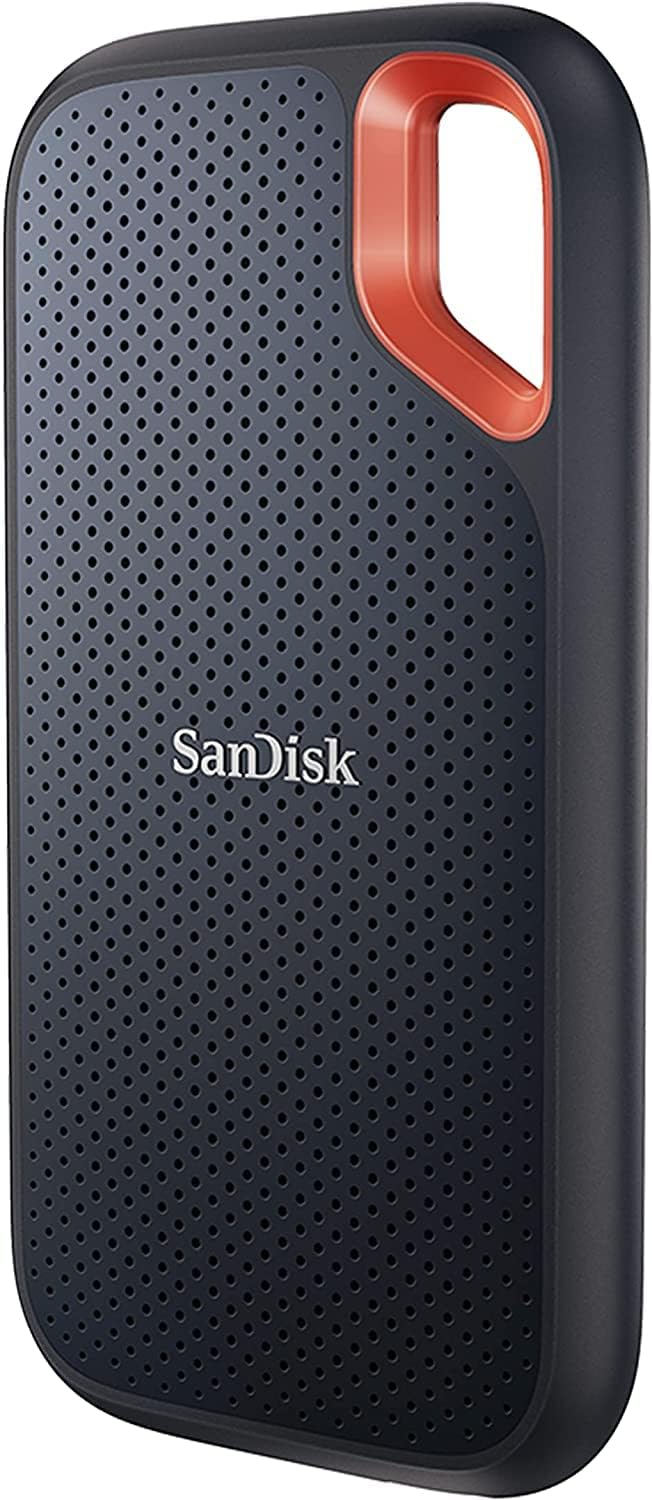
- Delivers up to 1050MB/s sequential read performance for large files.
- Reaches up to 1000MB/s write speeds on compatible hardware.
- USB-C connection works naturally with modern Mac desktop setups.
- IP65 resistance helps protect against water and dust exposure.
- - 256-bit AES hardware encryption adds protection for sensitive files.

- Delivers up to 2000MB/s read speeds for large transfers.
- Reaches up to 1800MB/s write performance on compatible hardware.
- USB-C connectivity works neatly with modern Mac Mini setups.
- Compact solid-state design takes very little desktop or travel space.
- - Fast external storage suits large media and creative project files.

- Delivers up to 1050MB/s read speeds for everyday transfers.
- Portable solid-state design works neatly beside a Mac Mini.
- USB-C connectivity provides simple cable management for modern Macs.
- Compact construction makes the drive convenient for regular travel.
- - Broad device compatibility allows storage use beyond one computer.

- Delivers up to 2000MB/s transfer performance for large files.
- Built-in touchscreen provides direct access to security controls.
- Hardware encryption helps protect confidential files during portable use.
- USB-C connectivity works neatly with modern Mac Mini setups.
- - Compact solid-state design combines portability with fast external storage.

- Delivers up to 1000MB/s speeds for fast file transfers.
- 500GB capacity provides useful space for active Mac projects.
- Compact solid-state construction fits neatly beside a Mac Mini.
- USB-C connectivity provides simple power and data through one cable.
- - Portable design makes moving project files between computers easier.

- 2TB capacity provides substantial room for backups and archives.
- USB-powered operation eliminates the need for separate power adapters.
- Compact portable design takes little space beside Mac Mini.
- Simple plug-in storage works well for everyday file backups.
- - Strong capacity value suits large files stored long term.
Start with the job the external SSD will do
An external SSD for a Mac mini M4 can serve several different roles: a working project drive, extra space for a media collection, a transfer drive shared with another computer, or a backup destination. Choose the role before comparing headline speeds. A drive used for ordinary documents has different priorities from one that holds large active video projects, and neither should be treated as a backup merely because it is outside the computer.
Write down the applications and files you expect to keep on the drive. Check whether those applications support libraries or projects on removable storage, and follow their guidance for moving existing data. Moving a folder in Finder is not always the same as relocating an application-managed library. Keep the original data and a separate verified backup until the new arrangement has been tested and any required migration steps are complete.
Consider the physical routine too. A drive that stays beside the Mac can prioritize a stable cable route and suitable enclosure placement. A drive that travels needs practical protection and a clear eject-and-pack habit. If a household or office shares the computer, use a recognizable drive name and document its purpose. That reduces the chance that someone mistakes the working drive for disposable transfer space or erases the only copy of important files.
Match the port, protocol and cable as one connection
USB-C describes the connector, not a guaranteed data speed. USB, USB4 and Thunderbolt arrangements can use similar-looking connectors while offering different capabilities. Check the technical specifications for your exact Mac mini configuration and the particular port you intend to use. Also check the drive or enclosure’s supported protocol, the included cable and any adapter, hub or dock between them. The connection is only established when the whole chain supports the intended arrangement.
Do not infer a usable transfer rate from the fastest printed number on one component. A drive may advertise an interface mode that is not available through your chosen host path. A cable may support charging without the required data mode. A dock may share bandwidth with displays and other devices. Verify the exact combination rather than assuming all USB-C accessories are interchangeable or that a connector shape proves Thunderbolt support.
Begin evaluation with a direct connection when the manufacturers support it. This removes a hub or dock as a variable while you confirm that the drive mounts and transfers files reliably. If your normal setup uses a dock, test that complete arrangement afterward. For the wider desktop, our USB charger guide explains why charging capability and cable data capability are separate specifications. Keep storage cables identifiable instead of swapping them casually with charging-only leads.

Choose between a finished portable drive and an enclosure
A finished portable SSD combines storage, enclosure and a supported connection in a product sold as a unit. A separate enclosure gives you choices about the internal SSD, but it also adds compatibility and assembly responsibilities. Neither approach is universally faster, more reliable or cheaper. Compare the exact components and warranty terms rather than a broad category label.
For an enclosure, verify the supported internal drive technology, form factor, dimensions and other restrictions in the enclosure manufacturer’s documentation. M.2 describes a physical format family; it does not mean every M.2 drive uses the same storage interface. A housing intended for a specific NVMe arrangement is not automatically compatible with every module that seems to fit. Check the supported length, physical clearance and any single-sided or double-sided restrictions before purchase.
Follow the assembly instructions for fastening, thermal pads and handling. Do not improvise pad thickness or force a module into an incompatible socket. Perform installation only with the equipment disconnected and use the handling precautions specified by the component manufacturers. Our conceptual enclosure illustration shows separate parts for a buying decision; it is not an installation diagram or proof that the pictured generic parts are compatible.
If you prefer a ready-made drive, check what is actually included. A supplied cable, utility or protective accessory can vary by exact model and seller. Read the current listing and manufacturer record together, and preserve those details. An enclosure name or a product family name alone does not establish the exact controller, supported host modes or internal storage configuration being sold.
Allow capacity headroom and choose the format deliberately
Estimate capacity around present files, expected growth and temporary working space. Applications may create caches, previews, exports and other data in addition to the original project. A drive that barely fits today’s collection can become inconvenient as soon as you add the next job. Check usable capacity after formatting instead of assuming the operating system will display the same figure as the packaging. Keep enough headroom for the workload and the manufacturer’s guidance.
Formatting is a separate decision from interface selection. For a Mac-focused SSD, APFS is commonly considered, while exFAT may be relevant for supported file exchange with other operating systems. The right choice depends on your macOS version, the other systems involved and the application or backup requirements. Follow current Apple and software documentation for the intended role; do not select a format simply because the drive arrived that way.
Erasing or repartitioning a drive can destroy existing data. Confirm the exact target device in Disk Utility, copy any needed files elsewhere and verify those copies before making changes. Do not rely on the drive’s name alone if several devices are attached. Check the capacity and device identity, and disconnect unrelated storage when that makes the operation safer.
Consider encryption and recovery at the same time. Use a supported approach and keep recovery information in an appropriate separate secure location. A password stored only on the encrypted drive is not a recovery plan. Test access on the systems that need it before moving the only copy of important information.
Evaluate real workloads without promising universal throughput
An advertised maximum is not a guarantee for every file copy. Real transfers depend on the host connection, cable, enclosure controller, internal SSD, file sizes, available space, thermal conditions and other activity. Copying many small files can behave differently from moving one large file. A short benchmark can also tell a different story from a long working session. Treat those as different observations rather than evidence that one number describes all use.
Test with replaceable files representative of your routine. Copy a typical project or folder, reopen it and verify that the contents are readable. If the drive will hold media projects, test the intended application and workflow, not just Finder copying. Retain the original and a separate backup during evaluation. Avoid filling the drive with important unique data before you have checked basic reliability and the arrangement you expect to keep.
Place the enclosure as instructed, with appropriate clearance and without covering it in a pouch or stacking items over it during operation. Some housings use their external surface to manage heat. Warmth alone is not a precise measure of performance or safety, and unusual heat or instability should be handled according to the manufacturer’s guidance. Do not promise sustained performance from a generated illustration or a listing’s peak result.
If behavior is inconsistent, simplify the connection. Try the supported direct port and known suitable cable, then reintroduce the dock and other devices one at a time. Check firmware or utility guidance only through the manufacturer’s supported route. Persistent disconnects are a reason to resolve the setup before relying on it for active work.

Build a backup plan that is separate from extra storage
An external working drive is not automatically a backup. If you move a project off the Mac and delete its internal copy, the external drive may now hold the only version. A second folder on that same physical drive does not protect against losing the drive itself. Plan an independent backup destination and verify that the chosen backup method includes the external working data, rather than assuming that every attached volume is covered.
For Time Machine or another backup tool, read the current setup and format requirements for your macOS version and the exact destination. Check which source volumes are included, what exclusions apply and whether the destination has sufficient room for the retention you need. Do not assume a completed backup of the Mac’s internal storage also captured a newly attached project drive. Look at the tool’s configuration and perform a small restore test.
Separate ongoing backup from one-time transfer. A copied folder can be useful, but it may not provide version history, scheduled protection or coverage of later changes. Decide how often the data changes and how much recent work you can afford to lose. Keep another suitable copy outside the same immediate failure scenario when the information warrants it, while following your organization’s security and retention requirements.
If your workflow begins with paper records, the document and receipt scanner guide can help organize acquisition before storage. Naming, retrieval and backup matter after the scan. Fast external storage cannot fix a missing naming convention or a backup process that has never been tested.
Make disconnecting, travel and recovery part of daily use
Use the supported eject procedure and wait for completion before disconnecting the drive. Close applications or active transfers as needed. If the system says a volume is in use, investigate rather than repeatedly pulling the cable. Sleep, wake and dock reconnection behavior should be tested with your actual equipment because a setup that works during a single copy may be less convenient throughout an ordinary day.
Route the cable so the Mac or drive cannot be dragged by an accidental snag. Avoid tight connector bends and unsupported dangling enclosures. For travel, disconnect first and pack the drive and cable so their connectors are protected. A padded pouch is a storage accessory, not an assumed enclosure for powered operation. Keep important recovery information accessible through a separate appropriate channel.
Document the drive’s purpose, format, connection and backup arrangement. If the enclosure and SSD are separate purchases, retain both model records and assembly instructions. When a fault appears, those details help distinguish a cable problem from a host, enclosure or storage issue. Stop relying on a drive that repeatedly disconnects or produces read errors until the problem is resolved and your data is protected.

A Mac mini M4 external SSD checklist
Before ordering, confirm the intended role, the exact Mac port, the supported connection protocol and the required cable. For an enclosure, match the internal SSD technology, size and thermal requirements. Budget capacity for growth and temporary files. Check the application requirements, proposed format, current seller, warranty and return conditions without assuming that an advertised peak speed will be reproduced.
After delivery, identify the correct drive before any erase operation, preserve existing data and follow supported setup instructions. Test representative files, the application workflow and your normal dock or direct connection. Confirm eject behavior and backup coverage, then restore a small sample. A dependable storage arrangement combines compatible parts, usable capacity and a tested recovery plan; no universal throughput promise can replace those checks.
Mac mini M4 external SSD FAQs
Does a USB-C connector guarantee the fastest SSD connection?
No. Verify the Mac port, drive or enclosure protocol, cable and any dock or adapter. Similar connectors can support different data capabilities.
Can any M.2 SSD fit an external enclosure?
Do not assume that. Check the enclosure’s supported storage technology, module dimensions, clearance and thermal requirements against the exact internal SSD.
Should I use APFS or exFAT?
Choose around the intended operating systems, applications and backup role. Follow current Apple and software guidance for your macOS version, and protect existing data before any erase or format change.
Will the drive always reach its advertised maximum speed?
No universal throughput should be expected. The host connection, cable, controller, SSD, files, free space, heat and other activity can affect real transfers.
Is an external working SSD already a backup?
Not if it holds the only copy. Use an independent backup destination, confirm that the working volume is included and perform a small restore test.
Can I unplug the SSD as soon as a file copy finishes?
Use the supported eject procedure and wait for completion. Close applications or transfers as needed, and investigate a volume-in-use warning rather than pulling the cable.