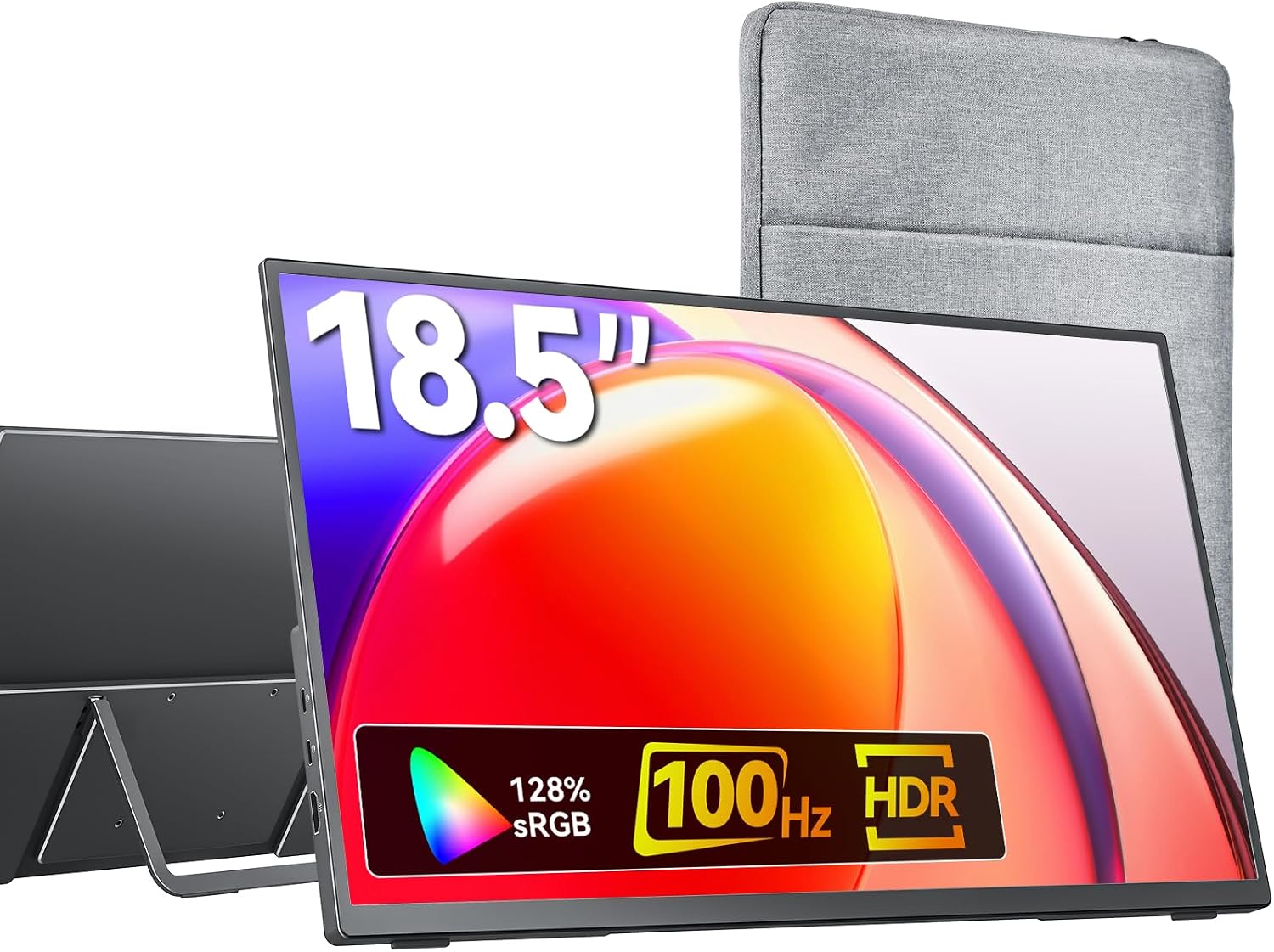
7 Best Portable External Monitor

7 Best Portable External Monitor Article updated:

Quick guide: verify video, power and the complete kit

A USB-C connector does not guarantee video support. Verify the exact source port, monitor input, cable, operating system and external-display limits before choosing a portable screen.

Treat power as a separate requirement. Check the stand, packed accessories, scaling and any touch connection; test your intended extended or mirrored workspace rather than assuming every device supports it.
1
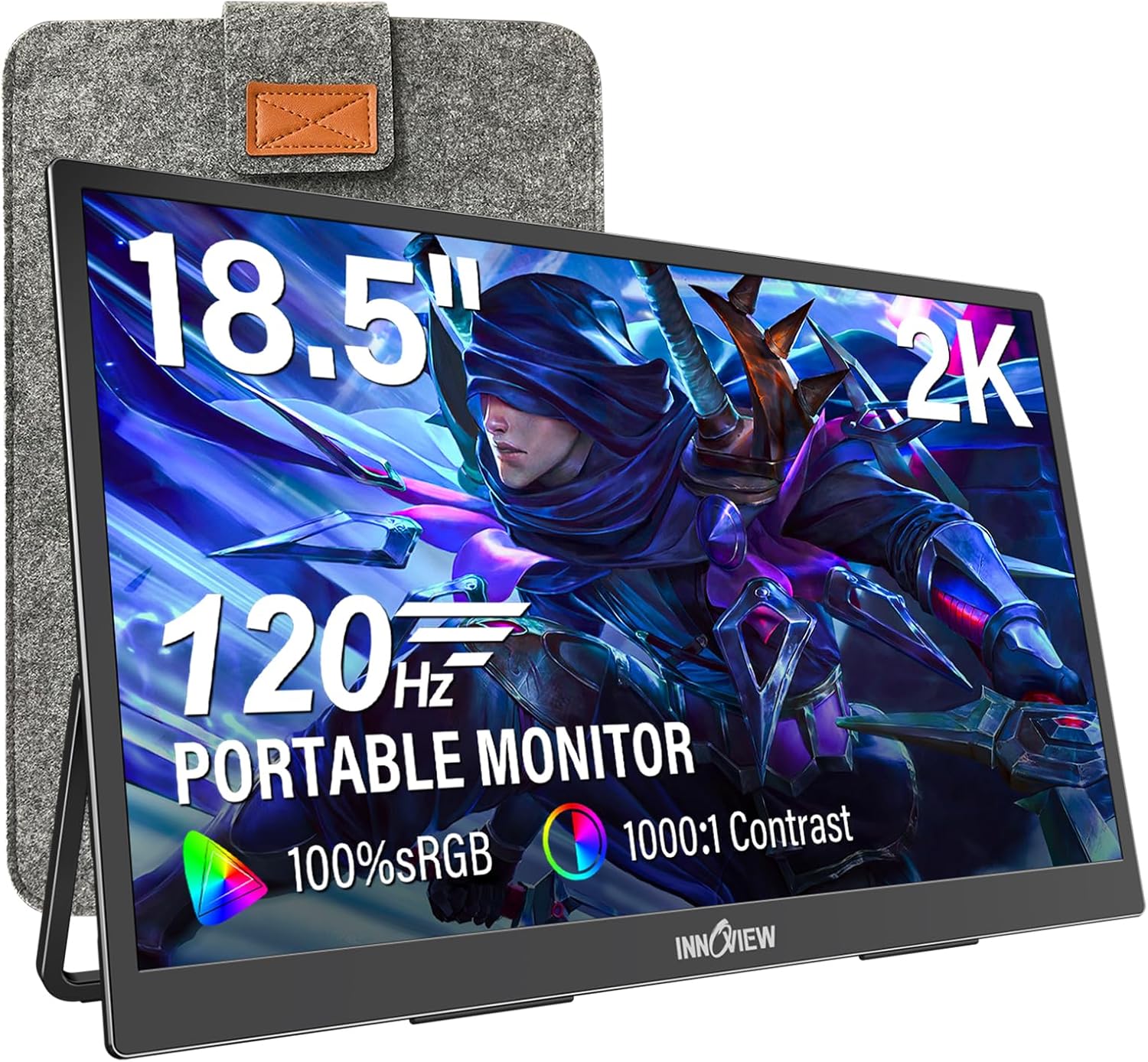
18.5-inch 2K 120Hz Portable Monitor
Brand: InnoView
Features / Highlights
  • 18.5-inch QHD display provides generous portable second-screen workspace.
  • 2560x1440 resolution delivers sharper detail than standard Full HD.
  • 120Hz refresh rate provides smoother gaming and everyday motion.
  • 100% sRGB coverage supports more consistent color-focused creative work.
  • - USB-C and standard HDMI support laptops, PCs, and consoles.
Our Score
9.77
CHECK PRICE

The 18.5-inch 2K panel gives you noticeably more room to actually work

The InnoView portable monitor combines an 18.5-inch display with 2560x1440 QHD resolution, a 120Hz refresh rate and 100% sRGB coverage. When comparing the best portable external monitor options, those specifications stand out because this is substantially more screen than the smaller portable displays commonly paired with laptops.

The larger 18.5-inch panel is particularly useful for productivity. A spreadsheet, reference document or communication window can stay on the second screen while the laptop handles the main application.

That sounds simple, but it changes how a portable workstation feels. Instead of constantly switching between browser tabs and applications, important information can remain visible beside the primary laptop display.

The 2560x1440 resolution is another important advantage. QHD resolution provides considerably more working detail than a basic 1920x1080 portable screen, particularly when displaying text, timelines and applications with dense interfaces.

For photo work, the additional resolution helps when inspecting images and working around editing controls. For office users, smaller text and interface elements can remain sharper when several windows share the available display area.

The 120Hz refresh rate is not just useful for gaming

The monitor supports a refresh rate up to 120Hz, which is double the 60Hz level commonly found on basic portable displays. That allows compatible content and devices to update the image more frequently each second.

Gaming is the obvious use case. A compatible PC or game console can produce smoother movement when frame rates and the connection support higher refresh operation.

But 120Hz is noticeable outside games too. Higher refresh makes scrolling and pointer movement feel smoother, which can make everyday interaction feel more responsive when moving between documents, websites and applications.

The 100% sRGB specification adds another useful dimension. Users working with web graphics, photographs or digital content benefit from a display designed to cover the standard sRGB color space.

That does not automatically turn a portable monitor into a professional reference display. Color-critical work still depends on calibration, panel accuracy and the complete color management workflow, not simply one percentage printed in the specification.

HDR support is included as well. HDR compatibility can provide a different presentation with supported content, although users should keep expectations realistic because portable monitor brightness and contrast capabilities vary considerably from premium desktop HDR displays.

Connectivity is handled through USB-C and standard HDMI. Multiple connection types make device pairing much easier, particularly when the same monitor needs to work with a laptop during the day and a gaming console later.

One common mistake is assuming every USB-C port carries video. The connected laptop or device needs to support video output through its USB-C connection, otherwise HDMI may be required for the display signal.

Why we believe this InnoView deserves our number one position

The InnoView earns our top ranking because it balances portability with specifications that feel closer to a proper desktop monitor. The 18.5-inch size provides meaningful working space instead of merely duplicating a small laptop display.

The 2560x1440 resolution is a major reason for that. More pixels provide a better productivity workspace, especially for users working with spreadsheets, editing software, browser research or multiple documents.

The 120Hz refresh rate gives the monitor another advantage over ordinary productivity-only portable displays. Gamers benefit directly, but even desktop movement and scrolling can feel smoother on a higher refresh panel.

Its 100% sRGB specification also makes the monitor more interesting for photographers, designers and content creators. Portable screens are often purchased only as secondary office displays, but better color coverage broadens the range of work they can reasonably handle.

USB-C and HDMI connectivity make the monitor flexible across different devices. A laptop, desktop PC or compatible game console can use the display without forcing the owner into one connection standard.

The main compromise is size. An 18.5-inch portable monitor provides more screen area, but it also takes up more bag space than a 14-inch or 15.6-inch model.

That means buyers should think carefully about what portable actually means for them. Someone flying every week with only a small backpack may value minimum dimensions more than maximum screen space.

For users travelling between offices, hotels, client locations or temporary workspaces with a larger laptop bag, the extra display area can easily justify the additional size. It provides a much closer approximation of a normal dual-monitor desk setup.

That is why we believe the InnoView 18.5-inch 2K 120Hz Portable Monitor deserves the number one position in our Best Portable External Monitor ranking. Its 18.5-inch QHD panel and 120Hz refresh rate, combined with 100% sRGB coverage, HDR support, USB-C connectivity and standard HDMI, give it a strong balance of productivity space, image detail, gaming performance and device flexibility for users who want a portable second screen without accepting the limitations of a small basic display.


2
18.5-inch Mountable Portable Monitor with Kickstand
Brand: Kksmart
Features / Highlights
  • Large 18.5-inch screen provides generous portable multitasking workspace.
  • Built-in kickstand allows quick positioning without separate monitor accessories.
  • VESA mount compatibility supports more permanent desktop monitor installations.
  • USB-C connectivity simplifies laptop video and power cable management.
  • - Slim portable construction works for travel and temporary workstations.
Our Score
9.56
CHECK PRICE

The built-in stand is the feature you appreciate every time you set it up

The Kksmart portable monitor combines a large 18.5-inch display with an integrated kickstand and mounting support, giving users more flexibility than a portable screen that depends entirely on a folding cover for positioning. When comparing the best portable external monitor options, that matters because a second display needs to be quick to set up on a hotel desk, office table or permanent workstation without carrying another stand.

The 18.5-inch size is generous for a portable monitor. It provides enough physical screen area to keep a substantial application open rather than feeling like a small accessory attached to the side of a laptop.

For office work, that can mean keeping email or reference material on the external screen while a spreadsheet occupies the laptop. A programmer could keep documentation on one display and the development environment on the other.

The larger panel also helps with creative applications. More screen area makes multitasking considerably more comfortable, particularly when tool panels and timelines would otherwise compete for space on a single laptop display.

There is a portability tradeoff, of course. An 18.5-inch monitor requires more bag space than a compact 14-inch model, so this is better suited to users who value working area over the smallest possible travel footprint.

The kickstand and VESA support give you two very different ways to use it

The built-in kickstand is useful for temporary workspaces because the monitor can stand on its own without a separate support accessory. Open the stand, position the screen beside the laptop and the physical setup is mostly complete.

That becomes particularly useful for frequent travel. Small accessories are easy to forget, and a monitor that already includes its own support removes one item from the packing list.

The mountable design creates a different use case. VESA mounting can turn portable hardware into permanent workspace equipment, allowing the same display to sit on an appropriate monitor arm or stand when it is being used at home.

That makes the monitor interesting for hybrid workers. During the week it can function as part of a normal desk setup, then come off the mount when an external display is needed somewhere else.

USB-C connectivity can simplify the cable arrangement with compatible laptops. Depending on the capabilities of the connected device and monitor, USB-C can carry the display signal and potentially reduce the number of separate connections needed around the workstation.

Users should check their laptop before assuming that any USB-C port will output video. USB-C describes the connector itself, while video support depends on the actual capabilities implemented by the computer.

If video over USB-C is unavailable, another supported video connection may be required. Checking laptop video output before travel prevents setup problems, which is much better than discovering an incompatible connection after reaching a hotel or client office.

Power requirements matter too. A laptop may not always provide the ideal combination of display signal and power through one connection, so users should understand the monitor's power arrangement before building a one-cable travel setup around it.

Why the Kksmart takes our number two position

The Kksmart earns a high position because the 18.5-inch format provides enough space to function as a meaningful second monitor. This is especially valuable for productivity users who find smaller portable displays too cramped for full application windows.

The integrated kickstand strengthens the travel experience. A built-in stand makes temporary setups much easier, because the monitor does not depend on another accessory just to remain upright at a usable viewing angle.

VESA compatibility is another strong point. Portable monitors are usually treated as temporary displays, but mounting support makes this one more useful for somebody who wants the same screen to serve both mobile and permanent desktop roles.

The reason we place it at number two rather than number one is that our top ranked InnoView provides a particularly strong display specification. That model combines an 18.5-inch panel with 2560x1440 QHD resolution, a 120Hz refresh rate and 100% sRGB coverage.

Those specifications give the InnoView an advantage for users who care about image detail, smoother gaming and color-focused creative work. The Kksmart's appeal is more heavily centered around practical positioning and flexible installation.

The larger physical size can also be a disadvantage for frequent flyers. Someone who works from a very small backpack may find an 18.5-inch portable display more difficult to carry than smaller alternatives.

For car travel, moving between offices or working from hotels with a larger laptop bag, that concern becomes less significant. The extra display area can be worth carrying when several hours of real work need to happen after arrival.

That is why we believe the Kksmart 18.5-inch Mountable Portable Monitor deserves the number two position in our Best Portable External Monitor ranking. It falls just behind our first choice in high-end display specifications and refresh performance, but its large 18.5-inch workspace, built-in kickstand, VESA mounting support, USB-C connectivity and portable construction make it a strong positive option for users who want a second screen that can move between a permanent desk and a temporary travel workstation without becoming awkward to set up.


3
Z1RC 16-inch 2.5K Portable Monitor
Brand: ARZOPA
Features / Highlights
  • 2560x1600 resolution delivers sharp detail across the 16-inch display.
  • 16:10 aspect ratio provides extra vertical room for productivity.
  • Built-in kickstand allows quick setup without separate monitor stands.
  • USB-C connectivity simplifies pairing with compatible laptops and devices.
  • - Compact 16-inch format balances useful workspace with travel portability.
Our Score
9.44
CHECK PRICE

The 16:10 2.5K screen is a very practical size for getting actual work done

The ARZOPA Z1RC combines a 16-inch portable display with a 2560x1600 resolution and a taller 16:10 aspect ratio, giving it a strong productivity focus without moving into the larger 18.5-inch format of our first two choices. When comparing the best portable external monitor options, that balance matters because a travel display needs enough working space to be useful without becoming awkward to carry beside a laptop.

The 2560x1600 resolution provides considerably more image detail than a standard 1920x1080 portable monitor. Text can appear sharper, photographs contain more visible detail and application interfaces have more pixels available for their controls and working areas.

The 16:10 aspect ratio is particularly useful for productivity. Compared with a typical 16:9 screen, the extra vertical space provides more room for documents, websites, code and spreadsheets.

That becomes noticeable during a long working session. Extra vertical screen space reduces unnecessary scrolling, especially when reading documents or working with applications that arrange controls above and below the main content area.

A programmer could keep documentation or a terminal on the ARZOPA while using the laptop for the main development environment. A writer could leave research material visible on the external display rather than switching browser windows every few minutes.

The built-in kickstand makes temporary desks much easier to deal with

The integrated kickstand is one of the most useful physical features on a portable monitor. It allows the screen to support itself without relying on a separate desktop stand or a folding cover that needs to be positioned in exactly the right way.

That matters when the monitor travels frequently. A hotel desk, meeting room or temporary workspace may not provide much room, so setup needs to be quick and predictable.

Open the kickstand, connect the monitor and position it beside the laptop. A built-in stand keeps travel setups relatively simple, which is exactly what portable hardware should accomplish.

USB-C connectivity can reduce cable clutter with compatible laptops. When the connected computer supports the necessary video output over USB-C, one compact connection can make the physical setup much cleaner.

Users need to check their laptop specifications before assuming that every USB-C port supports display output. The connector may look identical while the capabilities behind it differ considerably between computers.

This is a common portable monitor mistake. Someone packs only a USB-C cable, arrives at a destination and discovers that the particular port being used does not provide the expected video signal.

Testing the complete setup before travelling avoids that problem. Verify the exact cable and port combination beforehand, including whether additional power is required for the brightness level and operating mode you intend to use.

The 16-inch size also helps here. It is large enough to provide a useful second workspace while remaining easier to carry than an 18.5-inch portable monitor.

Why the ARZOPA Z1RC takes our number three position

The Z1RC earns a high ranking because its 2560x1600 panel gives productivity users a meaningful upgrade over ordinary Full HD portable screens. The 16:10 aspect ratio makes especially good use of that resolution for office and creative applications.

The built-in kickstand adds practical value. High resolution and easy positioning work well together, because a sharp display is much more useful when it can be set up quickly at an appropriate viewing angle.

The 16-inch format is another reason we like this model. It provides more screen area than very compact travel monitors without demanding as much bag space as the larger 18.5-inch products above it.

The reason we place the ARZOPA at number three is that our top ranked InnoView provides an 18.5-inch 2560x1440 QHD display with a 120Hz refresh rate and 100% sRGB coverage. That gives it a stronger combination of screen size, smooth motion and color-oriented specifications.

Our number two Kksmart also provides a large 18.5-inch display while adding an integrated kickstand and VESA mounting capability. That makes it particularly flexible for users who want the same monitor to move between portable and permanent desk installations.

The ARZOPA gives up some physical screen size in exchange for easier portability. Depending on the user, that can actually be the better compromise, especially when the monitor travels through airports or needs to fit beside a 15-inch or 16-inch laptop in the same bag.

Its 16:10 aspect ratio is also genuinely useful for work. The taller layout suits documents, spreadsheets, web pages and coding better than simply stretching the screen wider.

Users should still think about viewing scale at 2560x1600. On a 16-inch panel, some interface elements may appear small at native scaling, so operating system display scaling can make text and controls more comfortable.

That is why we believe the ARZOPA Z1RC deserves the number three position in our Best Portable External Monitor ranking. It falls behind our first two choices in overall screen size and broader desktop flexibility, but its sharp 2560x1600 resolution, productive 16:10 aspect ratio, built-in kickstand, USB-C connectivity and more manageable 16-inch footprint make it a strong positive choice for users who want a high-resolution second screen that remains practical to carry between work locations.


4
Z1FC 16.1-inch 144Hz Portable Gaming Monitor
Brand: ARZOPA
Features / Highlights
  • 144Hz refresh rate delivers noticeably smoother gaming and screen motion.
  • 16.1-inch Full HD display provides useful portable viewing space.
  • Built-in kickstand enables quick setup without separate monitor accessories.
  • USB-C connectivity supports convenient laptop and compatible device connections.
  • - Portable design works with computers and compatible gaming systems.
Our Score
9.16
CHECK PRICE

The 144Hz refresh rate gives this one a very different reason to buy it

The ARZOPA Z1FC is a 16.1-inch portable monitor built around a Full HD display and a refresh rate reaching 144Hz. When comparing the best portable external monitor options, that refresh rate immediately separates it from ordinary travel displays because it is useful for gaming as well as everyday laptop productivity.

A 144Hz display can refresh the image up to 144 times per second when the connected hardware, content and connection support that operating mode. Compared with a conventional 60Hz screen, motion can appear considerably smoother.

Gaming is where that difference is easiest to notice. Fast camera movement, racing games and competitive titles can benefit from the increased refresh rate when the source device can deliver sufficiently high frame rates.

It is not exclusively a gaming feature, though. Higher refresh makes everyday movement feel smoother, including scrolling through websites, moving windows and navigating around a desktop environment.

The 16.1-inch screen size also provides a useful balance. It is substantially larger than very compact travel monitors but still easier to transport than the 18.5-inch models sitting higher in our ranking.

The built-in kickstand is exactly what a travel monitor needs

The integrated kickstand removes the need to carry a separate monitor stand just to position the display beside a laptop. That sounds like a small detail until the monitor is being set up and packed away several times each week.

A hotel desk is a good example. Open the kickstand, position the screen beside the laptop and connect the appropriate cables without needing to build a temporary stand from another accessory.

The kickstand also lets the viewing angle be adjusted for different work surfaces. Quick positioning makes temporary workspaces much easier to manage, especially when desk depth and chair height vary from one location to another.

USB-C connectivity helps reduce the complexity with compatible laptops and devices. A supported USB-C video connection can make the setup much cleaner than carrying several large display adapters.

Users should still check their laptop specifications carefully. Not every USB-C connector provides video output, even though the ports may look physically identical.

Power can be another consideration. Depending on the source device and connection arrangement, the monitor may require additional power to operate reliably at the desired brightness and performance settings.

This becomes important for gaming. Test 144Hz operation with your actual hardware first, because refresh rate availability can depend on resolution, cable capability, source device and the selected connection.

A portable monitor should be tested before an important trip anyway. Discovering that a laptop needs a different cable after arriving at a client office or hotel is an avoidable problem.

Why the ARZOPA Z1FC takes our number four position

The Z1FC earns a strong place in this ranking because 144Hz gives it a clear purpose beyond ordinary office multitasking. It can function as a second laptop screen during work hours and then become a smoother gaming display when connected to compatible hardware.

The 16.1-inch size is another advantage for travel. The screen balances workspace with manageable portability, which matters for users who regularly carry the monitor in the same bag as a laptop.

The built-in kickstand improves that portability further. There is no separate stand to remember, and the monitor can move from packed to usable quickly.

The reason we place the Z1FC at number four is resolution and overall productivity balance compared with our top three choices. Our number one InnoView provides an 18.5-inch 2560x1440 QHD panel with a 120Hz refresh rate and 100% sRGB coverage.

The Kksmart at number two provides a larger 18.5-inch workspace along with a built-in kickstand and VESA mounting support. That gives it more flexibility for users who want the monitor to serve both portable and permanent desktop roles.

The ARZOPA Z1RC at number three uses a 2560x1600 panel with a 16:10 aspect ratio. That higher resolution and taller workspace give it an advantage for documents, spreadsheets, coding and other productivity tasks where image detail matters more than very high refresh rates.

The Z1FC instead prioritizes smooth motion. Its Full HD resolution is less demanding for gaming and perfectly workable at 16.1 inches, but users focused on sharp text and maximum desktop workspace may prefer the higher resolution models above it.

For gamers, that tradeoff can make sense. A 144Hz Full HD portable screen is easier for many computers to drive at high frame rates than a higher resolution panel running demanding games.

That is why we believe the ARZOPA Z1FC deserves the number four position in our Best Portable External Monitor ranking. It falls behind our higher ranked choices in resolution and overall productivity screen space, but its 144Hz refresh rate, practical 16.1-inch Full HD panel, built-in kickstand, USB-C connectivity and travel-friendly dimensions make it a positive choice for users who want one portable second screen that can handle regular laptop work and smoother gaming without requiring a large permanent monitor.


5
ZenScreen MB169CK 15.6-inch Full HD Portable Monitor
Brand: ASUS
Features / Highlights
  • 15.6-inch Full HD IPS panel provides clear portable workspace.
  • USB-C connection supports convenient display connectivity with compatible laptops.
  • Mini HDMI expands compatibility with computers and other devices.
  • Lightweight slim construction makes regular travel considerably more practical.
  • - Kickstand design supports flexible landscape and portrait viewing positions.
Our Score
8.73
CHECK PRICE

The 15.6-inch size is easier to carry when portability actually matters

The ASUS ZenScreen MB169CK is a 15.6-inch portable monitor built around a Full HD 1920x1080 IPS panel, with USB-C and Mini HDMI connectivity for use as an external laptop display. When comparing the best portable external monitor options, its biggest advantage is not having the largest specification sheet, but providing a more manageable screen size for users who genuinely carry their second monitor from place to place.

A 15.6-inch display pairs naturally with many full-size laptops. It gives the user another complete screen for email, browser research, documents or communication software without requiring the bag space of an 18.5-inch portable monitor.

That difference becomes important for frequent travel. A larger screen is useful once it reaches the desk, but the monitor still has to fit inside a laptop bag and move through airports, offices or client locations.

The Full HD resolution is sensible at this size. 1920x1080 provides a practical everyday working resolution, particularly for office software, web browsing, video calls and general second-screen use.

The IPS panel is another useful specification. IPS technology is commonly chosen for its viewing angle characteristics, which matter on a portable monitor because the external screen may not always sit perfectly centered in front of the user.

USB-C and Mini HDMI make the ZenScreen easier to use with different hardware

The MB169CK provides USB-C connectivity for compatible laptops and other devices. This can make a portable workstation much cleaner when the computer supports the required display output through its USB-C connection.

Mini HDMI adds another connection option. That is useful when the source device does not provide compatible USB-C video output or when a more traditional HDMI-based connection is preferred.

Having both options matters during travel. Multiple video inputs reduce connection compatibility problems, particularly when the monitor is used with more than one computer rather than permanently paired with a single laptop.

Users should still check their USB-C ports before travelling. USB-C describes the connector shape, but not every USB-C port supports video output, so an apparently compatible laptop can still require the HDMI route.

Power requirements need checking too. Portable monitors can behave differently depending on the power available from the connected device, brightness setting and cable arrangement.

The integrated stand system is another practical feature. The monitor can be positioned for normal landscape work, while portrait orientation can be useful for long documents, coding or reference material.

Portrait mode can make a surprisingly useful secondary display. A vertical screen works well for long documents, leaving the laptop's main display available for the application where the actual editing or production work happens.

Whatever orientation is used, the screen should be positioned at a comfortable viewing height and angle. Portable does not mean ergonomics stop mattering once the monitor is placed on a temporary hotel desk.

Why the ZenScreen MB169CK takes our number five position

The ASUS earns its place because it delivers the core portable monitor experience in a practical 15.6-inch format. Full HD resolution, an IPS panel and two useful connection types cover the requirements of a straightforward travel workstation.

Its more compact dimensions are particularly relevant for regular travelers. The smaller format is genuinely easier to transport, which can matter more than having the largest possible second screen when everything needs to fit into one bag.

The ASUS name may also appeal to users who prefer established monitor manufacturers. That does not automatically make one display better than another, but product support, documentation and familiarity can be meaningful considerations for business equipment.

The reason we place the MB169CK at number five is that the four models above it provide stronger specifications in particular areas. Our number one InnoView offers an 18.5-inch 2560x1440 QHD panel, 120Hz refresh rate and 100% sRGB coverage.

The Kksmart at number two provides a larger 18.5-inch workspace with a kickstand and VESA mounting support. That makes it better suited to users who want one monitor to move between travel and a more permanent desktop installation.

The ARZOPA Z1RC at number three uses a sharper 2560x1600 16:10 panel, giving productivity users more resolution and vertical workspace. The Z1FC at number four offers a 144Hz refresh rate, making it more attractive for gaming and users who value smoother motion.

The ASUS is more conventional by comparison. Its 1920x1080 resolution and productivity-oriented design do not provide the same high-resolution or high-refresh advantages as those models.

But conventional can work well for travel. Full HD is easier to drive, the 15.6-inch screen is easier to carry, and USB-C plus Mini HDMI provide sensible connectivity for a second display.

That is why we believe the ASUS ZenScreen MB169CK deserves the number five position in our Best Portable External Monitor ranking. It falls behind our higher ranked choices in resolution, refresh rate and overall screen size, but its 15.6-inch Full HD IPS panel, USB-C and Mini HDMI connectivity, flexible positioning and travel-friendly dimensions make it a positive choice for business users and frequent travelers who prioritize portability over having the biggest or fastest external screen.


6
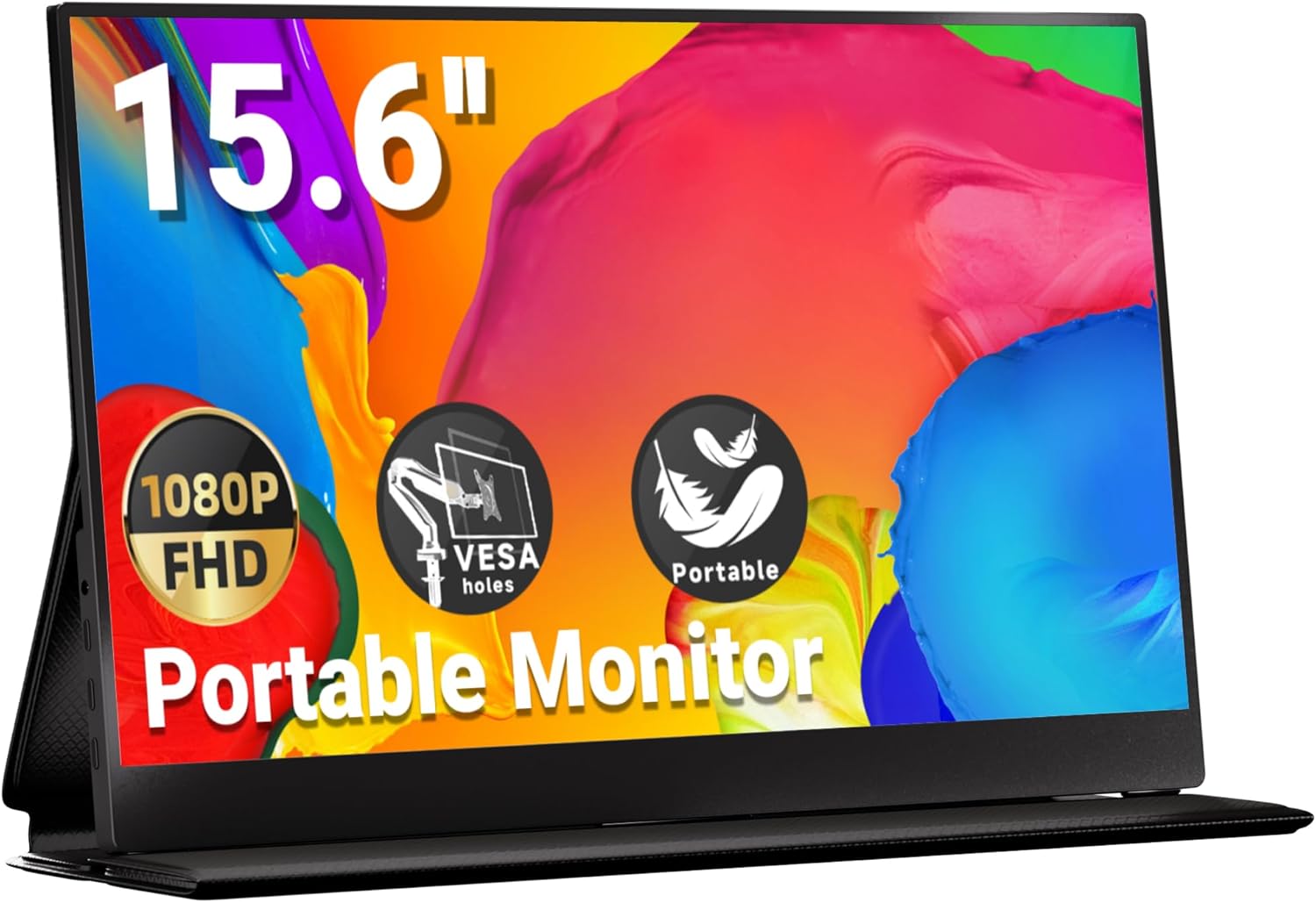
15.6-inch Portable Monitor with Kickstand
Brand: Cocopar
Features / Highlights
  • 15.6-inch display provides useful workspace without excessive travel bulk.
  • Built-in kickstand allows quick positioning on temporary work desks.
  • VESA mount compatibility supports more permanent home office installations.
  • USB-C connectivity provides convenient pairing with compatible modern laptops.
  • - Slim portable construction fits more easily alongside laptop equipment.
Our Score
8.42
CHECK PRICE

The 15.6-inch format gets the portability part right

The Cocopar portable monitor takes a practical approach to external laptop displays, combining a travel-friendly 15.6-inch screen with an integrated kickstand and mounting capability. When comparing the best portable external monitor options, that size matters because a second screen should provide enough room for real work without turning the laptop bag into something awkward to carry.

A 15.6-inch panel pairs naturally with many mainstream laptops. The two screens can sit side by side without one looking dramatically smaller than the other, which creates a more comfortable temporary dual-monitor setup.

For office work, the second screen can hold email, messaging or browser research. The laptop display remains free for spreadsheets, documents or whichever application actually requires the user's attention.

That sounds like a fairly basic benefit, but it changes laptop productivity considerably. A second screen reduces constant window switching, especially when information from one application needs to be referenced while working inside another.

The smaller physical footprint also helps when desk space is limited. Hotel desks, shared workspaces and temporary meeting rooms do not always provide enough room for an oversized external display.

The kickstand and mounting support make it useful beyond travel

The integrated kickstand is one of the most practical features on this Cocopar. A portable monitor needs to be positioned quickly, and carrying a separate stand partly defeats the purpose of keeping the travel setup simple.

The kickstand allows the display to support itself directly on the desk. That means fewer loose accessories to pack and less setup time when moving between different work locations.

Mounting support gives the monitor another role when it is back at home. VESA compatibility adds permanent desktop flexibility, allowing the display to work with an appropriate monitor arm or stand instead of always sitting directly on its kickstand.

This is useful for hybrid workers. The monitor can remain mounted as part of a normal home office during the week, then be removed when an external display is needed for a trip.

USB-C connectivity helps keep compatible laptop setups relatively clean. A supported USB-C connection can handle video without requiring the large connectors associated with some traditional display standards.

There is an important compatibility detail here. Not every USB-C port supports video output, even when the connector looks exactly the same as one that does.

Users should therefore test the monitor with the exact laptop, cable and port they intend to use before travelling. Checking connectivity beforehand prevents avoidable travel problems, particularly when the monitor is required for a presentation or remote work session.

Power requirements should also be considered. Some portable monitor setups work neatly from the connected device, while others may benefit from additional power depending on the source hardware and operating settings.

Why the Cocopar takes our number six position

The Cocopar earns its place because it covers the practical fundamentals of a portable second monitor without becoming unnecessarily large. The 15.6-inch format provides useful working space while remaining reasonably suited to travel.

The integrated kickstand is another strong point. Fast setup matters with genuinely portable equipment, because a monitor that requires several separate accessories becomes increasingly inconvenient when it is packed and unpacked regularly.

VESA mounting support also gives the monitor more flexibility than a travel-only design. Someone can use it as part of a fixed workstation rather than leaving it packed away whenever they are working from home.

The reason we place this Cocopar at number six is that the five monitors above it offer stronger specifications or more distinctive features. Our number one InnoView provides an 18.5-inch 2560x1440 QHD display with a 120Hz refresh rate and 100% sRGB coverage.

The Kksmart at number two also provides an 18.5-inch workspace with mounting flexibility. That larger screen can be more comfortable for users who prioritize desktop productivity over minimum travel size.

The ARZOPA Z1RC at number three provides a 2560x1600 16:10 panel, giving it an advantage for sharp text and vertical productivity space. The Z1FC at number four targets smoother gaming with its 144Hz refresh rate.

The ASUS ZenScreen above this Cocopar provides another compact 15.6-inch approach with Full HD IPS imaging, USB-C and Mini HDMI connectivity. That gives it a strong straightforward business travel profile.

The Cocopar is therefore more about physical versatility than leading display specifications. Its kickstand, portable dimensions and mounting capability are the features that make the most sense for its position in this ranking.

That is why we believe the Cocopar 15.6-inch Portable Monitor deserves the number six position in our Best Portable External Monitor ranking. It falls behind our higher ranked choices in resolution, refresh performance and overall screen size, but its travel-friendly 15.6-inch format, built-in kickstand, VESA mounting support, USB-C connectivity and straightforward second-screen functionality make it a positive option for laptop users who want an external display that can move between temporary workspaces and a more permanent home desk without requiring a complicated setup.


7
15.6-inch Portable External Monitor with Speakers
Brand: Ingnok
Features / Highlights
  • 15.6-inch screen provides practical space for portable multitasking.
  • Built-in speakers add convenient audio without separate travel equipment.
  • USB-C connectivity supports streamlined connections with compatible modern laptops.
  • Portable construction fits easily into laptop-based mobile work setups.
  • - External display design supports laptops, computers, and compatible devices.
Our Score
8.16
CHECK PRICE

The built-in speakers are more useful when you are travelling than they sound

The Ingnok portable monitor combines a 15.6-inch external display with built-in speakers in a format intended for laptop work, travel and general second-screen use. When comparing the best portable external monitor options, the integrated audio is worth considering because it removes another separate device from a temporary workstation when basic sound is all that is required.

A 15.6-inch screen is also a practical travel size. It provides enough physical room for a full application window while remaining considerably easier to pack than an 18.5-inch portable monitor.

For office work, that extra screen can hold email, research or communication software. The laptop remains available for the spreadsheet, document or main application where the actual work is happening.

This arrangement becomes especially useful when information needs to remain visible for a long time. A second display reduces repetitive window switching, which is one of the main productivity reasons for carrying a portable monitor in the first place.

The screen can also serve as a presentation display in smaller environments. Instead of turning the laptop around every time somebody else needs to see the content, the external monitor can be positioned separately.

Built-in audio keeps a temporary setup a little less complicated

The integrated speakers provide audio directly from the monitor when the connected device and input configuration support it. They are not intended to replace a dedicated speaker system, but that is not really the point on a portable display.

For hotel work, training videos or casual entertainment, having speakers already inside the monitor means one fewer accessory to carry. A user can connect the display and get basic video and audio without building a larger desktop setup.

That can also be useful with compatible gaming hardware. Integrated speakers make temporary entertainment setups more convenient, particularly when headphones are not required and external speakers would be excessive.

USB-C connectivity helps with modern laptops and other compatible devices. A suitable USB-C connection can simplify the display arrangement compared with carrying several large adapters.

There is an important limitation to remember. Not every USB-C port supports video output, so users should confirm the capabilities of the laptop rather than assuming the connector automatically means external display support.

Cable quality matters as well. A USB-C cable intended primarily for charging may not necessarily provide the video capabilities required for the monitor setup.

Test the complete arrangement before travelling. Use the exact cables you plan to pack, because a successful setup at home is the easiest way to avoid connection problems after reaching a hotel, office or client site.

Power requirements should also be checked. Depending on the connected hardware and operating conditions, additional power may be useful for maintaining the desired brightness and stable performance.

Why the Ingnok finishes our list at number seven

The Ingnok earns its place because it provides the basic portable monitor experience in a manageable 15.6-inch format. It gives laptop users a second workspace without demanding the physical space of a full desktop monitor.

The built-in speakers add some useful versatility. Integrated audio reduces the number of travel accessories, especially for users who watch training material, presentations or entertainment while away from their normal desk.

The portable size is another positive. A 15.6-inch screen can fit more naturally alongside a standard laptop than the larger 18.5-inch displays higher in this ranking.

The reason we place the Ingnok at number seven is that the six products above it provide more distinctive display or installation advantages. Our number one InnoView combines an 18.5-inch 2560x1440 QHD panel with a 120Hz refresh rate and 100% sRGB coverage.

The Kksmart at number two provides a larger 18.5-inch workspace along with a built-in kickstand and mounting capability. That makes it more adaptable between travel and permanent desk use.

The ARZOPA Z1RC provides a sharp 2560x1600 16:10 screen for productivity, while the Z1FC focuses on smoother motion with a 144Hz refresh rate. Those are substantial differentiators for users who prioritize either resolution or gaming performance.

The ASUS ZenScreen and Cocopar models above the Ingnok also provide strong compact travel setups with practical connectivity and positioning options. They make particularly good sense for users who frequently move between temporary workspaces.

The Ingnok is more straightforward. Its strongest case is not extreme resolution or high refresh gaming, but providing a portable second screen with integrated audio in a convenient size.

That is why we believe the Ingnok 15.6-inch Portable External Monitor deserves the number seven position in our Best Portable External Monitor ranking. It falls behind our higher ranked choices in display specifications and specialized productivity features, but its portable 15.6-inch format, built-in speakers, USB-C connectivity and straightforward second-screen functionality make it a positive final option for laptop users who want a simple external display for travel, office multitasking and everyday mobile work.

Define the second-screen job before choosing a monitor

A portable external monitor is useful when it solves a specific workspace problem. You might want a document beside a spreadsheet, reference material beside a writing window or meeting controls separate from your main application. Write down that job before comparing panel specifications. A second screen adds cables, a stand and another item to carry. If the main task already fits comfortably on the laptop, portability alone is not a reason to add equipment.

Identify the exact laptop, tablet, phone or other source you intend to connect. Record its model, operating system, available ports and any dock already in use. A connector’s shape does not tell you everything about its capabilities. Two USB-C ports can support different functions, and a portable monitor’s USB-C socket does not make every device a compatible video source. Check the source-device documentation and the monitor manual together before ordering.

Think about where the display will sit. Measure the clear desk area with the laptop open and the keyboard reachable. A small café table, hotel desk and permanent home workspace impose different constraints. The ultrawide OLED monitor guide discusses a different desktop format if your real priority is a larger fixed work area. Do not treat a portable panel as a guaranteed replacement for a full-sized workstation display.

Separate the video path from the power path

The first connection question is how the picture reaches the monitor. A supported USB-C video connection may use DisplayPort Alt Mode or another documented arrangement, but it requires a compatible source port, monitor input and cable. A charging-only USB-C port or cable does not establish video support. Check the exact ports you intend to use, including whether a dock or adapter changes the available output. Do not buy solely from a product title saying USB-C.

HDMI is another possible video path when both devices support the necessary connection. Some portable displays use smaller HDMI-family connectors, so verify the actual socket and the required cable ends. An adapter has its own supported direction, resolution and other limitations. Avoid assuming any USB-C-to-HDMI accessory works in reverse. Build a short connection list that names the source output, any intermediate device, the cable and the monitor input.

Power is a separate question even when one cable can provide both functions in an approved setup. The source port may not supply the monitor’s required power under your intended settings, and an HDMI video connection commonly needs a separate supported power arrangement. Consult the monitor’s specified input and power instructions. Check whether an adapter is included, which socket is for power and whether pass-through charging is supported. The USB charger guide helps frame a separate charger decision; it does not prove any listed charger supports your display.

Laptop and portable display with blank screens beside two loose cables and a power adapter
Conceptual editorial illustration; not a photograph or test of a ranked product.

Check operating-system and external-display limits

Confirm the source device’s external-display limits before focusing on the panel. The number of supported displays can depend on the exact computer model, processor, port arrangement, operating system and dock. A laptop already connected to a desktop monitor may not accept another independent screen through the configuration you have. Adding more sockets through a hub does not automatically increase the number of distinct displays the computer supports.

Also distinguish mirroring from extending the workspace. Mirroring shows the same content on more than one screen, while extending provides separate areas for windows. The options available on a phone or tablet may differ from those on a computer and can depend on the device and application. Verify the mode required for your task. A monitor showing an image is not sufficient evidence that your intended multitasking arrangement is supported.

Some display arrangements require software or drivers rather than a native video connection. Check operating-system support, installation permissions and any workplace restrictions before choosing that path. A managed office laptop may not permit the required software. Do not assume a driver-based connection has the same behavior as a native output for every application. If you work with protected media, specialized software or remote desktops, test the exact workflow during the seller’s current return period rather than promising universal support.

Choose usable text size and practical screen characteristics

Screen size and resolution need to be considered together. More pixels do not automatically mean more comfortable text at a small physical size. Check the operating system’s scaling choices and the applications you use most. A portable panel should let you read reference material without leaning forward or enlarging every document individually. If possible, compare familiar text, interface controls and a spreadsheet rather than judging only a colourful promotional image.

Brightness, reflections and viewing angle matter in the places you actually work. A display that looks suitable indoors may feel different near a bright window. Position the screen to reduce reflections before assuming you need a particular advertised brightness figure. Treat listing specifications as information to verify for the exact model, not as independent test results. A glossy or matte description alone does not predict the experience in every room.

For colour-sensitive work, check the documented colour-related capabilities and your calibration workflow. Do not infer professional colour accuracy from a wide-gamut label or attractive image. Likewise, an HDR claim does not by itself establish a specific viewing result. For general office work, prioritize legible text, stable settings and the display modes your source can deliver. If fast-moving content matters, verify the supported resolution and refresh-rate combination through the actual connection, not just the panel’s headline specification.

Treat the stand as part of the monitor

Portable displays often rely on a folding cover, built-in kickstand or separate support. Verify how the exact model is meant to stand and which angles are available. The screen should remain stable while you use the laptop or lightly adjust a cable. A thin panel leaning against an improvised object is not a dependable workspace. Read the support instructions and assess the footprint of the stand as well as the screen.

Check whether the lower edge leaves enough clearance for connectors and normal cable bends. A side-mounted cable can push the display out of alignment if the desk is cramped. Position the monitor so its viewing height and angle fit your routine without blocking the laptop’s keyboard or ventilation. Do not assume a photographed arrangement demonstrates a comfortable setup for your body or desk. Try a normal work session and adjust the placement before deciding to keep it.

Portrait orientation is another model-specific question. Confirm that the support is intended for that orientation and that the operating system can rotate the picture as needed. A panel can display a rotated image without having a stable portrait stand. If you expect frequent changes between orientations, test access to the controls and cables in both positions. Keep liquids away from the equipment and use the manufacturer’s care instructions for the panel, hinges and protective cover.

Laptop and portable display on a folding support beside a notebook and pencil
Conceptual editorial illustration; not a photograph or test of a ranked product.

Verify touch, audio and other extras independently

Touch support is not guaranteed simply because a listing calls the display a touchscreen. Check the exact monitor, source device, operating system and connection requirements. Touch data may need a separate USB connection even when video arrives through HDMI. The relevant software can also affect how input maps to multiple screens. Test the touch functions you actually need; a picture appearing on the panel does not prove input is supported.

Pen input requires its own evidence. Finger-touch support does not automatically imply pressure-sensitive pen compatibility, palm rejection or support for a particular stylus. If drawing or handwritten annotation is the main job, look for explicit documentation of the complete input arrangement. The Samsung drawing-tablet guide concerns a different device category; its presence does not establish that a portable monitor works like a drawing tablet.

Check speakers, headphone connections, menu controls and other conveniences separately. If the monitor has speakers, confirm how audio is carried and selected by your source. If it has a built-in battery, follow the documented charging and storage instructions and test your real usage rather than assuming an advertised duration. Do not confuse a monitor’s USB socket with a general-purpose hub unless the manual states the supported function. Prioritize the features that simplify your own workflow instead of paying for labels you cannot use.

Pack and connect a complete travel kit

Compare the packed kit rather than the screen alone. Include the protective sleeve, stand, video cable, power cable, adapter and any dock needed for your source. Check their combined size against your bag and leave room that prevents pressure on the panel. A light screen can still produce an inconvenient kit if it needs several accessories. Confirm what the package includes, because promotional images may show items that are sold separately.

Keep the right cables together and identify their supported functions. A spare cable that charges a phone might not carry video to the monitor. Store connectors so they do not scrape the screen or force a bend at the plug. Follow the maker’s packing and cleaning guidance rather than resting heavy equipment on the display. If you regularly move between desks, the cable-management guide can help with accessible routing once you arrive, but removable connections should remain easy to inspect.

Consider how you will power the setup away from your normal desk. Check the approved adapter and available socket arrangement rather than assuming every laptop port or power bank is suitable. Travel adapters do not necessarily change electrical characteristics, and a connector fit is not a power specification. Use only arrangements supported by the equipment instructions. Leave enough time to test the full kit before travel, including a restart and reconnect, rather than discovering a missing cable during a meeting.

Portable display, padded sleeve, closed laptop, detached stand, two cables and power adapter
Conceptual editorial illustration; not a photograph or test of a ranked product.

Run a short acceptance test before committing

Start with the manufacturer’s documented connection method and a stable desk. Select the correct input and a conservative supported display mode. In the operating system, confirm whether the screen is mirrored or extended and arrange its position to match the physical layout. Check that pointer movement crosses between screens in the expected direction. Open the applications you normally use and assess text size before increasing the resolution or changing unrelated settings.

Test power and video separately when troubleshooting. If no picture appears, verify source output support, input selection and cable capability. If the display disconnects or changes brightness, check the specified power arrangement rather than swapping random accessories. Record the source model, operating system, monitor model, cable and any dock when seeking support. Change one variable at a time and follow the maker’s instructions for updates or resets.

Finally, test the complete work session: reconnect after sleep, move a window between displays, use any required audio or touch function and pack the kit afterwards. Confirm current return terms before purchase and keep the receipt and connection notes. The best portable monitor is the one that delivers your verified workspace through a supported setup, with a usable stand and manageable kit. No category label can replace exact checks for video, power, software, touch support or the source device’s display limits.

Portable external monitor FAQs

Does every USB-C port support a portable monitor?

No. Verify that the exact source port, monitor input and cable support the required video connection. Charging support alone does not prove video capability.

Can HDMI provide everything the monitor needs?

Do not assume so. Verify the exact video connector and cable, and check the monitor’s documented power arrangement. A separate supported power connection may be required.

Will a portable monitor extend my phone or tablet screen?

That depends on the exact source device, operating system, application and connection. Confirm whether your intended setup supports an extended workspace, mirroring or another documented mode.

Does a touchscreen monitor work with every operating system?

No universal support should be assumed. Check the exact monitor, operating system and touch-data connection requirements, then test the functions you need.

Can I add a portable monitor through any dock?

No. Verify the dock’s output capabilities and the source device’s external-display limits. Extra sockets do not automatically create support for another independent display.

What should I test before keeping a portable monitor?

Test video and power, scaling, extended or mirrored mode, stand stability, reconnection after sleep and any required touch or audio functions. Also check the complete packed kit and current return terms.


Back to blog