

Quick guide: fit the desk, computer and daily routine
Compare external dimensions, readable text scaling and supported display inputs before chasing refresh-rate numbers. Check the exact computer, cable and monitor combination. OLED care and warranty terms are model-specific; no setup can promise that burn-in will never occur.
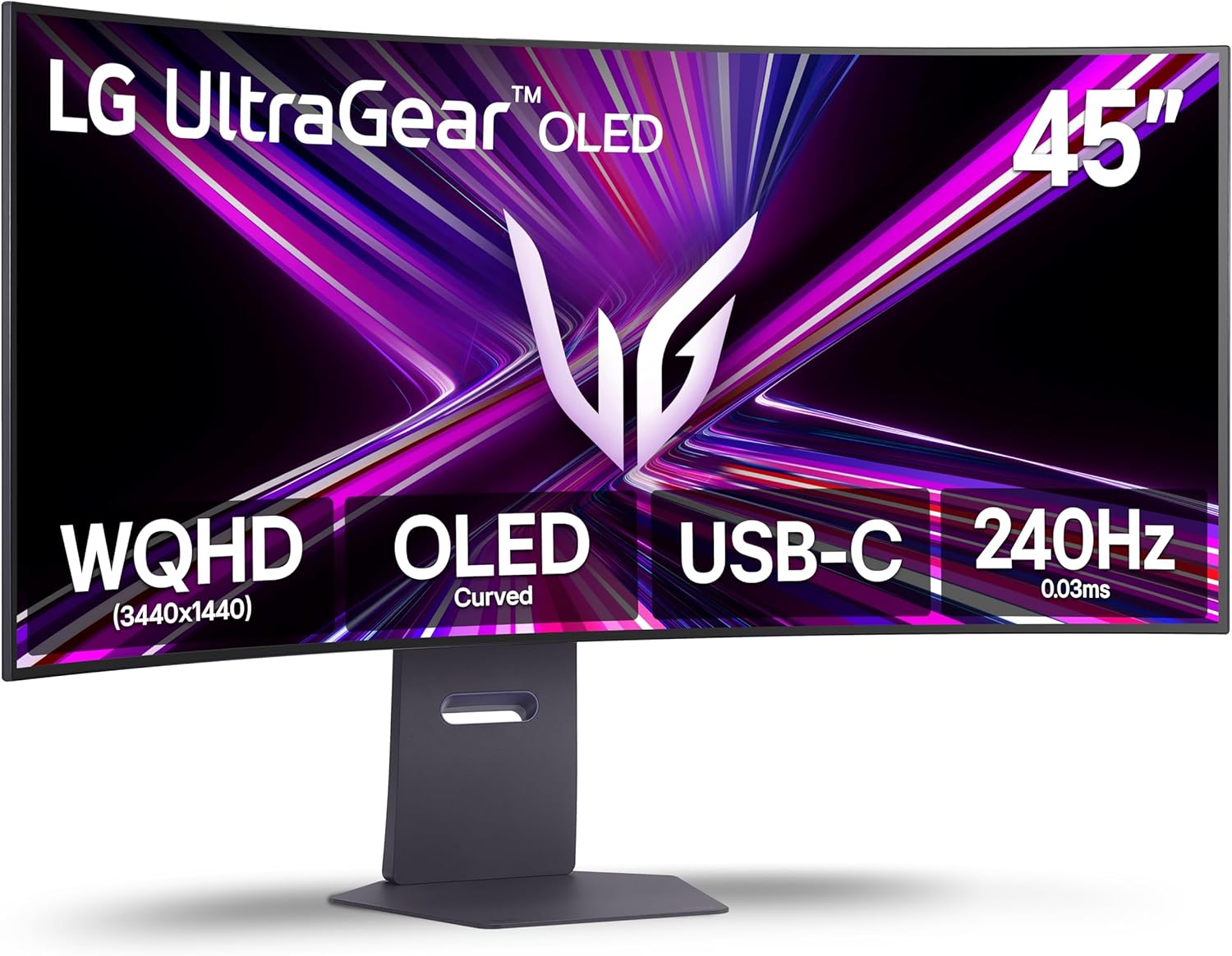
- Massive 45 inch curved OLED panel creates immersive ultrawide viewing.
- 240Hz refresh rate delivers exceptionally smooth fast paced gaming.
- 0.03ms response time minimizes visible motion blur and ghosting.
- WQHD ultrawide resolution provides expansive space for games and multitasking.
- - G-SYNC and FreeSync support help reduce distracting screen tearing.


- 34 inch QD-OLED panel delivers deep blacks and vivid colors.
- 3440 x 1440 ultrawide resolution provides detailed expansive gaming space.
- 175Hz refresh rate keeps fast gaming motion smooth and responsive.
- 0.03ms response time minimizes ghosting during rapid on screen movement.
- - Curved 21:9 display creates immersive gaming and multitasking space.

- 34 inch QD-OLED panel delivers deep blacks and rich color.
- 3440 x 1440 ultrawide resolution provides expansive gaming space.
- 280Hz refresh rate delivers exceptionally fluid fast paced motion.
- 0.03ms response time helps minimize ghosting during rapid gameplay.
- - Adaptive sync support helps reduce tearing during changing frame rates.
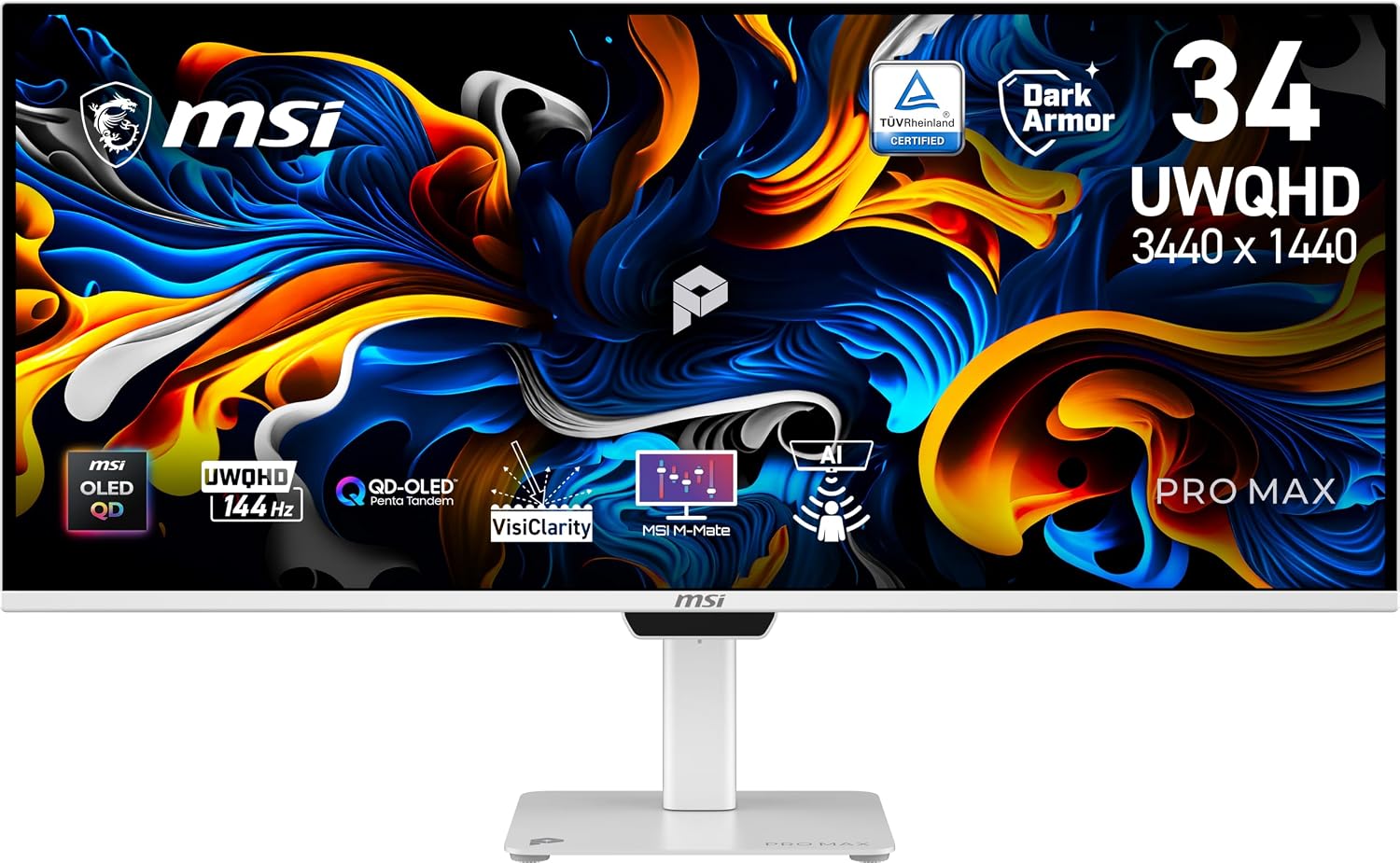
- 34 inch QD-OLED panel delivers deep blacks and vivid colors.
- Ultrawide resolution provides expansive space for gaming and multitasking.
- High refresh performance creates smooth motion during fast gameplay.
- Adaptive Sync helps reduce tearing during changing game frame rates.
- - OLED optimization features help manage long term panel protection.

- 39 inch curved OLED panel provides immersive ultrawide gaming.
- 240Hz refresh rate delivers exceptionally smooth fast paced motion.
- 0.03ms response time helps minimize ghosting during rapid gameplay.
- WQHD ultrawide resolution provides expansive gaming and multitasking space.
- - G-SYNC and FreeSync support help reduce visible screen tearing.

- 34 inch curved OLED panel provides deep blacks and contrast.
- 3440 x 1440 resolution delivers detailed ultrawide gaming visuals.
- 240Hz refresh rate provides exceptionally smooth fast paced gameplay.
- 0.03ms response time helps maintain clarity during rapid movement.
- - FreeSync Premium Pro supports smoother variable refresh rate gaming.

- 34 inch curved OLED panel delivers deep blacks and contrast.
- 240Hz refresh rate provides exceptionally smooth fast paced gaming.
- 0.03ms response time helps maintain clarity during rapid movement.
- WQHD ultrawide resolution provides useful gaming and multitasking space.
- - G-SYNC and FreeSync support help reduce visible screen tearing.
Choose the screen around your daily work
An ultrawide OLED monitor changes both the shape of your workspace and the way you use it. Before comparing impressive specification lists, write down what you actually do: edit a long timeline, keep a reference document beside a working window, play supported games, or read small text all afternoon. Those activities do not place the same demands on a display. A wider desktop can be useful, but more screen area is not automatically a better fit for every application or desk.
Start with the software you cannot replace. Check whether its interface scales comfortably and whether your usual games support the monitor's aspect ratio without unwanted stretching or cropped menus. Some video content will leave unused space at the sides; that is a format difference rather than a defect. If your routine is dominated by static spreadsheets and persistent toolbars, weigh OLED's picture characteristics against the care requirements and warranty terms of the exact model instead of assuming it is the obvious choice.
Make a short priority list with three nonnegotiable needs and three preferences. For example, readable text, a supported computer connection and a stand that fits the desk might be requirements; extra refresh headroom, a particular curve and an integrated hub might be preferences. This separates a practical purchase from an attractive specification you rarely use. Treat the ranked products above as candidates to investigate, not proof that every configuration supports your workflow.
Measure the desk, not just the diagonal
A diagonal measurement does not tell you the screen's width, its depth with the supplied stand, or where its edges will sit relative to your chair. Look up the manufacturer's external dimensions for the exact model and configuration. Mark the footprint with removable paper on your desk before ordering. Include room for the stand, keyboard, mouse movement, cable bends and access to the controls. Keep your existing work surface clear enough that a larger display does not push essential equipment into awkward positions.
Desk depth matters because a wide screen occupies more of your view at close range. Sit in your normal working position and imagine reading a document at each edge, not merely watching a centered video. There is no single viewing distance that suits every person, screen size and task. Look for a setup in which you can comfortably see important content without repeatedly twisting or leaning. If an adjustable arm is part of the plan, verify the exact mounting interface, weight limit and desk attachment requirements independently.
A curved panel is also a physical shape, not a universal comfort guarantee. Compare the stated curvature alongside actual width and available depth. Check whether colleagues who occasionally share the screen can view the material they need. For a broader workstation plan, the site's desk-chair buying guide offers related considerations, but current prices and personal comfort still require your own verification.

Match resolution and text to your eyes
Two ultrawide screens can have similar exterior dimensions while offering different native resolutions and pixel densities. That changes how much information fits and how small text looks at a comfortable scale. Compare the native resolution, not only a marketing label. Then consider the operating system's scaling controls and the applications you use. Increasing scaling can make labels easier to read while reducing the number of windows that fit side by side, so usable workspace is a balance rather than the largest possible number.
OLED subpixel arrangements vary between panel families and can affect how fine text edges appear. Do not assume every OLED screen renders text identically, or that a high refresh rate resolves text-fringing concerns. If possible, inspect a sample using documents with the fonts and sizes you normally read. During a return evaluation, view dark text on a light page, light text on a dark page, spreadsheet gridlines and application menus. Use your normal viewing distance instead of judging only a close-up photograph.
Check scaling after reconnecting the monitor and after sleep. Applications may respond differently to a changed display arrangement. Move windows between screens if you plan to retain a second display, and confirm that dialogs, pointer movement and screen sharing remain manageable. Save a working layout rather than continually arranging every window by hand. A screen that looks striking in a full-screen demonstration still needs to pass an ordinary reading session before it earns a permanent place on your desk.
Verify the complete connection path
A connector shape alone cannot establish that your computer will deliver the monitor's full resolution, refresh rate and other advertised modes. Check the computer's display-output specifications, the monitor's input capabilities and the cable or adapter between them. Some configurations have different limits on different inputs. A USB-C socket may have a particular data or charging role without supporting the display function you expect. Read the exact manuals rather than treating USB-C as one interchangeable standard.
Write down the intended route from the computer to the screen. If it includes a dock, switch, adapter or extension, verify that component too. A dock that is convenient for office work may not support the same display mode as a direct cable. Confirm power requirements separately, including whether the monitor needs its own supplied power connection. Do not assume a display cable powers the screen, charges the laptop, or carries USB peripherals unless the documented configuration says so.
During setup, use the operating system's display settings to confirm the active resolution and refresh rate. Test the applications you care about, reconnect the cable, and repeat the check after a restart. Keep a simpler direct connection available for troubleshooting. If you are also replacing portable peripherals, the laptop-speaker connection guide illustrates why audio, data and power functions should be checked separately rather than inferred from the appearance of a cable.

Evaluate motion and picture modes realistically
Refresh rate describes how often a display can update; it does not promise that your computer will produce that many game frames. An ultrawide resolution can place a substantial rendering load on the graphics system. Use your actual games and settings when evaluating the purchase. Check supported variable-refresh behavior for the exact monitor, graphics hardware and connection. Avoid treating a compatibility logo or an advertised maximum as a guarantee that every combination behaves identically.
For everyday use, compare practical presets rather than leaving every enhancement enabled. A bright showroom mode may not be comfortable for a long reading session. HDR behavior depends on the content, application, operating system and monitor settings. Test ordinary desktop material as well as content intended for HDR, and note whether switching modes changes the appearance of familiar documents. Keep a simple, repeatable configuration so an unexpected result is easier to diagnose.
If you work with color-sensitive material, distinguish a pleasing image from a verified production workflow. Look for documented mode behavior and the tools required for your work; do not assume factory marketing language replaces calibration or a controlled viewing environment. For games, examine motion and interface visibility without extrapolating a brief demonstration into a universal performance claim. Your shortlist should reflect a sensible combination of supported modes, readable interfaces and consistent behavior, not only the largest numbers on a feature list.
Plan for room lighting and OLED care
Think about the room at the times you actually use the monitor. A window behind your chair can reflect in a dark screen, while a bright source beside the desk may change the image's perceived contrast. Screen surface treatments differ. Test positioning, curtains and ordinary room lighting before deciding that a particular finish suits you. Do not assume that glossy or matte is always better; the room, content and personal preference all affect the result.
OLED care requires model-specific attention. Persistent static elements and usage patterns can matter, and no general guide can guarantee that burn-in will never occur. Read the manufacturer's instructions for maintenance cycles, standby behavior, automatic protections and cleaning. Keep protective features enabled as instructed, and do not interrupt a maintenance routine simply because the screen appears inactive. Avoid inventing a universal schedule or applying advice for one panel family to every OLED product.
Read the warranty wording before purchase, including whether and under what conditions it addresses image retention or burn-in. Distinguish a seller's return window from the manufacturer's warranty, and save the applicable regional terms. Normal care is not an unlimited protection promise. If your work requires long hours of unchanged dashboards, compare other display technologies as a legitimate alternative. The right choice is the one whose trade-offs you accept, not a screen you must use in ways that conflict with your daily job.

Run a repeatable arrival check
Before discarding packaging, confirm the model and accessories against the order and inspect the screen without pressing on its surface. Follow the assembly instructions and obtain help when the size or weight makes handling awkward. Use the recommended stand or a verified compatible mount. Route cables with enough slack for intended adjustments and without a pinch point. A tidy route is useful, but do not hide connections so completely that ordinary troubleshooting requires dismantling the whole desk.
Build a small test routine: read a familiar document, arrange your usual windows, play a supported video, run a representative game, and check sleep and wake behavior. Test controls and input switching if you plan to connect more than one device. Make notes about the exact mode and connection when something looks wrong. This is more useful than changing several settings at once and forgetting which change affected the result.
Keep expectations proportionate. A generated illustration, marketplace photo or brief review cannot show how a screen will behave in your room. Use your return period to evaluate normal use rather than only dramatic test scenes. If a concern persists, consult the manufacturer's diagnostic process and the seller's current terms. Do not delay reporting a problem while assuming a future firmware change will fix it; record what you can reproduce with the supported setup you actually own.
Make the final comparison manageable
Compare the remaining candidates in a compact checklist: external dimensions, readable scaling, documented input modes, stand or mount fit, room-light behavior, maintenance instructions and applicable warranty terms. Add the total setup cost, including any necessary cable, dock or mounting hardware, without assuming the advertised price includes everything. Current availability and regional pricing should be checked at checkout. Keep the exact model identifier with your notes because similarly named versions can differ.
Choose the monitor that meets the important requirements with the fewest unresolved dependencies. A slightly less ambitious configuration may be preferable if it connects reliably to the computer you already use and fits the desk without compromises. Revisit your original priorities before buying: if an attractive feature has displaced readable text or comfortable placement, reconsider. An ultrawide OLED should improve the routines you already have, while its limitations remain understood rather than hidden behind specifications.
Ultrawide oled monitor FAQs
Will every game fill an ultrawide screen?
No. Aspect-ratio support depends on the game and its settings. Check your usual titles for supported display modes, menus and cutscenes.
Can an OLED monitor be guaranteed not to develop burn-in?
No general guarantee is appropriate. Usage patterns, panel design and protective features vary. Follow the exact manufacturer instructions and read the applicable warranty terms.
Does USB-C guarantee full resolution and refresh rate?
No. Verify the computer output, monitor input, cable and any dock or adapter as a complete connection path. The connector shape alone does not establish supported modes.
Is a larger diagonal always better for work?
No. Compare actual screen width, stand depth, viewing position, native resolution and readable scaling. A display that is too large for the desk can make ordinary work less comfortable.
What should I check when text looks unusual?
Check native resolution, operating-system scaling and the application settings. OLED subpixel layouts vary, so assess familiar fonts at your normal viewing distance.
Should I disable automatic OLED maintenance features?
Follow the exact model manual rather than disabling protective features on general advice. Confirm the recommended standby behavior, maintenance routines and cleaning method.