

Quick guide: choose reachable controls, not just a tiny shell
Compare the exact length, width, hump height and button placement with your current mouse. A compact label does not establish fit. Check handedness, connection and operating-system support, then test clicking, scrolling and shortcut reach in your usual workspace before the seller’s current return window closes.

- Small ergonomic body is specifically suited to smaller hands.
- Sculpted palm support encourages a more comfortable hand position.
- Wireless operation removes restrictive cables from everyday desk movement.
- Adjustable DPI provides better control over pointer sensitivity.
- - Additional side buttons simplify common forward and backward navigation.

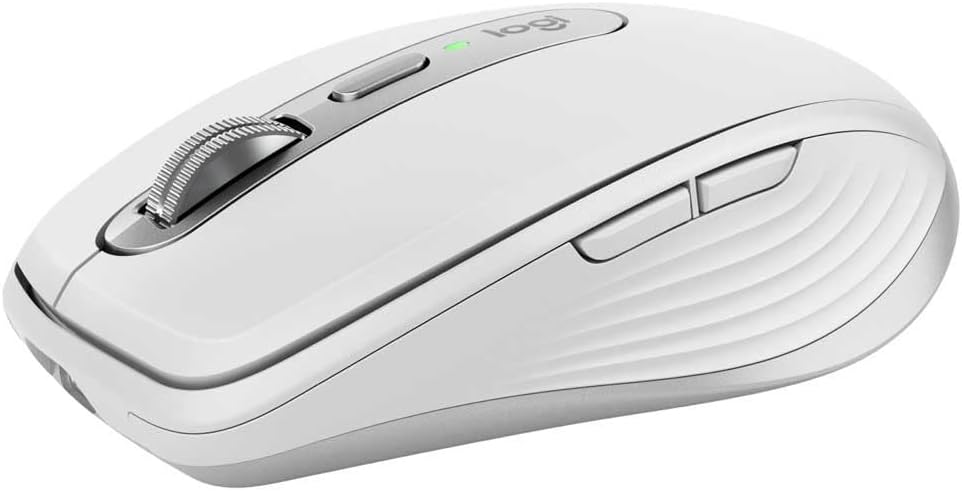
- Compact low profile body fits smaller hands comfortably.
- MagSpeed scroll wheel handles long documents with precise control.
- Tracks on virtually any surface including smooth glass.
- Programmable buttons support faster shortcuts across common applications.
- - Multi device wireless connectivity simplifies switching between several computers.

- Compact contoured shape is specifically designed for smaller hands.
- Lightweight 85 gram body supports easier controlled mouse movement.
- LIGHTSPEED wireless technology delivers responsive low latency connectivity.
- Bluetooth support provides flexible wireless connection across compatible devices.
- - Six programmable buttons provide useful customization for work and gaming.

- Compact vertical shape is designed for small to medium hands.
- 57 degree angle supports a more natural handshake position.
- Left handed design gives smaller left handed users proper ergonomics.
- Quiet clicks help reduce distracting noise in shared workspaces.
- - Bluetooth connectivity supports convenient wireless use across compatible computers.
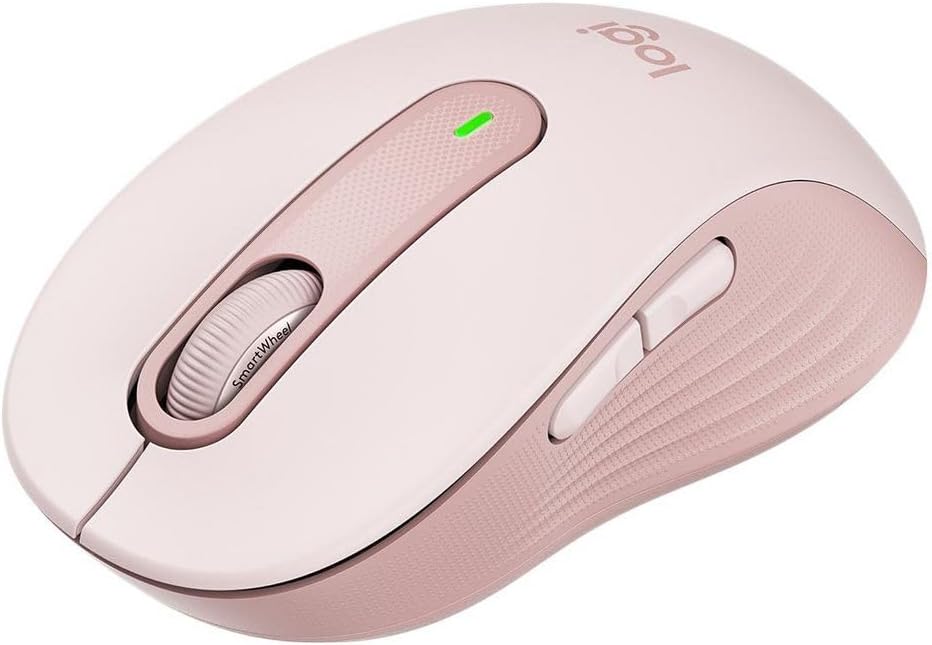
- Small size option provides a better fit for smaller hands.
- SmartWheel supports precise scrolling and faster document navigation.
- SilentTouch technology significantly reduces distracting everyday clicking noise.
- Bluetooth and Logi Bolt provide two wireless connection options.
- - Contoured sides and soft thumb area improve everyday comfort.

- Compact vertical shape suits small to medium sized hands.
- 57 degree angle supports a more natural hand position.
- Quiet clicks reduce repetitive noise during everyday office work.
- Bluetooth connectivity provides convenient cable free computer control.
- - Customizable buttons support shortcuts for common productivity tasks.

- Compact vertical design is intended for small to medium hands.
- 57 degree angle supports a more natural hand position.
- Soft textured grip provides comfortable control during longer sessions.
- Quiet clicks reduce repetitive noise in shared workspaces.
- - Bluetooth wireless connectivity keeps everyday computer setups cable free.
Choose a mouse by reach, not by the small label
A mouse marketed as compact is only a starting point. Two shells with similar overall dimensions can feel different because the widest point, rear hump and button position change where your fingers land. For smaller hands, the useful question is whether you can move, click and scroll without repeatedly repositioning your hand. Treat the seven options above as candidates to compare rather than as a promise that one shape fits everyone.
Start with the work you actually do. A spreadsheet user may value a controlled scroll wheel and an easy middle click. Someone editing photographs may need reliable small movements and a reachable shortcut button. A traveler may care more about packed size and a connection that does not consume their only available port. Write down your two most frequent tasks before comparing features; otherwise a long specification list can distract from basic fit.
Do not assume that smaller always means better. A very short mouse may leave your preferred grip unsupported, while a slightly longer model with a narrow front may offer better button reach. Comfort varies with grip, desk position and individual preference. If using a mouse causes persistent pain or numbness, stop and seek appropriate professional advice rather than treating a purchase as medical treatment.
Compare shell dimensions with your usual grip
Look for the exact model’s length, width and height, not just a photograph or a family name. Product images can hide scale, and a travel version may differ from the regular version. Check where the width is measured when the listing provides that detail. A broad rear shell and a broad button area are different fit questions even if their maximum widths match.
Use your current mouse as a reference. Measure it, then note what works and what does not: perhaps the wheel is too far forward, the rear hump feels tall, or the thumb buttons require shifting your whole hand. A paper outline based on published dimensions can help visualize desk space, but it cannot reproduce the curvature or click feel. It is a screening aid, not a substitute for trying the mouse.
Grip descriptions are useful vocabulary rather than rules. With a palm-oriented grip, your hand may contact more of the shell. With a fingertip-oriented grip, you may move the mouse mostly with your fingers. A claw-like grip changes finger angles again. Try a candidate in the grip you naturally use rather than forcing a pose to match advertising. Pay attention to lateral reach as well as length: an easy index click does not guarantee an easy thumb click.

Check every control before counting extra buttons
A mouse with more buttons is not necessarily more useful. The main buttons, scroll wheel and any side controls should be reachable during ordinary work. Test a left click, right click, wheel click and repeated scrolling while your hand stays in its normal position. If reaching a control means rotating the mouse or gripping it more tightly, decide whether that control is important enough to justify the trade-off.
Side-button placement deserves a separate check. Buttons near the front may be difficult to reach with a shorter thumb; buttons too far back may be pressed accidentally. Look at photographs from both sides and confirm whether the shell is intended for your dominant hand. A symmetrical appearance does not establish fully symmetrical controls or software support. Left-handed buyers should check button remapping and the actual placement of secondary controls.
Software can add convenience but also another dependency. Confirm the exact operating system version supported by the manufacturer’s utility, whether installation is needed for your intended mapping, and whether your work computer permits it. Do not assume every advertised shortcut works without software. For another approach to pointer control, our Mac trackball guide explains the different fit and setup questions involved; a trackball is an alternative to evaluate, not a universal improvement.
Match the connection to your computer and routine
Choose the connection after checking your available ports and normal location. A wired mouse avoids remembering a wireless charge routine, but its cable still needs enough freedom for your movements. Route the lead so it does not drag across the mouse pad or pull against the connector. Do not assume that an adapter supplies every function merely because the plug fits.
For a receiver-based wireless mouse, confirm the supplied receiver’s connector, whether it is included with the exact listing, and where it will live when traveling. A tiny receiver can be convenient and easy to lose. Bluetooth may save a port, but support, pairing behavior and switching procedures depend on the model and computer. Verify those details against the manufacturer’s current documentation rather than assuming all wireless mice behave alike.
Battery arrangements also change the routine. Check whether the mouse uses replaceable batteries, an internal rechargeable battery or another arrangement, and follow the instructions for charging or replacement. Treat advertised battery-life figures as conditional specifications rather than a guarantee for your use. If the mouse supports use while charging, confirm that explicitly. For a laptop setup that also includes external audio, the portable laptop speaker guide is useful when planning competing ports and cables.
Tune pointer movement before rejecting a good shape
Fit and pointer settings solve different problems. A shell can be physically suitable while the cursor feels too fast, too slow or difficult to stop. Start with your operating system’s pointer settings and the manufacturer’s recommended setup. Change one setting at a time, then repeat a familiar task so you can tell what actually changed.
Sensitivity numbers are not a quality ranking. Higher advertised sensitivity does not automatically make everyday clicking more accurate. The useful setting lets you cross the screen while still placing the pointer on small targets without frequent corrections. Your display arrangement, application and movement space all influence that choice. Try selecting spreadsheet cells, placing a text cursor and dragging a window rather than judging only by fast sweeps across an empty desktop.
Test on the surface you intend to use. Tracking behavior depends on the sensor and surface, so check the model’s guidance before assuming it will work on glass or an unusual desk finish. A mouse pad can make the test more consistent, but it does not prove that every sensor works equally well. If you work on more than one computer, record your settings and verify each system separately; a familiar shell can still feel different when software settings change.

Arrange the desk so the mouse has a fair trial
A mouse should be tested in the workspace where it will be used, not only while holding it in the air. Put the keyboard and mouse where you can reach them without repeatedly extending your arm across unrelated equipment. Keep enough clear movement area beside the keyboard and check whether the cable, notebook or desk edge interrupts ordinary movements.
Desk height, chair position and keyboard width affect the trial. A full-size keyboard may push the mouse farther to the side than you expect. Moving the keyboard slightly can change the reach, but do not create an awkward typing position just to accommodate the mouse. Look at the whole setup and take ordinary breaks; a new peripheral is not a guarantee of comfort or a treatment for an existing condition.
Check the device under normal workload, including tasks that require holding a button or repeated scrolling. Notice whether you lift and reposition the mouse frequently because the available surface is too small. If a workspace change solves the issue, record that separately from your impression of the shell. For seating decisions that influence desk reach, our desk chair buying guide provides another checklist; verify the chair’s exact dimensions and current total cost independently.
Use a repeatable return-window test
Read the seller’s current return conditions before ordering. Confirm the exact variant, included accessories and any return-shipping responsibilities. Keep the packaging while testing, and avoid assuming that a listing’s compact description establishes the dimensions of the item that arrives. Compare the model label and manual with your order before installing optional software.
Create a short test sequence based on your work. First, click small targets and scroll a long document. Next, drag an item while holding a button, then use any side control you expect to rely on. Finally, complete a normal work session with your usual keyboard, surface and display arrangement. Repeat the same sequence with your current mouse if possible. This makes the comparison about practical differences instead of the excitement of a new device.
Record specific observations: wheel reach, accidental clicks, thumb-button access, pointer corrections, cable drag and any interruption from sleep or reconnection. Separate a settings problem from a physical fit problem. If a task remains difficult after reasonable setup, a different shell or control arrangement may be more useful than repeatedly adjusting sensitivity. Do not extend an uncomfortable test to prove that a purchase was worthwhile. Your notes should support a keep-or-return decision while the actual return window remains open.

Make the final choice around the whole ownership routine
When two mice both fit, compare the everyday details that will matter after the first week. Can you find the receiver easily, reach the power switch and understand the battery indicator? Are the buttons you use most accessible without changing your grip? Does optional software introduce permissions or account requirements you cannot accept on your computer? These details may matter more than a feature you rarely use.
Maintenance should follow the exact manufacturer’s instructions. Disconnect or switch off the device as directed before cleaning. Use only the recommended materials and avoid getting liquid into button gaps or charging ports. Check cable and connector condition during normal use, and do not keep using a visibly damaged charging lead. A glossy or textured surface is a preference question as well as a cleaning question; photographs alone cannot tell you how it will feel over time.
Choose the smallest shortlist that meets your actual needs, then prioritize the best demonstrated reach and workflow fit. Keep your recorded dimensions and settings for future comparisons. A successful purchase is one that works reliably in your own setup and remains manageable to connect, store and maintain. It is not necessarily the tiniest shell, the highest sensitivity number or the mouse with the longest feature list.
Small-hand mouse FAQs
Is the smallest mouse always best for small hands?
No. Shell shape, height, grip and button placement matter as well as length. Compare dimensions with your current mouse and test the controls in your usual grip.
How can I compare mouse size before ordering?
Check the exact model’s published length, width and height, then measure your current mouse. A paper outline can help compare space but cannot reproduce curvature or click feel.
Will side buttons be easy to reach?
Not necessarily. Their position and your thumb reach determine usability. Check both sides of the shell and test for accidental presses and hand repositioning.
Can I use any wireless mouse with any computer?
Do not assume universal compatibility. Verify the exact connection, receiver or adapter, operating system and any required software against the manufacturer’s documentation.
Does higher sensitivity mean better accuracy?
Not automatically. Choose a setting that supports controlled movement in your applications and on your display arrangement, then test small targets and dragging.
Can a compact mouse prevent or treat wrist pain?
A mouse should not be treated as medical care or a universal comfort solution. Stop an uncomfortable test and seek appropriate professional advice for persistent pain or numbness.