

Quick guide: match the service, phone and headset
Start with your analog line or VoIP provider, then verify the exact phone model and supported headset connection. A matching-looking connector does not prove compatibility.
List any required base, model-specific cable, power adapter and EHS or handset-lifter accessory. Test basic audio and remote answering separately, then check hold, mute and transfers in your actual service.
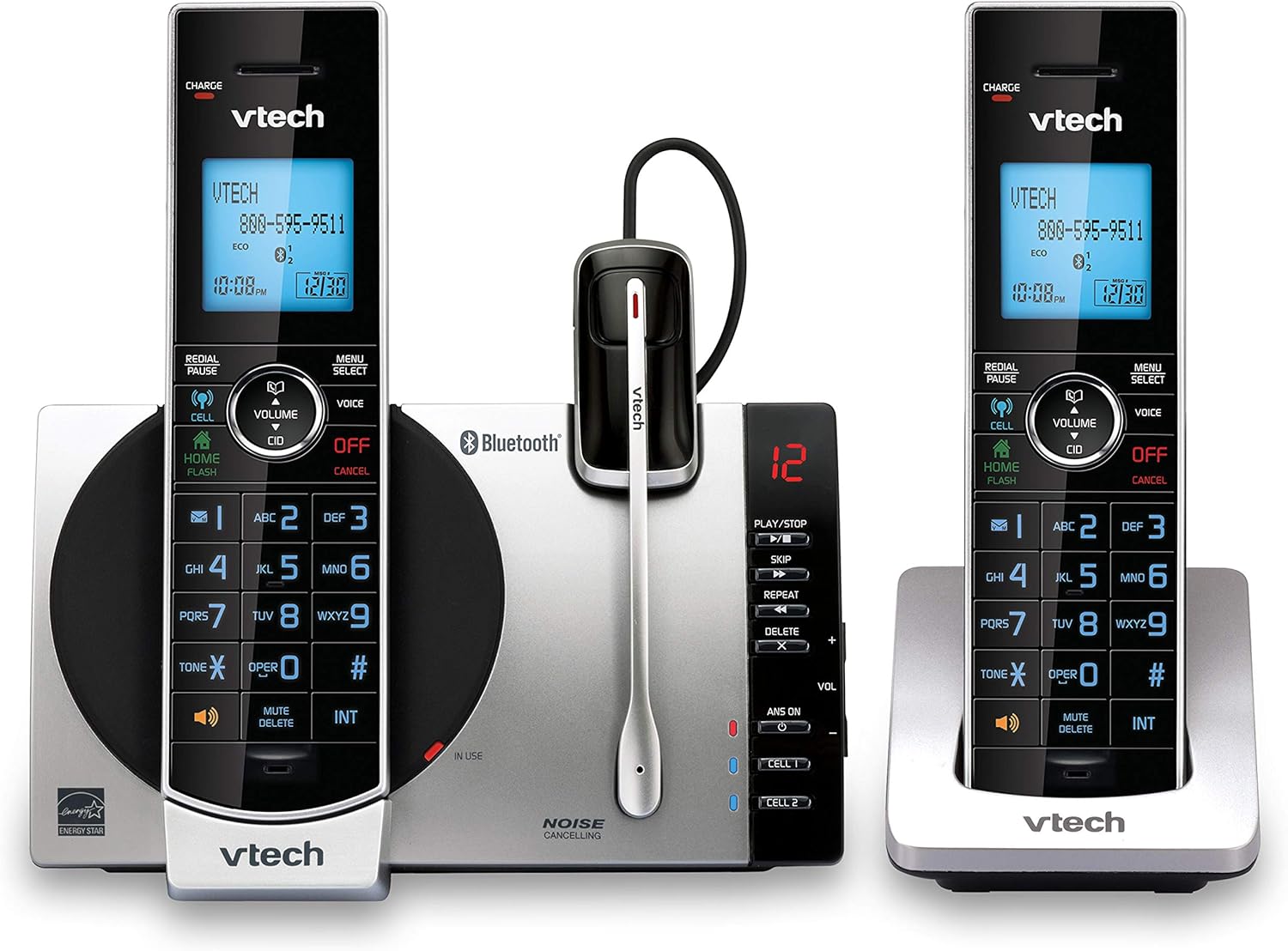
- Includes cordless headset for comfortable hands-free office conversations.
- Two cordless handsets provide flexible calling across separate work areas.
- Connect to Cell integrates compatible mobile calls into system.
- Digital answering system records messages when calls go unanswered.
- - DECT 6.0 technology provides dependable cordless communication around offices.

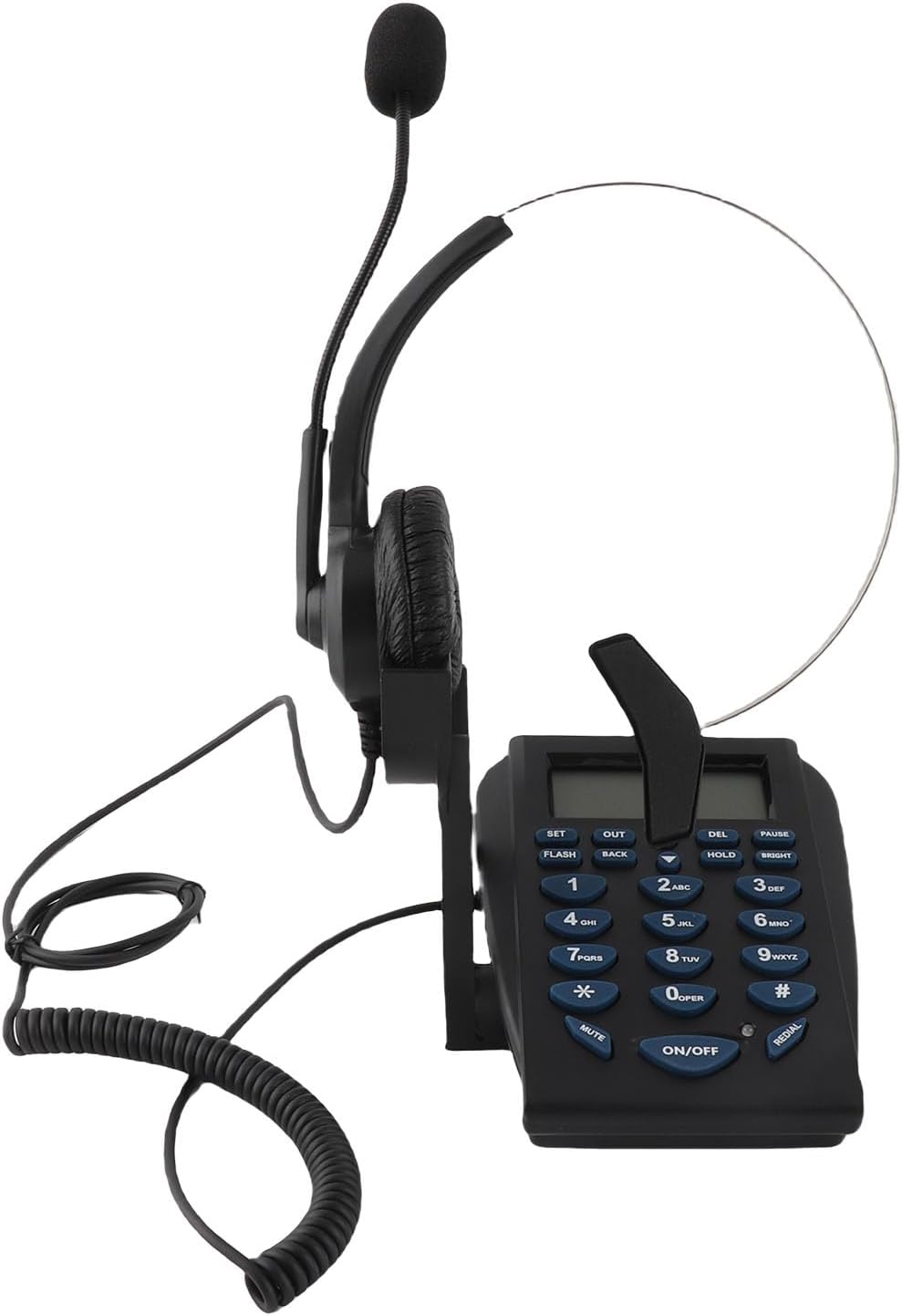
- Dedicated headset design keeps both hands free during calls.
- Noise-canceling microphone helps reduce distracting office background sounds.
- Corded landline connection avoids headset battery charging interruptions.
- Adjustable headset supports more comfortable extended customer service sessions.
- - Desk phone controls provide convenient access during frequent business calls.
- Headset support enables comfortable hands-free calling during office tasks.
- Multifunction controls provide practical features for frequent business communication.
- Caller management functions help organize incoming and outgoing office calls.
- Desk-based design suits reception and customer service workstations.
- - Landline operation provides straightforward communication without wireless headset charging.
- Included headset keeps both hands available during business calls.
- Call center focused design suits frequent desk-based telephone work.
- Dedicated keypad provides straightforward access to everyday calling functions.
- Adjustable headset supports more comfortable extended office conversations.
- - Corded operation avoids wireless headset battery charging interruptions.

- Hands-free headset keeps both hands available during business calls.
- Noise-canceling microphone helps reduce distracting workplace background sounds.
- Desk phone design suits reception and customer service stations.
- Adjustable headset positioning supports more comfortable extended calling sessions.
- - Corded operation removes wireless headset battery charging requirements.

- Included headset keeps both hands free throughout business calls.
- Dedicated dialpad provides quick access to everyday calling controls.
- Corded landline operation avoids wireless headset battery interruptions.
- Call center design suits reception and customer service workstations.
- - Adjustable headset supports more comfortable extended telephone conversations.
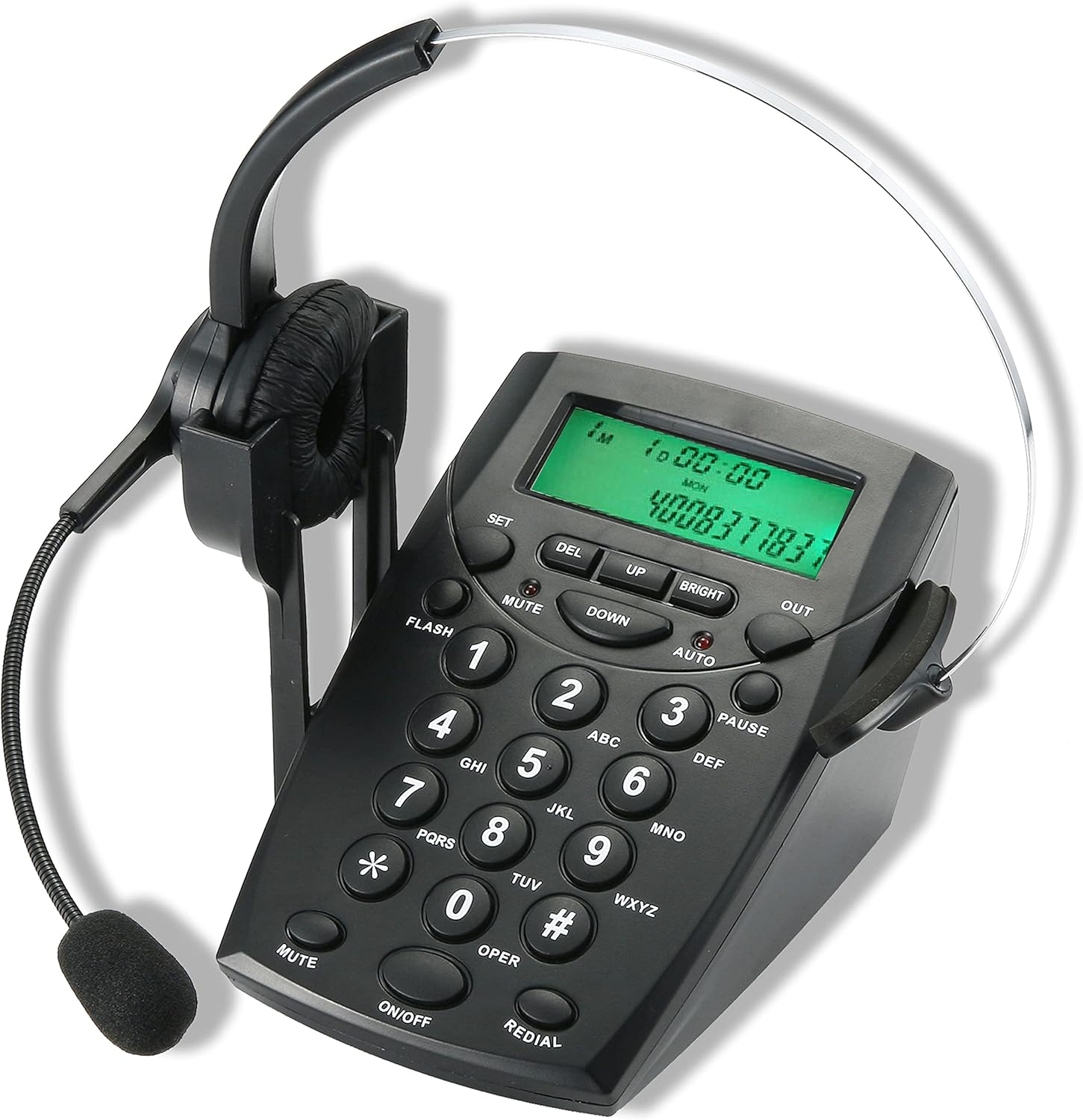
- Included headset enables hands-free calling during everyday office tasks.
- Noise-canceling microphone helps reduce distracting workplace background sounds.
- Corded telephone design avoids wireless headset battery interruptions.
- Adjustable microphone positioning helps improve voice pickup during calls.
- - Desk-focused controls suit reception and customer service workstations.
Start with the telephone service, not the headset
Choosing an office phone with a headset starts with identifying the service that supplies your calls. A telephone connected to an analog line, a desk phone registered to a hosted VoIP provider, and a computer running a calling application are different systems. Similar-looking equipment does not make their connections interchangeable. Before ordering, record the provider, the current phone model, the network arrangement and the headset connection you expect to use. Ask whoever manages the office telephone system to confirm these details rather than guessing from a photograph.
An analog desk phone may connect to a compatible analog telephone socket or to an adapter supplied for an internet calling service. A VoIP desk phone typically needs the appropriate network connection and provisioning, but the exact requirements belong to its manufacturer and provider. A network port is not an analog line socket. Do not connect equipment simply because a plug seems to fit. Where existing hardware belongs to the service provider, check replacement and provisioning rules before disconnecting it.
Write down the tasks the new setup must handle: answering incoming calls, transferring callers, holding a conversation while typing, joining an occasional conference and recovering after a restart. This short brief prevents an attractive headset bundle from distracting you from a missing telephone function. For colleagues who also join computer meetings, the separate conference-room camera and microphone guide addresses another part of the communication setup; it does not establish desk-phone compatibility.
Verify the exact phone and provider combination
For a managed office, confirm the exact model and any relevant hardware revision with the administrator. A provider may support selected models, selected firmware or its own supplied devices. A phone advertised as a VoIP phone is not automatically supported by every hosted service. Registration credentials, account permissions, network settings and provisioning can all affect whether calls work. Ask the provider for its current supported-device instructions and whether you are allowed to supply your own handset.
Power deserves its own check. Some phones can use supported Power over Ethernet arrangements; others need a particular adapter. Do not assume the network switch supplies power or that an adapter is included. Compare the phone’s specified power method with the actual office installation. When an administrator manages network equipment, ask them to approve changes rather than experimenting with ports, settings or spare power supplies. Follow the manufacturer’s instructions for the equipment you buy.
Also confirm which calling functions the service enables. Multiple line appearances, transfers, voicemail access, conferencing and directory features can depend on the provider or configuration, not just the phone’s buttons. Request a demonstration of the workflows you use most. A receptionist transferring frequent calls has different priorities from someone who makes a few outgoing calls. Keep emergency-calling procedures and location information under the provider’s approved process; changing hardware is not proof that those arrangements have carried over correctly.

Match the headset connector and control method
The headset side needs an equally specific compatibility check. USB, analog audio connectors, modular headset sockets, Bluetooth and proprietary quick-disconnect arrangements are not interchangeable categories. Even two modular plugs that look similar may use different wiring or require a model-specific cable. Check the phone manual and the headset maker’s current compatibility list for the exact pairing, including any adapter, base station or cable. A headset designed for a computer may not function through a desk phone’s USB port.
Separate listening and speaking from call control. A setup may carry audio while still requiring you to press the phone’s headset button to answer or end calls. Remote answering can need a supported electronic hook switch, often called EHS, or a compatible handset lifter. These accessories have their own model restrictions and installation instructions. An EHS cable is not a universal upgrade, and the fact that a headset has an answer button does not prove that button controls your chosen desk phone.
Make a complete connection list before purchase: phone model, headset model, headset base if present, connection cable, power source and any remote-answer accessory. Ask the supplier to confirm that precise list in writing. Check what is actually included in the package rather than treating a lifestyle photo as an inventory. Keep the compatibility confirmation with the purchase record so a later replacement cable does not quietly introduce a different configuration.
Decide how the headset fits your working day
Comfort is personal and should be assessed during a realistic session, not inferred from a padded headband. Consider adjustment range, weight, ear coverage, microphone position and how easily you can remove the headset between conversations. Someone sharing a reception desk may value simple adjustment and accessible controls. Someone taking long calls may care more about pressure points and whether the headset stays in place while looking between documents and a screen. Neither preference guarantees a particular model will feel comfortable.
One-ear and two-ear designs support different preferences. A one-ear headset can leave an ear uncovered, while a two-ear design changes how much surrounding conversation you hear. Do not equate either design with a guaranteed level of isolation or microphone noise reduction. If the listing uses noise-related language, determine whether it refers to the microphone, the listening experience or another function. Evaluate intelligibility with another person in your actual room rather than relying on a category label.
Choose wireless only after checking the exact system, charging arrangement and supported range conditions. Wireless convenience introduces battery management and another device to troubleshoot; a wired option introduces cable routing and movement limits. Avoid promising uninterrupted full-day use from an advertised figure. Test a normal work session within the seller’s current return conditions. Place a charging base where it is stable, dry and reachable, and follow the maker’s guidance about charging, replacement parts and cleaning.
Set up one controlled call test
Install the equipment using the phone, provider and headset instructions together. Do not change unrelated network settings to solve an audio problem. Start with a modest listening level, check that plugs are fully seated in their intended sockets and select the correct headset mode if the phone requires it. A supplied setup sheet may specify a switch position on the headset base; treat that as model-specific guidance, not a rule to copy to another device.
Make an ordinary test call with a colleague who can report what they hear. Confirm incoming ringing, answering, clear speech in both directions, mute and ending the call. Then test hold and transfer if those functions matter to the job. Where remote answering is supported, test it separately from basic audio. Record whether each action was performed on the phone, the headset or its base. This makes a failure easier to describe accurately when asking the provider or supplier for help.
Repeat the test after an approved restart and after the headset has been removed and replaced on its base, if applicable. Check that the expected output and microphone remain selected. If you also use a computer calling application, test that workflow independently; a successful desk-phone call does not establish application support. For computer audio planning, the portable laptop speaker guide explains another playback option, but speakers are not a substitute for a compatible desk-phone headset connection.

Plan the desk, controls and shared use
A good layout keeps the phone’s important controls accessible while you type or consult paperwork. Leave room for the handset, headset base and normal cable bends. Do not trap a cable under a monitor stand or pull it tight across a walking route. Position accessories so that reaching for mute or answer does not require leaning over another device. Keep liquid containers away from the electronics and use the manufacturer’s cleaning instructions rather than applying a generic cleaning method.
Check the footprint of the complete setup, not just the phone. A base station, power adapter and remote-answer accessory can take more room than the shopping image suggests. If the desk changes frequently, label cables in a way your office administrator approves and document the intended connections. The cable-management guide can help you think about accessible routing; preserve access for maintenance rather than hiding every connection behind furniture.
For shared desks, decide how users adjust the headset and where individual accessories are stored. Follow workplace hygiene rules and the equipment maker’s care guidance. Avoid assuming cushions or batteries are user-replaceable; verify the relevant instructions and available parts first. A short printed operating note can explain the approved answer, mute and transfer routine. Keep technical account details and credentials out of that note. Clear daily instructions are useful without turning a shared desk into an unmanaged configuration experiment.
Compare the complete purchase and support package
Compare the total configuration required for your job. The phone price alone may exclude a suitable headset, power adapter, base, connection cable or EHS accessory. Conversely, a bundle might include a headset that is not appropriate for your provider-approved phone. Confirm exact model numbers, included parts, seller identity and current return terms before buying. Treat price and availability as information to check at purchase time rather than fixed qualities of a ranked article.
Support matters when several people depend on the same calling workflow. Ask who handles registration problems, who supports the headset connection and what evidence they need for troubleshooting. Keep the purchase receipt, compatibility confirmation and the manuals together. For a larger rollout, have the administrator test one approved setup before ordering several units. A controlled pilot is more informative than assuming every desk has the same power, network and service configuration.
Check replacement-part arrangements without making unsupported durability predictions. Cables, cushions, power supplies and charging components can have specific part numbers or service requirements. The lowest upfront cost is not necessarily the simplest configuration to maintain, but that does not justify inventing lifetime savings. Compare what you can verify: parts availability, documented support channels, approved accessories and the practical steps needed to restore service if one component fails.

Make the final decision from verified tasks
Before keeping the setup, return to the original task list. Does the approved phone register with the intended service? Can callers hear you clearly? Do answer, mute, hold and transfer work in the required configuration? Can you reach the controls without disturbing the headset cable? Does remote answering work only when the specified accessory is installed? Record the answers for the exact models and connection method tested, not for the product category as a whole.
If something fails, distinguish service problems from headset problems. A phone that cannot place a call needs provider or registration investigation; a connected call with no microphone audio suggests a different path. Stop changing multiple settings at once. Describe the symptom, the models, the connection list and the step that fails to the responsible support contact. Avoid swapping random adapters or assuming a firmware update is appropriate without the manufacturer’s or administrator’s instructions.
The best choice is the complete, supported arrangement that fits your daily calls and workspace. Keep the inherited rankings as a starting point, then verify the provider, connection, accessories and controls before committing. A careful compatibility checklist and a brief real-world call test give you useful purchase evidence without assuming universal support, guaranteed comfort or untested performance.
Office phone and headset FAQs
Will any headset work with an office desk phone?
No. Check the exact phone and headset models, connector wiring, cable or base requirements and the manufacturer’s compatibility instructions. Similar-looking plugs do not establish support.
Can a VoIP phone work with every calling provider?
Do not assume it can. Confirm that the provider supports the exact phone model, firmware and provisioning arrangement before purchasing or replacing equipment.
What does EHS do for a headset?
A supported electronic hook switch arrangement can enable remote call control for a compatible phone and headset. The correct model-specific accessory and installation are required; audio compatibility alone does not prove remote answering works.
Does a USB headset automatically work with a phone’s USB port?
No. Verify that the phone supports that headset’s audio and control functions through USB. A computer-compatible headset is not automatically supported by a desk phone.
Is a wireless headset better for long calls?
It depends on comfort, movement, charging and the exact supported setup. Test a realistic session and verify the manufacturer’s charging instructions rather than assuming advertised battery figures describe your workday.
What should I test before keeping the setup?
Test incoming and outgoing calls, speech in both directions, mute, ending calls, hold, transfer and any supported remote-answer function. Check the configuration again after an approved restart.