

Quick Buying Guide: The best video conference camera should frame your room reliably and work with the meeting platforms your team actually uses. Compare field of view, autofocus, exposure in mixed lighting, microphone pickup, and resolution at supported frame rates. Wide lenses help group rooms but can distort faces in close setups. Confirm USB compatibility, mounting options, privacy controls, and whether advanced features require proprietary software. For shared spaces, speaker tracking and expansion microphones may help, but test voice clarity and connection stability before broad deployment.

- Ultra-wide 120-degree field of view captures small meeting rooms
- 4K Ultra HD sensor delivers detailed professional conference video
- Three beamforming microphones provide clear pickup across meeting tables
- Motorized pan, tilt, and 5x zoom improve framing flexibility
- Integrated speakerphone creates a simpler all-in-one conferencing setup

The 120-degree view is exactly what a small meeting room needs
The Logitech MeetUp earns our number one position for Best Video Conference Camera because it solves one of the most common problems in small meeting rooms: fitting everyone into the picture without moving the camera halfway across the room. It combines a super-wide 120-degree field of view, 4K Ultra HD imaging, motorized pan and tilt, 5x HD zoom, three beamforming microphones, and a custom-tuned speaker in one compact conferencing unit.
That 120-degree diagonal field of view is the main feature to understand. Logitech specifies a 113-degree horizontal view and 80.7-degree vertical view, which is much wider than the framing you normally get from a standard desktop webcam.
This matters in a huddle room where people sit close to the display. A conventional webcam can easily cut off participants at the ends of the table unless it is mounted much farther away.
MeetUp is designed around that shorter camera-to-table distance. People can sit naturally around the table rather than squeezing toward the center simply to remain visible to remote participants.
Logitech goes further with motorized pan of plus or minus 25 degrees and tilt of plus or minus 15 degrees. Combined with the lens, the total room coverage reaches approximately 163 degrees wide by 110 degrees tall.
That gives you flexibility when somebody moves toward a whiteboard or when the meeting changes from a group discussion to one presenter. You are not physically picking up the camera and turning it every time the room changes.
The 4K sensor is useful for more than putting a big resolution number on the box
MeetUp supports video calling at up to 3840 x 2160 resolution at 30 frames per second when the required USB 3.0 connection and compatible conferencing setup are used. It also supports 1080p and 720p video at 30 fps.
The 4K sensor gives the camera useful image detail, particularly when framing needs to be adjusted digitally or the camera zooms toward part of the room. Remote participants can get a clearer view of faces, whiteboards, products, and physical documents being shown during a meeting.
There is an important practical detail here. Logitech specifies that 4K operation requires a customer-supplied USB 3.0 cable.
The included setup should therefore not be treated as a guarantee that every conferencing application will automatically begin streaming meetings in 4K. The computer, cable, software, conferencing platform, and network all influence the resolution actually used.
This is a common mistake with conference cameras. Camera resolution and meeting resolution are not always identical.
A conferencing service may reduce resolution because of bandwidth, participant count, application settings, or platform limitations. The 4K sensor still provides useful source quality, but the remote caller may receive a lower-resolution stream.
The 5x HD zoom is particularly useful when a meeting shifts focus. Imagine a product team sitting around a small table and then needing to show a prototype placed near the front of the room.
Instead of carrying a laptop toward the object, the camera can zoom and reframe. This creates a cleaner meeting and gives remote participants a more deliberate view.
Zoom is also useful for whiteboard discussions, provided the writing is large enough and the camera has a clear line of sight. A preset can make switching between the group and another room position much faster.
MeetUp supports three camera position presets. That is useful in a room with predictable meeting patterns.
Preset one might frame the whole table. Preset two could focus on the whiteboard, while preset three covers a presenter position.
This saves time compared with repeatedly adjusting pan, tilt, and zoom manually. In a busy meeting room used by several teams every day, those small reductions in setup time matter.
Logitech also supports RightSight automatic framing on compatible systems. Automatic framing helps keep participants properly positioned as people enter, leave, or move within the meeting area.
This is useful because nobody really wants one person acting as camera operator during an ordinary team call. The meeting should be about the conversation, not constantly adjusting the shot.
The lens design also tries to avoid the heavy fisheye distortion associated with some ultra-wide cameras. That matters at 120 degrees because simply using an extremely wide lens can otherwise make people near the edges look stretched.
In practical terms, straight lines in the room should look more natural and faces should not appear excessively distorted simply because somebody is sitting at the end of the table.
Why MeetUp takes our number one position
Video is only half of a conference camera. Bad meeting audio ruins calls very quickly, even when the picture itself looks excellent.
MeetUp includes three beamforming microphone elements and a custom-tuned speaker. The built-in microphones have a specified pickup range of approximately 4 metres, or 13.1 feet.
That range makes sense for the huddle rooms and small conference rooms this product is designed to serve. People can sit around a normal meeting table without placing a separate microphone directly in front of every participant.
The beamforming system is designed to concentrate pickup around voices in the meeting space. Integrated microphones simplify the conference table because there are fewer cables and separate audio devices scattered around the room.
The custom speaker also means MeetUp functions as an all-in-one audiovisual conferencing device. You are not buying a camera and then immediately discovering that the room still needs a speakerphone.
This is especially useful in small rooms where simplicity matters more than building a complicated AV system. One unit sits below or above the display and handles the core camera and audio functions.
If the room becomes larger, Logitech offers an optional Expansion Mic. This can extend the microphone pickup range to approximately 5 metres, or 16.4 feet.
The expansion option gives the system some room to grow, although there is a point where a larger dedicated conference-room solution becomes more appropriate. MeetUp is fundamentally optimized around small spaces.
That focus is one of its strengths. It is not pretending to be a camera for a 30-seat boardroom.
Its main unit measures approximately 400 mm wide, 104 mm high, and 85 mm deep, with a weight of about 1.04 kg. The bar-style design works well mounted near the conference-room display.
The package includes a wall mount and mounting hardware. Mounting the camera near the display improves eye direction because participants naturally look toward the screen while speaking to remote colleagues.
Camera height deserves attention during installation. Mounting too high can make everyone look as if they are being filmed by a security camera, while mounting too low creates an unflattering upward angle.
Try to position the lens reasonably close to the visual location of the remote participants. This makes conversation feel more natural because people are not constantly looking several feet away from the camera.
The MeetUp connects to a computer through USB. That plug-and-play approach is another reason it ranks highly.
USB installation keeps deployment relatively straightforward. A small business can add MeetUp to an existing room computer without necessarily building a complicated networked AV installation.
It works with common conferencing applications and services rather than locking the room into one proprietary calling platform. That flexibility matters when clients use different meeting systems.
One meeting might happen through Microsoft Teams, another through Zoom, and another through Google Meet or a browser-based service. A conference camera should not make those changes unnecessarily difficult.
Room layout still matters. A 120-degree lens does not mean you should place the camera anywhere and expect perfect results.
Keep participants within sensible camera distance and avoid positioning people directly in front of bright windows. Extreme backlighting can make faces more difficult for any camera to expose properly.
If the room has a window behind the table, use blinds or adjust the furniture where practical. Lighting faces from the front or side usually produces a more professional image than having a bright window directly behind everyone.
The same applies to overhead lighting. Very harsh downlights can create deep shadows around eyes and faces.
A conference room does not need studio lighting. It does need enough even light for the camera to work with.
Good lighting improves video before software does. Buying an expensive 4K camera and then holding meetings in a dark room is an avoidable mistake.
Microphone placement also deserves some thought. Do not put loud fans or other constant noise sources immediately beside the camera.
Air conditioning, projectors, and computers can create background noise that becomes more noticeable to remote participants than it seems inside the room. Keep those sources away from the microphones where possible.
Hard rooms can create echo too. Glass walls, bare tables, hard floors, and empty surfaces reflect sound.
Room acoustics affect conference audio quality, regardless of how sophisticated the microphones are. Carpet, curtains, acoustic panels, and normal soft furnishings can make speech easier to understand.
The included remote control provides quick access to common camera and call functions. This is useful when the meeting computer is several feet away from the table.
Users can adjust framing without standing up and walking over to the computer. That keeps interruptions short.
MeetUp can also function as a Bluetooth speakerphone with a compatible smartphone. This adds flexibility when somebody needs audio conferencing without running a full video meeting.
The all-in-one design reduces room complexity. Fewer separate devices means fewer power supplies, cables, audio settings, and points of failure for ordinary users to understand.
This is particularly important in shared meeting rooms. The person starting the call may not be the person who installed the equipment.
A system that requires an IT specialist every time somebody wants to join a meeting is not a good small-room solution. MeetUp's USB-oriented design helps avoid that problem.
There are still limitations. The product is designed primarily for huddle rooms and small conference rooms, so buyers should not expect the built-in microphones and speaker to replace a dedicated large-room audio system.
The 5x zoom is useful but not intended for capturing a presenter across a very large auditorium. Room size should match the camera design.
There is also the matter of age. MeetUp has been on the market for years, and newer conference cameras now offer increasingly advanced AI tracking, speaker framing, and integrated computing features.
But mature hardware has an advantage too. The use case is well understood, compatibility is broad, and the product has established itself around small-room conferencing rather than relying on experimental features.
The super-wide lens remains particularly relevant. Small rooms still have the same physical problem they had when MeetUp was introduced: the camera is close to the participants.
A 120-degree view directly solves that problem. That is more useful than adding another software feature while leaving half the table outside the frame.
The motorized pan and tilt provide extra coverage beyond the already wide lens. This means the room can support more than one meeting arrangement without physically relocating the camera.
For example, a small training room might use a table configuration in the morning and a presentation setup later in the day. Camera presets can make those transitions easier.
Remote participants also benefit when the camera framing is deliberate. A wide shot is useful for discussion, but a closer view can be better when one person is presenting.
Good framing makes remote meetings easier to follow. The ability to move between those views is a real advantage over a basic fixed webcam.
Maintenance is straightforward. Keep the lens clean using an appropriate lens-safe method and avoid touching it with fingers.
Dust and fingerprints reduce contrast and sharpness, which is especially noticeable when the camera faces bright meeting-room lighting. Check the lens periodically rather than waiting until somebody complains that the image looks hazy.
Firmware and software should also be kept current through Logitech's supported management tools. Updates can address compatibility and functionality over the lifetime of the room installation.
Conference-room equipment needs occasional maintenance, even when it works reliably enough to be forgotten most of the time. A quick quarterly check of camera, microphones, cables, firmware, and room lighting can prevent problems before an important meeting.
Test the room from the remote side too. Someone standing inside the meeting room cannot accurately judge what remote participants are receiving.
Join a test call from another computer and listen. Check whether people at the far end of the table are understandable and whether the widest seats remain visible.
This also helps determine whether the optional expansion microphone is necessary. If the built-in 4-metre pickup range already covers the room properly, there is no reason to add equipment unnecessarily.
Buy for the actual room rather than maximum specifications. The best conference camera is the one that fits the table size, participant distance, acoustics, lighting, and software used in that particular space.
For a small huddle room, MeetUp fits those requirements unusually well. It has enough field of view to capture people sitting close to the display, enough resolution for professional video, and integrated audio that avoids cluttering the table.
That combination is why we place it first. Other cameras may offer newer individual features, but MeetUp remains a very complete small-room package.
We therefore give the Logitech MeetUp our number one rank out of seven. Its 4K Ultra HD sensor, 120-degree diagonal field of view, 113-degree horizontal coverage, motorized plus or minus 25-degree pan, plus or minus 15-degree tilt, 5x HD zoom, three camera presets, RightSight auto-framing support, three beamforming microphones, integrated speaker, optional expansion microphone, and straightforward USB connectivity cover the major requirements of professional small-room video conferencing.
For someone searching for the Best Video Conference Camera for a huddle room or compact meeting space, MeetUp deserves our first-place position because the camera, framing system, microphones, speaker, and wide-angle optics were designed around that exact environment. Install it at a sensible height, give the room decent lighting and acoustics, and it provides a clean professional conferencing setup without forcing everyone to crowd around a laptop webcam.
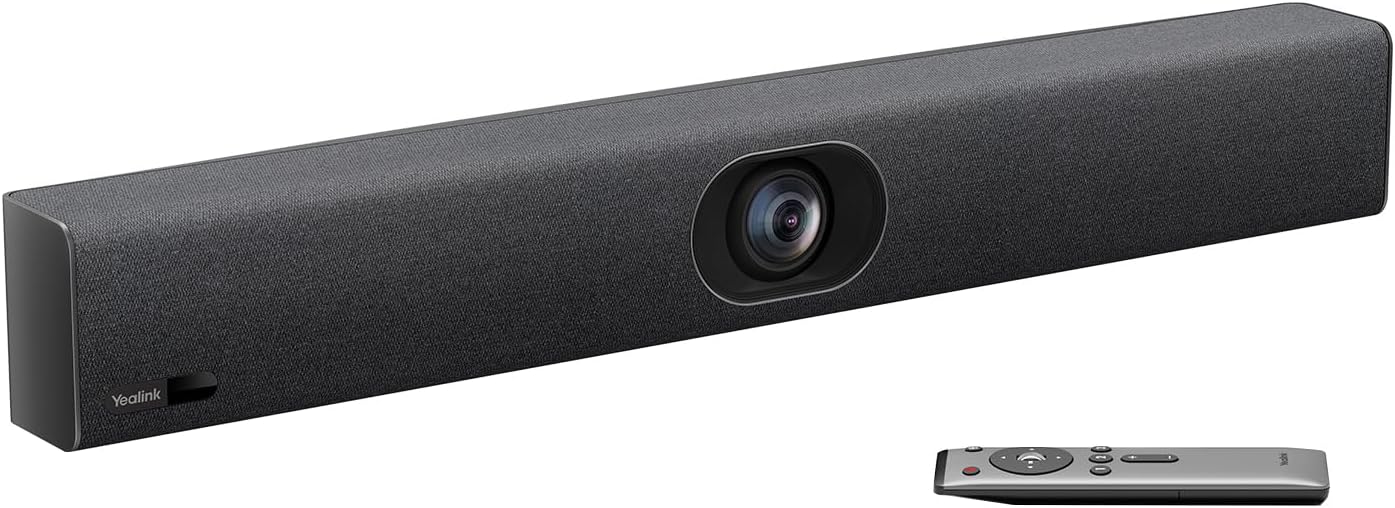
- 4K Ultra HD video captures detailed professional conference footage
- 120-degree ultra-wide view covers small meeting rooms effectively
- Auto Framing automatically adjusts composition as meeting participants change
- Speaker Tracking creates closer views of active meeting participants
- Eight MEMS microphones provide beamforming and full-duplex conference audio
The UVC40 E2 gets the room framing right without needing a camera operator
The Yealink UVC40 E2 earns our number two position for Best Video Conference Camera because it combines 4K video with intelligent automatic framing, a 120-degree ultra-wide lens, Speaker Tracking, eight built-in MEMS microphones, and an integrated high-fidelity speaker in one conferencing bar. It is designed primarily for small meeting rooms and huddle spaces where people sit fairly close to the display.
The 120-degree field of view is immediately useful in that environment. A conventional webcam can struggle when six people are spread across a short conference table because participants near the edges may be cropped out unless the camera is positioned much farther away.
The UVC40 E2 can capture a much wider section of the room from a relatively short distance. That lets people sit where the furniture naturally puts them rather than moving chairs toward the center every time a video call begins.
Yealink also gives the camera 5x electronic pan, tilt, and zoom capability. The wider framing can become a closer view when the meeting needs to focus on one participant rather than showing the entire table continuously.
This matters during real meetings. A sales presentation may begin with six people discussing a proposal, then shift toward one person explaining the numbers while everybody else listens.
Instead of leaving the remote side looking at six tiny faces for the entire meeting, Speaker Tracking can bring more attention to whoever is currently speaking. That creates a more useful conference view without assigning somebody in the room to manually control the camera.
The AI features are useful because conference rooms never stay perfectly arranged
Auto Framing is one of the strongest features of the UVC40 E2. The camera adjusts framing around actual participants based on their number and position instead of forcing the room to use one permanently fixed shot.
Imagine a meeting scheduled for eight people where only three actually attend in person. A static ultra-wide camera may leave those three people occupying a small section of a large frame with lots of empty wall and unused chairs around them.
Auto Framing can tighten the composition around the people who are actually there. If more participants enter later, the view can adjust again.
Speaker Tracking handles another common meeting problem. When somebody begins talking, the system can identify the active speaker and provide a closer view rather than requiring somebody to operate pan and zoom controls manually.
That makes hybrid conversations easier to follow, particularly when remote participants do not know everyone sitting in the physical meeting room. Seeing a closer view of the active speaker helps connect the voice with the person speaking.
There is still a reason to think about room layout. AI framing does not mean the camera can see through people, monitors, laptops, or furniture.
Mount the video bar where it has a clean view of the participants. Placing it underneath the primary conference display is usually practical because people naturally look toward the screen while talking to remote attendees.
Camera height matters too. Keep the lens reasonably close to eye level rather than mounting it near the ceiling and producing a security-camera style view of the conference table.
Yealink also uses Smart Area Exposure technology on the UVC40 E2. This is designed to optimize the visual presentation of faces when the meeting room contains uneven lighting.
That can help in rooms with windows or lighting that is not perfectly balanced. It does not remove the need for sensible lighting, though.
A bright window directly behind participants can still make video conferencing harder. Close blinds or change the seating position if strong daylight is dominating the background.
Good room lighting still improves every camera. A 4K conference system cannot create detail that was never properly illuminated in the first place.
The UVC40 E2 supports video at up to 4K resolution and 30 frames per second. This gives it enough source detail for professional conferencing, presentations, and situations where the room contains more than one participant.
The extra resolution is particularly useful when electronic zoom or automated framing crops into the original image. Starting with more image detail gives the system more information to work with.
Do not assume every meeting will actually reach the remote side at 4K. Conference resolution depends on the entire system, including the application, computer, network connection, meeting platform, and settings.
Microsoft Teams, Zoom, Webex, Google Meet, and other platforms can dynamically alter video quality depending on bandwidth and meeting conditions. The camera can provide a strong source image while the conferencing service decides to transmit something lower.
This is normal. It does not mean the 4K camera specification has no value.
The UVC40 E2 is also an all-in-one video bar rather than just a camera. It includes an eight-element MEMS microphone array and a built-in speaker, reducing the amount of separate conferencing hardware needed around the table.
Eight microphones give the system better voice coverage than relying on the tiny microphone built into a laptop at one end of the room. Yealink combines those microphones with beamforming, noise processing, echo cancellation, and dereverberation technology.
Beamforming helps the system concentrate on useful voice pickup. This matters when several people are sitting at different positions around a conference table.
Full-duplex audio is another practical feature. It allows both sides of the conversation to speak and be heard without the system behaving like an old speakerphone that constantly cuts one direction of audio whenever somebody else talks.
That sounds like a small technical detail until a meeting becomes animated. Natural conversation depends on reliable full-duplex audio, because people interrupt, agree, laugh, and respond before the previous person has completely stopped speaking.
Echo cancellation is equally important. The speaker is producing the remote participant's voice in the same room where the microphones are listening.
Without proper acoustic processing, the far side can hear their own voice returned through the room microphones. Good conferencing hardware has to manage that continuously.
The UVC40 E2 also supports optional wired and wireless expansion microphones. That gives you a path to improve audio coverage if the room layout stretches beyond what the integrated microphone array handles comfortably.
Expansion microphones can extend a room setup, but there is a point where a larger dedicated conferencing system becomes the better answer. The UVC40 E2 is still primarily intended for small and huddle rooms.
Why it takes second place rather than replacing our top-ranked Logitech
Setup is straightforward by conference-room standards. The UVC40 E2 can be mounted under a display, attached to a wall, or positioned appropriately around the meeting space and then connected to a computer through USB.
This matters because shared meeting rooms need equipment that ordinary employees can actually use. A system requiring somebody from IT to configure the camera before every call becomes a productivity problem very quickly.
USB connectivity keeps everyday use relatively simple. The video bar behaves as a standard conferencing device rather than requiring every user to learn a proprietary meeting workflow.
The listing supports mainstream conferencing platforms, including Microsoft Teams, Zoom, Google Meet, Webex, and other commonly used services. That is valuable for businesses that regularly meet external clients.
Your own company may use Teams internally while a customer sends a Zoom invitation the next morning. Conference-room hardware needs to deal with those changes without creating unnecessary friction.
Built-in Wi-Fi is used for remote device management rather than turning the bar into a completely independent meeting computer. Administrators can use Yealink's management tools for configuration, diagnostics, and updates.
Remote management matters when several rooms use the same hardware. An IT administrator does not want to walk through an office building manually checking firmware and settings on every conferencing bar.
The motorized privacy cover is another small but well-considered feature. The lens cover can open when video starts and close when the camera is not being used.
Physical privacy indicators are useful in permanent meeting-room installations because the camera remains pointed at the room throughout the day. Employees can see that the lens itself is covered rather than relying entirely on a software icon.
This also reduces the temptation to put tape over an expensive conference camera. A proper mechanical cover is much cleaner and does not leave residue on the lens area.
The UVC40 E2 is approximately 600 mm wide, so this is clearly meeting-room hardware rather than a personal webcam. Plan where it will sit before ordering.
A common installation is directly below the main display. Make sure the furniture, display stand, or wall mount leaves enough room for the unit and its cable connections.
Cable routing deserves attention too. A professional conference room starts looking temporary very quickly when USB, power, microphone, and display cables are hanging visibly down the wall.
Plan the cable route during installation instead of treating cable management as something to fix later. This also reduces the chance that someone will unplug the wrong cable while moving equipment.
Audio quality depends partly on the room itself. Hard glass walls, bare floors, large tables, and minimal furnishings can create noticeable reverberation.
Yealink includes dereverberation processing, but software has limits. If people in the room can hear a strong echo when they speak, the microphones will encounter that same acoustic environment.
Carpet, acoustic panels, curtains, and other absorptive materials can improve meeting-room sound. The room remains part of the audio system, regardless of how advanced the microphones are.
Background noise matters too. Avoid mounting the bar directly beside a loud air-conditioning vent or equipment fan.
A constant noise source close to the microphones makes the audio processing work harder and can reduce clarity. Fix the easy physical problems before expecting noise-reduction algorithms to handle everything.
One good test is to join the room from another computer located elsewhere. Listen to what remote attendees actually hear.
Walk around the conference table and speak from every normal seating position. Testing from the remote side reveals real problems that are difficult to notice while sitting inside the room itself.
Check video framing the same way. Sit at the left and right ends of the table and confirm that the wide-angle lens captures everyone without awkward cropping.
If participants are tiny despite the auto-framing system, reconsider camera distance and room layout. A camera cannot fix a room that has been arranged without regard to video conferencing.
The 120-degree lens is especially useful when the meeting table begins fairly close to the display. That is common in huddle rooms where floor space is limited.
A narrower camera would need to sit farther back to capture the same group. The wide lens lets small rooms remain small rather than rearranging furniture around the camera.
The 5x electronic pan, tilt, and zoom capability provides useful framing flexibility, although it is not equivalent to a large-room PTZ camera with a powerful optical zoom lens. That distinction matters.
If you need to identify a presenter at the opposite end of a long boardroom, choose equipment designed around longer distances and optical zoom. The UVC40 E2 is optimized for people sitting much closer.
This is one reason matching the camera to the meeting room is important. Buying the highest-resolution unit is not enough.
Room dimensions determine which specifications matter. Wide field of view matters more in a short huddle room, while optical zoom and longer microphone reach become more important as the room grows.
For its intended space, the Yealink specification mix is very strong. You get wide framing, 4K detail, automatic participant framing, active-speaker tracking, integrated audio, and optional microphone expansion.
The main reason we place it second rather than first is that our Logitech MeetUp choice remains an exceptionally straightforward and proven small-room package. Its camera controls, compact-room design, established platform compatibility, and simple deployment give it a slight overall advantage in this seven-product comparison.
The UVC40 E2 counters with excellent AI features and a particularly capable eight-microphone audio system. Speaker Tracking is a major practical advantage for teams that want the camera view to react automatically as conversation moves around the table.
For some offices, that could actually make the Yealink the preferable purchase. Rankings are comparative, and the best room camera depends on the meeting style as much as the specification sheet.
A team running highly interactive hybrid meetings may value automatic speaker close-ups more than a team that mostly uses a fixed wide shot. The UVC40 E2 handles those dynamic discussions particularly well.
Maintenance should remain simple but regular. Keep the camera lens and privacy cover clean, check microphone openings for dust, and keep firmware current.
Conference hardware benefits from periodic testing, especially if the room is used for client presentations or executive meetings. Discovering a microphone problem five minutes before an important call is avoidable.
Run a short test meeting after major software or operating-system updates. Confirm that the computer still sees the UVC40 E2 as the intended camera, microphone, and speaker.
Also make sure the conferencing application has not silently switched back to the laptop's internal webcam. This happens more often than people expect in rooms where several USB devices are connected.
The number two position is therefore a strong result rather than a significant compromise. The UVC40 E2 is a complete meeting-room video bar, not simply a webcam with a wider lens.
We give the Yealink UVC40 E2 our number two rank out of seven because its 4K/30fps imaging, 120-degree field of view, 5x e-PTZ, Auto Framing, Speaker Tracking, Smart Area Exposure, eight MEMS microphones, beamforming, echo cancellation, full-duplex audio, integrated speaker, motorized privacy cover, USB connectivity, and remote management create a very strong professional conferencing package.
It finishes just behind our first-place choice because the Logitech MeetUp remains slightly easier to recommend as the broadest all-around small-room solution. But for anyone searching for the Best Video Conference Camera and putting a premium on automatic framing, active-speaker tracking, wide room coverage, and integrated conference audio, the UVC40 E2 is an excellent second-place option with enough intelligence to reduce the amount of manual camera management during everyday meetings.

- 4K 30FPS camera delivers detailed professional meeting room video
- 120-degree ultra-wide lens captures participants sitting close together
- Auto Framing automatically adjusts the view around meeting participants
- Eight-microphone array provides strong voice pickup across small rooms
- Integrated 5W speaker creates a convenient all-in-one conferencing system
The UVC34 gets the essentials right for a small meeting room
The Yealink UVC34 earns our number three position for Best Video Conference Camera because it combines a 4K camera and complete conference audio system inside one compact video bar. It uses an 8MP 1/2.8-inch CMOS camera, records up to 4K at 30FPS, provides a 120-degree field of view, supports 5x electronic pan, tilt, and zoom, and includes an eight-microphone array with a built-in 5W speaker.
That combination is particularly useful in huddle rooms and small conference spaces. Instead of installing a separate webcam, microphone array, and speakerphone, the UVC34 handles those basic jobs from one device mounted around the primary display.
The 120-degree field of view is probably the specification that matters most in a small room. When the conference table begins only a short distance from the display, a conventional narrow webcam may struggle to capture participants sitting near both ends.
The wide lens handles short camera distances better. People can sit naturally around the table instead of squeezing their chairs toward the middle simply to stay inside the camera frame.
Yealink also allows the field of view to be adjusted between 120, 90, and 70 degrees through its configuration tools. That gives the UVC34 more flexibility when a room does not need the maximum ultra-wide view all the time.
A two-person call may look better with a tighter setting. A six-person meeting can move back to the wider view.
The 4K sensor and Auto Framing work well together
The UVC34 uses an 8MP camera with a 1/2.8-inch CMOS sensor and supports up to 4K resolution at 30 frames per second. Starting with a detailed 4K source image is particularly useful when the system needs to crop or electronically reframe the picture.
Yealink includes 5x e-PTZ capability rather than a large mechanical optical zoom assembly. The system can electronically pan, tilt, and zoom within the available camera image.
For a small room, that approach makes sense. Participants are already fairly close to the camera, so you normally do not need the powerful optical zoom required to capture somebody at the far end of a large boardroom.
The electronic zoom can instead tighten the frame around a smaller group or a particular area of the room. It gives meetings useful framing flexibility without adding a bulky moving camera head above the display.
Auto Framing takes advantage of that capability. The UVC34 can detect participants and automatically adjust the composition rather than leaving the camera permanently locked into one ultra-wide shot.
Imagine a conference room normally designed for six people, but only two employees arrive for a client call. A static 120-degree image could show two small people surrounded by empty chairs and unused wall space.
Auto Framing can produce a more appropriate composition around the people who are actually attending. If another participant enters later, the framing can adjust.
Automatic framing removes a repetitive meeting task. Nobody needs to sit with the remote control making camera adjustments every time somebody changes seats.
Yealink also includes AI Face Enhancement. This is designed to improve the appearance of faces during video conferencing, which is useful because faces are ultimately what remote participants spend most of the meeting looking at.
Good lighting still matters. AI processing cannot fully compensate for a participant sitting in darkness with a bright window directly behind them.
If the meeting room has large windows, use blinds when necessary. Position the table so strong daylight does not dominate the background.
Better lighting improves conference video immediately, regardless of camera resolution. Even a 4K camera needs enough light to produce a clean image.
The 4K specification also deserves some practical context. The UVC34 may provide a 4K source, but that does not mean every remote participant will always receive a 4K stream.
Meeting applications can alter resolution according to bandwidth, computer performance, platform settings, and conferencing policies. Zoom, Teams, Webex, and other services each manage video according to their own requirements.
Camera resolution and transmitted resolution can differ. The higher-resolution sensor still helps with source quality and electronic framing even when the final call operates at a lower resolution.
The UVC34 provides nine camera presets as well. Presets are useful when a room has predictable positions that need to be framed repeatedly.
One preset could cover the full conference table. Another might focus more tightly on a presentation area or whiteboard.
Instead of manually rebuilding those views each time, users can recall a known position. This is a small feature that becomes more valuable in a room hosting several meetings every day.
Why the UVC34 takes third place rather than moving higher
Audio is one of the strongest reasons to consider the UVC34. An eight-microphone array is built directly into the bar, along with Yealink's Noise Proof technology, echo cancellation, dereverberation processing, and full-duplex audio.
Yealink specifies a voice pickup range around 4.5 to 5 metres depending on the referenced specification. That is roughly 15 to 16 feet, which is appropriate for the small and huddle rooms this system targets.
People sitting around a compact conference table should not need to lean toward a laptop microphone. The microphone array is designed to pick up speech across the meeting area.
The built-in 5W high-fidelity speaker completes the audio side. You do not need a separate speakerphone for an ordinary small-room installation.
This simplifies the conference table. There are fewer devices, fewer cables, and fewer audio inputs for somebody to accidentally select incorrectly in the conferencing software.
Full-duplex operation matters more than it sounds. It allows both sides of a call to speak naturally at the same time rather than having one direction of audio aggressively cut whenever the other person talks.
Real conversations overlap. People interrupt, laugh, agree, and respond before the previous sentence has completely ended.
Full-duplex audio supports more natural conversation, especially during energetic team discussions. A meeting system that constantly suppresses one side can make those interactions feel awkward.
Echo cancellation is important because the speaker and microphones share the same physical room. The microphones need to hear local participants without sending the remote participant's own voice straight back to them.
Yealink's Noise Proof processing also helps manage unwanted background sound. Still, the room itself remains part of the audio system.
A room full of glass, hard floors, and bare walls can create noticeable reverberation. Software processing helps, but it cannot completely redesign the acoustics of the space.
Soft furnishings can improve meeting audio. Carpet, curtains, acoustic panels, and other absorptive materials can reduce the reflections that make speech harder to understand.
Air-conditioning vents deserve attention too. Do not mount the UVC34 directly beside a loud vent if another sensible position is available.
A constant noise source close to the microphone array makes the processing system work harder. Fixing an obvious physical noise problem is better than relying entirely on noise reduction.
The UVC34 uses a USB connection and is designed around plug-and-play conferencing. The package includes a long 7-metre USB-B to USB-A cable, which is useful when the room computer is not sitting directly underneath the display.
The long included cable simplifies room installation. You have more flexibility over where the conferencing computer can sit without immediately buying another cable.
The package also includes a VCR20 remote control, power adapter, wall bracket, and mounting accessories. That gives you the basic components needed for a permanent small-room installation.
The video bar itself measures approximately 380 mm wide by 55 mm high by 55 mm deep. That compact shape fits naturally underneath many meeting-room displays.
Mounting near the display is usually sensible because participants already look toward that screen while talking to remote attendees. The closer the camera is to where their eyes naturally focus, the more natural the conversation appears.
Avoid mounting the camera excessively high. Putting it near the ceiling produces a surveillance-style angle rather than a normal conversational view.
Mounting too low can be awkward too. Try to keep the lens reasonably close to participant eye level within the practical limits of the display installation.
The UVC34 includes an electric lens cap. The cover provides a physical privacy barrier when video is not being used.
This is particularly useful in a permanently installed meeting room. Employees can see that the lens is physically covered rather than trusting only a software indicator.
A physical lens cover provides visible privacy, and it is much cleaner than employees placing tape or improvised covers over an expensive conference camera.
Built-in Wi-Fi is used for remote device management. IT teams can use Yealink's management ecosystem to configure and maintain equipment without manually visiting every meeting room for routine administration.
This becomes increasingly useful as the number of rooms grows. Managing one camera manually is easy.
Managing 30 conference rooms across several office floors is different. Centralized device management reduces routine IT work, especially for firmware and configuration changes.
The UVC34 is compatible with major conferencing platforms, including Microsoft Teams, Zoom, Google Meet, Cisco Webex, and other standard applications. This broad compatibility matters when a company does not control every meeting invitation it receives.
A client may send a Zoom link while the company itself uses Teams. The conference camera should continue working without forcing users into a different hardware setup.
That is another advantage of the USB video-bar approach. It behaves as standard camera and audio hardware for the connected computer.
Platform flexibility is important for external meetings. A conference room should not become difficult to use simply because the other company prefers another meeting service.
The UVC34 also includes Bluetooth 4.2 in its hardware specifications. This adds connectivity options within the broader meeting-room ecosystem.
Where the UVC34 loses ground is intelligence compared with the UVC40 E2 ranked above it. The UVC40 E2 adds more advanced Speaker Tracking capabilities, allowing the system to react more specifically to whoever is currently speaking.
The UVC34 focuses on Auto Framing and AI Face Enhancement. Those are useful, but the newer UVC40 E2 offers more dynamic meeting intelligence.
This matters when conversations move rapidly between several people around a table. Speaker-focused framing can make it easier for remote participants to follow who is talking.
The Logitech MeetUp at number one remains our broadest overall recommendation for a compact meeting room because of its mature small-room design and straightforward deployment. The Yealink UVC40 E2 follows closely with stronger modern AI behaviour.
The UVC34 therefore fits naturally into third place. It provides most of the core functionality businesses actually need while giving up some of the newer tracking sophistication.
Third place does not mean basic performance. This is still a 4K all-in-one conferencing bar with wide-angle optics, automatic framing, eight microphones, integrated audio, privacy protection, presets, and centralized management.
For many meeting rooms, that is already more than enough. Paying for additional tracking features only makes sense if the team will genuinely benefit from them.
Room size is another reason to choose carefully. The UVC34 is intended for small and huddle rooms rather than large boardrooms.
If participants are sitting 30 feet away, a 5x electronic zoom and integrated small-room microphone array are not the ideal tools. Look for a larger-room system with optical PTZ capability and more extensive microphone deployment.
Match the camera to the room dimensions rather than simply buying whichever model has the highest resolution. A 120-degree lens is particularly valuable when the camera is close to participants.
For a long conference room, optical zoom and longer pickup distances become more important. Different rooms create different priorities.
The UVC34 also works for work-from-home environments, although it is more hardware than most individual users need. Someone with a dedicated home office and frequent executive calls may appreciate the all-in-one design.
For a single person sitting two feet from a monitor, however, a high-quality personal webcam and microphone may be more economical. The UVC34 makes the most sense when several people need to share the same camera and audio system.
Maintenance is straightforward. Keep the camera lens clean, make sure the microphone openings are unobstructed, and periodically verify firmware and application compatibility.
Test the room from the remote side occasionally. The people sitting inside the conference room cannot accurately judge how they sound to someone joining from another location.
Join a test meeting from a laptop elsewhere in the building. Have someone speak from every normal seating position and listen for volume, echo, and background noise.
Check the wide-angle framing too. Make sure participants sitting at the edges remain visible without appearing awkwardly positioned.
If the camera is showing too much empty room, try Auto Framing or a narrower configurable field of view. There is no reason to use 120 degrees simply because it is available.
Use the framing that fits the meeting. Wide coverage is valuable for groups, while tighter framing can make smaller meetings feel more personal.
We give the Yealink UVC34 our number three rank out of seven because its 8MP 4K/30FPS camera, 120-degree field of view, selectable 90 and 70 degree views, 5x e-PTZ, nine presets, Auto Framing, AI Face Enhancement, electric lens cap, eight-microphone array, roughly 5-metre voice pickup, 5W speaker, Noise Proof technology, full-duplex audio, echo cancellation, and remote management provide a very complete small-room conferencing package.
It ranks behind our first two because those models offer either a particularly refined overall small-room package or more advanced speaker-focused AI tracking. But for someone searching for the Best Video Conference Camera and wanting strong 4K video, excellent wide-room coverage, integrated audio, automatic framing, and easy USB deployment without paying for every newer tracking feature, the UVC34 is an excellent third-place choice.
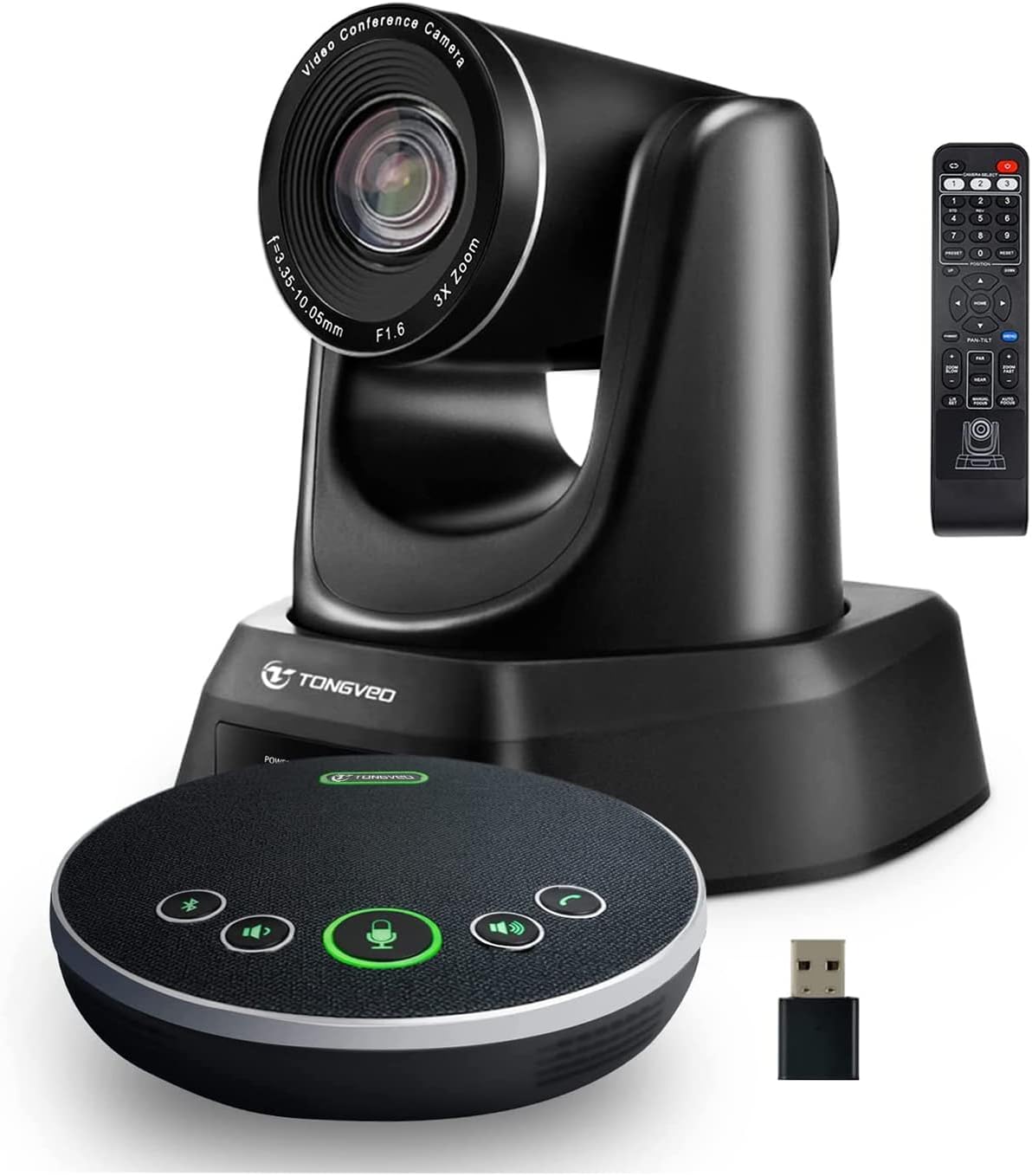
- Full HD 1080p camera delivers clear professional meeting video
- 3x optical zoom provides sharper close-ups without digital cropping
- Motorized PTZ movement offers flexible framing across conference rooms
- Bluetooth conference speakerphone provides convenient 360-degree voice pickup
- USB plug-and-play connectivity works across major conferencing platforms
The separate PTZ camera and speakerphone setup gives you useful placement freedom
The TONGVEO ConferenceCam 3X earns our number four position for Best Video Conference Camera because it takes a different approach from the all-in-one video bars above it. Instead of forcing the camera, microphones, and speaker into one housing, you get a dedicated 1080p PTZ conference camera paired with a separate Bluetooth and USB speakerphone that can sit closer to the people actually talking.
That separation can be genuinely useful in a medium-size meeting setup. The camera belongs near the display where it can frame participants properly, while the speakerphone usually works better near the middle of the conference table.
Trying to optimize both camera position and microphone position with one device can involve compromises. TONGVEO lets you position each component where it makes sense for its particular job.
The camera provides Full HD 1080p video and 3x optical zoom. Optical zoom is an important practical advantage because it changes the image through the lens rather than simply enlarging a cropped section of the sensor.
This is particularly useful when the meeting shifts from a group shot to a closer view of one presenter. You can tighten the composition while retaining more image detail than you would normally get from aggressive digital enlargement.
The 3x range is modest compared with large-room PTZ systems, but it suits smaller conference rooms where participants are not sitting 40 feet from the camera. It gives you useful framing flexibility without turning the system into a large auditorium camera.
The motorized PTZ is more useful when people move around the room
The TONGVEO camera supports motorized pan, tilt, and zoom control. Motorized PTZ lets you reframe the room remotely instead of physically walking over to the camera and pointing it in another direction.
This becomes useful in meetings where the activity is not permanently centered around one table. A training session might begin with everyone seated and then move toward somebody presenting beside a display or whiteboard.
A fixed webcam can force you to choose one compromise angle. With PTZ, you can move the camera toward the area that currently matters.
The camera provides a relatively wide view for normal conference use, while the motorized movement extends the useful coverage beyond the static lens position. That allows one installed camera to handle several meeting arrangements.
Presets can make repeated framing much faster if your room uses the same positions regularly. One position can cover the conference table while another focuses on a presentation area.
This is useful in a shared office because users do not have to manually reconstruct the camera angle every morning. A predictable room should have predictable camera positions.
The 1080p resolution is lower than the 4K cameras in our top three. That is one reason the TONGVEO lands in fourth place.
But resolution is not the only thing that determines whether a conference camera works well. Optical zoom can be more useful than extra pixels when you need a closer shot without relying heavily on digital cropping.
For ordinary Teams, Zoom, Webex, or Google Meet calls, 1080p can still provide a professional image when the room is properly lit. Many conferencing situations do not transmit 4K video to remote participants anyway.
Network conditions and meeting software frequently determine the final stream quality. Buying a 4K camera does not guarantee that every participant receives a 4K image.
This makes room setup important. A properly positioned 1080p camera with good lighting can look much better than a badly positioned 4K camera facing strong backlight.
Lighting remains one of the easiest upgrades for conference video. Make sure faces receive useful front or side light rather than placing everyone in front of bright windows.
If the room has large windows behind the table, use blinds during daytime calls. Strong backlighting can force the camera to choose between exposing the window correctly and keeping faces bright enough.
The camera should also be mounted reasonably close to eye level. Putting a PTZ camera near the ceiling may give it a clear view, but it can create an unnatural downward angle.
Mounting too low has the opposite problem. Keep the camera close to the display viewing direction so people naturally look toward the lens while speaking to remote participants.
The PTZ movement also needs to be configured sensibly. Avoid making large camera movements every time somebody says one sentence.
Constant movement can be distracting to remote viewers. Use wider framing for active group discussions and move to tighter views when one person is presenting for a meaningful period.
Why the TONGVEO package earns fourth place rather than reaching our top three
The included conference speakerphone is one of the most useful parts of the package. It can be positioned on the table instead of forcing the camera's microphones to pick up everybody from the front of the room.
Tabletop microphone placement improves practical voice pickup because the microphone can sit much closer to the participants. This becomes increasingly useful as the table grows longer.
Imagine six people sitting around a rectangular meeting table. The camera may be mounted several feet away beneath the display, but the speakerphone can sit directly in the middle of the group.
That shortens the distance between speakers and microphone. People should not have to lean toward the display whenever they want remote attendees to hear them.
The speakerphone provides 360-degree voice pickup, which makes sense for table placement. Participants can sit around the device rather than all facing one microphone opening.
360-degree pickup suits collaborative meetings, especially when conversation moves rapidly between people on opposite sides of the table.
The speakerphone also supports Bluetooth, giving it some flexibility beyond the primary conference-camera setup. A compatible phone or computer can use it for audio conferencing when video is unnecessary.
USB connectivity remains useful for the main room computer. Wired USB generally provides the most straightforward setup because the computer sees the camera and audio hardware as connected conferencing devices.
The TONGVEO package is designed to work with major meeting applications including Zoom, Microsoft Teams, Skype, Webex, and other standard video conferencing platforms. Broad software compatibility matters for client calls, where the meeting platform may change from one appointment to another.
A company may use Teams internally but receive a Zoom invitation from a supplier. The hardware should not become the reason that meeting is difficult to join.
Plug-and-play USB operation reduces that friction. You still need to select the correct camera, microphone, and speaker inside the meeting application, particularly the first time the system is used.
This is a common setup mistake. Someone installs a conference camera correctly, then the meeting application continues using the laptop webcam and internal microphone.
Check the selected devices before important meetings. It takes less than a minute and prevents an expensive conferencing system from sitting unused while everyone talks through a laptop microphone.
The separate speakerphone also means there are more individual pieces than with a single video bar. That gives you placement flexibility but adds cables, charging considerations, and another device to manage.
An all-in-one Yealink or Logitech system can look cleaner when permanently mounted beneath a display. One bar handles video and room audio.
The TONGVEO system instead asks you to accept a separate tabletop component. That trade gives you better placement flexibility, but the meeting table is not completely free of hardware.
For some rooms, that is a worthwhile compromise. If participants regularly complain that an integrated front-of-room microphone sounds distant, moving the speakerphone closer can be more valuable than keeping the table perfectly empty.
Room acoustics still affect performance. A 360-degree microphone will also hear sound reflections from hard surfaces around it.
Glass walls, bare floors, and large hard conference tables can create reverberation. Soft materials such as carpet, curtains, acoustic panels, and upholstered furniture can help reduce those reflections.
The room itself affects conference audio. No microphone specification completely removes poor acoustics.
Background noise deserves attention too. Do not place the speakerphone directly beside a laptop with a loud cooling fan or under a strong air-conditioning vent.
Move obvious noise sources when possible. Noise processing is useful, but preventing noise from reaching the microphone in the first place is better.
The 3x optical zoom is where this model has an interesting advantage over some compact electronic-zoom systems. Optical magnification maintains more native image information when moving toward a closer composition.
Optical zoom helps when presenters sit farther away, although 3x should still be viewed as a small-to-medium-room capability rather than long-distance boardroom zoom.
If you need to frame somebody at the opposite end of a very large conference room, look for a PTZ camera with a much longer optical zoom range. Room dimensions should determine the camera class.
The motorized pan and tilt make the TONGVEO more flexible than a conventional fixed webcam. That flexibility is useful for training rooms, classrooms, consultation spaces, and offices where meetings do not always happen in one fixed seating arrangement.
A fixed camera works well when everybody remains around one table. PTZ becomes more useful as soon as people start presenting from different areas.
Choose camera movement based on meeting behaviour. There is little reason to pay for PTZ if every meeting consists of two people sitting directly in front of the same screen.
The separate remote control makes camera adjustment accessible without walking to the room computer. That is useful during presentations where the person controlling the camera may be sitting at the table.
Store the remote somewhere predictable. Shared conference rooms have a strange ability to make small remotes disappear.
A dedicated tray or wall holder near the table can solve that problem. If nobody can find the remote, the PTZ features become much less convenient.
Conference rooms should be easy for unfamiliar users. Label inputs, keep remotes accessible, and avoid complicated connection procedures where possible.
The TONGVEO package loses ground against our top three mainly in imaging resolution and automated intelligence. Logitech MeetUp and the Yealink models provide more sophisticated automatic framing or AI-assisted meeting features.
The TONGVEO relies more heavily on deliberate PTZ control. That can be an advantage when you want to decide exactly where the camera points, but it requires more user involvement.
Automatic framing is convenient in rooms where participants constantly change. Manual PTZ provides control but requires attention, which is the basic tradeoff.
The 1080p sensor also lacks the cropping flexibility of a 4K source. Electronic reframing becomes more limited when fewer source pixels are available.
The optical zoom helps offset that issue for closer views. Still, 4K systems above it provide a stronger overall imaging platform.
That is why fourth place makes sense. The TONGVEO package is capable, flexible, and particularly useful when separate microphone placement and optical PTZ matter, but the higher-ranked products are more complete as modern automated conferencing systems.
Fourth place is still a strong result because this setup solves several practical meeting-room problems well. It gives you motorized framing, true optical zoom, tabletop 360-degree audio, Bluetooth flexibility, and straightforward USB compatibility.
Installation should begin with the room rather than the equipment. Decide where participants normally sit and where they look during calls.
Mount the camera close to that viewing direction. Put the speakerphone near the middle of the actual conversation area.
Then run a test call from another room. Always test from the remote participant's perspective, because the people inside the conference room cannot accurately judge their own transmitted audio.
Have someone sit at every normal seat and speak at an ordinary volume. Check whether the farthest participant remains understandable without leaning toward the microphone.
Test the camera at wide and zoomed positions too. Make sure pan and tilt limits cover the places where presentations actually happen.
Save useful presets if the system supports your preferred room positions. That reduces setup time when the same framing is needed again.
A little installation work saves time every meeting. Conference equipment should disappear into the workflow once the room is configured correctly.
Keep the camera lens clean and inspect cables periodically. A fingerprint on the lens can reduce image contrast enough to make a good camera look strangely soft.
USB cables can also loosen when conference-room equipment is moved. If the camera suddenly disappears from the meeting application, check the physical connection before assuming the hardware has failed.
Keep conferencing software current as well. Operating-system and meeting-platform updates can occasionally change device permissions or default input selections.
Routine testing prevents avoidable meeting failures. A five-minute check every few months is easier than troubleshooting while a client waits on screen.
We give the TONGVEO ConferenceCam 3X our number four rank out of seven because its 1080p Full HD imaging, 3x optical zoom, motorized pan and tilt, remote control, USB connectivity, separate 360-degree Bluetooth speakerphone, and broad conferencing-platform compatibility create a flexible meeting-room package.
It ranks below our first three because those cameras provide 4K imaging and stronger automatic framing or AI-driven conference features. But for someone searching for the Best Video Conference Camera and valuing true optical zoom, controllable PTZ movement, and a separate tabletop speakerphone that can sit close to meeting participants, this TONGVEO system remains a positive fourth-place choice with a practical advantage in rooms where camera and microphone placement need to be handled independently.

- 4K Ultra HD imaging provides detailed professional conference video
- 120-degree wide-angle view captures groups in compact meeting rooms
- AI Auto Framing automatically keeps meeting participants properly composed
- Presenter Tracking follows moving speakers during presentations and training
- Dual noise-cancelling microphones provide clear voice pickup across rooms
The 120-degree view and AI tracking make this surprisingly capable for small rooms
The WyreStorm FOCUS 210 earns our number five position for Best Video Conference Camera because it combines 4K imaging with intelligent participant tracking in a relatively compact USB webcam. It offers a 120-degree ultra-wide field of view, Auto Framing, Presenter Tracking, electronic pan, tilt, and zoom, up to 8x digital zoom, and dual AI noise-cancelling microphones.
That specification mix is particularly useful for small meeting rooms, huddle spaces, training rooms, and hybrid offices. The 120-degree field of view means the camera can sit relatively close to a conference table while still fitting several participants into the picture.
This solves a very normal meeting-room problem. A conventional webcam may work beautifully for one person at a desk, then immediately crop out people sitting at the ends of a six-person table.
The ultra-wide lens gives groups more room without requiring the camera to be moved several feet farther away. In a compact office where there simply is not another six feet behind the display, that matters.
The FOCUS 210 also starts with a 4K image. This gives the system more image information to work with when electronic framing and digital zoom are being used.
For normal video calls, the final transmitted resolution may still be lower depending on the meeting platform and network connection. But a detailed source image remains useful when the camera needs to crop into part of the frame.
The tracking modes solve two different meeting problems
Auto Framing is designed around group meetings. The camera automatically adjusts around visible participants rather than leaving everybody inside one permanently fixed ultra-wide composition.
Imagine a room designed for eight people where only three attend a particular meeting. A static 120-degree view may show those three employees surrounded by empty chairs, wall space, and unused sections of the table.
Auto Framing can tighten the composition. If another person enters and sits down, the camera can widen the frame to include them.
This reduces the need for somebody in the room to act as camera operator. People can focus on the meeting rather than opening camera controls whenever attendance changes.
Presenter Tracking handles a different scenario. The camera can follow a moving presenter, which is useful for training, remote education, product demonstrations, and presentations where somebody is standing rather than sitting at the conference table.
Consider an employee demonstrating a physical product. They begin beside the desk, move toward a display, then step sideways to pick up another item.
A fixed webcam forces that person to remain within one narrow position or disappear from the frame. Presenter Tracking gives them more freedom to move while remaining visible to remote participants.
This is particularly useful for online teaching. An instructor can move naturally instead of constantly checking whether they have wandered outside the camera view.
Tracking works best with deliberate room setup, though. Do not expect AI software to compensate for people repeatedly walking behind furniture, disappearing behind monitors, or moving through extremely poor lighting.
Give the camera a clean view of the presentation area. Remove obvious visual obstructions where possible.
Lighting matters too. A presenter standing in front of a bright window creates a difficult exposure problem for any webcam.
The FOCUS 210 provides image-processing features intended to help with challenging lighting, but the physical room still matters. Close blinds or reposition the presentation area if strong backlighting is overwhelming the image.
Good lighting improves video before software does. A moderately priced camera in a well-lit room can look better than an expensive 4K camera facing terrible lighting.
The 4K capability is useful for presentation work because details remain stronger when the camera reframes. This can help when somebody holds up a product, printed document, or physical object during a remote meeting.
Autofocus also matters in those situations. A conference camera needs to respond when the subject distance changes rather than remaining focused on the background.
The digital zoom reaches up to 8x. That sounds substantial, but digital magnification needs realistic expectations.
Digital zoom trades field of view for detail. As magnification increases, the camera is using a smaller section of the available sensor image, so extreme zoom will not behave like a long optical telephoto lens.
Moderate zoom can still be very useful with a 4K source. It lets you create tighter framing around a presenter without physically relocating the camera.
For a very large boardroom, however, a camera with genuine optical PTZ is a better choice. If somebody is sitting 30 feet away, digital zoom is not the ideal tool.
Why the FOCUS 210 lands in fifth place
The audio side uses dual AI noise-cancelling microphones. Built-in microphones simplify a small meeting setup because a separate tabletop microphone may not be necessary for modest room sizes.
The microphone system is designed to pick up voices across the meeting area while reducing common environmental noise. Keyboard sounds, fans, and normal office activity are exactly the kinds of distractions conference audio needs to manage.
Noise cancellation still has limits. Do not place the webcam directly beside a loud air-conditioning outlet and expect software to make the problem disappear completely.
Physical distance matters as well. The farther somebody sits from the microphones, the more room reflections and background noise become part of the captured signal.
Microphone placement affects voice clarity, even when AI noise reduction is available. If the room becomes substantially larger, a dedicated conference audio system may provide better coverage.
This is one area where the all-in-one video bars higher in our ranking have an advantage. The Logitech and Yealink systems are built around complete room audio with larger microphone arrays and integrated speakers.
The FOCUS 210 is fundamentally a conference webcam. That makes it compact and flexible, but you may still need separate speakers depending on the computer and room arrangement.
This distinction is important. A webcam with microphones and a full conferencing bar are not exactly the same category of installation.
The FOCUS 210 is easier to deploy temporarily. You can mount it on a monitor, connect it through USB, use it for the meeting, and move it to another workstation later.
A large video bar is more likely to become permanent room infrastructure. That is excellent for dedicated conference rooms but unnecessary for a flexible home office or occasional meeting space.
The WyreStorm also supports USB plug-and-play operation. You do not need a complicated AV control system just to start a normal meeting.
Connect the camera, open the conferencing application, and select the WyreStorm device as the active camera. That basic workflow works with popular platforms including Zoom, Microsoft Teams, Google Meet, Cisco Webex, and other mainstream video applications.
Broad application compatibility is important because businesses rarely control every meeting platform they encounter. Your company might use Teams internally while clients send Zoom or Webex invitations.
Always check the selected camera before an important meeting. Conferencing software sometimes returns to the laptop's built-in webcam after an update or when hardware has been disconnected.
This is one of those frustrating problems where the expensive conference camera is working perfectly but the meeting software is simply using something else. A ten-second settings check prevents it.
The WyreStorm software also gives users control over camera settings and tracking behaviour. This is useful when Auto Framing makes sense for one meeting but Presenter Tracking is more appropriate for another.
Choose the tracking mode for the meeting type. Auto Framing suits groups sitting around a table, while Presenter Tracking makes more sense for one person moving through a presentation area.
Leaving presenter tracking enabled during an active roundtable discussion can create unnecessary camera movement. Remote participants may find constant reframing distracting.
A wide stable shot is sometimes better. AI features should improve the meeting rather than being enabled simply because they exist.
The physical privacy cover is another useful feature. When the webcam is not being used, the lens can be covered rather than relying entirely on software privacy controls.
This is particularly reassuring in home offices and permanent workspaces where the camera remains connected all day. A physical cover makes camera privacy visible.
The cover also helps protect the lens from fingerprints and dust. A dirty lens can reduce contrast and make a good 4K camera appear strangely soft.
Clean the lens carefully using an appropriate method. Do not use harsh household cleaners or rough materials on optical surfaces.
The webcam can also be mounted on a tripod, which expands placement options beyond clipping it directly to a monitor. This is useful for training sessions or demonstrations where the best camera position is not directly above the display.
Tripod mounting can improve presentation framing, especially when a presenter needs room to stand and move. Position the camera based on the presentation area rather than automatically putting it wherever the monitor happens to be.
For normal conference calls, mounting close to the display remains sensible. Participants naturally look toward the screen when speaking to remote colleagues.
Keeping the camera close to that line of sight makes conversations look more natural. If the camera sits far off to one side, everyone appears to be looking away from the remote participants.
Camera height deserves attention too. Eye level or reasonably close to it usually looks better than a dramatic angle from above or below.
Good placement improves perceived professionalism without changing any camera setting. This is free image quality.
The 120-degree field of view should also be used intelligently. Maximum width is useful for groups but can make one person appear small within a large room.
If only one presenter is using the camera, use the software framing tools or tracking features to create a tighter composition. The viewer should see the person, not mostly ceiling and empty office furniture.
For groups, move back toward the wide view. The ability to change framing is more valuable than simply having one extremely wide setting.
Frame for the number of participants. That basic principle improves almost every video conference.
The FOCUS 210 is Zoom certified, which adds reassurance for organizations heavily invested in Zoom-based meetings. Certification does not mean the camera only works with Zoom.
It remains compatible with other major conferencing and streaming applications. That broader flexibility is important if the camera is expected to serve different clients and workflows.
Where the WyreStorm begins losing ground against the products above it is room integration. The top-ranked Logitech MeetUp and Yealink video bars combine camera, microphones, speaker, and deeper meeting-room features into more complete packages.
The FOCUS 210 needs a little more system planning. You need to consider what will handle speaker output and whether its built-in microphones are sufficient for the room.
For a home office or small huddle space, that may be easy. The computer's speakers or another audio system may already be available.
For a permanent corporate meeting room, an all-in-one video bar can create a cleaner and more standardized installation. Fewer separate components generally mean fewer things for users to select incorrectly.
The FOCUS 210 also relies on electronic rather than true optical PTZ. This keeps the webcam compact but limits how well it can handle long-distance close-ups.
Electronic PTZ suits small rooms best. Large boardrooms should look toward cameras designed around optical zoom and motorized physical movement.
That room-size limitation is not really a defect. It simply means buyers need to match the product to the intended environment.
For a six-person huddle room, a 120-degree lens and AI framing can be much more useful than a huge optical zoom. For a long executive boardroom, the priorities reverse.
Test microphone performance from the remote side after installation. Have someone sit in every normal meeting position and speak at an ordinary conversational volume.
Remote testing reveals the real audio experience. People inside the room cannot accurately judge what the far side is receiving.
Do the same with the camera. Have people enter and leave while Auto Framing is enabled and see whether the resulting composition feels natural.
Then test Presenter Tracking with somebody walking through the normal presentation area. This lets you identify lighting problems or tracking boundaries before an important meeting.
Firmware and software should be kept current through WyreStorm's supported tools. Updates can improve compatibility and address behaviour over the life of the webcam.
Do not update immediately before a critical meeting. Perform firmware maintenance when there is enough time to test the camera afterward.
This is a sensible rule for any conference-room equipment. A stable working system five minutes before an executive call is more useful than discovering an update problem at the worst possible moment.
The fifth-place ranking therefore reflects the strength of the products above it rather than poor performance. The FOCUS 210 gives you a lot of modern conferencing capability in a much smaller package.
Its combination of 4K imaging, a 120-degree field of view, Auto Framing, Presenter Tracking, 8x digital zoom, ePTZ, and noise-cancelling microphones is compelling for small rooms and flexible workspaces.
The AI tracking features are its strongest argument. They make the camera useful for both seated group meetings and presentations where somebody needs to move around naturally.
We give the WyreStorm FOCUS 210 our number five rank out of seven because its 4K imaging, ultra-wide 120-degree coverage, AI Auto Framing, Presenter Tracking, electronic PTZ, up to 8x digital zoom, dual noise-cancelling microphones, physical privacy protection, USB plug-and-play setup, and broad conferencing-platform compatibility create a capable modern webcam for professional collaboration.
It finishes fifth because the higher-ranked products provide stronger integrated room audio, optical PTZ, or more complete conference-room installations. But for someone searching for the Best Video Conference Camera and wanting a compact 4K webcam with a very wide view and intelligent tracking for huddle rooms, presentations, remote education, or hybrid work, the FOCUS 210 remains a positive fifth-place choice with considerably more flexibility than a basic fixed webcam.
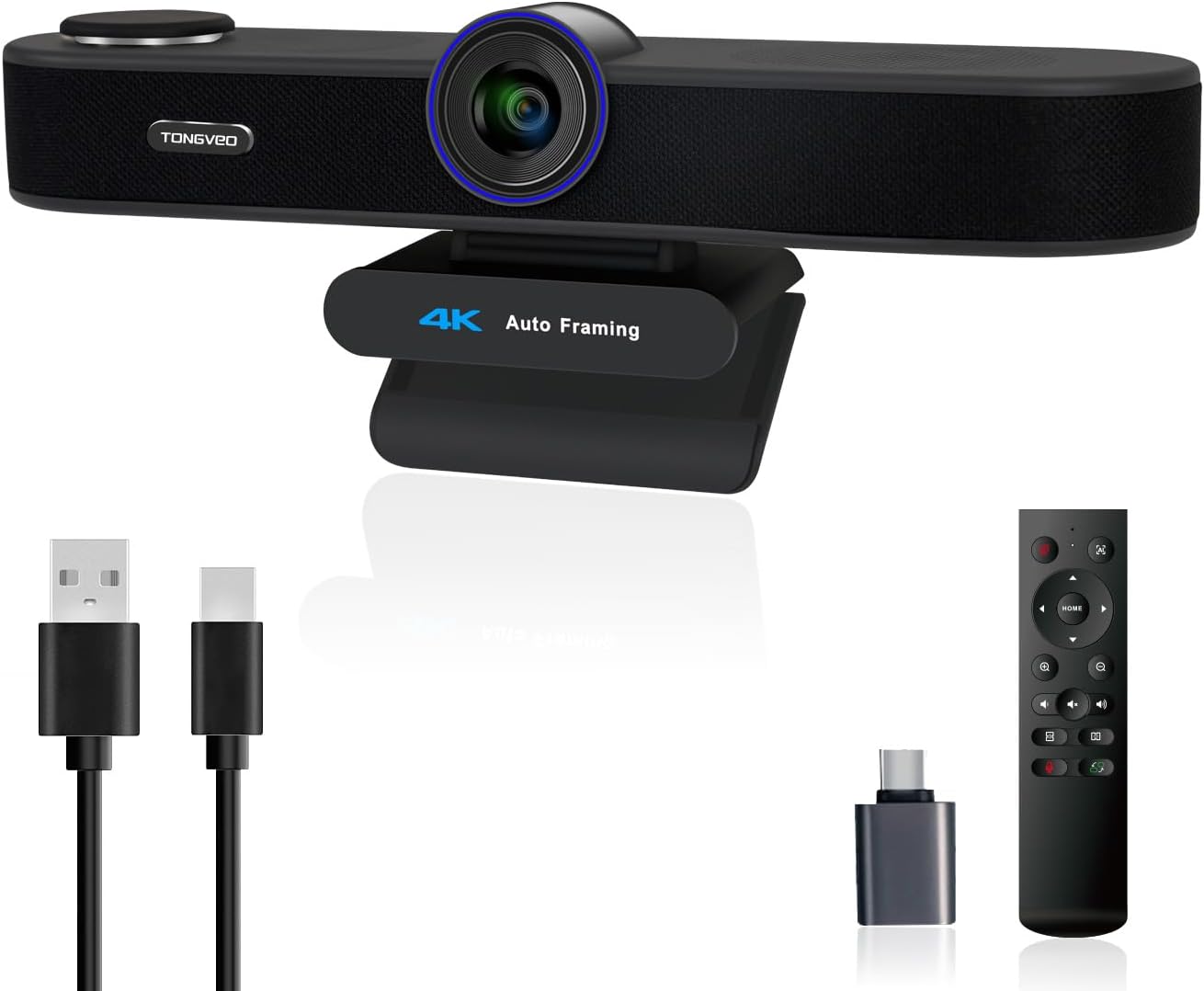
- 4K Ultra HD imaging provides detailed professional meeting video
- AI auto tracking follows presenters during meetings and demonstrations
- Dual built-in microphones simplify smaller conference room audio setups
- Wide-angle framing helps capture multiple participants around meeting tables
- USB plug-and-play connectivity supports popular video conferencing platforms
The AI tracking is the feature that makes this more useful than a basic 4K webcam
This TONGVEO 4K Auto Tracking Conference Camera earns our number six position for Best Video Conference Camera because it combines high-resolution 4K conference video with intelligent tracking, wide room coverage, dual built-in microphones, and straightforward USB connectivity. It is designed for meetings, presentations, remote teaching, and other situations where the person on camera may not remain perfectly centered throughout the call.
That tracking capability matters in a different way from ordinary autofocus. Autofocus keeps the subject visually sharp, while tracking attempts to keep the relevant person properly positioned inside the frame as they move.
Think about somebody giving a remote product demonstration. They begin behind a desk, stand up to retrieve an item, then move a few feet sideways to show it from another angle.
A fixed webcam may leave them near the edge of the image or completely outside it. Automatic tracking reduces manual camera adjustments, allowing the presenter to concentrate more on the conversation and less on checking the preview window every few seconds.
The same idea applies to remote teaching and training. An instructor does not necessarily want to spend an entire session sitting directly in front of a laptop just to remain visible.
With appropriate camera placement and tracking enabled, there is more freedom to stand, demonstrate something physically, or move within the camera's usable area. That makes the system more versatile than a conventional fixed webcam.
4K gives the tracking system more image information to work with
The 4K capability is useful because intelligent framing often involves cropping into the camera's original image. A higher-resolution source gives electronic framing more detail than starting from a lower-resolution picture.
This does not mean every Teams, Zoom, Webex, or Google Meet call will be transmitted to remote participants in 4K. Conferencing applications can lower video resolution according to bandwidth, software settings, meeting conditions, and platform limitations.
The camera can still benefit from the higher-resolution sensor internally. When the software reframes around a presenter or creates a tighter electronic crop, there is more source information available.
That is particularly useful in a small conference room where you may alternate between a wide group composition and a closer view. The camera does not need to remain permanently locked into one framing choice.
Wide framing works better for group discussions, while tighter framing makes more sense when one person is speaking for an extended period. Good conference video changes according to what is happening in the room.
Camera placement still determines how successful that framing can be. Mounting a 4K camera in the wrong location does not become correct simply because AI tracking is enabled.
Try to position the camera reasonably close to the primary display. People naturally look toward remote participants on the screen, so placing the lens near that viewing direction creates more natural-looking eye contact.
A camera several feet to the side makes everybody appear to be looking away from the meeting. Good camera placement improves perceived eye contact without requiring any additional software.
Height matters too. A camera mounted close to eye level generally creates a more conversational perspective than one placed near the ceiling.
A very low camera can create an awkward upward angle. A very high one can make an ordinary business meeting look like surveillance footage.
Lighting is equally important. Put the conference table directly in front of a bright window and even a capable 4K sensor has to deal with an extreme difference between bright background and darker faces.
Control backlighting before changing camera settings. Closing blinds or moving a lamp can sometimes improve the picture more than spending ten minutes adjusting exposure controls.
Front and side lighting are generally more useful for faces. The room does not need studio equipment, but people need enough light for the sensor to capture useful facial detail.
The tracking system also needs a reasonably clear view. If a presenter repeatedly walks behind a large monitor or disappears behind furniture, the camera cannot continuously see the person it is supposed to follow.
Plan a presentation zone where practical. This is particularly useful in classrooms, training rooms, and demonstration spaces.
Give the tracking system a clean working area, then test the boundaries before an important presentation. Find out where tracking becomes unreliable while there is still time to adjust the room.
The dual built-in microphones are another useful part of the design. For a small meeting room, integrated microphones reduce the number of separate devices required around the computer.
You can connect the camera and handle video plus basic voice capture without immediately adding a separate USB microphone. That makes temporary setups easier.
Microphone distance still matters. Integrated microphones work best in smaller spaces where participants remain reasonably close to the camera.
If the conference table extends far into a large room, people at the opposite end may benefit from a dedicated tabletop speakerphone or distributed microphone system. Camera microphones cannot ignore basic acoustics and distance.
This is an important difference between a conferencing webcam and a complete professional video bar. The Logitech and Yealink products higher in our ranking integrate more substantial room-audio systems designed specifically around conference tables.
The TONGVEO keeps things simpler. That can be useful for flexible workspaces, but it gives larger rooms less audio expansion potential.
Why this TONGVEO takes sixth place instead of moving higher
USB plug-and-play operation is one of the practical strengths here. A simple USB connection reduces installation complexity, especially when the camera needs to work with an existing laptop or conference-room computer.
You connect the device, open the conferencing application, and choose it as the active camera and microphone. There is no need to build an elaborate AV system for an ordinary video meeting.
This also makes the camera easier to move. A business can use it in one conference room today and relocate it to a training space tomorrow if the mounting arrangement allows it.
That flexibility is useful for organizations without dedicated video hardware in every room. One capable camera can cover several occasional meeting spaces.
Compatibility with popular conferencing software is important for the same reason. Conference hardware should not dictate the meeting platform.
Your internal meetings may happen through Microsoft Teams while an external client sends a Zoom invitation. Another organization may use Webex or Google Meet.
A USB conference camera should continue functioning as standard video hardware across those environments. Always verify that the meeting software has actually selected the TONGVEO camera before the call begins.
This sounds basic, but it is a common failure point. The camera can be connected correctly while the application continues using the laptop's internal webcam.
Check the microphone selection too. Meeting software can remember old audio devices, particularly on laptops that regularly move between home, office, and conference-room setups.
A short pre-meeting check prevents an awkward first five minutes where nobody understands why the expensive camera looks exactly like the laptop webcam.
Auto tracking should also be enabled selectively. A feature can be useful without needing to remain active during every meeting.
If six people are having a fast group discussion, a stable wide shot may be easier to watch. Constantly moving the frame between participants can become distracting.
Use tracking when movement actually matters. Presentations, demonstrations, lectures, and one-person discussions are obvious examples.
For a normal roundtable meeting, wider framing may be cleaner. The best conference camera behaviour is often the behaviour people stop noticing.
The built-in microphones should be tested from every normal seating position. Do not sit directly in front of the camera, confirm that you sound good, and assume somebody ten feet away will sound identical.
Join a test call from another room. Have people speak from the closest and farthest seats at normal conversational volume.
Remote testing reveals actual microphone performance. The people inside the meeting room cannot accurately judge what the remote side receives.
Room acoustics can change the result dramatically. Hard walls, glass partitions, bare floors, and a large conference table reflect sound back toward the microphones.
This can make voices sound more distant or reverberant even when the microphone itself is functioning properly. Carpet, curtains, acoustic panels, and other absorptive surfaces can help.
Air-conditioning noise is another common issue. Do not position the camera directly beneath a loud vent if another mounting position is available.
Reduce physical noise before relying on processing. Software noise cancellation is useful, but avoiding the noise at the microphone is better.
The camera's wide-angle capability is useful for small rooms where participants sit close to the display. You want enough width to include people at the edges of the table without placing the camera unusually far away.
Do not automatically use the widest possible composition for every meeting. One person sitting alone in the middle of a huge wide frame can look distant and disconnected.
Use tighter framing when fewer participants attend. That helps remote viewers see facial expressions more clearly.
Frame people rather than empty furniture. It sounds obvious, but automatic and manual camera settings are often left unchanged regardless of attendance.
For a larger room, the limitations become clearer. Electronic tracking and digital framing cannot replace a powerful optical PTZ camera when participants are sitting a long distance away.
Digital cropping magnifies a portion of the original sensor image. Optical zoom changes magnification through the lens itself.
That difference becomes more important as camera-to-subject distance increases. Large rooms benefit more from optical zoom, which is one reason our higher-ranked TONGVEO PTZ package has advantages in certain conference layouts.
The models above this camera also offer stronger room integration. Logitech MeetUp and the Yealink video bars combine video, larger microphone arrays, speakers, management features, and conferencing-specific intelligence in more complete packages.
The WyreStorm ranked above this model provides a similarly compact concept with a mature combination of Auto Framing and Presenter Tracking. That gives it a slight advantage for this particular comparison.
The TONGVEO remains capable, but its overall conferencing ecosystem is less complete. That difference pushes it into sixth place rather than indicating that the camera itself produces poor video.
For a small business, home office, remote classroom, or flexible meeting space, the simpler design may actually be preferable. You are not paying for a permanent enterprise room system when all you need is a good USB camera with intelligent tracking.
Installation is also easier to change later. Move the camera, reconnect USB, check the software settings, and the system can serve another room.
Keep the lens clean. Fingerprints and dust can reduce contrast and make a 4K image appear softer than expected.
Clean optics matter at high resolution, particularly when strong lights or windows are visible in the frame. Smudges scatter light and can create a hazy appearance.
Use an appropriate lens-safe cleaning method rather than household spray directly on the camera. Also check the camera mount periodically if the device is frequently moved.
A loose mount can slowly change framing. That becomes particularly confusing when users assume the AI system is responsible for an angle that has physically shifted.
Firmware and conferencing applications should also be kept current. Updates can affect device compatibility, permissions, and default camera selections.
Do updates before the day of an important meeting. Give yourself time to run a test call afterward rather than discovering a software issue while a client is already waiting.
The sixth-place ranking therefore reflects how competitive this category has become. A modern conference camera is expected to provide more than a clear picture.
Room audio, automatic framing, tracking behaviour, privacy, mounting, software compatibility, and ease of deployment all matter. The products above the TONGVEO handle more of those areas in one integrated package.
This model still gets several important things right. 4K video and AI tracking are a strong combination for presentations and flexible small-room conferencing.
The dual microphones reduce setup requirements, while USB connectivity keeps installation approachable. Those features make it considerably more capable than a standard personal webcam used as improvised conference-room equipment.
We therefore give this TONGVEO 4K Auto Tracking Conference Camera our number six rank out of seven. Its 4K Ultra HD imaging, intelligent tracking, wide-angle group framing, dual built-in microphones, USB plug-and-play operation, and compatibility with mainstream video conferencing applications create a useful professional package for small meetings and presentations.
It ranks sixth because the models above it provide stronger integrated audio, more mature AI framing, optical PTZ capability, or more complete dedicated meeting-room features. But for someone searching for the Best Video Conference Camera and wanting a straightforward 4K USB camera that can automatically follow a presenter without requiring a complex room installation, this TONGVEO remains a positive sixth-place choice with particularly useful potential for training, demonstrations, hybrid meetings, and remote education.

- Full HD 1080p video delivers clear everyday conferencing quality
- Dual noise-cancelling microphones improve voice clarity during remote meetings
- Wide 90-degree field of view fits small groups comfortably
- Automatic light correction improves exposure in changing office conditions
- Plug-and-play USB connection works with major conferencing platforms
The C960 keeps video conferencing simple, and that is its main strength
The EMEET C960 earns our number seven position for Best Video Conference Camera because it focuses on the basics rather than trying to become a complete meeting-room system. It provides Full HD 1080p video at 30FPS, a 90-degree field of view, dual noise-cancelling microphones, automatic light correction, a physical privacy cover, and straightforward USB connectivity.
That specification set makes more sense for a personal office, small meeting space, remote worker, or occasional conference setup than a large boardroom. It is compact, uncomplicated, and does not require a dedicated AV installation.
The 1080p resolution is enough for most everyday Zoom, Teams, Webex, and Skype meetings. Remote participants can see facial expressions clearly when the room is properly lit and the camera is positioned at a sensible distance.
The 90-degree field of view is fairly wide without becoming excessively distorted. One person can sit comfortably in the middle of the frame, while a couple of nearby colleagues can also fit if the camera is moved slightly farther back.
This is narrower than the 120-degree conference cameras higher in our ranking. That becomes noticeable once several people are sitting around a table close to the display.
A 90-degree camera may need to sit farther away to capture everyone. In a small home office that is fine, but in a compact six-person huddle room the wider cameras above it are easier to work with.
The dual microphones make it more practical than a basic laptop webcam
The C960 includes two omnidirectional microphones with intelligent noise reduction and echo processing. EMEET specifies voice pickup at roughly 2.4 to 2.5 metres, which is enough for personal conferencing and smaller desk-based meetings.
Dual microphones give you more useful voice pickup than relying on the tiny microphone built into many laptops. That matters when the computer sits several feet away or when two people share the same camera.
Imagine a small home office where two coworkers are reviewing a project together. Both can sit in front of the monitor without passing a headset back and forth or leaning toward the laptop every time they speak.
The microphones are not a substitute for a dedicated conference-room audio system, though. If eight people are spread around a long table, the participants farthest from the camera will naturally sound more distant.
Microphone distance always matters. Noise cancellation cannot overcome basic room geometry, especially when voices are quiet and the microphone is several metres away.
This is one reason the Logitech and Yealink video bars rank higher. Their larger microphone arrays are specifically designed around multi-person meeting rooms rather than personal desktop use.
Still, the C960 handles ordinary calls well when used within its intended range. Keep the camera reasonably close to the people speaking and avoid placing loud equipment directly beside it.
Air-conditioning vents, laptop cooling fans, and desktop computers can create steady background noise. Move those sources away from the microphone where possible rather than expecting software processing to remove everything afterward.
Room acoustics affect microphone clarity too. A hard room with bare floors and glass walls can create more echo than a furnished office with carpet and curtains.
If your voice sounds distant or hollow on remote calls, do a test from another computer. What sounds normal inside the room may sound very different to somebody listening through the conferencing platform.
The C960 also includes automatic light correction. This allows the camera to adjust exposure when the room becomes brighter or darker.
That is helpful in a home office where daylight changes throughout the day. Automatic exposure makes changing light easier to manage without manually adjusting camera settings before every call.
Do not interpret that as permission to sit directly in front of a bright window. Strong backlighting is difficult for any webcam because the camera has to choose between exposing the background and keeping your face bright enough.
Close blinds or turn your desk so the window sits beside you rather than directly behind you. That simple change can improve the image more than buying a camera with a higher resolution.
The fixed focus system is another part of the C960's simple design. EMEET specifies an effective video pickup distance of roughly 30 to 300 cm.
Fixed focus works well for normal desk distances because the camera does not constantly hunt between your face and objects in the background. Sit within the intended range and the image remains predictable.
The drawback appears if you frequently hold products or documents very close to the lens. An autofocus camera can adapt more naturally when the subject distance changes significantly.
For standard meetings, fixed focus is not much of a problem. Most people remain around the same distance from the camera for the entire call.
Why the C960 finishes seventh in this comparison
The biggest reason is that the products above it are much more capable conference-room systems. The C960 is fundamentally a personal conferencing webcam, while several higher-ranked choices provide 4K sensors, AI framing, presenter tracking, PTZ movement, optical zoom, integrated speakers, or larger microphone arrays.
That does not make the C960 bad. It simply means its intended job is smaller.
The camera provides 1080p at 30FPS rather than 4K. For an ordinary video call, that is usually enough, particularly because conferencing platforms frequently reduce transmitted resolution anyway.
But a 4K sensor offers more flexibility for electronic cropping and automatic framing. The C960 does not have the same reserve of image detail when zooming into the frame.
There is also no AI participant tracking. If you stand up and walk across the room during a presentation, the camera does not automatically follow you.
You need to position yourself within the fixed frame. This is fine for a desk meeting but less useful for training, classroom work, or product demonstrations where the presenter moves around.
The C960 also lacks motorized pan and tilt. Camera direction is determined physically by how you mount and angle the webcam.
That simplicity is not necessarily a disadvantage for one person. Once you have positioned the camera correctly, there is very little to manage.
Simple hardware often means fewer setup problems. There are no PTZ presets, tracking modes, speaker-follow settings, or complicated room controls for users to understand.
The USB connection is plug and play through USB-A. EMEET specifies USB 2.0 connectivity, which is more than adequate for the camera's 1080p output.
This works with Windows and macOS systems and supports popular platforms including Zoom, Microsoft Teams, Skype, Webex, Slack, and other standard meeting applications.
Always check the selected camera and microphone before an important call. Conferencing software can sometimes default back to the laptop's built-in devices.
A quick pre-meeting settings check prevents confusion. There is no benefit in owning a dedicated webcam if the meeting application is still using the computer's internal camera.
The physical privacy cover is another useful feature. Flip it down when the camera is not being used and the lens is physically blocked.
This is simple but reassuring for a camera that may remain permanently connected to a work computer. You can see immediately whether the lens is exposed.
The privacy cover also protects the optical surface from some dust and accidental touching. Fingerprints on the lens can reduce contrast and create a hazy image.
Keep the lens surface clean using an appropriate lens-safe material. Avoid spraying household cleaning products directly onto the webcam.
The camera also includes a standard tripod mounting thread. That gives you another placement option when attaching the webcam directly to the monitor does not produce the right angle.
A small desktop tripod can help raise the lens toward eye level. This is particularly useful with laptops, where the screen may sit much lower than your natural eye line.
Camera height has a big effect on how professional the image looks. Eye-level placement creates a more natural perspective than a webcam looking sharply upward from below your chin.
Do not mount it excessively high either. The goal is something close to normal conversational eye level.
The 90-degree field of view is also worth adjusting around. Move too close and your face can dominate the frame while a large amount of the room remains visible at the edges.
Move too far away and your face becomes unnecessarily small. Position the camera based on how many people actually need to fit in the shot.
One-person calls benefit from tighter composition. You do not need to show half the office simply because the lens can see it.
For two or three people, move the camera farther back and let the wider framing work for you. This is where the 90-degree view becomes more useful.
EMEETLINK software allows additional adjustments to image parameters including brightness, contrast, sharpness, saturation, white balance, exposure, focus or zoom where supported by the particular EMEET camera. This gives users some control beyond simply accepting the default picture.
Do not overprocess the image. Excessive sharpness can make faces look harsh, while extreme saturation produces unnatural skin tones.
Start with automatic settings before adjusting manually. Only change something when you can identify an actual problem in your room.
Lighting should be the first thing you inspect. A small lamp positioned in front of you can make a greater difference than dramatically raising brightness inside software.
Network quality is another factor completely separate from the webcam. If the image looks sharp locally but becomes blocky during calls, the camera may not be the cause.
Video conferencing compresses the stream according to available bandwidth. A stable network connection matters as much as camera resolution once the video leaves your computer.
Where possible, use reliable Wi-Fi or a wired Ethernet connection for important meetings. Upload speed and network congestion can affect what remote participants see.
Audio can suffer from connection problems too. Choppy voices and frozen video are often network issues rather than hardware failures.
The C960 is compact at roughly 125 mm wide, 68 mm high, and 52 mm deep, and weighs about 125 grams. That makes it easy to move between a home office and another workstation.
Portability is one advantage over conference video bars. You do not need to dedicate an entire room to the device.
Put it in a laptop bag, use it at another desk, then reconnect it through USB. This can be valuable for hybrid workers.
A Logitech MeetUp or Yealink video bar is much more capable for a permanent meeting room, but moving one between desks every morning makes little sense. The C960 is much easier to treat as a personal peripheral.
The lower ranking therefore comes mostly from scope. The camera simply does not offer the same room coverage, imaging resolution, tracking intelligence, or integrated audio hardware as our higher-ranked choices.
That narrower feature set can also keep operation simple. Somebody who only wants reliable video calls may have no reason to pay for PTZ tracking or a complicated room system.
For a single remote worker, 1080p video, dual microphones, automatic lighting adjustment, and plug-and-play USB may cover nearly every normal requirement.
For a six-person conference room, however, the limitations become easier to see. The 90-degree lens is narrower than our leading room cameras and the microphone system is designed for shorter distances.
A separate speaker is also needed for call playback because the C960 itself is primarily a webcam and microphone device. That creates another difference from an all-in-one video bar.
Match the camera to the room rather than the resolution. A personal 1080p webcam can be excellent at a desk and still be the wrong product for a large meeting space.
This is the main buying lesson with the C960. Use it where its size and simplicity make sense.
We give the EMEET C960 our number seven rank out of seven because its Full HD 1080p at 30FPS video, 90-degree field of view, dual noise-cancelling microphones, approximately 2.4-metre pickup range, automatic light correction, physical privacy cover, tripod mount, USB plug-and-play connectivity, and broad conferencing-platform support provide a reliable basic conferencing package.
It finishes seventh because the cameras above it offer stronger room audio, 4K imaging, wider group coverage, optical or electronic PTZ, AI Auto Framing, and presenter tracking. But for someone searching for the Best Video Conference Camera for a personal office, small desk setup, or simple two-person conferencing space, the C960 remains a positive budget-friendly option that covers the essentials without making everyday video calls unnecessarily complicated.