

Vertical monitor quick buyer guide
Choose from your real editor width and normal text size, not a portrait-mode photo. Check native resolution and scaling, stand pivot or approved VESA mounting, rotation clearance, and the full computer-to-display cable path. A landscape companion may still be better for wide diffs and previews.
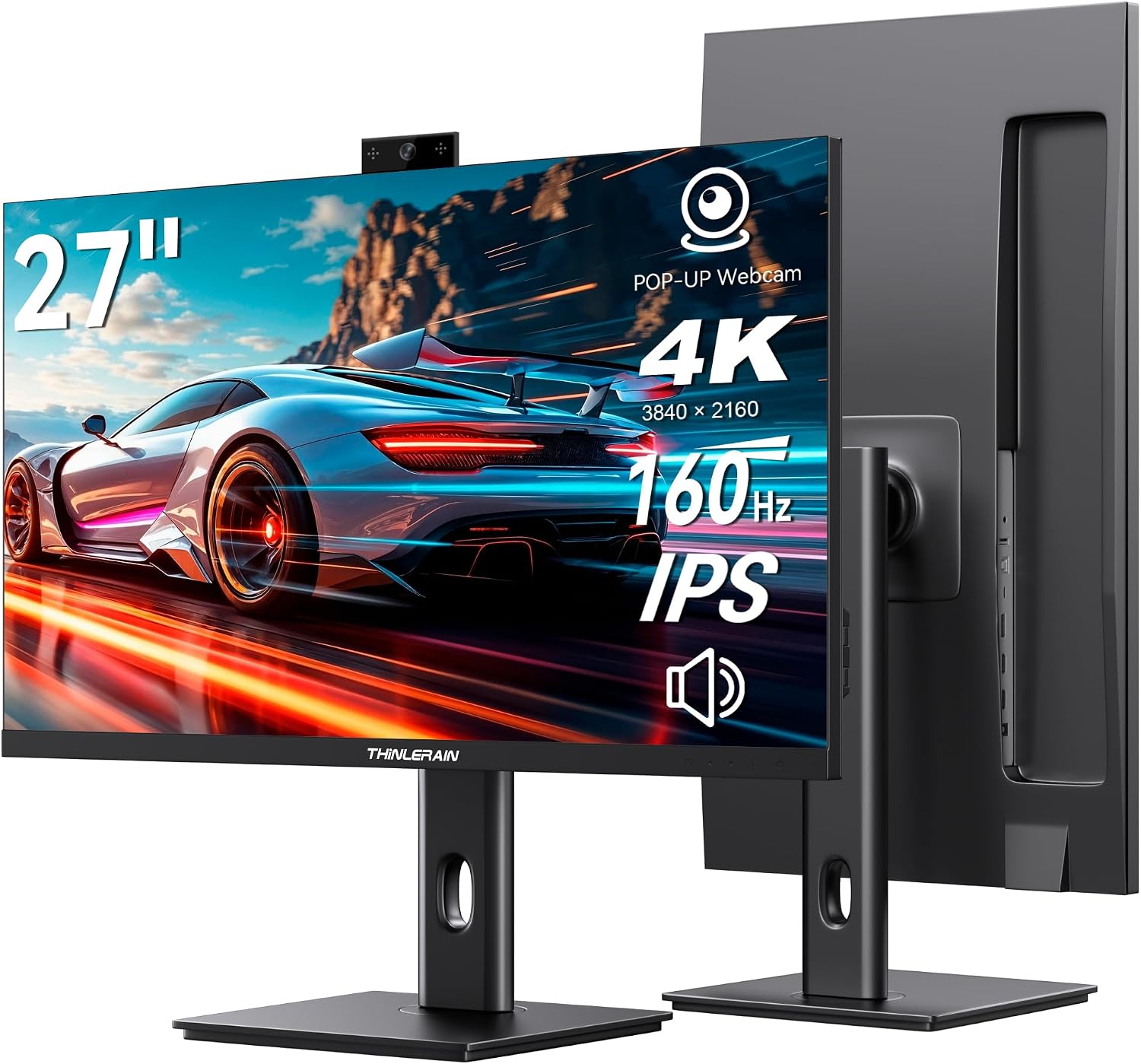
- 27-inch 4K IPS panel provides exceptionally detailed coding space.
- Vertical orientation displays substantially more code lines at once.
- 160Hz refresh rate delivers unusually smooth scrolling and navigation.
- Pop-up 3MP webcam keeps video conferencing hardware neatly integrated.
- - USB-C, HDMI, and DisplayPort provide flexible computer connectivity.

The 27-inch 4K panel is exactly where vertical coding gets interesting
The Thinlerain 27-inch monitor takes our number one position for Best Vertical Monitor For Coding because it combines a 3840 x 2160 4K IPS panel with vertical orientation, a refresh rate up to 160Hz, and a genuinely useful collection of work features. There is also a pop-up 3MP webcam, integrated microphone, built-in speakers, USB-C, HDMI, DisplayPort, and VESA support.
For coding, the first thing that matters is the 27-inch 4K screen. 3840 x 2160 provides serious workspace, and turning that resolution vertically gives long source files, documentation, terminal output, logs, and browser-based development tools much more room from top to bottom.
This becomes noticeable immediately in an editor. Instead of seeing a relatively short section of a class or function and scrolling constantly, you can keep a much larger block of code visible while tracing how different sections relate to each other.
That can be useful when debugging. A function declaration, several conditional branches, and the section causing an error may all remain visible at once instead of being separated by repeated scrolling.
The 27-inch physical size matters too. A very small 4K monitor can technically provide the same pixel count, but interface elements become tiny unless substantial scaling is used.
The 27-inch size gives 4K room to work, while operating-system scaling can be adjusted around your viewing distance and eyesight. There is no prize for running everything at 100 percent scaling if the text becomes uncomfortable after an hour.
For developers, sharp text is more important than dramatic graphics. Small punctuation marks, brackets, commas, periods, and similar characters need to remain easy to distinguish across thousands of lines of code.
The IPS panel is useful here because it provides broad viewing angles and more consistent image characteristics than basic panels that shift noticeably when viewed off-center. That becomes particularly relevant when a large monitor is rotated into portrait orientation.
Portrait mode can change how you actually work with code
A 16:9 monitor becomes a tall 9:16 workspace when rotated vertically. That shape is unusually well suited to text-heavy applications because source code, documentation, terminal sessions, and web pages naturally extend downward.
Portrait mode reduces repetitive vertical scrolling, particularly when the editor does not need a huge amount of horizontal width. Most well-formatted code should not require lines extending endlessly across the screen anyway.
A practical setup could use this Thinlerain vertically beside a conventional landscape monitor. Keep the IDE or code editor on the portrait display while the landscape monitor handles the running application, browser preview, design reference, or communication tools.
Another approach is to keep documentation on the vertical monitor. API references and technical documentation often contain long pages where vertical space is more useful than extreme width.
Terminal users benefit as well. Long logs, build output, server status information, and command histories become easier to inspect when dozens of lines can remain visible simultaneously.
Vertical screen space helps during debugging, especially when you are comparing an error message near the bottom with earlier output that would normally have disappeared above the visible window.
The 4K resolution gives you flexibility with font size. You can increase text size for comfort without immediately turning the display into a low-information workspace.
This is where people sometimes configure coding monitors badly. They choose the smallest possible font because more lines fit on screen, then spend eight hours leaning forward trying to read it.
Use the resolution to improve clarity, not to create microscopic text. Adjust scaling and editor font size until punctuation and similar-looking characters are comfortable to distinguish.
Readable code matters more than maximum density. More visible lines are useful only when you can actually read them without unnecessary eye strain.
The 160Hz refresh rate is unusual for a productivity-oriented 4K monitor. Coding itself obviously does not require 160 frames per second, but higher refresh rates can make scrolling, cursor movement, window dragging, and general desktop interaction feel noticeably smoother.
This becomes particularly apparent when scrolling quickly through long source files. Text movement can look cleaner than it does on a standard 60Hz display.
High refresh rate also makes the monitor more versatile after work. Gaming and fast-moving content can benefit considerably more from 160Hz than a text editor does.
The 160Hz refresh rate adds flexibility, although your computer, connection, resolution settings, and graphics hardware need to support the required display mode.
Do not assume every cable can carry 4K at the monitor's maximum refresh rate. HDMI, DisplayPort, and USB-C capabilities depend on the actual standards implemented by the connected devices and cables.
If the monitor reaches 4K but only shows a lower refresh-rate option, check the connection path first. An older adapter, dock, or cable can become the limiting component.
This is particularly common with USB-C docks. A dock may be handling displays, storage, networking, and several USB peripherals through one upstream connection.
Direct connections are useful for troubleshooting. If the maximum resolution or refresh rate is unavailable through a dock, test the monitor directly before assuming something is wrong with the panel.
Why we believe this deserves the number one ranking
The built-in pop-up 3MP webcam is one reason this monitor feels unusually complete for a coding workstation. Developers working remotely can handle video meetings without permanently attaching another webcam to the top bezel.
The pop-up mechanism also means the camera can be physically lowered when it is not required. A retractable webcam keeps the desk cleaner and provides a simple physical way to put the camera away between calls.
The integrated microphone further reduces the number of separate devices required around the monitor. For normal meetings, stand-ups, interviews, and quick calls, that can simplify a workstation considerably.
Built-in speakers serve a similar purpose. They are convenient for system audio, tutorials, video calls, and casual playback without requiring separate desktop speakers.
Dedicated speakers or headphones can still provide better audio when sound quality matters. The advantage here is having functional audio available without another piece of equipment.
Integrated conferencing hardware saves desk space, which matters when a vertical monitor is already being paired with another screen, keyboard, mouse, microphone, dock, and other development equipment.
USB-C connectivity is another useful feature for modern laptops and workstations. A compatible USB-C connection can simplify the display setup considerably, depending on the computer's video capabilities.
Do not assume every USB-C port supports display output. The connector can carry several different standards, and some ports or cables are intended only for charging and data.
If USB-C produces power or device detection but no image, check whether the host port and cable actually support video. This is one of the most common mistakes with modern monitors.
USB-C capability depends on the whole connection, including the computer, cable, dock if present, and monitor.
DisplayPort is particularly useful for desktop computers. Depending on the graphics card and supported standards, it can provide a straightforward route to high-resolution, high-refresh-rate operation.
HDMI provides another common connection for desktops, laptops, game consoles, and other devices. Having all three options makes the monitor easier to integrate into different workstations.
A developer could connect a work laptop through USB-C and a personal desktop through DisplayPort, for example. Switching inputs is much easier than repeatedly reconnecting the same cable.
Multiple inputs suit mixed-device workstations, particularly for programmers who use separate work and personal computers at the same desk.
VESA compatibility also matters more than it might initially appear. Portrait monitors need good physical positioning, and a monitor arm can make that much easier.
A VESA arm lets you control height, distance, angle, and rotation independently of the included stand. That can be especially useful in a dual-monitor coding setup.
The top of a 27-inch monitor becomes quite high when rotated vertically. If the screen sits too low, the bottom portion may force you to look downward while the top requires excessive upward eye movement.
Proper height matters in portrait orientation. Position the screen so the section you use most often sits comfortably around normal eye level rather than trying to make the monitor geometrically symmetrical with the desk.
Do not position the vertical display too far to one side either. If it holds your primary code editor, turning your head toward it for eight hours defeats the ergonomic advantage of having more screen space.
Make the coding display the central monitor if that is where most of the work happens. Put the secondary landscape display beside it.
If portrait mode is used mainly for documentation, then the landscape display can remain centered. The correct arrangement depends on which application receives most of your attention.
Your primary task should determine monitor placement, not simply which arrangement looks best in photographs.
At 4K, operating-system scaling deserves careful setup. Windows, macOS, and Linux desktop environments handle high-density displays differently, and individual development applications may have their own font scaling.
Start with comfortable system scaling and then adjust the editor separately. IDE interface text, terminal fonts, browser zoom, and source code fonts do not all need to use identical sizes.
A coding font with clearly differentiated characters can also help. Developers frequently need to distinguish zero from uppercase O, one from lowercase l, and similar punctuation or bracket characters.
Sharp resolution works best with a readable font. The display cannot compensate for an editor font that makes important characters unnecessarily similar.
The vertical arrangement can be especially useful for code review. Pull requests often involve long diffs where seeing more lines at once makes changes easier to understand in context.
You can inspect a larger portion of the before-and-after code without scrolling every few seconds. Comments and discussion threads can remain visible alongside the relevant section.
Git histories, issue trackers, and project management tools also benefit from vertical space. Many of these interfaces are essentially long lists or feeds.
Portrait orientation suits text-heavy development tools, not just the code editor itself.
Database work is another interesting use case. Long query scripts, schema definitions, and result logs can take advantage of the additional vertical space.
System administrators can keep monitoring dashboards or terminal sessions visible. Security professionals can display logs containing many sequential events.
Web developers may use the portrait display to preview mobile-oriented pages at a larger physical size. It can also show browser developer tools without consuming the primary landscape workspace.
The screen can handle more than one coding role, which is why the rotation capability is genuinely useful rather than decorative.
One compromise with vertical orientation is horizontal space. Extremely long lines become less comfortable to view when the monitor is narrow.
This is not necessarily a bad thing. Excessively long source lines are often difficult to read regardless of monitor orientation.
Use sensible line wrapping and editor layouts. Sidebars can also be collapsed when they consume too much horizontal width.
Portrait mode rewards cleaner editor layouts, particularly when file explorers, minimaps, terminals, and extension panels are all competing for width.
You can also split the vertical screen horizontally into two stacked windows. One might contain the source file while the lower section holds a terminal or related file.
Because the screen is physically tall, stacked windows can remain reasonably useful rather than becoming extremely shallow strips. This is worth experimenting with depending on the IDE.
For documentation work, the monitor can display a browser and PDF vertically while the second monitor handles coding. That setup works particularly well when following a technical specification.
More visible context can reduce repeated navigation, which is one of the practical productivity benefits of a high-resolution vertical monitor.
The 160Hz capability also gives this Thinlerain an advantage for users who combine programming and gaming on the same workstation. You do not need a separate gaming display simply because the coding monitor is optimized for text.
When the workday ends, rotate it back to landscape if desired and use the high refresh rate for compatible games. The 4K resolution provides detailed visuals when the graphics hardware can handle the workload.
Running modern games at 4K and 160Hz is demanding, though. The monitor supporting that mode does not mean every graphics card can render every game at 160 frames per second.
Display capability and gaming performance are separate. The GPU still has to generate the frames.
For coding, the GPU requirement is much less demanding. Static text and desktop applications do not need enormous graphics performance simply because the panel is 4K.
The main concern is whether the computer supports the desired resolution and refresh rate through the chosen connection. Most modern development workstations should handle ordinary 4K desktop output comfortably.
The pop-up webcam can also help with pair programming and remote stand-ups. There is no need to move to a laptop screen just because a meeting begins.
That keeps the development environment visible while the meeting is running. Integrated video conferencing keeps the workflow together, particularly for remote developers who spend several hours per week in calls.
If the webcam is being used while the monitor is physically rotated, check how the camera behaves in that orientation. Depending on the hardware and software, landscape orientation may be preferable for video calls.
This is one situation where rotating the display temporarily may make sense. A monitor arm makes that much easier.
The integrated microphone should also be tested at the normal seating distance. If coworkers report that the audio is quiet or echoing, a dedicated headset may provide better results.
Built-in hardware is about convenience first, while specialized webcams, microphones, and speakers can still improve quality for users who need it.
Another practical advantage of 4K is rendering documentation and browser text sharply. Developers spend a large portion of the day reading rather than typing.
API documentation, Stack Overflow discussions, GitHub pages, project tickets, specifications, and messages all involve text. A monitor that renders fonts cleanly improves more than the code editor.
At the same time, brightness should be adjusted sensibly. Maximum brightness is rarely necessary in a normal indoor office.
Comfortable brightness matters during long sessions, particularly when staring at high-contrast text for many hours.
Dark mode can reduce glare for some users, but it is not automatically better in every environment. Match the interface theme and room lighting to what feels comfortable rather than treating one setting as universally correct.
Take regular visual breaks as well. A better monitor can improve readability, but it does not eliminate the effect of focusing at one distance for hours.
The 27-inch size means viewing distance should be reasonable. Sitting extremely close to a tall portrait monitor can require more head movement to see the top and bottom.
Give a 27-inch portrait screen enough distance so most of the display can be scanned comfortably with eye movement rather than repeated neck movement.
Desk depth therefore matters. A shallow desk may benefit from a monitor arm that can position the panel slightly farther back.
VESA mounting also frees the area underneath the display. That space can be used for a keyboard, audio interface, dock, notebook, or simply a cleaner work surface.
Cable routing becomes easier with an arm as well. HDMI, DisplayPort, USB-C, webcam data, and power connections should have enough slack to accommodate rotation.
Leave cable slack for screen rotation. A cable pulled tight in landscape mode may place unnecessary tension on the connector when the monitor turns vertically.
Check the cable path before rotating the screen. This is particularly important when several cables are attached simultaneously.
If the monitor is permanently used vertically, route the cables for that orientation and secure excess length farther back. Avoid tight bends directly at the ports.
The number-one ranking ultimately comes from how many coding-oriented requirements this Thinlerain covers in one product. It provides high pixel density, a large 27-inch working area, portrait capability, IPS viewing characteristics, high refresh rate, flexible inputs, VESA support, and integrated conferencing hardware.
Few compromises are required for coding, and the monitor can still handle gaming, media, design work, meetings, and general office tasks when the code editor closes.
There are simpler vertical monitors that cost less and may be perfectly adequate for someone who only needs a second screen for documentation. There are also professional displays with more specialized color-management features for creative production.
But for a programmer wanting one versatile high-resolution monitor that can become the primary portrait coding display, this specification is unusually strong. The 4K panel is the feature that matters most, while the 160Hz refresh rate and integrated webcam make the package more complete.
We believe this Thinlerain 27-inch model deserves the number one ranking out of seven for Best Vertical Monitor For Coding because its 3840 x 2160 IPS panel gives developers excellent text density and vertical workspace, while 160Hz output makes scrolling and general desktop movement unusually smooth.
The pop-up 3MP webcam, microphone, speakers, USB-C, HDMI, DisplayPort, and VESA support add practical value around that core display performance. Those features reduce the number of separate devices and

- 27-inch QHD display provides sharp, spacious coding workspace.
- 240Hz refresh rate makes scrolling through code extremely smooth.
- Adjustable stand supports portrait orientation for vertical programming.
- Fast IPS panel provides wide viewing angles and clear text.
- - VESA mounting support allows flexible multi-monitor coding setups.
The H27E6S gives coding a lot of screen without making text microscopic
The KTC H27E6S takes the number two position in our Best Vertical Monitor For Coding comparison because its 27-inch QHD display hits a useful middle ground for programming. You get a 2560 x 1440 resolution, Fast IPS panel, very high refresh rate up to 240Hz, and an adjustable design that can work well in a portrait-oriented development setup.
For coding, 2560 x 1440 at 27 inches is a practical combination. QHD gives you noticeably more workspace than a standard 1920 x 1080 monitor while generally requiring less aggressive scaling than a 4K display of the same physical size.
Turn the monitor vertically and that resolution becomes particularly useful. The long portrait workspace can display substantially more lines of source code, terminal output, documentation, logs, or a Git diff without constant vertical scrolling.
That sounds like a simple benefit, but it changes how you read a large file. A function declaration can remain visible while you inspect logic farther down, or you can keep more of a long configuration file on screen while looking for one incorrect value.
More visible code gives you more context, and context matters when debugging. Constantly scrolling upward to remember how a function started is slower than simply being able to see more of it.
The 27-inch panel is large enough that portrait orientation still feels substantial. Smaller vertical monitors can become narrow once IDE sidebars, project explorers, and editor panels begin consuming horizontal space.
With this monitor, you can collapse unnecessary sidebars and dedicate most of the vertical panel to the actual source file. A second landscape monitor can then handle browser previews, communication, documentation, or the running application.
The Fast IPS panel is another useful part of the specification. IPS viewing angles suit portrait positioning because a rotated display can be viewed somewhat differently from a conventional centered landscape monitor, particularly in a dual-screen arrangement.
Color consistency is not the main priority for programming, but consistent text and interface visibility across the panel certainly helps. It is especially useful when the monitor sits slightly off-center beside another display.
The 240Hz refresh rate sounds excessive until you start scrolling
A code editor does not need 240 frames per second to compile software. That part is obvious.
But a high refresh rate still changes ordinary desktop movement. Scrolling through long files feels considerably smoother, while cursor movement, window dragging, browser scrolling, and interface animations can look cleaner than they do on a typical 60Hz office monitor.
This is particularly noticeable when searching through a long source file quickly. Text remains visually easier to follow during movement instead of turning into a less distinct blur as the page travels up or down.
The high refresh rate is also useful if the same workstation handles gaming after work. You do not need one slow productivity monitor and another completely separate high-refresh display simply because you use the computer for two different purposes.
There is a practical requirement, though. Your computer, graphics output, cable, and monitor input all need to support the display mode you are trying to use.
A 240Hz monitor does not guarantee 240Hz operation through every connection. If the operating system only offers a lower refresh rate, check the selected resolution, GPU output, cable specification, and connection type.
Adapters and docks can become the bottleneck. A laptop dock might support QHD output perfectly well while limiting the maximum refresh rate available through that connection.
If something looks wrong, connect the monitor directly to the computer during troubleshooting. This removes the dock or adapter from the signal chain.
For programming alone, even a lower refresh setting remains completely usable. The point is that the H27E6S gives you additional headroom rather than forcing the workstation to stay at 60Hz.
The extra refresh capability adds versatility, particularly for developers who also game, edit video, or work with motion-heavy content on the same computer.
Resolution is arguably more important for coding. At 2560 x 1440, the monitor provides considerably more information density than Full HD without pushing into the scaling questions that come with 3840 x 2160.
You can keep editor text comfortably sized while retaining useful space for line numbers, debugging indicators, a file tree, and the main code pane. In portrait orientation, vertical capacity becomes the obvious strength.
Do not use tiny fonts simply because the display can fit them. Readable text matters more than maximum density, especially when you spend six or eight hours looking at the editor.
Choose a programming font where similar characters are clearly differentiated. Zero and uppercase O, lowercase l and the number one, brackets, braces, commas, periods, and semicolons should be easy to identify without leaning toward the screen.
Syntax highlighting also needs reasonable contrast. Dark themes can work well, but extremely low-contrast text may become tiring regardless of how sharp the panel is.
The same applies to brightness. Running the monitor at maximum brightness in a dim office does not make code easier to read.
Match brightness to the room and adjust text size around your normal viewing distance. Those two changes can matter more for long coding sessions than chasing another minor specification.
Why the KTC earns second place instead of taking our top spot
The strongest argument for this monitor is how balanced the specification is. A 27-inch QHD Fast IPS display provides plenty of usable desktop space, while the 240Hz capability makes the whole workstation feel more responsive.
Portrait orientation then turns that panel into a very useful programming screen. Long source files fit vertical monitors naturally, as do terminal windows, documentation, API references, Git histories, issue trackers, and log output.
A backend developer could keep a long source file on the KTC while a landscape monitor displays database tools and documentation. A web developer could code vertically while the second monitor holds the browser preview.
For DevOps work, the vertical display can hold terminal sessions and logs. More events remain visible before older information scrolls away.
Code reviews are another good example. Long pull request diffs benefit from additional vertical space because you can inspect more surrounding lines without repeatedly scrolling between sections.
Portrait mode is useful beyond the IDE. GitHub pages, technical documentation, Stack Overflow discussions, project tickets, and API references all tend to extend vertically.
There is a tradeoff. Portrait mode reduces horizontal workspace, and some development applications have too many side panels enabled by default.
A file explorer, minimap, debugging pane, extension sidebar, and code editor can become crowded when they all compete for the narrower width. Hide the panels you do not actively need.
This is particularly important when dealing with very long code lines. Portrait orientation is less comfortable if the project routinely contains source lines stretching far across the editor.
Cleaner editor layouts work better vertically, and sensible line lengths make portrait coding much more comfortable.
The monitor can also be divided into stacked windows. Put the code editor in the upper section and a terminal underneath, or keep two related source files visible one above the other.
A tall 27-inch panel provides enough physical height for this arrangement to remain useful. On a smaller monitor, both windows can become cramped.
Ergonomics matter because a 27-inch monitor becomes physically tall when rotated. Do not simply rotate it and leave the stand at whatever height happens to result.
Position the active coding area near eye level, especially if this is the monitor you stare at most of the day. Your neck should not repeatedly move from the very bottom to the very top of the panel.
If the KTC becomes your primary coding display, consider placing it closer to the center of the desk. Put the secondary landscape screen off to one side.
If the vertical monitor is only for documentation, terminal output, or reference material, the opposite arrangement makes more sense. Keep the main landscape monitor centered.
The correct layout depends on what you actually look at most often. A visually symmetrical desk is less important than a comfortable working position.
Your main application should determine placement, not which monitor looks more impressive in the center.
A VESA monitor arm can improve this arrangement further. It allows finer adjustment of height, depth, rotation, and distance while clearing some desk space underneath the display.
Monitor arms are particularly useful when switching between portrait and landscape orientations. You can reposition the panel rather than rotating it around a stand that may place it too low.
Check cable slack before rotating the screen. DisplayPort or HDMI cables pulled tightly behind the monitor can place unnecessary stress on the connectors.
Leave enough cable length for rotation, then secure the remaining cable farther back on the desk or monitor arm.
For a dual-monitor workstation, operating-system display arrangement should match the physical layout. If the KTC sits vertically on the left, position it on the left in Windows, macOS, or Linux display settings.
Vertical alignment matters too. If the screens sit at different heights, reflect that approximately in software so the pointer crosses between them where expected.
This sounds minor until you use the setup all day. Incorrect display arrangement makes dragging windows between monitors strangely frustrating.
Software positioning should match physical positioning, particularly when one display is portrait and the other is landscape.
For coding on Windows, use the display orientation control to select portrait mode. macOS and most Linux desktop environments provide similar rotation options when the hardware and connection support them.
Do not rotate only the physical monitor. The operating system needs to rotate the rendered desktop as well.
Once portrait mode is enabled, adjust scaling and font sizes again. Settings that looked perfect in landscape orientation may not feel identical after rotation.
The KTC also makes sense for programmers who work with large amounts of terminal output. A tall terminal preserves more command history on screen, which can help when checking build errors or comparing output from several commands.
For server administration, a vertical terminal can display more log entries at once. That can make patterns easier to notice when several related events happen close together.
Data scientists can use the screen for notebooks, scripts, or long output cells. Documentation can remain visible on another monitor.
Writers working with code and technical documentation benefit similarly. Markdown files, documentation source, and rendered pages all make good use of vertical space.
The display suits text-heavy work generally, not only traditional programming languages.
For front-end development, a vertical monitor can also be used for testing portrait-oriented web layouts. You can preview a long responsive page while working from another screen.
That does not replace testing on actual mobile devices, but it provides a convenient large-scale view of long page structures. Browser developer tools can sit underneath or beside the preview depending on the workflow.
The 240Hz refresh rate is less important in these productivity scenarios, but it never hurts the experience. Smooth scrolling remains noticeable in browsers and documentation.
One reason this monitor does not take our number-one position is resolution. Our top-ranked 4K monitor provides greater pixel density and substantially more raw workspace for developers who want maximum text detail.
At 27 inches, 3840 x 2160 gives the first-place monitor more room for high-density code and sharper rendering when configured appropriately. That advantage matters in a category focused heavily on reading text.
The Thinlerain model above it also includes a pop-up webcam, microphone, speakers, USB-C, and other integrated work features. It functions as a more complete all-in-one coding and remote-work display.
The KTC counters with a much higher 240Hz refresh rate. For somebody who codes during the day and plays competitive games afterward, that difference may be more valuable than the first-place model's additional productivity hardware.
The ranking reflects coding priorities first, which is why the 4K option edges ahead overall.
QHD can also be easier to run. A computer has fewer pixels to drive than it does at 4K, particularly when high refresh rates are involved.
For normal coding, this difference is unlikely to stress a modern GPU significantly. Gaming is where the reduced resolution can make achieving high frame rates considerably easier.
A 240Hz panel is only fully useful in gaming when the system can generate very high frame rates. QHD is more realistic for that than 4K on many computers.
QHD balances detail and performance well, which is part of why the H27E6S works as both a productivity and gaming display.
For long work sessions, consider reducing unnecessary motion in applications if it becomes distracting. A high-refresh display makes animations smoother, but smooth animations are still animations.
Editors can disable visual effects that do not improve the coding workflow. The monitor should make interaction clearer rather than encouraging a busy desktop.
Blue-light settings and warmer color temperatures can also be useful at night, although they alter the appearance of colors. For coding, that may not matter much.
If the monitor is also used for color-sensitive design work, switch back to an appropriate color mode when accuracy matters. Comfort modes and color accuracy serve different purposes.
Take breaks during long sessions too. No display specification removes the need to change focus distance and move around occasionally.
A high-quality coding monitor improves readability and workspace, but it cannot correct poor posture or excessively long uninterrupted sessions.
Viewing distance matters with a 27-inch portrait screen. Sitting too close makes the vertical dimension feel enormous.
Give the monitor enough viewing distance that the top and bottom can be scanned primarily with your eyes rather than repeated neck movement.
A deeper desk helps. If the desk is shallow, a VESA arm can move the panel farther back while freeing the original stand footprint.
This is particularly useful in a home office where desk depth may be limited. A monitor arm can sometimes improve ergonomics more than replacing the desk.
Another real-world advantage is that the KTC can remain useful if your workflow changes. Rotate it back to landscape and it becomes a high-refresh QHD monitor for gaming, editing, office work, and media.
You are not locked into portrait use, which makes the purchase easier to justify if coding requirements change later.
Some developers prefer one vertical and one horizontal screen. Others try portrait mode for several months and eventually return to two landscape displays.
The H27E6S accommodates either arrangement. That flexibility is useful because monitor preferences are highly personal once actual daily work begins.
If you use multiple computers, consider how the available display inputs fit the setup. A work laptop and gaming desktop may both need access to the monitor.
Switching monitor inputs is generally cleaner than physically reconnecting a cable every day. Plan connections around the devices you actually use.
Docks can simplify laptop setups, but verify the refresh rate they support at 2560 x 1440. Many office docks were designed around 60Hz productivity displays rather than 240Hz gaming monitors.
If the work laptop only reaches 60Hz through its dock, that does not prevent the gaming desktop from using a higher refresh rate through a direct connection. Each input can serve a different purpose.
That is a sensible mixed-use arrangement. Work does not require the maximum refresh rate every second.
The H27E6S earns its high position because it covers the fundamentals extremely well. Sharp QHD resolution, portrait capability, Fast IPS technology, and 240Hz output create a monitor that feels equally comfortable with source code and high-speed visual content.
For programmers, the vertical orientation provides the biggest productivity improvement. More code, documentation, terminal output, and debugging context can remain visible simultaneously.
For gamers, the high refresh rate becomes the headline feature instead. One monitor therefore serves two very different workloads without requiring a major compromise in either.
We believe the KTC H27E6S deserves the number two ranking out of seven for Best Vertical Monitor For Coding because its 27-inch QHD Fast IPS panel provides a strong balance between readable text, usable pixel density, vertical workspace, and exceptionally smooth 240Hz operation.
It finishes behind our number-one Thinlerain because the top choice offers 4K resolution and a broader productivity package, including integrated conferencing features and USB-C. Those additions give the first-place monitor an advantage for coding and remote work considered together.
For someone who values smoother motion, gaming performance, and QHD practicality more heavily, the KTC may actually fit the workstation better. Configure portrait mode properly, use a comfortable editor font, position the panel around eye level, and make sure the cable and graphics output support the desired resolution and refresh rate.
Set up carefully, the H27E6S becomes an excellent vertical coding display for programming, debugging, terminals, documentation, code reviews, web development, and mixed gaming use, which is why it earns a very strong second-place position.

- 27-inch QHD display provides spacious, detailed coding workspace.
- Portrait adjustment displays more source code vertically at once.
- IPS panel provides clear text and wide viewing angles.
- Built-in speakers reduce extra equipment around the coding desk.
- - DisplayPort connectivity supports modern desktop and development workstations.
The H27T6 gets the basics of a vertical coding monitor right
The KTC H27T6 takes the number three position in our Best Vertical Monitor For Coding comparison because its 27-inch QHD screen gives programmers a useful combination of resolution, physical size, portrait adjustment, and everyday workstation features. It is the kind of monitor that can sit vertically beside a main display without feeling too small for serious development work.
The 2560 x 1440 resolution is particularly important here. QHD gives coding more usable workspace than a standard 1920 x 1080 panel, while remaining comfortable at 27 inches without forcing everyone into aggressive display scaling.
Rotate that screen into portrait orientation and the available 1440 vertical pixels in landscape become a tall 2560-pixel workspace. That means more source code, terminal output, documentation, logs, and Git changes can remain visible before you need to scroll.
This is useful when working inside a long function. You might keep the declaration and early logic visible while reading conditions farther down the file, rather than repeatedly scrolling upward just to remember what happened twenty lines earlier.
More visible code means more context, which is one of the main reasons portrait monitors work so well for programming. The benefit is not that the monitor somehow makes code better, but that less of the file is hidden outside the current viewport.
The 27-inch size also gives the portrait arrangement enough physical width to remain comfortable. Smaller vertical monitors can become restrictive once an IDE file tree, line numbers, minimap, debugging panel, and editor all compete for horizontal space.
With a 27-inch panel, you can keep the interface reasonably open while still having a substantial code column. If things become crowded, collapse panels that are not actively needed.
The IPS panel is useful in a multi-monitor arrangement too. Wide viewing angles help with side placement, because a vertical secondary monitor often sits slightly angled toward the user rather than perfectly straight ahead.
That matters for text consistency across the panel. You want code and documentation to remain easy to read even when the screen is positioned beside another monitor.
Portrait mode is useful for far more than the code editor
Source code is the obvious use case, but a vertical display works equally well for documentation. API references, technical specifications, GitHub discussions, Stack Overflow pages, issue trackers, and internal documentation are usually long pages where vertical space is more useful than extreme width.
A developer can keep the IDE on the main landscape monitor and place documentation on the H27T6 in portrait mode. That reduces constant tab switching when implementing something from an API reference or framework guide.
The opposite arrangement works too. Put the editor vertically on the KTC and keep the running application or browser preview on the landscape monitor.
For web development, this is particularly practical. You can change code on the vertical display and immediately inspect the result on the screen beside it.
Terminal users get another benefit. A tall terminal window can show considerably more command history, build output, server logs, or compiler messages at once.
Long logs are easier to inspect vertically, especially when you are trying to connect an error near the bottom with earlier warnings that would normally have disappeared above the visible area.
DevOps and system administration work fit this arrangement well. One monitor can remain dedicated to terminals and logs while dashboards or browser-based administration tools stay on the other display.
Code reviews benefit in a similar way. Pull requests often contain long diffs where seeing more surrounding lines helps explain why a change was made.
Instead of scrolling every few seconds, you can inspect a larger section of the modified file. Comments and nearby code remain visible together.
Vertical space helps preserve surrounding context, which can make code review less fragmented.
QHD resolution is a sensible fit for this type of work. It provides enough pixel density for crisp text without making interface elements extremely small at normal viewing distances.
You should still adjust the editor font size for comfort. Do not shrink text simply because a higher-resolution display lets you fit more characters on screen.
A programmer looking at the monitor for eight hours needs readable punctuation, braces, brackets, commas, periods, and similar-looking characters. Readable text matters more than maximum density.
A good programming font helps as well. Choose one where the number one, lowercase l, zero, uppercase O, braces, and brackets remain easy to distinguish.
The monitor resolution can make text sharp, but it cannot fix a poorly chosen font. Font size and line spacing should also match your normal viewing distance.
Portrait mode does have one limitation. The display becomes narrower, which can be uncomfortable when source files contain extremely long lines.
Portrait coding works best with sensible line lengths. If every function call stretches far beyond the right edge, horizontal scrolling can cancel some of the advantage gained vertically.
Most modern editors can wrap long lines, but wrapping source code is not always ideal. Another option is to collapse the file explorer or other side panels when they are not needed.
This gives the main editor more horizontal room. It also keeps the interface cleaner.
The H27T6 can also be useful with stacked windows. Put the source file in the upper portion of the portrait screen and a terminal underneath it.
A tall 27-inch panel handles stacked tools well, because each section still has enough vertical space to remain useful. On a smaller monitor, the terminal can become little more than a narrow strip.
Why the H27T6 earns third place rather than moving higher
The H27T6 covers the core coding requirements well, but the two monitors above it provide stronger specifications in areas that matter for this particular ranking. Our number-one option offers 4K resolution, while the second-place KTC H27E6S adds a very high 240Hz refresh rate alongside its QHD panel.
The H27T6 takes a more conventional approach. It focuses on practical QHD productivity, portrait adjustment, an IPS panel, useful connectivity, and integrated speakers rather than pushing one specification particularly hard.
For many developers, that may actually be enough. Coding does not require extreme refresh rates, and a 27-inch QHD panel provides a substantial amount of workspace.
The built-in speakers are also convenient for a work monitor. They can handle tutorial videos, system audio, video calls, and casual media without requiring another pair of speakers on the desk.
Dedicated speakers or headphones will generally provide stronger audio if sound quality matters. The advantage is convenience and a cleaner workstation.
Built-in speakers reduce desk clutter, especially in a dual-monitor setup where cables, docks, keyboards, microphones, and other peripherals can accumulate quickly.
DisplayPort connectivity is useful for desktop development systems. It provides a straightforward connection from many modern graphics cards and workstation computers.
Depending on the exact available inputs, another device can potentially remain connected through a separate interface. That can be useful if the desk has both a work machine and a personal computer.
Before buying cables, check the inputs on the exact H27T6 configuration. Use a cable rated appropriately for the resolution and refresh rate you intend to run.
The connection can limit display performance, particularly when docks and adapters sit between the computer and monitor.
If Windows, macOS, or Linux does not offer the expected resolution or refresh rate, test the monitor directly from the computer. This removes the dock from the signal path and makes troubleshooting much easier.
Docks are convenient, but they may divide available display bandwidth between several monitors. Some are also designed primarily around standard 60Hz office displays.
The adjustable stand is important for coding because portrait mode only works well when the monitor can be positioned comfortably. Simply rotating a large screen vertically is not enough.
The coding area should sit near eye level, especially if this is the monitor you look at most often. A 27-inch portrait display is physically tall, so poor height adjustment becomes noticeable quickly.
If the monitor sits too low, you spend too much time looking downward. Raise it until the central working area feels natural.
Do not automatically align the bottom edge with a landscape monitor beside it. Different orientations may require different vertical positions.
The same applies to distance. A tall screen viewed from extremely close range can require unnecessary head movement from top to bottom.
Give a portrait monitor enough viewing distance so most of the display can be scanned with normal eye movement.
A monitor arm can improve this further if the H27T6 supports the appropriate VESA mounting arrangement. An arm can provide more control over height, distance, angle, and rotation while freeing desk space beneath the screen.
This is particularly useful when the monitor switches between portrait and landscape. A good arm makes changing orientation less awkward.
Check the cables before rotating the display. A cable routed tightly in landscape mode may become stretched when the panel turns ninety degrees.
Leave enough cable slack for rotation, then secure the extra length farther back on the desk or arm.
Operating-system settings need to match the physical orientation too. Select portrait orientation after rotating the panel so the desktop itself turns correctly.
Then arrange the displays digitally to match the actual desk. If the KTC sits to the left of the primary monitor, put it on the left in the display settings.
Vertical alignment can also be represented there. This determines where the pointer crosses from one monitor to the other.
Correct software alignment makes dual monitors feel natural, particularly when one screen is vertical and the other is horizontal.
For front-end developers, this setup can be very efficient. Keep Visual Studio Code, WebStorm, or another editor vertically while the browser preview stays landscape.
A backend developer might instead use the portrait screen for server code and terminal output. Database administration tools can remain on the other display.
For Python or data work, notebooks can benefit from the additional vertical space. More cells and output remain visible before scrolling becomes necessary.
Text-heavy applications naturally suit portrait displays, which is why this monitor can remain useful even when the IDE is not occupying it.
Documentation writers can keep Markdown source visible vertically. Technical writers can use the screen for long reference documents and specifications.
Security professionals can display logs, event histories, and terminal sessions. System administrators can keep monitoring information visible alongside their primary tools.
Even email and communication tools fit well vertically. Long message histories and project discussions become easier to follow.
That makes the H27T6 a practical secondary monitor even for people who do not want their primary code editor in portrait mode. Vertical orientation is useful for supporting information too.
The built-in speakers add value in that secondary role. A tutorial or conference call can play through the monitor while the main computer audio setup remains simple.
If you work remotely and spend several hours in meetings, headphones may still be preferable for privacy and microphone quality. But having basic monitor audio available is useful.
Brightness should be adjusted around the room rather than automatically pushed to maximum. Coding often involves high-contrast text, and excessive brightness can become uncomfortable during long sessions.
Comfortable brightness supports longer work sessions, particularly in darker home offices.
Dark mode is optional rather than mandatory. Some developers find it comfortable, while others prefer light themes during daylight hours.
Use whichever provides good contrast in the actual room. The monitor should adapt to the working environment rather than dictating one theme.
If two monitors are used together, try to make their brightness reasonably similar. Moving your eyes repeatedly between a very bright panel and a dim one can be distracting.
Matching displays approximately improves visual comfort, even when the two monitors are different models.
Color matching matters less for pure coding, but it can become relevant for web design. If one screen is being used to make final color decisions, calibrate or configure that display appropriately.
The H27T6's IPS panel is helpful for general color consistency, but coding is still its strongest fit in this comparison. Text, interfaces, terminals, and documentation do not demand specialist color hardware.
The QHD resolution also places less demand on graphics hardware than 4K. For ordinary desktop coding this is rarely a major concern, but it can matter on older laptops or when several displays are connected.
QHD offers a useful performance balance, delivering substantially more workspace than Full HD without requiring the pixel throughput of 4K.
This can be particularly useful with integrated graphics. A development laptop may be driving its internal screen plus one or two external monitors at the same time.
Check the laptop's external-display limits before building a multi-monitor workstation. The monitor itself cannot override limitations imposed by the computer.
Docks can introduce similar restrictions. A dock may support two QHD screens at one refresh rate but only one at a higher rate.
For a permanent coding setup, test the entire connection chain before routing every cable neatly underneath the desk. Confirm the desired display mode first, then finish cable management once everything works.
This avoids undoing a clean installation because one adapter cannot support the selected mode. It also makes troubleshooting much easier.
Long coding sessions benefit from regular movement and visual breaks regardless of monitor quality. More resolution does not change the fact that your eyes are focusing at roughly the same distance for hours.
Stand up occasionally and look farther away. Adjust chair height and monitor position together rather than treating the display as an isolated ergonomic problem.
A good monitor supports ergonomics but cannot replace them. Desk depth, chair position, keyboard height, and viewing distance still matter.
For portrait coding, keyboard shortcuts become even more useful because more content is visible at once. Jump-to-definition, symbol search, split editor, and terminal shortcuts reduce mouse movement across a tall display.
Use the monitor's extra space together with the editor's navigation tools. Simply displaying more lines does not automatically create a better workflow.
Window snapping can help too. A vertical screen can hold two stacked applications or a code editor plus terminal.
Use the tall workspace intentionally, rather than treating portrait mode as a rotated version of the same cluttered desktop.
The third-place ranking comes from this balance. The H27T6 does not have the 4K pixel density of our first-place monitor or the 240Hz headline specification of the second-place H27E6S.
What it does provide is a sensible 27-inch QHD platform for programming. It has enough resolution for serious coding, a panel technology suited to multi-monitor viewing, portrait adjustment, integrated audio, and connectivity appropriate for modern workstations.
For developers who do not need 4K or extremely high refresh rates, that can be the more economical approach. You are paying for the features that directly affect everyday work.
The H27T6 covers the coding essentials well, which is why it remains near the top of our seven-monitor comparison.
It also retains value outside programming. Rotate it back to landscape for office work, media, gaming, or general computer use.
This flexibility matters because monitor preferences can change. Some developers eventually decide they prefer documentation vertically but code horizontally, while others make portrait mode their permanent primary workspace.
The KTC can adapt to either approach. That makes it easier to integrate into a workstation that evolves over time.
We believe the KTC H27T6 deserves the number three ranking out of seven for Best Vertical Monitor For Coding because its 27-inch QHD IPS display provides the resolution, screen size, portrait flexibility, and viewing characteristics that text-heavy development work needs.
It ranks below our first two because those monitors offer stronger premium specifications, particularly 4K resolution at number one and 240Hz performance at number two. The H27T6 instead concentrates on a more balanced productivity package with useful built-in speakers and workstation-friendly connectivity.
Set the display to portrait mode, choose a comfortable coding font, collapse unnecessary editor panels, position the active area near eye level, and verify that your computer and cable support the desired resolution and refresh rate. Used that way, the H27T6 becomes an excellent vertical programming monitor for source code, terminals, documentation, Git reviews, debugging, web development, and everyday technical work.

- Adjustable monitor design supports portrait-oriented coding and reading.
- Pop-up webcam creates a cleaner remote-work desk setup.
- Built-in speakers reduce extra hardware around the workstation.
- Vertical positioning displays more code and documentation at once.
- - Multiple display connections support flexible computer workstation setups.
The pop-up webcam makes this more than a basic vertical coding screen
The Thinlerain monitor takes the number four position in our Best Vertical Monitor For Coding comparison because it combines a portrait-friendly monitor design with features aimed at a complete home office setup. The integrated pop-up webcam and built-in speakers are particularly useful for developers who spend part of the day coding and another part inside meetings, reviews, or remote stand-ups.
The biggest coding advantage is still the ability to use the display vertically. Portrait orientation gives code more vertical room, which means longer source files, terminal output, documentation, and Git changes can remain visible without quite as much scrolling.
Think about debugging a long function where the declaration is near the top and the problem sits several blocks farther down. Keeping more of that structure visible at once makes it easier to understand what the code is doing without constantly jumping backward.
The same applies to configuration files. JSON, YAML, XML, Docker files, server configurations, and other structured text can become surprisingly long, and most of the useful information develops vertically rather than horizontally.
More visible lines can preserve useful context, especially when several related settings are separated by dozens of lines. You spend less time trying to remember what disappeared above the editor window.
A vertical monitor is also useful when it is not the primary coding screen. You could keep your IDE on a larger landscape display while this Thinlerain holds API documentation, a terminal, browser developer tools, or project communication.
That can be a very efficient dual-monitor arrangement. The main task remains directly in front of you, while supporting information stays visible on the portrait display rather than hiding underneath another application.
The pop-up webcam is an unusual extra for this category. The retractable camera keeps the setup cleaner because you do not need to attach a separate webcam permanently to the monitor bezel.
For remote developers, that can actually matter. Daily stand-ups, pair programming sessions, sprint reviews, client calls, and interviews are normal parts of many coding jobs now.
When the meeting finishes, the camera can retract rather than remaining exposed above the display. It is a simple physical feature, but one that makes sense on a work-oriented monitor.
Vertical mode is useful for code, terminals, documentation, and reviews
Programming is one of the clearest reasons to rotate a conventional widescreen monitor. Most source files grow downward, and developers generally benefit more from seeing additional lines than from having an enormous amount of unused horizontal space after the end of each line.
A tall editor can reduce repetitive scrolling, especially if the project follows sensible line-length conventions. Code with reasonable line lengths fits portrait orientation much better than files filled with extremely long statements.
If your editor feels cramped horizontally, start by hiding panels you do not need. File explorers, minimaps, extension panels, debugging panes, and source-control sidebars can consume a surprising amount of width.
Keyboard shortcuts make this easier. Open the file explorer when you need it, select another file, then collapse it and give that space back to the editor.
A portrait monitor can also hold two stacked windows. Put the code editor above and a terminal underneath, for example.
Stacked tools make good use of portrait space because both applications receive useful height rather than being compressed into extremely shallow windows. This can work nicely when running tests repeatedly while editing a file.
Terminal output is particularly well suited to the format. Build logs, compiler errors, package installation output, server messages, and Git commands can remain visible for longer before earlier lines disappear.
A developer troubleshooting a failed build might see the final error at the bottom while earlier warnings remain visible above it. That is more convenient than repeatedly scrolling through terminal history.
Code reviews are another strong use case. GitHub and similar platforms display long diffs vertically, with comments and surrounding source lines extending down the page.
Portrait orientation works well for pull requests, because more of the changed file remains visible at once. This can make it easier to understand how several nearby edits relate to each other.
Documentation behaves similarly. API references, framework guides, technical specifications, Stack Overflow discussions, and internal documentation are mostly long pages.
Instead of switching between the editor and browser every minute, leave the reference page open on the vertical monitor. The coding screen remains uninterrupted.
Web developers can reverse that arrangement too. Put the editor vertically and leave a browser preview on the landscape display beside it.
Separate code and preview screens reduce window switching, which is especially useful when repeatedly changing CSS, JavaScript, templates, or front-end components.
The built-in speakers are another practical addition. They can handle tutorials, meeting audio, system sounds, and casual video without adding separate desktop speakers.
They are not necessarily a replacement for good headphones or dedicated speakers. That is not really the point.
The benefit is having audio available when you need it without occupying more desk space. Integrated speakers simplify a busy workstation, especially when two monitors, a dock, microphone, keyboard, mouse, and other development equipment are already competing for room.
The webcam works along the same lines. A developer who only joins occasional meetings may not want a dedicated camera permanently attached to the desk.
When a meeting begins, the integrated camera is available. When coding resumes, it can return to its recessed position.
One practical issue appears if you use the monitor permanently in portrait orientation. Check how the webcam is positioned and recognized when the display is rotated.
Webcam use may favor landscape positioning, depending on how the camera hardware and conferencing software handle the monitor's physical orientation. If meetings are frequent, test this before settling on a permanent portrait arrangement.
A monitor arm can make switching orientations easier. Instead of rebuilding the desk every time, rotate and reposition the screen while maintaining a comfortable viewing height.
If the monitor supports the appropriate VESA mounting pattern, an arm can also clear the original stand footprint from the desk. That gives you more room for notebooks, a laptop dock, audio hardware, or simply a cleaner working area.
Why this Thinlerain finishes fourth instead of entering our top three
The monitors above this one offer stronger core display specifications for coding. Our first-place Thinlerain option provides a 27-inch 4K panel and a broader high-end specification, while the KTC monitors in second and third place offer particularly compelling QHD coding setups.
This Thinlerain earns its position through versatility instead. It combines coding and remote-work features well, particularly for somebody who wants one monitor to handle programming, documentation, meetings, tutorials, and ordinary office work.
The pop-up webcam is part of that advantage. A programmer working remotely may use the camera several times every day, while someone coding alone in an office may barely use it at all.
That difference matters when comparing value. Integrated conferencing hardware is useful only when it solves something in your actual workflow.
The same applies to built-in speakers. They simplify the workstation, but they should not carry more weight than display resolution, panel quality, text clarity, and ergonomics when coding is the main purpose.
Text readability remains the real priority. Developers spend hours looking at small characters, punctuation, indentation, line numbers, terminal output, and interface elements.
Set the operating system scaling and editor font size around comfort rather than maximum information density. A monitor showing more lines is not useful if you have to lean forward to read them.
Choose a coding font where similar characters remain clearly distinguishable. The number zero and uppercase O, lowercase l and the number one, braces, brackets, commas, periods, and semicolons should not require effort to identify.
Line spacing can help too. Slightly increasing spacing between lines can make dense source files easier to scan without dramatically reducing how much code fits on screen.
Comfortable typography improves long coding sessions, regardless of the monitor specification.
Brightness should be adjusted for the room. Maximum brightness is rarely necessary in a normal home office and can become uncomfortable when working with high-contrast text for several hours.
If this monitor sits beside another display, try to make their brightness reasonably similar. Your eyes should not need to adjust dramatically every time you look from one screen to the other.
Color matching is less important for backend programming. For front-end developers and designers, though, large differences between displays can make visual work confusing.
Use your better-calibrated display for color decisions if exact visual reproduction matters. The vertical monitor can still handle code, documentation, and tools.
Physical positioning deserves just as much attention. A monitor becomes very tall when rotated into portrait mode.
If the screen sits too close, viewing content near the top and bottom may require unnecessary head movement. Move it slightly farther back if desk depth allows.
Height matters too. The section of the monitor you use most frequently should sit around a comfortable eye level.
Do not center portrait monitors mechanically just because the stand allows it. Position the active coding area around your posture and normal line of sight.
If this is your main coding display, consider placing it near the center of the desk. Put a secondary landscape monitor to the side for browser previews or communication.
If the Thinlerain is mainly used for documentation, then keeping the primary landscape monitor centered makes more sense. The monitor receiving the most attention should usually occupy the more comfortable position.
This is one common multi-monitor mistake. People arrange screens symmetrically because the desk looks tidy, even though they spend eight hours turning their neck toward one side.
Monitor placement should follow actual usage, not visual symmetry.
Operating-system arrangement needs to match the physical desk as well. If the vertical monitor is on the right, put it on the right in Windows, macOS, or Linux display settings.
Also adjust the vertical offset. This determines where the mouse pointer crosses from one screen to another.
Incorrect arrangement becomes irritating very quickly. You move the mouse toward the monitor beside you and the pointer seems to hit an invisible wall because the displays are misaligned in software.
Correct digital alignment improves everyday usability, particularly when the two monitors have different orientations and resolutions.
Cable routing also changes when a monitor rotates. A cable that has plenty of slack in landscape orientation may become tight after the display turns ninety degrees.
Check every connection before rotating. Do not allow HDMI, DisplayPort, USB, or power cables to pull sideways against their ports.
Leave enough slack for movement and secure the excess farther down the monitor arm or behind the desk. Good cable routing protects the connectors while still allowing the display to move.
If you use a laptop dock, verify what resolution and refresh rate it can actually deliver. Docks often become the hidden limitation in a multi-monitor workstation.
A direct connection is useful when troubleshooting. If the expected display mode does not appear, connect the monitor directly to the computer and check again.
This helps determine whether the issue belongs to the monitor or to an adapter, dock, or cable. Randomly replacing hardware is slower.
Test the simplest connection first, then add the rest of the workstation back once the monitor behaves correctly.
For developers working with several operating systems, portrait rotation is normally handled in the display settings. Windows, macOS, and common Linux desktop environments can rotate the rendered desktop when the connected hardware supports the arrangement.
Rotate the software orientation after physically rotating the panel. Otherwise you simply end up with a sideways desktop.
Then revisit scaling. Portrait orientation can make the same scaling setting feel slightly different because the available horizontal width has changed.
Adjust scaling after changing orientation, rather than assuming the landscape configuration will remain ideal.
The monitor can also be useful for database work. Long SQL queries, schema definitions, database logs, and result lists all benefit from additional vertical space.
Python notebooks are another example. More cells and output can remain visible, which is useful when reviewing the relationship between earlier code and later results.
System administrators can use the screen for SSH sessions, server logs, and monitoring tools. Security analysts can keep event streams or long reports visible.
Vertical monitors suit text-heavy technical work generally, not just traditional software development.
Technical writers can use the display for Markdown, documentation source, or long PDFs. Researchers can keep papers or specifications visible while writing on another monitor.
Even communication software works well vertically. Slack, Teams, Discord, email, and issue trackers all contain long message histories.
This makes the monitor useful as a supporting screen even if you eventually decide that you prefer coding in landscape orientation. Rotation gives you options rather than forcing one permanent workflow.
Portrait mode does not need to be permanent. Use it for the applications that actually benefit from it.
The pop-up webcam adds another layer of flexibility for remote work. Instead of opening a laptop for every meeting, you can stay at the main workstation.
This keeps your development environment available during the call. Notes, code, or the application being discussed can remain visible on the second monitor.
For pair programming, that is particularly convenient. One display can hold the shared code while the other handles the meeting window or documentation.
Separate meeting and coding windows reduce clutter, especially when screen sharing.
When sharing one display, keep private communication or notes on the other. Just make sure the conferencing software is sharing the intended screen rather than the entire desktop environment.
Built-in speakers can handle the meeting audio, while a headset remains an option when privacy or microphone quality matters. This gives the workstation more flexibility.
For long meetings, a dedicated microphone may also provide clearer voice capture depending on the room. Integrated hardware is primarily about convenience.
Convenience is valuable but not the core ranking factor. For Best Vertical Monitor For Coding, screen quality and portrait usability still matter most.
This is ultimately why the product finishes fourth. The three monitors above it provide stronger display-focused combinations for programmers.
The first-place Thinlerain gives us 4K resolution and a more premium productivity specification. The second-place KTC prioritizes QHD with an extremely high refresh rate, while the third-place KTC offers a balanced QHD coding setup.
This model competes by integrating useful work-from-home features around its vertical-monitor capability. That is a different kind of value.
Remote developers may appreciate this balance more than someone building a workstation exclusively around maximum coding resolution.
If your working day includes several meetings, tutorials, documentation sessions, and ordinary office tasks alongside programming, the integrated features begin to matter more. You can reduce the number of separate accessories attached to the desk.
If you rarely use a webcam or speakers, those features become less important and the higher-resolution alternatives make more sense. The right choice depends on how the workstation is actually used.
For programming, keep the editor interface clean. Hide unused panels, choose sensible line lengths, and use shortcuts to open supporting tools when necessary.
A clean editor makes portrait mode much better, because the narrower horizontal dimension is then devoted mostly to the source code itself.
For documentation, use browser zoom that keeps text comfortable. There is no need to fit an entire website width into a narrow portrait window if the actual content column is much smaller.
For terminal work, increase the font size enough that long sessions remain comfortable. More rows are useful, but readability still comes first.
For Git reviews, take advantage of the vertical height and collapse unrelated navigation panels. Let the code diff occupy most of the screen.
Use the available pixels around the task, rather than filling every section of the screen simply because there is room.
We believe this Thinlerain model deserves the number four ranking out of seven for Best Vertical Monitor For Coding because it combines portrait-friendly productivity with a pop-up webcam, built-in speakers, and a workstation design that suits modern remote developers.
It ranks below our first three because those monitors offer stronger core display specifications for coding, particularly higher resolution or more compelling QHD performance. The webcam and speakers are useful, but they do not completely outweigh advantages in pixel density and coding-focused display performance.
Still, this is a well-rounded choice for somebody whose development work includes frequent meetings and general office tasks. Configure portrait orientation correctly, choose comfortable typography, position the screen around eye level, keep enough cable slack for rotation, and test the webcam arrangement in the orientation you intend to use.
Set up properly, this Thinlerain becomes a versatile vertical coding monitor for programming, terminals, documentation, code reviews, remote meetings, web development, and everyday technical work, giving it a solid fourth-place position in our seven-monitor comparison.

- 24.5-inch Full HD panel provides comfortable everyday coding space.
- Adjustable stand supports portrait orientation for vertical programming.
- DisplayPort connectivity works well with modern desktop computers.
- 75 x 75 mm VESA support enables flexible monitor mounting.
- - Compact screen size fits smaller dual-monitor coding workstations.
The smaller 24.5-inch size actually works nicely in portrait mode
The CRUA 24.5-inch monitor takes the number five position in our Best Vertical Monitor For Coding comparison because it offers a simpler and more compact approach than the larger QHD and 4K models above it. The adjustable design supports portrait positioning, while DisplayPort connectivity and 75 x 75 mm VESA mounting make it reasonably easy to build into a coding workstation.
The 24.5-inch size deserves attention because a vertical monitor becomes physically tall very quickly. A compact portrait screen can be easier to position beside a primary landscape monitor, especially on a smaller desk where a 27-inch vertical panel may feel oversized.
For coding, portrait orientation is the main reason to consider it. Source files naturally extend downward, so turning the display vertically lets more lines remain visible before you need to scroll.
That can help when reading a long function, reviewing a configuration file, or checking several related blocks of code. You can keep earlier logic visible while working farther down the file instead of repeatedly jumping back and forth.
More visible lines provide better context, particularly during debugging. Seeing the function declaration, conditions, and error-producing section together can be more useful than having enormous unused horizontal space beside short lines of code.
The Full HD resolution keeps the hardware requirements modest. A 1920 x 1080 panel is easy for almost any modern desktop or laptop to drive, including systems using integrated graphics.
At 24.5 inches, Full HD is also more sensible than it would be on a much larger screen. Text density is not in the same class as QHD or 4K, but normal editor fonts can remain comfortable at ordinary desk distance.
Full HD keeps setup uncomplicated, which can be valuable if this is being purchased as a secondary coding monitor rather than the centerpiece of an expensive development workstation.
A common setup would place the CRUA vertically beside a sharper QHD or 4K main display. Keep documentation, terminal windows, Git history, or communication on the CRUA while the main screen handles the primary IDE.
That approach makes the resolution limitation less important. The monitor becomes dedicated supporting workspace rather than the screen where every application has to live.
Code is only one thing that benefits from the vertical layout
Documentation is one of the strongest uses for a portrait monitor. API references, framework documentation, technical specifications, GitHub discussions, and Stack Overflow pages tend to extend much farther vertically than horizontally.
A dedicated documentation screen reduces tab switching. You can keep an API reference open beside the editor rather than repeatedly covering your code with a browser window.
This is particularly useful when learning a new framework. The documentation remains visible while you type and test examples on the main display.
Terminal sessions fit portrait orientation extremely well too. Build logs, compiler output, package installation messages, Git commands, and server logs can display more lines at once.
If a build fails, the final error might appear near the bottom while an earlier warning remains visible farther up. That can save some searching through terminal history.
Long terminal output benefits from extra height, especially for developers working with servers, containers, build systems, or command-line tools throughout the day.
Code reviews are another good example. Pull request pages contain long vertical diffs, comments, and surrounding code.
A portrait monitor allows a larger section of the changed file to remain visible. You can understand the relationship between nearby changes without scrolling after every few lines.
Issue trackers work similarly. Long discussions, bug reports, logs, screenshots, and developer comments naturally fit a tall browser window.
Portrait orientation suits text-heavy technical tools, even when the actual code editor stays on another screen.
The smaller 24.5-inch panel can be an advantage in a dual-monitor arrangement. A 27-inch vertical display becomes quite tall and may extend significantly above a landscape monitor sitting beside it.
The CRUA is easier to fit without creating such a dramatic height difference. That can make the whole desk more comfortable if the vertical display is mainly supporting information.
It is still important to position the monitor correctly. Do not simply rotate the panel and leave it wherever the stand happens to place it.
Keep the most-used area near eye level, particularly if you plan to code directly on the portrait display for several hours.
If the monitor is used mainly for documentation, it can sit slightly off-center. If it becomes the primary coding screen, move it closer to the center of your normal viewing position.
This distinction matters. Spending an entire workday with your head turned toward a secondary screen can become uncomfortable regardless of how good the monitor is.
The adjustable stand helps here. You can configure the display around the workstation rather than being locked into one fixed angle.
Physical adjustment is important for portrait monitors because rotation changes the monitor's height and the location of the viewing area substantially.
The 75 x 75 mm VESA mounting support gives you another option. A compatible monitor arm can free desk space and provide more control over height, depth, tilt, and rotation.
This is particularly useful if the monitor needs to switch between portrait and landscape regularly. A good arm can make that change much easier than moving the entire stand.
Monitor arms can also help on shallow desks. Moving the display slightly farther back creates a more comfortable viewing distance while leaving more usable space underneath.
VESA mounting can improve a compact workstation, particularly when the desk already contains a laptop, keyboard, dock, audio equipment, or another monitor.
Check the arm's weight capacity and VESA compatibility before buying it. The mounting pattern matching does not automatically mean every arm is appropriate for every monitor weight.
Cable routing needs attention when the display rotates too. A DisplayPort or power cable that has enough slack in landscape orientation may become tight after a ninety-degree turn.
Leave enough cable length behind the monitor for the full movement range. Secure excess cable farther down the arm or behind the desk.
Do not let rotation pull on connectors. Repeated sideways tension can eventually create unreliable connections or damage the port.
Why the CRUA lands in fifth place in our comparison
The main limitation is resolution. The four monitors above it provide stronger overall specifications for developers, including QHD and 4K options that can render more information and finer text detail.
At 1920 x 1080, the CRUA simply cannot display as much information simultaneously as a 2560 x 1440 or 3840 x 2160 panel. Full HD provides less raw coding workspace, and that difference becomes noticeable when several development tools are open.
This does not mean Full HD is unusable for programming. Developers coded on 1080p monitors for years, and plenty still do.
The issue is relative value in this particular ranking. When the category is Best Vertical Monitor For Coding, additional vertical pixels have a direct productivity benefit.
Rotate a higher-resolution monitor and you can potentially display more lines, sharper text, or larger interface elements while preserving useful workspace. That gives the QHD and 4K models above the CRUA an advantage.
Higher resolution is especially useful for text, because programming involves staring at small characters and punctuation for long periods.
The CRUA counters with simplicity and size. A 24.5-inch Full HD monitor can be easier to integrate into a modest home office than a large premium display.
It can also make sense when the computer itself is older. Driving Full HD requires less display bandwidth and graphics capability than pushing a high-refresh 4K panel.
If the monitor is connected to a basic office laptop or integrated graphics system, that lower requirement can simplify the setup. You are less likely to encounter resolution limitations through ordinary display connections.
DisplayPort provides a straightforward wired connection for many desktop systems and compatible laptops or docks.
When using a dock, still verify what display modes it supports. Some inexpensive adapters behave differently when several monitors are connected simultaneously.
If the expected resolution or refresh rate does not appear, connect the CRUA directly to the computer as a troubleshooting step. This removes the dock or adapter from the connection path.
Once the display is working correctly, add the other equipment back one component at a time. That makes it much easier to identify the actual limitation.
Direct connections simplify display troubleshooting, especially in a workstation with several adapters and peripherals.
Text size should be configured carefully on a Full HD coding monitor. Trying to imitate the information density of a QHD display by shrinking the editor font defeats the point.
Use a comfortable font size. The screen should be readable from your normal sitting position without leaning forward.
Choose a coding font that clearly distinguishes similar characters. Zero, uppercase O, one, lowercase l, brackets, braces, periods, and commas should remain easy to identify.
Readable code is more valuable than tiny code, even if the smaller font technically puts another dozen lines on screen.
Line spacing can help as well. Slightly more breathing room between lines makes dense source files easier to scan.
The same applies to syntax highlighting. Use enough contrast that comments, strings, variables, and keywords remain distinct without creating an overly bright interface.
Portrait orientation naturally reduces horizontal space. This means IDE sidebars deserve some attention.
Collapse panels you are not actively using, such as file explorers, extension menus, minimaps, or debugging tools. Give the actual source file as much width as possible.
Keyboard shortcuts make this workflow faster. Open the file tree when you need another file, then close it again.
Long lines are another issue. A portrait Full HD monitor works much better with sensible source formatting than with code extending far beyond the editor width.
Use reasonable line lengths where the language and project conventions permit it. Horizontal scrolling is rarely pleasant during normal code reading.
Cleaner code formatting suits vertical monitors, because the available width is naturally more limited.
You can also use word wrapping for documentation and terminal output. For source code, whether wrapping is desirable depends on the language and personal preference.
The CRUA can work well as a dedicated terminal monitor. A tall terminal does not need the horizontal width demanded by some IDE layouts.
Keep server logs, Docker output, test results, or SSH sessions visible while coding on the main screen. This can make the Full HD resolution feel much less restrictive.
Secondary technical tools are a strong use case for a compact vertical monitor like this.
Documentation is another role where Full HD remains perfectly useful. Most websites place article content inside a relatively narrow central column anyway.
A higher-resolution display can make fonts sharper, but the actual documentation layout may not use the additional horizontal pixels. Vertical orientation still provides the main benefit.
For web developers, the CRUA can also hold browser developer tools. Network requests, console messages, DOM inspection, and CSS properties can remain open without covering the browser preview on the main display.
Separating tools from the preview saves space on the primary monitor and keeps the development environment easier to navigate.
For database work, use the vertical screen for SQL scripts or logs. Large data tables may be less comfortable because they tend to extend horizontally.
This illustrates an important point about portrait monitors. They are excellent for tall content but not automatically better for every development application.
Wide spreadsheets, database result grids, timelines, and some visual development tools usually work better in landscape orientation. Rotate the CRUA back when those tasks dominate.
Use portrait mode where it actually helps, rather than treating vertical orientation as mandatory because the monitor supports it.
The adjustable design gives you that choice. One week it can be a portrait documentation monitor, and the next it can return to landscape for a different project.
This flexibility also protects the usefulness of the monitor if your workflow changes. You are not buying a display that only makes sense in one orientation.
For remote work, the monitor can hold communication tools vertically. Slack, Teams, Discord, email, and project discussions all make good use of long scrolling layouts.
Keep those applications off the main coding display. A dedicated communication screen reduces interruptions because messages remain visible without repeatedly covering the editor.
You still need discipline, obviously. A visible chat window can become distracting if every notification demands attention.
Use notification settings appropriate to the work session. The monitor provides space, but how that space is used still matters.
Brightness should also match the room. Running the screen at maximum brightness in a dim office can make high-contrast code uncomfortable over long periods.
Set brightness for sustained reading comfort, not for how impressive the display looks during the first five minutes.
If the CRUA sits beside another monitor, adjust both displays to roughly similar perceived brightness. They do not need to match perfectly.
Large differences become more noticeable when your eyes move between the two screens repeatedly. Similar brightness makes a dual-monitor setup feel more consistent.
Dark mode can work well for some programmers, but it is not automatically better for everyone. A well-lit room may make a light theme perfectly comfortable.
Choose contrast around your environment, rather than following a rule that every programmer should use the same theme.
Viewing distance deserves attention with portrait mode. The 24.5-inch size helps because the display is not excessively tall.
You can usually position it at a normal desk distance without needing to move your head dramatically to inspect the top and bottom. This is one area where the smaller screen has an advantage over larger vertical monitors.
For a side monitor, angle the panel slightly inward. That keeps the content facing your normal seating position rather than forcing you to rotate your head farther.
Small ergonomic adjustments matter over hours, particularly when the monitor is used every working day.
Keep the primary task on the monitor closest to your natural line of sight. If the CRUA is only showing documentation, it does not need to occupy the center of the desk.
If you decide to make it the main coding screen, move it closer to center. The physical layout should follow how often each display is viewed.
Operating-system display arrangement needs to follow the same logic. Put the virtual screens in the same left-to-right order as the physical monitors.
Match digital and physical screen positions, then adjust their vertical alignment so the mouse crosses naturally between them.
This is particularly important when the monitors have different sizes and resolutions. A pointer crossing point that feels wrong becomes irritating very quickly.
Windows provides portrait orientation directly in Display settings. macOS and common Linux desktop environments also provide rotation controls when supported by the hardware configuration.
After rotating, verify the resolution. Make sure the display is operating at its native setting rather than an unnecessarily lower mode.
Native resolution normally gives the sharpest text, which is important for programming and documentation.
If text feels too small, adjust application or system scaling rather than immediately reducing the output resolution. Lowering resolution can make text less crisp.
At Full HD on 24.5 inches, many users may not need much scaling anyway. That simplicity is one of the benefits of this combination.
The 75 x 75 mm VESA pattern is useful if the included stand eventually becomes limiting. A monitor arm can also make a two-screen desk look cleaner.
Mount the arm securely and verify that the desk surface can handle the clamp. A monitor arm needs a stable mounting surface, especially when the display will be rotated frequently.
Thin or fragile desktops may need reinforcement or another mounting method. Do not overtighten a clamp simply because the monitor moves slightly.
Once mounted, adjust tension so the screen remains where you position it. The display should not slowly drift downward during the day.
For cable management, use reusable ties if the monitor is rotated regularly. Permanent tight routing can make orientation changes awkward.
Keep movement possible while organizing cables. Clean cable management should not prevent the monitor from doing what you bought it to do.
The fifth-place ranking comes primarily from the Full HD resolution. The four monitors above the CRUA provide more pixel density or stronger overall coding specifications.
For somebody building a premium primary programming display, QHD or 4K makes more sense when the budget and computer hardware support it. More pixels give text and development tools more room.
The CRUA becomes more attractive when the goal is a compact secondary vertical screen. In that role, its 24.5-inch size, portrait adjustment, DisplayPort connectivity, and VESA mounting are a practical combination.
It is particularly sensible as a second monitor, where documentation, terminals, communication, Git reviews, or reference material can remain visible throughout the day.
That use case does not require the highest resolution in the comparison. It requires a screen that fits the desk, rotates correctly, remains readable, and connects without unnecessary

- 24.5-inch Full HD panel provides practical coding workspace.
- Vertical rotation creates more room for lengthy source files.
- Compact screen size works well in dual-monitor setups.
- Adjustable stand improves positioning for long programming sessions.
- - Multiple display connections support flexible desktop workstation configurations.
The smaller screen makes more sense vertically than you might expect
The KTC H25T7 takes the number six position in our Best Vertical Monitor For Coding comparison because it takes a fairly simple approach to a programming display. The 24.5-inch screen is compact enough for a smaller workstation, while its vertical positioning gives developers a useful way to display long source files, documentation, terminal output, and other text-heavy tools.
For coding, the biggest advantage is not complicated. Portrait orientation displays more lines vertically, and that can reduce how often you need to scroll through a long source file.
Imagine debugging a function where the setup happens near the beginning and the error appears much farther down. A tall editor can keep more of those related sections visible at the same time, which makes tracing the logic easier.
The same applies to configuration files. JSON, YAML, XML, server configuration files, and long scripts often extend downward for hundreds of lines while using relatively modest horizontal space.
Vertical screen space preserves more context, particularly when several related settings or functions are separated by dozens of lines. You spend less time moving up and down just to remember what was already there.
The 24.5-inch physical size is also interesting for portrait use. A 27-inch screen becomes very tall after rotation, while a 24.5-inch panel can be easier to fit beside a normal landscape monitor without dominating the desk.
This makes the H25T7 especially sensible as a secondary programming display. Keep your primary IDE on a larger QHD or 4K monitor and dedicate the KTC to terminals, documentation, Git changes, communication, or reference material.
A compact second monitor can improve workflow without requiring an enormous desk. That matters in home offices where the keyboard, laptop, dock, speakers, microphone, and other equipment already consume most of the available surface.
The Full HD format is also relatively easy for a computer to drive. A modern laptop or desktop should have little difficulty running an additional 1920 x 1080 display for normal productivity work.
That can matter when several screens are connected through integrated graphics or a laptop dock. Higher-resolution displays consume more display bandwidth, particularly when high refresh rates are involved.
Code, terminals and documentation all benefit from portrait mode
The most obvious use is the code editor. A portrait display gives a source file a shape closer to a long document rather than a wide television screen.
Well-formatted code fits portrait screens nicely, particularly when projects use reasonable line lengths. You gain vertical context without wasting large areas of screen space after the end of each line.
Extremely long lines are less comfortable. If a project regularly contains statements stretching far across the editor, horizontal scrolling can become annoying on a portrait display.
This is where editor configuration matters. Collapse side panels that are not being actively used, including the file explorer, minimap, source-control pane, or extension menus.
Keyboard shortcuts can open those tools when needed and close them again afterward. This leaves more horizontal room for the actual source code.
A cleaner editor works better vertically, because the narrower width is then dedicated mostly to code rather than permanent interface panels.
Terminal sessions are another strong use case. A tall terminal can show more build output, compiler messages, Git commands, server logs, or test results before older lines disappear above the visible area.
Suppose a build produces several warnings followed by an error. A vertical terminal may keep the earlier warning visible while you inspect the final failure underneath it.
That is useful information during troubleshooting. It can save repeated scrolling through terminal history looking for the first sign that something went wrong.
Long logs are easier to inspect vertically, which makes this layout useful for developers, system administrators, DevOps work, and server management.
Documentation might be an even better use for a secondary portrait screen. API references, framework guides, GitHub discussions, technical specifications, and Stack Overflow pages naturally extend downward.
Leave the documentation open on the KTC while the main display holds Visual Studio Code, IntelliJ IDEA, PyCharm, or another development environment. You can read the reference without constantly hiding the editor.
A dedicated reference screen reduces window switching, particularly when learning a new API or implementing something from technical documentation.
Web developers can use the opposite arrangement. Put the editor vertically on the KTC and keep the browser preview open on a larger landscape display.
Change the HTML, CSS, or JavaScript on one screen and immediately inspect the result on the other. There is no need to move windows around after every small change.
Code reviews also fit the portrait format. Pull request pages contain long diffs where comments and surrounding code extend vertically.
More visible diff lines provide better context, making it easier to understand how several changes relate without scrolling every few seconds.
Issue trackers behave similarly. Bug reports, logs, comments, screenshots, and developer discussions usually form long vertical pages.
A portrait monitor can remain dedicated to Jira, GitHub Issues, Linear, or another project tool while the main screen stays focused on development.
The screen can also be divided into stacked windows. Put the code editor above and terminal below, or keep two related files visible one above the other.
Stacked applications use portrait space efficiently, provided each window still receives enough height to remain readable.
The 24.5-inch size can actually help here because you can position the screen fairly close without the top edge becoming uncomfortably high. Larger portrait monitors require more careful viewing distance.
Still, do not sit extremely close. The top and bottom of the panel should be accessible mostly through comfortable eye movement rather than constant neck movement.
Why the H25T7 finishes sixth in our seven-monitor comparison
The main reason is that the monitors above it offer stronger display specifications for serious programming work. Our higher-ranked choices include QHD and 4K panels that provide more pixel density and significantly more usable desktop space.
Full HD is still perfectly usable for coding, but 1920 x 1080 provides less working room than 2560 x 1440 or 3840 x 2160. The difference becomes noticeable when the IDE contains several panels or when you want multiple applications visible simultaneously.
This is particularly relevant in portrait orientation. Additional vertical pixels directly translate into more potential lines of code, terminal output, or documentation.
A higher-resolution display can also render small text more sharply. Developers spend a large portion of the day looking at punctuation, indentation, line numbers, and similar-looking characters, so text quality matters.
The H25T7 counters with a more straightforward setup. Full HD keeps hardware requirements modest, which can be useful with older computers, basic laptops, or systems already driving several displays.
It also reduces the temptation to use complicated scaling. At 24.5 inches, 1920 x 1080 generally produces interface elements at a familiar physical size.
That simplicity can be useful in mixed operating-system environments. Windows, macOS, and Linux can handle display scaling differently, and some older applications behave better at conventional scaling levels.
You should still configure editor text around comfort rather than trying to maximize the number of lines visible. A tiny font can make a Full HD monitor technically display more code while making the actual programming experience worse.
Readable text should remain the priority, especially if you spend six or eight hours per day in front of the editor.
Choose a programming font where similar characters remain distinct. Zero and uppercase O, one and lowercase l, brackets, braces, periods, commas, and semicolons should be immediately recognizable.
Line spacing matters too. A small increase can make dense code easier to scan without sacrificing a huge amount of visible content.
Syntax highlighting should provide enough contrast to separate strings, comments, variables, and keywords. Extremely subtle themes can become tiring during long sessions.
Good typography improves coding more than tiny fonts, regardless of the monitor's maximum resolution.
Physical adjustment is equally important. Rotate the monitor vertically and then position the active coding area near your natural line of sight.
Do not automatically align the bottom edge with a neighboring landscape monitor. That may place the section you actually use too low.
If this is your main coding screen, move it closer to the center of the desk. A monitor that receives most of your attention should not sit far off to one side.
Monitor placement should follow actual usage, not how symmetrical the desk looks.
If the KTC is mainly used for documentation or terminals, then side placement is perfectly reasonable. Angle it slightly inward so the panel faces your normal sitting position.
This reduces how far you need to rotate your head every time you check the secondary screen. Small ergonomic improvements become noticeable after several hours.
The adjustable stand is valuable here because portrait monitors require more positioning flexibility than a simple fixed display. Height, tilt, and rotation all influence whether the screen remains comfortable.
Portrait orientation needs proper height adjustment, particularly because the display becomes much taller than it was in landscape mode.
If you eventually use a monitor arm, verify the mounting compatibility and weight limits first. A good arm can provide finer control over height, depth, and rotation.
It can also clear the original stand footprint from the desk. This is useful on compact workstations where every bit of surface space matters.
Cable management becomes slightly more complicated when the monitor rotates. Leave enough slack in the video and power cables for the full movement range.
Do not let rotation pull the cables tight, because repeated tension against a connector can eventually create intermittent display problems.
Secure excess cable farther back on the desk or monitor arm. Reusable ties are useful if the screen switches orientation regularly.
Operating-system display settings should match the physical arrangement. Set the screen to portrait orientation after rotating it.
Then position its virtual representation on the correct side of the primary monitor. If the KTC sits physically on the right, place it on the right in the display settings.
Software alignment affects mouse movement, and an incorrect arrangement becomes surprisingly irritating during everyday dual-monitor work.
Adjust the vertical offset as well. This determines where the pointer crosses from one monitor to the other.
If the screens have different physical heights, their digital alignment does not need to be perfectly centered. Match the crossing point to what feels natural from your normal seating position.
For a secondary coding display, Full HD can still be enough. A terminal does not necessarily need QHD resolution, and most documentation websites use relatively narrow content columns.
The H25T7 works particularly well as a support screen, where its job is keeping useful information visible rather than replacing a premium primary monitor.
A developer could leave Git status and terminals on it all day. Another might dedicate it to Slack, Teams, documentation, and issue tracking.
Data scientists could use it for notebook output or documentation while a larger monitor handles code and visualization. System administrators could leave server logs or monitoring tools visible.
For web development, browser developer tools are another good fit. The console, network panel, and DOM inspector can occupy the vertical display while the actual page remains on the main screen.
Separating development tools saves primary-screen space, which can make a two-monitor setup feel much larger than the raw specifications suggest.
The monitor can also return to landscape orientation whenever a task needs width. Large spreadsheets, database result tables, timelines, and certain visual development applications are often better horizontally.
This flexibility matters. Buying a monitor capable of portrait use does not mean every application has to stay vertical forever.
Use portrait orientation when it solves an actual workflow problem. Rotate back when horizontal workspace becomes more valuable.
Orientation should follow the task, not become a rule you feel obligated to maintain.
Brightness deserves attention during long programming sessions. Maximum brightness can be uncomfortable in a dim home office, particularly with white text or high-contrast interfaces.
Set the display around the ambient light in the room. If two monitors are used together, try to keep their perceived brightness reasonably similar.
This reduces the visual adjustment required every time you move your eyes between screens. They do not need to match perfectly.
Balanced brightness improves multi-monitor comfort, particularly during long workdays.
Dark mode is a personal preference rather than a requirement for coding. Some people prefer it at night and use a lighter theme during daylight.
Use whichever provides comfortable contrast. The monitor should support the workflow rather than dictate the interface style.
Take regular visual breaks too. A good display can improve text clarity, but your eyes are still focusing at roughly the same distance for hours.
Better hardware does not replace healthy ergonomics, including viewing distance, posture, breaks, and sensible font sizing.
If the monitor is connected through a laptop dock, confirm that the dock supports the desired display mode. Full HD is relatively easy to handle, but multi-monitor docks can still have limitations.
If something behaves strangely, connect the display directly to the computer. This removes adapters and hubs from the troubleshooting process.
Once the direct connection works correctly, reconnect the other hardware one item at a time. This tells you where the problem actually begins.
Simple troubleshooting avoids unnecessary replacements, especially when the monitor itself is functioning correctly.
For a permanent setup, test everything before completing cable management. Confirm orientation, resolution, refresh rate, and display positioning first.
Then route cables neatly once the workstation behaves as expected. This avoids undoing a finished installation because one adapter needs replacing.
The sixth-place ranking therefore reflects the H25T7's position relative to stronger displays rather than suggesting it is unsuitable for coding. It handles the fundamentals and offers a compact physical size that can actually be advantageous in portrait mode.
The main compromise is Full HD resolution. Higher-ranked monitors provide more pixel density, more coding workspace, or stronger overall feature packages.
For a programmer building a premium primary workstation, QHD or 4K would generally be the more attractive direction. More resolution gives you greater flexibility with text size, interface panels, and multiple windows.
For a secondary vertical monitor, though, the calculation changes. A compact Full HD display can handle documentation, terminals, Git changes, logs, and communication without requiring much desk space or graphics bandwidth.
That is where this KTC becomes more compelling. It provides useful vertical workspace without excessive size, making it easier to add to an existing coding setup.
We believe the KTC H25T7 deserves the number six ranking out of seven for Best Vertical Monitor For Coding because its compact 24.5-inch format, portrait capability, straightforward Full HD workspace, and adjustable design make it a practical development companion.
It ranks below the first five because those products provide stronger resolutions or more advanced productivity features that matter when coding is the primary workload. Full HD simply offers less raw workspace than the QHD and 4K monitors higher in our comparison.
Still, not every coding setup needs a premium primary display. Position the H25T7 vertically beside a stronger main monitor, use a comfortable programming font, collapse unnecessary editor panels, align the screens correctly in the operating system, and give the cables enough slack for rotation.
Used that way, the H25T7 becomes a practical vertical coding screen for source files, terminals, documentation, logs, code reviews, web development, and supporting applications, giving it a reasonable sixth-place position in our seven-monitor comparison.

- 21.5-inch Full HD screen provides clear everyday coding space.
- Adjustable stand supports portrait rotation for vertical programming workflows.
- DisplayPort and HDMI connections provide flexible computer compatibility.
- Compact dimensions fit comfortably into smaller dual-monitor workstations.
- - Built-in cable management helps maintain a cleaner coding desk.
This Dell keeps vertical coding simple and compact
The Dell E2225HSM takes the number seven position in our Best Vertical Monitor For Coding comparison because it offers the essential features needed for a straightforward portrait programming setup without trying to compete with larger QHD or 4K displays. It uses a 21.5-inch Full HD 1920 x 1080 panel and includes an adjustable stand that supports rotation into portrait orientation.
That smaller size can actually be useful in the right workspace. A compact vertical monitor fits smaller desks much more easily than a 27-inch display turned on its side, particularly when it is being added beside an existing primary monitor.
For coding, portrait orientation remains the main attraction. A vertical screen displays more of a source file from top to bottom, so you can inspect longer functions, configuration files, terminal histories, and documentation without scrolling quite as often.
Imagine working through a long JSON configuration where one section references values defined much earlier. Keeping more of that file visible can reduce the amount of jumping around required just to understand the surrounding structure.
Vertical space gives code more context, and that remains useful even on a relatively modest Full HD panel. The screen does not need to be enormous to make portrait orientation worthwhile.
The 1920 x 1080 resolution is also easy for almost any modern computer to handle. A basic office laptop, compact desktop, or machine using integrated graphics should have little difficulty driving the monitor for normal programming work.
This becomes relevant in a multi-monitor configuration. Your computer might already be driving a larger QHD or 4K primary display, so adding another Full HD screen places relatively little additional demand on the graphics system.
Full HD keeps the hardware requirements modest, which makes the E2225HSM particularly sensible as a secondary display rather than a premium primary coding monitor.
A practical setup would keep the IDE on a larger main screen while the Dell stays vertical beside it. Documentation, terminal windows, Git changes, project tickets, or communication software can remain open there throughout the day.
The adjustable stand is what makes this useful for programmers
A monitor being physically capable of standing vertically is not enough. The screen needs to be positioned at a sensible height and angle if you are going to look at it for several hours.
The E2225HSM's adjustable stand is therefore an important feature. Portrait mode needs proper physical positioning, because rotating a widescreen panel makes it considerably taller than it was in landscape orientation.
If the display sits too low, you spend too much time looking downward. If it sits too high, the upper portion becomes uncomfortable to scan.
Position the area you use most frequently close to your natural eye level. It does not matter if this means the vertical monitor is not perfectly aligned with the landscape display beside it.
This is one mistake people make with dual monitors. They arrange the panels to look symmetrical rather than arranging them around how they actually work.
Ergonomics matters more than visual symmetry. If the Dell is mainly a documentation screen, it can sit slightly off to one side and angled inward.
If it becomes the primary code editor, move it closer to the center. You should not spend an entire workday with your head turned significantly toward one side.
The compact 21.5-inch size helps here. It does not become excessively tall in portrait orientation, so the top and bottom portions remain easier to view at ordinary desk distance.
That can make this Dell a comfortable secondary vertical display even though it gives up screen area compared with the larger monitors higher in our ranking. Smaller size can improve portrait ergonomics when desk depth and width are limited.
For source code, the narrower physical screen works best when the project uses reasonable line lengths. Very long lines can force horizontal scrolling once the monitor is rotated.
Collapse unnecessary IDE panels if this becomes a problem. The file explorer, minimap, debugging panel, extensions menu, and source-control sidebar do not all need to remain visible constantly.
Keyboard shortcuts can open those tools when required and hide them again afterward. This leaves more width for the actual source file.
A clean editor layout suits portrait coding, particularly on a compact Full HD monitor where horizontal pixels need to be used carefully.
Terminal windows are an excellent use for this screen. A terminal rarely needs enormous horizontal width, but additional height can be valuable.
Long build output, test results, package installation logs, Git commands, and server messages remain visible for longer before disappearing above the window.
Suppose a compilation produces three warnings followed by the actual failure. A tall terminal may keep those warnings visible while you inspect the final error underneath them.
Long terminal output benefits from portrait mode, which makes the Dell useful for programming, DevOps, server administration, and general command-line work.
Documentation is another strong fit. API references and framework guides normally use fairly narrow content columns anyway, so the limited horizontal resolution becomes less important.
Leave the documentation open on the Dell while coding on the primary monitor. This prevents constant switching between the browser and IDE.
The same setup works for Stack Overflow discussions, GitHub documentation, technical PDFs, project tickets, and internal knowledge bases. A dedicated reference screen reduces window switching during research-heavy development work.
Code reviews fit the format too. Pull request pages extend vertically and usually contain code changes, comments, and surrounding context.
Keeping more of a diff visible makes it easier to understand related edits without scrolling after every few lines. The smaller screen will not show as much as the QHD models above it, but the orientation still helps.
Why the E2225HSM finishes seventh in our comparison
The main limitation is straightforward: 1920 x 1080 resolution on a 21.5-inch display gives you substantially less workspace than the QHD and 4K monitors higher in our Best Vertical Monitor For Coding ranking. For programming, additional pixels have a very practical benefit.
A 2560 x 1440 portrait monitor can show more information or accommodate larger interface elements without giving up as much working area. A 4K screen goes considerably further again.
Full HD limits the available coding workspace, particularly when you want the IDE, terminal, file explorer, and debugging tools visible simultaneously.
This is why the Dell makes more sense as a supporting display. It is less convincing as the centerpiece of a high-end programming workstation.
The smaller physical size contributes to that distinction. A 21.5-inch screen is easy to position, but it provides less room for multiple panes and side-by-side editor windows.
If you regularly compare two source files beside each other, landscape mode may actually work better. Portrait orientation favors long single documents rather than wide multi-column layouts.
Use portrait mode for the tasks it suits, rather than keeping the monitor vertical simply because it can rotate.
Database result tables are a good example. They often contain many columns and can become frustrating on a narrow portrait display.
Large spreadsheets, timelines, wide dashboards, and some visual development tools behave similarly. Rotate the monitor back to landscape when horizontal information becomes the priority.
The adjustable design gives you that flexibility. This is valuable because coding workflows change between projects.
One month you might spend most of the day reading backend code and logs. Another project may involve wide design tools and browser previews.
Orientation should follow the current workload, and the Dell can adapt rather than being permanently locked into one arrangement.
The Full HD resolution does have one advantage: scaling is straightforward. At 21.5 inches, many users can run the display at its native resolution without requiring substantial operating-system scaling.
This avoids some of the scaling inconsistencies that can appear with older development applications on very high-density displays. Text and interface elements generally appear at familiar physical sizes.
Do not respond to the lower resolution by choosing an extremely small editor font. That only creates a different problem.
Readable code matters more than line count. If you have to lean toward the monitor to distinguish punctuation, the font is too small for your normal viewing distance.
Choose a programming font with clearly differentiated characters. Zero and uppercase O, one and lowercase l, braces, brackets, commas, periods, and semicolons should be immediately recognizable.
Line spacing can also improve readability. A little extra space between lines can make dense source files easier to scan without sacrificing too much vertical capacity.
Syntax highlighting should have adequate contrast as well. Very subtle color differences may look attractive in screenshots but become tiring after hours of actual coding.
Comfortable typography matters throughout the workday, regardless of the monitor's resolution.
DisplayPort connectivity is useful for desktop workstations. Many business desktops, docking stations, and dedicated graphics cards provide DisplayPort outputs.
HDMI adds another common connection path for laptops and other computers. Having conventional wired display inputs makes the Dell relatively easy to integrate into an existing setup.
When connecting through a dock, verify that the dock supports the number of displays you intend to use. The Dell itself may be simple to drive, but the host computer can still impose external-display limits.
The computer determines overall display capability, especially when several monitors are connected simultaneously.
If the screen does not appear at the expected resolution, simplify the connection. Connect it directly to the computer before assuming the monitor is faulty.
Then reconnect the dock or adapter once direct operation has been confirmed. This isolates the part of the setup causing the problem.
Cable routing deserves attention after the monitor is rotated. Leave enough slack for portrait and landscape positions.
A video cable that is perfectly routed in landscape mode can become tight after a ninety-degree rotation. Do not let rotation strain the connectors.
Reusable cable ties are useful because they keep cables organized without preventing later adjustment. Secure excess length farther back rather than immediately beside the ports.
Operating-system display arrangement is another small setup detail that matters every day. After rotating the monitor, change the orientation to portrait in the display settings.
Then arrange the virtual monitors so their positions match the desk. If the Dell sits physically on the left, put it on the left in software.
Adjust the vertical position too. Correct digital alignment makes cursor movement natural when crossing between screens of different sizes.
If the pointer seems to hit an invisible barrier when moving to the second monitor, the display arrangement is probably misaligned. Fixing it takes seconds.
For coding, consider dedicating this screen to one consistent role. Maybe terminals always live there, or perhaps documentation stays on it throughout the day.
This reduces the amount of window rearrangement needed every morning. Your brain begins to know where particular information will appear.
Consistent monitor roles can improve workflow, especially when the secondary screen is smaller than the primary display.
Web developers might reserve it for browser developer tools. Keep the console, network requests, and DOM inspector vertically while the full webpage remains visible on the main landscape monitor.
Backend developers could dedicate it to server logs and terminals. Documentation remains accessible in another browser tab when needed.
For Python work, the Dell can hold documentation or notebook output while the larger display handles the editor. For database work, it can display SQL scripts even if large result grids remain better suited to landscape.
The monitor works best with text-heavy supporting tools, which aligns well with the strengths of portrait orientation.
Communication applications are another option. Slack, Teams, Discord, email, and project discussions all fit naturally into a vertical screen.
Keeping communication away from the primary coding display means messages do not constantly cover the editor. You can glance over when needed.
Of course, visible notifications can also become distracting. Use notification controls rather than allowing the secondary monitor to become a permanent interruption panel.
Extra screen space should support focus, not create another source of distraction.
Brightness should be adjusted to the room. Maximum brightness is usually unnecessary for coding indoors.
If this Dell sits beside another monitor, try to make their perceived brightness reasonably similar. Moving repeatedly between a very bright screen and a much darker one can become uncomfortable.
The colors do not need to match perfectly for backend programming. For design or front-end work, use the better-calibrated display when making important color decisions.
Match the monitor to the task, rather than expecting a compact office display to serve every specialized workload equally well.
The smaller size can be useful in a three-monitor setup too. A large primary display can sit in the center with compact vertical screens on one side or both.
This creates dedicated areas for communication, logs, documentation, or monitoring without requiring an extremely wide desk. The graphics system still needs to support the total number of displays.
A monitor arm can make this arrangement cleaner if compatible mounting is available. It also gives more freedom to adjust the portrait screen's height.
Monitor arms can recover valuable desk space, especially when several screens share one workstation.
For long sessions, remember that display quality is only one part of ergonomics. Chair height, keyboard position, desk depth, viewing distance, and breaks all matter.
A vertical monitor may reduce scrolling, but it does not mean you should remain in the same posture for hours. Stand up and change focus distance periodically.
Position the screen far enough away that you can view most of its height comfortably. Even a 21.5-inch display can feel too tall when placed extremely close in portrait orientation.
Good positioning matters more than perfect symmetry, and the smaller Dell gives you useful flexibility here.
Another advantage of a basic Full HD screen is that it can remain useful with older hardware. A workstation does not need a modern high-end graphics card just to run a secondary 1080p coding monitor.
This makes it a reasonable upgrade for an existing office computer. Add vertical workspace without replacing the rest of the machine.
It can also be repurposed later. Return it to landscape mode and use it for general office applications, monitoring, communication, or a secondary home computer.
The simple specification gives it broad compatibility, even though it cannot compete with premium monitors for pixel density.
That distinction explains the number-seven ranking. Every monitor in our comparison can provide useful vertical workspace, but the products above the Dell offer larger screens, higher resolutions, higher refresh rates, or broader productivity features.
The E2225HSM is the most straightforward option. Its strengths are compact dimensions, Full HD simplicity, portrait adjustment, conventional connectivity, and a design that fits ordinary office workstations.
For somebody who wants the best possible primary coding display, those specifications are modest. QHD or 4K provides more room and sharper text.
The Dell makes more sense as a secondary screen, where the resolution matters less and its compact portrait format becomes an advantage.
Use it for documentation, terminals, Git diffs, communication, logs, or other supporting tools. Those tasks benefit from vertical space without necessarily requiring a premium high-resolution panel.
We believe the Dell E2225HSM deserves the number seven ranking out of seven for Best Vertical Monitor For Coding because it provides the basic ingredients for a useful portrait programming setup, but its 21.5-inch Full HD format offers less screen area and pixel density than the stronger monitors above it.
That limitation becomes most apparent when the display is expected to serve as the primary IDE monitor. Developers working with several panes, dense interfaces, or large amounts of information will benefit more from the QHD and 4K choices higher in our ranking.
Still, seventh place does not make the Dell a poor secondary monitor. Its compact size can actually be easier to integrate beside a larger main display, while the adjustable stand, portrait orientation, DisplayPort and HDMI connectivity make it practical for everyday technical work.
Set it vertically, choose a comfortable coding font, keep unnecessary editor panels closed, position the screen around your normal line of sight, and dedicate it to the text-heavy tools that benefit most from portrait orientation. Used that way, the E2225HSM remains a practical coding companion for documentation, terminals, source files, logs, Git reviews, and general development work.
Start with the job the portrait screen will do
A vertical monitor is useful because it changes the shape of your workspace, not because turning any panel automatically improves coding. Source files, documentation, terminal output and code reviews often scroll downward; portrait orientation can expose more lines at once. But a long line, wide diff, side-by-side editor or design preview may fit better in landscape. Write down the windows you actually keep open during a normal workday before choosing a display. If you already have a landscape main screen, decide whether the portrait screen will be a secondary reading surface or the main editor. That distinction changes how much you should prioritize comfortable text size, desk position and flexible rotation.
Try a reversible experiment first. Rotate an existing screen if its stand and operating system permit it, or resize a window into a tall narrow column. Open a representative repository, your normal editor font size, a terminal and a pull-request diff. Do not shrink text merely to make a product specification look impressive. Observe where horizontal scrolling starts and whether menus and sidebars consume too much of the available width. This small test gives you a more relevant target than a photograph of someone else’s immaculate desk.
Portrait resolution is not just a number
Turning a widescreen display does not add pixels. Its original horizontal pixel count becomes the portrait height and its original vertical count becomes the portrait width. That narrower width is the practical constraint for code with long identifiers, split panes and web documentation with fixed-width layouts. Compare the selected model’s native resolution with the scaled desktop setting you intend to use, rather than interpreting a signal input mode as the panel’s native pixel count. The same resolution may feel different at different physical sizes and viewing distances. Text clarity also depends on panel behavior, scaling, font rendering and the connection path; a specification sheet alone cannot tell you what your editor will look like on your desk.
For a useful preview, set your editor to its customary font and line-number/sidebar configuration. Check a long test file with realistic indentation and a review page with comment gutters. If the pane is too narrow, you can hide the file tree, move a terminal to the second display, use a wider landscape monitor for reviews, or keep the portrait display for reference material. Avoid assuming that higher native resolution always means larger readable text: operating-system scaling may deliberately trade apparent workspace for legibility. Find a setting that lets you read comfortably without leaning forward. If text appears soft, first verify native output resolution, cable/port capability and scaling settings before blaming portrait orientation.

Check the physical rotation path
“Vertical monitor” may describe a stand that pivots, a display mounted on an arm, or simply a flat panel shown in a portrait photograph. Check the exact selected variant’s stand instructions. If the supplied stand cannot pivot, determine whether the display exposes a compatible VESA mounting pattern and whether an appropriate arm is allowed. VESA spacing alone is not enough: check mounting screw depth, recessed mounting areas, adapter requirements and the display’s stand-free weight. A recessed rear panel can prevent a flat plate from seating even if the hole spacing matches. Keep the original stand until you have verified an alternative mount safely supports the screen.
Plan the rotation before tightening any arm. A portrait display swings through a wider arc than it appears to occupy once upright; the corner can strike a wall, shelf or neighboring screen. Measure the distance from the arm’s pivot to the screen corners, then allow room for cable plugs and strain relief. An arm with a quick-release plate may simplify occasional removal, but verify the plate actually belongs to the specific arm and is locked correctly. Our quick-release monitor-arm guide covers that separate mounting decision. Do not force a screen through a turn while its cable is taut or a corner is close to the desktop.

Desk geometry and viewing comfort
A portrait screen can be tall enough that the top and bottom sit outside the comfortable part of your field of view. Position your most frequently read material around a natural gaze rather than centering the whole panel by its exterior frame. If the screen sits beside a landscape main display, align the areas you actually switch between, not necessarily the top edges or manufacturer logos. Try the arrangement with the chair at your usual height. A vertical secondary panel placed too far to the side may demand repeated neck rotation, while a very high stacked panel may encourage looking upward. Move the window or panel before making your posture compensate for it.
Use paper footprints to plan desk space: measure the panel, the supplied stand base and the clearance needed to pivot. A desk arm can recover surface space but introduces clamp, grommet and rear-wall constraints. A laptop plus portrait monitor needs a different plan than two full-size screens. If the laptop must travel below the monitor, the monitor-arm and laptop-tray comparison can help frame that layout choice; verify fit for your actual devices separately. If your desk is glass, hollow-core or has an unsupported overhang, do not assume a reinforcement plate makes any clamp safe. Consult the desk and mount makers’ installation restrictions; our glass-desk monitor-arm guide discusses that constraint in more detail.
Connections and the signal chain
A monitor’s port list is only the beginning. Trace the entire path from your computer through any dock, adapter or KVM to the chosen monitor input. Check that the computer output, cable, intermediate device and display all support the native resolution and refresh setting you intend to use. USB-C is a connector shape, not a guarantee of video output, power delivery or a particular display mode. Likewise, a dock’s advertised number of screens may depend on its host and operating system. Read the exact device manuals before assuming one cable will carry video and power in both directions.
When testing the connection, first use a direct cable if possible; then introduce the dock or switch one piece at a time. This makes unexpected resolution limits, blinking or wake behavior easier to isolate. Select the correct monitor input and confirm the computer sees the display before changing rotation settings. Leave service loops in the cables so the portrait panel can move without bending connectors sharply. Built-in arm channels can tidy the route but do not extend a short cord. If you will adjust the panel frequently, compare your proposed route with the gas-spring monitor-arm cable-management guide and follow the selected hardware’s own cable instructions.

Software rotation and window habits
Rotate the display in your operating-system settings after it is physically positioned. Confirm pointer travel matches the new arrangement: an incorrectly ordered virtual display makes the cursor disappear at the wrong edge. Choose a sensible scaling value for each screen, especially if the portrait and landscape displays have different pixel densities. Save or note your preferred layout if you unplug a laptop regularly; a reconnect can move windows or restore an old resolution. Test your editor, terminal, browser and meeting app instead of assuming every tool responds equally well to a narrow display.
Window management makes a bigger difference than a beautiful empty desktop. A tall source pane can leave room for many functions or log lines, but a very wide diff may be better on the landscape screen. Consider assigning the portrait monitor to documentation, issues, chat or tests while the main panel holds your active editor. Alternatively, give the portrait screen the editor and move browser previews across. The most efficient arrangement is the one that reduces repeated manual reshuffling for your work. Use your operating system’s snap zones or a trusted window manager only if its behavior remains predictable during screen reconnection.
Choose by the constraints you can verify
Make a shortlist from a few concrete questions. Can you read your normal font at the intended distance? Does the exact stand pivot, or is a compatible mount required? Does the display have the inputs your computer can drive at the intended native setting? Can the screen rotate without colliding with furniture, and can its power and video cables follow that path? Are there enough ports for your actual workflow, or is a separately verified dock needed? Check specifications on the exact regional variant and in its manual: similar model names and product photography can conceal different stands, ports or bundled accessories.
Price should include the whole usable setup. A low-cost panel that requires a separate arm, longer cable or dock may not be the least expensive complete arrangement. Conversely, a supplied pivot stand may be perfectly adequate if you intend to set the orientation once. Do not pay for a feature because it appears in a ranking if your own workflow will never use it. Treat the inherited product cards above as a shortlist, not as evidence that one generic configuration works for every computer and desk. Match each candidate against your requirements before following a retailer link.
A simple installation and return-window checklist
Before discarding packaging, inspect the exact monitor and included components against the listing. Set the stand or mount on a stable surface according to its instructions, attach the approved cables without stress and verify the computer detects the panel. Set native resolution, adjust scaling and rotate the desktop. Check a light and dark editor theme at your ordinary font size, an actual long file, terminal text and a browser page. Move the panel through only its approved adjustment range while watching cables, corners and desk stability. Avoid diagnosing display quality from a compressed product photograph or one brightness setting.
Spend a real work session with the proposed portrait arrangement. Note whether you keep dragging wide tasks elsewhere, whether the screen edge blocks another tool and whether the topmost content is hard to see. Change window placement or screen position before deciding the panel is a poor match. If there is a genuine defect, use the seller’s documented return process; do not dismantle or modify the display to make a mount fit. This practical trial can tell you more than a single score or a generic promise that portrait mode makes you productive.
Frequently asked questions
Does any monitor work in portrait orientation?
Many displays can receive a rotated desktop signal, but physical rotation depends on the supplied stand or a compatible approved mount. Check the exact model’s instructions, rear mounting details and clearance before turning it.
Is 4K necessary for a vertical coding monitor?
No single resolution is necessary for every setup. Compare native resolution, screen size, scaling and your ordinary editor font at the intended viewing distance; check whether your widest real tasks still fit.
Can I use a USB-C cable for video and power?
Only if the exact computer port, cable, monitor and any dock support the required video and power modes. A USB-C connector alone does not establish those capabilities.
Do I need a monitor arm to rotate the screen?
Not if the exact supplied stand pivots and provides safe clearance. If it does not, check approved VESA mounting, weight, screw depth and desk compatibility before selecting an arm.
Should a portrait monitor replace my landscape display?
That depends on your tasks. Portrait can suit vertically scrolling material, while wide diffs, split editors and previews may work better in landscape. Test both layouts with your real applications.
What should I check when the rotated screen looks blurry?
Confirm native output resolution, scaling, connection capability and the correct orientation in display settings. Compare normal editor text at your usual distance; consult the device manuals if the expected mode is unavailable.