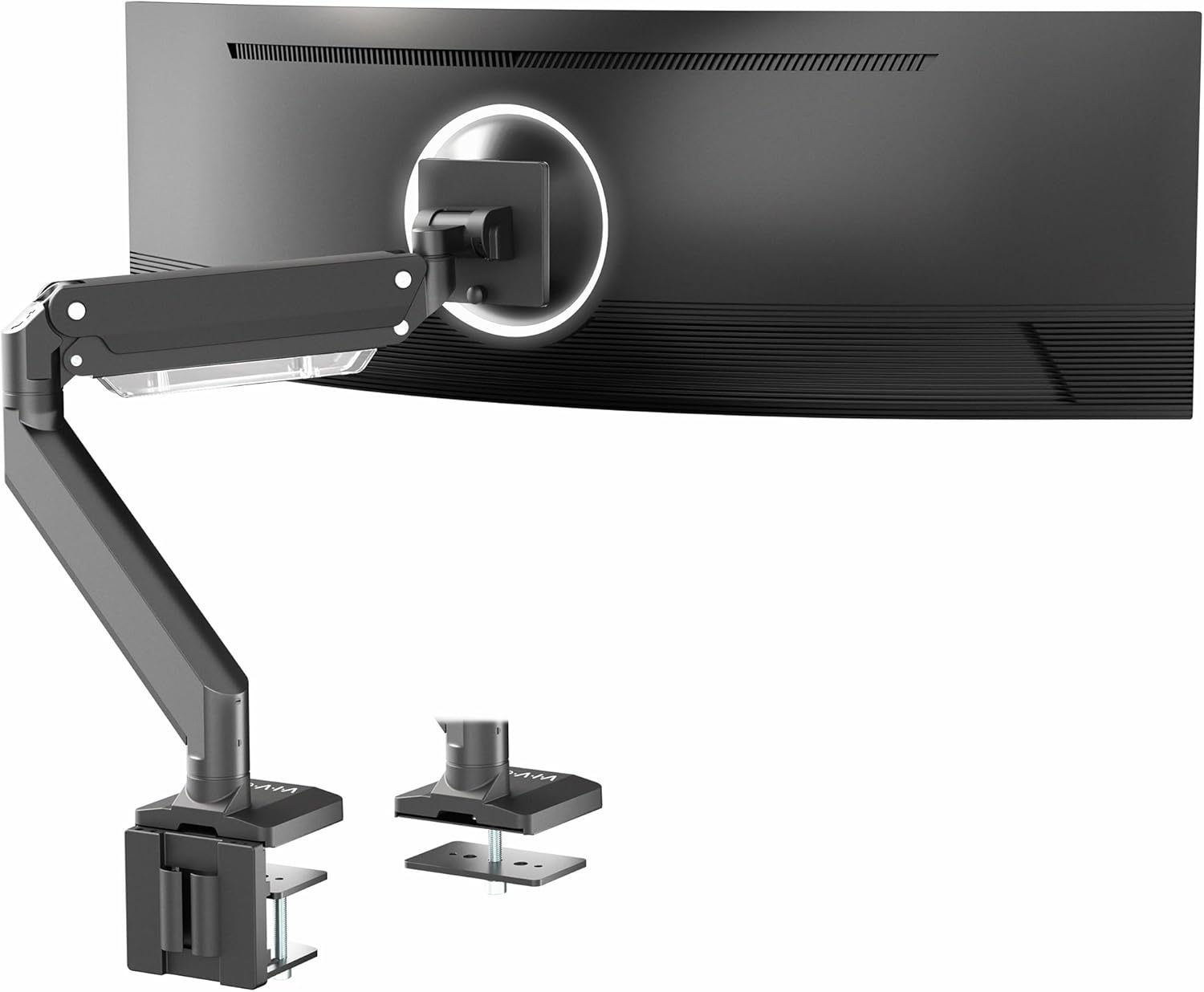
- Supports ultrawide monitors up to 49 inches and 33 pounds.
- Pneumatic arm provides 13 inches of smooth height adjustment.
- Supports both 75x75mm and 100x100mm VESA mounting patterns.
- Offers tilt, swivel, and rotation for flexible screen positioning.
- Includes both C-clamp and grommet desk mounting options.
This is the kind of monitor arm that actually makes sense for a heavy ultrawide
The VIVO STAND-V101G1 takes the number one position in our best single monitor arm comparison because it combines serious weight capacity with the movement you actually want from an adjustable monitor mount. It supports standard monitors up to 32 inches and ultrawide displays up to 49 inches, with a rated weight range from 2.2 to 33 pounds.
That upper limit matters. Large curved and ultrawide monitors can be considerably heavier than ordinary 24-inch office displays, and buying an arm based only on screen size is one of the easiest ways to end up with a monitor that slowly drops after you position it.
The STAND-V101G1 uses an aluminum construction and a pneumatic counterbalance mechanism. The pneumatic arm supports smooth height changes, giving you approximately 13 inches of vertical adjustment once the tension is correctly matched to the monitor.
This is useful if the same workstation changes between sitting and standing throughout the day. Instead of loosening hardware every time the screen needs to move, the monitor can be repositioned using the articulated arm.
The 33-pound capacity is important, but weight is only half the compatibility check
VIVO rates this arm for screens between 2.2 and 33 pounds. It supports flat, curved, and 1000R curved monitors, including ultrawide displays up to 49 inches.
Before buying, check the weight of the monitor without its original desktop stand. Monitor weight must stay inside the rated range, because the pneumatic mechanism needs enough tension to hold the display securely at the selected height.
A monitor that is too heavy can cause the arm to sink. One that falls outside the supported range at the opposite end can also be difficult to balance correctly, so the minimum rating matters too.
VESA compatibility is the next thing to check. The STAND-V101G1 supports 75x75mm and 100x100mm VESA patterns, which covers many mainstream computer monitors.
Do not assume that a 49-inch monitor automatically has one of those patterns. Some large displays use larger mounting patterns or require an adapter, so check the rear mounting holes before ordering the arm.
This becomes especially important with ultrawides. Screen size alone does not guarantee compatibility, and the monitor needs to satisfy both the weight requirement and the supported VESA pattern.
The arm can extend approximately 23 inches, giving you plenty of control over screen depth. That can be useful with a deep desk where the monitor would otherwise sit too far away on its original stand.
It also helps when you occasionally need to pull the screen closer. Someone editing detailed graphics or working with a dense spreadsheet may want the monitor nearer temporarily, then push it farther back for general work.
The articulation is substantial. VIVO specifies 180-degree swivel and 180-degree rotation, along with adjustable monitor tilt.
That movement gives you proper positioning control rather than simply lifting the monitor above the desk. You can adjust screen angle, distance, height, and orientation according to the workstation.
Portrait rotation is supported as well, although rotating a huge ultrawide display is obviously less practical than doing the same thing with a smaller conventional monitor. The useful point is that the mounting mechanism itself is not fixed to one orientation.
Ergonomic positioning is where all this adjustment starts to matter. The monitor should generally be positioned so you can view it comfortably without repeatedly tilting your head upward or leaning forward toward the screen.
There is no single perfect height for every person because chair height, desk height, monitor dimensions, eyesight, and working posture vary. Adjust the arm while sitting in your normal working position rather than trying to copy somebody else's measurements.
Your normal posture should determine screen position, not the other way around. If you constantly lean forward after mounting the monitor, move the display closer rather than accepting an uncomfortable setup simply because the desk looks cleaner.
Why we believe the STAND-V101G1 deserves the number one position
Desk compatibility is another important part of installation. VIVO provides both a C-clamp and grommet mounting option, giving you two ways to secure the arm depending on the desk.
The C-clamp works with desktops roughly 0.4 to 3.3 inches thick according to VIVO's compatibility specifications. The grommet installation supports a smaller thickness range and is useful when the desk already has a suitable cable or mounting hole.
Before installation, inspect the desk itself. A strong arm still needs a strong desktop, especially when a heavy 49-inch monitor creates leverage through an extended articulating arm.
Thin hollow-core furniture, fragile glass, damaged particleboard, or a weak desktop edge deserves extra caution. The monitor may weigh less than 33 pounds, but that weight is being concentrated through the mount rather than spread across a large factory monitor base.
This becomes even more important when the arm is extended forward. The farther the monitor moves from the mounting point, the greater the leverage placed on the desk connection.
Follow VIVO's installation instructions and do not exceed the specified desk thickness or monitor weight. If the desk construction itself is questionable, solve that problem before attaching an expensive display to it.
The integrated cable management is another feature that becomes useful after the installation is finished. Monitor arms look much cleaner when the power and display cables follow the arm rather than hanging loosely behind the screen.
But leave enough cable slack around every moving joint. Cables need room for full arm movement, otherwise pulling the monitor forward can place unnecessary tension on HDMI, DisplayPort, USB, or power connectors.
Move the arm through its full intended range after routing the cables. If a cable becomes tight at any position, add more slack before using the workstation normally.
The quick-release VESA plate also helps during installation. Rather than trying to hold a heavy monitor in the air while simultaneously lining up several screws with the end of the arm, the plate can be attached to the monitor first.
With a particularly large ultrawide, having another person help is sensible. A 49-inch curved display is physically awkward even when its weight remains comfortably below the arm's 33-pound limit.
Once mounted, the pneumatic tension needs to be adjusted for the actual monitor. Correct tension prevents unwanted screen movement, including the monitor drifting downward or rising when you release it.
If the display slowly sinks, that does not automatically mean the arm is defective. The counterbalance tension may simply need to be increased according to the instructions.
If the arm rises on its own, the opposite adjustment may be necessary. Make small changes and test the monitor after each adjustment rather than turning the tension mechanism excessively all at once.
The ability to reclaim desk space is another reason this model ranks highly. A large ultrawide monitor usually comes with a correspondingly large factory stand, and those feet can consume a substantial portion of the usable desktop.
A clamp-mounted arm moves that support structure to the rear edge of the desk. Removing the original stand frees useful space for a keyboard, audio interface, notebook, speakers, or simply a cleaner working area.
This can be especially useful on shallower desks. A large factory stand may force the monitor too close to the user because its base determines where the screen can sit.
An articulated arm gives you more control over depth. You can move the display farther back when the desk layout allows it and pull it forward when closer viewing is needed.
There are some limitations worth understanding. The 33-pound capacity is strong, but there are extremely heavy ultrawide displays that exceed it, and the 100x100mm maximum VESA pattern will not fit every large monitor directly.
The arm also requires more careful installation than simply placing the monitor on its supplied stand. Desk strength, clamp positioning, pneumatic tension, cable slack, and monitor weight all need to be checked properly.
Those are reasonable requirements for a heavy-duty adjustable mount. Proper installation is essential with large monitors, because the product is supporting expensive hardware above the desk rather than simply holding a lightweight accessory.
So why do we believe the VIVO STAND-V101G1 deserves the number one ranking out of seven? Its combination of support for ultrawide screens up to 49 inches, a 33-pound maximum load, 75x75mm and 100x100mm VESA compatibility, pneumatic height adjustment, extensive articulation, dual mounting options, and integrated cable management covers an unusually broad range of single-monitor setups.
It is particularly strong for people using 34-inch, 38-inch, 40-inch, or compatible 49-inch ultrawide displays where a lightweight monitor arm may simply not provide enough confidence or adjustment range. The aluminum construction and substantial counterbalance system are better matched to that type of workstation.
The key is checking compatibility before buying. Verify the monitor's weight without its original stand, confirm the VESA pattern, inspect the desk construction, and make sure the desktop thickness falls within the selected mounting method's supported range.
Do those checks properly and the VIVO offers an excellent combination of strength, movement, ergonomic adjustment, and desk-space recovery. For a single-monitor workstation, particularly one built around a large curved or ultrawide display, that balance is why the STAND-V101G1 earns our top position.
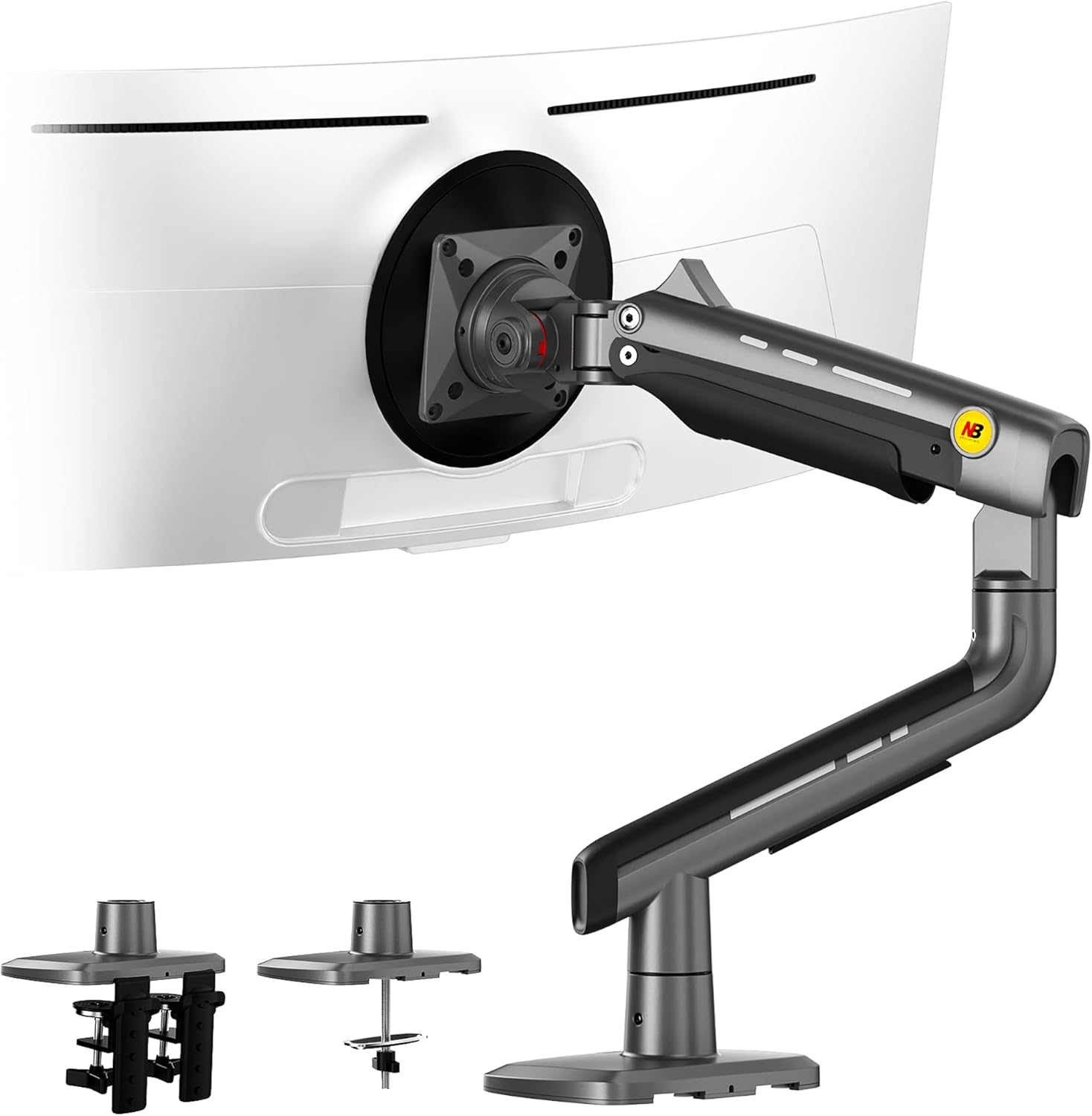
- Adjustable arm provides flexible height and viewing-angle positioning.
- Aluminum construction creates a sturdy yet streamlined monitor mount.
- Integrated RGB lighting adds customizable illumination around the workstation.
- Articulating design supports comfortable tilt, swivel, and screen positioning.
- Desk-mounted installation frees space previously occupied by monitor stands.
This gets the important monitor-arm adjustments right, then adds RGB without making that the whole point
The NB North Bayou RGB monitor arm takes the number two position in our best single monitor arm comparison because it combines a substantial adjustable aluminum arm with something a little different from most office mounts: integrated RGB lighting. The lighting is optional decoration, really. The more important part is having a monitor suspended above the desk with enough movement to adjust height, depth, tilt, and viewing position.
That distinction matters because RGB alone does not make a good monitor mount. A single monitor arm still has to support the display securely and remain where you position it, otherwise the extra lighting becomes irrelevant pretty quickly.
The aluminum construction gives this model a more substantial structure than the lightweight arms commonly bundled with inexpensive desk setups. A solid arm matters with larger displays, especially when the screen is frequently pulled forward, pushed backward, or repositioned throughout the working day.
It also removes the monitor's original desktop stand. That can free a surprising amount of usable surface area, particularly with gaming and ultrawide monitors that arrive with large V-shaped feet spreading across the desk.
The real advantage is being able to move the screen instead of moving yourself
A fixed monitor stand gives you whatever adjustment range the manufacturer built into the base. Sometimes that is enough, but many factory stands provide limited height control or consume a large amount of desk depth.
An articulating monitor arm changes that relationship. The screen can move toward your working position rather than forcing you to lean forward because the monitor happens to sit too far away.
This is useful during detailed work. Someone editing photographs, working on a dense spreadsheet, drawing in a graphics application, or reading small interface elements can temporarily bring the screen closer without rearranging the whole desk.
When the detailed work is finished, the display can move farther back again. That is much easier than physically sliding a heavy monitor stand across the desktop every time the preferred viewing distance changes.
Height adjustment is equally important. The correct monitor height depends on the user's chair, body position, desk height, display dimensions, and normal working posture.
Do not mount the screen based entirely on a photograph of somebody else's setup. Your normal seated position should guide adjustment, because an impressive-looking workstation is not useful if you spend eight hours tilting your head upward to see it.
Sit normally first. Then position the display where the screen can be viewed comfortably without repeatedly raising your chin, dropping your head, or leaning toward the desk.
Depth deserves the same attention. A huge display positioned very close to the face can feel uncomfortable, while a smaller high-resolution screen placed too far away may encourage forward leaning.
The arm lets you experiment with this after installation. Small changes of a few centimeters can make a workstation feel noticeably different during long periods of use.
Tilt and swivel adjustment become useful when the desk is not perfectly centered in the room. Articulation lets the monitor follow your position, which can help if the workstation is used for both focused work and occasional viewing from another chair.
Swivel is also handy when showing something to another person. Instead of turning the complete monitor stand and dragging cables across the desk, the screen can be angled temporarily and returned afterward.
Rotation can be useful with compatible monitors as well. A portrait display can make sense for programming, long documents, web pages, chat applications, or other vertically oriented content.
With a particularly large or curved screen, portrait use may be impractical even if the arm technically rotates. Physical clearance around the desk still matters.
Why this NB arm earns second place instead of taking the top position
The integrated RGB lighting is the most visually unusual part of this model. It can complement a gaming desk, creative workstation, streaming setup, or home office where ambient lighting is already part of the room.
For someone building a minimal corporate-style workstation, RGB may not matter at all. The good thing is that the monitor adjustment remains the important feature, so the arm still needs to be judged primarily as mounting hardware.
RGB can be useful aesthetically when the monitor is positioned away from the wall and the arm remains visible. It creates another controlled light source around the desk without requiring a separate decorative lighting accessory attached to the mount.
Compatibility should be checked before buying. Start with the monitor's weight without its original stand, then compare that number with the arm's supported load range.
This is more important than simply checking screen size. Two monitors with the same diagonal measurement can have very different weights because of panel construction, backlighting, internal power hardware, curvature, and chassis design.
Monitor weight is a critical compatibility check. If a screen is heavier than the arm is designed to counterbalance, it may slowly sink even after tension adjustment.
VESA compatibility is the next check. Look at the mounting holes on the rear of the monitor and confirm that the pattern matches what the arm supports.
Some monitors hide their VESA mounting area behind the original stand or use recessed mounting points. Others may require spacers or a manufacturer-specific adapter before a standard monitor arm can be attached correctly.
Do not improvise with screws that happen to fit the thread. Screw length matters because hardware that extends too far into the monitor can potentially contact internal components.
Use the mounting hardware specified for the monitor and arm combination. Correct VESA hardware protects the display and ensures the mounting plate sits properly against the rear surface.
Desk strength needs checking too. Monitor arms concentrate the load into a relatively small mounting area rather than distributing it across the wide feet of a factory stand.
A solid wood or properly constructed office desk is generally a very different mounting surface from thin hollow-core furniture. Fragile desktop materials deserve extra consideration before a clamp is tightened around them.
The leverage increases when the arm extends forward. The monitor itself may be within the stated weight limit, but moving that weight farther from the mounting point increases the mechanical load on the desk connection.
A strong arm still needs a suitable desk. Check the desktop construction, edge condition, thickness, and mounting instructions before trusting expensive monitor hardware to it.
Cable management is another practical part of the installation. Once the factory stand disappears, loose DisplayPort, HDMI, USB, and power cables can become much more visible.
Route the cables along the arm where the design allows, but do not pull them tight. Move the monitor through its full intended range before finishing the cable arrangement.
If a cable becomes tight when the display is pulled forward or rotated, add slack. Cables must move with the arm freely, otherwise the monitor adjustment can place unnecessary strain on ports and connectors.
The counterbalance or tension adjustment should also be configured after the monitor is installed. Different displays require different tension because their weight and center of gravity vary.
If the monitor sinks after you release it, increase the appropriate tension gradually according to the instructions. If the arm rises on its own, the counterbalance may be set too strongly.
Make small adjustments and test again. Do not keep turning adjustment hardware aggressively without checking what each change is doing.
Once properly balanced, the monitor should stay where you place it. That is the difference between a useful pneumatic or spring-assisted arm and one that constantly needs to be corrected during the day.
The reclaimed desk space is another significant advantage. Large monitor stands often occupy exactly the area where someone wants to put a notebook, keyboard, audio interface, speakers, or other equipment.
Moving the support structure to the rear edge of the desk leaves the center of the workspace much cleaner. It can also make cleaning underneath the monitor substantially easier because there are no large feet sitting across the surface.
The main reason this NB model finishes second is that our number one VIVO STAND-V101G1 provides a particularly clear heavy-duty proposition for large ultrawide monitors. The VIVO is rated for compatible ultrawides up to 49 inches and up to 33 pounds, giving it strong appeal for demanding single-screen setups.
That makes the VIVO easier to recommend when the monitor itself is unusually large and heavy. Heavy ultrawides need generous mounting headroom, and that was one of the biggest factors in our first-place decision.
The NB arm counters with its aluminum construction, flexible adjustment, and integrated RGB design. For a gaming or creative workstation, some users may actually prefer this combination even though it finishes second in our overall ranking.
The RGB lighting also makes the mount feel more intentionally integrated into a modern desk setup. Instead of hiding the arm completely, the design can become part of the workstation appearance.
But aesthetics should remain secondary to compatibility. Before ordering, verify the monitor weight, VESA pattern, desk construction, available clearance, and how far you expect the screen to move.
Installation should be checked again after a few days of use. Recheck the mount after initial setup, particularly if a heavy monitor is moved frequently, and make sure the desk clamp and monitor attachment remain secure according to the manufacturer's guidance.
That is why we believe the NB North Bayou RGB monitor arm deserves the number two ranking out of seven. It provides the adjustability and desk-space benefits we want from a serious single monitor arm while adding aluminum construction and RGB lighting for users who care about workstation appearance.
It misses first place because the VIVO gives us stronger heavy-duty confidence for very large ultrawide displays, but this NB remains an excellent alternative for a modern gaming, creative, or home office setup. Match it to the correct monitor and desk, balance the tension properly, leave enough cable slack, and it can create a much cleaner and more adjustable single-screen workstation.
- Supports large monitors up to 49 inches in size.
- Heavy-duty design handles displays weighing up to 44 pounds.
- Gas spring adjustment provides smooth monitor height and position changes.
- Quick-release VESA plate simplifies monitor installation and future removal.
- Integrated cable management keeps display wiring organized around the arm.
The 44-pound capacity is the specification that immediately gets our attention
The MSI MPG MT201R takes the number three position in our best single monitor arm comparison because it is built around something that matters enormously with modern ultrawide displays: weight capacity. MSI rates the arm for monitors up to 49 inches and approximately 44 pounds, giving it substantially more load headroom than many ordinary single-screen desk mounts.
That matters because screen size alone tells you very little about whether a monitor arm is suitable. A 34-inch display with a relatively light chassis and a huge 49-inch curved gaming monitor create completely different loads at the mounting point.
The MT201R uses a gas spring system to counterbalance the monitor and allow smoother repositioning. The gas spring supports easier adjustment, so changing height or pulling the screen closer does not require loosening and retightening the entire mount every time.
For a workstation that changes throughout the day, this is useful. You can position the display farther back for general work, bring it closer for detailed editing, or change its height when moving between different working positions.
Supporting a 49-inch screen is useful, but the 44-pound rating matters even more
Large ultrawide monitors have become one of the main reasons people move away from basic monitor arms. A lightweight mount might work perfectly with a 24-inch office display and then struggle badly once a much heavier curved panel is installed.
The MSI's approximately 44-pound maximum load gives it useful headroom for heavier displays. Extra weight capacity helps with large ultrawides, particularly when the monitor is positioned farther away from the mounting post.
Before buying, check the monitor's actual weight without its factory stand. Manufacturers sometimes list several different weights, including the complete packaged weight, weight with stand, and panel weight without the stand.
The number relevant to a monitor arm is generally the display weight being attached to the VESA plate. Do not compare the arm's limit against the shipping weight of the complete retail box.
Weight also needs to remain within the manufacturer's supported range rather than simply below the maximum. Gas spring systems rely on counterbalance tension, and the mechanism needs to be appropriately matched to the display.
Correct tension keeps the screen in position. If the monitor gradually sinks after installation, the first thing to check is the gas spring tension adjustment rather than immediately assuming the arm is defective.
If the monitor rises by itself, the tension may be too high for the installed display. Make small adjustments according to MSI's instructions and test the arm after each change.
The point is to reach a balance where the screen moves when you intentionally reposition it but remains stationary once released. That is what makes a gas spring arm useful during normal work.
The MT201R also provides flexible articulation for changing the monitor's viewing angle. That becomes important with a large display because even a small angle change can alter how comfortably the far edges of an ultrawide screen are viewed.
A curved 49-inch monitor occupies a substantial portion of the user's field of view. Precise positioning matters more with bigger screens, not less, because the display can dominate the entire workstation.
Depth is particularly important. If an enormous ultrawide is positioned too close, viewing the outer edges can require more eye and head movement than necessary.
If it is too far away, text and smaller interface elements may become uncomfortable to read. An articulated arm lets you adjust this after the desk has been assembled rather than being stuck with the depth dictated by the factory monitor stand.
Height should be adjusted from your normal seated position. Do not mount the monitor based on how the workstation looks while you are standing beside it.
Sit in the chair, place your hands where they normally rest, and then position the screen. Your working posture should determine monitor height, because the goal is comfortable viewing during several hours of actual use.
The same applies if the desk is height adjustable. Test the monitor arm in both sitting and standing positions and make sure the arm provides enough movement for the way the workstation will actually be used.
Why the MPG MT201R takes third place rather than moving higher
VESA compatibility is one of the first technical checks to make before ordering. A large monitor can be comfortably below the 44-pound weight limit and still be incompatible if its rear mounting pattern does not match the arm.
Check the monitor manufacturer's specifications rather than estimating from photographs. Some large displays use unusual or recessed mounting areas, and certain models require a supplied adapter before a conventional VESA plate can be attached.
The quick-release VESA design is useful once compatibility is confirmed. A removable VESA plate simplifies installation, because the plate can be secured to the monitor before the display is attached to the arm.
This becomes more important with a 40-inch or 49-inch screen. Holding a large curved monitor in the air while trying to line up four small mounting screws would be awkward and unnecessarily risky.
With very large displays, use a second person during installation. Even when the monitor weighs much less than 44 pounds, the physical width makes it difficult to control safely with one hand on each side while working around a desk.
Desk construction matters just as much as monitor compatibility. The factory monitor stand distributes weight across a relatively large area, while a desk-mounted arm concentrates the load around the clamp or grommet connection.
Heavy monitors create substantial desk leverage, especially when the arm is extended forward. The farther the screen moves from the mounting point, the greater the mechanical leverage applied to that section of the desktop.
A thick, solid desk and a thin hollow-core desk should not be treated as equivalent mounting surfaces. Inspect the material, thickness, underside clearance, and condition of the desk before tightening the mount.
Be particularly cautious with glass unless both the desk and monitor-arm manufacturer specifically support the intended mounting arrangement. Expensive monitor hardware is not the place to improvise desk compatibility.
The arm's mounting position also affects the range of movement. Installing it too close to a wall can prevent the rear sections of the arm from moving backward when the monitor is pushed away.
Leave enough clearance behind the desk. Articulating arms need space to articulate, which sounds obvious until the workstation is installed flush against a wall and the monitor cannot move through the expected range.
Cable management is another practical part of the MSI design. Power, DisplayPort, HDMI, and USB cables can follow the arm rather than hanging loosely between the screen and desk.
Do not route the cables tightly. The monitor needs enough slack to move through its full adjustment range without pulling against a connector.
After routing everything, pull the monitor forward, move it upward and downward, swivel it, and test every position you expect to use. Check cable slack at maximum extension, not only when the screen is sitting in its normal position.
This is particularly important with DisplayPort cables. A cable that is constantly being pulled sideways can put unnecessary stress on the monitor connection and may eventually create intermittent display problems.
One of the biggest practical benefits is the desk space recovered after removing the factory monitor stand. Large gaming monitors often have wide feet that extend toward the keyboard and occupy valuable surface area.
A monitor arm moves the support structure toward the rear of the desk. That leaves more space for a keyboard, mouse, audio equipment, drawing tablet, notebook, speakers, or other workstation hardware.
Removing the factory stand changes desk usability, especially on a relatively shallow desktop where a large original base can push the keyboard toward the front edge.
Cleaning becomes easier too. With the monitor suspended above the desk, there are fewer stand legs and inaccessible corners collecting dust underneath the display.
The MT201R's heavy-duty capacity is actually higher than the 33-pound maximum of our number one VIVO model. So why does the MSI sit at number three rather than automatically taking first place?
Maximum load is only one part of our overall ranking. The VIVO STAND-V101G1 provides a particularly proven combination of pneumatic adjustment, ultrawide support up to 49 inches, 33-pound capacity, aluminum construction, extensive articulation, and flexible C-clamp or grommet installation.
Our second-ranked NB arm also combines substantial adjustable hardware with an aluminum structure and integrated RGB lighting that fits particularly well into modern gaming and creative workstations.
The MSI's strength is different. Its 44-pound rating provides serious headroom, making it especially interesting when a large monitor is heavier than the limits supported by more conventional arms.
That additional capacity can outweigh the ranking difference for a particular user. If your monitor weighs 36 pounds without its stand, for example, a 33-pound arm should immediately be removed from consideration regardless of where it appears in a general comparison.
This is why monitor arms should never be purchased from rankings alone. The monitor weight, VESA pattern, desk material, desk thickness, desired extension, and physical clearance all need to work together.
The MSI also makes sense for people who reposition a heavy display regularly. Gas spring movement is useful for frequent adjustment, whereas someone who never moves the monitor after installation may not benefit as much from the articulation.
Installation needs to be checked after the monitor has been mounted and balanced. Verify that the desk connection is secure and that all VESA hardware remains properly tightened according to the manufacturer's guidance.
Recheck the setup after several days of use, especially with a heavy display. A large monitor creates much more mechanical load than a small office panel, so there is value in confirming that everything remains correctly seated.
That is why we believe the MSI MPG MT201R deserves the number three ranking out of seven. It offers an unusually strong combination of support for monitors up to 49 inches, a roughly 44-pound maximum capacity, gas spring adjustment, extensive articulation, quick-release VESA mounting, and integrated cable management.
It misses our top two because those arms provide slightly stronger overall combinations for the broader range of single-monitor workstations we considered. But for a particularly heavy ultrawide display, the MSI's higher load capacity may actually make it the more appropriate choice.
Check the exact monitor weight and VESA pattern, inspect the desk before installation, balance the gas spring correctly, and leave enough slack in every cable. For a large single-screen workstation where strength and smooth adjustment matter, the MT201R remains a very capable heavy-duty option.
- Heavy-duty design supports large ultrawide single-monitor workstation setups.
- Pneumatic adjustment allows smooth height and viewing position changes.
- Articulating arm provides flexible tilt, swivel, and screen positioning.
- VESA mounting system works with compatible modern computer monitors.
- Integrated cable management keeps display wiring cleaner around desks.
This VIVO is built for the point where a normal monitor arm starts feeling undersized
The VIVO STAND-V110K takes the number four position in our best single monitor arm comparison because it is designed around large and ultrawide displays rather than lightweight office monitors. It combines a heavy-duty structure with pneumatic adjustment, giving users a way to move a substantial screen without having to loosen mounting hardware every time the viewing position changes.
That is important with modern ultrawide monitors. Once the factory stand is removed, the arm has to support the complete display while it is extended, tilted, raised, lowered, and moved around the desk.
The pneumatic mechanism is what makes those adjustments practical. Pneumatic support makes repositioning much smoother, particularly compared with a basic fixed-height pole mount where vertical changes may require tools.
For someone who moves between focused work, gaming, editing, and general browsing at the same desk, being able to change the monitor position quickly is useful. The screen can move closer for detailed work and farther back when more viewing distance feels comfortable.
An ultrawide arm needs to handle more than just the monitor's weight
Weight capacity is one of the first specifications to check with any monitor arm, but it becomes especially important with ultrawide displays. Large curved panels have substantial physical width, which changes how the monitor feels when it is extended away from the mounting point.
Always check the display's weight without its original desktop stand. The panel weight determines arm compatibility, not the shipping weight of the retail box or the combined weight of the monitor and factory base.
Do not purchase an arm simply because the product description mentions a screen size that matches your monitor. Two 40-inch displays can have very different weights and rear mounting arrangements.
VESA compatibility needs to be checked separately. Look at the mounting pattern on the back of the monitor and compare it directly with the patterns supported by the STAND-V110K.
Some gaming monitors have recessed VESA mounting areas. Others require spacers or a manufacturer-supplied adapter before a conventional monitor arm plate can sit correctly against the back.
Screen size and VESA compatibility are separate checks. A monitor can fall comfortably within the supported size range while still requiring different mounting hardware.
Screw length matters as well. Do not substitute random longer screws simply because they fit the VESA threads, because hardware extending too deeply into the monitor can potentially interfere with internal components.
Use the hardware specified by the monitor and arm manufacturers. If spacers are required because the mounting area is recessed, install them according to the supplied instructions rather than trying to force the VESA plate against an uneven surface.
The pneumatic counterbalance needs adjustment after the monitor is mounted. Different screens place different loads on the arm, so the mechanism cannot be perfectly configured for every monitor straight out of the box.
If the display gradually drops after being positioned, increase the appropriate tension according to the instructions. Correct tension keeps the monitor stationary after you remove your hands.
If the arm pushes the screen upward instead, the tension may be too strong for that particular display. Make smaller adjustments and test after each one.
Once balanced correctly, the screen should move when you deliberately reposition it but stay put during normal typing, mouse movement, and desk use. That is one of the biggest differences between a properly configured pneumatic arm and one that constantly needs correction.
The articulation also gives you more control over viewing distance. This can matter a lot with ultrawide monitors because a screen positioned several centimeters too close can feel much more imposing than a conventional 24-inch display.
Viewing distance should match the screen and the way you actually work. Someone editing a detailed timeline may temporarily want the display closer, while general office work might feel more comfortable with the monitor pushed farther back.
Height adjustment is equally personal. Sit in your normal working position before deciding where the monitor should remain most of the day.
Do not raise the display just because a high monitor looks cleaner in workstation photographs. If the position makes you repeatedly tilt your head upward, lower it until viewing feels natural.
Why the STAND-V110K finishes fourth in our comparison
Desk strength is one of the most overlooked parts of installing a heavy-duty monitor arm. The monitor may be comfortably inside the arm's supported weight range while the desk itself is unsuitable for the concentrated load created by the mount.
A factory monitor stand spreads weight across a relatively wide footprint. A clamp-mounted arm transfers that load into a much smaller section of the desktop.
The effect becomes stronger when the monitor is extended forward. Extension increases leverage on the desk, so the mounting point needs to be structurally sound rather than simply thick enough for the clamp to fit.
Inspect the desktop before installation. Solid wood, properly constructed office furniture, thin particleboard, hollow-core panels, and glass should not automatically be treated as equivalent mounting surfaces.
Check the manufacturer's desk thickness requirements and make sure there is enough clear space underneath for the mounting hardware. Desk frames, cable trays, drawers, and reinforcement bars can sometimes block the exact location where you intended to install the clamp.
Wall clearance also matters. An articulating arm often needs some space behind the mounting point when the monitor is pushed backward.
If the desk is pressed directly against a wall, part of the adjustment range can become unusable. Leave enough room for rearward articulation before deciding where the clamp should be installed.
This can be tested before final cable routing. Move the arm through the positions you expect to use and check that neither the arm nor the monitor contacts the wall.
Cable management is another useful part of a monitor-arm setup. Once the original monitor stand disappears, loose HDMI, DisplayPort, USB, and power cables can become much more visible.
Route them along the arm where the design permits, but do not make the cables tight. A monitor arm is supposed to move, so every connected cable needs enough slack to follow that movement.
Test cable slack at full extension. Pull the monitor forward, raise it, lower it, and swivel it before finishing the cable arrangement.
If a DisplayPort or HDMI cable becomes tight at one extreme position, add more slack. Constantly pulling sideways on a monitor connector can eventually create intermittent signal problems or unnecessary wear.
Removing the original stand can reclaim a considerable amount of desktop space. Ultrawide monitor stands often use large V-shaped feet that extend toward the keyboard and consume exactly the area where other equipment needs to sit.
A desk-mounted arm shifts the support structure toward the rear edge. That can leave more room for speakers, a keyboard, mouse, notebook, audio equipment, drawing tablet, or simply an uncluttered work surface.
Reclaimed desk depth is a major benefit, particularly when the monitor is large but the desktop itself is relatively shallow.
The arm can also make cleaning easier. Dust and cables are easier to manage when there are no large monitor feet sitting across the middle of the desk.
Installation deserves more care with a large ultrawide than with a small office screen. Even if the monitor is comfortably inside the supported weight limit, its physical width can make it awkward to hold while attaching it to the arm.
Use a second person when necessary. One person can support the screen while the other verifies that the mounting plate is seated and secured correctly.
After installation, move the monitor slowly through the complete adjustment range. Check stability before normal daily use, especially if the display is heavy or the arm will regularly be extended far forward.
Recheck the clamp and mounting hardware after the first few days according to the manufacturer's instructions. This is sensible with any heavy monitor suspended from an articulating desk mount.
So why does the STAND-V110K land in fourth place rather than moving into our top three? The products above it offer slightly stronger overall packages for the particular range of single-monitor setups in our comparison.
Our number one VIVO STAND-V101G1 gives us a proven combination of support for ultrawides up to 49 inches, 33-pound capacity, aluminum construction, substantial pneumatic adjustment, and both C-clamp and grommet installation options.
The NB model in second adds a strong adjustable aluminum design with integrated RGB lighting, which makes it particularly interesting for gaming and creative desks. The third-ranked MSI MPG MT201R provides a particularly substantial load rating of around 44 pounds for compatible heavy monitors.
The STAND-V110K remains focused on heavy-duty pneumatic ultrawide support, but those competing strengths push it just outside our top three rather than indicating a major weakness with the VIVO itself.
For many users, the ranking difference will matter less than compatibility. If the STAND-V110K supports your exact monitor weight, VESA pattern, desk construction, and required range of motion, it can be a much better purchase than a higher-ranked arm that does not fit the hardware.
This is particularly true with ultrawide displays. The correct arm is the one that safely supports the actual screen while giving you enough movement to position it comfortably.
That is why we believe the VIVO STAND-V110K deserves the number four ranking out of seven. Its pneumatic adjustment, heavy-duty construction, flexible articulation, cable management, and focus on larger displays make it a strong option for a serious single-monitor workstation.
Check the monitor's stand-free weight and VESA pattern before ordering, inspect the desk carefully, adjust the pneumatic tension after installation, and leave enough cable slack for the complete movement range. Set up properly, the STAND-V110K provides the flexibility ultrawide users need while freeing a substantial amount of usable desk space.
- Supports monitors up to 49 inches for larger workstation setups.
- Gas spring mechanism provides smooth height and position adjustments.
- Quick-release VESA plate makes monitor installation considerably easier.
- Full-motion design supports flexible tilt, swivel, and screen rotation.
- Integrated cable management keeps monitor wiring organized around the arm.
This is a capable 49-inch arm without pushing into the heaviest-duty end of MSI's range
The MSI MAG MT201 takes the number five position in our best single monitor arm comparison because it offers the adjustments most people actually want from a desk-mounted display arm while supporting large screens up to 49 inches. It uses a gas spring mechanism, a quick-release VESA mounting system, and a full-motion design that lets the monitor move instead of being locked into the position determined by its factory stand.
That last point is what makes a monitor arm useful in daily work. A factory stand may provide basic tilt and height adjustment, but it usually cannot match the depth and positioning flexibility of a proper articulated arm.
The MAG MT201 lets you bring the monitor closer when working on something detailed, then push it farther back when you want more viewing distance. The gas spring makes repositioning much easier, provided the tension has been adjusted correctly for the weight of the installed display.
It also removes the original monitor base from the desk. With gaming and ultrawide displays, those factory stands can have wide feet that occupy a surprising amount of usable workspace.
The 49-inch support sounds impressive, but check the weight before anything else
Screen size is one of the easiest monitor-arm specifications to misunderstand. A product can support monitors up to 49 inches, but that does not mean every 49-inch display on the market is automatically compatible.
The monitor still needs to fall within the arm's supported weight range. Weight matters more than diagonal size alone, because two displays with identical screen measurements can use completely different chassis, panels, power systems, and internal components.
Look for the monitor weight without its original stand. Do not accidentally use the packaged shipping weight, which includes the box, accessories, stand, cables, and protective materials.
Once the correct monitor weight is known, compare it directly with MSI's supported range. Staying comfortably within the limit gives the gas spring mechanism the opportunity to balance the screen correctly.
VESA compatibility is the second major check. The rear mounting pattern on the monitor needs to match the arm, and some large gaming displays use recessed mounting points or require additional spacers.
VESA fit should be verified before ordering. A monitor can be the correct size and weight while still requiring an adapter before it can be attached properly.
The quick-release VESA plate makes installation easier once compatibility is confirmed. The plate can be attached to the rear of the monitor first rather than trying to hold the complete screen against the end of the arm while simultaneously inserting mounting screws.
That is particularly helpful with a large curved monitor. Even if the display is not exceptionally heavy, its width can make it awkward for one person to hold securely.
Use a second person when necessary. One person can support the monitor while the other checks that the VESA plate is seated correctly and locked into the arm.
Do not substitute random longer screws if the supplied hardware does not immediately appear to fit. VESA screw length needs to be correct, because a screw that enters too deeply can potentially contact parts inside the monitor.
Some displays need spacers because the VESA mounting area sits below the surrounding rear housing. Use the appropriate mounting hardware rather than forcing the plate against an uneven surface.
Once the screen is mounted, adjust the gas spring tension. This is not an optional setup detail if you want the monitor to stay where you put it.
If the screen slowly drops, the tension may need to be increased. If the arm rises when you release the monitor, the counterbalance may be too strong for the installed display.
A balanced arm should hold its position while still allowing the monitor to move without excessive force. Make small adjustments and test after each change rather than turning the tension adjustment repeatedly without checking the result.
Height adjustment should be based on the way you actually sit at the desk. Sit normally, relax your shoulders, and then position the display rather than adjusting the chair around an incorrectly placed monitor.
This is especially important with a large screen. Raising a huge monitor unnecessarily can encourage the user to tilt their head upward for hours during normal work.
Why the MAG MT201 earns fifth place in this comparison
The full-motion design is useful because monitor position involves more than height. Depth, tilt, swivel, and orientation can all affect how comfortable the screen feels during a long work session.
A programmer might pull the monitor slightly closer when working with small text. A gamer may prefer a different viewing distance, while somebody watching content from another position can swivel the display temporarily.
Full-motion adjustment makes one screen more flexible, particularly when the same workstation handles work, gaming, study, and entertainment at different times of the day.
Rotation can also be useful with a conventional monitor when portrait orientation makes sense. Coding, long documents, vertical web pages, and certain communication applications can benefit from additional vertical screen space.
With a very large ultrawide monitor, rotation may be less practical even when the arm itself permits it. Check physical clearance around the desk rather than assuming every possible arm movement will be useful with every display.
Desk construction is another major consideration. A monitor arm transfers the display's weight through a relatively small mounting area instead of distributing it across the large footprint of the original stand.
That creates concentrated pressure around the clamp or mounting point. The desktop needs adequate structural strength, particularly with a large monitor positioned far forward on the arm.
The farther the screen extends from the desk edge, the more leverage is created at the mounting point. This is why a monitor that falls inside the arm's weight limit can still be unsuitable for a weak desktop.
Inspect the desk before installation. Thin hollow-core furniture, damaged particleboard, glass, and solid wood all behave differently when a clamp is tightened around them.
Also check underneath the desk. A metal frame, cable tray, drawer, or reinforcement beam can prevent the clamp from being installed exactly where you expected.
Plan the clamp location before mounting, because moving a fully assembled arm with a large monitor attached is much more difficult than choosing the right position beforehand.
Wall clearance matters too. Articulating arms often move backward as the screen is pushed away from the user.
If the desk sits completely flush against a wall, that rearward movement can become restricted. Leave enough space for the arm to articulate through the positions you actually intend to use.
Cable management helps keep the finished setup cleaner. HDMI, DisplayPort, USB, and power cables can follow the arm rather than hanging directly behind the monitor.
Leave some slack around the joints. Cables should never restrict arm movement, because a tight cable can place unnecessary stress on the monitor connector when the screen is pulled forward or rotated.
Test this before finishing the setup. Move the monitor to its highest, lowest, closest, and farthest useful positions and check the cables at every point.
Removing the factory monitor stand is another practical advantage. Large gaming monitor bases can occupy the same desk space needed for a keyboard, mouse pad, speakers, drawing tablet, or audio hardware.
A desk-mounted arm moves most of that support structure toward the back edge. This can make even a relatively shallow desk feel more usable.
Freeing desk depth is particularly valuable with large displays, because the factory base may otherwise force the keyboard and monitor into positions that are too close together.
The open area underneath the monitor is also easier to clean. There are fewer feet, corners, and cables sitting directly on the desktop collecting dust.
So why does the MSI MAG MT201 rank fifth when it supports large displays and offers full-motion gas spring adjustment? The models above it provide stronger advantages for demanding ultrawide setups.
The MSI MPG MT201R in third place is particularly notable for its heavy-duty load capacity, making it a stronger choice when the display itself is unusually heavy. Our VIVO options also provide compelling combinations of pneumatic movement, ultrawide compatibility, and established mounting flexibility.
Our second-ranked NB model adds an adjustable aluminum construction with integrated RGB lighting for gaming and creative workstations. Those differences give the higher-ranked products additional reasons to choose them depending on the setup.
The MAG MT201 remains a more straightforward option. It covers the important monitor-arm fundamentals without relying on decorative features or an unusually specialized design.
That can actually be an advantage for someone who simply wants a large monitor off its original stand. Gas spring adjustment, VESA mounting, full-motion positioning, and cable organization are the features that affect everyday use.
Installation should be checked again after several days, particularly with a larger monitor. Make sure the desk connection and VESA hardware remain secure according to MSI's instructions.
Do not ignore small changes in monitor position. If the screen begins drifting after initially staying stable, check the gas spring tension and mounting hardware rather than continually pushing it back into place.
That is why we believe the MSI MAG MT201 deserves the number five ranking out of seven. It does not offer the same heavy-duty headroom or distinctive feature package as some of our higher-ranked arms, but it provides the adjustment range and desk-space benefits that make a single monitor arm worthwhile.
For a compatible large monitor, including many ultrawide setups, it can create a cleaner and much more adjustable workstation. Verify the exact display weight and VESA pattern, inspect the desk before clamping anything to it, balance the gas spring correctly, and leave enough cable slack for the complete movement range.
Do those things properly and the MAG MT201 remains a strong practical choice. It gives a single-monitor workstation the freedom to change height, depth, angle, and orientation while reclaiming the desk space previously occupied by the original monitor stand.
- Gas spring mechanism provides smooth monitor height adjustments.
- Full-motion design supports flexible tilt, swivel, and rotation.
- VESA mounting supports compatible flat and curved computer monitors.
- Desk-mounted design frees space beneath the installed monitor.
- Integrated cable management helps create a cleaner workstation setup.
This gets the important adjustment basics right without overcomplicating the desk
The Ergounion Single Monitor Arm takes the number six position in our best single monitor arm comparison because it focuses on the main reason people buy an articulating display mount in the first place. It gets the monitor off its original stand and gives you more control over height, depth, tilt, swivel, and general screen position.
For an ordinary home office or gaming workstation, that can make a meaningful difference. Factory monitor stands vary enormously, and some provide little more than basic tilt while consuming a large section of the desktop.
The Ergounion uses an adjustable gas spring mechanism to support movement. Gas spring adjustment makes repositioning easier, particularly when you want to change the viewing height or bring the display closer without reaching for tools.
This is useful for a desk used by more than one person too. Instead of everyone accepting the same fixed monitor height, the screen can be repositioned to better match different seating positions.
The gas spring is useful only after you balance it for the actual monitor
A gas spring monitor arm works by counterbalancing the weight of the installed display. That means setup does not finish the moment the monitor is attached to the VESA plate.
The tension needs to be adjusted for the actual screen. Correct tension keeps the monitor stationary after you move it to the preferred position.
If the screen gradually sinks, the gas spring may need more tension. If the monitor rises after you release it, the mechanism may be applying too much force for the installed display.
Make adjustments gradually and follow the manufacturer's direction for the tension mechanism. Turning adjustment hardware aggressively without checking the result can make setup more confusing than it needs to be.
Monitor weight is therefore one of the first specifications to check before buying. Look for the display's weight without the original desktop stand rather than using the shipping weight of the complete retail package.
That distinction matters. The box weight may include the monitor base, power supply, accessories, cables, packaging, and protective materials that never get attached to the arm.
The mounted display weight is what matters when comparing the monitor with the arm's supported load range. Staying within that range helps the gas spring operate as intended.
Screen size should be checked too, but do not use diagonal size as the only compatibility measurement. Two monitors of the same size can have very different weights and mounting arrangements.
VESA compatibility is equally important. The hole pattern on the rear of the monitor needs to match the mounting plate supported by the arm.
Some monitors have recessed mounting areas or require spacers. Others use adapters between the monitor chassis and a standard VESA mount.
Check the VESA pattern before ordering, particularly with curved gaming displays where the rear housing can be unusually shaped. A compatible screen size does not automatically mean the mounting plate will fit.
Use the correct screws as well. Screws that are too short may not secure the monitor properly, while screws that are unnecessarily long can extend farther into the display than intended.
Follow the monitor manufacturer's mounting requirements rather than choosing screws simply because the thread happens to fit. This is expensive equipment being suspended above the desk, so the mounting hardware deserves attention.
Once installed, the arm's full-motion adjustment becomes useful. The screen can be repositioned for different tasks rather than remaining at one fixed distance all day.
A graphic designer might pull the monitor closer while checking fine details. Someone working through email and documents may prefer the display farther back with more open space between the keyboard and screen.
Adjustable depth can improve desk ergonomics because it allows the screen position to follow the task instead of forcing the user to lean forward whenever something becomes difficult to read.
Height should be adjusted from your normal working posture. Sit naturally first, then position the monitor where viewing feels comfortable without repeatedly lifting or lowering your head.
Do not copy the height of a workstation photograph just because it looks tidy. The correct position depends on the user's chair height, desk, screen dimensions, eyesight, and working posture.
Why the Ergounion finishes sixth in our comparison
The full-motion design also gives you control over tilt and swivel. Tilt can help angle the panel toward the user's normal viewing position, while swivel makes it easier to turn the screen temporarily toward another person.
That can be useful in a small office when showing a colleague a document. Instead of physically sliding the monitor and its stand across the desk, the display can simply be angled and then returned to its original position.
Rotation adds another possibility for compatible monitors. Portrait orientation can suit vertical content, including long documents, programming, web pages, messaging applications, and certain creative workflows.
Physical clearance still matters. A monitor may technically rotate while hitting the desk surface, wall, speakers, or another piece of equipment before reaching the intended orientation.
This is why the arm should be tested through its full movement range before the workstation is considered finished. Check what happens at maximum extension, minimum height, maximum height, and the swivel positions you actually plan to use.
Desk strength is another part of compatibility that buyers sometimes ignore. The original monitor stand spreads weight across a relatively broad area, while a clamp-mounted arm concentrates the load around one section of the desktop.
The desk must support concentrated mounting force, particularly when the arm is extended forward. Moving the monitor farther from the clamp creates additional leverage at the mounting point.
Inspect the desktop material before installation. Solid wood, thick engineered panels, hollow-core furniture, damaged particleboard, and glass all behave differently under a clamp.
Check underneath the desk too. A metal frame, cable tray, drawer, or reinforcement structure can block the clamp even when the top surface appears to have plenty of room.
Choosing the mounting location before assembling everything can save time. Moving an installed arm is much more awkward after a large monitor and all of its cables are attached.
Wall clearance affects arm movement too. If the desk is pressed tightly against a wall, the rear sections of an articulating arm may not have enough space when the monitor is pushed backward.
Leave a little clearance and test the movement before routing cables permanently. This is particularly important on shallow desks where every centimeter of monitor depth matters.
Cable management helps make the final setup look cleaner. DisplayPort, HDMI, USB, and power cables can follow the arm rather than dropping loosely from the monitor to the desktop.
Do not pull the cables tightly against the arm. They need enough slack to move when the screen is raised, lowered, pulled forward, or rotated.
Test cable slack at every extreme position. A cable that looks perfectly arranged when the monitor is centered may become tight as soon as the screen is pulled toward the front of the desk.
Repeated tension on a display cable can put unnecessary stress on the connector. Leave enough movement around the joints while still keeping the cables reasonably organized.
Desk-space recovery is another important reason to use this Ergounion. Removing the original monitor stand can free the area directly underneath the screen.
This can create room for a keyboard, notebook, speakers, audio interface, drawing tablet, or other equipment. It can also make the desk much easier to wipe clean.
Removing large monitor feet frees space, particularly with gaming displays that use wide V-shaped stands extending toward the user.
The Ergounion ranks sixth mainly because the products above it offer stronger heavy-duty specifications or additional features for demanding setups. Our top-ranked VIVO is designed around large ultrawide monitors up to 49 inches with a substantial 33-pound rating.
The MSI MPG MT201R higher in the list offers even greater load headroom for compatible heavy displays. The NB model combines adjustable aluminum construction with RGB lighting, while other VIVO and MSI options provide particularly strong packages for large-screen installations.
The Ergounion is more straightforward. It focuses on practical monitor adjustment rather than trying to be the highest-capacity or most feature-heavy arm in the comparison.
That can be completely appropriate for a conventional single-monitor setup. Someone using a compatible 27-inch or 32-inch screen may gain little from buying a mount designed around extremely heavy 49-inch ultrawides.
The important question is whether this arm supports your exact monitor. If the screen falls comfortably inside the supported weight and size range and uses a compatible VESA pattern, the lower ranking does not prevent it from being a good match.
Installation should be checked after the first few days of use. Verify that the desk mount and VESA hardware remain secure according to the manufacturer's instructions, particularly if the monitor is moved frequently.
If the screen begins drifting, check the gas spring tension before assuming something has failed. Small adjustments may be needed as the setup settles into normal use.
That is why we believe the Ergounion Single Monitor Arm deserves the number six ranking out of seven. It lacks some of the extreme heavy-duty capacity and specialized features offered by our higher-ranked options, but it still provides the main benefits expected from a good single monitor arm.
You get adjustable height, depth, tilt, swivel, rotation, cable organization, and more usable desk space once the factory monitor stand is removed. Those are meaningful improvements for a normal home office or gaming workstation.
Check the monitor's stand-free weight and VESA pattern before buying, inspect the desktop before clamping the arm into place, balance the gas spring correctly, and leave enough cable slack for the full movement range. With those details handled properly, the Ergounion remains a practical adjustable option for users who want a cleaner and more flexible single-screen desk.
- Aluminum construction provides sturdy support for larger computer monitors.
- Heavy-duty design accommodates compatible ultrawide and curved displays.
- Adjustable arm provides flexible height, tilt, and viewing positions.
- Quick-release VESA mounting simplifies monitor installation and removal.
- Integrated cable management creates a cleaner single-monitor workstation.
This has the right hardware for an ultrawide setup, but compatibility needs checking carefully
The monTEK Aluminum Ultrawide Monitor Arm takes the number seven position in our best single monitor arm comparison because it provides the features we expect from a modern heavy-duty desk mount, including aluminum construction, adjustable positioning, a quick-release VESA system, and support aimed at larger displays. It is a capable design, but the competition in this particular seven-product group is unusually strong.
The first practical advantage is getting the monitor off its original stand. Large ultrawide and gaming displays often come with wide feet that occupy a significant amount of usable desk surface.
A desk-mounted arm moves the supporting hardware toward the rear edge instead. Removing the original stand frees desk space for a keyboard, notebook, speakers, drawing tablet, audio equipment, or simply a less crowded work surface.
That can make an especially noticeable difference on a shallow desk. A large factory base can determine exactly where the monitor and keyboard must sit, while an articulated arm gives you considerably more control over screen depth.
The quick-release mount is useful when the monitor itself is large and awkward
Installing a monitor arm is easy with a small display because the panel can usually be held comfortably while the mounting hardware is positioned. A large ultrawide is different.
Even when the monitor is not extremely heavy, its width makes it awkward to hold securely while trying to align several screws behind the screen. The monTEK's quick-release VESA arrangement makes this process more manageable.
The mounting plate can be secured to the monitor before the display is attached to the arm. Quick-release mounting simplifies large-screen installation, particularly when a second person is available to support the monitor while everything is locked into place.
Use that second person when the display is physically difficult to control. There is little benefit in trying to prove that a 40-inch or larger curved monitor can be installed alone when dropping it would be considerably more expensive than asking for help.
Before installation, check the monitor's VESA pattern. Do not assume that every large display uses the same mounting dimensions simply because it is marketed as VESA compatible.
Some monitors have recessed mounting areas and need spacers. Others require a manufacturer-specific adapter between the rear housing and the monitor arm.
VESA compatibility must be checked separately from screen size. A monitor can fall inside the advertised size range while still requiring different mounting hardware.
Screw length is important too. Using a screw that is too long can allow the hardware to extend farther into the monitor than intended, while a screw that is too short may not provide adequate engagement.
Follow the mounting specifications for the actual display. Do not choose hardware simply because the thread seems to fit.
Monitor weight is the next major check. Find the weight of the screen without its factory stand and compare that figure directly with the monTEK arm's supported range.
The stand-free monitor weight is what matters, not the complete shipping weight shown on a retailer's logistics information. Packaging, accessories, cables, and the original stand are not attached to the arm.
This becomes particularly important with ultrawide displays. Two monitors with similar diagonal measurements can have substantially different weights depending on the panel technology, curvature, internal power hardware, and chassis construction.
Once installed, the arm needs to be adjusted for the actual monitor. If the display slowly drops after you position it, the tension or counterbalance setting may need adjustment rather than the product necessarily being faulty.
Make small changes according to the instructions and test the screen again. A properly adjusted arm stays in position after you remove your hands but still moves without unreasonable effort when you intentionally reposition it.
This balance is particularly useful if the screen position changes throughout the day. Someone editing detailed graphics may want the monitor closer for a while, then push it farther back when switching to general browsing or video.
Depth adjustment is often overlooked when people think about ergonomics. Monitor height matters, but a screen that sits too far away can still encourage the user to lean forward throughout the day.
With a large ultrawide, the opposite problem can happen too. A screen positioned too close may require excessive eye and head movement to comfortably view information near the far edges.
Adjust viewing distance for the actual screen rather than following a fixed number copied from somebody else's workstation. Monitor size, resolution, eyesight, desk depth, and the type of work all influence what feels comfortable.
Why the monTEK finishes seventh in this comparison
The adjustable arm also gives you control over tilt and swivel. That is useful because the ideal viewing angle can change depending on chair height, desk position, and where the user is sitting relative to the screen.
Swivel can help when showing a document or design to someone beside the desk. Instead of dragging the entire monitor across the surface, the display can be angled temporarily and then returned to the normal position.
Rotation may also be available depending on the monitor and setup. Full adjustment gives the workstation more flexibility, although rotating a very large ultrawide screen may be physically impractical even if the mounting hardware permits it.
Check clearance before assuming the complete adjustment range will be usable. Speakers, walls, shelving, desktop equipment, and the desk surface itself can restrict movement.
Wall clearance is especially important with articulating arms. The rear sections of the mount may need to move backward when the monitor is pushed away from the user.
If the desk is completely flush against a wall, some of that movement can disappear. Leave enough room behind the desk to use the arm in the positions you actually want.
Desk construction is another major consideration. A heavy monitor creates concentrated desk loading, because the arm transfers the screen's weight into a much smaller area than the original desktop stand.
The load becomes more demanding when the monitor is extended forward. Moving the screen farther away from the mounting point increases leverage at the clamp or grommet connection.
This means monitor weight is only one side of the installation. The desk itself needs sufficient strength to support the complete setup.
Inspect the desktop material and thickness before installation. A solid office desk, thin particleboard surface, hollow-core top, and glass desk should not automatically be treated as equivalent.
Check underneath as well. Desk frames, drawers, reinforcement bars, and cable trays can block the clamp from reaching the position you originally planned.
Choose the mounting location before full assembly. Repositioning the mount becomes much more awkward once a large monitor and several cables have been attached.
Cable management is useful because a monitor arm removes much of the visual clutter created by the factory stand. Power, HDMI, DisplayPort, and USB cables can follow the arm instead of hanging loosely behind the screen.
Do not route them too tightly. An adjustable arm needs enough cable slack to move through its complete working range.
Pull the monitor forward, push it back, raise it, lower it, and swivel it before finishing the cable setup. Check cable slack at full extension, because that is usually where a cable that looked fine in the centered position becomes too tight.
A tight DisplayPort or HDMI cable can place unnecessary sideways pressure on the monitor connector. Over time, repeated pulling during arm movement can contribute to intermittent signal problems or connector wear.
The aluminum construction is a positive feature here. Monitor arms need to provide rigidity without becoming unnecessarily bulky, and aluminum is commonly used in higher-quality articulated designs for that reason.
It also gives the mount a cleaner appearance than some basic steel pole systems. That matters when the arm remains visible behind an ultrawide monitor rather than being completely hidden.
The quick-release design is useful later too. Monitor removal becomes easier for maintenance, desk rearrangement, or replacing the display without dismantling the complete arm assembly.
This is helpful if the workstation changes regularly. Someone upgrading monitors every few years can leave much of the desk mounting hardware in place and work primarily around the VESA connection.
So why does this monTEK take the number seven position when it has many of the features we want? The answer is mostly the strength of the six products above it.
Our number one VIVO STAND-V101G1 provides a very clear heavy-duty package for ultrawides up to 49 inches and 33 pounds, along with aluminum construction, pneumatic adjustment, and flexible mounting options.
The MSI MPG MT201R higher in the ranking offers particularly strong load headroom for heavy compatible monitors. The NB arm adds aluminum construction and RGB lighting, while the other VIVO and MSI models provide well-defined large-screen adjustment packages.
Against those options, the monTEK has fewer standout advantages in our overall comparison. It performs the core job of an adjustable ultrawide monitor arm, but it does not separate itself as clearly on maximum load, specialized lighting, or another major differentiating feature.
That does not make it a poor monitor arm. Rankings compare products against one another, and seventh place can still be perfectly suitable when the hardware matches a particular desk and monitor better than the alternatives.
For example, the quick-release mounting system may be particularly valuable to someone who changes displays or rearranges the workstation regularly. The aluminum construction and full adjustment are also meaningful upgrades over using a basic fixed monitor stand.
The important thing is checking the complete installation before buying. Verify the monitor's stand-free weight, VESA pattern, desk thickness and construction, available rear clearance, and the movement range you expect to use.
Compatibility matters more than ranking position. A seventh-ranked arm that properly supports your monitor and desk is a better purchase than a first-ranked model that falls outside the display's weight or mounting requirements.
That is why we believe the monTEK Aluminum Ultrawide Monitor Arm deserves the number seven ranking out of seven. It faces unusually strong competition in this group, but its adjustable aluminum construction, quick-release VESA mounting, cable management, and large-screen focus still make it a useful option for a single-monitor workstation.
Install it on a structurally suitable desk, use the correct VESA hardware, adjust the arm tension for the actual monitor, and leave enough cable slack for full movement. Set up correctly, the monTEK can create a cleaner flexible workstation while reclaiming the desk space occupied by a conventional monitor stand.