- Direct thermal printing eliminates ink and toner replacement costs.
- Prints receipts quickly at up to 250 mm per second.
- Built-in auto-cutter handles frequent customer transactions efficiently.
- USB and MFi connectivity supports modern point-of-sale workflows.
- Internal power supply keeps checkout counters cleaner and organized.
This is the kind of receipt printer that makes sense at a busy counter
The Star Micronics TSP143IIIU takes our number one position for Best Receipt Printer because it gets the everyday point-of-sale details right. It is a direct thermal receipt printer with USB connectivity, MFi support for compatible Apple devices, an automatic cutter, an internal power supply, and printing speeds reaching approximately 250 mm per second.
That combination matters more than adding complicated features most businesses will never touch. Fast printing and reliable cutting are what employees notice when a line of customers is waiting and every transaction needs a physical receipt.
The TSP143IIIU uses direct thermal printing rather than ink or toner. Heat activates the coating on compatible thermal receipt paper, so there are no cartridges, ribbons, or toner supplies to replace during normal operation.
For a café printing hundreds of receipts every day, that removes one recurring consumable from the workflow. Paper remains the main supply you need to keep stocked.
The printer works with common 80 mm thermal receipt rolls, with support for narrower 58 mm paper when configured appropriately. The 80 mm format gives receipts useful width for product names, prices, totals, tax information, barcodes, and other transaction details without making every line feel cramped.
Paper loading is straightforward too. Open the top cover, place the thermal roll inside in the correct orientation, pull a short section forward, then close the cover.
This sounds basic, but easy paper replacement matters in retail. A roll usually runs out at an inconvenient moment, not when the store is empty and somebody has ten minutes to work on the printer.
One common mistake is loading thermal paper backward. Only the coated thermal side responds properly to the print head, so a reversed roll can feed apparently blank paper even though the printer itself is functioning normally.
Check paper orientation before troubleshooting hardware. If a new roll suddenly produces blank receipts, orientation is one of the first things worth checking.
The USB and MFi setup is unusually useful for modern POS systems
The TSP143IIIU is the USB version of Star Micronics' TSP100III family. It connects directly to a host point-of-sale system rather than relying on Wi-Fi configuration for basic operation.
That can be an advantage at a fixed checkout station. A physical connection removes wireless signal strength and network configuration from the basic printer connection.
The model also provides MFi-certified USB connectivity for compatible iOS devices. That makes Apple-based POS setups more practical, particularly for businesses using supported iPad or iPhone point-of-sale applications.
Compatibility still needs to be checked with the actual POS software. A printer having USB or MFi hardware support does not automatically mean every checkout application supports every printing function.
Before deploying several printers across a business, test one complete transaction. Print an itemized receipt, refund, discount, barcode, tax information, and anything else the real checkout workflow requires.
This is much better than discovering a software compatibility problem after the counter has already opened. Test the complete POS workflow first, not only whether the printer can produce a test page.
Printing speed reaches approximately 250 mm per second. That is useful because receipt printing should not become the slowest part of a transaction.
A short café receipt may finish almost immediately, while a longer retail receipt obviously requires more paper movement. Either way, the printer is designed for the rapid output expected at a checkout counter.
The automatic cutter completes the job after printing. Employees do not need to tear every receipt manually against a serrated edge.
The auto-cutter saves small amounts of time repeatedly. Across hundreds of daily transactions, those little workflow improvements become much more noticeable.
It also produces a more consistent receipt edge. That matters less technically, but it keeps customer-facing output tidy.
The cutter is a mechanical component, so paper quality still matters. Cheap thermal rolls that shed excessive dust or are badly manufactured can create more debris inside a receipt printer over time.
Use the paper specification recommended for the printer and avoid rolls that are too large for the compartment. Forcing an oversized roll into the housing can interfere with smooth feeding.
Correct thermal paper reduces avoidable problems, including poor feeding, excessive residue, and inconsistent print quality.
The printer supports a maximum print width of roughly 72 mm on standard 80 mm receipt media. This leaves physical margins around the printed area rather than attempting to print across the entire paper width.
Resolution is around 203 dpi, which is standard territory for POS thermal printing. That is enough for crisp text, ordinary logos, transaction details, and common barcode applications.
A receipt printer is not supposed to behave like a photographic printer. The priority is readable information produced quickly and consistently.
203 dpi is appropriate for receipt printing, where text clarity and barcode readability matter much more than photographic detail.
Why we believe the TSP143IIIU deserves the number one ranking
The internal power supply is one of those features that sounds unimportant until you organize a crowded checkout counter. Instead of having another large external power brick sitting behind the POS terminal, the power electronics are integrated into the printer body.
You still have a power cable, obviously, but cable management is cleaner. That helps when the counter already has a POS terminal, payment reader, barcode scanner, cash drawer, network equipment, and charging cables.
The internal power supply reduces clutter, which is genuinely useful in small cafés, boutiques, reception counters, and other tight point-of-sale areas.
The printer can also connect to a compatible cash drawer through its peripheral connection. In a traditional checkout setup, printing the transaction can be integrated with the normal cash-drawer workflow.
Again, software configuration matters. The POS application normally controls when the drawer should open rather than the printer independently deciding to trigger it.
Keep the receipt printer close enough to the cashier that finished receipts can be collected naturally. Do not hide it behind the POS display simply because the cables look cleaner there.
Counter layout affects transaction speed too. The cashier should be able to collect the receipt and hand it to the customer without reaching around other equipment.
The TSP143IIIU has a compact cube-like design that works well in this environment. It can sit beside a terminal without occupying the width of a conventional document printer.
Thermal printing also avoids the maintenance associated with dried ink. A receipt printer may sit idle overnight and then immediately process transactions when the business opens.
There is no ink cartridge waiting to clog after a quiet period. The thermal print head applies heat directly to the coated receipt paper.
No ink means fewer consumable interruptions, which is one of the main reasons thermal technology dominates modern receipt printing.
There is a tradeoff. Thermal receipts are sensitive to heat, sunlight, certain chemicals, and long-term environmental exposure.
If a receipt needs to remain readable for many years, do not assume ordinary thermal paper is archival. Businesses with legal or accounting retention requirements should keep appropriate digital transaction records rather than relying solely on the physical thermal receipt.
This is particularly important for warranty documentation and expense records. A receipt left inside a hot car or exposed to sunlight can deteriorate much faster than ordinary printed paper.
Digital records should back up important receipts, especially when transaction information needs to remain accessible long term.
For the customer standing at the checkout, though, thermal printing is ideal. It is quick, quiet, and requires very little consumable management.
The TSP143IIIU also includes paper-saving features through the associated Star software environment. Reducing unnecessary top margins or receipt length can lower paper consumption across a high transaction volume.
Saving a few centimeters per receipt sounds insignificant. Multiply that by hundreds of transactions per day and thousands per month, and paper usage starts becoming a real operating expense.
Shorter receipts reduce ongoing paper consumption without affecting the actual transaction data when layouts are configured properly.
Do not shrink everything until the receipt becomes difficult to read, though. Customer information, tax details, totals, and return policies still need adequate space.
The best receipt layout is efficient rather than simply as short as possible. Remove unnecessary blank space first.
Logo printing is another useful capability for businesses that want branded receipts. At 203 dpi, a simple monochrome business logo can reproduce clearly when the source graphic has been prepared correctly.
A complicated full-color logo needs to be converted into something suitable for monochrome thermal output. Simple high-contrast graphics print more cleanly than photographs or designs dependent on subtle color gradients.
Barcodes also need adequate size and contrast. Do not compress a barcode until it barely fits because you are trying to save a few millimeters of receipt paper.
If the barcode is intended to be scanned for returns, loyalty programs, or order retrieval, test it using the actual scanner or phone workflow employees will use.
Print several samples and test them at normal counter distance. A barcode that looks fine visually can still be frustrating if scanners struggle with it.
Test barcodes before going live, especially when they form part of the returns or inventory process.
Reliability at the checkout also depends on keeping the printer reasonably clean. Thermal paper can leave small amounts of dust and residue inside the paper path.
Follow the manufacturer's maintenance instructions and clean the thermal head when necessary. Do not scrape it with sharp objects or use random household cleaners.
If print becomes faint or develops missing areas, first check the paper and print head condition. Replacing the whole printer should not be the first troubleshooting step.
Basic cleaning can restore print quality when residue is interfering with the thermal head.
The auto-cutter deserves the same sensible treatment. If paper becomes jammed, do not pull aggressively against the cutting mechanism.
Open the printer according to the proper procedure and clear the paper without forcing moving components. A damaged cutter can turn an otherwise functional receipt printer into a frustrating manual-tear setup.
Keep spare paper rolls near the checkout. This is obvious, but businesses still manage to run out because nobody checks supplies until the final roll is already installed.
Keep thermal paper within easy reach, but store bulk rolls away from excessive heat, moisture, and direct sunlight.
A busy restaurant can benefit from standardized paper storage. Staff should know exactly where replacement rolls are located rather than leaving the counter during a rush to search a storeroom.
The same applies to retail. Changing a roll should take less than a minute when the supplies are organized properly.
The TSP143IIIU can also work well in reception areas, ticket counters, service desks, salons, and other businesses that print narrow transaction documents. It is not limited to traditional retail stores.
Any workflow that needs fast monochrome thermal output can potentially make use of this format. The compact design fits many counter environments, particularly where a full-size printer would be unnecessary.
One thing to understand is that this specific model is centered around USB connectivity. If a business specifically needs Ethernet, Bluetooth, or Wi-Fi networking, another interface version may be more appropriate.
That does not make USB inferior. For one printer permanently attached to one POS station, a wired USB connection can be straightforward and reliable.
Network printing becomes more attractive when several terminals need to share the same receipt printer. Wireless connectivity can make sense for mobile POS layouts.
Choose connectivity around the POS layout, rather than assuming the version with the most wireless features is automatically better.
For a single fixed checkout, USB removes several network variables. The cashier does not care whether the printer has Wi-Fi if every receipt comes from the same terminal sitting 30 centimeters away.
The MFi USB capability adds another useful angle for Apple-based POS environments. Supported iOS devices can integrate into compatible workflows without relying entirely on wireless printing.
Always verify the POS application's current compatibility list before purchasing equipment in quantity. Payment and point-of-sale platforms can have very specific supported printer models and connection methods.
Hardware compatibility and software compatibility are different. A USB connector physically fitting does not guarantee the application knows how to communicate with the printer.
Do one real-world trial installation first if the business is outfitting several checkout stations. Test receipts during normal transactions for a few days.
Check print speed, paper loading, cutter behavior, cash drawer operation, and how employees interact with the printer. Small workflow problems become obvious very quickly in actual service.
Then duplicate the working configuration across additional counters. This is safer than buying several printers and assuming the entire POS stack will work perfectly on installation day.
Standardize the setup after testing one station. That makes later troubleshooting much easier because every checkout uses the same known configuration.
The gray finish is also practical for commercial environments. It is neutral enough to sit beside black or silver POS hardware without looking out of place.
Appearance is obviously not the main reason to choose a receipt printer, but customer-facing counters benefit from equipment that looks organized rather than improvised.
Cable routing can help here. Run the USB and power cables behind the POS equipment rather than across the transaction area.
Keep cables away from the customer side, especially where bags, hands, drinks, or merchandise could catch them.
Thermal printers produce relatively little operating noise compared with impact printers. That is useful in cafés, boutiques, salons, and reception desks where constant mechanical printing noise would be distracting.
There is still the sound of paper movement and the cutter, but each receipt is completed quickly. The printer is not continuously running.
For kitchens requiring multi-part tickets or environments where heat resistance matters, a different printing technology may sometimes be appropriate. This model is primarily a front-of-house thermal receipt printer.
Use the printer for the environment it suits. Thermal receipt printing is excellent at checkout counters but not automatically the right answer for every specialized printing situation.
Another practical feature is the internal power supply. Beyond reducing clutter, it also means there is no external power brick that can be accidentally disconnected from its cable or misplaced during a counter rearrangement.
Businesses occasionally move POS hardware for renovations, events, or cleaning. Keeping the power system integrated simplifies what needs to be tracked.
Still label the printer's cables if several identical devices are installed. A crowded counter can have multiple USB and power connections disappearing into the same cable channel.
Labeling cables saves troubleshooting time, especially when staff need to identify the correct connection without dismantling the entire counter.
Receipt paper width should be standardized too. If the business uses several printers, buying the same compatible roll size in bulk simplifies inventory.
Do not mix different paper widths in the same storage area unless the printers genuinely require them. Employees under pressure will grab whatever roll looks approximately correct.
Thermal paper quality affects print darkness and longevity. Cheap paper can vary considerably, so test a bulk order before purchasing an enormous quantity.
Consistent paper produces consistent receipts, which matters when barcodes, logos, or small text need to remain readable.
The printer's 250 mm per second speed is particularly valuable during short high-volume periods. A lunch rush in a café may produce dozens of transactions within minutes.
No customer will praise a receipt printer for finishing one second faster. They will notice, however, when the checkout process repeatedly stalls because equipment is slow or unreliable.
That is the larger point with this model. Its best features are not dramatic individually.
They improve the transaction workflow together: fast thermal printing, automatic cutting, easy paper loading, direct USB connectivity, MFi support, compact dimensions, and an internal power supply.
This is why we believe the Star Micronics TSP143IIIU deserves the number one ranking out of seven for Best Receipt Printer. It is built around the actual requirements of a busy point-of-sale station rather than treating receipt printing as a miniature version of normal document printing.
There are situations where another printer would be preferable. A business needing shared Ethernet printing, wireless mobility, or specialized kitchen output should choose a model designed around those requirements.
For a fixed retail, café, salon, reception, or service counter using compatible USB or Apple-based POS hardware, though, the TSP143IIIU is a very complete package. The 250 mm per second printing speed, automatic cutter, 203 dpi thermal output, common 80 mm paper format, MFi USB support, and internal power supply cover the things that matter every day.
Use good thermal paper, verify POS software compatibility before deployment, keep the paper path clean, test barcodes and receipt layouts, and store replacement rolls near the checkout. Set up properly, the TSP143IIIU delivers fast dependable receipt printing, which is why we place it first in this seven-printer comparison.
- Direct thermal printing eliminates routine ink and toner replacements.
- Prints customer receipts at up to 250 mm per second.
- Compact enclosure fits neatly into crowded checkout workspaces.
- Automatic paper cutter speeds up frequent point-of-sale transactions.
- Multiple connectivity options support flexible modern POS installations.
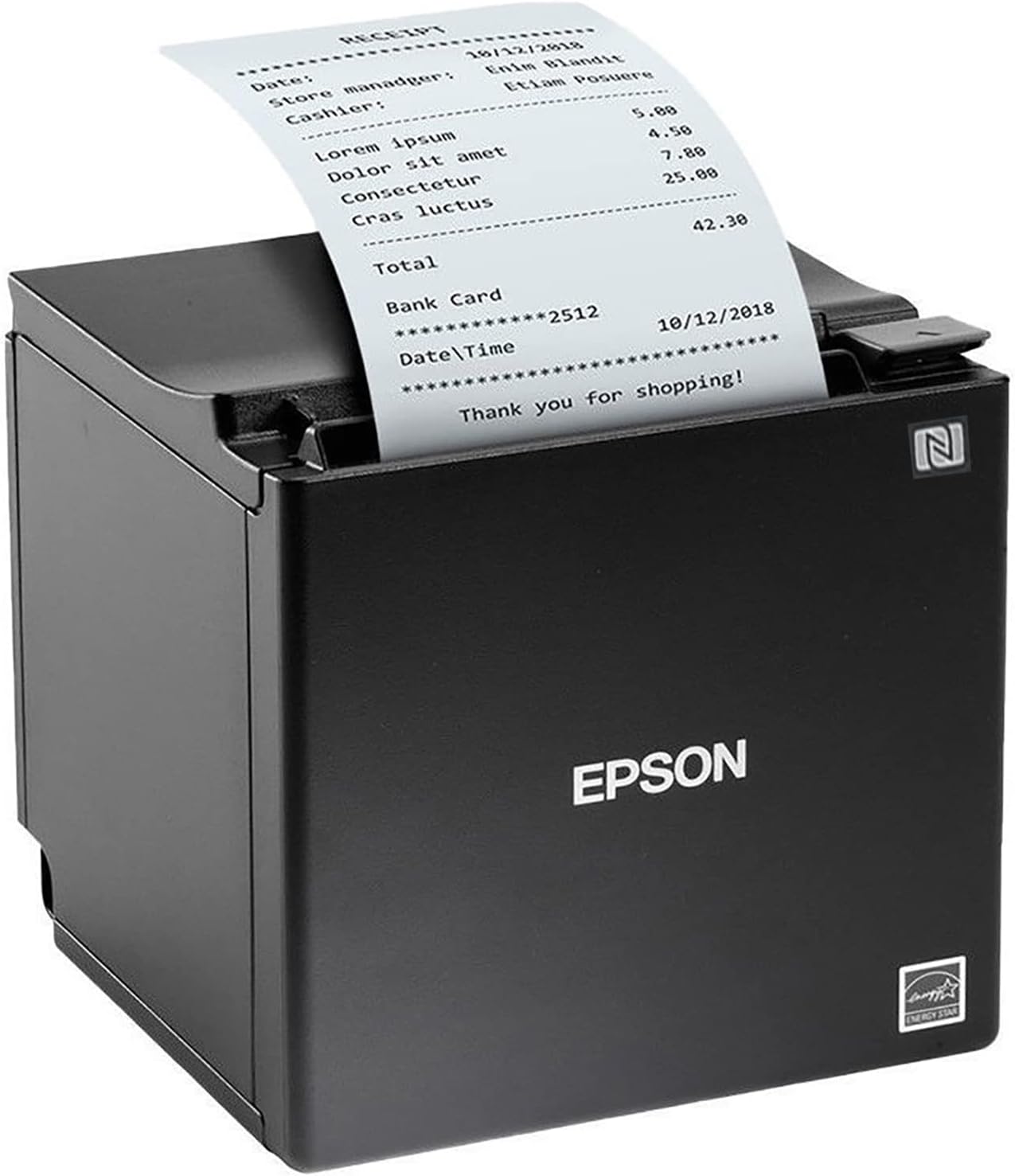
The TM-m30II feels designed around the modern checkout counter
The Epson TM-m30II takes the number two position in our Best Receipt Printer comparison because it combines fast direct thermal printing with a compact body that fits naturally into modern point-of-sale setups. It can print at speeds reaching approximately 250 mm per second and uses standard thermal receipt media rather than ink cartridges or toner.
That printing method matters in a business environment. Direct thermal printing removes ink costs from the normal receipt workflow, leaving thermal paper as the main consumable that staff need to monitor and replace.
The TM-m30II prints at 203 dpi, which is appropriate for receipts, barcodes, transaction information, simple graphics, and business logos. You are not buying it to reproduce photographs, and that is fine.
What matters at a checkout is readable text. Product descriptions, prices, taxes, totals, return information, and barcodes need to come out cleanly and quickly while the customer is still standing there.
The approximately 250 mm per second printing speed keeps that process moving. A short café receipt can finish quickly, while longer retail receipts with multiple line items still print without making the transaction feel unnecessarily slow.
Fast receipt output matters during busy periods, particularly in cafés, restaurants, boutiques, convenience stores, salons, and service counters where transactions can arrive continuously for an hour or more.
Imagine a café during the morning rush. The payment itself takes only a few seconds, so a receipt printer that pauses or prints slowly becomes surprisingly noticeable when ten customers are waiting.
The TM-m30II is designed for that repetitive workload. Print, cut, collect the receipt, move onto the next transaction.
The automatic cutter handles the finishing step without requiring staff to tear every receipt manually. Automatic cutting makes each transaction more consistent and removes one small repetitive action from the cashier's workflow.
That sounds minor until you multiply it by several hundred receipts per day. Point-of-sale equipment is full of features like this, small improvements that become valuable because they are used constantly.
The compact design solves a very ordinary checkout problem
Counter space is expensive in a busy retail environment. A checkout might already contain a POS terminal, payment reader, barcode scanner, cash drawer, receipt rolls, bags, and other equipment before the printer even arrives.
The TM-m30II uses a compact footprint intended for these smaller POS installations. The space-saving enclosure is genuinely useful when the printer needs to sit close enough for the cashier to collect receipts naturally.
Do not hide the printer behind the POS monitor simply because it looks cleaner there. Staff should be able to replace paper and retrieve receipts without reaching around other equipment.
A good setup keeps the printer close to the transaction area while routing its cables toward the back of the counter. This keeps customer hands, merchandise, drinks, and shopping bags away from the connections.
The printer supports 80 mm receipt paper, with narrower paper configurations possible when the appropriate setup is used. The wider format provides useful room for transaction information without forcing every product description into a very narrow column.
Receipt width affects readability more than expected. A wider roll can accommodate clearer product descriptions, prices, tax information, barcodes, promotional messages, and return details.
Paper loading is designed to be straightforward. Open the cover, place the thermal roll inside, pull a small amount of paper forward, then close the cover.
One mistake catches new users regularly: thermal paper has a heat-sensitive coated side. Install the roll backward and the printer may feed paper while producing little or no visible output.
Before assuming the printer has failed, check the roll orientation. Blank output can simply mean reversed paper, especially immediately after somebody has replaced a roll.
A quick way to check thermal paper is to scratch the surface firmly with a fingernail. The heat generated by friction will usually create a dark mark on the thermal side.
Use good-quality receipt rolls too. Poor paper can generate more dust, produce inconsistent darkness, or curl badly as it exits the printer.
The TM-m30II also supports paper-saving functions that can reduce unnecessary receipt length. Removing excess margins or unused blank areas sounds trivial, but high-volume businesses consume a considerable amount of thermal paper.
Small paper savings accumulate over time. Saving even a short section on every receipt becomes meaningful after thousands of transactions.
Do not shrink important information just to save paper, though. Totals, tax details, barcodes, return policies, and legally required information still need to remain readable.
The goal is removing waste rather than making the receipt difficult to understand.
The 203 dpi thermal print head is suitable for common one-dimensional and two-dimensional barcode applications when the POS software generates them correctly. Barcode size and contrast still matter.
Always test printed barcodes with real scanners before deploying a new receipt layout. Something that looks acceptable to a person can still be difficult for a scanner to read reliably.
This becomes particularly important when the barcode controls returns, loyalty accounts, order collection, or transaction lookup. Staff should not need five scanning attempts every time a customer comes back with a receipt.
Why the Epson finishes second rather than taking our top position
The TM-m30II is a strong receipt printer, but our first-ranked Star Micronics TSP143IIIU offers a particularly complete combination for the fixed USB and Apple-oriented POS workflows we prioritized in this comparison. The Epson remains very close because its compact design, 250 mm per second printing, automatic cutter, and flexible POS positioning are excellent for modern counters.
The actual connectivity available can vary with the specific TM-m30II configuration, so this is something buyers need to check carefully. Match the interface to your POS system rather than buying based only on the printer family name.
A USB-based checkout has different requirements from a networked installation where several terminals may need access to printing. Mobile tablet POS systems can introduce another set of connection requirements.
This is why receipt printer compatibility needs to be checked at two levels. The physical connection has to work, and the POS software must support the printer through that connection.
A cable fitting into both devices does not guarantee that the application knows how to send properly formatted receipts to the printer. Hardware support and software support are separate.
Before buying several units for a store, test one printer with the actual POS application. Run real transactions rather than relying only on a printer self-test.
Print a normal sale, refund, discount, tax calculation, barcode, and any custom receipt footer the business uses. If a cash drawer is part of the setup, test that too.
Do this before opening day. A printer compatibility issue is much easier to fix during installation than while customers are waiting.
Test one complete checkout station first, then duplicate the working setup across other counters once everything behaves properly.
Direct thermal technology also comes with a limitation worth understanding. Thermal receipts can fade when exposed to heat, strong sunlight, certain chemicals, or poor storage conditions.
A receipt left on a dashboard in a hot car is not a good archival record. Businesses should maintain digital transaction records when information needs to remain available for accounting, warranty, or legal purposes.
This is not an Epson-specific weakness. It is a characteristic of direct thermal receipt technology in general.
Important transactions need digital records too, rather than depending entirely on a small piece of heat-sensitive paper surviving for years.
The benefit is that there are no ink cartridges drying out between transactions. A printer can sit overnight and begin producing receipts immediately the next morning.
There is no toner cartridge to shake, replace, or stock. That makes direct thermal technology extremely practical for point-of-sale environments.
Maintenance is still necessary. Paper dust and residue can accumulate around the print path and thermal head over time.
If printing becomes faint or develops inconsistent areas, inspect and clean the thermal print head according to Epson's maintenance guidance before assuming the printer needs replacement.
Do not scrape the print head with sharp tools. Thermal printing components need to be cleaned using appropriate materials and methods.
The automatic cutter deserves the same care. If paper becomes jammed around the cutter, do not aggressively pull against the mechanism.
Power down the printer where appropriate and clear the jam using the recommended procedure. Forcing the paper can turn a simple jam into cutter damage.
The cutter is a mechanical wear component, so keeping paper debris under control and using suitable media helps maintain reliable operation.
Businesses should also keep spare rolls close to the checkout. The best paper-loading design does not help much if the final roll in the building runs out halfway through a busy shift.
Store bulk thermal paper away from direct sunlight and excessive heat. Do not keep several months of supply beside a window just because the shelf happens to be convenient.
Staff should know exactly where replacement rolls are located. Changing paper should be routine rather than something that requires calling a manager.
Paper replacement should take less than a minute in a properly organized checkout area.
The TM-m30II is also useful beyond traditional retail. Restaurants can use it for customer receipts, while salons, reception desks, service businesses, and ticket counters can use the same fast thermal workflow.
It is compact enough for counters where a conventional office printer would make no sense. A full-size inkjet wastes space and introduces consumables that receipt printing does not require.
The Epson's design is also relatively understated. This matters in customer-facing spaces where bulky industrial equipment can make a carefully designed counter look cluttered.
Compact POS hardware keeps counters cleaner, particularly when the payment terminal and display are already occupying the most accessible space.
For cable management, route power and data connections behind the POS equipment. Leave enough slack that the printer can be moved slightly for cleaning or paper access without putting tension on the ports.
A cable pulled tight against the connector can become unreliable after repeated movement. This is easy to avoid during installation.
If the printer is network connected in the chosen configuration, label the network cable and document the installation. For multiple printers, knowing which unit belongs to which checkout station simplifies troubleshooting.
Label cables before the counter becomes crowded. It is much easier during initial setup than six months later when every black cable looks identical.
Receipt design deserves some attention too. Keep the most important information visually obvious rather than printing every field at the same weight and size.
The business name, transaction total, date, tax information, and return details should be easy to locate. Promotional content should not overwhelm the actual receipt.
A monochrome logo can also be printed, but simple graphics work better than designs relying heavily on subtle gradients or color.
High-contrast logos reproduce more cleanly on a 203 dpi monochrome thermal printer.
For QR codes, leave enough quiet space around the code. Do not push text right against its edges in an attempt to make the receipt shorter.
Test QR codes using several common phones if customers are expected to scan them. Different cameras and lighting conditions can expose a code that is technically present but unnecessarily difficult to read.
The printer's speed means complex receipt layouts still need to be sensible. Sending oversized graphics can increase the amount of data and paper used without improving the customer experience.
Keep receipt graphics simple and functional. A receipt is primarily a transaction document.
Another real-world consideration is queue management. Faster printing cannot fix a slow payment processor, poorly configured POS software, or an employee searching for products in the system.
The receipt printer is only one part of the transaction chain. Still, it should not be the part creating the delay.
At up to 250 mm per second, the TM-m30II provides enough printing speed that normal receipt output should feel immediate in most retail situations.
The printer stays out of the cashier's way, which is exactly what good POS hardware should do.
For restaurants, consider where the printer is physically installed. A front counter is different from a hot kitchen environment.
Direct thermal paper is sensitive to heat, so placing the printer beside cooking equipment is not ideal. Kitchen order printing may require a model and printing technology selected specifically for that environment.
The TM-m30II makes the most sense as a modern customer receipt printer. Cafés, retail counters, salons, reception desks, and service environments are natural fits.
Match printer technology to the environment, not simply to the paper width.
Power management is another small operational detail. Receipt printers are normally left available throughout business hours so they can respond instantly to transactions.
Connect the printer through a properly installed power source rather than an overloaded extension lead hidden underneath the counter. POS systems often accumulate more electrical devices over time.
A small UPS can also be useful for critical checkout equipment depending on the business. Short power interruptions can otherwise take the entire transaction station offline.
Reliable power supports reliable checkout operation, especially when the POS terminal, network equipment, and printer all depend on the same electrical area.
The TM-m30II also benefits from having fewer consumables to manage. Paper is predictable and easy to store compared with maintaining ink cartridges for several checkout printers.
This can simplify inventory across multiple store locations. Standardize the thermal roll specification and staff know exactly what supply belongs in the printer.
Do not assume every roll that looks approximately 80 mm wide is identical. Diameter, paper quality, core dimensions, and thermal coating can differ.
Standardize receipt paper across the business after testing a roll that feeds and prints reliably.
For a new installation, print several hundred test receipts before purchasing cases of paper. Check print darkness, curling, cutter performance, barcode scanning, and how easily staff can load the roll.
A cheap paper supply is not really cheaper if it creates frequent jams or unreadable barcodes. Consumables affect the complete system.
Another practical advantage of a compact printer is cleaning around it. Food crumbs, dust, paper scraps, and other debris inevitably appear around active counters.
Leave enough room to wipe around the printer rather than wedging it permanently between other devices. Accessible equipment is easier to maintain.
Do not spray cleaning fluid directly onto the printer. Apply appropriate cleaner to a cloth where recommended and keep liquids away from the paper opening and electronics.
For a café counter, this is particularly important because drinks are nearby. Position the printer away from the area where staff prepare or place beverages.
One spilled drink can create a much larger interruption than replacing a receipt roll. Layout should account for that risk.
Keep liquids away from POS electronics, including the printer, payment terminal, and power connections.
The TM-m30II's second-place position is therefore not because it lacks the core capabilities we want. It has fast thermal printing, an automatic cutter, compact dimensions, and a design well suited to contemporary POS installations.
It finishes just behind our first-ranked Star Micronics TSP143IIIU because the Star's specific USB and MFi-oriented package, internal power arrangement, and overall fixed-counter workflow gave it a slight advantage in this seven-product comparison.
Depending on your POS software and preferred connectivity, the Epson could easily be the more suitable system for a particular business. Compatibility should carry more weight than a ranking number when the printer has to integrate with existing checkout hardware.
The right POS connection matters most, because even an excellent printer is useless if the software cannot communicate with it reliably.
We believe the Epson TM-m30II deserves the number two ranking out of seven for Best Receipt Printer because it combines up to 250 mm per second thermal printing, 203 dpi output, automatic cutting, common receipt-paper support, a compact counter-friendly body, and flexible POS deployment.
Its direct thermal design keeps ongoing consumables simple, while the small footprint makes it particularly attractive for businesses where counter space is limited. The automatic cutter and fast output also make it suitable for repeated transactions throughout a busy working day.
Verify the exact interface configuration before ordering, confirm support with your POS application, use good thermal paper, test every barcode and QR code in the finished receipt layout, and keep the print path clean. Set up properly, the TM-m30II provides fast professional receipt printing and earns a strong second-place position in our seven-printer comparison.
- Prints receipts quickly at up to 250 mm per second.
- Direct thermal technology requires no ink or toner.
- Automatic cutter is rated for 1.5 million cuts.
- Supports both 80 mm and 58 mm receipt paper.
- USB and serial interfaces suit established POS installations.
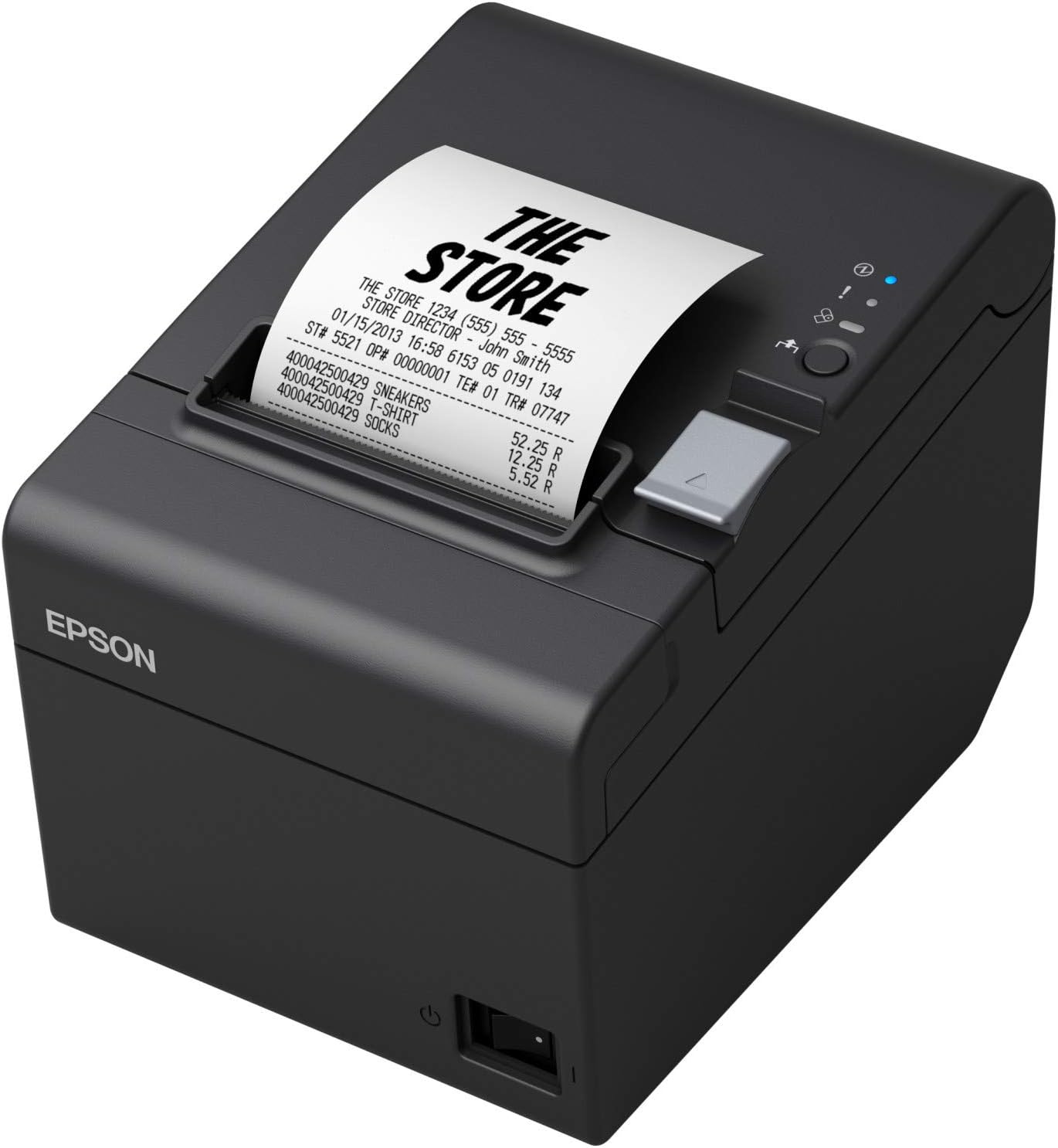
This is a practical receipt printer built for repetitive daily work
The Epson TM-T20III takes the number three position in our Best Receipt Printer comparison because it focuses on the things a checkout printer actually needs to do well. It prints at up to 250 mm per second, uses direct thermal technology, includes an automatic cutter, and supports both 80 mm and 58 mm receipt paper.
The C31CH51001 configuration also provides USB 2.0 and serial connectivity. That makes it particularly suitable for established point-of-sale systems where the printer stays connected to one checkout terminal rather than moving around the store.
The 250 mm per second speed is useful during busy periods because receipt printing should not become the part of the transaction everyone waits for. A short café receipt can finish very quickly, while a longer retail receipt with multiple line items still comes out at a sensible pace.
The printer uses thermal line printing at 203 x 203 dpi. There is no ink cartridge or toner supply involved, so normal consumable management mainly comes down to keeping suitable thermal paper available.
That sounds like a small operational advantage until several checkout stations are involved. Nobody has to discover halfway through a shift that the printer needs a specific ink cartridge that is not in stock.
Direct thermal printing keeps consumables simple, which is one reason this technology works so well for retail, cafés, salons, reception desks, and other point-of-sale environments.
The 203 dpi resolution is appropriate for this job. It can produce clear transaction text, simple business graphics, logos, and common one-dimensional and two-dimensional barcodes without wasting resources on resolution that ordinary receipts do not need.
Epson lists support for formats including UPC, EAN, Code 39, Code 93, Code 128, QR Code, PDF417, Data Matrix, Aztec, and GS1 formats. That is useful when a receipt needs to carry a transaction lookup code, loyalty identifier, return barcode, or QR link.
Do not assume a barcode is good simply because it looks sharp to your eyes. Print several samples and test them using the actual scanner or phone workflow employees and customers will use.
The paper handling is simple, but setup details still matter
The TM-T20III supports standard 80 mm thermal rolls and can also work with 58 mm paper using the supplied roll paper guide. That gives businesses some flexibility when deciding how much horizontal space the receipt layout needs.
An 80 mm receipt gives you more room for item descriptions, pricing, tax information, barcodes, and return instructions. A 58 mm roll produces a narrower document and can make sense when the information being printed is fairly simple.
Choose the paper width around the receipt layout, not merely around which roll happens to be cheaper. Long product names become difficult to read if every line has to wrap repeatedly.
The printer accepts rolls up to roughly 83 mm in diameter. Paper thickness is specified around 48 to 80 microns, so it is worth buying receipt media intended for thermal POS printers rather than using whatever roll physically fits into the compartment.
Loading the roll is straightforward. Open the printer, place the paper inside in the correct orientation, pull a small section through, and close the cover.
Thermal paper does have a coated printing side. Loading thermal paper backward can produce blank output, which is an easy mistake when somebody changes a roll quickly during a busy shift.
If the printer feeds normally but nothing appears on the receipt, check the roll orientation before changing drivers or replacing hardware. You can usually identify the thermal side by making a firm scratch on the paper and looking for a dark mark.
The automatic cutter is another important part of the daily workflow. Epson rates it for approximately 1.5 million cuts, which is a substantial figure for a printer designed to complete transaction after transaction.
The print head itself is rated for approximately 150 km of printing or 150 million pulses. Those durability ratings suit commercial POS use, where a printer may remain available all day rather than being used occasionally like a home document printer.
Reliability specifications still assume proper operation. Paper dust should not be allowed to accumulate indefinitely, and jammed paper should be cleared using the correct procedure rather than being pulled aggressively through the cutter.
If print quality becomes uneven, inspect the thermal head and paper before deciding that the printer is failing. Low-quality media or residue can cause poor output even when the electronics are working normally.
Use appropriate cleaning procedures for the thermal head. Sharp objects and random household cleaners can cause more damage than the original problem.
Good thermal paper helps maintain clean output, and it can reduce unnecessary dust and feeding problems over long periods of use.
Epson also includes paper-saving functionality that can reduce paper consumption by up to 30 percent depending on the receipt layout and settings. This can involve reducing unnecessary margins and wasted blank areas rather than removing important transaction information.
A few centimeters saved on one receipt means very little. Multiply that across hundreds of receipts per day and thousands per month, and the reduction becomes much more relevant.
Do not shrink text until it becomes uncomfortable to read just to save paper. The customer still needs clear totals, tax information, transaction details, and return instructions.
Remove wasted space before useful information. That is the sensible way to use paper-saving features.
Why we placed the TM-T20III third instead of first
The TM-T20III is a strong traditional POS printer, but it sits behind our first two choices because those models offer packages that fit more modern or specialized checkout configurations particularly well. The TM-T20III is more conventional, with USB and serial connections on the C31CH51001 configuration.
That is not necessarily a disadvantage. For a fixed desktop POS station, a wired printer can be extremely straightforward.
USB is simple for a fixed checkout because the printer and computer are physically close together anyway. There is no wireless network to configure just to send a receipt across a counter.
The serial interface is also useful for older or specialized POS installations. Some businesses keep checkout equipment for years, and compatibility with established hardware can matter more than having the newest wireless connection.
The limitation appears when the business wants mobile tablets or multiple terminals to share printers through a network. This particular configuration is not centered around that workflow.
Before buying, check the exact POS software you intend to use. A printer can have the correct physical connector and still lack support inside a particular point-of-sale application.
POS software compatibility comes before specifications. A fast printer is not useful if the checkout software cannot send properly formatted transactions to it.
If you are equipping several checkout stations, buy or test one unit first. Run actual transactions rather than stopping after the printer produces a hardware self-test.
Test a normal sale, refund, discount, barcode, QR code, receipt logo, tax calculation, and any custom footer the business uses. If a cash drawer is connected, verify that workflow as well.
Once everything behaves correctly, duplicate the same configuration across the remaining checkout stations. This reduces surprises during installation.
Test one complete POS station first, then standardize the working hardware and software combination.
The TM-T20III measures approximately 140 mm wide, 199 mm deep, and 146 mm high. It weighs about 1.7 kg, so it is compact enough for normal retail counters without feeling like a lightweight portable printer.
Counter placement deserves thought. Put the printer somewhere employees can reach the receipt and open the paper cover without moving the payment terminal every time.
At the same time, keep it away from drinks, sinks, food preparation, and customer-accessible areas where cables can be pulled. A café counter in particular needs some separation between beverages and electronics.
Good placement improves the checkout workflow while also reducing the chance of accidental damage.
The printer draws approximately 29.5 watts during operation and around 0.8 watts in standby according to published specifications. Receipt printers spend much of the day waiting between transactions, so standby behavior matters more than it would on equipment that is constantly printing.
The supplied power arrangement uses an external AC adapter. Give the adapter somewhere ventilated and secure rather than letting it hang from the back of the counter by its cable.
Cable management is worth doing during installation. USB, serial, power, cash drawer, payment terminal, scanner, and network cables can become difficult to identify once they all disappear underneath the same counter.
Label the cables while installing everything. It takes minutes at the beginning and saves much longer troubleshooting sessions later.
The printer includes a cash drawer connection, which can integrate it into a traditional checkout setup. The POS application normally determines when that drawer signal is triggered.
This is another reason to test complete transactions. The printer producing text successfully does not prove every peripheral function is configured correctly.
For businesses using printed logos, keep the graphic simple and high contrast. Thermal printing is monochrome, so complicated color artwork needs to be converted into a design that still works without color.
Simple monochrome logos print more clearly than detailed images dependent on subtle shading.
The same principle applies to QR codes. Give them adequate size and clear space around the edges.
A QR code squeezed between text blocks may technically print, but customers could struggle to scan it under real checkout lighting. Test with several common phones rather than only looking at the code on paper.
For returns, barcodes need even more attention. A faded or undersized return barcode creates work later when staff have to manually search for the transaction.
A readable receipt saves time twice, once during the original purchase and again if the customer returns.
Thermal paper itself has a limitation that businesses should understand. Heat, strong sunlight, certain chemicals, and long storage periods can cause the printed image to deteriorate.
Do not rely on a thermal receipt as the only permanent record of an important transaction. Digital POS records should preserve information required for accounting, warranties, and other long-term purposes.
A customer may also need to photograph or scan an important receipt if the physical document is required for a warranty claim much later. This is normal behavior for thermal media, not a fault unique to Epson.
Thermal receipts are not archival documents, so important transaction data should exist digitally as well.
For everyday customer receipts, however, thermal printing remains extremely practical. There is no ink to dry out and no ribbon that an employee has to replace during a rush.
The printer can sit idle overnight and return to printing immediately the next morning. That is exactly the kind of predictable behavior a checkout device needs.
Keep spare rolls near the register. A printer with fast drop-in paper loading still cannot help if nobody remembered to order replacement paper.
Store replacement rolls close to the counter, while keeping bulk supplies away from excessive heat and direct sunlight.
If the business has multiple receipt printers, standardizing paper width can simplify inventory. Staff do not have to identify which roll belongs to which checkout.
The TM-T20III's support for both 80 mm and 58 mm paper is flexible, but that does not mean a business needs to use both. Standardization usually makes daily operations easier.
For restaurants and cafés, remember that front-of-house receipt printing and kitchen printing are different environments. Heat, grease, and the need for highly visible order tickets can change what printing technology is appropriate.
The TM-T20III makes most sense at the checkout, where normal thermal receipts are being handed to customers.
Retail stores are another natural fit. The 250 mm per second speed keeps longer itemized receipts moving quickly, while the cutter produces a consistent finished edge.
Salons, repair shops, reception desks, and service businesses can use the same setup. Any fixed point of sale that needs fast monochrome transaction printing is a reasonable use case.
The printer's USB and serial interfaces also make it useful when replacing older receipt hardware. Existing POS environments sometimes value predictable wired connectivity more than mobile features.
Established businesses often need compatibility first, particularly when changing the printer without replacing the entire checkout system.
The TM-T20III also has published reliability figures beyond the cutter and print head. Its mechanism is rated around 15 million lines, with MTBF figures around 360,000 hours in published specifications.
Those numbers are useful indicators of the intended commercial workload, although actual service life always depends on operating conditions, maintenance, paper quality, and transaction volume.
A printer sitting in a clean boutique experiences a different environment from one beside a busy food-service counter. Dust, grease, heat, and spills all matter.
Environment affects real-world printer life, regardless of how strong the laboratory reliability specifications are.
Regular cleaning should therefore be part of the checkout routine. Keep the exterior free from dust and debris, and inspect the paper compartment when changing rolls.
Do not spray cleaning fluid directly into the printer. Use appropriate cleaning methods and keep moisture away from electronics and the thermal mechanism.
If paper starts feeding poorly, check whether the roll is installed correctly and whether debris is present. Do not immediately increase force or pull against the cutter.
Small maintenance habits prevent larger interruptions, especially with equipment expected to remain available every business day.
The automatic cutter is rated for 1.5 million cuts, but a jam can still occur if damaged or unsuitable paper is used. Clear jams carefully rather than treating the cutter like a manual paper knife.
If the printer is mounted or positioned tightly, make sure employees can still open the required covers. A beautiful counter installation becomes frustrating if routine paper replacement requires moving other hardware.
The TM-T20III can also be wall mounted using the appropriate included mounting hardware in configurations that support it. This can free counter space in environments where horizontal surface area is limited.
Wall mounting can recover useful counter space, but make sure receipt collection and paper replacement remain comfortable for staff.
For businesses printing coupons or promotional messages at the bottom of receipts, consider the paper cost before making the footer excessively long. Promotions need enough value to justify the extra paper consumed on every transaction.
A short QR code linking to a loyalty program may use less paper than several paragraphs of promotional text. It can also be easier to update because the destination content changes digitally.
Again, test the QR code. Marketing content that customers cannot scan is just wasted paper.
Receipt design should stay functional first, with promotions added only after the transaction information is clear.
The TM-T20III ranks third mainly because our top two models provide stronger overall packages for the particular modern POS workflows we prioritized. It is not because the Epson lacks speed or commercial reliability.
At 250 mm per second, it is as fast as many businesses realistically need for customer receipts. Its 203 dpi resolution, auto-cutter, 80 mm and 58 mm media support, USB and serial connectivity, and strong published durability specifications cover the core requirements very well.
The bigger question is whether those interfaces fit the POS environment being built. If they do, this printer becomes a very practical option.
Its traditional wired design is dependable, particularly for a fixed register that does not need wireless mobility or network sharing.
We believe the Epson TM-T20III deserves the number three ranking out of seven for Best Receipt Printer because it combines fast thermal output, proven POS-oriented construction, flexible receipt widths, a durable automatic cutter, extensive barcode support, and simple wired connectivity.
It ranks below our first two because those choices offer slightly stronger combinations for the specific USB, Apple-oriented, compact, or modern POS scenarios considered in our ranking. The TM-T20III instead feels particularly strong as a conventional fixed-register receipt printer.
Use quality thermal paper, confirm POS software compatibility before buying multiple units, test every barcode and QR code in the finished layout, keep the paper path clean, and position the printer where employees can access it quickly. Used properly, the TM-T20III delivers fast dependable POS printing and earns a strong third-place position in our seven-printer comparison.
- Bluetooth connectivity supports flexible mobile point-of-sale printing.
- Ethernet connection provides stable wired network receipt printing.
- Direct thermal operation eliminates ink and toner replacements.
- Automatic cutter quickly separates receipts during busy transactions.
- Works with compatible restaurant and delivery ordering workflows.
The Bluetooth and Ethernet combination gives this printer more setup options
The MUNBYN ITPP047 takes the number four position in our Best Receipt Printer comparison because it offers something genuinely useful for modern point-of-sale environments: multiple ways to connect. Bluetooth can support a more flexible mobile checkout arrangement, while Ethernet provides a stable wired network connection for businesses that want the printer permanently available on the local network.
This is particularly interesting for restaurants and takeaway businesses. Delivery orders need dependable receipt printing when staff are dealing with in-store customers, online orders, and food preparation at the same time.
The Amazon listing specifically positions this model around restaurant and delivery workflows, including compatibility scenarios involving services such as Uber Eats and DoorDash. That makes it more specialized than a basic USB receipt printer sitting beside one cash register.
It uses direct thermal printing, so there are no ink cartridges or toner supplies involved in normal receipt production. Compatible thermal paper reacts to heat from the print head and produces the transaction information directly on the roll.
No ink means fewer consumables to manage, which matters in a restaurant where nobody wants to discover during a dinner rush that the receipt printer needs a cartridge that is not in stock.
Thermal paper still needs to be stocked, of course. Keep spare rolls close to the printer rather than somewhere across the building.
When an active roll runs out, paper replacement should take less than a minute. Staff should know where the replacements are and how the roll needs to be oriented.
Thermal paper has a coated printing side. If the roll is installed backward, the printer can feed apparently blank paper even though the mechanism is operating normally.
Check paper orientation before troubleshooting hardware. This simple mistake can look much more complicated than it actually is.
Ethernet makes sense when the printer needs to stay available all day
Bluetooth gets attention because it removes a physical data cable, but Ethernet can actually be the more important feature in a fixed business environment. A wired network connection does not depend on Bluetooth pairing between the printer and one nearby device.
For a restaurant, that can be useful when orders originate from several systems. A printer connected to the local network can remain in one practical location while compatible software sends jobs through the network.
Wired Ethernet provides a stable network path, assuming the router, switch, cabling, and POS software are configured correctly. It also makes the physical installation predictable.
Run the Ethernet cable away from food preparation areas and places where staff repeatedly move equipment. Label both ends if the cable disappears into a larger network cabinet.
Do not confuse network connectivity with automatic application compatibility. A printer being visible on the same network does not guarantee that every POS or delivery application knows how to send receipts to it.
This is particularly important with third-party delivery platforms. Software support can depend on operating system, application version, integration method, and the specific restaurant setup.
Verify the exact software workflow first, especially if Uber Eats, DoorDash, or another ordering platform is a major reason for buying the printer.
Test an actual incoming order rather than stopping after a printer self-test. Confirm that item names, quantities, modifiers, customer notes, totals, and any kitchen instructions appear correctly.
Restaurant orders can be much more complicated than a normal retail receipt. A burger might have several modifications, allergy notes, additional toppings, and preparation instructions.
If the receipt layout truncates those details, the printer may technically be working while the workflow is still failing. Order information needs to remain completely readable.
Bluetooth provides another connection option when compatible mobile devices or POS systems support it. This can be useful when the checkout terminal is a tablet and there is no convenient wired data connection.
Bluetooth also makes counter rearrangement easier. The POS device can move within the supported area without dragging a USB cable behind it.
There are tradeoffs. Wireless connections introduce pairing and compatibility considerations that do not exist with a simple direct cable.
Bluetooth flexibility comes with extra setup variables, so businesses should configure the printer before a busy shift rather than pairing devices while customers are waiting.
Keep a short setup document for staff if the printer ever needs to be reconnected. Write down which device normally controls it and what the expected connection method is.
This sounds overly cautious until someone resets a tablet, changes a Bluetooth setting, or replaces a POS device. Clear instructions can turn a long support call into a two-minute fix.
For a permanent installation, Ethernet is often worth considering even if Bluetooth is available. Wired networking can reduce the number of wireless dependencies in an already busy restaurant environment.
Choose connectivity around the actual counter, not simply around which option sounds newer.
If one tablet always sits beside the printer, Bluetooth may be perfectly reasonable. If several systems need reliable access to a fixed printer, Ethernet can make more sense.
The automatic cutter is another important feature during repetitive operation. Once a receipt or order ticket finishes printing, the cutter separates it cleanly without requiring staff to tear it manually.
This is particularly useful when orders arrive repeatedly. An employee can grab the completed ticket and immediately move it to the next stage of the workflow.
Automatic cutting reduces repetitive handling, which becomes more valuable as transaction volume increases.
Paper quality affects cutter performance too. Poorly manufactured thermal rolls can curl excessively, create dust, or feed inconsistently.
Use compatible receipt paper and avoid rolls that exceed the printer's intended dimensions. A roll should rotate freely inside the paper compartment.
If paper jams around the cutter, do not pull aggressively against the mechanism. Clear the jam according to the proper procedure and inspect the paper path for scraps.
Why the MUNBYN finishes fourth rather than entering our top three
The first three printers in our ranking have a stronger overall track record in established point-of-sale environments and offer particularly well-defined combinations of speed, durability, software ecosystems, and fixed-register integration. The MUNBYN counters with flexible connectivity and a useful restaurant-oriented feature set.
That makes fourth place a sensible position rather than a negative one. The ITPP047 has a clear use case, especially when Bluetooth and Ethernet are more valuable than a simple USB-only connection.
The main thing I would verify before purchase is software compatibility. MUNBYN hardware can offer the necessary physical connection while a particular POS application may still have its own supported-printer requirements.
For example, some point-of-sale platforms officially support only specific printer models or connection methods. Others can work through standard ESC/POS-compatible printing or system-level drivers.
Never assume compatibility because two products both mention restaurants. Check the exact POS application and operating system before building the entire checkout around one printer.
This is even more important when several printers will be purchased. Test one unit first.
Run normal transactions for several days. Print sales, refunds, delivery orders, discounts, modifiers, barcodes, and any custom receipt content the business uses.
If the printer will handle online food orders, test those during realistic conditions. Send several orders close together and check whether they print in the expected sequence.
Real workflow testing catches practical problems that a simple printer test page cannot reveal.
The physical printer should also be positioned according to who actually needs the receipt. A customer receipt printer belongs near the cashier, while an order printer may need to sit closer to the staff processing incoming orders.
Do not put a thermal printer directly beside cooking equipment. Thermal paper is sensitive to heat, and restaurant kitchens can be hot, greasy environments.
If the printer is intended specifically for a harsh kitchen environment, confirm that the printing technology and installation are appropriate. Some kitchen workflows still favor impact printers for particular reasons.
Front-of-house and kitchen printing are different jobs, even if both outputs look like narrow paper tickets.
For a front counter, direct thermal technology is excellent. It is fast, quiet, and does not require ink or ribbons.
The printer can sit idle between orders and begin producing output immediately when another transaction arrives. There is no cartridge that dries out because business was quiet for a few days.
Thermal receipts do have a storage limitation. Heat, sunlight, and certain chemicals can cause the printed image to fade over time.
Important transaction data should exist digitally, rather than relying on the physical thermal receipt as the only long-term record.
This matters for accounting and warranties. Customers may also want to photograph receipts that need to remain readable for a long period.
For immediate restaurant and retail use, though, thermal paper is extremely practical. It is inexpensive, compact, and easy to replace.
Keep bulk paper somewhere cool and dry. Do not store several boxes beside a sunny window or hot equipment.
Paper storage affects long-term print quality, even before the roll has been installed in the printer.
Receipt design also deserves some attention. Keep transaction information clear and avoid filling every available section with promotional material.
For restaurants, modifiers should be visually obvious. A customer requesting no dairy or another important change should not have that note buried inside a dense block of text.
If the printer is used for order tickets, use larger or emphasized text where the POS software allows it. The goal is reducing preparation mistakes.
Readable tickets support accurate order preparation, which matters far more than squeezing the shortest possible receipt from each roll.
For retail receipts, the priorities change slightly. Product names, prices, totals, taxes, return information, and barcodes need to be clear.
A business logo can be useful, but remember that thermal printing is monochrome. Simple high-contrast graphics reproduce better than detailed artwork designed around color gradients.
QR codes can work well for loyalty programs, digital menus, feedback pages, or online receipts. Give the code enough physical size and blank space around its edges.
Test QR codes on several phones, not only on the screen where the receipt template was designed.
The same rule applies to barcodes used for returns. Print samples and scan them using the actual equipment at the counter.
A barcode that needs repeated scanning wastes time every time a customer returns something. Fix the layout before deploying it across thousands of receipts.
Network installation should be documented too. If Ethernet is used, record where the printer is connected and how the POS system identifies it.
Document the working network configuration, particularly in a business where outside IT support may need to troubleshoot the system later.
Do not let somebody randomly change network settings because the printer failed once. Start with basic checks.
Confirm power, paper, link status, Ethernet cable, network connectivity, and whether other devices can reach the relevant network. Then move into application settings.
If Bluetooth is used, confirm that the correct POS device is paired. Nearby tablets and phones can create confusion if several employees have previously connected to the printer.
Use one planned connection method consistently rather than switching between Bluetooth and Ethernet every time a minor problem appears.
Having multiple interfaces is useful for flexibility, but a stable business setup should still have a normal operating configuration. Staff need to know what that configuration is.
Cable management matters even with Bluetooth. The printer still requires power, and an Ethernet cable may remain connected as the primary or backup network path.
Route cables away from cash drawers, moving shelves, and places where employees repeatedly reach. Leave enough slack to open the printer and clean around it.
Do not put tension on network ports, especially if the printer is moved slightly every time the counter is cleaned.
For maintenance, inspect the paper compartment whenever a roll is replaced. Remove loose scraps and obvious dust rather than allowing debris to accumulate indefinitely.
If printing becomes faint, the thermal head may need cleaning. Follow the manufacturer's recommended method and avoid sharp objects.
The cutter should also remain free of torn paper. A small fragment caught around the cutting area can create feeding problems later.
Routine cleaning prevents avoidable downtime, which is particularly important when the printer handles incoming restaurant orders.
A backup plan is sensible for a business that cannot operate without printed tickets. That might mean keeping a spare printer, maintaining a second printing station, or having a clearly documented manual workflow.
The exact backup depends on how critical printed receipts are. A boutique can often continue transactions temporarily without printing, while a restaurant relying on paper tickets for order preparation may have a bigger operational problem.
Think about this before failure happens. Hardware eventually needs maintenance or replacement regardless of brand.
Critical POS equipment needs a fallback plan, particularly during peak trading hours.
Another advantage of Ethernet is that the printer can potentially be positioned farther from the controlling device than a typical USB printer. Standard network cabling can cover normal business distances easily.
This creates more freedom when designing the counter. The tablet or POS terminal does not have to sit directly beside the receipt printer.
For a takeaway restaurant, the printer could sit near the order-handling area while the checkout device remains closer to the customer-facing counter. Whether this works depends on the POS software and network configuration.
Network printing can improve physical workflow when the software supports it correctly.
Bluetooth offers a different kind of freedom. A compatible tablet can move around the counter without maintaining a wired data connection.
This can suit mobile checkout systems, pop-up retail, markets, or smaller food-service businesses. Again, power is still required for the printer itself.
Do not interpret Bluetooth as meaning the printer is fully cordless. The connection can be wireless while the printer remains mains powered.
Wireless data does not remove power requirements, which is worth remembering when planning a portable POS station.
For events or temporary retail counters, test the complete power arrangement before arriving. Bring the necessary cables and avoid depending on an unknown venue setup.
A small UPS or appropriate power protection can also be useful for permanent POS equipment. Short electrical interruptions can otherwise stop the printer and other checkout hardware simultaneously.
The ITPP047's fourth-place position ultimately reflects balance. It has useful modern connectivity and a restaurant-focused design, but the top three products in our comparison have stronger overall positioning for broad professional POS deployment.
The MUNBYN is particularly strong for connectivity, especially when both Bluetooth flexibility and Ethernet stability are useful.
That can make it a better practical fit than a higher-ranked printer for a specific business. Rankings cannot replace checking how the hardware fits the actual POS environment.
A fixed USB checkout, mobile tablet counter, and networked restaurant ordering station all have different priorities. The best receipt printer is the one that integrates cleanly with the system already being used.
We believe the MUNBYN ITPP047 deserves the number four ranking out of seven for Best Receipt Printer because it combines direct thermal printing, automatic cutting, Bluetooth connectivity, Ethernet networking, and support for modern restaurant and delivery-oriented POS workflows.
It ranks below our first three because Star Micronics and Epson provide particularly established combinations of commercial reliability, POS integration, and clearly defined fixed-counter workflows. MUNBYN's broader connectivity is valuable, but buyers need to pay closer attention to application compatibility.
Verify support with your exact POS software and delivery platforms, choose Ethernet or Bluetooth deliberately, use quality thermal paper, test the complete order layout, and keep the paper path and cutter clean. Set up correctly, the ITPP047 provides flexible professional receipt printing and earns a solid fourth-place position in this seven-printer comparison.
- Fast thermal printing handles busy retail and restaurant transactions.
- Ethernet connectivity supports stable wired network POS installations.
- Automatic cutter separates finished receipts without manual tearing.
- Direct thermal technology eliminates ongoing ink and toner purchases.
- Supports standard 80 mm paper for detailed receipts.
The Ethernet connection is the main reason this printer makes sense
The MUNBYN ITPP047 takes the number five position in our Best Receipt Printer comparison because it is built around a straightforward business setup: fast thermal receipt printing, Ethernet connectivity, an automatic cutter, and standard 80 mm paper. It is particularly relevant for restaurants, retail counters, supermarkets, and other businesses where the printer can stay permanently connected to a local network.
The Ethernet connection is important because the printer does not have to sit directly beside the computer controlling it. A wired network gives you more placement flexibility, assuming the point-of-sale software supports network printing with this model.
That can solve a very ordinary restaurant problem. The POS terminal may need to remain at the customer counter, while the receipt or order printer is more useful several feet away near the staff processing incoming orders.
Instead of stretching a USB connection across the counter, the printer can join the local Ethernet network. The actual printing workflow then depends on how the POS software communicates with it.
That last part matters. A printer having an Ethernet port does not automatically guarantee compatibility with every restaurant or retail application.
Check your exact POS software first, particularly if the printer is being purchased for a system that has a specific approved hardware list. Hardware connectivity and software support are two separate things.
The ITPP047 uses direct thermal printing, so there are no ink cartridges or toner supplies to replace. The thermal print head creates the receipt by heating the coated surface of compatible receipt paper.
This is ideal for transaction printing because receipts are mostly monochrome text, numbers, barcodes, and simple graphics. There is little reason to maintain an ink system for that kind of output.
Thermal printing keeps consumables straightforward. Keep enough receipt rolls available and there is no cartridge inventory to manage behind the counter.
This becomes useful in a busy business where several employees may use the same printer. Nobody needs to know how to change toner or identify the correct ink cartridge during a rush.
The auto-cutter and 80 mm paper suit repetitive checkout work
The printer uses the common 80 mm thermal receipt format. That width gives you enough room for item names, quantities, prices, taxes, totals, barcodes, order numbers, and other transaction information without forcing every line into a very narrow column.
For a restaurant, the extra width can also help with modifiers. An order containing additional toppings, exclusions, customer notes, or preparation instructions needs enough horizontal space to remain readable.
Readable receipts reduce avoidable mistakes, especially when printed tickets are being used by staff rather than simply handed to customers.
A narrow receipt can still work, but longer item descriptions begin wrapping onto multiple lines. That consumes more paper and can make a busy order harder to scan quickly.
The automatic cutter finishes each print job without requiring an employee to tear the receipt against the printer housing. This is a small feature, but one that gets used every single transaction.
Imagine a takeaway counter processing 200 orders during a busy evening. Two hundred manual tears is not difficult, but removing that repetitive action makes the workflow cleaner.
The automatic cutter speeds repetitive handling and gives each finished receipt a consistent edge. Staff can grab the ticket and move directly to the next order.
Paper quality matters for the cutter and feed mechanism. Use thermal rolls that match the printer's specified dimensions rather than choosing whatever roll happens to fit inside the compartment.
Poor-quality paper can generate more dust, curl excessively, or feed inconsistently. Those issues become more noticeable as transaction volume increases.
Do not force a jammed receipt through the cutter. Clear paper jams without pulling aggressively against the cutting mechanism, because damaging the cutter creates a much larger problem than replacing one roll.
Loading thermal paper is normally simple. Open the printer, drop the roll into the compartment in the correct orientation, pull a short section forward, and close the cover.
The orientation matters because only the coated thermal side responds properly to the print head. A backward roll can result in blank paper coming out of an otherwise functioning printer.
If that happens immediately after changing the roll, do not start reinstalling drivers. Check the paper first.
Blank printing often has a simple cause, and reversed thermal paper is one of the easiest things to eliminate during troubleshooting.
Direct thermal technology also means the printer can begin producing output without waiting for an ink mechanism to prepare itself. This works well for a device that spends much of the day idle between short bursts of activity.
A restaurant might receive five online orders within two minutes, then nothing for the next ten. The printer needs to react quickly whenever the next job arrives.
The same applies to retail. Receipt printing happens in short bursts immediately after payment rather than as one continuous print job.
Fast response matters more than photo quality in this type of printer. Customers need readable transaction information, not photographic output.
Barcodes should still be tested carefully. If the receipt includes a barcode for returns, loyalty accounts, or transaction lookup, print samples and scan them with the actual hardware used by employees.
A barcode can appear visually acceptable but still be difficult for a scanner if it is too small or poorly positioned. Fix this before producing thousands of receipts.
QR codes need similar testing. Leave enough clear space around the code and avoid squeezing other text directly against its edges.
Test codes under real counter conditions, including normal lighting and the phones or scanners customers and employees are likely to use.
Why this MUNBYN finishes fifth in our seven-printer ranking
The ITPP047 has a useful feature set, but the four printers above it provide stronger combinations for the workflows we considered. Star Micronics and Epson, in particular, have very established POS ecosystems, while our fourth-place MUNBYN option adds Bluetooth alongside Ethernet for more connection flexibility.
This fifth-place model is more focused. Ethernet is its strongest practical advantage, particularly when a business wants a permanently networked thermal printer rather than a Bluetooth-oriented mobile setup.
That can actually make it the better choice for a specific restaurant. A printer that never moves does not necessarily benefit from wireless connectivity.
Ethernet also avoids Bluetooth pairing. Connect the printer to the appropriate network infrastructure, configure it correctly for the POS environment, and the physical network connection stays in place.
The important word there is configure. Network printers introduce their own setup considerations, including addressing and application configuration.
Document the working network setup once the printer is installed. If another employee or technician needs to troubleshoot it later, knowing the intended configuration saves time.
Label the Ethernet cable too. This becomes especially useful when the printer is connected through a network switch with several similar cables.
If the printer suddenly goes offline, start with the basic physical checks. Confirm power, paper, Ethernet link, cable condition, and whether the local network itself is functioning.
Do not immediately reset every network device in the building. A loose Ethernet connector can look like a complicated software failure.
Start troubleshooting from the physical connection, then move into network and POS software settings only after the basics have been verified.
For a restaurant, consider where the printer will actually live. Thermal printers work well at front counters and other relatively clean transaction areas.
A hot, greasy kitchen is a different environment. Thermal paper itself reacts to heat, and food-service areas can expose equipment to grease, steam, and debris.
If the printer is intended for kitchen order tickets, check whether a thermal unit is appropriate for the exact location. Impact printing is still used in some kitchen environments for practical reasons.
Front counter and kitchen printing differ, even when both jobs use narrow rolls of paper.
For a customer-facing receipt station, thermal printing is excellent. It is quiet, quick, and requires no ribbon.
Retail stores can use the same advantages. A cashier can print an itemized receipt, cut it automatically, hand it to the customer, and continue with the next transaction.
Salons, repair shops, service counters, and reception areas are also sensible environments. The basic requirement is the same: frequent small monochrome transaction documents.
Receipt printers work best at repetitive tasks, where speed and reliability matter much more than elaborate print quality.
The Ethernet connection can also make sense when the printer is positioned away from the customer. A business may want the POS tablet on a clean front counter while keeping the printer underneath or at a nearby staff station.
Network cabling can cover that distance without tying the printer directly to the physical position of one computer. That gives the counter designer more freedom.
Do not put the printer somewhere inconvenient simply because Ethernet allows it. Employees still need easy access for paper replacement and jam clearing.
Paper access should remain quick and obvious, because rolls inevitably run out during normal business operation.
Keep replacement rolls nearby. Staff should not need to leave the counter and search a storeroom while customers wait.
Bulk thermal paper should be stored away from excessive heat and direct sunlight. Thermal media is more sensitive to environmental conditions than ordinary office paper.
The printed receipt itself also needs sensible storage when long-term readability matters. Heat, sunlight, oils, and certain chemicals can cause thermal printing to deteriorate.
Important receipts need digital records too, especially for accounting, warranties, or other situations where transaction information may be needed years later.
This is a limitation of thermal media generally rather than a problem specific to MUNBYN. The benefit is that thermal printing eliminates ink and toner from everyday operation.
For most customer receipts, the tradeoff makes sense. The document needs to remain readable for normal transaction and return periods, not function as a permanent archival print.
Receipt layout can improve paper efficiency. Remove unnecessary blank lines and oversized margins before reducing useful information.
Paper saving should not hurt readability. A shorter receipt is not an improvement if customers cannot understand the totals or staff cannot scan the return barcode.
Restaurant order tickets deserve particularly clear formatting. Put quantities and modifiers where staff can identify them quickly.
If somebody orders two similar items with different modifications, the printed ticket should make those differences obvious. Poor layout can create preparation errors even when the printer itself works perfectly.
This is why testing needs to involve real orders. Send complicated examples containing modifiers, special instructions, discounts, and multiple quantities.
Test difficult orders before opening day, rather than only printing a simple transaction with one item.
For retail, test long product names and large baskets. A receipt containing twenty items can expose formatting issues that never appear on a two-item test transaction.
If the POS software prints a logo, keep the graphic relatively simple. Direct thermal output is monochrome, so high-contrast artwork works better than subtle shading.
Do not use an enormous logo at the top of every receipt. It consumes paper on every transaction without adding much functional value.
Simple receipt branding is usually enough, especially when the store processes a large number of daily transactions.
The same logic applies to promotional footers. A short offer or QR code may be useful, but several paragraphs of marketing text increase paper consumption substantially over time.
If a QR code links to a loyalty program or digital receipt, test it before deployment. Make sure several phones can scan it comfortably from the printed thermal output.
The ITPP047 can also fit into a cash drawer setup when the supported POS configuration allows it. Cash drawer triggering normally depends on the printer interface and application settings.
Test every connected POS peripheral together, not as isolated pieces of hardware. A printer test page does not prove that the cash drawer, barcode scanner, payment terminal, and receipt workflow all behave correctly during a real transaction.
This is especially important when deploying several checkout stations. Configure one complete station first.
Use it for realistic transactions and document the settings. Once that station is stable, repeat the known configuration on the remaining systems.
This reduces variation between counters. When every station is configured differently, troubleshooting becomes unnecessarily difficult.
Standardized checkout hardware is easier to support, particularly for a small business without dedicated IT staff.
Maintenance should remain simple. Inspect the paper compartment during roll changes and remove loose paper scraps or visible dust.
If print quality becomes faint, the thermal head may need cleaning. Follow the manufacturer's recommended procedure rather than scraping the head or applying random cleaners.
Keep liquids away from the printer too. Cafés and restaurants are obvious risk areas because drinks can easily end up beside POS equipment.
Position electronics away from beverage preparation, even if putting the printer beside the coffee machine initially seems convenient.
Cable routing deserves similar attention. An Ethernet cable pulled tightly around the edge of a counter can eventually become damaged or loosen the connector.
Leave enough slack to move the printer slightly for cleaning without stressing the port. Secure excess cable farther back where customers and staff cannot catch it.
Power cables should also be routed safely. Avoid overloaded power strips hidden beneath a counter full of POS equipment.
Reliable power is part of reliable printing, especially when the printer needs to remain available throughout business hours.
A UPS can be useful for critical POS systems depending on the business. Short electrical interruptions can otherwise knock out the router, network switch, POS terminal, and printer simultaneously.
If the printer is network connected, keeping the printer powered while the network equipment shuts down will not help. Consider the checkout system as a complete chain.
The same applies when diagnosing slow printing. The printer may be fast enough, while the delay actually occurs in the POS application or network.
Measure where the delay really happens before replacing hardware. If the job takes five seconds to reach the printer but prints immediately afterward, the printer is probably not the bottleneck.
This becomes particularly relevant with online ordering integrations. An order may pass through a cloud service, local POS application, network, and printer before appearing on paper.
Each stage can introduce a delay. Knowing the workflow makes troubleshooting much more precise.
The fifth-place ranking therefore reflects the complete package rather than one weak specification. The ITPP047 provides the essential features required for professional receipt printing, but the models above it offer either stronger established ecosystems or additional connectivity.
The Ethernet connection remains a real strength, particularly for businesses that prefer wired networking and do not need Bluetooth.
Compared with our fourth-place MUNBYN option, this model is less flexible for mobile wireless POS arrangements. Compared with our top Epson and Star Micronics selections, it also has a less established reputation in traditional enterprise POS environments.
That does not prevent it from being a sensible choice for a smaller business. If the POS software supports it and Ethernet is the preferred connection, much of what matters is already here.
Direct thermal printing keeps operating supplies simple. The automatic cutter handles repetitive finishing, and the 80 mm format provides enough width for detailed transaction information.
The feature set covers everyday POS needs without requiring a complicated printer platform.
Before buying, check the exact operating system and application support. Windows-based POS systems, restaurant applications, and cloud services can have different printer requirements.
Do not assume a Mac, iPad, Android tablet, Chromebook, or proprietary POS terminal will work simply because Ethernet is available. Confirm compatibility explicitly.
If the business relies heavily on online delivery services, verify how those orders reach the printer. Some services print through the restaurant's POS integration rather than communicating directly with the printer.
Understand the software path before buying hardware. That avoids purchasing a perfectly functional printer that the actual ordering system cannot use.
Once installed, print a test receipt at the start of the first few shifts. This gives staff a quick way to confirm paper, network connectivity, and basic operation before the rush begins.
If the business has a critical dependence on printed order tickets, consider keeping spare paper and a fallback printing plan available. Hardware can fail eventually regardless of brand.
A spare printer may be justified in a high-volume restaurant where losing order printing effectively stops the kitchen workflow. A small retail shop may be able to operate temporarily with digital receipts instead.
Backup planning should match business impact, not simply the price of the printer.
We believe the MUNBYN ITPP047 deserves the number five ranking out of seven for Best Receipt Printer because it combines direct thermal printing, standard 80 mm receipt support, Ethernet networking, automatic cutting, and a design aimed at restaurants, retail stores, and other fixed business environments.
It ranks below our first four because those choices provide stronger combinations of established POS integration, connectivity flexibility, or overall commercial positioning. In particular, our fourth-place MUNBYN option adds Bluetooth alongside Ethernet, making it more adaptable for mobile POS setups.
For a business that specifically wants a wired Ethernet receipt printer, however, this model remains useful. Confirm POS compatibility, use good thermal paper, test real receipt and order layouts, document the network configuration, and keep the print path clean.
- WiFi connectivity supports convenient wireless receipt printing setups.
- High-speed thermal printing handles frequent business transactions efficiently.
- Automatic cutter separates completed receipts quickly and consistently.
- Direct thermal technology requires no ink or toner.
- Chromebook support adds flexibility for browser-based business workstations.
The WiFi connection is the interesting part of this P047 setup
The MUNBYN P047 takes the number six position in our Best Receipt Printer comparison because it approaches point-of-sale printing differently from a traditional USB-only model. This version combines direct thermal printing with WiFi connectivity, Chromebook support, high-speed output, and an automatic cutter.
WiFi can be genuinely useful at a checkout where running another data cable is inconvenient. Wireless printing gives you more placement freedom, particularly when the POS computer or Chromebook cannot sit directly beside the printer.
That could be a small café with limited counter space. The Chromebook stays near the payment terminal while the receipt printer sits farther back where staff can reach completed receipts without crowding the customer-facing area.
The same idea works in retail. A compact checkout can be designed around where equipment is comfortable to use rather than around the maximum length of a USB cable.
The P047 uses direct thermal printing, which means the normal printing process requires no ink cartridges or toner. Compatible thermal paper reacts to heat from the print head and produces the receipt directly.
No ink means simpler daily maintenance, especially for businesses that print receipts throughout the day but do not want another consumable inventory to manage.
You still need to keep enough thermal paper available. Store replacement rolls somewhere employees can reach quickly because a paper roll tends to finish when somebody is standing at the counter waiting.
Paper orientation matters too. Thermal media has a coated side, and loading the roll backward can cause the printer to feed apparently blank receipts.
If that happens immediately after replacing paper, check the roll before changing network settings or reinstalling anything. Blank paper does not always mean printer failure.
A simple scratch test can help identify the thermal side. Firm friction on the coated surface normally produces a dark mark.
WiFi solves cable problems, but it adds network setup to the equation
The major difference between this P047 and a straightforward wired receipt printer is that wireless networking becomes part of the printing chain. That is convenient when configured correctly, but it also gives you another thing to check when a print job does not arrive.
A USB printer has a very direct relationship with its host computer. With WiFi, the local network becomes part of the workflow, alongside the printer, POS software, operating system, router, and any application-level printing service.
This is not necessarily a problem. Businesses already rely on WiFi for tablets, payment systems, inventory tools, and other devices.
It does mean the wireless network needs to be reliable. A receipt printer placed at the edge of weak WiFi coverage can create frustrating intermittent failures.
Before permanently installing the printer, check signal strength at the actual location. Do not configure it beside the router and then move it behind several walls without testing again.
Stable WiFi matters more than maximum range. A printer that connects occasionally is worse for a checkout than a shorter wired connection that works every transaction.
If the printer starts dropping offline, check the network before assuming the thermal mechanism is faulty. Confirm that the printer remains connected and that the controlling device is on the expected network.
Restaurants and retail spaces sometimes have several wireless networks. There may be a staff network, customer guest WiFi, dedicated POS network, and perhaps separate connectivity for security equipment.
Putting the printer and checkout device on incompatible network segments can prevent communication. Document which network the printer is supposed to use.
Keep POS devices on the intended network, and avoid casually changing WiFi settings because a staff member cannot immediately see the printer.
The Chromebook support is another reason this model stands out. Many small businesses now use lightweight browser-based workstations rather than conventional Windows desktop PCs.
A Chromebook can be inexpensive, easy to replace, and simple for employees to operate. Pairing that environment with a compatible thermal receipt printer can create a relatively clean small-business workstation.
Compatibility still needs to be verified with the actual software. A printer supporting Chromebook does not automatically mean every browser-based POS platform will communicate with it through every connection method.
Check your POS application before purchasing, particularly if Chromebook compatibility is the main reason this P047 is under consideration.
Run a real transaction after setup. Do not stop after successfully printing a basic test page.
A proper test should include multiple products, taxes, discounts, long item names, barcodes, QR codes, and whatever footer the business normally places on a receipt. If refunds print differently, test those too.
This is where compatibility problems tend to become visible. The printer may work perfectly while one feature inside the POS application does not format correctly.
Test the entire transaction workflow, not simply whether the printer can produce black marks on thermal paper.
The automatic cutter is useful in exactly this repetitive environment. Once printing finishes, the receipt can be separated without an employee manually tearing it against the printer.
That saves only a moment per transaction. But a receipt printer is used repeatedly, so tiny workflow improvements become meaningful across hundreds of sales.
The finished receipt also has a consistent edge. This looks cleaner and makes it easier for staff to collect the output quickly.
Automatic cutting suits high-frequency receipt printing, particularly at busy cafés and retail counters.
Use appropriate thermal paper to help the cutter operate consistently. Poor paper can curl badly, shed more dust, or feed unevenly.
If a jam occurs, do not pull forcefully against the cutting mechanism. Clear the paper according to the proper procedure and check whether torn fragments remain inside.
Why the P047 sits at number six in our ranking
The main reason is that the five printers above it provide stronger combinations for the broader point-of-sale environments in this comparison. Our Star Micronics and Epson choices have particularly established POS ecosystems, while the higher-ranked MUNBYN models offer useful Ethernet or Bluetooth combinations.
This P047 has a more specific strength. It makes sense when WiFi and Chromebook support matter, which can be exactly the right combination for some small businesses.
The downside is that WiFi introduces more variables than a direct USB connection. Router settings, wireless coverage, network configuration, and device discovery can all affect whether a receipt reaches the printer.
A fixed checkout that never moves may not actually need wireless printing. If the printer sits 30 centimeters from the same computer every day, a cable can be simpler.
Wireless becomes more valuable when the physical layout benefits from it. That might be a tablet-based POS system, a Chromebook on a small counter, or a printer positioned away from the host device.
Use WiFi because it solves a real problem, not merely because wireless sounds more modern.
Another consideration is troubleshooting. Staff should know what the normal setup looks like before something goes wrong.
Write down the network name used by the POS equipment and keep the printer configuration documented. If the router is replaced later, somebody needs to know that the printer may require network reconfiguration.
This happens more often than people expect. A business upgrades its internet service, receives a new router, and suddenly the receipt printer seems broken because the old wireless network disappeared.
Network changes can affect wireless printers, even when nothing has changed mechanically inside the printer itself.
If printing stops after a router replacement, start there. Confirm that the printer has joined the new network and that the POS device can still communicate with it.
Do not replace the printer because the network credentials changed. Separate hardware problems from connectivity problems.
For a business using WiFi heavily, consider keeping the POS network separate from public guest access. Customer traffic should not unnecessarily interfere with business-critical equipment.
A properly configured business network can also provide better security and easier troubleshooting. Receipt printing depends on the surrounding network when WiFi is the chosen connection.
Physical placement still matters even without a data cable. The printer needs power and employees need access to the paper compartment.
Do not place it on a high shelf simply because WiFi allows the printer to operate from there. Staff still need to retrieve every receipt and change rolls.
Position the printer where output naturally enters the transaction workflow. At a retail counter, that is usually near the cashier.
Wireless does not eliminate ergonomic considerations. The printer should still be easy to reach during normal operation.
For cafés, keep it away from drinks and food preparation areas where possible. A compact receipt printer beside a coffee machine may look convenient until somebody spills a drink across the counter.
Thermal paper itself also reacts to heat. Do not store rolls directly beside equipment producing significant heat or in strong sunlight.
This becomes even more important if the printer is being considered for restaurant order tickets. Front-of-house receipt printing and hot kitchen printing are not always the same job.
Thermal printing works best in suitable environments, where excessive heat and grease are not constantly surrounding the equipment.
For customer receipts, direct thermal technology is excellent. It is quiet and fast, with no ribbon or cartridge replacement interrupting the checkout.
The tradeoff is long-term durability of the printed receipt. Heat, sunlight, oils, and certain chemicals can cause thermal printing to fade.
Businesses should keep digital transaction records for anything that needs to remain accessible over long periods. Customers may also want to photograph important warranty receipts.
Thermal receipts are not ideal archival records, even when they look perfectly clear on the day of purchase.
For normal retail returns and immediate transaction documentation, they remain extremely practical. The technology is widely used because the operational advantages are strong.
Receipt layout can improve the experience further. Use readable text sizes and keep important information easy to find.
The transaction total should not disappear between promotional messages. Return information, taxes, and relevant business details should remain clear.
Functional receipt design comes before marketing. A receipt is primarily proof and documentation of a transaction.
Business logos can be included when the POS system supports them, but keep the artwork simple. Thermal printing is monochrome and relatively low resolution compared with a photo printer.
High-contrast graphics generally reproduce better than complicated artwork built around gradients. Test the actual printed result rather than judging the logo from a computer screen.
Barcodes need similar testing. If the barcode is used for returns, print several examples and scan them at the checkout.
A barcode needs to scan reliably, not merely look like a barcode to the human eye.
QR codes used for digital receipts, menus, loyalty programs, or feedback pages should be tested with several phones. Leave enough blank space around the code for easy recognition.
Do not make it tiny just to reduce paper usage. A few millimeters of paper saved are not worth frustrating customers.
Paper consumption can still be reduced by removing unnecessary blank lines and excessive margins. Multiply a small saving across thousands of receipts and it becomes worthwhile.
Save paper without shrinking useful information. That is a better approach than making every receipt difficult to read.
Paper roll storage should be standardized too. Keep a known compatible thermal paper size and quality rather than buying random rolls whenever supplies run low.
Cheap media can vary in coating quality and dust levels. Test a smaller quantity before purchasing several cases for the business.
If one paper type consistently prints dark text, feeds cleanly, and works well with the cutter, there is value in sticking with it.
Consistent paper helps produce consistent output, particularly when barcodes and QR codes are part of the receipt.
The P047 can be useful in pop-up retail environments as well. WiFi connectivity and a Chromebook-based POS system can create a relatively lightweight checkout configuration.
Power remains necessary, so this is not a completely cordless printer. The data connection may be wireless while the printer still relies on its normal power supply.
Plan this before using it at an event. Confirm electrical outlets, WiFi availability, and how the POS device will connect.
Test temporary setups before the event starts, preferably using the same network and hardware arrangement expected during actual sales.
If the venue WiFi is unreliable, relying on it for critical receipt printing can create problems. A dedicated business hotspot or another supported connection strategy may be more predictable depending on the POS system.
Again, the printer is only one part of the chain. The checkout application, payment processor, network, and host device all need to work together.
When a receipt takes too long to appear, observe where the delay happens. If the printer receives the job and outputs it immediately, replacing the printer will not solve a network or software delay.
Find the real bottleneck before changing hardware. This is particularly important with cloud-based point-of-sale systems.
Maintenance remains relatively simple. Inspect the paper path when replacing rolls and remove loose scraps or visible paper dust.
If output becomes faint or inconsistent, clean the thermal print head according to MUNBYN's instructions. Avoid sharp tools or unsuitable chemical cleaners.
The automatic cutter should also remain free from scraps. A torn piece of thermal paper left near the blade can create a feeding issue later.
Regular basic cleaning reduces unnecessary downtime, and it takes very little time compared with troubleshooting during business hours.
For a permanent installation, cable management still matters because power cables remain. Keep the power connection away from customer access and leave enough slack for normal cleaning.
Do not let the adapter hang by its cable behind the counter. Give it a secure position where it is not repeatedly kicked or pulled.
A small UPS may also be useful depending on how critical the POS system is. If a short outage shuts down the router, Chromebook, and printer, the entire checkout workflow may stop.
Reliable printing depends on reliable infrastructure, not just the receipt printer itself.
The sixth-place position also reflects how specialized this version is. A business that does not need WiFi or Chromebook compatibility may gain little from its defining features.
A straightforward USB printer can be easier for one fixed computer. Ethernet can be more predictable for a permanently networked business installation.
WiFi occupies the middle ground where flexible placement matters and the network is reliable enough to support business-critical devices.
The P047 is strongest in that specific scenario, rather than being the most universally suitable receipt printer in our comparison.
It can still be a very useful option for a small retailer, café, service desk, or Chromebook-based checkout. The direct thermal system keeps consumables manageable and the auto-cutter suits repetitive transactions.
Wireless connectivity also means the printer can be repositioned without rerouting a USB data cable. That is useful when counters change frequently.
Before buying several units, test one printer with the exact Chromebook and POS software being used. Do not assume a successful generic Chromebook connection guarantees full application compatibility.
Test the software you actually use, including receipt formatting, refunds, discounts, barcodes, and any cash drawer workflow.
If the business processes online orders, test those too. Cloud-based ordering can introduce a different print path from transactions entered directly at the checkout.
Keep the successful configuration documented once it works. This makes future replacement or troubleshooting much easier.
We believe the MUNBYN P047 deserves the number six ranking out of seven for Best Receipt Printer because its WiFi connectivity, Chromebook support, direct thermal operation, high-speed output, and automatic cutter create a useful but more specialized package.
It ranks below our first five because those printers provide stronger overall combinations for traditional USB, Ethernet, Bluetooth, or established commercial POS environments. WiFi is convenient, but it also adds network dependencies that some fixed checkout stations simply do not need.
For a Chromebook-based or wireless point-of-sale setup, however, those features can become exactly the reason to choose it. Confirm your POS software compatibility, install the printer where WiFi is strong, use good thermal paper, test barcodes and receipt layouts, and keep the print path clean.
Configured properly, the P047 offers convenient wireless receipt printing for retail, cafés, service counters, and other businesses that value flexible placement more than a traditional wired-only installation.
- Prints thermal receipts quickly at up to 250 mm/s.
- USB, Ethernet, and RS232 provide flexible wired connectivity.
- Supports both 80 mm and narrower 58 mm thermal paper.
- Automatic cutter is rated for one million cuts.
- Works with Windows, macOS, and Linux computer systems.
The RB-80-RP is more capable than its basic design first suggests
The RIBAO RB-80-RP takes the number seven position in our Best Receipt Printer comparison, but there is quite a bit of useful hardware here. It is an 80 mm direct thermal POS printer with printing speeds reaching 250 mm per second, 203 dpi output, an automatic cutter, and several wired connection options.
The connection selection is actually one of its stronger points. You get USB Type-B, Ethernet, RS232 serial, and a cash-drawer interface, which gives the printer more flexibility than a basic USB-only receipt printer.
The 250 mm per second speed is enough for busy receipt printing where customers should not be standing around waiting for a transaction slip. A normal retail receipt can be produced quickly, while longer itemized receipts still move through at a practical rate.
The printer uses direct thermal technology, so it does not require ink cartridges, toner, or printing ribbons. Heat from the print head activates the coating on compatible thermal paper.
This keeps everyday consumables fairly simple. A store needs to keep receipt rolls available, but there is no separate ink inventory sitting in a cupboard waiting for somebody to remember which cartridge belongs to which printer.
Inkless printing reduces routine supply costs, especially when a business prints hundreds of small receipts rather than occasional full-size documents.
The 203 dpi resolution is appropriate for transaction printing. It provides enough definition for product names, prices, totals, simple graphics, and common barcode applications without trying to turn a POS printer into a photo printer.
RIBAO also gives the print head a stated lifespan of approximately 150 km of printed material. The automatic cutter is rated for around one million cuts, which indicates that the mechanism is intended for repeated commercial use rather than occasional home printing.
The connectivity is useful, especially for older and mixed POS setups
The USB connection is the straightforward choice when the printer sits beside one computer. Connect the printer, install the appropriate driver, configure it inside the POS software, and there is very little network administration involved.
Ethernet is more interesting when the printer needs to become part of a local business network. A wired network allows more flexible placement because the printer does not need a direct USB connection back to the checkout computer.
RIBAO provides browser-based Ethernet configuration for the RB-80-RP. The printer can produce a self-test page containing its network information, after which Ethernet parameters can be configured for the local network.
This is useful in a fixed retail or restaurant installation. The printer can sit where receipts are actually needed while the POS terminal remains in the most comfortable position for the cashier.
RS232 is an older interface, but it still has a purpose. Legacy POS systems, cash-handling equipment, and specialist business hardware can continue to use serial communication long after ordinary consumer computers have moved away from it.
RS232 support improves legacy compatibility, and that is particularly relevant with RIBAO's own cash-counting equipment.
The RB-80-RP is designed to integrate with RIBAO money counters such as the BC-55, BC-40, and BCS-160. In that workflow, the printer can produce reports containing information such as total counted value, denomination quantities, and other count details.
That makes this a somewhat unusual entry in our Best Receipt Printer list. It can function as a normal POS thermal printer, but it also has a specific role alongside cash-processing equipment.
For a business counting significant amounts of physical cash at the end of a shift, that can be useful. Instead of manually copying the result from a money counter, a printed record can be produced directly.
Cash-counter integration is a useful extra, although it will obviously matter far more to some businesses than others.
The printer supports Windows, macOS, and Linux according to the manufacturer's specifications. Drivers and configuration utilities are available through RIBAO's support resources.
Operating-system support does not automatically guarantee support from every POS application, though. This is one of the most important distinctions to understand when buying any receipt printer.
Your computer can recognize the printer perfectly while the POS application itself refuses to use it. Verify the actual POS software compatibility before purchasing several printers for a business.
Ideally, test one complete transaction. Print a normal sale, refund, discount, barcode, tax information, and any custom footer used by the business.
If the cash drawer is controlled through the printer, test that as well. A successful Windows test page does not prove the complete checkout workflow is configured correctly.
Ethernet installations should also be documented once they work. Write down the network configuration and label the cable rather than relying on somebody remembering the setup a year later.
Document network settings after installation, particularly if the business does not have dedicated IT staff available every day.
Why the RIBAO finishes seventh in our seven-printer comparison
The biggest issue is not that the RB-80-RP lacks basic capability. In fact, 250 mm/s printing, multiple interfaces, 203 dpi resolution, an automatic cutter, and 80 mm paper support cover most of the core hardware requirements quite well.
It ranks seventh because the six printers above it offer stronger combinations for mainstream point-of-sale environments. Star Micronics and Epson have particularly established POS ecosystems, while the MUNBYN options in our comparison provide connection packages aimed more directly at current retail, restaurant, wireless, and Chromebook workflows.
The RIBAO feels more specialized, particularly because part of its appeal comes from integration with cash counters and legacy RS232 equipment.
That specialization can still be useful. A business using a RIBAO BC-55 or BCS-160 may have a much stronger reason to choose this printer than a business simply looking for a generic café receipt printer.
The paper system is flexible too. The standard format is approximately 80 mm, with the specification listing a paper width around 79.5 mm plus or minus 0.5 mm.
The printer can also accommodate 58 mm thermal paper using the appropriate supplied adapter or axle. This allows a business to choose between a wider traditional receipt and a narrower paper format.
80 mm paper gives more layout space for long product descriptions, transaction details, totals, barcodes, and business information.
The effective printable width is smaller than the physical paper width, which is normal for thermal receipt printers. The printer needs margins around the active printing area.
Narrower 58 mm paper can reduce material usage for very simple receipts. The compromise is that long item descriptions wrap sooner and complicated transaction layouts become harder to read.
Choose paper width based on the actual receipt template rather than simply choosing the narrower option to save paper. A badly formatted receipt can waste more paper through excessive line wrapping anyway.
Readable receipts matter more than minimum width, especially when customers need the document later for returns or warranty claims.
Paper installation follows a simple drop-in process. Open the cover, insert the roll, pull a small amount forward, then close the cover securely.
Thermal paper does have a correct printing side. If the roll is installed backward, the printer may feed paper while producing no visible transaction information.
Before reinstalling drivers because a fresh roll prints blank, check the paper orientation. This is one of the simplest receipt-printer troubleshooting steps.
Paper orientation can mimic printer failure, particularly when the problem starts immediately after a roll replacement.
Paper quality matters as well. Cheap thermal media can create more dust, curl badly, or produce inconsistent print darkness.
This becomes particularly relevant for barcodes. A barcode that looks slightly faded to a person may become unreliable when scanned repeatedly at the checkout.
Print several sample receipts and scan them with the actual barcode scanner used by the business. If QR codes are included, test those with several common phones too.
Test codes on the finished receipt, not only in the software preview where everything looks perfectly sharp.
The automatic cutter is another practical feature. Once a transaction finishes printing, the receipt can be separated automatically rather than torn manually.
RIBAO rates the cutter for approximately one million cuts. That is useful for a machine expected to process repeated transactions throughout the working day.
The cutter still needs sensible treatment. Do not pull aggressively on jammed paper or force an oversized roll through the mechanism.
Correct paper protects the cutter, and clearing scraps before they accumulate can prevent avoidable feeding problems.
The 150 km print-head specification also suggests a meaningful commercial duty life. Actual longevity will depend on print density, paper quality, operating environment, maintenance, and daily volume.
A clean retail counter is very different from a dusty warehouse or greasy food-service environment. Hardware ratings do not make environmental conditions irrelevant.
Keep the paper path reasonably clean and inspect the compartment during roll changes. It takes only a few seconds to remove loose scraps.
Basic cleaning helps maintain print quality, particularly when the printer operates every day.
If text becomes faint or develops missing sections, check the paper first and then inspect the thermal head according to the manufacturer's maintenance procedure. Do not scrape the print head with a sharp object.
Direct thermal printing has no ink cartridge to replace, but the print head is still a precision component. Treat it accordingly.
The printer's roughly 20 x 14.5 x 14 cm dimensions keep it reasonably compact for a POS device. Weight is approximately 1.85 kg, so it has enough substance to remain stable on a counter without becoming difficult to reposition.
The compact body suits smaller counters, where a payment terminal, barcode scanner, cash drawer, and other equipment already compete for space.
Place the printer somewhere employees can actually reach it. Network connectivity might allow it to sit several meters from the POS computer, but that does not mean hiding it in an inaccessible cabinet is sensible.
Someone still needs to collect receipts, change paper, clear jams, and clean the printer. Physical workflow matters just as much as connectivity.
For retail, the printer can sit beside or slightly behind the POS terminal. Route the cables toward the rear so customers cannot catch them with bags or merchandise.
Keep customer areas clear of cables, especially the power connection and Ethernet lead.
Restaurants need a little more thought. A thermal receipt printer works very well at the front counter, but extreme heat and grease are not ideal conditions for thermal media or electronics.
Do not automatically install the printer beside cooking equipment because that is where order tickets are needed. Check whether the environment is suitable first.
Thermal receipts themselves are also sensitive to long-term heat and sunlight. A printed receipt left inside a hot vehicle can fade much faster than ordinary paper.
Important transactions need digital records, rather than relying on thermal paper as the only long-term archive.
This is a characteristic of direct thermal printing generally, not a unique weakness of the RIBAO. The benefit is the simplicity and speed of inkless printing.
For everyday customer receipts, the tradeoff is usually reasonable. Most transaction documents need to remain readable for normal return and accounting periods rather than survive indefinitely.
The printer's connection to cash drawers is another useful POS feature. A compatible checkout system can use the printer interface as part of the normal cash-drawer workflow.
Again, the POS application needs to support and configure this correctly. Peripheral integration needs real transaction testing, not assumptions based on the presence of a physical port.
If a business is installing several units, configure one complete checkout station first. Use it for realistic transactions for a while.
Once everything works, document the driver, network settings, paper configuration, POS settings, and connected peripherals. Then duplicate that known configuration.
This creates consistency between registers. Staff and support technicians do not have to diagnose five checkout stations configured five different ways.
Standardized POS setups are easier to maintain, especially in small businesses without full-time technical support.
The Ethernet interface deserves some extra setup attention. The RB-80-RP can print a self-test page containing its IP information, and network parameters can then be adjusted through the appropriate configuration method.
Make sure the printer and the POS system are configured on compatible network segments. An Ethernet cable being connected does not automatically mean two devices can communicate.
If the printer stops working after a router replacement or network change, check its IP configuration. Do not assume the printer itself has failed.
Network changes can interrupt receipt printing even when the printer hardware remains perfectly functional.
USB avoids much of that network configuration and can be preferable when one computer always controls the printer. There is no reason to choose Ethernet simply because it sounds more advanced.
RS232 has the opposite appeal. It is older technology, but it can be valuable when the business already owns specialized serial hardware.
The RB-80-RP therefore gives you several ways to integrate it. That flexibility is one of its better characteristics despite the seventh-place ranking.
Choose the interface around existing equipment, rather than rebuilding a working POS system just to use a different connection type.
Receipt layout should remain simple. The most important information is the transaction itself, including items, prices, taxes, totals, date, business details, and any necessary return information.
A logo can be useful, but thermal printing is monochrome. High-contrast artwork reproduces better than graphics relying heavily on color or subtle gradients.
Keep promotional content under control too. Several paragraphs of advertising at the bottom of every receipt consume paper on every transaction.
Shorter functional receipts reduce paper waste, provided the information customers actually need remains readable.
A QR code can sometimes replace a large block of promotional text. It could lead to a loyalty program, digital receipt, feedback page, or online menu.
Give the QR code enough physical space and test it from the printed receipt. Do not assume the code works simply because it scans from a computer monitor.
For businesses using RIBAO cash counters, the RB-80-RP becomes more interesting. The ability to print denomination breakdowns and other count information can provide a physical record during cash reconciliation.
This is where RIBAO has a distinct niche. Most ordinary receipt printers are not specifically positioned around integration with money-counting hardware.
A store manager closing a register could count the cash using compatible equipment and print the resulting report. That creates a quick paper reference without manually copying each denomination count.
Whether that matters depends entirely on the business. A cash-light café may barely use the feature, while a cash-intensive retailer could find it useful every day.
This is why ranking products by one universal specification can be misleading. A specialized feature can make the seventh-ranked product the right choice for a specific workflow.
The RB-80-RP is strongest in mixed environments, where standard POS receipt printing and cash-handling equipment need to coexist.
For a business buying purely for modern tablet POS use, however, some of the products above it are easier choices. Bluetooth, WiFi, dedicated mobile integrations, or particularly established POS ecosystems can matter more.
That is the central reason for the seventh-place ranking. The RIBAO is capable, but its strongest advantages are more specialized and its connectivity leans heavily toward traditional wired business hardware.
There is no problem with that if wired hardware is exactly what the business uses. USB and Ethernet remain dependable connection methods, and RS232 can preserve compatibility with equipment that would otherwise need replacing.
Seventh place does not mean unusable. It means the other six products provide stronger overall combinations for the broad receipt-printer audience considered in this comparison.
We believe the RIBAO RB-80-RP deserves the number seven ranking out of seven for Best Receipt Printer because its 250 mm/s thermal printing, 203 dpi resolution, automatic cutter, USB, Ethernet and RS232 connectivity, cash-drawer interface, and support for both 80 mm and 58 mm paper create a solid traditional POS package.
It ranks below our other selections because those printers offer more compelling combinations for mainstream modern checkout environments, including stronger mobile connectivity, Chromebook support, specialized WiFi options, or more established POS ecosystems. The RIBAO's cash-counter integration and legacy serial support are useful, but more specialized.
For a retailer, hotel, catering business, logistics counter, or cash-heavy operation that can benefit from those connections, the RB-80-RP still has a clear purpose. Use good thermal paper, verify software compatibility, test barcodes and peripherals