

Quiet office fan quick guide
- Choose useful personal airflow at your seat, not a headline noise number.
- Compare sound with the same distance and room, then test the setting you actually need.
- Check microphone pickup, stable placement, cleaning access and a safe power route.

- Quiet 20dB operation minimizes distractions during focused office work.
- Powerful airflow reaches up to 100 feet across rooms.
- Nine speed settings provide precise control over airflow intensity.
- 120 degree horizontal oscillation distributes air across wider workspaces.
- - Adjustable 37 to 42 inch height improves positioning flexibility.

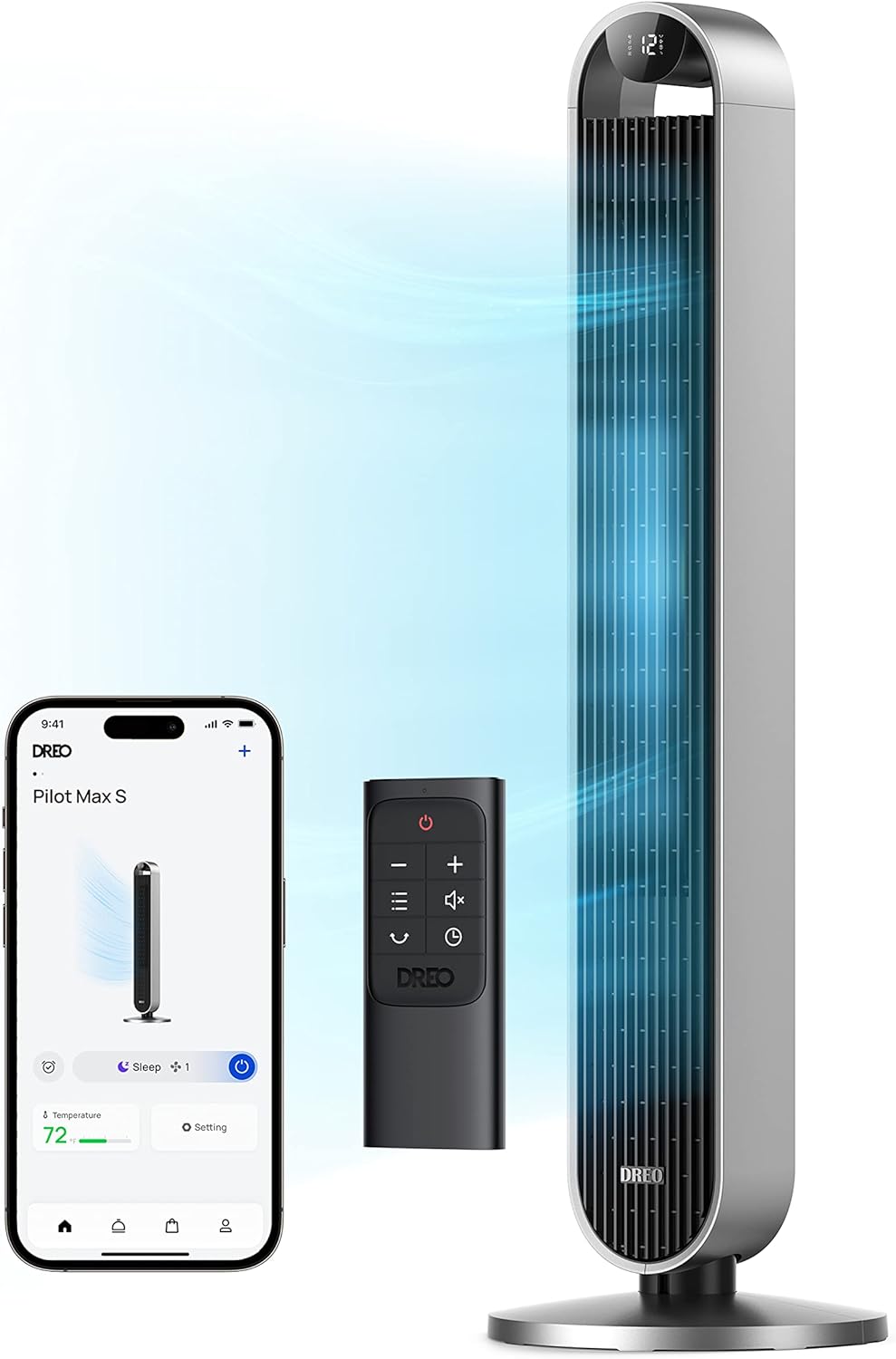
- Quiet 20dB DC motor minimizes distracting office background noise.
- Twelve speed settings provide unusually precise airflow adjustment.
- 120 degree oscillation distributes cooling across wider office spaces.
- Powerful airflow reaches speeds up to 28 feet per second.
- - Four operating modes and 12 hour timer increase flexibility.
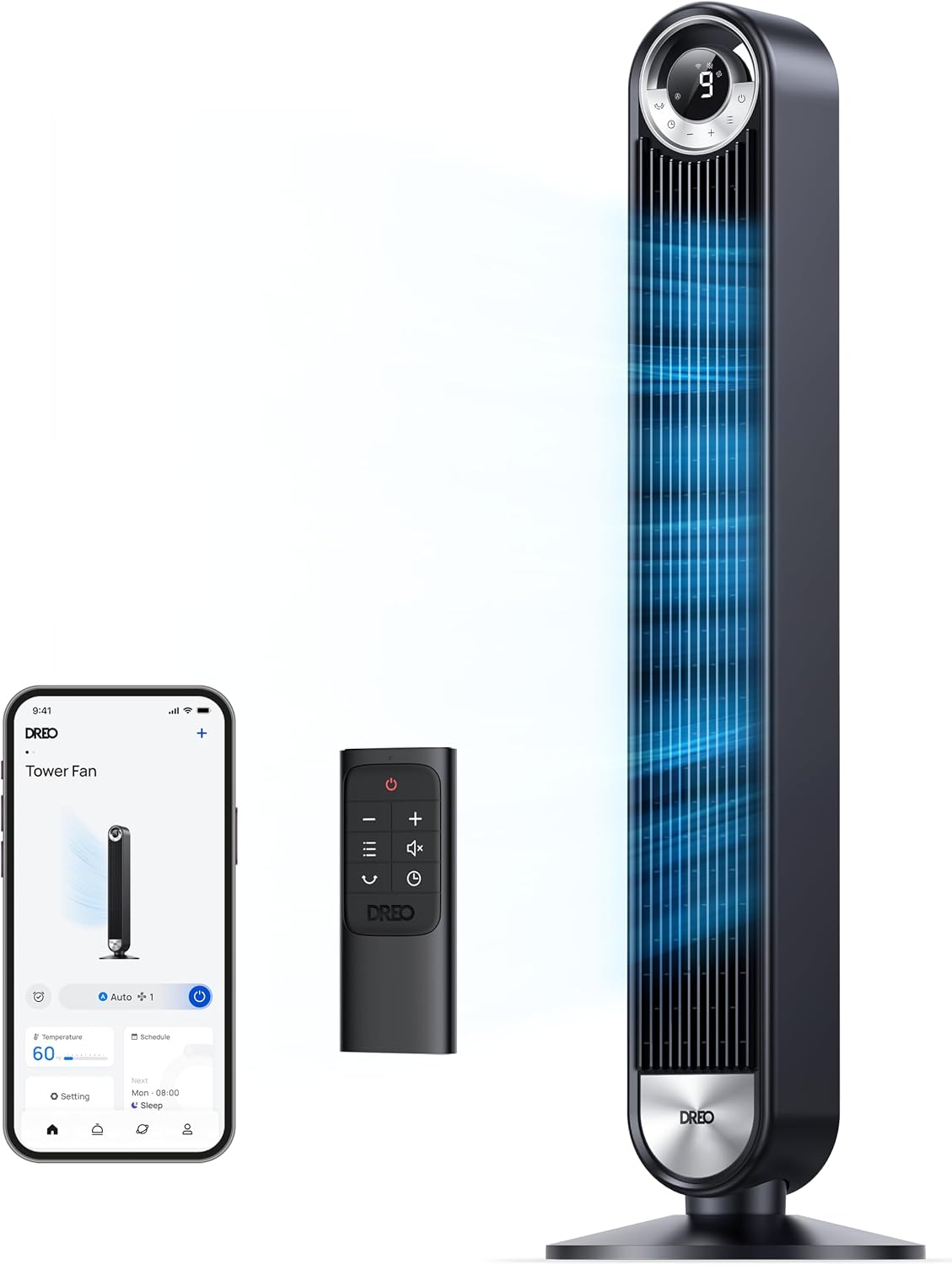
- Ultra quiet 20dB operation suits focused office environments.
- Twelve speed settings provide highly adjustable airflow control.
- 120 degree oscillation distributes air throughout wider workspaces.
- Powerful airflow reaches speeds up to 28 feet per second.
- - Four operating modes and 12 hour timer increase flexibility.

- Quiet DC motor keeps background noise low during work.
- Wide oscillation distributes airflow across larger office areas.
- Multiple speed settings provide flexible cooling throughout the day.
- Adjustable airflow direction improves circulation around office furniture.
- - Floor standing design preserves valuable desk working space.

- Quiet operation helps minimize distractions during focused office work.
- Oscillating fan head distributes airflow across wider working areas.
- Powerful circulation moves air beyond one individual workstation.
- Adjustable pedestal design improves airflow positioning around office furniture.
- - Multiple airflow settings accommodate different cooling needs throughout workdays.
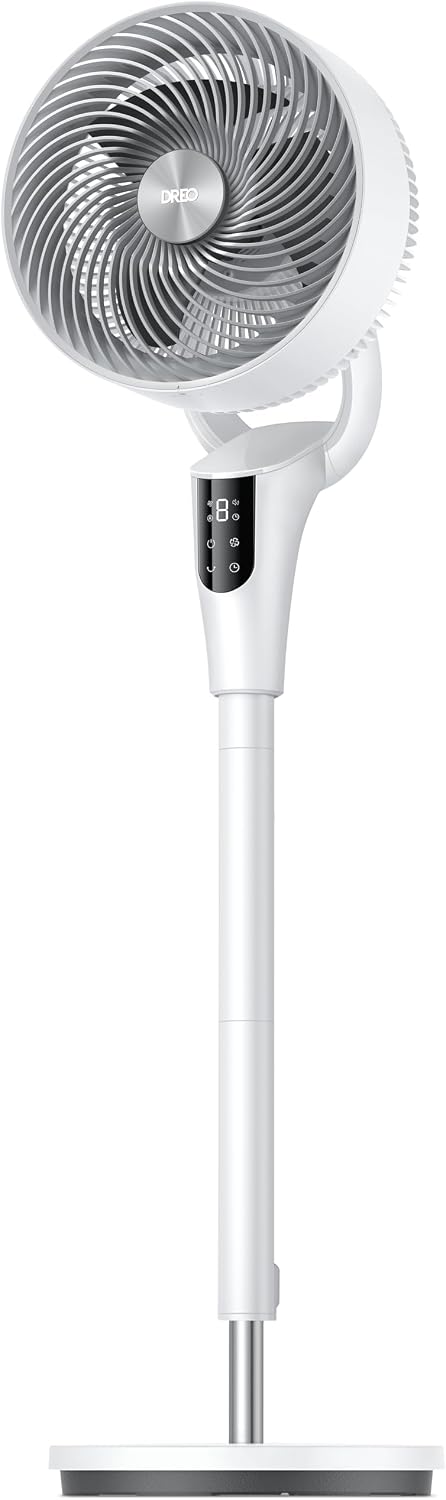
- Quiet motor design supports focused work and office meetings.
- Oscillating fan head distributes airflow across broader working areas.
- Adjustable pedestal height improves positioning around different desk setups.
- Multiple speed settings provide flexible airflow throughout the workday.
- - Powerful room circulation works beyond one individual workstation.

- Three speed settings provide straightforward office airflow adjustment.
- Wide oscillation distributes moving air across larger working areas.
- Three operating modes support different daytime and nighttime needs.
- Fifteen hour programmable timer provides extended automatic operation control.
- - Remote control allows convenient adjustments without leaving your desk.
Choosing a quiet fan for the work you actually do
The best quiet fan for an office is not simply the one with the most speed settings or the smallest advertised noise number. It is the fan that supplies useful airflow at your seat without adding a sound you find distracting, disturbing a colleague, or spoiling a call. Begin with your working arrangement: a private room, a shared desk, and an open office impose different limits on placement and acceptable noise.
Decide whether you need a personal breeze or circulation across a wider area. A compact desk fan can be convenient for one seat, while a floor or tower format keeps equipment off the desktop. Neither shape guarantees quieter operation. Compare the exact model’s dimensions, controls, operating instructions and return terms, then judge the working setting rather than relying on a category label. The existing selections above are options to investigate, not evidence of a controlled acoustic comparison.
Write down your priorities before shopping: gentle continuous airflow, an easy-to-reach speed control, unobtrusive sound, and space for a safe cable route. That short brief makes it easier to reject an attractive model whose lowest usable setting is still too forceful or whose base crowds your keyboard.
Compare sound at comparable speed, distance and airflow
Noise claims are useful only when their conditions are clear. A figure measured at a distant microphone on the lowest setting cannot fairly be compared with another fan measured nearby at full speed. Look for the stated operating mode, distance, measurement method and background conditions. If those details are absent, treat the number as incomplete information rather than a basis for ranking the products.
For a practical home comparison, keep the room, listening position, surface and distance consistent. Try each fan on its lowest setting, then on the setting that produces the airflow you actually want. Identical speed labels do not mean identical motor speed or cooling effect: “low” on one model may feel very different from “low” on another. Record both the setting and whether the breeze is useful at the same seat.
Listen with other appliances held steady, and compare with the fan off as well as on. A phone recording or sound-meter app can help you remember differences, but automatic gain, microphone direction and background noise can distort the result. Do not present an informal phone reading as a calibrated laboratory measurement. A consistent side-by-side listening exercise is more informative than unrelated recordings made in different rooms.

Tonal hum, broadband airflow and intermittent rattles
Not all fan noise sounds alike. Broadband airflow often resembles a spread-out rush or hiss. Tonal noise has a more distinct pitch, such as a hum or whine. A repeated tick, rattle or oscillation click is a different problem again. Two fans can seem similarly loud overall while one is much harder for a particular listener to ignore during reading or concentrated work.
Listen for a prominent pitch at every setting you expect to use. Some sounds change with speed, and oscillation may add a periodic mechanical sound that is absent when the head is stationary. Try both modes if the model offers them. A timer chime or control beep can also matter in a shared space, even when the running sound is unobtrusive.
If you hear rattling, first check the manufacturer’s setup guidance, whether the base is seated correctly, and whether something nearby is vibrating. Do not open a motor housing or defeat a grille to investigate. Return or service a unit that behaves abnormally according to its instructions. There is no universal rule that a smooth hiss is acceptable or a hum is unacceptable; your workplace and your tolerance decide the practical limit.
Aim the airflow before increasing the speed
Start with placement and tilt rather than immediately selecting a higher setting. Put the fan on an approved, level surface with its inlet and outlet clear. Aim a gentle breeze toward your usual seated position without blowing papers across the desk or directing air into a colleague’s workspace. Keep the appliance away from the desktop edge and leave the clearances required by its manual.
A fan moves air; it is not the same as an air conditioner that actively cools the room. If the office itself is excessively hot, a personal fan does not replace the workplace’s ventilation or temperature-management arrangements. For the narrower task of choosing a compact personal format, the guide to USB desk fans for personal cooling offers another set of options to examine, with exact power requirements checked separately.
Try a little more distance or a changed angle before increasing speed. The goal is comfortable airflow where you work, not the strongest stream at the grille. Check that the fan does not blow directly at loose documents, a drink, or equipment vents in a way that conflicts with that equipment’s instructions. An oscillating breeze may suit a wider area, but ask nearby coworkers before sharing it.
Test what your call microphone actually hears
A fan that sounds unobtrusive to you may still be noticeable to people on a call. Air moving across a microphone can create wind-like disturbance, while motor sound may be picked up through the room or transmitted through a shared desktop. Microphone placement, pickup pattern and conferencing software all influence the result; a “quiet” label cannot resolve those variables.
Make a short test recording with your normal microphone and speaking position. Include a few seconds of silence, ordinary speech and a pause between sentences, first with the fan off and then at your working setting. Use your usual call application if it offers a test feature. Listen to the recording rather than assuming the sound you hear in the room is what the microphone captures.
Move the fan away from the microphone and out of its direct airflow path. If a tabletop microphone seems to capture vibration, try a different approved fan location rather than improvising an unstable support. Our office headsets for calls guide is relevant if you are also changing your audio setup, but verify microphone noise handling separately from noise cancellation heard by the wearer. Software suppression may help, yet it can also alter speech; test it rather than relying on the feature name.

Choose a stable format and a practical power route
Measure the footprint as well as the fan’s height. A small head attached to a bulky base can still consume valuable desktop space. A clip-on design needs a compatible attachment point and enough clearance for adjustment, while a tower or floor fan needs a stable location outside walkways. Check whether the controls remain accessible from your chair without stretching across other equipment.
Assess stability with the fan switched off before normal use, then observe it running on the intended surface. Watch for movement, rocking or contact with nearby objects. Do not place it on an improvised pile of books or a soft support that blocks vents. An anti-vibration accessory is appropriate only if the appliance instructions permit it and the entire base remains safely supported.
Confirm the exact power input and supplied adapter or cable. A USB connector does not by itself establish that every laptop port or charger can power the fan correctly. For mains-powered units, follow the manual and workplace electrical rules. Route the cable away from chair wheels, feet and moving desk mechanisms. The guide to cable management solutions for office desks can help plan the route without hiding plugs or making the fan difficult to disconnect.
Cleaning access matters as much as the first impression
Before buying, read how the manufacturer expects you to clean the fan. Check whether the grille can be removed by the user, which parts are accessible, and whether replacement filters or other consumables apply to that exact design. A fan described as bladeless may still contain internal moving components; the label does not eliminate cleaning requirements or make every part user-serviceable.
Switch off and disconnect power before cleaning, following the manual’s procedure. Use only the permitted tools and methods, and do not spray liquid into a motor, power connection or control panel. A removable grille does not mean the entire fan can be immersed. Allow any permitted cleaned parts to dry as directed before reassembly and operation.
Dust buildup can affect airflow and may contribute to unwanted sound, but cleaning is not a guaranteed cure for every hum or vibration. Note the original sound when the fan is new, and investigate a significant change instead of accepting it as normal. If you need tools for surrounding desktop maintenance, see microfiber cleaning cloths for office electronics; the fan’s own care instructions still take precedence over a general cleaning suggestion.

Use the return window as a realistic desk trial
Check the current seller’s return conditions before purchase, including packaging requirements and whether a used appliance can be returned. Keep the box and accessories until you have tested the fan in its intended location. A quick demonstration in a noisy shop or a promotional video does not reproduce your quiet office, microphone or neighboring desks.
Run a simple checklist during a normal work session: useful airflow at the seat, acceptable sound at each needed setting, no distracting oscillation sound, stable footing, reachable controls and an unobstructed cable route. Test a call and a period of focused reading. Ask a nearby coworker whether the airflow or sound reaches them, rather than assuming personal comfort means shared-office suitability.
Finally, compare the compromise you will actually live with. A low setting that is barely audible but supplies too little air is not automatically the better choice; a stronger setting that disrupts meetings may be equally unsuitable. Keep brief notes about placement, settings and call recordings so your decision rests on repeatable observations. Choose the fan that fits the working arrangement you can safely maintain, without turning unverified advertising numbers into a claim of measured superiority.
Quiet office fan FAQs
Can I compare advertised fan noise numbers directly?
Only when the operating setting, measurement distance, method and background conditions are comparable. Missing test conditions make a noise number incomplete information, not proof that one ranked product is quieter.
Is a fan with a low hum quieter than one with an airflow hiss?
Overall loudness and sound character are different. Listen for tonal hum, broadband airflow and intermittent rattles at the setting you need; the less distracting sound depends on your room and preferences.
Where should I place a fan during office calls?
Keep it on an approved stable surface away from the microphone and outside the microphone’s direct airflow path. Record a short test with your normal call equipment and working fan setting.
Does a quiet fan lower the room temperature?
A fan moves air and can provide a personal breeze, but it is not equivalent to an air conditioner that actively cools the room. Follow workplace temperature and ventilation arrangements when the room is too hot.
How should I clean an office fan?
Switch it off and disconnect power, then follow the exact model’s instructions for grille access, tools and cleaning methods. Do not spray liquid into electrical parts or assume the whole fan can be immersed.
What should I check during the return window?
Test useful airflow, sound at needed settings, call microphone pickup, oscillation, stability, control access and cable routing at your actual desk. Confirm the seller’s current return conditions before use.