
- Delivers up to 280W power to compatible HP laptops.
- Thunderbolt 4 connection supports data speeds up to 40Gbps.
- Supports up to four external displays on compatible configurations.
- Includes HDMI 2.1 plus dual DisplayPort 1.4 connections.
- Integrated 2.5Gb Ethernet provides fast wired network connectivity.
This is the kind of dock that can replace most of the cables around a serious HP workstation
The HP Thunderbolt 4 Ultra 280W G6 Dock takes the number one position in our best HP laptop docking station comparison because it handles power, displays, networking, USB accessories, and enterprise management from one compact unit. The headline specification is up to 280W of host power through the 4.5 mm power connection, while supported USB-C Power Delivery 3.1 systems can receive up to 180W through the Thunderbolt 4 connection.
That amount of power matters with higher-performance HP business and mobile workstation laptops. A basic USB-C dock may provide enough charging for a thin notebook, but a demanding system running multiple displays and sustained workloads can require considerably more power.
The dock itself uses a 330W external power adapter. High-power laptop charging is the real advantage here because it allows compatible HP systems to stay powered without requiring a separate laptop charger sitting beside the docking station.
There is an important compatibility detail, though. The maximum 280W host delivery uses the 4.5 mm power barrel portion of HP's combination cable, while Thunderbolt 4 charging reaches up to 180W on compatible Power Delivery 3.1 hardware.
So do not assume every USB-C laptop connected to this dock automatically receives 280W. Check the exact HP notebook model, charging requirements, and connection method before building the workstation around the maximum power figure.
The display and port selection is where the G6 starts feeling like a proper workstation dock
The Thunderbolt 4 interface provides up to 40Gbps signaling, giving the dock substantial bandwidth for displays, storage devices, peripherals, and other connected hardware. That is particularly useful when a laptop is expected to behave like a desktop computer whenever it reaches the office.
Display connectivity is unusually flexible. You get two DisplayPort 1.4 connections, HDMI 2.1, plus USB-C and Thunderbolt connectivity that can participate in supported display configurations.
HP specifies support for up to four external displays, depending on the host computer and configuration. That is valuable for financial work, software development, video editing, engineering, research, or administrative setups where several applications need to remain visible simultaneously.
A finance user could keep a spreadsheet across one monitor, reporting software on another, and communications on a third. The laptop arrives at the desk, connects to the dock, and the complete workspace becomes available without reconnecting every monitor individually.
That does not mean every HP laptop can automatically drive four monitors at every resolution and refresh rate. Graphics hardware, operating system support, DisplayPort capabilities, Thunderbolt implementation, and the exact display configuration still determine what is possible.
This is one of the most common docking station mistakes. Dock capability and laptop capability are different, so always verify the host notebook before purchasing several high-resolution monitors based only on the dock's maximum specification.
The USB selection is extensive as well. HP includes USB-C ports with 10Gbps signaling and up to 15W power delivery, several USB-A connections, and the rear Thunderbolt 4 port.
That makes it easier to leave permanent office peripherals attached. A keyboard, mouse, webcam, external SSD, phone cable, card reader, headset, and other accessories can stay at the workstation while the laptop itself remains portable.
The practical benefit becomes obvious when someone works partly from home and partly elsewhere. Instead of reconnecting six cables after every trip, the user returns the laptop to the desk and reconnects through the docking setup.
The 2.5Gb Ethernet connection is another substantial upgrade over basic Gigabit Ethernet docks. 2.5GbE provides additional wired network headroom when the office network, switches, cabling, servers, and internet connection can actually support those speeds.
That final part matters. Connecting the dock to a 2.5GbE network port does not create a 2.5Gbps internet connection if the rest of the infrastructure is limited to 1Gbps or below.
For local network transfers, though, the faster interface can be useful. Moving large video projects, engineering files, backups, or shared datasets between a laptop and a compatible NAS can benefit from the additional wired bandwidth.
Why we believe the Thunderbolt 4 Ultra G6 deserves rank number one
HP has clearly designed this dock for business environments rather than treating it as a simple port expander. Management features include Wake on LAN, PXE Boot, MAC address pass-through, LAN and WLAN switching, disconnected firmware updates, HP CMSL support, and wired Intel vPro functionality on compatible systems.
Those features may mean very little to someone buying a dock for one personal laptop. For an IT department managing hundreds of HP notebooks, however, remote management features become genuinely important.
An administrator can maintain a more standardized fleet instead of treating every dock as an unmanaged accessory. That becomes useful when employees work remotely, use hot desks, or regularly move between corporate locations.
Security is also built into the design. The dock includes HP Sure Start support, system network manageability features on compatible HP systems, and a physical Nano security lock slot.
The mechanical power button can power or wake supported host systems, and HP integrates RGB LED status indicators into the dock. That provides quick visual feedback rather than leaving the user wondering whether the dock, power adapter, or laptop connection is active.
The physical unit measures approximately 12.1 by 12.1 by 4.95 cm and weighs around 790 grams. It is not an ultralight travel hub, but the compact footprint suits a permanent desk considering the amount of connectivity and power hardware inside.
The 330W power adapter is much larger than the tiny chargers supplied with lightweight USB-C hubs. That is an unavoidable tradeoff when the dock is designed to provide significantly more power to demanding laptops and attached devices.
Cable management therefore deserves some planning. Put the power brick below or behind the desk if possible, keep permanent display and Ethernet connections routed toward the rear, and reserve the easier-to-access USB ports for devices that are regularly plugged and unplugged.
This makes the workstation considerably cleaner. The dock becomes the central connection point rather than having display cables, Ethernet, power, storage, and USB accessories spread across both sides of the laptop.
Thunderbolt 4 also deserves correct expectations. The 40Gbps figure describes the maximum signaling capability of the interface, not a promise that every connected device will simultaneously transfer data at 40Gbps.
Bandwidth is shared across the workload, and individual peripherals have their own interface limitations. A 5Gbps USB device remains a 5Gbps device simply because it is attached through a Thunderbolt 4 dock.
The same principle applies to external storage. To benefit from high transfer rates, the SSD enclosure, drive, cable, dock, and host interface all need to support the required performance.
Heat and ventilation should also be considered. A high-power docking station handling charging, displays, networking, and multiple peripherals can become warm during demanding operation.
Keep the dock on a hard, open surface rather than burying it beneath papers or pushing it into an enclosed area with poor ventilation. That also keeps the ports easier to reach and prevents desk clutter from interfering with the unit.
Compatibility is probably the most important thing to check before purchasing. HP states that the dock is tested and supported with selected HP commercial PCs and selected third-party computers, with Windows 10, Windows 11, macOS, Linux, ThinPro, and ChromeOS among the supported operating systems.
But specific features can vary by host. Check your exact HP laptop model first, especially if your purchase depends on 280W charging, multiple external displays, the dock power button, enterprise management, or other HP-specific functionality.
This is also why we rank the Thunderbolt 4 Ultra 280W G6 so highly for the primary keyword rather than simply treating it as another universal USB-C hub. It is particularly well integrated with compatible HP business notebooks and workstations.
HP also provides a three-year limited warranty. For equipment expected to sit at the center of a professional workstation every working day, longer manufacturer coverage adds meaningful value.
There are disadvantages. The high-output 330W adapter adds bulk, the dock is overkill for somebody connecting only a mouse and one 1080p monitor, and obtaining the maximum charging and display capabilities depends heavily on the laptop being used.
It is also not the sort of docking station we would buy solely for travel. Smaller USB-C hubs make more sense when portability is more important than maximum charging power, enterprise management, multiple displays, and extensive desktop connectivity.
But for a permanent HP workstation, those compromises are reasonable. This dock is designed for demanding desktop setups, not for being thrown into a small laptop sleeve every morning.
That is why we believe the HP Thunderbolt 4 Ultra 280W G6 Dock deserves the number one position out of seven. The combination of up to 280W host power, Thunderbolt 4 bandwidth, up to four external displays, HDMI 2.1, dual DisplayPort 1.4, extensive USB connectivity, 2.5Gb Ethernet, and enterprise management gives it an unusually complete feature set.
For a compatible HP laptop used as the center of a serious office workstation, it can reduce a complicated desk to one docking setup while still leaving room for monitors, high-speed networking, storage, and peripherals. Verify compatibility first, particularly the charging and display requirements, and the Ultra G6 becomes a very strong foundation for an HP laptop desk setup.
- Thunderbolt 4 connectivity provides high-bandwidth data and display support.
- Multiple display outputs support productive multi-monitor HP laptop workstations.
- Integrated status lighting provides useful visual docking notifications.
- Multiple USB connections support everyday office peripherals and accessories.
- Enterprise-focused design suits modern HP business laptop environments.
This is the kind of HP dock that makes a permanent desk much easier to manage
The HP Thunderbolt 4 G6 takes the number two position in our best HP laptop docking station comparison because it is designed as a central connection point for a modern business workstation. Thunderbolt 4 connectivity, multiple display options, USB expansion, network connectivity, status lighting, and HP-focused management features give it much more purpose than a simple USB port adapter.
The basic idea is straightforward. Leave the monitors, keyboard, mouse, network cable, storage, webcam, and other desk accessories connected to the dock, then connect the laptop when you arrive at the workstation.
That can turn a portable HP notebook into a much more complete desktop setup. One connection simplifies the whole workstation, particularly for employees who take their laptops home or move between meeting rooms and office desks.
This becomes even more useful with hybrid work. Instead of reconnecting a monitor, Ethernet cable, power supply, keyboard, and several USB accessories every morning, most of the permanent hardware stays attached to the docking station.
Thunderbolt 4 is useful because displays and peripherals all need bandwidth
Thunderbolt 4 provides a high-bandwidth connection between the laptop and docking station. That bandwidth can be used for external displays, storage devices, network traffic, USB accessories, and other connected hardware.
This is important because a docking station does several jobs simultaneously. A user might have multiple monitors active while copying files to external storage, participating in a video meeting, and transferring network data through Ethernet.
A capable host connection gives the dock room to handle those workloads. Thunderbolt 4 is built for demanding connectivity, which is why it makes sense on a higher-end HP business dock.
There is still an important limitation to understand. A Thunderbolt connection does not make every connected peripheral operate at Thunderbolt speeds.
If an external device uses a slower USB interface, that device remains limited by its own connection. The same applies to network hardware, storage enclosures, monitors, and cables.
This is one of the common mistakes when setting up a dock. People focus on the maximum specification of the docking station but forget that every device has its own bandwidth limit.
Display support is another major reason to use a full docking station rather than a compact travel hub. A multi-monitor workspace can make a large difference for spreadsheets, financial analysis, coding, design, research, administration, and other work where several applications need to remain visible.
An accountant might keep a spreadsheet on one screen, accounting software on another, and email or reference material on the laptop display. A developer can separate the code editor, documentation, terminal, and communication tools instead of constantly switching between windows.
The exact number, resolution, and refresh rate of displays you can use still depend on the HP laptop connected to the dock. Graphics hardware and the host's Thunderbolt or USB-C implementation remain part of the display chain.
That means you should verify the laptop model before purchasing monitors. Dock display support does not override laptop limits, particularly when several high-resolution displays are involved.
Cables matter too. If a monitor is expected to run at a demanding resolution and refresh rate, use cables rated for the required display standard rather than an old cable pulled from a drawer.
A bad or insufficient cable can create flickering, intermittent black screens, reduced resolution, or refresh-rate limitations. Those symptoms can look like a docking station problem even when the dock itself is functioning correctly.
Why this G6 finishes second instead of taking our top position
The USB expansion is useful for turning the dock into the permanent center of the desk. A keyboard, mouse, webcam, headset, external drive, phone cable, and other accessories can remain connected instead of consuming the limited ports built into a thin laptop.
This is particularly helpful with modern business notebooks. As laptops become thinner, manufacturers have less physical space for full-size Ethernet, multiple display connectors, and a large collection of USB ports.
A dock puts those connections back at the desk. The laptop stays portable while the desk stays connected, which is really the point of a good docking station.
Wired networking is another useful office feature. Ethernet provides a stable connection for environments where Wi-Fi coverage is inconsistent or where large network transfers are common.
A wired connection can also make sense for video conferencing and cloud-based work. It removes local wireless interference from the connection between the workstation and network infrastructure.
That does not mean Ethernet automatically makes the internet faster. Actual performance still depends on the network adapter, switch, router, cabling, internet service, and any other bottleneck between the computer and destination.
The status lighting is a smaller feature, but it is useful during troubleshooting. Visual notifications can give the user a quicker indication of the dock's state instead of leaving them guessing whether the issue is power, the host connection, or another part of the workstation.
This can be useful in a shared office where different employees use the same desk. Clear visual status reduces basic troubleshooting, particularly when someone connects a laptop and expects the workstation to become available immediately.
HP's business docking ecosystem is another reason this model works well with compatible HP laptops. Corporate IT departments care about firmware management, network behavior, security, deployment, and maintaining a consistent experience across many desks.
That is different from a home user buying a small generic USB-C hub. In a company with hundreds of laptops, standardized docking hardware can reduce the number of different adapters and connection arrangements that support staff need to troubleshoot.
Firmware should therefore be kept current. Docking station firmware can affect compatibility, display behavior, USB devices, networking, charging, and communication with the host computer.
If something starts behaving strangely after an operating system or laptop update, checking HP's current dock firmware and drivers is a sensible troubleshooting step. Firmware updates can solve compatibility problems that appear to be physical hardware failures.
Power delivery should also be checked against the exact laptop. Not every HP notebook has the same charging requirements, and higher-performance mobile workstations can demand much more power than lightweight business laptops.
If the dock cannot provide the power level required by a particular laptop and workload, the notebook may charge more slowly or require another power arrangement. This is why compatibility needs to be checked before buying rather than after the complete desk has been assembled.
Placement deserves some thought too. A docking station handling charging, displays, network traffic, and several peripherals can become warm during sustained operation.
Keep it on a hard open surface with reasonable ventilation. Do not bury it under paperwork, push it tightly into an enclosed drawer, or place objects over ventilation areas.
Cable management makes the dock much nicer to use. Route permanent monitor, Ethernet, and power cables toward the back of the desk while leaving frequently accessed USB connections easier to reach.
This can turn a messy laptop workstation into a much cleaner setup. The dock becomes the central cable hub, so the laptop itself does not need wires extending from every side.
The main reason this model ranks second is the HP Thunderbolt 4 Ultra 280W G6 sitting above it. That higher-end model provides a particularly powerful workstation configuration, including up to 280W host power for compatible HP systems and extensive connectivity intended for demanding mobile workstations.
That extra power matters for users running higher-performance HP laptops under sustained workloads. It also makes the Ultra model better suited to workstation-class hardware where ordinary USB-C charging may not be enough.
For many mainstream HP business laptops, though, that additional capability may be unnecessary. Buying a very high-power dock provides little practical benefit if the notebook cannot use that level of power.
This is where the standard Thunderbolt 4 G6 can make more sense. It provides serious business docking functionality without requiring every user to have a high-power mobile workstation.
There are still less expensive docking options for somebody who only needs one monitor, a keyboard, and a mouse. A compact USB-C hub may be entirely sufficient for a simple home desk.
But this HP is aimed at a different type of setup. It makes more sense when the laptop regularly transitions between portable use and a permanent multi-peripheral workstation.
That is why we believe the HP Thunderbolt 4 G6 deserves the number two ranking out of seven. It misses first place because the Ultra 280W G6 offers more power for demanding HP workstation configurations, but this model still provides an excellent balance of Thunderbolt connectivity, display expansion, peripheral support, networking, status information, and business-focused integration.
For an HP business laptop used every day at a multi-monitor desk, that balance is very attractive. Verify your exact laptop's charging and display compatibility, keep the dock firmware current, use appropriate display cables, and the Thunderbolt 4 G6 can provide a clean and reliable foundation for a professional HP workstation.
- Provides up to 100W charging for compatible HP laptops.
- Thunderbolt 4 connectivity supports high-speed data and display traffic.
- Multiple display connections support productive multi-monitor office workstations.
- Integrated Ethernet provides stable wired networking for business environments.
- Multiple USB ports connect everyday peripherals through one workstation hub.
One hundred watts is a sensible middle ground for a lot of HP business laptops
The HP Thunderbolt 4 100W G6 Dock takes the number three position in our best HP laptop docking station comparison because it offers the connectivity of a serious Thunderbolt workstation without requiring the enormous power delivery of HP's 280W model. For many mainstream HP business notebooks, 100W is a much more realistic charging target anyway.
The idea is to leave the workstation connected permanently. Monitors, keyboard, mouse, Ethernet, webcam, storage, headset, and other USB accessories stay attached to the dock, while the laptop can be disconnected whenever you need to leave.
When you return, the desk becomes usable again through the main host connection. One connection replaces several daily cables, which sounds basic but makes a noticeable difference for anyone carrying the same laptop between home, meetings, and the office.
The 100W power capability is important because a dock should ideally charge the laptop while everything else is connected. Otherwise you end up keeping the original notebook charger plugged in as well, which removes part of the convenience of docking.
Thunderbolt 4 gives the displays and peripherals enough room to work together
Thunderbolt 4 is one of the main reasons this dock sits high in our ranking. The interface provides a high-bandwidth connection between the host computer and the collection of devices attached to the docking station.
That matters when several things are happening simultaneously. A user might have external monitors running while transferring files to an SSD, using Ethernet, connecting a webcam, and keeping several USB peripherals active.
A proper dock is expected to handle that combined workload. Thunderbolt 4 supports demanding workstation connectivity much better than treating the product as a simple USB splitter.
There is an important distinction, though. Thunderbolt bandwidth does not mean every USB device connected to the dock suddenly operates at Thunderbolt speed.
A slower USB peripheral remains limited by its own interface. The same applies to an external SSD enclosure, network adapter, display cable, monitor, and every other component in the connection chain.
This is where people sometimes misdiagnose docking station performance. The slowest device can become the bottleneck, even when the dock itself has substantially more bandwidth available.
External display support is another major advantage over a small travel adapter. A proper docking station lets an HP laptop become the center of a multi-monitor desktop environment without plugging displays individually into the notebook every morning.
That can make a significant difference for spreadsheets and financial work. One monitor can hold the main workbook, another can show source data or reporting software, while the laptop display remains available for email and communication.
The same setup works for developers, researchers, designers, and administrators. Multiple screens reduce constant window switching, particularly when one task requires information from several applications at once.
But monitor compatibility needs to be checked before purchasing the complete setup. The laptop still determines display capability, including how many displays it can drive and which resolutions and refresh rates are supported.
A dock cannot add unlimited graphics capability to the host notebook. The laptop GPU, Thunderbolt implementation, operating system, display outputs, and monitor configuration all remain part of the equation.
Cable quality matters too. An older HDMI or DisplayPort cable may work perfectly at a modest resolution and then become unreliable when asked to carry a higher-bandwidth display signal.
Intermittent black screens, flickering, or unexpectedly low refresh rates are not always dock failures. Check the cable specification and monitor settings before assuming the docking station itself is defective.
Why the 100W G6 earns third place rather than moving higher
The USB expansion is where a docking station becomes genuinely convenient in daily office use. A thin laptop may only have a few ports, but the desk could require a keyboard, mouse, webcam, external drive, headset, phone cable, and other equipment.
Keeping those accessories attached to the dock means they stop consuming the laptop's limited built-in connections. The dock becomes the permanent peripheral hub, while the notebook remains easy to pick up and carry.
This arrangement is particularly useful for hot-desking and hybrid work. Employees can move between locations with only the laptop rather than carrying display adapters, Ethernet dongles, and a collection of USB accessories.
Wired Ethernet is another useful part of a professional docking setup. Wi-Fi is convenient, but a wired network can provide a stable connection at a fixed desk and remove local wireless interference from that section of the network path.
That can be helpful during long video meetings or large file transfers. It also makes sense in managed business environments where wired networking is part of the organization's standard workstation configuration.
Ethernet performance still depends on the complete network. The dock cannot make a slow internet connection faster, and network throughput may be limited by the switch, router, cabling, server, or broadband service.
The 100W charging figure also needs to be understood correctly. Not every laptop needs exactly 100W, and not every high-performance HP system can operate at maximum performance from a 100W power source.
A mainstream business notebook may be perfectly comfortable with this level of power. A larger mobile workstation with a discrete GPU and high-performance processor may require substantially more under sustained workloads.
This is why checking the exact HP laptop model before purchasing matters so much. If the notebook expects significantly more than 100W, our number one HP Thunderbolt 4 Ultra 280W G6 is a more appropriate direction.
Power requirements also change with workload. A laptop doing email, spreadsheets, and web browsing consumes very different power from the same system rendering video or running a demanding engineering application.
If the power source cannot meet peak requirements, some laptops may charge slowly, stop gaining battery percentage during heavy work, or alter performance behavior. Matching dock power to laptop demand matters more than simply choosing the largest number available.
For ordinary HP business notebooks, this 100W configuration can therefore be a better-balanced purchase. There is little benefit in paying for workstation-class power delivery if the laptop cannot use it.
Dock placement also deserves attention. Keep the unit on a hard, open surface with enough space around it for heat to dissipate naturally.
A docking station can handle charging, display traffic, networking, and several USB devices at the same time. Some warmth during operation is expected, but covering the unit with papers or placing it in a tightly enclosed space is unnecessary.
Cable management can make the workstation noticeably cleaner. Route permanent monitor, Ethernet, and power connections toward the back of the desk, then keep the ports used for temporary devices within easy reach.
This is one of the less technical benefits of a docking station. A cleaner desk is easier to reconnect, troubleshoot, and maintain when the laptop itself only needs the main docking connection.
Firmware is another thing users sometimes ignore. Dock firmware can affect USB behavior, display compatibility, network functions, charging, and communication with the connected computer.
If the dock starts behaving strangely after a laptop BIOS or operating system update, check HP's current software and firmware support for the exact dock and computer model. Updating firmware can resolve compatibility issues that otherwise look like failing hardware.
Enterprise users should pay even more attention to compatibility. HP docking products can include management and security functions that work differently depending on the host system and operating environment.
This is where buying an HP dock for an HP commercial laptop can make sense. Same-ecosystem compatibility can simplify deployment, particularly when an IT department needs to support many workstations rather than one personal desk.
So why does the Thunderbolt 4 100W G6 receive our number three ranking out of seven? The products above it provide more headroom or a broader feature package for demanding workstations.
The HP Thunderbolt 4 Ultra 280W G6 at number one is the stronger choice for compatible high-performance HP systems because it can support much greater host power and is designed around more demanding workstation configurations.
Our second-ranked G6 configuration also offers a particularly complete modern business docking package. Those models provide additional reasons to choose them when maximum flexibility is the priority.
The 100W G6 is more focused on mainstream business hardware. Its 100W power level is practical, but it naturally provides less charging headroom for high-performance mobile workstations than the 280W flagship model.
That limitation is the main reason it sits third. It is not a problem when paired with the right laptop, but this ranking has to account for the broader range of HP notebooks someone might want to dock.
For compatible HP business laptops, however, the balance is strong. Thunderbolt 4 connectivity, external display support, USB expansion, wired networking, and up to 100W charging cover the features most employees actually need at a permanent desk.
That is why we believe the HP Thunderbolt 4 100W G6 Dock deserves the number three position out of seven. It does not have the extreme power capability of our top-ranked model, but for mainstream HP office notebooks it can provide a cleaner, simpler, and highly capable desktop setup without buying more docking power than the laptop can realistically use.
- Single USB-C connection simplifies everyday laptop desk setups.
- Supports multiple external displays for more productive office workflows.
- Integrated Ethernet provides reliable wired networking at permanent desks.
- Multiple USB ports connect keyboards, storage, and office accessories.
- Compact desktop design keeps workstation cable clutter under control.
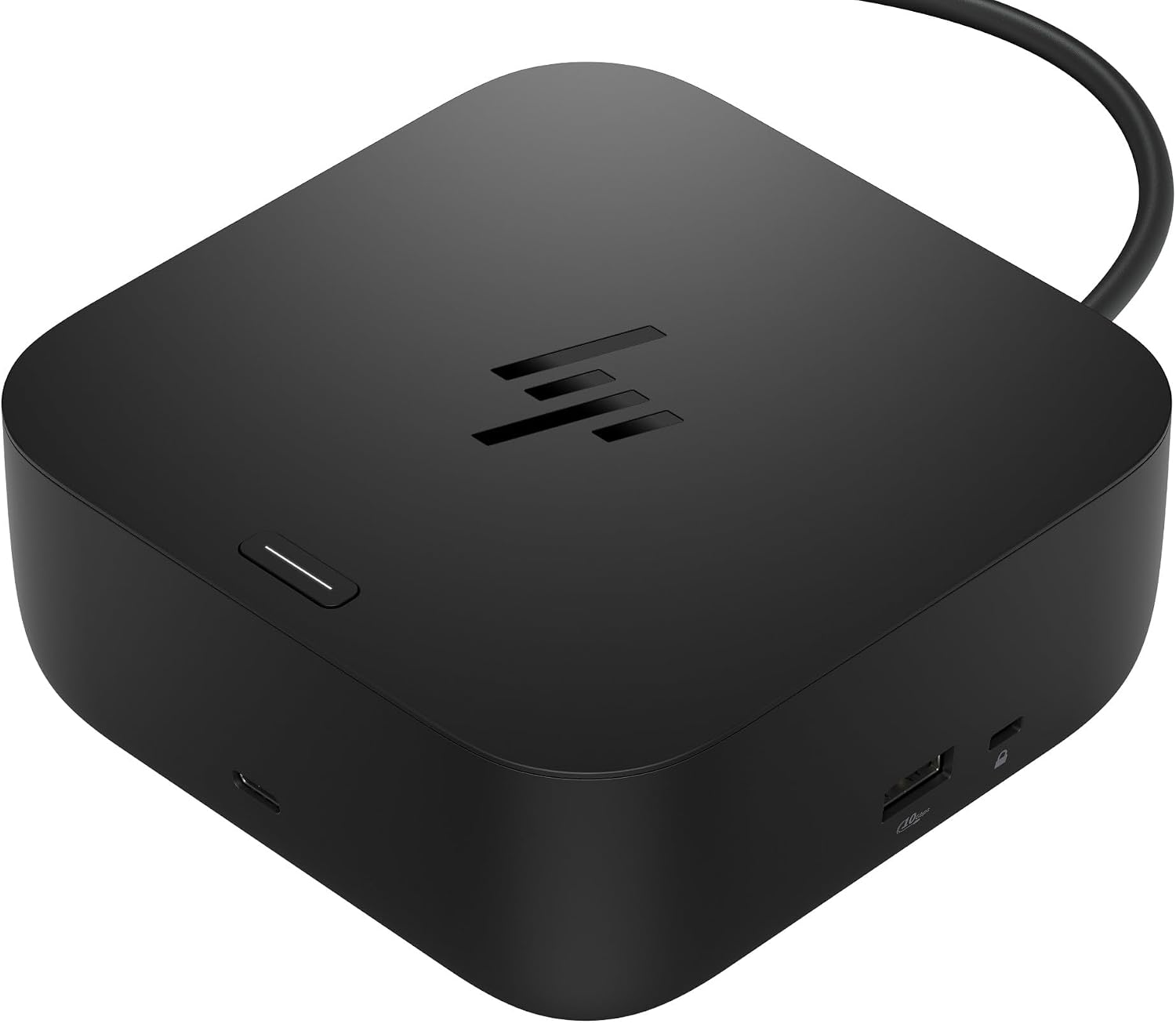
This is a simpler HP dock, but that is exactly why it works for a lot of office desks
The HP USB-C Dock G5 takes the number four position in our best HP laptop docking station comparison because it covers the connections most business users actually need without moving into the higher power and bandwidth territory of HP's newer Thunderbolt models. It is built around a single USB-C host connection that can bring displays, networking, USB peripherals, and laptop power into one desktop setup.
That is useful for an employee who carries the laptop away from the desk every evening. Instead of unplugging the monitor, Ethernet cable, keyboard, mouse, and power connection separately, the permanent accessories can stay attached to the dock.
Connect the laptop again in the morning and the workstation is ready with far less cable handling. One USB-C connection simplifies daily docking, especially in hybrid offices where notebooks move between locations regularly.
The G5 is also relatively compact for a full docking station. It can sit underneath a monitor or toward the rear of a desk without taking the amount of space associated with larger workstation-class docking hardware.
The display connections are where this becomes much more useful than a basic USB hub
External display support is one of the main reasons to buy a proper docking station instead of a small USB adapter. The USB-C Dock G5 provides dedicated video connectivity for building a multi-monitor workstation around a compatible laptop.
That can change how a laptop is used during an eight-hour office day. A spreadsheet can remain open on one monitor, email and communication software can occupy another screen, and the notebook display can stay available for reference material.
For developers or technical users, the same arrangement can separate code, documentation, terminal windows, and communication applications. Multiple displays reduce constant window switching, which becomes useful when information from several applications needs to remain visible.
The important word is compatible. The dock provides the connections, but the host laptop still determines how many displays it can drive and which combinations of resolution and refresh rate are available.
This is a common mistake when people buy docking stations. They see several display connectors on the back and assume every laptop connected through USB-C can automatically run all of them at maximum resolution.
That is not how the complete display chain works. The laptop still sets important display limits, along with its graphics hardware, USB-C implementation, operating system, cables, and monitors.
Check the exact notebook specifications before purchasing several displays. This matters even more when the intended setup includes high-resolution monitors rather than basic office screens.
Cable quality can create problems too. An older or poorly specified display cable may produce flickering, intermittent black screens, or lower-than-expected resolution even when the dock and monitor are working normally.
Use cables appropriate for the resolution and refresh rate you are trying to run. That small detail can prevent a lot of unnecessary troubleshooting later.
The USB connections are equally practical for normal office equipment. A keyboard, mouse, webcam, external storage device, headset, printer connection, or phone cable can remain attached to the docking station.
This helps preserve the limited ports on a thin business laptop. The dock becomes the permanent peripheral center, while the notebook itself remains clean and easy to carry away from the desk.
That is particularly helpful if the laptop has only a couple of USB ports. Using one directly for a mouse receiver, another for storage, and another for a webcam can quickly turn a portable notebook into a mess of adapters and cables.
Why the USB-C Dock G5 finishes fourth in our ranking
Integrated Ethernet is another reason this dock makes sense at a fixed workstation. Wi-Fi is convenient, but a wired connection can provide a stable network path when the laptop remains at the desk for several hours.
This can be useful for video meetings, large file transfers, cloud applications, or environments where wireless congestion is common. It also fits naturally into corporate offices where wired networking is already installed at each workstation.
Ethernet does not automatically make the internet faster, though. Network speed depends on the whole connection, including the dock, switch, router, cabling, server, and internet service.
If the office internet connection is slower than the wired network interface, connecting through Ethernet cannot magically exceed that service limit. What it can provide is a consistent physical network connection that does not depend on local Wi-Fi conditions.
Power delivery is another useful part of the docking workflow. A compatible laptop can receive power through the USB-C connection, which removes the need to connect the notebook's charger separately every time it reaches the desk.
Compatibility matters here too. Different HP notebooks have different power requirements, and higher-performance mobile workstations may require more power than a mainstream USB-C dock is intended to provide.
If a laptop requires substantially more power under heavy workloads, it may charge slowly or need its original power adapter. Check laptop power requirements before buying, particularly if the system uses high-performance processors or discrete graphics.
This is one area where our higher-ranked HP docks have a clear advantage. The Thunderbolt 4 Ultra 280W G6 at number one is designed for much more demanding HP workstation configurations and can provide substantially greater power to compatible systems.
The newer Thunderbolt G6 options above this model also offer higher-bandwidth connectivity and a more current platform for demanding displays, storage, and business peripherals. Thunderbolt 4 provides considerably more connection headroom than a conventional USB-C docking arrangement.
That difference matters when large amounts of data are moving at the same time. Multiple displays, fast external storage, network traffic, webcams, and other peripherals can all compete for the bandwidth available through the host connection.
For normal office work, the G5 can still be perfectly adequate. Not every desk needs maximum Thunderbolt bandwidth, particularly if the workload consists primarily of productivity software, web applications, email, meetings, and ordinary USB peripherals.
This is why the G5 remains relevant even with newer HP docks available. A company may have employees using mainstream business laptops that simply do not need the power or performance of a high-end workstation dock.
The compact design also makes cable management easier. Put the dock toward the rear of the desk and route permanent display, network, and power cables away from the main working surface.
Frequently used USB connections can remain more accessible. This creates a cleaner setup where the laptop itself does not have cables extending from several different sides.
Placement should still allow some open space around the dock. A docking station handling charging, displays, USB traffic, and networking can become warm during sustained operation.
Keep it on a hard surface rather than covering it with paperwork or placing it inside a tightly enclosed area. Basic ventilation helps during sustained use, particularly when several peripherals remain active throughout the day.
Firmware and driver updates are worth checking as well. Docking stations interact with display hardware, USB controllers, network adapters, laptop firmware, and the operating system, so software compatibility can occasionally affect behavior.
If displays start disconnecting, USB devices behave inconsistently, or Ethernet stops working after a system update, do not immediately assume the physical dock has failed. Check HP's current firmware, BIOS, and driver recommendations for the exact laptop and docking station combination.
This becomes especially important in business environments. Standardizing supported laptop and dock combinations makes troubleshooting easier for an IT department than having employees use dozens of unrelated third-party hubs.
The G5 also makes sense for shared workstations. Employees with compatible laptops can arrive at a desk where the monitors, keyboard, mouse, and network are already connected and simply attach their notebook.
There are limits to this convenience. USB-C compatibility is not automatically identical across every computer, so features such as charging, display output, and management functions can vary depending on the host.
That is why checking the exact laptop remains one of the most important steps before purchasing any dock. A connector physically fitting into the USB-C port does not guarantee every docking feature is supported.
So why do we believe the HP USB-C Dock G5 deserves the number four ranking out of seven? It lacks the higher bandwidth, greater charging headroom, and more advanced workstation capabilities offered by the Thunderbolt G6 models in our top three positions.
Those newer docks are better choices when someone needs demanding multi-display configurations, faster peripheral bandwidth, or substantially higher laptop power. The difference becomes especially important with high-performance HP mobile workstations.
But the G5 is easier to justify for a conventional office notebook. It provides display expansion, USB connectivity, wired networking, power delivery for compatible systems, and a compact desktop footprint without requiring a workstation-class setup.
That makes the G5 a strong everyday office dock rather than the most technically advanced option in the list. For employees using mainstream HP laptops for spreadsheets, meetings, browser-based applications, reports, email, and ordinary business software, that may be exactly the right balance.
Verify USB-C display and charging compatibility first, use properly rated monitor cables, keep the dock firmware current, and route permanent cables away from the main working area. Set up correctly, the HP USB-C Dock G5 can turn a portable HP laptop into a clean multi-peripheral workstation with one convenient host connection.
- Delivers up to 100W power for compatible HP laptops.
- Single USB-C connection simplifies everyday office workstation setups.
- Multiple display outputs support productive multi-monitor desk configurations.
- Built-in Ethernet provides stable wired networking for business use.
- Multiple USB ports connect common office peripherals and accessories.
One hundred watts makes this a practical dock for mainstream HP office laptops
The HP USB-C 100W G6 Dock takes the number five position in our best HP laptop docking station comparison because it provides the connections most office users need without moving into the more expensive Thunderbolt workstation category. Its USB-C host connection combines laptop charging, external display support, networking, and peripheral expansion in a compact desktop setup.
The 100W power capability is particularly useful for compatible HP business laptops. Instead of connecting the notebook to the dock and then plugging in a separate laptop charger, the docking connection can handle power alongside the other workstation functions.
That makes arriving at the office much cleaner. One connection handles the workstation setup, while the monitors, Ethernet cable, keyboard, mouse, webcam, and other accessories can remain attached to the dock.
This is especially useful for hybrid workers. If the laptop travels home every evening, reducing the workstation reconnect process from several cables to one USB-C connection saves a small amount of time every day, and it also reduces cable clutter around the laptop.
The G6 makes more sense when your desk has become bigger than your laptop
Modern business notebooks are increasingly thin, which is useful for portability but leaves less physical space for ports. A permanent office desk can easily require more connections than the laptop itself provides.
A keyboard and mouse already consume connections. Add an external monitor, webcam, Ethernet, headset, external storage, and perhaps a phone charging cable, and a notebook with two or three built-in ports quickly becomes inconvenient.
The USB-C G6 solves that by becoming the permanent connection point for peripherals. The accessories stay with the desk rather than traveling with the computer.
External display support is particularly important. Working from a laptop screen is fine while traveling, but a permanent office workstation often benefits from one or more full-size monitors.
A financial analyst might keep a large spreadsheet on one display while using the laptop for email and reference documents. An administrator can keep a scheduling system open while working on documents on another screen.
That does not mean every laptop connected to the dock can automatically run every possible monitor configuration. The host computer's graphics hardware, USB-C capabilities, operating system, display bandwidth, and monitor specifications still determine what combinations actually work.
This is one of the most important things to check before purchasing any docking station. The dock cannot override laptop display limits, even when several physical display connectors are available.
If you plan to use multiple high-resolution monitors, verify the exact HP laptop model first. Do this before buying the displays, because troubleshooting an incompatible setup after everything has been installed is much more frustrating.
Display cables matter too. A monitor connection is only as reliable as the complete path between the laptop, dock, cable, and display.
An older cable can sometimes work at a lower resolution but become unstable at a more demanding setting. Flickering, brief black screens, reduced refresh rates, and failed monitor detection can all be caused by cabling rather than the docking station itself.
Use cables rated for the display mode you actually intend to run. Good cables prevent unnecessary display problems and remove one variable when troubleshooting a multi-monitor workstation.
Ethernet is another useful part of the G6 setup. A wired network connection can provide consistent connectivity at a permanent workstation without relying entirely on the wireless environment around the desk.
That can be valuable during video meetings or large network transfers. In an office with congested Wi-Fi, connecting the dock to Ethernet gives the laptop a direct physical network path whenever it is at the desk.
It does not automatically make a slow internet service faster. Actual network performance still depends on the switch, router, cabling, internet connection, server, and other equipment involved.
Why the USB-C 100W G6 lands in fifth place
The 100W charging capability is enough for many business notebooks, but power requirements vary significantly between HP laptop families. A thin productivity laptop and a high-performance mobile workstation can have very different charging demands.
For normal office tasks such as spreadsheets, browser applications, email, presentations, and video conferencing, 100W provides a useful level of charging headroom on compatible hardware. It suits mainstream business laptops particularly well.
Higher-performance systems need more careful checking. A laptop with a powerful processor and discrete graphics may require substantially more power when operating under sustained load.
If the notebook expects more power than the dock can provide, the system may charge more slowly or behave differently under demanding workloads. That does not necessarily mean anything is wrong with the dock.
This is where our number one HP Thunderbolt 4 Ultra 280W G6 has a clear advantage. Its much higher host power capability is specifically useful for compatible HP mobile workstations and other demanding systems.
The Thunderbolt models higher in our ranking also provide greater connection bandwidth. That matters when the workstation is simultaneously handling high-resolution displays, fast external storage, networking, and several USB devices.
USB-C is still perfectly useful for normal office work. But Thunderbolt provides more bandwidth headroom for users building a particularly demanding desktop configuration.
That difference is one of the main reasons this model ranks fifth. It provides the everyday docking functions very well, but the products above it offer stronger specifications for more advanced workstation setups.
There is also no reason to buy the most powerful dock automatically. If your HP laptop only needs 65W or 100W and the desk consists of ordinary business monitors and USB peripherals, paying for a 280W workstation dock may provide little practical benefit.
This G6 can therefore be the more sensible choice for a mainstream corporate fleet. IT departments can provide employees with a permanent workstation without giving every user hardware designed for a high-end mobile workstation.
USB peripherals should be arranged logically around the dock. Keep permanent devices such as a keyboard receiver, webcam, and other fixed accessories connected to the less accessible ports.
Reserve easier-to-reach connections for external drives, phones, flash drives, and other equipment that gets disconnected regularly. Simple port planning keeps the desk cleaner and reduces unnecessary cable movement.
Heat management is basic but worth remembering. A dock simultaneously handling charging, displays, networking, and several peripherals can become warm during normal operation.
Keep it on a solid open surface rather than underneath a stack of papers. Avoid putting it inside a tightly enclosed space where heat has nowhere to dissipate.
Firmware should also be kept current. Docking stations interact with laptop firmware, graphics hardware, USB controllers, networking components, and the operating system, so compatibility updates can matter.
If monitors or USB devices suddenly behave differently after a system update, check the current HP firmware and drivers before replacing hardware. Software updates can resolve docking issues that initially appear to be physical failures.
The same applies to laptop BIOS updates. Business docking behavior can depend on settings and firmware on both sides of the connection, not only the dock itself.
Another common mistake is assuming that any computer with a USB-C connector supports every docking feature. USB-C describes the physical connector, but the capabilities behind that connector can vary.
Display output, charging, data speed, and other functions depend on the implementation used by the laptop. Two computers with visually identical USB-C ports may behave differently with the same dock.
That is why checking HP's compatibility information for the exact laptop model is important. Physical USB-C compatibility is only the beginning, especially when your setup depends on charging and multiple external monitors.
The compact format is an advantage once everything is configured correctly. Route power, Ethernet, and permanent display cables toward the back of the desk and keep the main USB-C laptop connection easy to reach.
This produces the workflow a docking station is supposed to create. The laptop arrives, connects once, and becomes part of the full desktop environment without cables extending from every side.
So why do we believe the HP USB-C 100W G6 deserves the number five ranking out of seven? It offers a strong everyday combination of 100W power, display expansion, USB connectivity, Ethernet, and simple single-cable docking, but it lacks the higher bandwidth and greater power headroom of the Thunderbolt models above it.
Those differences become significant for mobile workstations, very fast storage, and demanding multi-display setups. For ordinary office productivity, however, they may barely matter.
That is where this HP dock finishes positively. For a compatible business notebook used with standard office monitors, wired networking, a keyboard, mouse, webcam, and other everyday accessories, the G6 covers the important docking basics without turning the workstation into something more complicated than it needs to be.
Verify the exact laptop's USB-C display and charging capabilities, use suitable monitor cables, keep the firmware updated, and arrange the dock so permanent connections stay out of the way. For the right HP notebook, the USB-C 100W G6 can provide a clean and practical single-cable office workstation.
- Single USB-C connection simplifies everyday laptop workstation connections.
- Supports multiple external displays for productive office desk setups.
- Multiple USB ports accommodate keyboards, mice, storage, and accessories.
- Integrated Gigabit Ethernet provides reliable wired office network connectivity.
- Compact square design keeps permanent workstation connections neatly organized.
This older G5 still covers the connections most office desks actually need
The HP USB-C Dock G5 takes the number six position in our best HP laptop docking station comparison because it remains a practical way to turn a compatible notebook into a permanent desktop workstation. It is not as advanced as HP's newer Thunderbolt 4 G6 docks, but the basic formula is useful: one USB-C host connection for displays, USB peripherals, networking, and compatible laptop charging.
The product is identified by HP part number 5TW10AA, with regional variants such as 5TW10AA#ABB. Its compact square format measures roughly 122 x 122 x 45 mm, so it can sit behind a laptop stand or monitor without consuming a large section of the desk.
That small footprint matters when the workstation already contains two monitors, a keyboard, mouse, headset, notebook, and other equipment. The dock centralizes permanent desk connections rather than leaving cables attached to several sides of the laptop.
The practical benefit becomes obvious for hybrid workers. An employee can leave monitors, Ethernet, keyboard, mouse, and other accessories connected at the office, disconnect the laptop at the end of the day, then reconnect the workstation through USB-C the next morning.
The display setup is much more useful than carrying separate adapters
The USB-C Dock G5 provides dedicated display connectivity, including two DisplayPort connections and HDMI. For a compatible laptop, that gives users considerably more flexibility than relying on the limited video outputs built directly into a thin notebook.
Multiple monitors can make ordinary business work easier. A spreadsheet can stay open on one display while email, browser research, or accounting software remains visible on another.
The dock is designed to support multi-display configurations on compatible systems. Multiple screens can improve office productivity, particularly for employees who constantly move between documents, communication software, and reference material.
There is a limitation that matters, though. Having several physical display connectors on the docking station does not mean every USB-C laptop can use every output simultaneously at any resolution.
The computer still needs to support the required video functionality through its USB-C connection. Graphics hardware, DisplayPort capabilities, operating system, monitor resolution, refresh rate, and the number of active displays all affect the final configuration.
This is one of the most common docking station mistakes. A USB-C connector does not guarantee every feature, even when two laptop ports look physically identical.
Before buying additional monitors, check the exact HP laptop model and its external display specifications. This becomes especially important when the intended setup uses several high-resolution displays rather than basic office monitors.
Display cables should also match the required specification. An old HDMI or DisplayPort cable can sometimes work at a basic resolution but become unstable when asked to carry a more demanding video signal.
If a monitor flickers or occasionally loses signal, do not immediately blame the dock. Test the cable, monitor input, display settings, and laptop graphics configuration before replacing hardware.
The G5 also includes multiple USB connections for normal office peripherals. That means the keyboard, mouse receiver, webcam, external storage, headset, and other accessories can stay attached to the docking station.
This is particularly useful on thin laptops with only a few built-in ports. The dock gives those ports back to the user while creating a permanent home for accessories that rarely leave the desk.
Keep fixed devices on the less accessible connections where possible. Reserve easier-to-reach ports for flash drives, external SSDs, phones, cameras, and other devices that are connected temporarily.
Why the USB-C Dock G5 finishes sixth in our comparison
Gigabit Ethernet is another practical part of the G5. A wired network connection can provide a stable workstation connection in offices where Wi-Fi is congested or where company policy favors Ethernet at permanent desks.
That can be useful during long video meetings and large network transfers. The laptop automatically becomes part of the wired desk setup whenever it is connected to the docking station.
Gigabit Ethernet does not mean every internet transfer will reach 1Gbps. The complete network determines actual performance, including the switch, router, cabling, server, internet service, and remote destination.
Still, wired networking removes one variable from the workstation. If wireless signal strength changes around the office, the physical Ethernet connection between the dock and local network remains consistent.
Power delivery is another useful part of the G5 design. On compatible systems, the USB-C connection can provide laptop charging while simultaneously carrying data and display signals.
This is what makes single-cable docking genuinely convenient. If the laptop needs its original charger connected separately, the workstation still works, but some of the clean one-cable advantage disappears.
Check the power requirement of the exact notebook before buying. Higher-performance laptops can require more power than this generation of USB-C dock is intended to deliver.
A mainstream HP EliteBook or similar business notebook has very different requirements from a high-performance mobile workstation with discrete graphics. The latter may need a more powerful docking solution or its dedicated power adapter.
This is one of the major reasons our newer HP G6 docks rank above the G5. The HP Thunderbolt 4 Ultra 280W G6 at number one is designed around significantly more demanding workstation-class power requirements.
The newer Thunderbolt 4 docks also provide substantially greater host bandwidth. That additional bandwidth matters when several high-resolution displays, fast external storage, networking, and USB devices are active simultaneously.
The G5 uses a more conventional USB-C docking architecture. For spreadsheets, browser applications, email, video calls, office documents, and ordinary peripherals, that can still be completely adequate.
But Thunderbolt 4 provides greater performance headroom, particularly as the workstation becomes more complicated. That technological difference naturally pushes this older model farther down our ranking.
There is another practical reason to consider age. Newer laptop platforms, operating systems, displays, and peripheral standards have continued evolving since the G5 generation was introduced.
That does not make the G5 obsolete, but it makes compatibility checking more important. An older dock paired with the right HP laptop can work very well, while buying one without checking the exact host system creates unnecessary uncertainty.
Firmware matters for the same reason. HP docking station firmware can affect display behavior, networking, USB devices, charging, and communication with the host computer.
If something stops behaving normally after a Windows, BIOS, or driver update, check HP's current support files before assuming the dock has developed a hardware fault. Updated firmware can resolve compatibility issues that otherwise look surprisingly random.
Placement on the desk is straightforward because the G5 is compact. Put permanent power, monitor, and Ethernet cables toward the rear, then keep the host cable positioned where the laptop can be connected without stretching it.
Do not bury the dock underneath paperwork or place it somewhere that makes the ports difficult to reach. A docking station handles power and several active connections at once, so leaving reasonable open space around it is sensible.
The compact square design also works well in shared office environments. A company can install the dock at a workstation with the monitors and peripherals already attached, allowing compatible employees to connect their laptops when using that desk.
Again, compatibility should be standardized rather than assumed. Physical connection does not guarantee full functionality, particularly when employees bring different laptop generations or third-party computers.
This is where using an HP dock with a known group of supported HP business notebooks becomes valuable. IT staff can test one configuration and deploy the same arrangement across multiple workstations instead of troubleshooting unrelated adapters everywhere.
So why do we believe the HP USB-C Dock G5 deserves the number six ranking out of seven? It provides the essential docking features well, including display expansion, USB peripherals, Gigabit Ethernet, compatible power delivery, and a compact desktop footprint, but the newer models above it offer more bandwidth, more power, or a more future-focused connection platform.
Those differences matter most for demanding workstations. Someone using several high-resolution displays, very fast external storage, or a power-hungry HP laptop should look toward the newer Thunderbolt G6 options.
For ordinary business productivity, however, the G5 remains useful. It can take a portable HP notebook and turn it into a cleaner multi-monitor office setup without requiring separate display, network, and peripheral adapters every time the computer reaches the desk.
That is why the sixth-place finish is still positive. The G5 remains a practical office dock when paired with the right laptop, especially for users who value straightforward USB-C docking more than the maximum bandwidth and charging capabilities of the newest Thunderbolt hardware.
Check the exact laptop compatibility, confirm its charging requirements, use suitable monitor cables, and install current HP firmware before building the workstation. With those basics handled, the USB-C Dock G5 can still provide a clean and convenient single-connection desk setup for everyday HP laptop users.
- Single USB-C connection simplifies everyday HP laptop workstation setups.
- DisplayPort connectivity supports external monitors for office productivity.
- Multiple USB ports connect common peripherals and desktop accessories.
- Wired Ethernet provides stable networking at permanent office workstations.
- Compact docking design helps reduce cable clutter around laptops.
This is a straightforward HP dock for a desk that does not need Thunderbolt
The HP USB-C Dock takes the number seven position in our best HP laptop docking station comparison because it covers the essential desktop connections without the higher bandwidth and power capabilities found in the newer Thunderbolt models above it. For a conventional office workstation, though, that simpler approach can still work perfectly well.
The basic purpose is to reduce the number of cables connected directly to the laptop. Monitors, Ethernet, USB accessories, and other permanent desk equipment can remain attached to the dock while the notebook connects through USB-C.
That becomes useful for employees who take their laptop home each evening. One USB-C connection simplifies the desk instead of reconnecting a monitor, keyboard, mouse, network cable, and other accessories individually every morning.
It also keeps the laptop itself cleaner. Rather than having cables extending from both sides of a portable computer, most of the permanent wiring can remain toward the rear of the desk around the docking station.
DisplayPort support is the feature most office users will notice first
External monitor connectivity is one of the main reasons to use a docking station rather than a basic USB hub. The DisplayPort connections allow a compatible HP laptop to become part of a larger desktop display setup when it reaches the office.
That can make routine business work much easier. A spreadsheet can remain open on a full-size monitor while email, browser research, or communication software stays visible on the notebook screen.
For administrative work, another display can hold scheduling or accounting software while documents remain open separately. More screen space reduces constant window switching, particularly when a job involves comparing information between several applications.
The important limitation is compatibility. Physical display outputs on a docking station do not guarantee that every laptop can use every monitor connection simultaneously at the maximum possible resolution.
The host laptop still needs the appropriate USB-C video capability. Its graphics hardware, operating system, supported DisplayPort mode, monitor resolution, and refresh rate all influence the final configuration.
This is a common mistake with USB-C docks. USB-C ports do not all provide identical functions, even though the connector looks exactly the same from the outside.
Some USB-C ports support charging and data but not the required video mode. Others support display output but may have different bandwidth or charging limitations.
Check the specifications for the exact HP laptop before purchasing monitors around the dock. This is particularly important if the plan involves more than one external display or higher resolutions.
The display cable can also become a weak point. An older or poorly specified DisplayPort cable may work at one resolution and become unstable when the monitor is configured for a more demanding signal.
Symptoms can include flickering, brief black screens, or the monitor reconnecting unexpectedly. Use properly rated display cables before assuming that these problems are being caused by the docking station.
The USB connections are useful for turning the dock into a permanent peripheral hub. Keyboards, mice, webcams, external drives, headsets, printers, and other office accessories can remain connected instead of occupying the laptop's limited built-in ports.
This matters more as laptops become thinner. A portable notebook may have enough ports while traveling, but a full office desk can require far more connections than the computer provides directly.
A good setup is to leave permanent devices connected to the harder-to-reach ports. Keep the easier connections available for flash drives, external SSDs, phones, and other devices that are regularly removed.
Why this HP USB-C Dock finishes seventh in our comparison
Wired Ethernet is another useful office feature. Connecting the docking station to the local network gives the laptop a physical network connection whenever it is attached at the desk.
That can provide consistent connectivity in workplaces where Wi-Fi coverage changes throughout the building. It can also be useful during long video conferences or large file transfers where a stable connection is particularly valuable.
Ethernet does not automatically increase the speed of the internet connection. The entire network determines actual throughput, including the router, switch, cabling, broadband connection, servers, and the dock itself.
Still, having Ethernet built into the dock means one less adapter needs to be carried with the laptop. For permanent workstations, that is exactly the kind of connection that makes sense to leave attached all the time.
Power delivery is another area where compatibility needs to be checked carefully. A USB-C docking station can provide a much cleaner setup when the same host connection also charges the notebook.
But HP laptops do not all require the same amount of power. A thin business notebook used for office applications can have very different charging requirements from a mobile workstation with discrete graphics.
If the laptop requires more power than the docking setup can provide, it may charge more slowly or require its original power adapter during demanding workloads. Check the laptop wattage requirement first rather than assuming every USB-C dock provides enough power for every HP notebook.
This is one of the reasons the newer models rank higher. Our number one HP Thunderbolt 4 Ultra 280W G6 is designed around demanding HP workstation configurations and provides substantially greater power capability for compatible systems.
The Thunderbolt 4 models in the top positions also offer much greater host bandwidth. That matters when a workstation is simultaneously handling several displays, high-speed external storage, Ethernet, webcams, and other USB devices.
This older USB-C approach is more modest. For standard office applications, web browsing, spreadsheets, presentations, email, and video meetings, that can still be entirely sufficient.
But Thunderbolt offers substantially more performance headroom when the desk becomes more demanding. That is an important distinction when comparing docking stations rather than evaluating this product in isolation.
The compact format is still an advantage. A smaller dock can sit behind a monitor or toward the rear of the desk while permanent cables are routed away from the main working surface.
This keeps the keyboard and mouse area cleaner. It also makes disconnecting the laptop much easier because the user does not need to trace and remove several different cables.
Leave some open space around the dock rather than covering it with documents. Docking stations can become warm while handling power, video, networking, and several peripherals simultaneously.
Firmware should also be kept current where HP provides updates for the model. Dock firmware can affect several functions, including displays, USB behavior, networking, charging, and communication with the connected laptop.
If a monitor or peripheral suddenly behaves differently after an operating system or laptop update, check the current dock firmware and HP drivers before assuming the hardware has failed. Software compatibility problems can look surprisingly similar to physical connection problems.
The same applies to laptop BIOS updates. A docking station interacts closely with the host computer, so troubleshooting should consider both devices rather than treating the dock as an isolated accessory.
For a shared office, standardization can make this model useful. If a company has a known group of compatible HP notebooks, the same dock setup can be installed with monitors, Ethernet, keyboard, and mouse already connected.
An employee arrives, connects the laptop, and starts working. That simple docking workflow saves repeated setup, particularly in hot-desking environments.
The limitation appears when employees bring different laptop models. Two machines may both have USB-C ports but support different display, charging, or docking functions.
This is why the exact compatibility list matters. Do not choose a docking station only because the connector physically fits the computer.
So why do we believe this HP USB-C Dock deserves the number seven ranking out of seven? It provides the essential office docking functions, but the products above it offer stronger charging capability, newer connection standards, greater bandwidth, or more advanced workstation support.
The Thunderbolt 4 G6 models are better suited to demanding modern workstations, while the newer 100W USB-C G6 provides a more current option for mainstream business notebooks. Those advantages push this model to the bottom of our seven-product comparison.
But seventh place does not mean the basic docking concept is poor. For a compatible HP laptop connected to ordinary office monitors, Ethernet, a keyboard, mouse, webcam, and a few USB accessories, the essential functionality is still useful.
It can reduce desk clutter, keep permanent peripherals connected, and make a portable laptop much easier to use as a desktop computer. That is the real reason to buy a dock in the first place.
Check the exact laptop's USB-C video and charging support, use appropriate DisplayPort cables, keep available firmware current, and organize the permanent cables around the rear of the desk. For the right HP business notebook and a straightforward office setup, this USB-C dock can still provide a clean and convenient workstation without unnecessary complexity.