


- Five RJ45 ports each support speeds up to 10Gbps.
- Auto-negotiation supports 100Mbps through full 10Gbps connections.
- 100Gbps switching capacity handles simultaneous high-bandwidth network traffic.
- Fanless metal construction provides quiet passive cooling at home.
- Plug-and-play unmanaged operation requires no software configuration.

This is much faster than a normal gigabit home switch, and that is the point
The TP-Link TL-SX105 takes our number one position for Best Gigabit Ethernet Switch For Home Network because it does not stop at ordinary Gigabit Ethernet. All five RJ45 ports can negotiate between 100Mbps, 1Gbps, 2.5Gbps, 5Gbps, and 10Gbps, so slower equipment and newer multi-gig devices can live on the same wired network.
That matters if your home network includes a NAS, desktop workstation, gaming PC, Wi-Fi access point, or server with faster Ethernet. Every port supports up to 10Gbps, rather than reserving the fastest connection for only one uplink port.
A normal 1Gbps switch is still perfectly adequate for web browsing, streaming, smart-home equipment, and many internet connections. The reason to buy the TL-SX105 is local network traffic, especially when large files regularly move between devices inside the house.
Think about a computer backing up several hundred gigabytes of video footage to a 10GbE NAS. With ordinary Gigabit Ethernet, the network link itself can become a major bottleneck even when both storage systems are capable of transferring data much faster.
A 10Gbps link has ten times the nominal link rate of Gigabit Ethernet. Real file-transfer performance will always be lower than the theoretical maximum because storage speed, protocol overhead, CPU performance, cabling, and the devices at both ends all matter.
The switch removes one obvious network bottleneck when the rest of the hardware is fast enough to benefit. That is particularly useful for video editors, photographers, creators, home labs, and anyone running centralized high-speed storage.
The TL-SX105 has a 100Gbps switching capacity. With five full-duplex 10Gbps connections, that capacity makes sense because traffic can move in both directions across multiple ports without the switch being designed around a much smaller internal bandwidth figure.
TP-Link also rates packet forwarding at 74.4 million packets per second. Those are substantial specifications for a small unmanaged switch sitting on a home desk or network shelf.
The auto-negotiation is what makes 10G practical in a mixed home network
You do not need five 10GbE devices on the first day. Each port automatically negotiates the appropriate supported link speed, so a 1Gbps desktop can connect alongside a 2.5Gbps access point and a 10Gbps NAS.
Mixed network speeds work automatically, which makes upgrading the home network gradually much easier. You can replace individual devices over time instead of rebuilding everything at once.
This is especially useful now that 2.5GbE has become common on newer computers, motherboards, NAS units, and Wi-Fi access points. A basic Gigabit switch would immediately limit those devices to 1Gbps even if both endpoints support something faster.
With the TL-SX105, a 2.5GbE device can negotiate at 2.5Gbps. A 5GbE device can use 5Gbps, while compatible 10GbE hardware can establish the full 10Gbps link.
That makes the switch more future-facing than buying another basic Gigabit model and replacing it again later. The difference is particularly relevant when upgrading a home network in stages.
Cabling still matters. 10GbE requires appropriate Ethernet cabling, and the maximum reliable distance depends on the cable category and installation quality.
TP-Link specifies Cat 6 for 10GBASE-T at distances up to approximately 55 metres, while shielded Cat 6, Cat 6a, or Cat 7 can support the specified 10Gbps connection up to 100 metres. For 1Gbps, 2.5Gbps, and 5Gbps connections, Cat 5e or better can be sufficient within the stated limits.
This is worth checking before blaming the switch for a slower negotiated link. Old wall cabling, damaged connectors, poorly terminated keystone jacks, and questionable patch cables can all stop a connection from reaching the expected speed.
If a 10GbE computer suddenly connects at 5Gbps or 1Gbps, inspect the complete cable path. That includes the patch cable at both ends and any structured cabling inside the wall.
Link speed depends on both endpoints too. Plugging a 1GbE computer into a 10GbE switch does not somehow turn its network adapter into 10GbE.
The computer, NAS, server, or access point needs an Ethernet interface capable of the faster standard. The switch simply allows the two compatible devices to communicate at their highest mutually supported rate.
This sounds obvious, but it is one of the easiest mistakes to make when upgrading networking equipment. People sometimes buy a 10G switch expecting every existing computer to become ten times faster immediately.
The same principle applies to internet speed. A 10GbE switch does not make a 500Mbps internet service deliver 10Gbps.
Internet and local network speeds are different. The TL-SX105 becomes particularly valuable when devices communicate directly inside your home, even if the internet connection itself is much slower.
A NAS is a good example. Your Mac or PC can transfer a large project to the NAS locally without that data travelling through the internet connection.
If both devices have 10GbE and sufficiently fast storage, the local transfer can operate far beyond ordinary Gigabit speeds. Meanwhile, another household member can continue using the internet normally.
The switch also supports Auto MDI/MDIX. That means you do not need to worry about crossover versus straight-through Ethernet cables in normal modern installations.
Plug the devices in and let them negotiate. There is no software installation required because this is an unmanaged switch.
That simplicity is a major reason we like the TL-SX105 for home networking. Managed switches are useful when you need detailed VLAN configuration, advanced traffic policies, monitoring, or other administrative controls, but not every household needs that complexity.
With this model, connect the power adapter, connect Ethernet cables, and allow the devices to establish their links. There is no web dashboard that must be configured before ordinary traffic can flow.
Why the TL-SX105 earns our number one position
The fanless design is particularly important for home use. High-speed networking equipment can generate noticeable heat, and some 10GbE switches use small fans that become annoying in quiet rooms.
The TL-SX105 relies on passive cooling instead. No fan means no fan noise, which makes the switch much easier to place in an office, bedroom workspace, studio, or living area.
The metal enclosure plays a role in that thermal design. It gives the unit a more substantial construction while helping dissipate heat without an active fan constantly moving air through the chassis.
Do not interpret fanless as meaning ventilation no longer matters. Ten-gigabit networking electronics can still become warm during operation.
Leave reasonable airflow around the enclosure. Do not bury the switch underneath papers, place another heat-producing device directly against it, or seal it inside a tiny cabinet without ventilation.
Passive cooling still needs open airflow. The absence of a fan removes noise and a moving component, but the heat still has to leave the chassis naturally.
The switch measures roughly 8.9 inches wide, 5.2 inches deep, and 1.4 inches high. That is compact enough for a desk, network shelf, or wall-mounted installation without requiring a large networking rack.
Wall mounting can be particularly useful in a home office. The switch can sit near structured Ethernet cabling or underneath a desk rather than consuming valuable work surface.
Think about cable direction before mounting it permanently. Five Ethernet cables can become fairly stiff, especially when thicker Cat 6a cabling is used.
Leave enough room for cable bends rather than forcing Ethernet cables into sharp turns immediately behind their connectors. This keeps the installation cleaner and reduces strain on plugs and ports.
The five-port count is a good fit for a performance-focused home network, although it is not intended to replace a large 16 or 24-port central switch. One port will normally connect toward the router or the rest of the network, leaving four for local devices in a typical arrangement.
Those could be a NAS, workstation, gaming PC, and Wi-Fi access point. Another setup might use the switch to connect several high-performance computers in a home studio.
If you need fifteen wired devices, buying this solely because it is fast does not solve the port-count problem. A larger switch or a layered network design makes more sense.
Five ports suit high-value connections, where the devices attached actually benefit from multi-gigabit speeds.
For lower-bandwidth equipment such as printers, smart-home bridges, televisions, and ordinary 1Gbps devices, you can keep an existing Gigabit switch elsewhere on the network. There is little benefit in consuming every expensive 10G port with hardware that will never exceed 100Mbps or 1Gbps.
This is a practical way to build a home network. Use the TL-SX105 as the high-speed core for devices that exchange large amounts of data, then use less expensive Gigabit ports for ordinary clients.
For example, connect the 10GbE NAS and editing workstation directly to this switch. A separate Gigabit switch can handle printers, home automation, and other low-bandwidth equipment.
Put fast devices on the fast switch. That keeps the five available ports focused on the connections where their performance actually matters.
Jumbo frame support can also be useful in high-throughput local networks. The exact benefit depends on the devices and workload, and every part of the path needs compatible configuration if you choose to use larger frames.
Do not enable jumbo frames randomly because a specification says they are supported. A mismatched MTU across devices can create confusing connectivity problems.
For most home users, leaving default Ethernet settings alone is the safest starting point. Optimize only when you understand the complete path and have a workload that benefits from it.
Default settings already provide excellent performance, particularly because the TL-SX105 is designed as a plug-and-play unmanaged switch.
The switch also supports 802.3X flow control and 802.1p/DSCP QoS functionality. These features help with traffic handling even though you are not logging into a management interface to create elaborate policies.
IGMP Snooping support is also listed on the current TP-Link specification for this model. That can help manage multicast traffic more efficiently in environments where multicast services are being used.
For a typical household, none of these features require daily attention. The switch handles its job in the background.
That is actually part of the appeal. Good home networking should need little babysitting once everything is connected correctly.
The maximum power consumption is modest relative to the performance available, although exact figures can vary by hardware revision. TP-Link's current documentation lists a 12V DC, 2A external power adapter.
Remember that 10GbE over copper generally consumes more power and creates more heat than ordinary Gigabit Ethernet. That is another reason sensible ventilation matters even with a fanless switch.
One limitation is the absence of Power over Ethernet. The TL-SX105 is not a PoE switch.
There is no PoE output for access points, cameras, or phones that expect to receive electrical power through the Ethernet cable. Those devices will need their own power source or a suitable PoE injector or separate PoE switch.
This matters if your main reason for buying a new switch is a high-performance Wi-Fi access point. The Ethernet data connection may negotiate at 2.5Gbps, 5Gbps, or 10Gbps depending on the access point, but this switch will not power it.
Check the access point before planning the installation. Many modern multi-gig Wi-Fi access points rely on PoE because they are mounted on ceilings or walls away from normal power outlets.
The other limitation is management. There is no conventional managed-switch interface for configuring VLANs, link aggregation policies, port mirroring, or detailed per-port controls.
This is deliberately an unmanaged switch. That makes setup easier but reduces flexibility for advanced home-lab users.
If you need complex VLAN segmentation between IoT devices, servers, guest networks, and trusted clients, a managed 10GbE switch may be more appropriate. The TL-SX105 is aimed at someone who wants fast Ethernet without turning network configuration into another project.
For many homes, that is exactly the right balance. The router can continue handling DHCP, firewall rules, internet routing, and other network services while this switch expands the wired LAN.
A network switch and router perform different jobs. Do not remove the router and expect the TL-SX105 to provide internet routing simply because Ethernet cables connect to it.
The switch expands your wired network, while the router remains responsible for connecting that network to the internet and handling normal routing functions.
Installation is therefore simple. Connect one switch port to a LAN port on the router or upstream network device, then connect the remaining devices to the other ports.
Because all five ports have the same multi-gigabit capability, there is no special 10G uplink port you must reserve. Any suitable port can participate in the connection.
This is convenient when cable routing changes. You do not need to remember that one particular socket is the only high-speed port.
All five ports offer the same speed range, from 100Mbps through 10Gbps, depending on the connected device.
For NAS users, storage performance needs to be considered alongside networking. A 10GbE connection has a theoretical line rate far beyond what a single ordinary hard drive can usually sustain continuously.
A multi-drive RAID array, SSD cache, or all-flash storage can make much better use of the network bandwidth. The NAS CPU and protocol implementation matter too.
If a file transfer only reaches a few hundred megabytes per second, do not immediately assume the switch is limiting it. Check the storage at both ends, CPU utilization, network adapters, cabling, and transfer protocol.
10GbE exposes other system bottlenecks. Once the network becomes fast, storage and processing limitations become easier to see.
The same applies to a desktop computer. A fast NVMe SSD can generally feed a 10GbE network more effectively than an older mechanical drive.
For video editors working directly from network storage, this can be a substantial upgrade. High-bitrate media and large project files can move around the LAN much faster than they can through an ordinary Gigabit connection.
Backups are another good example. A workstation may contain hundreds of gigabytes or several terabytes of project data.
Reducing the network portion of a backup from a Gigabit bottleneck to a multi-gigabit connection can materially shorten transfer windows when the NAS and drives are capable of keeping up.
Large local transfers are the strongest use case, much more than ordinary web browsing or streaming a single movie.
Gaming benefits are more nuanced. A 10GbE switch will not automatically lower internet latency just because its maximum throughput is higher.
Online gaming typically uses relatively little bandwidth. Latency depends on the complete path to the game server, including the router, ISP, internet routing, and remote server.
Wired Ethernet itself is still useful because it provides a stable local connection. Just do not buy 10GbE expecting a tenfold improvement in online ping.
Bandwidth and latency are different measurements. This switch is primarily about moving more data, not magically shortening every network round trip.
Where gaming systems can benefit more clearly is local file movement. Transferring large game libraries between a server and a high-speed PC can be faster when the storage and network interfaces support it.
Home labs are another excellent fit. Multiple servers, virtualization hosts, NAS systems, and workstations can exchange data at multi-gig speeds without needing a large enterprise switch.
The fanless design becomes especially useful in that environment if the equipment sits in a home office rather than a dedicated server room. Small high-speed fans can become irritating during quiet work.
Silent operation is a real home advantage, not just a specification that looks good on the box.
The metal chassis should still be kept away from direct sunlight and other major heat sources. Do not place it directly on top of a hot router, amplifier, or computer exhaust area.
TP-Link specifies an

- Sixteen Gigabit PoE+ ports power compatible network devices.
- Two dedicated Gigabit uplinks simplify router and NVR connections.
- 250W total PoE budget supports demanding home installations.
- IEEE 802.3af/at support provides standards-based PoE compatibility.
- Unmanaged plug-and-play operation requires no software configuration.
This is a lot more than a basic home switch, and that is the main attraction
The MokerLink POE-G162G takes the number two position in our Best Gigabit Ethernet Switch For Home Network comparison because it combines serious port capacity with built-in PoE+. You get 16 Gigabit PoE+ ports plus two separate Gigabit uplink ports, so there is enough room for a fairly complicated wired home network without immediately needing another switch.
The 16 main ports support 10/100/1000Mbps Ethernet and can deliver power to compatible devices at the same time. Data and power share one cable, which becomes extremely useful when installing security cameras, wireless access points, VoIP phones, and other PoE equipment around a house.
Think about an outdoor security camera mounted high on the side of the building. Running one Ethernet cable back to the switch is much cleaner than running Ethernet for data and then trying to find a nearby electrical outlet for a separate power adapter.
The same idea works with ceiling-mounted wireless access points. A centrally positioned access point can receive network connectivity and power through one cable, making it easier to install the device where Wi-Fi coverage actually needs it.
The 250W total PoE budget is substantial for a home network. Individual compatible ports can provide up to 30W under the supported IEEE 802.3af/at standards, although the total consumption across connected devices still needs to remain within the switch's overall power budget.
This is where planning matters. Sixteen PoE ports does not automatically mean sixteen devices can each draw the maximum possible wattage simultaneously.
Add up the expected power requirements of the cameras, access points, phones, and other powered equipment before installation. Leave some headroom instead of designing the network to sit permanently at the exact 250W ceiling.
PoE budgeting prevents unexpected power problems, especially when additional devices are added months after the original installation.
The two dedicated uplinks make a bigger home network easier to organize
The POE-G162G includes two Gigabit uplink ports in addition to the 16 PoE+ connections. Those uplinks can be useful for connecting the switch to a router, NVR, server, another network switch, or other central networking equipment.
A home security installation is a good example. Several PoE cameras can connect to the 16 powered ports while one uplink connects toward the router and another connects to the network video recorder.
Dedicated uplinks keep the layout straightforward, rather than consuming one of the 16 PoE ports just to connect the switch back into the rest of the network.
Every port runs at up to Gigabit Ethernet speed. For ordinary internet access, smart-home equipment, IP cameras, streaming devices, desktops, and many NAS workloads, Gigabit remains plenty useful.
A Gigabit Ethernet link has a theoretical line rate of 1,000Mbps. Actual file-transfer throughput is lower after protocol overhead, but it is still dramatically faster than old 100Mbps Fast Ethernet networking.
This matters when moving large files around the house. A desktop copying backups to a NAS can make much better use of a Gigabit link than a 100Mbps connection.
Gigabit speed matters inside the home even when your internet connection itself is slower. Local traffic between computers, servers, NAS devices, cameras, and other equipment does not need to leave the house.
The unmanaged design also keeps setup simple. There is no web dashboard that must be configured before ordinary switching begins.
Connect the power cable, connect an uplink to the existing router or network, and attach the Ethernet devices. The switch automatically handles normal Ethernet forwarding without requiring VLAN configuration or other network administration.
That makes it suitable for someone building a larger wired home network but who does not necessarily want to become a network administrator. Plug-and-play setup removes unnecessary configuration for straightforward installations.
The switch also detects compatible PoE devices and provides power according to the supported standard. Non-PoE Ethernet equipment can still use the network ports for data without needing PoE power.
That means you can mix equipment. A security camera might use both power and data from one port, while a desktop PC connected to another port simply uses the Ethernet connection.
One important warning concerns passive PoE. This model supports IEEE 802.3af and 802.3at rather than passive 24V PoE.
Do not assume every PoE device is compatible. Check the power standard required by the device before connecting it, particularly with older wireless equipment or specialist networking hardware.
IEEE 802.3af equipment normally has lower power requirements, while 802.3at PoE+ allows greater power delivery. The switch can negotiate with compatible powered devices rather than blindly applying passive voltage.
That standards-based approach is preferable for a mixed home network. Still, the exact device specification should always be checked before installation.
Ethernet cable quality matters too. Gigabit Ethernet and PoE both rely on the cable, so poor terminations or damaged conductors can create problems that look like switch failures.
Use properly terminated Ethernet cabling, especially for long permanent runs through walls, ceilings, attics, or outdoor-rated conduits.
Cat5e can support Gigabit Ethernet under normal standards-compliant conditions, while Cat6 is a common choice for new home installations. If you are installing new structured cabling today, thinking about future multi-gigabit requirements can also make sense.
Do not run ordinary indoor Ethernet cable outside simply because it reaches. Outdoor installations need cable and routing appropriate for the environment.
Security cameras mounted around a house are exactly where this matters. Sun exposure, moisture, temperature changes, and physical routing can shorten the life of unsuitable cable.
Good cabling prevents intermittent network faults, and intermittent faults are often much harder to diagnose than a device that simply does not work at all.
Why we placed the MokerLink second instead of first
The 18-port configuration is one of the biggest reasons this switch ranks so highly. A typical five-port home switch can run out of connections almost immediately once you add a desktop, NAS, television, game console, access point, and router uplink.
Sixteen device ports provide far more room to grow. You can wire several rooms, add cameras later, connect access points, and still have unused ports available.
Extra ports make future expansion easier, particularly because home networks tend to accumulate wired devices slowly rather than all at once.
The 250W PoE budget also makes this a very different product from a simple unmanaged Gigabit desktop switch. You can centralize power for compatible network equipment instead of scattering adapters throughout the house.
For a security camera system, that can make backup power easier too. Put the switch, router, and NVR on an appropriately sized UPS and the connected PoE cameras may remain powered during a short electrical outage.
That is much easier than putting an individual UPS beside every camera or wireless access point. Centralized PoE simplifies backup power planning for equipment spread across different parts of the property.
The metal enclosure also suits a more permanent network installation. This is not really designed like a tiny plastic switch that disappears behind a television.
The unit measures roughly 10.63 by 7.09 by 1.73 inches and weighs around 4.5 pounds. It can be rack mounted, which makes sense if your home network already has a structured wiring cabinet or small networking rack.
A rack can keep the router, patch panel, switch, NVR, NAS, and UPS in one organized location. Cable labeling becomes much easier as well.
Label every permanent Ethernet run before plugging sixteen nearly identical cables into the switch. Troubleshooting becomes much faster when you know which cable goes to the upstairs office and which one goes to the driveway camera.
A simple numbering system works. Match labels on the patch panel, cable ends, and a small network diagram.
This sounds excessive for a home network until something stops working two years later. Then having accurate labels saves a surprising amount of time.
The front status LEDs help with basic troubleshooting. If a device has no link indication, start by checking the cable and the connected device rather than immediately changing router settings.
Physical link lights are useful diagnostic tools. They can quickly tell you whether the switch is seeing an Ethernet connection at all.
If a PoE camera has network connectivity but is not powering correctly, check its required PoE standard and wattage. If several powered devices fail simultaneously, check the total power budget and switch power supply.
For a device that negotiates only 100Mbps instead of Gigabit, inspect the cable. Gigabit Ethernet requires all four twisted pairs, while a damaged or incorrectly terminated cable can sometimes fall back to a slower connection.
That is a common mistake when diagnosing network speed. People replace the switch when the actual problem is one conductor inside a wall jack.
Check cables before replacing network hardware, especially when only one connected device is experiencing a speed problem.
There are limitations to the unmanaged design. You do not get the same level of VLAN, traffic monitoring, link aggregation, advanced QoS, or administrative control that a managed switch can provide.
For a straightforward home network, that may be exactly what you want. There is very little to configure incorrectly.
For an advanced homelab, though, managed networking can become useful. Someone separating IoT devices, cameras, guest equipment, servers, and trusted computers into different VLANs may eventually want more control.
Unmanaged simplicity comes with fewer controls, so think about whether the network is likely to become more sophisticated over the next few years.
The Gigabit uplinks are another limitation compared with faster multi-gigabit switches. If several devices are simultaneously transferring large amounts of data through one uplink, that 1Gbps connection can become the shared bottleneck.
For example, several cameras sending data to an NVR plus computers accessing a server can create aggregate traffic. Normal home usage may never push this hard enough to matter, but a demanding NAS or homelab setup might.
This is one reason our first-ranked switch remains ahead. A multi-gigabit or 10GbE design offers considerably more bandwidth for high-speed local storage, workstations, and future network upgrades.
The MokerLink tops out at Gigabit Ethernet, which is fast for normal home networking but not the highest-speed option available today.
That distinction matters when the primary keyword is Best Gigabit Ethernet Switch For Home Network. If your actual requirement is strictly Gigabit plus lots of PoE devices, this MokerLink can make more practical sense than paying for 10GbE ports that your cameras and access points cannot use.
Most IP cameras do not need anything close to a full Gigabit of continuous bandwidth. Their value here is PoE delivery and port count rather than raw 10GbE performance.
Wireless access points can be more demanding, particularly newer Wi-Fi standards with multi-gigabit uplinks. Check the Ethernet interface on the access point before building a new network around a 1Gbps switch.
Match switch speed to connected equipment, rather than automatically buying the fastest specification available.
The same principle applies to a NAS. If your NAS has only a 1GbE interface, a Gigabit switch is enough to use that interface fully.
If the NAS has 2.5GbE or 10GbE and your main desktop also supports those speeds, this switch will limit that connection to Gigabit. Large backups and video files will take longer than they would across a faster LAN.
For ordinary internet access, the situation depends on your service speed. A home connection below 1Gbps is unlikely to be limited by a Gigabit Ethernet port during normal single-device use.
If you have multi-gigabit internet service, however, a Gigabit switch becomes a throughput ceiling for devices connected through it.
Installation location deserves attention because this model uses active cooling rather than being a tiny silent desktop switch. Product information describes industrial fans for heat dissipation, and user feedback on marketplace listings is mixed regarding noise.
That makes placement important. A network closet, utility room, structured wiring cabinet, or equipment rack is a more natural location than directly beside a bed or quiet workstation.
Do not block the ventilation openings. PoE power conversion produces heat, particularly when many powered devices are connected simultaneously.
Leave enough space for airflow around the switch rather than stacking other warm equipment directly against its vents.
A home network rack can become surprisingly hot once it contains a modem, router, PoE switch, NVR, NAS, and UPS. Ventilation should be considered as part of the installation rather than after everything is already packed tightly into a cabinet.
Heat affects electronics over time. Keeping the equipment within its intended operating environment helps reliability.
Rack mounting also reduces the chance of cables pulling the switch around. Sixteen or eighteen Ethernet cables create more physical weight and tension than people expect.
Use cable management bars or Velcro ties to support the cable bundles. Do not let the full weight of a large bundle hang from the RJ45 sockets.
Support cables instead of stressing ports, particularly in a permanent installation that may remain untouched for years.
Another useful practice is leaving a little service loop in permanent cabling. A cable pulled completely tight is harder to reterminate or reroute later.
Do not create huge coils of Ethernet cable either. The goal is enough slack for maintenance without turning the rack into a pile of excess cable.
The two uplink ports can also make future expansion easier. One can connect toward the router while another can feed another switch in a different part of the house.
This is useful when a single central cable run serves an upstairs office or entertainment area. A second switch can extend wired connectivity without every individual device needing a separate cable all the way back to the main rack.
Just remember that traffic from those downstream devices shares the uplink bandwidth. A 1Gbps uplink does not magically become 4Gbps because four Gigabit devices are attached to the second switch.
For light home traffic, that is normally fine. For multiple high-speed NAS clients, it can become a bottleneck.
PoE makes access point placement much easier as well. Instead of positioning Wi-Fi hardware beside an electrical outlet, you can choose a location based more closely on wireless coverage.
Better access point placement can improve Wi-Fi more than simply buying a router with bigger advertised speed numbers.
A ceiling or central hallway location often provides a cleaner signal path than hiding the access point behind a television or inside a cabinet. One Ethernet cable handles both the network and electrical power.
Security cameras benefit in the same way. Exterior cameras can be positioned based on the area being monitored rather than where the nearest indoor power socket happens to be.
For a home with eight or twelve cameras, sixteen PoE ports provide useful expansion room. You can later add another camera or access point without replacing the switch immediately.
Unused ports are useful future capacity, especially in structured cabling where the network grows gradually.
The switch's expansion mode is another feature intended for particular PoE installations. In that mode, traffic isolation can separate PoE ports from one another while allowing communication toward the uplink ports.
This can be useful in camera deployments where endpoint-to-endpoint communication is unnecessary. However, use special operating modes only when you understand what they change.
For an ordinary mixed home network, standard switching behavior is generally the straightforward starting point. Do not enable features simply because a switch provides them.
Start with the normal operating mode, confirm everything works, and only change specialized settings when the network design actually calls for them.
Because this is an unmanaged switch, there is no complicated software setup to back up. That also means troubleshooting focuses heavily on physical connections, connected devices, and upstream network configuration.
If the internet stops working for devices connected through the switch, check whether the router itself is online first. A switch does not normally provide DHCP, routing, firewalling, or internet access by itself.
The router remains responsible for those network functions in a typical home. The switch expands Ethernet connectivity inside that existing network.
A switch does not replace the router, which is another common misunderstanding when someone builds their first larger wired network.
The normal topology is internet connection to modem or gateway, then router, then switch

- Four 2.5GbE ports support faster wired home devices.
- Dual 10GbE RJ45 ports provide high-speed backbone connectivity.
- 60Gbps switching capacity handles simultaneous multi-device network traffic.
- Fanless metal enclosure keeps operation quiet around living spaces.
- Unmanaged plug-and-play setup requires no network configuration.
The two 10G ports are what make this more useful than a basic home switch
The VunLink VUN-S25-0402T takes the number three position in our Best Gigabit Ethernet Switch For Home Network comparison because it goes considerably beyond ordinary Gigabit Ethernet. You get four 2.5GbE RJ45 ports alongside two 10GbE RJ45 ports, giving a home network room for faster computers, NAS storage, WiFi access points, and other multi-gig devices.
That combination makes sense if your home is moving beyond 1Gbps networking but you do not need every device running at 10Gbps. The four 2.5GbE ports handle everyday upgrades, while the two faster 10G connections can be reserved for the equipment that actually benefits from the additional bandwidth.
A NAS is an obvious example. Connect a 10GbE-capable NAS to one 10G port and a powerful workstation to the other, then use the 2.5GbE ports for desktops, WiFi 6 or WiFi 7 access points, and other wired devices.
This can make large local file transfers considerably faster than standard Gigabit Ethernet when the devices, storage, cabling, and network adapters all support the higher speeds. It also prevents one high-bandwidth device from consuming the only fast connection available on the network.
The switch has a 60Gbps switching capacity and a forwarding rate rated at 44.64 Mpps. That capacity matters during simultaneous traffic, particularly when several devices are moving data locally rather than simply accessing the internet.
Think about a household where somebody is backing up a workstation to a NAS while another computer accesses large media files and a WiFi access point is serving multiple wireless clients. The switch needs to move all of those packets without one active connection unnecessarily slowing another.
This is also where people sometimes misunderstand network speed. Buying a 10G switch does not automatically turn a 1Gbps internet plan into a 10Gbps connection.
The faster ports primarily increase the potential speed between compatible devices and allow the network to support faster internet service when the router, modem or ONT, adapters, and cabling are also capable. Your slowest link still determines actual throughput.
Plug it in, but make sure the rest of the network can actually use the speed
The VUN-S25-0402T is an unmanaged switch. There is no complicated management interface to configure before a normal home network can begin using it.
Connect one port to the router or network backbone, then connect the wired devices to the remaining ports. Auto-negotiation allows each connection to establish an appropriate supported speed.
The four 2.5GbE ports support 2.5G, 1G, and 100Mbps connections. The two 10GbE ports support 10G, 5G, 2.5G, 1G, and 100Mbps, which means older Gigabit hardware can still connect while newer equipment takes advantage of multi-gig speeds.
This backward compatibility is important in a real home. Very few people replace every network device at once.
You might have a new 2.5GbE desktop beside a Gigabit smart TV and an older network printer. The switch can negotiate different speeds for those connections rather than requiring every attached device to use the same Ethernet standard.
Auto MDI/MDIX simplifies cabling further. Modern devices can automatically account for the transmit and receive wiring arrangement, so ordinary network installation does not require worrying about crossover cables.
The setup is genuinely aimed at plug-and-play use. That is useful for someone who wants faster Ethernet without learning VLAN configuration, managed switching, or enterprise networking controls.
The tradeoff is that an unmanaged switch gives you much less control. If you need VLANs, advanced traffic management, detailed monitoring, link aggregation configuration, or other managed features, this is not designed around that kind of administration.
For many home networks, that is fine. The requirement is simply to connect several devices reliably at the fastest mutually supported speed.
Cabling still matters. A 10GbE port cannot compensate for poor cable quality or an installation that cannot reliably sustain the desired link rate.
Check the entire Ethernet path, including patch cables, wall cabling, couplers, keystone jacks, and the network adapters at both ends. One weak section can cause a connection to negotiate at a lower speed or behave inconsistently.
For short 2.5GbE connections, existing quality cabling may already work well. Sustained 10GBase-T operation is more demanding, especially over longer installed cable runs.
If a 10G device unexpectedly connects at 1Gbps or 2.5Gbps, do not immediately blame the switch. Check the NIC settings, cable category and condition, wall run, connectors, and the supported speed of the device at the other end.
The LEDs are useful for this basic troubleshooting. They provide visible link and activity information, so you can quickly determine whether a port has established a connection.
Test one connection at a time when diagnosing a new network. Connecting six devices at once and then trying to determine why one path is slow makes the process unnecessarily difficult.
Start with the router or upstream connection. Add the NAS, then the main workstation, and continue with the remaining devices after each connection is behaving normally.
For local speed testing, use two devices capable of exceeding Gigabit speeds. Testing a 10GbE connection against a computer with a 1GbE adapter can never demonstrate the switch's 10G capability.
Storage performance matters too. A slow hard drive can become the bottleneck during a NAS transfer even when both network interfaces negotiate at 10Gbps.
Network speed is only one part of transfer speed. CPU performance, storage, protocol overhead, adapters, and the source and destination devices all contribute to the result you actually see.
Why we put the VunLink in third place
The fanless design is one of the reasons this switch fits a home environment well. There is no cooling fan continuously adding mechanical noise beside a desk, television cabinet, or home-office workstation.
Instead, the metal enclosure handles passive cooling. That gives the switch a more substantial housing while allowing it to operate quietly.
Fanless operation is useful around living spaces, particularly when networking equipment sits in the same room where somebody works, studies, watches television, or sleeps.
Passive cooling does not mean ventilation can be ignored. Do not bury the switch underneath papers, place it directly against another hot device, or seal it inside an unventilated cabinet.
Multi-gig Ethernet hardware can generate heat during sustained traffic. Leave reasonable airflow around the enclosure and avoid stacking several warm devices directly on top of one another.
The compact design supports desktop placement or wall mounting. Wall mounting can be useful in a structured wiring area where routers, patch panels, and network equipment are already installed vertically.
A desktop installation works better beside a NAS or workstation. Choose the mounting position around cable routing, because six Ethernet cables can create more clutter than the switch itself.
Do not sharply bend network cables immediately behind the RJ45 connectors. Give each cable enough room to leave the port naturally before routing it toward the wall or cable tray.
Labeling cables is worthwhile too. Six ports are not difficult to understand today, but several months later it may be less obvious which cable goes to the NAS, access point, router, gaming PC, or another room.
A small label at both ends saves time whenever equipment gets moved. It also reduces the chance of disconnecting the wrong device while troubleshooting.
Plan which devices deserve the 10G ports. Those ports are the scarce resource on this switch.
If the home has a 10GbE NAS and one 10GbE workstation, the decision is easy. Put both on 10G and let the four 2.5GbE ports handle the remaining network.
If you have a 10G router, 10G NAS, and two 10G computers, the limitation becomes more obvious. There are only two 10GbE ports, so you cannot connect all four devices directly at 10G simultaneously.
This is one reason the VunLink sits at number three rather than number one. The two 10G ports provide excellent expansion, but they are still only two ports.
Our higher-ranked options can make more sense for particular network layouts, especially where more high-speed ports, PoE functionality, or a stronger overall feature package is required. The VunLink is more focused on giving a smaller home network a fast 10G backbone with several useful 2.5G connections around it.
For a normal upgraded home network, that balance is actually quite sensible. Most devices do not need 10Gbps.
A smart TV, streaming box, printer, and many other household devices may not even exceed ordinary Gigabit Ethernet. Giving every device a 10G port would add cost without improving how those devices actually perform.
Use 10G where bandwidth actually matters, such as NAS transfers, workstation backups, large video files, virtualization, or other heavy local network workloads.
The 2.5GbE ports are useful for modern desktop PCs and access points because 2.5G networking has become a common intermediate upgrade. It provides more headroom than Gigabit without requiring every device to jump directly to 10G.
A WiFi 6 or WiFi 7 access point can particularly benefit when its wireless aggregate throughput is capable of exceeding a 1Gbps wired uplink. Connecting that access point through 2.5GbE removes the old Gigabit Ethernet port as a potential bottleneck.
The same logic applies to newer motherboards with built-in 2.5GbE adapters. You can use the faster NIC immediately without buying a separate 10G network card.
Mixed-speed support makes upgrades easier, because the network can evolve device by device instead of requiring one expensive complete replacement.
A family might start with a Gigabit router and computers, then add a 2.5GbE workstation. Later, a faster NAS and router can use the 10G ports.
The switch remains useful through those changes because auto-negotiation allows slower equipment to continue operating. That is a better upgrade path than buying hardware that only makes sense for the current network.
The unmanaged design also reduces setup time when changing devices. There are no port profiles that need to be edited before moving a cable from one computer to another.
For enthusiasts who enjoy network configuration, that simplicity can feel limiting. For ordinary home users, it often means fewer things to configure incorrectly.
There is no management interface to maintain, which also means there are no switch login credentials or firmware configuration pages involved in basic operation.
However, advanced users should understand what they are giving up. If you want to isolate IoT devices using VLANs at the switch level, prioritize certain traffic, inspect detailed port statistics, or configure other managed features, choose a managed switch instead.
This VunLink is about forwarding Ethernet traffic quickly with minimal intervention. That is the right design for many homes, but not every home lab.
Another thing missing is PoE. The ports are for Ethernet data, not powering PoE access points, security cameras, or VoIP devices directly from the switch.
If your home network includes several PoE cameras or ceiling-mounted wireless access points, a PoE switch can simplify installation by carrying data and electrical power through the same Ethernet cable.
You can still use PoE devices with separate injectors, but that adds power adapters and cabling. Decide whether that matters before choosing this switch.
For a NAS-focused home network, PoE may be irrelevant. The two 10G RJ45 connections become much more important.
A common setup would place the router, switch, NAS, and perhaps a small server together. One 10G port can connect the NAS while another provides a high-speed path to a workstation or faster upstream network segment.
Large local transfers are the ideal workload. Copying hundreds of gigabytes of video footage or backing up several computers is where faster-than-Gigabit networking becomes noticeable.
Internet browsing will not suddenly feel ten times faster. Web pages usually depend on internet service, server response, latency, and many other factors beyond the local switch.
This distinction matters when buying networking hardware. Multi-gig Ethernet is most valuable when the traffic actually stays inside the home network or when your internet connection itself exceeds Gigabit speeds.
Gaming is another area where expectations should stay realistic. A 10G port does not automatically reduce internet latency compared with a stable 1G Ethernet connection.
Bandwidth and latency are different measurements. Competitive gaming typically uses relatively modest bandwidth, while connection stability and route latency can matter much more.
The wired connection can still be valuable because Ethernet avoids many of the interference and signal-strength variables associated with WiFi. But that benefit does not require 10Gbps specifically.
Where the extra speed helps gamers is moving large files locally, downloading from a genuinely multi-gig internet service, or accessing high-speed storage elsewhere on the network.
For media servers, the switch has plenty of headroom. Even high-bitrate 4K streams consume far less than 10Gbps individually, so the larger benefit is handling multiple devices and file transfers simultaneously.
Headroom becomes useful when traffic overlaps. A NAS can serve media while another computer performs a backup without every activity fighting over one Gigabit link.
The 60Gbps switching capacity is relevant here because the switch can handle substantial aggregate traffic across its ports. Remember that Ethernet specifications often count simultaneous transmit and receive capacity when expressing switching fabric numbers.
Real file-copy performance will therefore not appear as a simple 60Gbps transfer on one computer. Individual port speeds and endpoint capabilities still apply.
For installation, keep the power adapter accessible and avoid running Ethernet alongside sources of strong electrical interference where practical. Use properly terminated network cables rather than questionable old leads that have been repeatedly bent or damaged.
When a device negotiates below the expected speed, swap in a known-good short cable first. A simple cable test can save hours of changing drivers and network settings unnecessarily.
Then verify the NIC itself. Some computers advertise 2.5G or 10G capability only through a specific adapter, dock, or expansion card.
Operating system settings and drivers should also be current. Auto-negotiation normally handles link speed automatically, but a manually forced speed setting can create unexpected behavior.
Leave auto-negotiation enabled unless there is a specific reason to change it. The VunLink is designed around automatically finding the appropriate supported speed for each connection.
Do not force 10G on incompatible hardware. A stable negotiated 2.5G link is far more useful than an unstable configuration chasing a number the rest of the connection cannot support.
The switch's LED indicators provide a quick visual check after cabling everything. Look for expected link and activity before moving into software troubleshooting.
If a port shows no link at all, start with the physical layer. Check that both devices are powered, reseat both ends of the cable, and try another known-good cable or port.
If the link exists but transfer performance is poor, then investigate network adapter speed, storage performance, protocol overhead, and the other endpoints.
Troubleshoot from the physical connection upward. That approach is much cleaner than immediately changing random network settings.
For home-office users, the fanless operation is particularly welcome. A networking device that sits beside the computer may run continuously for years.
Even a quiet fan can become noticeable in a silent room, and moving parts eventually collect dust. Passive cooling removes that source of noise.
The metal housing should still be expected to become warm during operation. Warm does not automatically mean the switch is overheating.
Give the enclosure room to dissipate heat, and avoid covering its ventilation surfaces or placing it directly on another hot device.
Wall mounting can also help airflow while cleaning up the installation. In a utility closet, mounting the switch beside a router and patch panel keeps Ethernet cables organized and off a shelf.
For desktop use, small adhesive cable anchors can prevent heavier Ethernet cables from pulling the switch out of position. This is especially useful with stiff higher-category patch cables.
Do not let cable tension hang directly from the RJ45 sockets
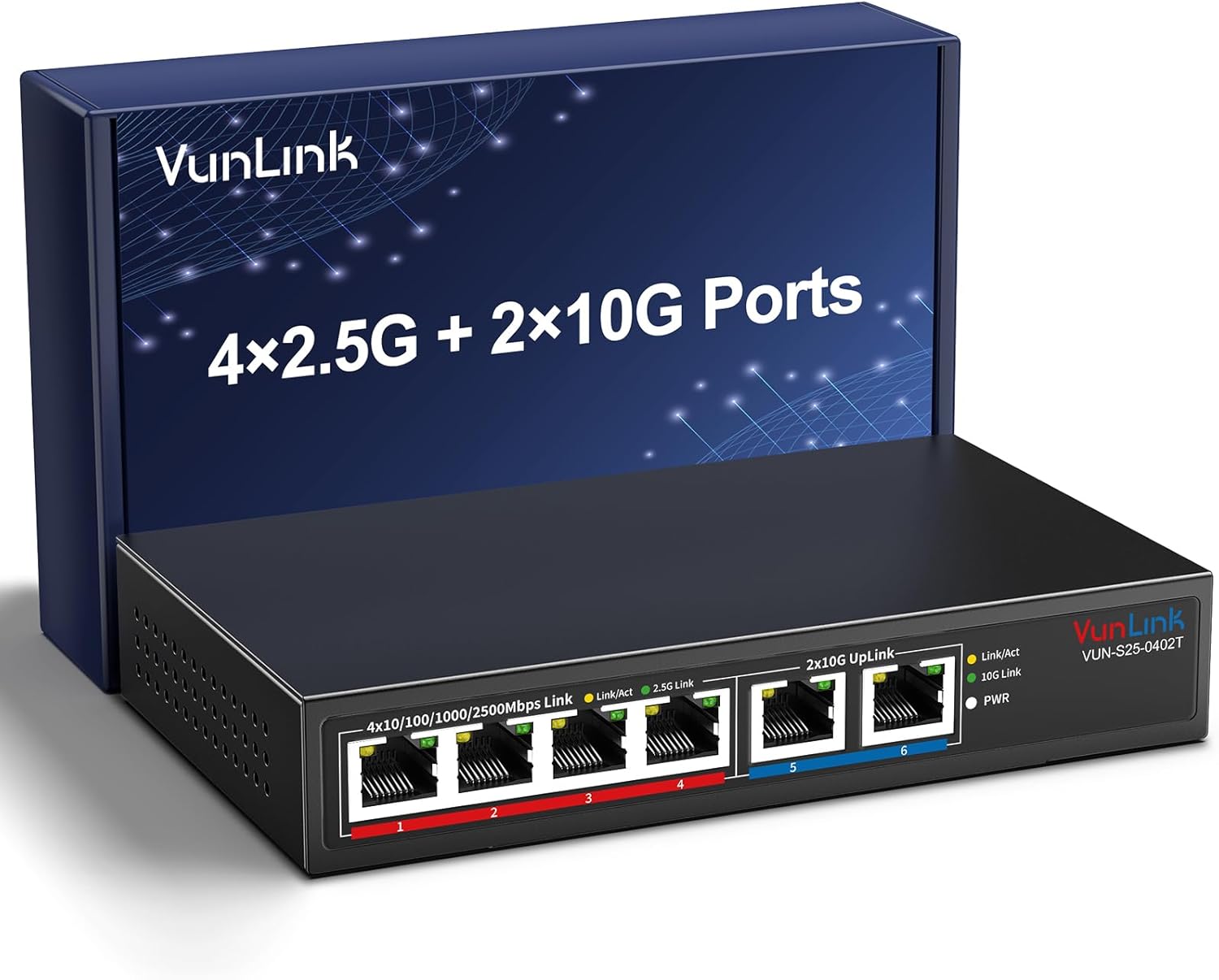
- Four 2.5GbE ports handle faster home network devices.
- Dual 10GbE RJ45 ports provide high-speed backbone connections.
- 60Gbps switching capacity supports heavy simultaneous network traffic.
- Fanless metal housing keeps everyday operation quiet.
- Unmanaged plug-and-play design requires no software configuration.
The two 10G ports are what make this much more interesting than a basic home switch
The VunLink VUN-S25-0402T takes the number four position in our Best Gigabit Ethernet Switch For Home Network comparison because it gives a home network more headroom than a standard 1GbE switch. You get four 2.5GbE RJ45 ports alongside two faster 10GbE RJ45 ports, which creates a useful mix for PCs, NAS storage, WiFi access points, routers, and other wired devices.
This is not really a basic gigabit switch despite the keyword category. The network can run well beyond 1Gbps, while slower Gigabit Ethernet equipment can still connect through auto-negotiation.
The four main ports support 2.5Gbps, 1Gbps, and 100Mbps connections. That means an older smart TV or printer can coexist with a newer desktop PC or WiFi access point using 2.5GbE.
The two faster RJ45 ports support 10G, 5G, 2.5G, 1G, and 100Mbps. Those are the ports I would reserve for the devices most likely to move large amounts of data, particularly a NAS, workstation, server, or high-speed connection to another switch.
Dual 10GbE ports make a useful backbone because they stop the fastest devices from being forced through the same 2.5Gbps ceiling as everything else. In a home with network storage, that can matter much more than internet speed.
Imagine a NAS holding several terabytes of video, photos, backups, and shared files. A desktop connected at 10GbE can move that local data much faster than a traditional Gigabit Ethernet connection when the NAS drives, network adapters, cabling, and storage workload are also capable of keeping up.
That distinction between internet traffic and local traffic is important. Installing a 10GbE switch does not magically turn a 1Gbps internet service into 10Gbps internet.
What it can do is remove a slower network link between compatible devices inside the house. Local file transfers can benefit substantially even when the internet connection itself is much slower.
The 60Gbps switching capacity gives several devices room to work at once
VunLink specifies a 60Gbps switching capacity and forwarding performance of 44.64 million packets per second. Those numbers matter because a switch has to move traffic between several ports simultaneously rather than simply advertise the maximum speed of one connection.
For a normal home, you may never completely saturate every port. Still, having enough internal switching capacity means a NAS transfer, WiFi access point, gaming PC, and other wired devices can operate simultaneously without the switch itself immediately becoming the obvious bottleneck.
Multi-device traffic is the real use case. A home network is rarely just one computer talking to one router anymore.
You might have a NAS backing up two computers while another machine copies a large video project. At the same time, a WiFi access point can be serving phones, tablets, televisions, and other wireless devices.
The two 10G connections can be especially useful in that situation. One could connect to a 10GbE NAS while the other connects to a 10GbE workstation or upstream network device.
The four 2.5GbE ports then remain available for gaming PCs, WiFi 6 or WiFi 7 access points, smaller servers, or computers with 2.5GbE adapters. That is a fairly sensible home network layout without moving into large rack-mounted enterprise hardware.
Port planning matters before installation, though. Six ports disappear surprisingly quickly once one is used for the router or upstream connection.
Count every wired device before buying. Include the router, NAS, desktop computers, access points, smart-home hubs, media systems, and any other switches that need an uplink.
If you already need six connections today, buying a six-port switch leaves no room for expansion. That can mean adding another switch later and introducing more cabling and power supplies.
The unmanaged design keeps configuration simple. There is no requirement to build VLANs, configure trunks, or learn a management interface before the network starts working.
Plug-and-play operation suits home networks, particularly when the goal is simply to add faster wired ports rather than administer a complex managed network.
Connect the switch to the router, attach the other Ethernet devices, and auto-negotiation determines the appropriate supported link speed for each connection. Auto MDI/MDIX also removes the old concern about needing crossover cables for particular Ethernet connections.
There is a limitation to that simplicity. An unmanaged switch does not provide the same control as a managed model for VLAN segmentation, detailed traffic monitoring, link aggregation configuration, or advanced network policies.
For a straightforward home LAN, that may not matter at all. For a serious home lab with multiple isolated networks, it can become a reason to choose something more configurable.
Know whether you actually need management features before paying for them. Plenty of households just need reliable wired Ethernet with faster-than-gigabit links.
The fanless design is another practical advantage in a home environment. A network switch might sit in an office, bedroom, entertainment cabinet, or another area where a small cooling fan would be audible during quiet periods.
Passive cooling removes that source of noise. The metal enclosure also helps with heat dissipation, which matters because multi-gigabit Ethernet electronics can produce more heat than a very basic five-port Gigabit switch.
Do not bury it under other equipment, though. Fanless still requires reasonable ventilation, especially when several high-speed ports remain active for long periods.
Leave some space around the enclosure and avoid putting it directly on top of another hot device. A router, mini PC, NAS, and switch stacked tightly together can create a surprisingly warm equipment pile.
Why we placed this VunLink switch at number four
The desktop and wall-mount installation options make this fairly easy to integrate into a home network. It can sit beside a router or NAS, or move onto a wall when you want the Ethernet cabling away from the working surface.
Wall mounting can be particularly useful near a structured wiring point. Cables can run directly into the switch without occupying a shelf or desktop.
Plan the cable paths before mounting, because six connected Ethernet cables have more weight and stiffness than the empty switch suggests. Leave enough room to remove individual RJ45 connectors without taking the whole installation apart.
Cabling matters at 10Gbps as well. A network is only as fast as the slowest relevant link between the two devices communicating.
If a workstation has a 10GbE adapter but the NAS only supports 1GbE, the connection to that NAS remains limited by its 1GbE interface. The 10G switch cannot manufacture bandwidth that the endpoints do not support.
The same applies to intermediate equipment. Check every link in the network path, including adapters, router ports, NAS ports, switches, and cabling.
For short 10GBase-T connections, appropriate quality Ethernet cabling is important. Existing cable installations may work depending on category, distance, installation quality, and interference, but do not assume every old cable will maintain a stable 10Gbps link.
If a connection negotiates at 1Gbps or 2.5Gbps instead of the expected 10Gbps, test the cable before blaming the switch. Damaged connectors, poor terminations, and inappropriate cable runs are common causes of reduced link speed.
The front LEDs make that diagnosis easier because you can confirm link and activity status without opening software. The exact negotiated speed should still be checked from the connected device when troubleshooting performance.
Link speed and transfer speed are different. Seeing a 10Gbps Ethernet connection does not mean every file copy will run at 10Gbps.
Storage performance can become the next bottleneck. A slow hard drive may not provide enough throughput to take full advantage of a 10GbE network.
Protocol overhead, file size, CPU performance, NAS configuration, and the number of simultaneous transfers also affect real throughput. Thousands of tiny files can transfer very differently from one large video file.
This is why a high-speed switch is most useful as part of a balanced system. Pair it with capable endpoints rather than expecting one network upgrade to fix every performance limitation.
A fast NAS is a strong match for the 10GbE ports, particularly when multiple computers access large media files, backups, virtual machines, or shared project data.
For gaming, the benefit needs to be kept in perspective. Moving from 1GbE to 2.5GbE or 10GbE does not automatically lower an online game's internet latency.
Latency to a remote game server depends heavily on the internet connection, routing, server location, and ISP network. A faster LAN mainly helps when local bandwidth was actually the limiting factor.
Still, wired Ethernet can provide a stable connection and avoid some of the interference or congestion issues associated with WiFi. For a gaming PC sitting close enough to run cable, that can be worthwhile even if the connection never approaches 2.5Gbps.
Use Ethernet for consistency first, then consider multi-gig speed as additional capacity for downloads, local storage, and other high-bandwidth workloads.
WiFi 6 and WiFi 7 access points are another good reason to consider 2.5GbE. A modern access point can potentially serve enough wireless traffic that a traditional 1GbE uplink becomes restrictive.
Connecting the access point to one of the 2.5GbE ports gives the wireless side more wired backhaul capacity. The actual wireless throughput still depends on clients, radio conditions, channel width, and the access point itself.
The VunLink does not provide PoE on these ports, based on the matching model specifications. That means an access point requiring Power over Ethernet will need its own power adapter or an appropriate PoE injector.
Do not assume Ethernet means PoE. Network data and electrical power over the same cable require explicit PoE support.
This can influence cable planning. If you are mounting an access point on a ceiling, a PoE switch may be cleaner because it avoids running separate mains power to the access point location.
For desktop PCs and NAS systems, lack of PoE is irrelevant. Those devices already have their own power supplies.
The switch also does not need software installation. This is useful when several operating systems share the network because the switching itself happens independently of Windows, macOS, Linux, or another client platform.
Network interface drivers still matter on each computer, of course. A 10GbE adapter needs to be recognized and configured properly by the host system.
Check NIC support before upgrading, particularly if you plan to add inexpensive 10GbE PCIe cards to older computers. Operating-system compatibility can matter more than the switch in that situation.
For a home office, I would probably use one 10G port for a NAS and the other for the main workstation if those devices support it. The four 2.5G ports could then handle the router, another PC, an access point, and one spare connection.
Another sensible configuration is using one 10G port as the uplink to a larger core switch. That lets the VunLink operate as a smaller multi-gig edge switch in another room.
This is useful when several devices are clustered in an office or entertainment room but the main network equipment lives elsewhere. One faster uplink can carry the combined traffic back toward the rest of the network.
A 10G uplink gives expansion room that a basic Gigabit switch cannot provide.
For home backup workflows, the difference can be meaningful. A computer with several hundred gigabytes of new data can potentially complete network backups much faster when the workstation, switch, NAS, and storage are all capable of multi-gig throughput.
That matters even if normal internet browsing never uses more than a fraction of the available bandwidth. Local network speed has its own value.
The same applies to video production. Editing directly from network storage becomes more practical as network throughput increases, although the exact requirements depend on codec, bitrate, number of streams, and storage performance.
10GbE is useful for large local files, and that is where this switch separates itself from ordinary home Gigabit models.
There are reasons it sits fourth rather than higher. Six total ports are enough for a focused setup, but households with a lot of wired equipment may outgrow that count quickly.
The unmanaged design is convenient but removes advanced control. Users who want VLANs, detailed monitoring, traffic policies, or other managed-switch functions will need a different product.
There is also the question of how much speed a typical home actually needs. If every device has a 1GbE network interface and the internet connection is below 1Gbps, much of the VunLink's multi-gig hardware will initially sit unused.
The value improves with faster endpoints. A 2.5GbE PC, 10GbE NAS, fast router, or modern access point gives those ports something meaningful to do.
That makes this a better choice for a home network being upgraded rather than one expected to remain entirely Gigabit for years. You can connect existing 1GbE devices now and replace endpoints gradually.
Auto-negotiation helps with that transition. A slower device does not need a separate switch simply because it cannot use the maximum port speed.
For installation, connect the router or upstream network first and then add wired devices one at a time. Confirm that each port establishes a link before moving on.
If one device does not connect, swap its cable with a known working cable. Basic cable testing solves many network problems before deeper troubleshooting is necessary.
Also avoid creating accidental network loops. Connecting two ordinary cables between the same unmanaged switches without a properly configured aggregation or loop-prevention design can cause serious network disruption.
One uplink is enough for a normal unmanaged connection between switches. More cables do not automatically create more bandwidth.
The same caution applies when someone sees two 10G ports and assumes they should both connect to the router. Unless the equipment and configuration explicitly support the intended topology, keep the network layout simple.
Simple network layouts are easier to troubleshoot, especially with an unmanaged switch that does not provide a detailed management interface.
Labeling cables is worth doing once the network grows beyond a few devices. A small tag showing NAS, router, office PC, or access point can save time later.
The LEDs tell you which ports are active, but they do not tell you what is connected at the other end of a cable running through a wall. Labels solve that problem cheaply.
Keep a basic diagram too if the home network becomes more complicated. It does not need to be technical.
A simple drawing showing router, switch, NAS, access points, and room connections is enough. Documentation becomes useful during failures, when guessing which cable goes where is the last thing you want to do.
The fanless enclosure also makes placement easier in an office. There is no small fan constantly ramping up beside the desk.
Passive operation means dust is not being pulled through a fan in the same way either, although the exterior and ventilation areas should still be kept reasonably clean.
Do not enclose the switch in a sealed box. High-speed copper networking generates heat, and passive cooling depends on that heat being able to leave the enclosure.
Give the metal chassis some airflow, particularly if both 10G ports are handling sustained transfers.
VunLink also lists a one-year warranty and lifetime technical support for this product family. That is useful for a networking device likely to remain powered continuously rather than being used only occasionally.
A home switch normally runs 24 hours a day. Stability and thermal behavior therefore matter more than flashy configuration features that may never be used.
Once installed correctly, an unmanaged switch should largely disappear from daily attention. Devices connect, traffic moves, and there is little reason to interact with the hardware unless something changes.
That low-maintenance design suits home networking, where most people do not want another dashboard requiring regular

- Four 2.5GbE ports support faster wired home devices.
- Dual 10GbE RJ45 ports provide high-speed network connections.
- 60Gbps switching capacity handles multiple high-bandwidth data streams.
- Fanless metal construction provides quiet everyday home operation.
- Plug-and-play setup requires no software or switch configuration.
This is a small switch with much more bandwidth than a basic gigabit model
The GiGaPlus G6 takes the number five position in our Best Gigabit Ethernet Switch For Home Network comparison because it goes considerably beyond ordinary Gigabit Ethernet. You get four 2.5GbE RJ45 ports plus two 10GbE RJ45 connections, giving a six-port layout that makes sense for faster home networks, NAS storage, gaming PCs, WiFi 6 equipment, and other multi-gig devices.
The four main ports automatically support 100Mbps, 1Gbps, and 2.5Gbps connections. That backward compatibility matters because you can mix older and newer devices without replacing every Ethernet adapter in the house at once.
A normal Gigabit desktop PC can connect at 1Gbps while a newer computer with a 2.5GbE network adapter can negotiate at 2.5Gbps. The switch handles the connection speed automatically rather than requiring manual configuration.
The two 10GbE RJ45 ports are the more interesting part. They support multi-gig rate adaptation including 1G, 2.5G, 5G, and 10G, so they can be used with different generations of faster network equipment.
The dual 10G connections add useful headroom when a NAS, server, workstation, or another switch needs substantially more bandwidth than a standard Gigabit connection can provide. This is particularly useful when several 2.5GbE clients need to communicate with one fast storage device.
Imagine a home where two PCs regularly access the same NAS. If the NAS itself is connected through only a 1Gbps port, both computers are effectively competing for that limited connection when transferring large files at the same time.
Connect a compatible NAS through 10GbE and the bottleneck can move somewhere else in the system. The individual computers may still connect at 2.5Gbps, but the shared storage has much more aggregate network bandwidth available.
The 60Gbps switching capacity makes sense once several devices get busy
GiGaPlus specifies 60Gbps of switching capacity for this model. That number describes the internal capacity available for moving traffic between ports rather than the speed of one individual Ethernet connection.
This distinction matters. A 60Gbps switching fabric does not make a 2.5GbE port run at 60Gbps, but it helps the switch handle simultaneous traffic across multiple connections without forcing everything through one narrow internal path.
For a home network, that becomes useful when several things happen at once. One computer might copy a large video project to the NAS while another streams high-bitrate media and a WiFi access point carries traffic for phones, tablets, and smart-home devices.
A simpler Gigabit switch can still handle ordinary internet browsing perfectly well. The GiGaPlus becomes more relevant when local network traffic is substantial and the devices themselves support speeds beyond 1Gbps.
This is an important point when shopping for the Best Gigabit Ethernet Switch For Home Network. Your internet plan does not determine every reason to use a faster switch.
Local network speed can matter independently of internet speed. Moving a 100GB video archive between a workstation and NAS is a local transfer, so a faster Ethernet connection can help even if the home's internet connection is much slower.
At theoretical line rates, 1Gbps represents roughly 125MB per second before protocol overhead, while 2.5Gbps represents roughly 312.5MB per second. A 10Gbps link represents roughly 1.25GB per second before overhead and before considering storage limitations.
You will not automatically achieve those file-transfer figures. The computers, network adapters, cables, NAS processor, storage drives, file protocol, and other factors all affect actual throughput.
An older hard drive may become the bottleneck long before a 10GbE connection does. A fast SSD-based NAS has a much better chance of taking advantage of multi-gig networking.
Network speed is only one part of the path. Upgrading the switch while leaving every computer on Gigabit Ethernet will not suddenly produce 2.5G or 10G transfers.
The same applies to cabling. Good Ethernet cabling and properly terminated connectors matter increasingly as link speeds rise.
For short home-network runs, existing quality cabling may already support multi-gig speeds depending on the cable category, installation quality, and distance. For new permanent installations intended around 10GbE, plan the cabling properly rather than assuming any old patch cable is ideal.
The switch supports auto MDI/MDIX, so ordinary modern Ethernet connections do not require worrying about crossover cables. Plug the devices into the appropriate ports and let the hardware negotiate.
There is no management interface to configure because this is an unmanaged Ethernet switch. For many home users, that is exactly the attraction.
Connect the switch to the router or upstream network, connect the wired devices, provide power, and the switch begins forwarding traffic. There is no need to create VLANs, configure spanning-tree options, or learn a switch-management dashboard.
That simplicity is useful in a home where the goal is just more Ethernet ports and higher wired speeds. Someone who wants advanced network segmentation or detailed traffic controls should look at a managed switch instead.
Why the GiGaPlus finishes fifth rather than reaching our top four
The fanless construction is one of the strongest home-friendly features. There is no small cooling fan constantly running beside a desk, entertainment cabinet, or home office.
Fanless operation keeps the switch quiet, which matters more at home than it might in a dedicated server room. A tiny high-pitched network fan can become surprisingly noticeable in a quiet workspace.
The metal enclosure also helps with durability and passive heat dissipation. Multi-gig Ethernet hardware can run warmer than basic 1Gbps equipment, so do not bury the switch underneath papers or place it inside an airtight cabinet.
Leave some open space around the chassis. Passive cooling depends on heat being able to escape into the surrounding air.
The switch supports both desktop and wall mounting. Wall mounting can be useful around a structured wiring area where the router, patch panel, NAS, and other networking equipment already occupy limited shelf space.
Mounting can also improve cable organization. Instead of six Ethernet cables spreading across a desk, the switch can sit closer to where the permanent network runs terminate.
Think about cable direction before fixing it permanently to a wall. You want enough bend radius for the Ethernet cables and easy access if one connection needs to be replaced later.
The 6kV lightning-protection specification is another useful hardware feature, although it should not be misunderstood. It does not mean the switch or connected computers are guaranteed to survive a direct lightning strike.
Proper electrical protection still matters. If networking equipment is valuable, use sensible surge protection and follow appropriate building and electrical practices.
Protection features reduce risk rather than eliminate it, especially with severe electrical events.
The two 10GbE RJ45 ports are particularly useful for a NAS and a high-performance workstation. You could connect both at 10GbE while leaving four 2.5GbE ports available for other computers or network equipment.
Another arrangement would use one 10GbE connection as the link toward a larger core switch and the second for a NAS. The four 2.5GbE connections then serve local devices in the room.
A WiFi 6 access point with a 2.5GbE Ethernet interface can also make sense on one of those ports. The wired connection then has more headroom than ordinary Gigabit Ethernet.
Multi-gig WiFi benefits from multi-gig Ethernet when the access point and surrounding network equipment actually support those speeds. Otherwise the wired uplink can become the limiting connection.
Gaming is another use case, although the benefit needs to be described accurately. Moving from 1Gbps to 2.5Gbps does not automatically reduce online gaming latency dramatically.
Game traffic itself usually consumes far less than a gigabit. The faster connection is more useful for large downloads, local transfers, game-library backups, and situations where several devices are moving significant amounts of data simultaneously.
If a game download is limited by the internet connection or remote server, installing a 10GbE switch will not make that server send data faster. The slowest part of the complete connection still determines the result.
Do not buy 10GbE solely for lower ping. Buy it because your local network, internet connection, or high-speed devices can actually use the additional bandwidth.
The same principle applies to 4K streaming. A single normal 4K stream does not require 10Gbps Ethernet.
Where faster networking becomes interesting is when several high-bandwidth activities overlap or when large media files are stored locally. A home media server can serve multiple devices while another workstation performs a large transfer.
For photographers and video editors, a fast NAS is probably the strongest home use case. Large RAW libraries, 4K footage, project archives, and backups can make Gigabit Ethernet feel slow once file sizes reach hundreds of gigabytes.
Large local transfers expose Gigabit limitations quickly. This switch gives compatible equipment several paths beyond that 1Gbps ceiling.
The two 10G ports use RJ45 rather than SFP+ cages. That can simplify a home setup because ordinary copper Ethernet connectors are familiar and existing structured cabling may be usable when it meets the requirements.
There is a tradeoff. 10GBASE-T hardware can consume more power and produce more heat than some SFP+ arrangements, particularly over longer copper links.
For a small home network, though, RJ45 can be easier to deploy. There is no need to choose separate optical modules or direct-attach cables for a basic copper installation.
RJ45 makes 10G more approachable for someone upgrading an existing Ethernet network rather than building a rack around enterprise networking hardware.
Port count is one reason this switch does not rank higher. Six ports can be enough for a focused high-speed home network, but larger homes can fill them surprisingly quickly.
One connection may go to the router, another to a NAS, another to a desktop PC, another to an access point, and suddenly only two remain. Add a gaming PC and media server and the switch is full.
Count the devices before buying and leave some room for expansion. Replacing a perfectly functional switch because every port was occupied six months later is avoidable.
Plan for future wired devices too, not only what is connected today.
This model also lacks PoE. That means it does not provide electrical power over Ethernet to compatible access points, cameras, or other PoE devices.
If your home network includes several ceiling-mounted WiFi access points or security cameras, a PoE switch can simplify installation by carrying power and data over the same cable.
With this GiGaPlus, those devices need their own power arrangement or separate PoE injectors. That can make another switch more convenient even if its raw Ethernet speeds are similar.
No PoE is a meaningful limitation for homes building a wired camera or access-point network.
The unmanaged design is another tradeoff. It is excellent for plug-and-play operation but does not provide the advanced controls that networking enthusiasts may want.
If you need VLAN configuration, port monitoring, link aggregation controls, detailed QoS management, or other managed features, this is not the right category of switch.
For ordinary home use, that may be completely irrelevant. Many users want their Ethernet switch to sit quietly behind the router and require no attention.
Unmanaged networking keeps setup simple, which is often a positive rather than a missing feature.
Installation is straightforward. Connect one appropriate port to the router or upstream network and then attach your wired devices to the remaining ports.
There is no dedicated router function inside the switch. It does not replace your router, provide WiFi, assign internet addresses by itself, or create a second internet connection.
Your router continues handling routing, DHCP, firewall functions, and internet access. The switch expands the wired Ethernet network.
A switch and router do different jobs, and confusing them is a common mistake when building a first home network.
For troubleshooting, check the physical link first. Make sure the Ethernet cable is fully seated and confirm the port indicators show a connection.
If a 2.5GbE computer negotiates at only 1Gbps, inspect the complete path. The computer's network adapter, cable, switch port, and any wall jacks or patch panels all need to support the intended connection quality.
Also check the network adapter settings and drivers on the computer. One component falling back to Gigabit can limit the entire link.
Every part of the connection matters when troubleshooting multi-gig Ethernet.
For 10GbE, storage performance becomes especially important. A single mechanical hard drive may not sustain transfers anywhere near the theoretical capacity of a 10Gbps network connection.
An SSD array or fast NVMe-based system has a much better chance of using that bandwidth. This is why 10GbE often makes the most sense around high-performance NAS systems and workstations.
Do not judge the switch solely from one file-copy test without checking the source and destination storage. The network may not be the limiting component.
Fast Ethernet needs fast endpoints if you want to see the headline speeds in real file transfers.
The fanless metal design makes placement fairly flexible. It can sit in an office, entertainment area, or networking cabinet without adding fan noise.
Just avoid stacking heat-producing devices directly on top of one another. A router, mini PC, NAS, and switch all producing heat inside a closed cabinet can raise temperatures considerably.
Wall mounting can help create separation and improve airflow. It can also keep the Ethernet cables away from a work surface.
Good placement supports passive cooling, which is particularly important with fanless multi-gig networking equipment.
Why rank it fifth? The answer is mostly balance.
The four 2.5GbE plus two 10GbE layout is fast and genuinely useful, but six total ports limit expansion compared with larger home-network switches. The lack of PoE and management features also narrows the types of network it can serve without additional hardware.
The products above it in our comparison provide combinations we consider stronger for a broader range of home-network installations. Some users need more ports, more flexible high-speed connectivity, or features better suited to a growing network.
The GiGaPlus focuses heavily on raw speed, and it does that well. It is less comprehensive when the home network starts requiring power delivery, advanced management, or many wired endpoints.
That makes it particularly attractive for a smaller performance-oriented network. A NAS, gaming PC, workstation, WiFi 6 access point, and router can fit into the six-port arrangement without wasting space on dozens of unused connections.
For a home editor or content creator, the dual 10G ports are probably the highlight. Put the main workstation and storage system on 10GbE and use the 2.5GbE ports for everything else.
For a more ordinary household, the switch provides room to grow beyond Gigabit without forcing every device to upgrade immediately. Existing 1GbE hardware can continue operating alongside newer 2.5G and 10G equipment.
Mixed-speed compatibility makes upgrading gradual, which is much more practical than replacing an entire home network at once.
We believe the GiGaPlus G6 deserves the number five ranking out of seven for Best Gigabit Ethernet Switch For Home Network because it combines four 2.5GbE ports, two adaptive 10GbE RJ45 ports, 60Gbps switching capacity, automatic speed negotiation, non-blocking forwarding, a fanless metal enclosure, and plug-and-play operation.
It ranks below our first four mainly because six total ports can become restrictive in a larger wired home, there is no PoE for access points or cameras, and the unmanaged design provides no advanced network controls. Those limitations matter more as a network becomes complicated.
For a smaller high-performance home network, however, the feature set is strong. Connect a fast NAS or workstation through 10GbE, use the four 2.5GbE ports for modern PCs and access points, keep the chassis ventilated, and make sure your cables and network adapters support the

- Twenty-four Gigabit Ethernet ports support larger wired home networks.
- 48 Gbps switching capacity handles simultaneous network traffic efficiently.
- Plug-and-play unmanaged operation requires no software configuration.
- Fanless metal design provides quiet continuous home operation.
- Rackmountable housing works neatly inside structured network installations.
Twenty-four Gigabit ports is a lot of room for a home network
The TP-Link TL-SG1024 takes the number six position in our Best Gigabit Ethernet Switch For Home Network comparison because it gives you something many compact home switches cannot: 24 dedicated Gigabit Ethernet ports in one straightforward unmanaged unit. Every port supports 10, 100, and 1000 Mbps connections, so older and newer wired devices can share the same switch.
That amount of connectivity is useful in a larger wired home. Think desktop computers, televisions, game consoles, network storage, access points, printers, media players, smart-home hubs, and Ethernet runs going to different rooms.
Twenty-four Gigabit Ethernet ports also leave room for expansion. A common mistake when buying a network switch is choosing exactly enough ports for today's equipment, then discovering six months later that another access point, NAS, camera system, or office computer needs a connection.
The TL-SG1024 has a 48 Gbps switching capacity. That number makes sense for a 24-port Gigabit switch because each Gigabit connection can send and receive traffic, and the internal switching fabric needs enough capacity to move data between active ports without turning one busy connection into a bottleneck for everything else.
For a normal home, you probably will not have all 24 ports transferring data at full speed simultaneously. Still, the 48 Gbps switching capacity matters when several wired devices are active at the same time.
A good example is a home with a NAS. One computer might be transferring a large backup while another television streams local media and somebody else downloads a game.
The switch handles those local Ethernet connections independently rather than forcing every device through one shared wireless link. That is one of the main reasons wired Ethernet remains useful even in homes with strong Wi-Fi.
Gigabit Ethernet has a theoretical link rate of 1,000 Mbps per port. Actual file-transfer throughput will be lower after protocol overhead and will also depend on the computers, storage devices, cables, and network configuration at both ends.
The plug-and-play design is exactly what many homes actually need
The TL-SG1024 is an unmanaged switch. There is no complicated management interface that needs to be configured before basic networking works.
Connect one Ethernet cable from the router or upstream network equipment, connect the other wired devices, power on the switch, and the ports automatically negotiate appropriate link speeds with compatible equipment. No network management software is required for ordinary operation.
That makes the TL-SG1024 useful for people who need more Ethernet ports but do not need VLAN configuration, detailed traffic monitoring, link aggregation controls, or other managed-switch features.
Auto-negotiation is particularly useful in a mixed home network. A Gigabit desktop can establish a 1000 Mbps link while an older 100 Mbps device can remain connected through another port.
Auto MDI/MDIX support also removes an old networking annoyance. Modern Ethernet connections can determine the required cable wiring automatically rather than making the user worry about crossover cables for certain device combinations.
Ordinary Ethernet cables are all you need for typical installations, assuming the cable category and condition are suitable for Gigabit Ethernet.
For reliable 1 Gbps networking, Cat5e or better is a sensible baseline. Existing Cat5e wiring can often handle Gigabit Ethernet perfectly well, so replacing every cable with something expensive is usually unnecessary.
The important thing is cable condition. A damaged connector, badly terminated wall jack, or poor cable can cause a link to negotiate at 100 Mbps rather than 1 Gbps.
If one computer suddenly seems much slower than everything else, check the negotiated Ethernet link speed before blaming the switch. A device connected at 100 Mbps will never deliver Gigabit transfer speeds no matter how capable the switch is.
Check link speed before troubleshooting throughput. This simple step can save a lot of unnecessary router resets and equipment replacements.
The TL-SG1024 also uses IEEE 802.3x flow control for full-duplex operation and backpressure for half-duplex operation. These technologies help manage traffic when receiving equipment cannot process incoming frames as quickly as they arrive.
For most home users, none of that requires configuration. It happens behind the scenes, which fits the purpose of an unmanaged network switch.
The fanless design is another feature I like for residential use. A switch may stay powered 24 hours a day, and a small high-pitched fan becomes much more noticeable in a quiet office or media room than it does inside a commercial server room.
Fanless operation keeps the switch quiet, while the metal housing provides a more substantial enclosure than a lightweight plastic desktop switch.
Fanless does not mean ventilation can be ignored. Leave some open space around the chassis and avoid burying the switch under routers, power adapters, or other equipment producing heat.
This matters particularly inside enclosed cabinets. Networking hardware is designed for continuous operation, but trapping heat around several devices can increase operating temperatures unnecessarily.
Why we placed the TL-SG1024 sixth rather than higher
The biggest limitation is straightforward: every network port tops out at Gigabit Ethernet. That is perfectly adequate for many homes, but the products higher in our ranking offer faster 2.5G or 10G networking that can make a major difference for modern high-speed local networks.
Consider a NAS containing large video projects. A 1 Gbps Ethernet connection provides a theoretical maximum of 125 MB per second before networking overhead, while a 2.5 Gbps or 10 Gbps link has substantially more bandwidth available.
Gigabit can become the local bottleneck when both the computer and storage system are capable of transferring data much faster. This is increasingly relevant with SSD-based NAS systems, high-performance workstations, and multi-gig internet services.
For ordinary internet browsing, streaming, smart-home equipment, and many game consoles, Gigabit Ethernet is still plenty. A 4K video stream does not come remotely close to consuming a full Gigabit link under normal circumstances.
The limitation becomes more noticeable during large local transfers. Copying hundreds of gigabytes to a NAS exposes the difference between 1G and multi-gig networking much more clearly than loading a website.
This is one reason our higher-ranked choices prioritize 2.5G and 10G capability. They provide more headroom for the kinds of devices appearing in newer home networks.
The TL-SG1024 takes the opposite approach. It prioritizes port count over multi-gig speed, giving you 24 wired connections rather than a smaller number of very fast ports.
That tradeoff can actually be the right one in a larger house. If you have Ethernet wall outlets running to bedrooms, televisions, offices, access points, and other fixed equipment, having 24 ports may be more valuable than having five 10G ports.
Imagine a structured wiring cabinet with twelve room connections, three wireless access points, two smart-home bridges, a NAS, printer, television equipment, and an uplink to the router. A five-port high-speed switch would not come close to handling the physical connection count.
The TL-SG1024 can handle that layout in one chassis. It also leaves spare ports for future devices.
The 24-port layout suits wired houses particularly well, where the network switch acts as the central point for Ethernet cabling distributed around the property.
The switch is rackmountable too. That makes installation cleaner if the home already has a network rack, patch panel, NAS, router, or other structured networking equipment.
Instead of several small desktop switches sitting on shelves with power adapters everywhere, one 24-port rackmount unit can centralize the connections.
Patch panels work especially well with this arrangement. Permanent Ethernet runs from different rooms terminate at the patch panel, then short patch cables connect those ports to the switch.
A patch panel keeps permanent wiring organized, and it reduces repeated handling of the cables running inside the walls.
For a simpler installation, rack mounting is not mandatory. The TL-SG1024 can still be used as normal network equipment on a suitable flat surface.
Just remember that it is considerably wider than a compact five or eight-port desktop switch. Check the intended installation space before ordering rather than assuming it will fit beside a consumer router.
Port labeling is worth doing in a 24-port home installation. Once twenty similar Ethernet cables disappear into walls, remembering which cable serves which room becomes difficult.
Label both ends of every cable, ideally with the room and wall-jack location. This makes troubleshooting much faster later.
If a bedroom Ethernet socket stops working, you should be able to identify its switch port immediately rather than unplugging cables one at a time.
The same principle applies to patch cables connected directly to devices. A little organization during installation saves a lot of confusion years later.
The LEDs provide basic link and activity information. They are useful when checking whether a device has established a physical Ethernet connection.
If the LED is completely inactive, start with the physical layer. Check the cable, wall jack, device Ethernet port, and switch connection before changing software settings.
Physical checks should come first because a surprising number of home networking problems are simply damaged cables or loose connectors.
If the link exists but internet access does not, then move further up the network. Remember that the switch itself does not replace a router.
This distinction is important for first-time network builders. A switch expands the number of Ethernet connections available on an existing network, while the router normally handles functions such as internet routing, DHCP, NAT, and firewalling.
Connect the switch to the LAN side of the router. Then connect computers and other network devices to the remaining switch ports.
The switch expands your wired LAN, but it does not independently create an internet connection or perform the normal job of a home router.
Another limitation is the absence of PoE. The TL-SG1024 is a standard Gigabit switch rather than a Power over Ethernet model.
If you want to power compatible security cameras, access points, or VoIP phones directly through Ethernet, you will need separate PoE injectors or a dedicated PoE switch.
This matters in a larger home network because wireless access points and cameras are common reasons people install structured Ethernet in the first place. A PoE switch can reduce the number of separate power adapters required.
No built-in PoE means additional planning if powered network devices are part of the installation.
For ordinary desktops, televisions, consoles, NAS units, printers, and other independently powered equipment, PoE is irrelevant. Those devices only need the data connection.
The unmanaged design creates another tradeoff. There are no VLAN controls or advanced traffic-management settings for users building more complex segmented networks.
For a basic household LAN, that is actually convenient. You do not need to configure anything.
For a home lab, advanced smart-home network, or security-conscious setup separating IoT devices from personal computers, a managed switch provides much more control.
Unmanaged networking favors simplicity, while managed networking favors configuration and segmentation.
Do not buy a managed switch just because it sounds more advanced if you have no intention of using those features. Extra settings are only useful when they solve an actual networking requirement.
The TL-SG1024's plug-and-play approach can be ideal for a household that simply wants every Ethernet wall outlet connected reliably. There is very little ongoing administration.
Power consumption is also relevant because a network switch normally runs continuously. TP-Link incorporates its energy-efficient Ethernet technology to adjust power use based on link status and cable conditions.
That does not turn a 24-port switch into a zero-power device, obviously. But unused ports do not need to behave exactly like heavily active connections all the time.
Continuous equipment should be energy conscious, especially when it stays powered every hour of the year.
For placement, avoid stacking the switch directly on equipment that becomes hot. A modem, router, NAS, and switch all sitting tightly together can trap heat.
Use a rack shelf or appropriate spacing if several network devices share one cabinet. Keep vents unobstructed.
A small UPS is worth considering for the central network equipment too. If the router and switch lose power during every brief electrical interruption, the entire wired network goes offline.
A UPS can keep networking stable through short outages and voltage disturbances, depending on its capacity and the connected equipment.
This is particularly useful if the home uses network storage, security systems, or smart-home controllers that need continuous connectivity.
The switch itself does not store configuration because there is essentially no user configuration to maintain. After power returns, it can resume normal switching operation without rebuilding a complex setup.
That simplicity is one of the understated advantages of unmanaged switches. There is very little to misconfigure.
Plug it in and connect Ethernet describes most of the setup process, which is exactly what many home users want.
Cable quality still determines whether Gigabit links operate reliably. Cat5e is normally sufficient for 1000BASE-T over standard Ethernet distances when properly installed.
Cat6 can be a sensible choice for new wiring because it provides additional performance headroom and is widely available. The important thing is proper termination and installation rather than buying cable based only on marketing claims.
A poorly crimped expensive cable can perform worse than a correctly installed basic Cat5e cable. Network speed depends on the complete link.
Good termination matters as much as cable category, especially with permanent wall wiring.
If a particular port only negotiates at 100 Mbps, swap the patch cable first. Then test the device directly with another known-good cable.
If the problem disappears, the switch was probably never the issue. This kind of simple isolation makes home network troubleshooting much faster.
For gaming, Gigabit Ethernet is more than enough in terms of bandwidth. Online games generally use relatively little sustained throughput compared with large file transfers.
The bigger advantage is connection consistency. A wired Ethernet connection can avoid some of the interference and signal variability associated with Wi-Fi.
Gaming benefits from stable wired connectivity, although the switch itself cannot improve latency beyond what the router, internet provider, game server, and overall network path allow.
Do not expect replacing an existing functioning Gigabit switch with another Gigabit switch to suddenly reduce an internet ping from 40 ms to 10 ms. That is not how Ethernet switching works.
For streaming devices and televisions, the same logic applies. Gigabit bandwidth is comfortably above the requirements of typical high-resolution video streams.
The switch becomes particularly useful when several entertainment devices share one location. A television, console, streaming box, AV receiver, and media player can all have dedicated wired connections.
Wired entertainment devices reduce Wi-Fi load, leaving wireless capacity available for phones, tablets, and equipment that actually needs mobility.
A NAS is another natural device to connect. Gigabit Ethernet provides reliable local file sharing, backups, and media streaming.
Just understand the speed ceiling. A fast NAS with multiple SSDs may be capable of far more throughput than a single 1 Gbps Ethernet connection can carry.
This is where the higher-ranked multi-gig switches become more attractive. They let capable computers and storage systems communicate at several times Gigabit speed.
Fast storage benefits from faster Ethernet, particularly when transferring large video files, backups, virtual machines, or other multi-gigabyte datasets.
The TL-SG1024 therefore makes most sense when connection count matters more than extreme individual-port speed. That describes plenty of larger home networks.
Twenty-four Gigabit ports can connect an entire wired house through one central switch. A smaller 10G switch may be much faster per port but require additional switches simply to accommodate every cable.
You can also combine approaches. A home could use the TL-SG1024 for ordinary Gigabit devices and a smaller multi-gig switch for high-performance computers and NAS equipment.
Not every device needs 10G Ethernet. Smart televisions, printers, many consoles, and ordinary IoT bridges gain little from a 10 Gbps link.
This mixed-network approach can be more economical than replacing every switch and network adapter with multi-gig hardware at once.
It also allows future upgrades to happen gradually. High-bandwidth devices can move to faster networking when there is an actual reason.
We placed the TL-SG1024 sixth because the Best Gigabit Ethernet Switch For Home Network category now includes products with substantially faster multi-gig capabilities. A 24-port Gigabit switch remains useful, but it provides less future bandwidth for high-performance devices.
The main compromise is speed versus port count. This TP-Link gives you a lot of connections, but each one is limited to 1 Gbps.
There is no PoE and no managed networking either. Users wanting powered cameras, VLANs, advanced monitoring, or detailed traffic controls need a different switch or additional equipment.
Those limitations explain why it does not place higher in our seven-product comparison. They do not make the TL-SG1024 obsolete for ordinary wired
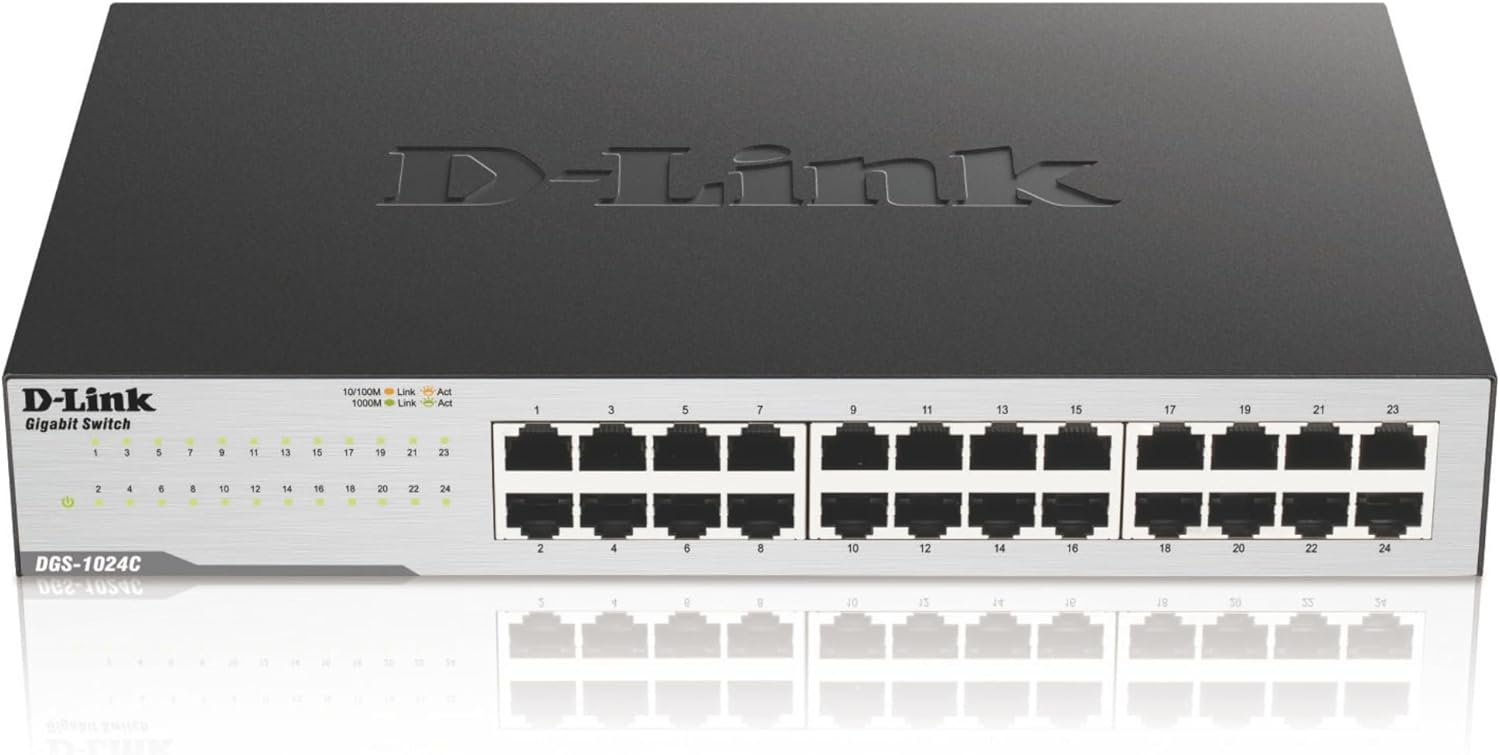
- Twenty-four Gigabit Ethernet ports support extensive wired home networks.
- 48 Gbps switching capacity handles simultaneous network traffic efficiently.
- Fanless metal construction provides completely silent everyday operation.
- Plug-and-play setup requires no software or manual configuration.
- Energy Efficient Ethernet reduces power use on inactive connections.
Twenty-four Gigabit ports still makes a lot of sense in a wired home
The DGS-1024C takes the number seven position in our Best Gigabit Ethernet Switch For Home Network comparison, but the basic hardware is still quite capable. You get 24 dedicated 10/100/1000 Mbps Ethernet ports, a 48 Gbps switching capacity, fanless operation, and a completely unmanaged plug-and-play setup.
The 24-port layout is the main reason somebody would choose this over a small five or eight-port desktop switch. If your house has Ethernet running into several rooms, twenty-four ports provide useful expansion room without forcing you to connect several smaller switches together.
Think about a home with Ethernet wall jacks in four bedrooms, an office, living room, media room, and garage. Add a NAS, two or three wireless access points, smart-home hubs, televisions, consoles, desktop computers, and the connection back to the router, and a smaller switch fills surprisingly quickly.
The DGS-1024C gives each of those devices its own physical port. Every port automatically negotiates between 10 Mbps, 100 Mbps, and Gigabit Ethernet depending on the connected hardware.
That backwards compatibility is useful in real homes. An older smart-home bridge can connect at 100 Mbps while a desktop computer and NAS establish 1 Gbps links on other ports.
You do not configure port speeds manually for ordinary use. Connect the cable and the switch negotiates the appropriate link with the device on the other end.
D-Link rates the internal switching capacity at 48 Gbps, with a maximum forwarding rate of 35.712 million packets per second. For a 24-port Gigabit switch, that gives the hardware enough switching fabric to move traffic across multiple active ports without treating the whole device like one shared 1 Gbps connection.
This distinction matters. If one computer is copying files from a NAS while another television streams local media, those connections can operate independently through the switching fabric.
The unmanaged design keeps home networking pleasantly straightforward
The DGS-1024C is an unmanaged Ethernet switch. There is no web administration panel that needs to be configured before basic networking works.
Connect the switch to a LAN port on your router, attach the other Ethernet devices, provide power, and the network can begin operating. Plug-and-play installation is the whole idea here.
This is useful if your goal is simply to expand the number of wired connections available around the house. You do not need to understand VLANs, spanning tree configuration, link aggregation, or managed switch policies just to connect a television and desktop computer.
It is important to understand what the switch does not do, though. It does not replace your router.
Your router normally handles internet routing, DHCP address assignment, NAT, firewall functions, and the connection between your local network and internet service. The D-Link expands the wired side of that existing network.
Connect the switch behind your router, rather than treating it as the device that directly replaces the router.
Auto MDI/MDIX is supported on the Ethernet ports as well. This removes the old requirement to think about straight-through versus crossover Ethernet cables when connecting different types of network equipment.
For ordinary home installation, use properly terminated Ethernet cabling and let the switch handle negotiation. Cat5e is sufficient for standard Gigabit Ethernet in a properly installed network, while Cat6 is a sensible option for new cabling and future planning.
Do not assume an expensive cable automatically fixes network problems. Bad terminations, damaged connectors, and poorly installed wall jacks can prevent an otherwise capable cable from establishing a Gigabit link.
Check the negotiated link speed first if one device seems unusually slow. A computer that has fallen back to a 100 Mbps connection cannot transfer data at Gigabit speeds regardless of how fast the switch is.
The DGS-1024C also supports IEEE 802.3x flow control and store-and-forward switching. These features operate automatically and help the switch manage normal Ethernet traffic without requiring user intervention.
IEEE 802.1p QoS is supported as well, with D-Link specifying eight queues and strict priority operation. This can help prioritize time-sensitive network traffic such as streaming media and VoIP during periods of heavier activity.
Again, this is an unmanaged switch. The traffic handling happens automatically rather than providing the detailed QoS rules and manual configuration available on a managed model.
The switch supports jumbo frames up to 9,216 bytes. Jumbo frames can reduce packet-processing overhead in certain local network workloads, particularly large file transfers, when the complete network path is configured compatibly.
Do not enable jumbo frames randomly on one computer and expect an automatic speed increase. The devices and network path involved need compatible settings, and normal 1500-byte Ethernet frames remain perfectly appropriate for most home networks.
For a basic internet connection, jumbo frames are not something most users need to touch. They become more relevant in specialized local networking environments.
Leave advanced settings alone unless needed, particularly when the network is already operating reliably.
The fanless design is much more immediately useful. D-Link specifies an acoustic output of 0 dB because there is no cooling fan.
That makes the DGS-1024C suitable for a home office, media room, closet, or other location where a small constantly spinning network fan would become annoying. Network switches generally stay powered around the clock, so quiet operation matters more than it initially sounds.
The metal enclosure helps with durability and passive heat management. D-Link lists the chassis at approximately 282.2 x 178 x 44.5 mm and around 1.14 kg for the current specification.
Fanless does not mean ventilation is optional, though. Leave enough space around the switch for heat to dissipate rather than stacking several warm network devices tightly together.
This is particularly important in a closed wiring cabinet. A modem, router, NAS, switch, and power supplies can collectively produce a fair amount of heat even when each individual device seems modest.
The DGS-1024C has a listed maximum power consumption of 13.5 watts, with standby consumption around 6.5 watts. IEEE 802.3az Energy Efficient Ethernet is built in to reduce unnecessary power consumption.
The switch can reduce power use on inactive links and optimize consumption according to cable conditions. That is useful because network infrastructure normally operates continuously rather than only when somebody is actively using a computer.
Energy efficiency matters on always-on hardware, even when the absolute wattage is relatively modest.
Why this D-Link finishes seventh in our seven-switch comparison
The biggest reason is speed. Every Ethernet port on the DGS-1024C tops out at 1 Gbps, while several products higher in our ranking provide 2.5G and 10G Ethernet connections.
Gigabit Ethernet remains fast enough for a huge number of household devices. Smart televisions, streaming boxes, printers, game consoles, access points with Gigabit uplinks, and ordinary desktop computers can operate perfectly well on 1 Gbps links.
The difference becomes much more noticeable with fast local storage. Gigabit Ethernet limits high-speed file transfers when a modern NAS and computer are capable of moving data much faster.
A 1 Gbps link has a theoretical raw rate equivalent to 125 MB per second before protocol overhead. Actual large-file transfer speeds will be somewhat lower and also depend on the storage devices, network adapters, cables, and system configuration.
If you are moving 100 GB of video footage between an editing workstation and an SSD-based NAS, that Gigabit ceiling becomes noticeable. A 2.5G or 10G network can dramatically reduce transfer time when the devices at both ends are fast enough.
For web browsing or Netflix, the difference may be almost invisible. Most individual household internet activities do not require anything close to 1 Gbps continuously.
Local transfers expose network speed differences much more clearly than ordinary browsing.
This is why our higher-ranked switches emphasize multi-gig networking. They provide more future headroom for NAS systems, high-performance computers, Wi-Fi 7 access points, and internet connections exceeding 1 Gbps.
The D-Link instead prioritizes port count. You get 24 Gigabit connections rather than a smaller number of very fast multi-gig ports.
That tradeoff can still be completely reasonable. If you have twenty Ethernet cables arriving at a central cabinet, five 10G ports will not solve the physical connection problem.
Large wired homes benefit from port count, particularly when most connected devices do not require more than Gigabit bandwidth.
A practical installation might use the DGS-1024C for televisions, consoles, printers, ordinary computers, smart-home equipment, and wall outlets. A smaller 10G switch could then be added specifically for the NAS and high-performance workstations.
This hybrid approach avoids paying for 10G hardware on devices that cannot use it. A printer does not become more useful because it has access to a 10 Gbps network path.
The same is true for many televisions and smart-home hubs. Their actual network requirements are modest.
Not every device needs multi-gig Ethernet, so a conventional Gigabit switch can remain useful inside a faster overall network.
The absence of Power over Ethernet is another reason the DGS-1024C ranks lower. These are standard Ethernet data ports rather than PoE outputs.
If you want to power compatible wireless access points, security cameras, or VoIP phones through the Ethernet cable, this switch cannot provide that power by itself. Separate injectors or another PoE-capable switch would be required.
This matters in a modern home network because ceiling-mounted access points and wired security cameras are common reasons for installing Ethernet cabling. PoE lets those devices receive power and data through one cable.
No PoE means additional equipment may be needed for those installations.
If all your connected devices have their own power supplies, the absence of PoE makes no practical difference. Desktop computers, televisions, consoles, NAS units, and printers generally do not expect the network switch to power them.
The unmanaged design creates another limitation for advanced users. There is no configurable VLAN system for separating smart-home devices, trusted computers, guest networks, and security equipment.
There is also no detailed port monitoring or management interface. You cannot log into the switch and inspect traffic statistics the way you can with a managed network switch.
Simple networking is the priority here, not detailed network administration.
For many households, that is actually an advantage. If you have no intention of configuring VLANs or monitoring individual ports, a management interface is another system that needs passwords, updates, and administration.
The DGS-1024C can simply remain installed and switch Ethernet frames. There is very little for the owner to configure incorrectly.
The rackmountable design is particularly useful in a structured home network. The package includes rackmount hardware, allowing the switch to sit with patch panels and other network equipment rather than floating loose on a shelf.
A patch panel is worth considering when Ethernet cables run permanently through walls. Permanent cables should terminate cleanly, while short replaceable patch cables connect the panel to the switch.
This keeps the installation organized and reduces repeated handling of the in-wall cable terminations. It also makes troubleshooting easier because every room connection can be labeled clearly.
Label the switch ports too. With 24 similar Ethernet cables, remembering which one goes to the upstairs office becomes difficult very quickly.
A simple label such as Office Desk, Living TV, Bedroom 2, AP Hallway, or NAS makes future maintenance much easier. This becomes even more useful years later when somebody other than the original installer needs to understand the network.
Good labeling saves troubleshooting time, and it costs almost nothing during the original installation.
The port LEDs provide basic link and activity information. If a room suddenly loses its wired connection, the LED is one of the first things to inspect.
No link light usually means you should investigate the physical connection first. Check the patch cable, wall jack, permanent cable, and device Ethernet port.
If another known-good cable immediately restores the link, the switch itself may never have been the problem. Physical cable faults are common and easy to overlook.
Start troubleshooting at the physical layer before changing router settings or resetting the entire network.
The D-Link supports a MAC address table large enough for a normal home or small office network, and its store-and-forward design checks Ethernet frames before forwarding them. None of this requires configuration from the homeowner.
That is the recurring theme with this model. It is built to provide lots of wired Gigabit connections without turning basic home networking into an administration project.
For gaming, 1 Gbps bandwidth is already more than most online games require. The practical advantage of Ethernet is usually stability rather than raw bandwidth.
A wired connection can reduce wireless variability, especially in homes where Wi-Fi channels are crowded or the gaming system sits far from the access point.
The switch itself cannot magically improve internet latency. Your ISP connection, router, game server, and wider internet route still determine much of the final ping time.
For streaming, Gigabit Ethernet is similarly comfortable. Even high-quality 4K video normally uses only a fraction of a 1 Gbps link.
A media cabinet can therefore benefit from this switch even if none of its individual devices require extreme throughput. Television, game console, streaming box, receiver, and media player can each receive a wired connection.
Wiring fixed devices frees Wi-Fi capacity for phones, tablets, laptops, and other equipment that actually needs wireless mobility.
A NAS is where the performance conversation changes. Gigabit is perfectly capable of backups and media storage, but faster storage can saturate the network link.
If your NAS only has a 1 GbE port, the DGS-1024C matches it naturally. If the NAS has 2.5G or 10G Ethernet, connecting it here forces that interface down to Gigabit speed.
This is an important buying consideration. Do not spend extra on a high-speed NAS network interface and then connect it through a switch that cannot support the same speed.
Network performance follows the slowest relevant link, so check the Ethernet capabilities of the devices you already own.
The same applies to internet service. If your connection exceeds 1 Gbps and you want one computer to access more than 1 Gbps, a Gigabit switch port becomes a bottleneck.
If your internet plan is 300, 500, or even around 1,000 Mbps, Gigabit Ethernet may still be entirely appropriate depending on actual service speeds and overhead. The network should be chosen around real requirements rather than the largest advertised number.
The DGS-1024C supports full-duplex Gigabit operation, which D-Link describes as up to 2000 Mbps of aggregate bidirectional data rate. That does not mean a single file downloads at 2 Gbps through a 1 Gbps port.
Full duplex means simultaneous send and receive, with up to 1 Gbps in each direction under appropriate conditions.
This distinction is worth understanding because networking specifications can otherwise sound more impressive than the actual one-direction transfer rate.
For cooling, the fanless metal chassis is excellent in a quiet house. There is no fan bearing to become noisy with age and no constant airflow sound beside the desk.
The tradeoff is that passive cooling relies on reasonable ambient conditions. D-Link specifies an operating temperature range up to 40 degrees Celsius.
Do not seal the switch into a tiny unventilated cabinet alongside other hot equipment. Passive cooling still needs surrounding airflow.
If your home networking equipment is centralized, a small UPS can also be useful. Keeping the router, modem or fibre equipment, and switch powered through short interruptions prevents the whole wired network from restarting every time the electricity flickers.
Choose the UPS according to the combined power requirements of the equipment. The switch itself has relatively modest power consumption, so networking gear can often run for a useful period on a properly sized unit.
The unmanaged design makes recovery simple after a longer outage. Once power returns, there is no complex software configuration that needs to be manually restored.
The switch is designed for continuous simple operation, which is exactly what many home networks need.
We believe the DGS-1024C deserves the number seven ranking out of seven for Best Gigabit Ethernet Switch For Home Network because it offers excellent port density and reliable Gigabit fundamentals, but it lacks the faster