7 Best External Ssd For Video Editing

7 Best External Ssd For Video Editing Article updated:

1
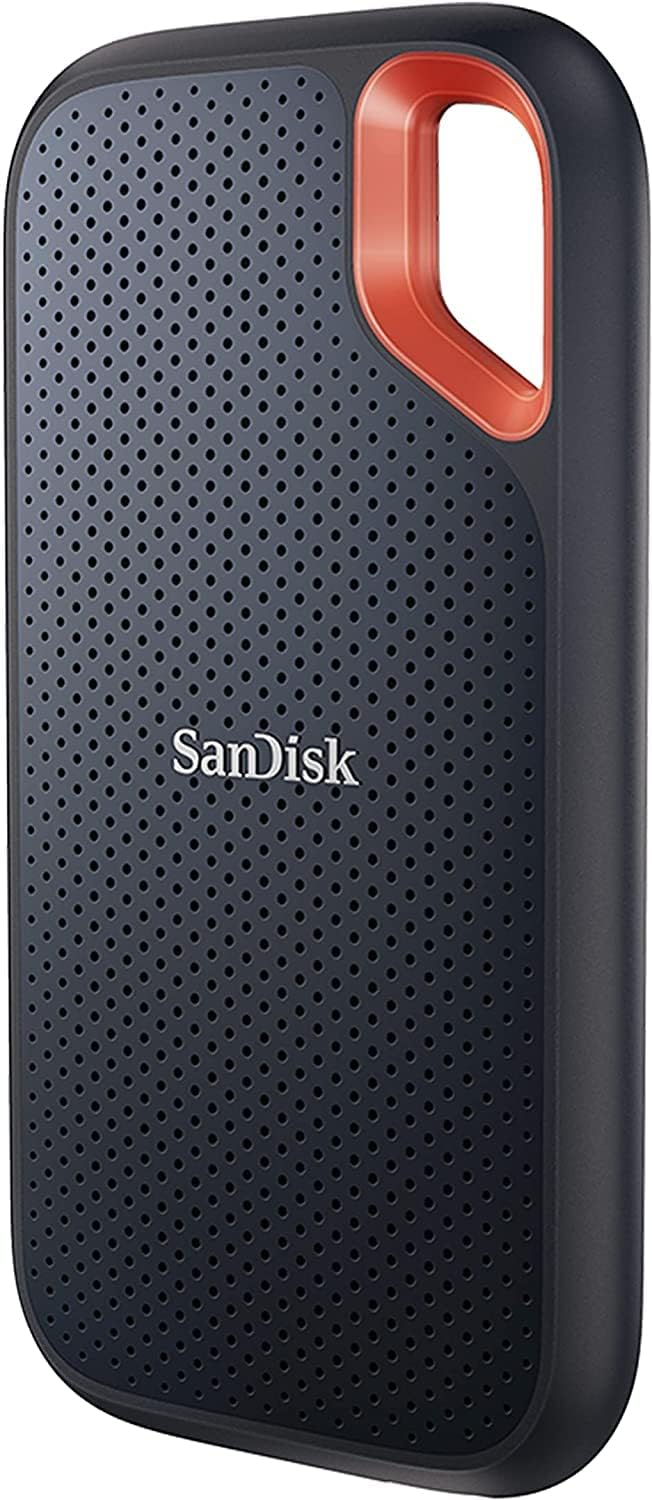
Extreme 4TB Portable SSD for Video Editing
Brand: SanDisk
Features / Highlights
  • 4TB capacity provides substantial room for large video projects.
  • Delivers read speeds reaching up to 1050MB/s.
  • Write performance reaches up to 1000MB/s for transfers.
  • IP65 resistance protects against limited dust and water exposure.
  • Three-meter drop protection suits editors working away from studios.
Our Score
9.83
CHECK PRICE

4TB and roughly 1GB per second is a very useful editing combination

The SanDisk Extreme 4TB Portable SSD takes the number one position in our best external SSD for video editing comparison because its specifications line up unusually well with the way editors actually work. You get 4TB of portable solid-state storage, NVMe performance, USB 3.2 Gen 2 connectivity, and advertised sequential speeds reaching 1050MB/s for reads and 1000MB/s for writes.

Those numbers put it in a useful middle ground. It is dramatically faster than the portable hard drives many editors still use for project storage, while remaining small enough to carry with a laptop and camera equipment.

The 4TB capacity is the part I would pay close attention to for video work. Video projects consume storage incredibly quickly, particularly once original camera files, proxies, audio, graphics, project files, renders, and exports begin living together.

A 1TB SSD can look spacious when it is empty and become uncomfortable surprisingly fast during a large 4K project. With 4TB available, there is considerably more breathing room before an editor needs to start moving footage between drives in the middle of a job.

That matters because storage management interrupts editing. If you are constantly deleting render files, relocating source footage, or disconnecting one drive to connect another, the nominal speed of the SSD becomes only part of the story.

The 1050MB/s read speed makes sense for real editing, but the connection matters

SanDisk rates this Extreme Portable SSD for sequential read speeds up to 1050MB/s and sequential writes up to 1000MB/s. That is enough performance to make the drive genuinely useful as active project storage rather than treating it only as somewhere to archive finished files.

Fast reads matter during timeline playback, because editing software continually requests media as the playhead moves through a project. Higher-resolution footage, multiple video layers, multicam sequences, and high-bitrate codecs can increase the amount of data being pulled from storage.

Imagine editing a travel project on a laptop. The camera footage can stay on the SanDisk while the editing application, project database, and operating system remain on the computer's internal drive.

That separation can be convenient. Instead of filling the laptop's internal SSD with hundreds of gigabytes of footage, the entire media folder can travel on the external drive.

The 1000MB/s maximum write specification is useful when ingesting footage too. Fast writes shorten large media transfers, although actual transfer speed depends on the source drive, computer, interface, file sizes, temperature, and other system limitations.

This is important because an SSD does not operate in isolation. Connecting a fast drive through a slower USB port, hub, or cable can restrict the performance available to the editing application.

The SanDisk uses USB 3.2 Gen 2. To get close to the advertised performance, the host connection also needs to provide the necessary bandwidth.

Do not plug it into an unknown old USB hub and then assume the SSD is defective because transfer speeds are lower than expected. The slowest connection can limit the transfer, so check the laptop or desktop port specification as part of the setup.

SanDisk includes a USB-C to USB-C cable and a USB-C to USB-A adapter. That is useful for editors who move between newer USB-C laptops and workstations that still provide conventional USB-A ports.

For editing, keep the drive connected directly to a suitable high-speed port when practical. A crowded hub may be convenient for a mouse and keyboard but is not necessarily where I would place the primary media drive for a demanding video timeline.

The drive measures about 100.8 x 52.55 x 9.6mm. That is genuinely portable, small enough to fit beside a laptop without taking over the workspace and easy to carry in a camera or computer bag.

Portable size matters on location, especially when footage is being copied in a hotel room, vehicle, production office, or temporary editing setup where there is very little desk space.

The silicone shell adds some exterior protection and grip. SanDisk also rates the current Extreme Portable SSD for up to three-meter drop protection and IP65 water and dust resistance.

IP65 does not mean the SSD should be deliberately submerged. It means the enclosure has defined protection against dust ingress and water exposure under the manufacturer's test conditions, which is useful when a drive regularly leaves a clean studio environment.

A photographer or videographer working outdoors might have the SSD sitting beside a laptop while transferring footage after a shoot. IP65 protection adds useful field resilience when dust or an accidental splash becomes more realistic than it would be on a permanent office desk.

The carabiner loop is another small feature that makes more sense in practice than it does on a specification sheet. It gives you a physical attachment point for securing the drive to a bag or another piece of equipment during travel.

Still, rugged construction should never be confused with backup. Dropping the drive without damaging it is useful, but losing the drive, corrupting a file, accidentally deleting a folder, or experiencing hardware failure are completely different problems.

Why we believe this SanDisk deserves the number one position

For video editing, I would never recommend keeping the only copy of important footage on one portable SSD. Fast storage is not a backup strategy, regardless of how durable the enclosure is.

A sensible workflow keeps at least another copy of the original camera media somewhere else. That might be a second external drive, a NAS, another workstation, or another properly managed backup destination.

This becomes especially important when the SanDisk is being used as the active editing drive. Project files change constantly, and source footage may represent days of shooting that cannot simply be recreated.

Think of the portable SSD as working storage. Keep the project organized on it, but make sure the valuable source material exists somewhere else too.

4TB gives editors useful working headroom, but avoid filling any active SSD completely if possible. Editing applications may generate cache files, previews, optimized media, and temporary renders while a project is open.

If the drive is almost full, those background operations can become inconvenient. Leave enough free capacity for the project to grow rather than calculating storage requirements only from the size of the original camera folder.

File system formatting matters as well. If the SSD will only be used with one operating system, a native file system can make sense.

If the drive needs to move regularly between Windows and macOS computers, plan the format around that workflow before loading several terabytes of footage onto it. Reformatting later normally means moving the data elsewhere first.

Choose the file system before the project starts. It is a small setup decision that becomes much more annoying once the SSD is already full of active media.

The 1050MB/s read figure also needs to be understood correctly. It is an advertised maximum sequential performance figure, not a promise that every editing operation will continuously run at exactly 1050MB/s.

Real performance varies with the host device, interface, workload, file structure, temperature, and other factors. Copying one enormous video file is different from moving thousands of tiny project assets.

For video editing, sequential performance is particularly relevant because video media tends to consist of large files. That is one reason this type of portable NVMe SSD fits the workload better than many slower external storage options.

Large video files suit fast sequential storage, especially during footage ingestion, media duplication, project relocation, and export management.

Codec choice changes the storage requirement too. Highly compressed camera footage can have a relatively modest bitrate even at 4K, while visually similar footage recorded in a production codec may require much more bandwidth and dramatically more capacity.

Multicam work multiplies the demand because several streams may be read simultaneously. The same thing happens when multiple high-resolution layers are composited in one sequence.

For unusually demanding raw or multicam workflows, editors should calculate their actual media bitrate rather than assuming any portable SSD is automatically fast enough. But for a broad range of conventional 4K editing, the Extreme's USB 3.2 Gen 2 performance provides substantial bandwidth.

The drive also includes password protection with 256-bit AES hardware encryption. Encryption can help protect sensitive project files, particularly for freelancers carrying client footage between locations.

There is a tradeoff with any security system. Make sure passwords and recovery procedures are managed properly, because locking yourself out of an active project is not a useful form of data protection.

SanDisk backs the Extreme Portable SSD with a five-year limited warranty. For a portable drive that may be moved between shoots and editing locations repeatedly, that is worth noting.

There is also a practical historical consideration with this product family. SanDisk previously addressed reported issues affecting certain portable SSD models through firmware updates, so I would make checking current firmware part of the initial setup rather than ignoring it.

Keep storage firmware and backups current, especially when the drive contains active paid work. No professional workflow should depend on the assumption that one piece of storage hardware can never fail.

Heat is another normal consideration with compact high-speed SSDs. Sustained transfers can make small external drives noticeably warm because the controller and NAND are doing real work inside a very small enclosure.

Give the SSD some airflow during long transfers. Do not bury it underneath notebooks, clothing, or other equipment while moving hundreds of gigabytes of footage.

The physical size makes that easy enough. Put it beside the laptop, keep the cable relaxed, and avoid leaving the connector under sideways tension.

A stable cable connection matters during editing. Accidentally disconnecting active project storage while an application is reading or writing files can interrupt the workflow and potentially create file-system problems.

This is particularly relevant on location where the laptop may be moved around frequently. The carabiner loop can help secure the drive physically, but the cable still needs to be positioned so it is not constantly being pulled.

So why does the SanDisk Extreme 4TB take our number one position? The answer is the balance rather than one extreme specification.

There are faster external SSDs using higher-bandwidth interfaces. There are also larger desktop storage systems, and there are cheaper portable drives if maximum performance is not important.

But this combination works particularly well for editors: 4TB of capacity, up to 1050MB/s reads, up to 1000MB/s writes, USB 3.2 Gen 2 connectivity, a compact 100.8 x 52.55 x 9.6mm enclosure, IP65 resistance, three-meter drop protection, and a five-year limited warranty.

That is enough capacity to keep substantial projects together, enough performance for serious portable editing workflows, and enough physical protection to make carrying the drive between locations less worrying than using a bare internal SSD enclosure.

The USB-C connection also makes it easy to integrate with modern laptops used for Premiere Pro, DaVinci Resolve, Final Cut Pro, After Effects, and similar creative applications. The included USB-A adapter gives older systems another connection option.

We believe the SanDisk Extreme 4TB deserves the number one ranking out of seven because it gets the practical balance right. It is fast without requiring an exotic interface, spacious without becoming a desktop storage box, and rugged enough to suit editors who actually move their projects around.

Use a proper USB 3.2 Gen 2 connection, leave working free space on the SSD, keep another copy of important footage, check firmware before trusting it with active projects, and avoid disconnecting it while files are being written. With those basics handled, the Extreme 4TB is a strong portable editing drive for creators who need speed, capacity, and mobility in one compact device.

2
Extreme 2TB Portable SSD for Video Editing
Brand: SanDisk
Features / Highlights
  • 2TB capacity provides useful space for active video projects.
  • Delivers sequential read speeds reaching up to 1050MB/s.
  • Supports sequential write speeds reaching up to 1000MB/s.
  • IP65 resistance adds protection against dust and water exposure.
  • Compact rugged construction suits portable editing and field production.
Our Score
9.57
CHECK PRICE

The 2TB model keeps the speed that matters for editing

The SanDisk Extreme 2TB Portable SSD takes the number two position in our best external SSD for video editing comparison because it keeps the core performance of the larger Extreme model while reducing capacity to a more manageable 2TB. SanDisk rates it for sequential read speeds up to 1050MB/s and sequential write speeds up to 1000MB/s through a USB 3.2 Gen 2 interface.

That is a useful performance level for editors who want to keep active footage on an external drive rather than constantly moving projects onto the computer's internal SSD. The 2TB capacity is enough for substantial editing work, although high-bitrate 4K, multicam, RAW, and long-form projects can consume that space surprisingly quickly.

The important part is that this is active working storage, not merely a slow archive drive. You can keep source media, project assets, graphics, audio, proxies, and other working files together while maintaining the portability expected from a small external SSD.

For a freelance editor moving between a desktop workstation and laptop, that can simplify the entire project structure. Connect the SSD, open the project, and the media can remain organized on one portable device rather than being duplicated onto every computer.

1050MB/s is useful, but only when the rest of the connection keeps up

SanDisk advertises sequential reads up to 1050MB/s and writes up to 1000MB/s. Those figures are particularly relevant to video because large media files benefit from strong sequential transfer performance.

Footage ingestion is an obvious example. Fast write performance reduces transfer waiting when large camera folders are being copied from another sufficiently fast storage device.

Imagine returning from a shoot with several hundred gigabytes of 4K footage. Moving that material onto a portable SSD at high speed means the editor can begin organizing and reviewing media sooner rather than waiting on a mechanical external hard drive.

Read performance becomes important once editing starts. Premiere Pro, DaVinci Resolve, Final Cut Pro, and other nonlinear editing applications continually request media from storage as the timeline plays.

One video stream may not challenge a modern SSD very much. Add several camera angles, high-bitrate footage, graphics, audio, and multiple video layers, though, and storage performance becomes more relevant.

Multicam timelines increase storage demand because several source files may need to be accessed during playback. The actual requirement depends heavily on codec, resolution, frame rate, and bitrate.

This is why the 1050MB/s number should not be interpreted as a guarantee that every editing workload runs at exactly that speed. It is a maximum sequential specification, while real performance depends on the computer, connection, workload, temperature, and file structure.

The USB 3.2 Gen 2 interface is another part of the equation. To approach the advertised performance, the computer needs a compatible high-speed port and the connection path needs enough bandwidth.

Connecting the drive through an older USB port can reduce performance. The same thing can happen when the SSD is connected through a hub that shares bandwidth with several other high-speed devices.

The slowest connection can limit SSD performance. If transfer speeds look unexpectedly low, check the USB port, cable, hub, and source storage before assuming the external SSD itself is responsible.

For an editing workstation, a direct connection to a suitable USB port is preferable when practical. Keep low-bandwidth peripherals such as keyboards and mice on the hub if that helps leave a faster connection available for project storage.

The 2TB capacity also needs to be managed intelligently. Video editors rarely store only the original camera files.

An editing application may generate proxies, optimized media, render files, waveform information, cache data, still images, graphics, and final exports. Project storage can grow beyond original footage, sometimes by a considerable amount.

Leaving some free space is therefore useful. Filling the SSD almost completely before the edit begins gives the project very little room to expand.

For example, a 700GB camera folder may look perfectly comfortable on a 2TB drive. Add proxies, cache, several export versions, audio libraries, graphics, and another project, and the remaining capacity starts disappearing much faster.

The compact dimensions make the Extreme easy to use with laptops. It can sit beside a MacBook or Windows editing machine without occupying the space required by a desktop enclosure.

Small size suits mobile video workflows, particularly when editing in a hotel, production office, studio, or temporary location where the available desk may be tiny.

The enclosure also includes a carabiner loop. It is a simple detail, but attaching the SSD to a bag can make sense when the drive regularly travels with camera equipment.

Why the 2TB Extreme earns second place instead of first

The physical protection is useful for editors who work away from a permanent studio. SanDisk rates this Extreme generation for IP65 water and dust resistance along with drop protection up to three meters.

That does not mean the SSD should be submerged or deliberately thrown around. Rugged protection reduces everyday field risk, but it does not make careless storage or handling sensible.

Think about a videographer transferring footage outdoors after a shoot. Dust, damp equipment, a crowded equipment table, or accidentally knocking the SSD onto the ground are more realistic problems there than in a clean editing suite.

The silicone exterior also provides grip. That is useful because compact SSDs can otherwise slide around when their USB cable is moved.

Still, physical durability should never be confused with data redundancy. One rugged SSD is still one copy of the project.

Never keep irreplaceable footage in one place. If the original camera cards are going to be formatted, verify that another complete copy exists before relying on the SanDisk as the working drive.

A sensible workflow could keep active media on this SSD while maintaining another copy on a separate drive, NAS, or other backup system. Finished projects can then move into longer-term archive storage after delivery.

This is particularly important for client work. Replacing a failed SSD is straightforward compared with recreating footage from a wedding, interview, commercial shoot, or live event.

The drive supports 256-bit AES hardware encryption through SanDisk's security software. That can be useful when the SSD contains confidential client footage or unreleased commercial material.

Encryption adds protection for mobile projects, especially when the SSD regularly leaves the studio in a laptop or camera bag. Make sure the password and recovery process are handled carefully so security does not become an access problem.

File-system choice also deserves attention before the drive fills up. An editor working entirely on one operating system may prefer its native file system, while somebody moving regularly between macOS and Windows needs to plan for cross-platform compatibility.

Decide this before transferring terabytes of media. Reformatting later generally requires the existing data to be moved elsewhere first.

Heat can appear during sustained transfers too. Compact NVMe-based portable SSDs pack their controller and flash memory into a small enclosure, so warmth during large transfers is not automatically unusual.

Give the SSD some airflow during transfers. Do not bury it underneath paperwork, clothing, or other equipment while copying hundreds of gigabytes.

Cable placement matters during active editing. A small drive can be accidentally disconnected if the cable is stretched across the desk or repeatedly pulled when the laptop moves.

Keep some cable slack and position the SSD somewhere stable. Disconnecting active project storage while software is writing cache files or project data is something worth avoiding.

SanDisk provides USB-C connectivity along with compatibility for USB-A through the included connection accessories. That makes the drive practical across newer laptops and older desktop systems, provided the port itself supplies the bandwidth required for the desired speed.

USB-C describes the connector shape, not automatically the speed of every port carrying that connector. Check the computer specification if performance matters.

Another practical step is checking the drive's firmware and support information when setting it up. The SanDisk Extreme portable family has previously been associated with firmware-related reliability concerns affecting certain units and configurations, so current firmware and a proper backup routine are worth treating as part of the setup process.

That does not change the basic rule for any professional storage device. Important media should never depend on one SSD regardless of manufacturer.

The reason this model ranks second rather than first is straightforward. Our number one choice is the 4TB version of the SanDisk Extreme, which provides the same basic portable editing concept with twice the storage capacity.

The 4TB model gives projects more breathing room, and that matters when source footage, proxies, cache, graphics, audio, and exports all need to remain together.

A long-form 4K project can push beyond 2TB much more easily than people expect. Multicam work can do it even faster because several camera streams may cover the same hours of production.

With the 2TB model, storage management may begin earlier. Older projects might need to be archived before a new one starts, or proxies and render files may need more regular cleanup.

But there is another side to this. Not every editor needs 4TB on one portable drive.

A creator working on shorter YouTube videos, social content, interviews, corporate pieces, photography, or individual freelance projects may find 2TB much easier to justify. Two terabytes remains substantial portable capacity when projects are organized properly.

It can also encourage a cleaner workflow where completed projects move to archive storage instead of accumulating indefinitely on the active editing SSD. That is not necessarily a bad habit.

Performance remains the major strength. You still get the advertised 1050MB/s read and 1000MB/s write specifications rather than sacrificing speed simply because the drive capacity is smaller.

The rugged enclosure remains too, including IP65 resistance and three-meter drop protection. The physical dimensions stay compact enough for a genuinely mobile editing kit.

That is why we believe the SanDisk Extreme 2TB deserves the number two ranking out of seven. It combines fast USB 3.2 Gen 2 performance, 2TB of useful project capacity, compact dimensions, rugged field-oriented protection, encryption support, and the portability needed for laptop-based video production.

It misses first place mainly because 4TB provides considerably more flexibility for large projects and high-bitrate media. But if your typical editing jobs comfortably fit within 2TB, paying for unused capacity is not automatically necessary.

Connect it through a proper high-speed port, keep meaningful free space available, check firmware, protect the cable from accidental disconnection, and maintain another copy of important source footage. Used that way, the Extreme 2TB is an excellent portable editing SSD and a strong second-place option for creators who want the performance of the larger model in a smaller-capacity package.

3
PS2100 2TB Rugged Video Editing SSD
Brand: fanxiang
Features / Highlights
  • Delivers sequential read speeds reaching up to 2000MB/s.
  • Sequential write speeds reach up to 1800MB/s.
  • 2TB capacity provides practical space for active video projects.
  • IP68 protection adds serious water and dust resistance.
  • USB 3.2 Gen 2x2 provides up to 20Gbps connectivity.
Our Score
9.30
CHECK PRICE

The PS2100 doubles the interface headroom of many portable editing SSDs

The fanxiang PS2100 2TB takes the number three position in our best external SSD for video editing comparison because its performance specification is unusually strong for a compact portable drive. It uses USB 3.2 Gen 2x2 with a 20Gbps interface, with sequential read speeds advertised up to 2000MB/s and writes up to 1800MB/s.

That is substantially more bandwidth than the roughly 1000MB/s class of many USB 10Gbps portable SSDs. For an editor transferring hundreds of gigabytes of camera footage, the difference can become meaningful, provided the computer actually supports USB 3.2 Gen 2x2.

The capacity is 2TB, which is a sensible amount for active projects. Two terabytes gives editors useful working space for original footage, proxies, graphics, audio, project files, cache, and finished exports without making the drive physically large.

The PS2100 itself measures roughly 3.7 x 2.2 x 0.47 inches and weighs around 4.1 ounces. That is small enough to travel beside a laptop and camera kit without turning portable editing into another equipment-management problem.

The 2000MB/s speed is excellent, but your computer has to support 20Gbps USB

The headline specification here is up to 2000MB/s sequential read speed, with write performance reaching around 1800MB/s. For video work, those are useful numbers because footage is normally stored in large files where strong sequential performance matters.

Imagine returning from a commercial shoot with 500GB of camera media. Faster transfers can shorten footage ingestion, which means less time waiting for files to move before organizing, checking, and backing up the day's material.

The speed also matters when the PS2100 becomes the active editing drive. Premiere Pro, DaVinci Resolve, Final Cut Pro, After Effects, and similar applications can read media directly from external storage while the project remains open.

A normal single-stream 4K project may not require anything close to the drive's maximum bandwidth. Multicam editing is different because several camera streams may need to be accessed at the same time.

High-bitrate intermediate codecs can increase storage requirements further. RAW footage, high frame rates, and multiple video layers can also push considerably more data through the storage system than compressed delivery-oriented media.

Fast storage helps demanding timeline workflows, but bitrate still matters more than resolution alone. Two 4K files recorded with different codecs can have dramatically different storage bandwidth requirements.

There is one important technical catch with the PS2100. USB 3.2 Gen 2x2 requires a compatible 20Gbps host connection if you want to approach the advertised performance.

A USB-C connector does not automatically mean 20Gbps. USB-C describes the physical connector, while the actual USB or Thunderbolt implementation determines available bandwidth.

Check the computer port before buying if maximum speed is important. Connected to a slower interface, the SSD can still function, but transfer performance will be limited by that connection.

This becomes especially relevant with some laptops that support Thunderbolt or USB4 but do not necessarily implement USB 3.2 Gen 2x2 in the way users expect. Verify the specific computer rather than assuming every modern USB-C port will deliver the full 20Gbps connection.

The PS2100 includes USB-C connectivity and an adapter arrangement for USB-A equipment. That broadens compatibility across laptops, desktops, phones, tablets, cameras, and other supported devices.

For editing, though, I would connect it directly to the fastest suitable port available. A hub shared with capture hardware, another SSD, and multiple peripherals can create a bottleneck that hides the performance you paid for.

The slowest device controls real transfer speed. Copying from a 500MB/s source drive onto the PS2100 will not suddenly produce a 1800MB/s transfer just because the destination SSD can write that quickly.

The same applies when importing footage from memory cards. The card and reader have their own performance limits, so the PS2100 may spend much of that transfer waiting for the source.

Where its extra speed becomes more useful is moving data between similarly fast storage devices, working directly with demanding media, generating large files, or relocating projects between high-performance drives.

Why this fast fanxiang finishes third rather than taking the top position

The rugged construction is one of the PS2100's more interesting advantages. The drive is advertised with IP68 water and dust resistance, plus drop protection up to approximately 3 meters.

IP68 is a stronger environmental rating than the IP65 protection offered by several popular portable SSDs. IP68 protection suits field production work, where dust, rain, damp equipment, and rough transport are more realistic concerns than they are in a permanent editing suite.

The specifications describe protection in water up to approximately 2 meters for 60 minutes under the stated test conditions. That does not mean deliberately submerging an SSD is good working practice, but it provides useful resilience against accidents.

The enclosure also uses a rugged structure with a silicone protective cover for additional shock absorption. A carrying case is included, which makes sense for a drive intended to move between locations.

For a videographer, this is practical. The SSD can travel in the same working kit as cameras, card readers, batteries, and a laptop without needing a large dedicated enclosure.

Rugged hardware still does not replace backups. Water resistance and drop protection cannot protect against accidental deletion, file corruption, theft, loss, or every possible hardware failure.

If the PS2100 contains the only copy of footage from a paid shoot, the storage workflow has a larger problem than enclosure durability. Keep another verified copy of important source media somewhere else.

A useful field workflow is to copy camera media onto the PS2100 for active editing while simultaneously maintaining another copy on separate storage. Do not format the original camera cards until the required backups have been verified.

The 2TB capacity requires some planning too. High-resolution footage can fill it quickly, especially when the editing application begins creating proxies and cache files.

Editing projects grow after ingestion. A 700GB camera folder does not necessarily remain a 700GB project once optimized media, audio, graphics, renders, and multiple export versions are added.

Leave working space available instead of filling the SSD to its limit. This also makes project organization easier because temporary media does not need to be constantly deleted simply to create enough room for the next export.

For short-form editing, 2TB can be very comfortable. YouTube projects, interviews, corporate videos, social campaigns, photography, and individual freelance jobs can fit nicely when completed projects are archived elsewhere.

Long-form RAW or multicam productions are different. Several terabytes can disappear quickly, and a 4TB drive may reduce how often projects need to be moved between storage devices.

This is one reason the PS2100 does not take our first position. Capacity matters alongside maximum transfer speed, particularly when choosing an SSD specifically for video editing.

Our number one SanDisk Extreme provides 4TB in the configuration we reviewed, giving editors substantially more room for large projects. That extra capacity can be more valuable than higher benchmark speed when the workload consists of enormous media libraries.

The second-ranked SanDisk Extreme 2TB provides less theoretical speed than this fanxiang, but it offers a very established portable editing format with a straightforward USB 3.2 Gen 2 performance profile. It also does not require a 20Gbps Gen 2x2 host connection to make use of its advertised interface class.

The fanxiang is faster on paper. Its 2000MB/s performance is a major advantage, and for a workstation that properly supports USB 3.2 Gen 2x2, that advantage can be genuinely useful.

But compatibility with 20Gbps USB needs to be checked more carefully. An editor whose computer only provides a 10Gbps connection will not receive the full benefit of the PS2100's higher performance specification.

File-system setup deserves attention as well. If the drive will move between Windows and macOS machines, a cross-platform format such as exFAT may be useful depending on the workflow.

A drive dedicated to one operating system may benefit from that platform's native file system instead. Decide before filling the SSD, because reformatting later normally requires moving the project data somewhere else first.

Format the drive around the workflow, not simply whatever computer happens to be available when the package is opened.

Heat is another practical issue with any small high-performance NVMe external SSD. Sustained transfers generate heat, and a compact enclosure has limited physical area through which to dissipate it.

Let the drive breathe during large transfers. Do not bury it under notebooks or equipment while copying hundreds of gigabytes of media.

Cable positioning matters too. Portable editing often means the SSD is sitting beside a laptop where equipment is moved frequently.

Protect the connection during active writes. Accidentally pulling the cable while the editing application is writing cache files or while footage is being copied is something worth avoiding.

The included case can help when transporting the SSD, but it should come out of the case when necessary for connection and airflow. Treat the case as travel protection rather than something that needs to surround the drive during every sustained workload.

The broad device compatibility is useful outside the editing suite too. The PS2100 can work with compatible computers, mobile devices, consoles, and other USB equipment, which gives the drive another life if it is eventually retired from primary video duties.

For creators working with compatible smartphones, fast external storage can also be useful for transferring large video files without first filling the computer's internal drive. Again, the actual speed will depend on the connected device.

The real reason this product ranks highly is the combination of performance and durability. Few features are wasted on video editors: 2TB capacity, up to 2000MB/s reads, up to 1800MB/s writes, USB 3.2 Gen 2x2, IP68 resistance, drop protection, and a compact portable enclosure all have clear practical uses.

It lands at number three because our top choices provide a more balanced combination of capacity, interface simplicity, and established portable editing use. The PS2100 asks the buyer to pay closer attention to host compatibility if its biggest speed advantage is going to be realized.

For the right computer, though, this may actually be the fastest option among the first three products we have reviewed. That makes it particularly interesting for editors who know their workstation provides a genuine USB 3.2 Gen 2x2 20Gbps connection.

That is why we believe the fanxiang PS2100 2TB deserves the number three ranking out of seven. It provides substantially higher advertised transfer speeds than typical 10Gbps portable SSDs while adding IP68 protection and a compact design suited to field production.

Check your computer's USB specification, maintain another copy of important footage, leave free working capacity, and use a direct high-speed connection when editing demanding projects. With those details handled, the PS2100 is a powerful portable editing SSD that combines serious speed with the rugged construction creators often need outside the studio.

4
T7 Shield 1TB Rugged Video Editing SSD
Brand: Samsung
Features / Highlights
  • Delivers sequential read speeds reaching up to 1050MB/s.
  • Sequential write speeds reach up to 1000MB/s.
  • IP65 rating provides useful water and dust resistance.
  • Rugged exterior withstands drops from up to three meters.
  • Compact 1TB design works well for portable editing projects.
Our Score
9.14
CHECK PRICE

The T7 Shield feels particularly well suited to editors who actually travel with their storage

The Samsung T7 Shield 1TB takes the number four position in our best external SSD for video editing comparison because it combines familiar USB 3.2 Gen 2 performance with a genuinely portable rugged enclosure. Samsung rates it for sequential reads up to 1050MB/s and sequential writes up to 1000MB/s, putting it firmly in the performance range needed for serious external project storage.

This particular model provides 1TB of capacity. That is considerably less than our higher-ranked 2TB and 4TB choices, but the smaller capacity can still make sense for editors working on short-form projects, individual client jobs, YouTube videos, interviews, social content, and location work.

The rugged construction is where the T7 Shield becomes more interesting. IP65 protection suits mobile editing work, particularly when the SSD regularly travels between shoots, laptops, studios, hotels, and temporary production spaces.

Samsung also designed the drive to withstand drops from up to three meters. That does not make careless handling sensible, but it provides useful physical protection for a device that may contain hundreds of gigabytes of active project media.

1050MB/s is enough for a lot of editing work, if the USB connection is right

The T7 Shield uses USB 3.2 Gen 2 with a 10Gbps interface. Its advertised sequential performance reaches up to 1050MB/s for reads and 1000MB/s for writes.

Those specifications are useful for video because camera footage generally consists of large files. Large media files benefit from sequential speed, particularly during ingestion, project transfers, backup operations, and timeline playback.

Imagine coming back from a location shoot with 300GB of footage. Moving those files onto a fast SSD can save a meaningful amount of waiting compared with transferring everything to a conventional portable hard drive.

Write performance matters during that initial copy. Read performance becomes more important once Premiere Pro, DaVinci Resolve, Final Cut Pro, or another editing application starts requesting media directly from the external SSD.

For conventional 4K editing, the available bandwidth can be plenty. The exact requirement depends on the footage rather than resolution alone.

Codec bitrate determines actual storage demand. Highly compressed 4K footage can require dramatically less bandwidth than visually similar material recorded in a high-bitrate intermediate or RAW format.

Multicam projects change the calculation again. If four camera streams need to play simultaneously, the storage system may need to deliver several media files at the same time.

This is where editors should look at the bitrate of their actual footage rather than assuming every 4K project behaves identically. Resolution is only one part of the storage workload.

The USB connection needs attention too. USB-C is the physical connector, not a guarantee that every USB-C port provides the same speed.

Use a proper 10Gbps USB connection if you want to approach the T7 Shield's advertised performance. Connecting it through an older USB port or a slower hub can reduce transfer speeds significantly.

The source device matters during transfers as well. Copying footage from a memory card that reads at 250MB/s will not suddenly produce a 1000MB/s transfer because the destination SSD can write that quickly.

The same applies when copying from a slower external hard drive. Transfer performance is limited by the slowest meaningful component in the chain.

For active editing, connecting the T7 Shield directly to the computer can be preferable to placing it on a crowded hub. A hub carrying another SSD, capture hardware, network adapter, and several peripherals may have to divide available bandwidth.

Direct connections reduce avoidable bottlenecks, particularly when the external SSD contains the media currently being used by the timeline.

The 1TB capacity is the biggest thing to plan around. One terabyte sounds large until high-resolution video enters the workflow.

Original camera footage is only the beginning. Editing software may also generate proxies, optimized media, preview renders, waveform data, cache files, graphics, audio, and several versions of the final export.

A 400GB camera folder can therefore become a much larger working project. Video projects grow during post-production, and the drive needs enough spare capacity for that growth.

Do not fill the SSD to the edge before editing begins. Keep working space available for cache files, exports, and project changes.

This is one reason the 1TB T7 Shield makes the most sense when completed jobs are archived somewhere else. Use it as fast active storage rather than expecting it to become the permanent home of every project you have ever edited.

Why the T7 Shield finishes fourth despite being such a practical portable drive

The physical design is one of the strongest arguments for choosing this Samsung. The rubberized exterior adds grip while helping protect the drive during travel and daily handling.

The IP65 rating means the enclosure provides defined resistance against dust and water exposure under specified test conditions. Field protection matters for working creators, especially when footage is being transferred somewhere less controlled than an editing suite.

A videographer may be copying files at a temporary workstation after an outdoor shoot. Dust, damp equipment, a spilled drink, or accidentally knocking the SSD off the table become more realistic risks in that environment.

Three-meter drop resistance adds another level of physical reassurance. Still, it should be viewed as accident protection rather than permission to treat the SSD roughly.

The T7 Shield remains an electronic storage device. Keep the USB connector clean and avoid plugging it in while the port itself is wet or contaminated.

Rugged construction does not replace careful handling. It simply gives the drive a better chance of surviving some of the accidents associated with portable production.

The compact format is also useful for laptop editing. The SSD can sit beside the computer without consuming much desk space and can travel in a small accessory pocket inside a camera or laptop bag.

This becomes useful when editing in hotels or production offices where the available workspace may be barely large enough for the laptop itself. A large desktop enclosure would be inconvenient there.

The drive is bus powered too, so there is no separate power adapter required during normal use. Connect the SSD to a compatible computer and the same cable handles power and data.

Bus-powered storage simplifies mobile setups, reducing the number of chargers and wall outlets needed when editing away from the studio.

Cable placement still deserves attention. A small SSD can be pulled off a desk surprisingly easily if the connected laptop is moved while the cable is stretched tight.

Leave enough slack and put the T7 Shield somewhere stable. Avoid disconnecting it while footage is being copied or while the editing application is actively writing project-related files.

File-system choice is another practical decision. If the drive will stay entirely within one operating system, a native file system may make sense.

If it needs to move regularly between Windows and macOS workstations, choose a format appropriate for that cross-platform workflow before loading the drive with an active project.

Choose the format before filling the SSD. Reformatting later normally requires moving the existing data elsewhere first, which becomes inconvenient when hundreds of gigabytes are already stored on it.

Security can matter for professional projects too. Samsung's portable SSD ecosystem supports password-based security and AES 256-bit hardware encryption on compatible configurations.

This can be useful for editors carrying confidential client footage, unreleased advertising material, interviews, or other sensitive files. Manage the password properly, because encryption is only useful when authorized users can still access the project.

Heat is another consideration with compact SSDs. High-speed sustained transfers generate heat, and the enclosure has to dissipate it while remaining small enough to fit in a pocket.

Give the drive airflow during large transfers. Do not bury it underneath clothing, notebooks, or other equipment while copying a large media library.

Samsung designed the T7 Shield with thermal management intended to maintain performance while controlling surface temperature. Real sustained performance can still vary with workload, ambient temperature, host hardware, and other conditions.

Backup strategy matters much more than enclosure strength. Even a rugged SSD should never contain the only copy of footage that cannot be recreated.

If the T7 Shield becomes the active editing drive, maintain another verified copy of the original camera media. That could be another external drive, a NAS, or another properly managed storage destination.

One SSD should never be the only backup. Water resistance and drop protection cannot prevent accidental deletion, theft, loss, file-system corruption, or every possible hardware failure.

This is particularly important on paid productions. Replacing the physical SSD is inexpensive compared with recreating an event, interview, wedding, performance, or commercial shoot.

The T7 Shield ranks fourth primarily because capacity and maximum performance are stronger on the three products above it. Our number one SanDisk Extreme provides 4TB, which offers much more working room for large video projects.

The second-ranked SanDisk Extreme provides 2TB while maintaining a similar roughly 1000MB/s performance class. That additional capacity gives it more breathing room for active media, proxies, cache, and exports.

The fanxiang PS2100 in third goes in another direction. It offers up to 2000MB/s reads and 1800MB/s writes through USB 3.2 Gen 2x2, giving compatible 20Gbps systems substantially more theoretical transfer performance.

The T7 Shield trades capacity for portability in this particular 1TB configuration. For a video editor, that is the main reason it cannot move higher in our ranking.

One terabyte can disappear quickly during long-form or multicam production. An editor working with high-bitrate footage may need to move projects off the SSD more frequently than with a 2TB or 4TB model.

But smaller capacity is not automatically a problem. For individual short-form projects, 1TB can be plenty, especially when completed work is moved to dedicated archive storage.

The Samsung also has an appealing simplicity. USB 3.2 Gen 2 at 10Gbps is widely useful, and the drive does not rely on a 20Gbps Gen 2x2 connection to achieve its stated performance class.

That makes the T7 Shield easy to integrate into many existing editing workstations without spending much time investigating whether a specific USB-C port implements a less common interface mode.

The rugged enclosure is another reason the drive remains attractive despite its lower ranking. Someone who edits while traveling may value IP65 protection and three-meter drop resistance more than another benchmark increase.

It is also a useful drive for transferring finished projects between systems. Large exports, project archives, graphics packages, and other production assets can move quickly without requiring network storage.

That is why we believe the Samsung T7 Shield 1TB deserves the number four ranking out of seven. Its combination of up to 1050MB/s reads, 1000MB/s writes, USB 3.2 Gen 2 connectivity, IP65 resistance, three-meter drop protection, and compact bus-powered design makes it particularly practical for creators who travel with their storage.

It ranks below our first three mainly because 1TB provides less room for expanding video projects, while one competitor offers significantly higher peak transfer speeds. Still, the Samsung gets the fundamentals right.

Use a proper 10Gbps connection, leave free working capacity, keep another copy of important footage, protect the cable during active transfers, and archive completed projects before the drive becomes crowded. Used that way, the T7 Shield is an excellent field editing SSD and a strong fourth-place option for creators who value rugged portability as much as raw storage capacity.

5
Extreme 1TB Sky Blue Video Editing SSD
Brand: SanDisk
Features / Highlights
  • Delivers sequential read speeds reaching up to 1050MB/s.
  • Sequential write performance reaches up to 1000MB/s.
  • 1TB capacity works well for smaller active video projects.
  • IP65 construction provides useful water and dust resistance.
  • Three-meter drop protection adds durability for mobile editors.
Our Score
8.70
CHECK PRICE

The 1TB Extreme keeps the speed, but capacity becomes the real decision

The SanDisk Extreme 1TB Portable SSD takes the number five position in our best external SSD for video editing comparison because it delivers essentially the same fast portable-storage concept as the larger Extreme models, just with less room for footage. It uses USB 3.2 Gen 2 and is rated for sequential reads up to 1050MB/s and writes up to 1000MB/s.

This particular model is the Sky Blue 1TB version. The color obviously does not affect editing performance, but it can actually be useful when several portable drives live in the same production bag and you want to identify one quickly.

The bigger consideration is capacity. One terabyte works best for focused projects, where the SSD is being used as active working storage rather than as a permanent archive containing months of completed video work.

For YouTube videos, interviews, social media production, corporate edits, photography, and smaller freelance projects, that can work very well. For long-form 4K multicam production or high-bitrate RAW footage, 1TB can disappear much faster than expected.

The 1050MB/s speed is still properly useful for editing

SanDisk rates the drive for up to 1050MB/s sequential read performance and up to 1000MB/s sequential writes. Those figures make it much more suitable for editing directly from the drive than a conventional portable hard disk.

Video files are often large and sequential, which suits this type of storage performance. Fast sequential reads help timeline playback, particularly when the editing application is continuously requesting large media files.

Imagine filming an interview using two cameras. Instead of copying everything onto the laptop's internal SSD, the footage can remain organized on the SanDisk while Premiere Pro, Final Cut Pro, or DaVinci Resolve accesses it externally.

That keeps valuable internal storage available for applications and other files. It also makes moving the project between compatible computers considerably easier.

Write speed matters during footage ingestion. If the source media is sufficiently fast, the SSD's up to 1000MB/s write specification can reduce the time spent copying large camera folders.

Faster transfers matter on production days, especially when several cards need to be copied, checked, and backed up before the next shoot begins.

The source device still matters. A memory card reading at 250MB/s cannot send footage to the SSD at 1000MB/s simply because the SanDisk supports that write speed.

The connection matters too. This Extreme uses USB 3.2 Gen 2, so the computer needs a suitable high-speed USB connection to make full use of the drive's performance class.

USB-C itself does not guarantee a particular transfer speed. Two laptops can both have identical-looking USB-C connectors while supporting different interface bandwidths.

Check the actual USB port specification if performance is important. A slower port, cable, or hub can become the bottleneck even when the SSD itself is capable of considerably higher speeds.

For active video editing, I would generally connect the project SSD directly to an appropriate high-speed computer port when possible. Leave ordinary peripherals such as keyboards and mice on slower hubs if that helps avoid sharing bandwidth with the media drive.

Codec choice determines how much storage performance the timeline actually needs. Highly compressed 4K footage can have a relatively modest bitrate, while production codecs and RAW media can be dramatically heavier.

Multicam editing increases the requirement again because multiple video files may need to be read simultaneously. Resolution alone does not determine storage demand, so look at the bitrate and number of simultaneous streams when planning a demanding project.

The 1TB capacity is where planning becomes especially important. The original footage is only one part of an editing project's storage requirement.

Editing software can generate proxies, optimized media, render files, waveform information, cache data, thumbnails, graphics, and temporary files. Then there are multiple versions of the final export.

Post-production files can grow surprisingly quickly. A project containing 400GB of original footage may eventually require considerably more than 400GB of working storage.

That means filling the drive with 900GB of source footage before the edit starts is not a particularly comfortable workflow. Leave free space so the project can develop without constantly moving or deleting files.

This is where the 1TB version makes the most sense as a rotating active-project drive. Finish a job, archive it to another storage system, then clear appropriate working files before starting the next project.

Why this 1TB SanDisk lands in fifth place rather than higher

The physical design remains one of the Extreme's strengths. The drive measures roughly 100.8mm by 52.55mm by 9.6mm and weighs around 52 grams, so it is genuinely easy to carry with a laptop.

That matters for editors working outside a permanent studio. The compact enclosure fits mobile editing setups where the available desk may barely have room for the laptop, card reader, and headphones.

The durable silicone shell adds grip and exterior protection. SanDisk also rates the current Extreme Portable SSD for up to three-meter drop protection.

That is useful for a drive travelling between locations. An accidental fall from a desk or equipment case is a realistic problem during production, even when everyone handling the equipment is being careful.

The drive also carries an IP65 water and dust resistance rating. This gives it defined environmental protection under the manufacturer's testing conditions.

IP65 protection is useful in the field, where dust, damp equipment, or accidental water exposure can be more realistic than in a controlled editing room.

It does not mean the SSD should be deliberately submerged. Keep the connector clean and dry before plugging it into another device.

The integrated carabiner loop is another practical touch. It allows the SSD to be secured to a bag or other suitable attachment point while travelling.

This is particularly useful because portable SSDs are tiny. Their small size is convenient until one disappears somewhere inside a large camera bag filled with batteries, cables, lenses, adapters, and memory-card cases.

The loop makes physical organization easier, especially when several pieces of storage travel together.

The Sky Blue finish can help with organization too. A production team might use one color for active projects and another for transferred or verified footage.

Do not rely solely on color, though. Label project drives properly and maintain a clear folder structure so there is no confusion when multiple shoots are being handled at once.

Security is another useful feature. The Extreme supports password protection using 256-bit AES hardware encryption.

Encryption can protect confidential project media, particularly for editors carrying unreleased commercial footage, interviews, or sensitive client material outside the studio.

Make sure passwords are stored appropriately. Data security is not very helpful if the authorized editor loses access to the project during a deadline.

Backup strategy matters even more. Rugged construction protects against some physical accidents, but it cannot protect against accidental deletion, theft, file corruption, or every possible hardware failure.

Never keep the only copy of irreplaceable footage on this SSD. Maintain another verified copy on separate storage before formatting the original camera cards.

One portable SSD is not a backup system, regardless of its water resistance, drop rating, or brand.

For paid production work, this is especially important. Replacing a 1TB SSD is relatively simple. Recreating footage from a wedding, interview, live event, or commercial shoot may be impossible.

The drive comes with a USB-C to USB-C cable and USB-C to USB-A adapter, which gives it useful compatibility across newer and older computers. Again, the connector working does not necessarily mean every system will provide the maximum transfer speed.

File-system format should also be decided before filling the drive. An editor using only macOS may choose a different setup from someone moving projects regularly between Windows and Mac workstations.

Choose the format around the workflow, because reformatting after several hundred gigabytes of footage have been loaded usually means moving all of that data somewhere else first.

The drive can become warm during sustained transfers. That is normal for compact high-performance solid-state storage, although actual temperature and sustained speed depend on workload and operating conditions.

Give it some airflow. Do not bury the SSD under clothing, notebooks, or other equipment while transferring a large project.

Cable placement matters as well. Avoid accidental disconnection during active writes, particularly while copying footage or while the editing application is creating project and cache files.

Put the SSD somewhere stable beside the computer and leave enough cable slack that moving the laptop slightly does not pull the drive across the desk.

The main reason this model ranks fifth is not speed. Its 1050MB/s read and 1000MB/s write specifications are competitive with several higher-ranked portable editing drives.

The limitation is the 1TB capacity. Our first-ranked SanDisk Extreme provides 4TB, which gives large projects considerably more room for source media, proxies, renders, audio, and exports.

The second-ranked 2TB Extreme offers the same general performance class with twice the storage capacity. The fanxiang PS2100 in third provides higher advertised peak transfer speeds, while the Samsung T7 Shield above this model offers another particularly strong rugged 1TB alternative.

Capacity is what holds this model back for serious video production. Large 4K and multicam projects can make 1TB feel restrictive much sooner than the drive's performance becomes a problem.

Still, not every editor needs several terabytes attached at all times. A creator who archives completed work properly may prefer a smaller SSD that carries only the current project.

That approach can keep project storage organized. Instead of allowing years of old footage to accumulate on the active SSD, completed work moves into dedicated archive storage.

The 1TB Extreme is also a useful secondary drive. It can hold proxies, current media, exports, or transfer files while larger storage remains at the main workstation.

Its speed remains strong for everyday editing, and the small rugged enclosure makes it much easier to travel with than desktop storage.

That is why we believe the SanDisk Extreme 1TB Sky Blue deserves the number five ranking out of seven. It combines up to 1050MB/s reads, 1000MB/s writes, USB 3.2 Gen 2, IP65 resistance, three-meter drop protection, hardware encryption, and a genuinely portable 52-gram design.

It ranks below our larger-capacity choices because video projects can consume 1TB quickly, not because the underlying SSD is slow. For shorter projects, mobile editing, proxy storage, and creators who archive completed work regularly, that smaller capacity can still be completely practical.

Connect it through a proper high-speed USB port, keep enough free space for the project to grow, maintain another verified copy of important footage, and keep the cable secure during active transfers. Used that way, the Extreme 1TB remains a strong editing SSD with the same useful portability and rugged design that make the larger Extreme models so appealing.

6
ZX20 1TB High-Speed Video Editing SSD
Brand: Netac
Features / Highlights
  • Reaches sequential read speeds of up to 2000MB/s.
  • Delivers sequential write speeds reaching up to 1700MB/s.
  • USB 3.2 Gen 2x2 provides 20Gbps interface bandwidth.
  • Compact 71.5 by 43.5mm body travels easily.
  • Supports Windows, macOS, Linux, and Android systems.
Our Score
8.35
CHECK PRICE

The ZX20 has the speed for editing, but your USB port decides how much of it you actually get

The Netac ZX20 takes the number six position in our best external SSD for video editing comparison, and the interesting part is that raw speed is not really its weakness. Netac rates the ZX20 for sequential reads up to 2000MB/s and writes up to 1700MB/s, using a USB 3.2 Gen 2x2 interface with up to 20Gbps of theoretical bandwidth.

That is considerably faster on paper than the roughly 1000MB/s class of many common portable SSDs. For video editors moving large camera files or working directly from external storage, that extra bandwidth can be genuinely useful.

The catch is the computer. You need a proper 20Gbps connection to make the most of those headline speeds, and a USB-C connector alone does not tell you whether the port actually supports USB 3.2 Gen 2x2.

This matters more than people expect. You can connect a 2000MB/s SSD to a slower port and everything may work normally, but the drive will simply operate within the bandwidth available from that connection.

2000MB/s gives video projects useful headroom when the workflow can use it

Video editing is one of the workloads where fast sequential storage makes practical sense. Camera media usually consists of relatively large files, and those large files are exactly where sequential read and write performance becomes relevant.

Consider transferring 300GB of footage after a shoot. Faster storage can reduce ingestion time, assuming the source media and card reader are also fast enough to keep feeding data to the ZX20.

That last part is important. If your memory card tops out at 250MB/s, a destination SSD capable of 1700MB/s writes cannot make the card send data any faster.

The same principle applies when copying from a mechanical hard drive. Transfer speed is determined by the complete storage chain rather than the fastest device sitting at one end.

Once editing begins, read performance becomes more interesting. Premiere Pro, DaVinci Resolve, Final Cut Pro, After Effects, and similar applications can access source media directly from external storage.

Fast reads help demanding timeline workloads, especially when several media streams are required simultaneously. Multicam editing is an obvious example because multiple camera files may be read during playback.

Codec matters enormously here. A compressed 4K camera file may require relatively modest storage bandwidth, while RAW footage or a high-bitrate intermediate codec can place much heavier demands on the drive.

Resolution by itself therefore does not tell you whether an SSD is fast enough. Check the actual bitrate of the footage, multiply appropriately when several streams need to play together, and leave some overhead.

The ZX20's up to 2000MB/s read specification gives it plenty of theoretical room for many portable editing workflows. But reaching that number requires the right USB implementation.

USB 3.2 Gen 2x2 is the key specification. It provides the 20Gbps interface used to reach the ZX20's higher performance range.

This is where buying becomes slightly less straightforward than with a normal 10Gbps portable SSD. Some computers have USB-C ports that operate at 5Gbps or 10Gbps, while others use USB4 or Thunderbolt configurations with different compatibility behavior.

Check the exact specifications of the editing computer rather than looking only at the connector. If the host does not support Gen 2x2 operation, expect lower real transfer performance.

The drive includes both USB Type-C to Type-C and Type-C to Type-A connection options. That is useful when moving between a newer laptop and an older workstation, although the Type-A system still needs sufficient interface bandwidth if maximum performance is the goal.

Connection compatibility and speed are different things. A drive can connect successfully while still operating far below its maximum transfer rate.

The physical dimensions are particularly good for mobile editing. Netac lists the ZX20 at roughly 71.5 x 43.5 x 8mm, which is much smaller than a portable hard drive and easy to fit into a laptop or camera bag.

That compact size helps when editing away from a permanent desk. There is no large enclosure occupying valuable space beside the laptop, and the drive is bus powered rather than requiring a separate power adapter.

For a creator moving between home, a studio, and location work, that simplicity matters. Connect the project drive and continue working without rebuilding the storage setup at every destination.

Why the Netac ZX20 finishes sixth despite its impressive performance

The first reason is that peak speed is only one part of choosing the best external SSD for video editing. Capacity, interface compatibility, sustained behavior, physical protection, warranty support, and the overall project workflow matter too.

The ZX20 is extremely compact, but its housing is based around engineering plastic rather than the more substantial ruggedized construction found on some field-oriented competitors. That makes it light and portable, but editors working outdoors may prefer a drive with clearly defined water, dust, and drop-resistance ratings.

Field durability matters for travelling editors, especially when the SSD regularly leaves a clean studio and ends up beside cameras, card readers, batteries, and other production equipment.

For ordinary desk use, that concern is much smaller. Put the ZX20 beside the laptop, keep the cable relaxed, and the lightweight enclosure becomes an advantage rather than a limitation.

Capacity is the other major issue. The exact Amazon configuration should be checked carefully because Netac's current official ZX20 material focuses on 512GB and 1TB variants, while older catalog documentation has also listed a 2TB version.

For video work, 1TB can fill quickly. Original camera footage is only the beginning of the storage requirement.

Editing applications may create proxies, optimized media, cache files, previews, audio waveforms, graphics, renders, and several export versions. Active projects grow after footage ingestion, sometimes by hundreds of gigabytes.

A 500GB source-media folder can therefore become uncomfortable on a 1TB SSD once all the working files are included. This is especially true if more than one active project needs to remain on the drive.

Do not fill the SSD completely before starting the edit. Leave meaningful free space for cache, exports, temporary files, and changes to the project.

A smaller-capacity ZX20 works better when completed jobs are moved to separate archive storage. Finish the project, verify the archive, then clear appropriate working files before starting another large production.

Use the ZX20 as working storage rather than expecting one small portable SSD to hold every project permanently.

The drive's broad operating-system support is useful. Netac specifies compatibility with Windows, macOS, Linux, and Android, making the ZX20 relatively flexible when projects or files need to move between different devices.

File-system formatting still determines how conveniently the same drive can move between operating systems. Decide on the format before loading the SSD with hundreds of gigabytes of active media.

If the drive is dedicated to one editing computer, a native file system may make sense. If it regularly moves between Windows and Mac machines, the workflow may call for a cross-platform option.

Choose the file system before production. Reformatting later generally requires the data to be moved somewhere else first.

Cable management matters too. Portable SSDs are small enough that a tight cable can pull the entire drive across a desk when the laptop moves.

Keep some slack in the connection and place the ZX20 somewhere stable. Accidentally disconnecting active storage while footage is transferring or while editing software is writing files is something worth avoiding.

Heat can become noticeable during sustained high-speed transfers. Compact SSDs have little surface area, and moving hundreds of gigabytes continuously generates real controller and NAND activity.

Give the drive room for airflow rather than covering it with papers or placing it underneath other equipment during a large transfer.

Backup strategy is even more important. Fast external storage is useful for active editing, but one portable SSD should never contain the only copy of footage that cannot be recreated.

Keep another verified copy of original media on separate storage. Do not erase the camera cards merely because the footage appears to exist on one external SSD.

This matters for client work in particular. A wedding, interview, performance, commercial shoot, or live event may be impossible to reproduce if the only media copy disappears.

Performance does not replace data redundancy. A 2000MB/s SSD can fail, be lost, be stolen, or contain files that are accidentally deleted just like slower storage.

Netac provides a multi-year warranty for the ZX20 family, which is useful for a portable drive intended for repeated use. Keep purchase information and check the exact regional warranty terms applicable to the unit being purchased.

So why does this fast SSD rank only sixth? Our higher-ranked options provide stronger overall combinations for video editing rather than simply higher benchmark numbers.

The 4TB SanDisk Extreme at the top gives large projects much more storage headroom. The 2TB version keeps substantial capacity while offering a straightforward 10Gbps USB workflow.

The fanxiang PS2100 higher in the ranking also uses a high-speed 20Gbps interface while adding stronger rugged credentials. The Samsung T7 Shield emphasizes field durability, and the 1TB SanDisk Extreme provides another well-rounded portable option.

The ZX20 is strongest when speed matters most and the editing computer definitely supports USB 3.2 Gen 2x2. In that situation, its up to 2000MB/s reads and 1700MB/s writes can make it considerably faster than typical 10Gbps portable drives.

But that interface requirement narrows the audience. An editor using a computer that cannot negotiate the full 20Gbps connection may be paying for performance that the workstation cannot completely access.

That is why we believe the Netac ZX20 deserves the number six ranking out of seven. Its compact 71.5 x 43.5 x 8mm body, USB 3.2 Gen 2x2 interface, up to 2000MB/s reads, up to 1700MB/s writes, and broad system compatibility make it a genuinely capable portable editing SSD.

It ranks below our first five because capacity and interface compatibility need closer attention, while several higher-ranked drives provide stronger overall balances for field use and large video projects. Still, for an editor with a genuine 20Gbps USB connection who wants very fast storage in an unusually small package, the ZX20 remains a compelling high-speed option.

7
Z Slim 500GB Portable Video Editing SSD
Brand: Netac
Features / Highlights
  • 500GB solid-state storage provides space for smaller editing projects.
  • Sequential read performance reaches approximately 550MB/s under ideal conditions.
  • Slim 100mm body weighs only around 30 grams.
  • USB-C connectivity works with modern laptops and mobile devices.
  • Included USB adapter improves compatibility with older computers.
Our Score
8.05
CHECK PRICE

The Z Slim is genuinely portable, but 500GB changes how I would use it for editing

The Netac Z Slim 500GB takes the number seven position in our best external SSD for video editing comparison because it is much more modest than the high-performance portable drives above it. The basic idea is still useful, though. You get 500GB of solid-state storage in a body measuring roughly 100 x 29.4 x 9mm and weighing only around 30 grams.

That is tiny for external project storage. It can sit beside a laptop without consuming meaningful workspace, slip into a small accessory pocket, and travel with a camera kit without adding the bulk of a portable hard drive.

The Z Slim is rated for transfer speeds up to approximately 550MB/s. That is still useful SSD performance, but it is considerably below the 1000MB/s and 2000MB/s class drives occupying the higher positions in our ranking.

For basic 1080p editing and many compressed 4K workflows, that does not automatically make it too slow. The larger issue is understanding what kind of project actually fits comfortably within both its performance and 500GB capacity.

550MB/s can edit video, but this is not the drive I would choose for the heaviest timelines

Video editing storage does not need to hit several thousand megabytes per second for every project. A single stream of compressed camera footage may require only a fraction of the Z Slim's available sequential bandwidth.

That means the drive can still work as active project storage. Smaller video projects can run directly from it, particularly when the footage uses reasonably efficient codecs and the timeline is not demanding several high-bitrate streams simultaneously.

Imagine editing a short interview recorded in 4K using a compressed camera codec. The source folder may be relatively manageable, and the editor might only need one or two video streams at a time.

In that situation, a 550MB/s-class SSD can be completely workable. It is still much more responsive than relying on a slow mechanical portable drive for active media.

Multicam production changes the calculation. If four camera angles need to play together, the editing software can request several files simultaneously.

Multiple streams increase storage bandwidth requirements, especially when those files use high-bitrate production codecs rather than heavily compressed acquisition formats.

RAW video creates another challenge. Resolution, frame rate, bit depth, compression ratio, and codec all influence how much data needs to move from the SSD during playback.

Do not judge a storage requirement using resolution alone. Two files can both be 4K while having dramatically different bitrates.

The Z Slim's rated performance is also a maximum figure rather than a guarantee of continuous real-world transfer speed. Independent testing of the 500GB version has shown sequential results around the expected 500MB/s range, while longer real-world workloads can be slower.

Sustained transfers can behave differently from benchmarks. That matters when copying hundreds of gigabytes rather than running a short synthetic test.

One detailed test of the 500GB version found that longer write performance dropped after its fast cache was exhausted. This is relevant to video editors because transferring a large camera folder can be exactly the kind of sustained write workload that exposes that difference.

For example, copying 200GB of footage is not the same workload as transferring one 5GB test file. The drive has to sustain writes for much longer.

This does not make the Z Slim unusable. It simply means the advertised peak speed should not be treated as the speed every large production transfer will maintain from beginning to end.

Plan large transfers around sustained performance, particularly when footage needs to be duplicated quickly between shoots.

The 500GB capacity is arguably a bigger limitation than speed. Video projects can become large before the editor has even started cutting.

Original camera footage occupies the obvious space, but editing applications create additional data. Proxies, optimized media, cache files, preview renders, graphics, audio, thumbnails, and exports all need storage somewhere.

A 300GB source folder can therefore become uncomfortable on a 500GB drive. Editing projects grow during post-production, so the initial media size should never be treated as the complete storage requirement.

Leave free space rather than filling the Z Slim almost completely with camera files. Otherwise there may be very little room for the project to generate the files it needs while you work.

This is where the drive makes more sense for short projects. A small YouTube video, interview, social campaign, photography job, or proxy workflow can fit more naturally than a feature-length multicam production.

Why the Z Slim finishes seventh, and where it still makes practical sense

The physical design is one of the product's strongest points. At roughly 30 grams, it is easy to carry with a laptop without thinking about the additional weight.

The slim body is useful when working from a small desk, airplane tray, hotel room, or temporary production station. Its portability is genuinely excellent for travel, particularly compared with external hard drives and larger desktop storage enclosures.

The drive uses USB-C connectivity and includes connection accessories that make it easier to use with USB-A equipment as well. That gives it flexibility across newer and older computers.

Connection compatibility should still be separated from performance. Just because the drive connects successfully does not mean every port will provide the same transfer speed.

Use a suitable high-speed USB port when possible. Avoid routing active editing storage through an unnecessarily slow hub.

The slowest connection limits transfer performance, and the source storage matters too. A slow memory card cannot suddenly transfer at 550MB/s just because the destination SSD supports that figure.

The compact format can also make the Z Slim useful as a dedicated proxy drive. This is one scenario where 500GB becomes much easier to work with.

An editor could keep full-resolution camera originals on larger protected storage while using the Netac for lightweight proxy files. The editing application works from those smaller files, then reconnects to the originals for finishing and export.

Proxy editing reduces storage pressure considerably, particularly with RAW and other high-bitrate source formats. In that role, a small portable SSD can be much more useful than its capacity suggests.

The Z Slim could also serve as an export drive. Finished masters, review copies, client deliverables, and other files can be moved onto it without occupying the main project SSD.

That makes more sense than expecting one 500GB drive to contain source footage, proxies, cache, graphics, project files, and every final export at once.

File organization becomes particularly important when capacity is limited. Keep the folder structure clean and avoid allowing old cache or abandoned render files to consume a large percentage of the drive.

Regular project cleanup helps on 500GB, but do not delete anything important until another verified copy exists.

Backup strategy matters regardless of the drive's price or size. Never make the Z Slim the only location containing footage that cannot be recreated.

If you copy camera cards onto the SSD during a shoot, maintain another verified copy somewhere else before formatting those cards. One SSD is working storage, not complete data protection.

The same applies at home. Fast storage does not equal backup, because accidental deletion, hardware failure, theft, loss, and file-system problems can affect an SSD just like any other storage device.

For client work, keep at least another copy of the original media on independent storage. Losing a commercial shoot costs much more than replacing a portable SSD.

The drive's aluminum-style slim enclosure also helps with portability and basic everyday protection, but it does not have the same field-oriented protection proposition as some rugged SSDs higher in our ranking. That is worth considering if the drive will regularly be used outdoors.

A creator who mainly works from a desk may not care. Someone copying footage beside a camera bag in rain, dust, or rough production environments may prefer a drive with clearly specified environmental resistance.

Field work changes what durability means. Small size is useful, but water, dust, and drop protection can become equally important when storage leaves the editing room.

Cable placement also deserves attention because the drive is so light. A stiff or tightly stretched cable can move the SSD around the desk very easily.

Leave some slack and place the drive somewhere stable. Avoid pulling the connector while files are being transferred or while the editing application is writing project data.

File-system format should be decided before starting a project. If the SSD needs to move between Windows and macOS systems, choose a format appropriate for that cross-platform workflow.

Format the SSD before loading footage, because changing the file system later normally requires moving everything elsewhere first.

The Z Slim's broad compatibility also makes it useful outside video editing. It can work as general portable storage for photographs, documents, project assets, and other files once it is no longer being used as the primary editing drive.

That versatility gives it some long-term value. A drive that becomes too small for active 4K production can still remain useful for transfers and lighter storage duties.

The main reason this Netac finishes seventh is the gap between it and the other six products in our comparison. The 4TB and 2TB SanDisk Extreme models provide much more capacity while also offering roughly twice the peak transfer performance.

The fanxiang PS2100 and Netac ZX20 move into a much faster performance class, with advertised transfer rates reaching around 2000MB/s. The Samsung T7 Shield and 1TB SanDisk Extreme also provide stronger combinations of capacity, speed, and rugged portability.

The Z Slim gives up both speed and capacity compared with those higher-ranked alternatives. For video editing specifically, those are two important compromises happening at the same time.

That is why we believe the Netac Z Slim 500GB deserves the number seven ranking out of seven. Its roughly 550MB/s peak transfer performance and 500GB capacity are workable, but they leave considerably less headroom for modern video production than the faster and larger drives above it.

Still, the Z Slim has a useful place. It is extremely compact, weighs only around 30 grams, provides solid-state responsiveness, uses USB-C, and can handle smaller editing projects without requiring a bulky storage setup.

Use it for focused short-form projects, proxies, exports, travel transfers, or other workflows where 500GB is enough. Keep another copy of important media, leave working free space, and avoid expecting the drive to behave like a 2000MB/s high-end portable SSD.

Within those limits, the Z Slim remains a practical portable SSD. It finishes last in our seven-product comparison, but for lighter video editing and creators who prioritize extremely compact storage, it can still do useful work.

Back to blog