

Quick Buying Guide: Finding the best ergonomic wireless keyboard and mouse combo starts with fitting both devices independently rather than accepting one comfortable half. Compare keyboard split, tilt, key force, and palm support alongside mouse size, angle, button reach, and sensitivity. Confirm whether the pair shares one receiver, supports Bluetooth, or can switch among devices. Battery indicators, replaceable cells, encryption, and operating-system shortcuts matter in daily use. Check receiver storage and replacement policy, and test connection stability around the wireless equipment already on your desk.

- Split curved keyboard encourages a more natural typing posture
- Pillowed wrist rest provides substantially more support while typing
- MX Vertical uses a 57-degree angle for natural forearm positioning
- 4000 DPI mouse sensor reduces unnecessary hand movement across screens
- Multi-device wireless connectivity works well across modern office setups

This combo addresses both hands instead of fixing only half the workstation
The Logitech ERGO K860 and MX Vertical bundle earns our number one position for Best Ergonomic Wireless Keyboard And Mouse Combo because the two devices are designed around the same basic goal: changing the position of your hands and forearms during long computer sessions. The keyboard uses a curved and split ergonomic keyframe, while the mouse uses a 57-degree vertical grip rather than the flat palm-down shape of a conventional mouse.
That combination matters because replacing only the keyboard still leaves the mouse hand using its old posture. Replacing only the mouse leaves both hands returning to a straight conventional keyboard whenever you type.
The ERGO K860 changes the typing position by separating the left and right key groups along a curved center line. Instead of forcing both hands to approach perfectly straight rows, the keys angle outward toward the natural direction of each hand.
The split layout reduces excessive wrist bending compared with typing on a standard keyboard with both hands turned inward. Logitech states that the ERGO K860 can reduce wrist bending by 25 percent compared with a standard keyboard without a palm rest.
There is an adjustment period. If you have typed on traditional keyboards for twenty years, your fingers may initially reach toward the old positions around the center split.
This is especially noticeable around B, N, G, H, and nearby keys. Give the layout several real work sessions before deciding whether you like it.
The keyboard remains full size, including a dedicated number pad. That is useful for accounting, spreadsheets, data entry, finance work, numerical analysis, and other office tasks where the numpad is genuinely part of the workflow.
The downside is width. A full-size ergonomic keyboard occupies considerable desk space, so measure your workstation before buying and leave enough room for the MX Vertical to sit comfortably beside it.
The wrist rest and negative tilt are more useful than they first appear
The ERGO K860 includes a large pillowed wrist rest built directly into the keyboard. Logitech states that it provides 54 percent more wrist support compared with a standard Logitech keyboard without a palm rest.
The rest uses multiple layers, including memory foam and supporting materials beneath a soft surface. The integrated rest supports the hands between typing movements instead of leaving the wrists against a hard desk edge.
Do not press the wrists heavily into the rest while actively typing. The goal is support and positioning, not creating constant pressure under the wrist.
The keyboard also uses an unusual adjustable palm-lift system. Instead of simply raising the rear of the keyboard like traditional folding feet, it can raise the front edge to create a negative typing angle.
Logitech provides positions around 0, minus 4, and minus 7 degrees. This is particularly useful at a standing desk where a conventional positive keyboard angle can leave the wrists bent upward.
Negative tilt can help maintain straighter wrists when the desk and chair are adjusted correctly. Start flat, then experiment rather than automatically selecting the maximum angle.
Someone working seated may prefer one position while the same person standing later in the day may prefer another. This makes the K860 particularly suitable for sit-stand workstations.
The keyboard uses Logitech PerfectStroke keys with dished surfaces shaped around the fingertips. They are low-profile rather than mechanical switches, so the typing experience is quieter and requires less vertical travel than many traditional mechanical keyboards.
That is useful in shared offices. The quiet key action suits professional environments where a loud mechanical keyboard may become distracting during meetings or concentrated work.
The full-size layout also means familiar shortcuts remain where most users expect them. There is no compact-keyboard layer to learn just to access navigation commands or the number pad.
This can make the transition to an ergonomic layout easier. The shape is different, but the general key inventory remains familiar.
Wireless connectivity adds another practical benefit. The K860 can connect through Bluetooth or Logitech's compatible USB receiver system and supports switching among multiple devices.
Multi-device support works well for hybrid desks. A work laptop, personal desktop, and another compatible computer can share the same ergonomic keyboard rather than forcing you to return to a cramped laptop keyboard whenever the machine changes.
The keyboard is powered by two AAA batteries and Logitech rates battery life at up to two years depending on use. That is useful for a wireless workstation because charging the keyboard does not become another weekly routine.
Replace the batteries when required and continue working. There is no cable permanently running across the desk.
The MX Vertical is why this feels like a complete ergonomic setup
The MX Vertical uses a 57-degree angle that rotates the mouse hand away from the fully palm-down position used by conventional mice. The vertical grip promotes a handshake-style hand position, with the thumb resting along one side and the fingers along the other.
Logitech says the design reduces muscular activity by 10 percent compared with a traditional non-vertical mouse. More importantly in daily use, the shape changes how the forearm approaches the desk.
This can feel unusual during the first few days. Moving a vertical mouse uses slightly different muscle memory because the hand is no longer pressing downward onto a flat shell.
Do not compensate by gripping harder. Let the sculpted body support the hand and use the lightest grip that gives you reliable control.
The MX Vertical uses a high-precision sensor adjustable up to 4000 DPI. Logitech states that the 4000 DPI sensor can require four times less hand movement than a traditional 1000 DPI mouse when configured appropriately.
Higher sensitivity can reduce unnecessary mouse travel, particularly across large monitors or multi-display workstations. You can move from one side of the desktop to another without repeatedly lifting and repositioning the mouse.
Maximum sensitivity is not automatically best. If 4000 DPI makes the pointer difficult to control, lower it until you find a comfortable balance between physical movement and cursor precision.
The mouse includes a cursor-speed switch that makes sensitivity adjustments easier. This can be useful when moving from general navigation into work that requires more careful pointer placement.
For example, navigating a large spreadsheet may benefit from faster movement. Precise graphic work may feel better at a slower setting.
Adjust sensitivity around the work you actually do rather than choosing the highest number because it sounds more advanced.
The MX Vertical supports Bluetooth, Logitech's USB receiver connection, and USB-C wired operation. It can work with up to three computers and supports Logitech Flow on compatible systems.
This pairs well with the K860's multi-device approach. You can move the whole ergonomic workstation between machines without physically swapping peripherals.
The mouse battery lasts up to four months on a full charge depending on use. A one-minute quick charge can provide around three hours of operation, which is useful when the battery runs low unexpectedly.
Fast charging prevents a dead mouse from stopping work. Connect the USB-C cable briefly and you can continue instead of searching for another mouse.
One practical situation shows why this combo works well. Imagine somebody spending the morning writing reports, moving through spreadsheets, replying to email, and working across two monitors.
The split keyboard keeps both hands angled more naturally while typing. When the right hand moves to the mouse, it does not immediately return to the completely flat posture of a conventional mouse.
That continuity is the strongest argument for buying the two products together. Both major input devices address hand positioning instead of leaving one side of the workstation unchanged.
The combination is not small, though. The ERGO K860 is a wide full-size keyboard and the MX Vertical itself has a tall sculpted body.
Measure desk depth and width before buying. You want enough room for the keyboard, mouse, monitor, and normal working materials without forcing the mouse against the edge of the desk.
Keep the mouse close to the keyboard. A common workstation mistake is leaving a large gap between them, which increases the amount of shoulder movement every time the hand changes devices.
Your shoulder should remain relaxed while reaching. If the arm has to extend significantly outward, reposition the keyboard and mouse before changing any software settings.
Desk height matters too. The elbows should sit at a comfortable height relative to the keyboard rather than hanging well below the desk surface.
A standing desk needs the same attention. Raising the entire desk without adjusting keyboard tilt can create a different wrist angle, which is where the K860's palm-lift settings become useful.
The MX Vertical is designed primarily around medium to large right hands. Smaller hands may find the body substantial, so fit is worth considering before committing to the combo.
Ergonomic hardware still needs to fit the user. A well-designed mouse that is too large for your hand can make the fingers stretch toward buttons rather than relax around them.
The keyboard also has a fixed split rather than physically separate halves. You cannot move the left and right sections farther apart or independently change their angle.
For most office users, the fixed design is easier to learn and keeps the desk tidy. Someone wanting highly adjustable split-keyboard ergonomics may prefer a true two-piece keyboard.
That is one of the few compromises here. Another is that neither product is aimed at competitive gaming or users seeking mechanical keyboard customization.
The K860 prioritizes quiet office typing. The MX Vertical prioritizes productivity and ergonomic positioning rather than extremely high polling rates or ultralight gaming movement.
This is a work-focused ergonomic combination. That is exactly why it ranks so well for this keyword.
There is also no need to install complicated software just to type and move the pointer. Basic functions work through standard wireless connections, while Logitech software adds customization and multi-computer features where needed.
Keep the setup simple at first. Use the default keyboard layout and a moderate mouse sensitivity for several days before changing everything.
The split keyboard and vertical mouse already create two significant changes in muscle memory. Adding aggressive remapping immediately can make the adaptation period harder than necessary.
Change one workstation variable at a time. Once the physical shapes feel normal, customize shortcuts and pointer speed around your actual workflow.
The K860's number pad is another feature that should be considered carefully. If you use numbers constantly, it is valuable.
If you never touch the number pad, it increases keyboard width and pushes the right-handed mouse farther outward. A compact ergonomic keyboard could create a more efficient desk for that particular user.
For mainstream office work, though, full-size compatibility is convenient. Nobody needs to learn where missing keys were moved.
Maintenance is minimal. Keep the keyboard surface clean, avoid allowing debris to build up around the keys, and periodically wipe the mouse sensor area and exterior.
The pillowed wrist rest deserves attention because fabric surfaces naturally collect skin oils and dust over time. Follow appropriate cleaning guidance rather than soaking the integrated rest.
Clean input devices are easier to use consistently, particularly when they remain on the desk every day for several years.
The keyboard's long battery life and mouse's rechargeable battery also mean the pair requires relatively little power maintenance. Set a reminder to charge the MX Vertical periodically rather than waiting until it becomes completely empty.
The K860 batteries can last far longer, so keeping spare AAA cells nearby is usually enough. There is no reason to keep the keyboard wired because it does not require routine charging.
We believe this combo deserves rank number one because it is unusually coherent. Many keyboard and mouse bundles simply package two normal peripherals together.
The K860 and MX Vertical share an ergonomic purpose. The keyboard addresses wrist angle and typing posture, while the mouse addresses forearm rotation and mouse movement.
The K860's curved split keyframe, pillowed wrist rest, adjustable negative tilt, PerfectStroke keys, full-size layout, multi-device wireless support, and long battery life make it a strong ergonomic keyboard on its own.
The MX Vertical adds a 57-degree grip, 4000 DPI high-precision sensor, adjustable cursor speed, three-device connectivity, USB-C charging, and up to four months of battery life.
Together, they cover the two devices most office workers touch continuously throughout the day. That is the reason this bundle stands above combinations that offer an ergonomic keyboard paired with an otherwise ordinary flat mouse.
Rank one comes from the complete workstation approach, not one isolated specification. The devices are designed to work independently, but they make more sense together.
We therefore give the Logitech ERGO K860 and MX Vertical our number one rank out of seven. The combination of a curved split keyboard, 54 percent greater wrist support, 25 percent lower wrist bending compared with a standard keyboard without a palm rest, adjustable palm lift, 57-degree vertical mouse angle, 4000 DPI tracking, multi-device wireless connectivity, and long battery endurance creates an unusually complete ergonomic desktop setup.
For someone searching for the Best Ergonomic Wireless Keyboard And Mouse Combo, this pairing deserves first place because both devices make meaningful changes to the posture used during everyday computer work while retaining the full-size keys, accurate pointer control, wireless flexibility, and familiar productivity features needed for a professional workstation. It takes a little time to adapt to the split keyboard and vertical mouse, but once those shapes become familiar, this is a very strong setup for long office sessions, remote work, spreadsheets, writing, and general productivity.
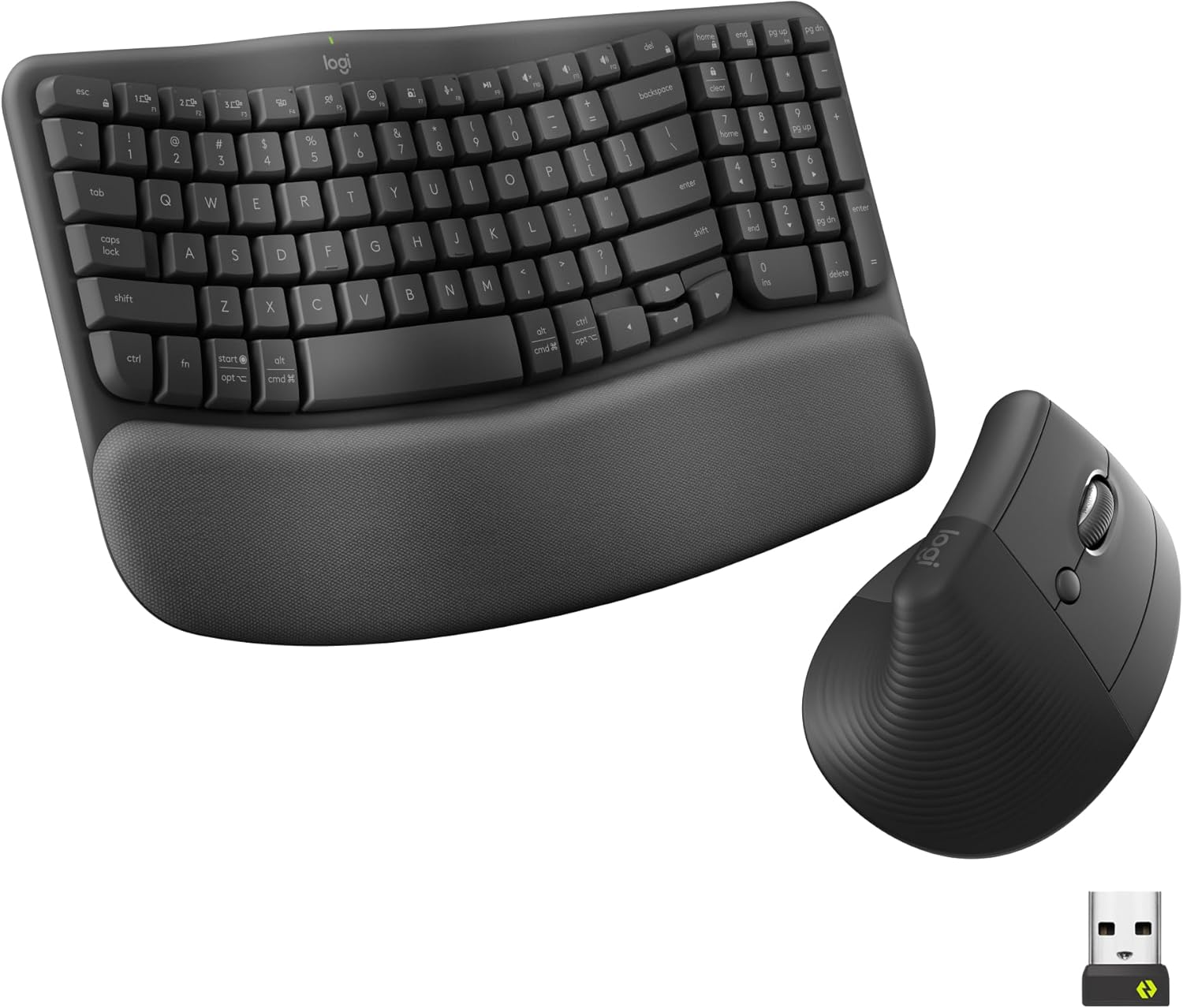
- Wave-shaped keyboard places hands and wrists in natural positions
- Cushioned palm rest supports wrists throughout extended typing sessions
- Lift mouse uses 57-degree vertical angle for relaxed forearm positioning
- Quiet keys and clicks suit shared offices and remote meetings
- Multi-device Bluetooth connectivity makes switching between computers straightforward
This is the easier ergonomic combo to adapt to
The Logitech Wave Keys and Lift bundle earns our number two position for Best Ergonomic Wireless Keyboard And Mouse Combo because it makes meaningful ergonomic changes without completely changing how a normal keyboard and mouse work. The keyboard uses a compact wave-shaped ergonomic keyframe with an integrated cushioned palm rest, while the Lift mouse rotates the right hand into a 57-degree vertical position.
This combination is less aggressive than the ERGO K860 and MX Vertical pairing ranked first. For many office users, that can actually make the Wave Keys bundle easier to adopt.
The Wave Keys keyboard does not divide the key field with a large center split. Instead, the keys rise and fall in a wave pattern intended to place the hands, wrists, and forearms in a more natural typing position.
The wave layout keeps typing familiar while still changing how the hands approach the keyboard. Somebody moving from a conventional office keyboard can usually understand the layout immediately rather than relearning where central letters are located.
That matters in a work environment. An ergonomic keyboard only helps if the user is comfortable enough to keep using it rather than returning to the old keyboard after two days.
The keyboard includes a full number pad as well. This is useful for spreadsheets, accounting, financial work, numerical data entry, and other office tasks where dedicated number keys save time.
Despite including the numpad, Wave Keys is designed to be relatively compact for a full-featured ergonomic keyboard. That helps keep the mouse closer than some oversized split-keyboard designs.
Keeping the mouse within comfortable reach matters because the right arm moves between typing and pointing constantly. Reducing unnecessary lateral movement is useful during a long office day.
The cushioned palm rest and 57-degree mouse do most of the ergonomic work
Wave Keys has an integrated cushioned palm rest with multiple layers of memory foam. It provides a broad surface in front of the keys rather than leaving the hands against a hard desk edge.
The palm rest should be treated as support rather than somewhere to press the wrists firmly while typing. A light supported position works better than concentrating body weight directly underneath the wrist.
The keys themselves use a low-profile design. This reduces the height your fingers need to climb compared with many tall mechanical keyboards.
For somebody typing reports, emails, spreadsheets, customer records, and browser searches all day, low-profile keys can make the transition from a laptop or standard office keyboard easier. There is less adaptation than moving immediately to a tall mechanical board.
The Wave Keys layout was developed through Logitech's Ergo Lab and carries ergonomic certification. The curved arrangement is intended to support a more natural hand and wrist position while maintaining the familiar general structure of a conventional keyboard.
The familiar layout reduces the learning curve. You still have function keys, arrows, navigation controls, and a dedicated numerical area rather than moving common commands onto hidden layers.
The Lift mouse takes a more obvious approach to ergonomics. Its body rotates the right hand to a 57-degree angle instead of leaving the palm almost completely flat against the desk.
This places the hand closer to a handshake position. The thumb rests along the sculpted side while the index and middle fingers approach the main buttons from an angle.
The 57-degree grip reduces full forearm pronation, which is one of the major differences between the Lift and a conventional flat wireless mouse. You can feel the change immediately when placing your hand on it.
There is usually a short adaptation period. Cursor movement can initially feel slightly different because your hand is applying force from another angle.
Do not grip the Lift tightly while learning. Let the hand settle against the sculpted body and guide the mouse with relatively light pressure.
The Lift is designed primarily for small to medium right hands. That sizing is important because a mouse can have an excellent ergonomic angle and still feel wrong if the body is too large or too small.
Correct mouse sizing supports a relaxed grip. Your fingers should reach the buttons naturally without stretching forward or curling excessively.
Logitech also offers a dedicated left-handed Lift, but buyers should verify which mouse configuration is included in the particular bundle they are purchasing. Strongly sculpted vertical mice are not naturally ambidextrous.
The Lift uses an adjustable optical sensor with sensitivity reaching 4000 DPI. This gives enough range for normal office work and multi-monitor setups.
A higher pointer sensitivity can reduce the amount of physical mouse movement required to cross a large display. Less mouse travel can be useful when someone works across two monitors throughout the day.
Do not simply choose maximum sensitivity. If the cursor becomes difficult to control, you may spend more time making tiny corrective movements than you save through reduced travel.
Start somewhere moderate and adjust gradually. The correct sensitivity depends on screen resolution, monitor count, desk space, and how much of the forearm you naturally use to move the mouse.
The Lift also includes Logitech's SmartWheel. This provides controlled scrolling for smaller movements while making it easier to travel quickly through longer documents.
SmartWheel works particularly well for office documents. A long spreadsheet, PDF, report, or web page can be navigated without repeatedly spinning the wheel for several seconds.
The mouse buttons are designed for quieter operation too. This is useful in shared offices and during video meetings where a nearby microphone can pick up repeated clicking.
Wave Keys follows the same quiet-work philosophy. The typing sound is restrained compared with a loud mechanical keyboard.
That makes the combination appropriate for professional environments where several people work in the same room. Quiet input devices reduce unnecessary office noise without changing the basic functionality of the keyboard or mouse.
Why this combo finishes second rather than taking first place
Wireless connectivity is one of the bundle's strongest practical features. Wave Keys supports Bluetooth Low Energy and Logi Bolt, while the Lift also supports Bluetooth and Logi Bolt connectivity.
This gives the pair a clean cable-free workstation setup. Both devices fit naturally into multi-device desks, particularly when a work laptop and personal computer share the same workspace.
Wave Keys supports Easy-Switch across up to three compatible devices. That means the same keyboard can move between computers without physically reconnecting cables.
The Lift can also work across multiple paired devices. Keeping one keyboard and mouse combination across several computers helps maintain the same hand position regardless of which machine is active.
This is particularly useful for hybrid workers. You might use a company laptop during the day, switch to a personal desktop later, and occasionally connect another device without reorganizing the desk.
Consistency is useful in an ergonomic workstation. There is little benefit in carefully selecting comfortable peripherals if half the working day is still spent using a cramped laptop keyboard and tiny travel mouse.
Battery endurance is another strong point. Wave Keys uses replaceable batteries with Logitech rating keyboard battery life at up to three years depending on usage conditions.
The Lift uses one AA battery and is rated for up to 24 months. This means neither device needs to sit on a charging cable every week.
Some users prefer rechargeable batteries, and that is one area where the premium MX Vertical has an advantage. But replaceable batteries have their own convenience.
Long battery life makes wireless operation low maintenance. Keep spare batteries nearby and the workstation can remain cable-free for very long periods.
The Wave Keys keyboard also supports customization through Logi Options+ on compatible systems. Shortcut keys can be assigned to frequently used productivity actions.
The Lift provides customizable buttons through the same software ecosystem. This creates a fairly coherent experience because keyboard and mouse settings can be managed through Logitech's productivity platform.
Do not customize everything on the first day. The ergonomic keyboard shape and vertical mouse already require some adaptation.
Learn the physical devices before changing shortcuts. Once the new hand positions feel normal, identify the repetitive commands that are actually worth remapping.
A worker who spends most of the day in a browser might prioritize navigation commands. Someone working in spreadsheets may prefer different shortcuts.
The best customizations are the ones that eliminate movements repeated hundreds of times. Rare actions do not need prime button positions.
The keyboard's compact full-size arrangement is also useful ergonomically, but the numpad remains a compromise. Right-handed users still need to place the mouse to the right of the numerical block.
If you never use the numpad, a tenkeyless ergonomic keyboard could theoretically position the mouse closer. But for mainstream office use, Logitech has prioritized complete key access.
The numpad is useful when your work needs it. Accounting, spreadsheets, inventory systems, financial analysis, and data entry are obvious examples.
Desk height still matters regardless of the keyboard shape. Position the keyboard so your shoulders can remain relaxed rather than raised throughout the day.
The elbows should sit comfortably relative to the work surface. If the desk is too high, an ergonomic keyboard cannot correct the entire posture problem by itself.
The same applies to the mouse. Keep the Lift immediately beside the keyboard rather than leaving a large decorative gap between them.
Keep both devices inside comfortable reach. The upper arm should not need to extend significantly every time you move from typing to pointing.
Take normal breaks as well. Ergonomic hardware changes physical positioning, but it does not remove the repetitive nature of computer work.
Alternate tasks where practical. Keyboard shortcuts can reduce mouse usage, while mouse button customization can reduce some awkward keyboard reaches.
This bundle ranks second mainly because the ERGO K860 and MX Vertical combination above it provides a more substantial ergonomic intervention. The K860 uses a pronounced split and curved keyframe with adjustable negative tilt, while the MX Vertical is larger and aimed at a more strongly sculpted premium productivity experience.
The first-place combo offers deeper ergonomic adjustment. For users specifically seeking the strongest possible departure from conventional input posture, it has the advantage.
The Wave Keys and Lift combination is gentler. That is why it ranks second, but it can also be exactly why somebody prefers it.
A worker who finds split keyboards intimidating may adapt to Wave Keys much faster. The keyboard still looks recognizable, the keys remain in broadly familiar positions, and there is no large separation through the center.
The Lift similarly gives you the benefits of a vertical mouse without being excessively large. Its small-to-medium-hand focus makes it particularly approachable.
This combination balances ergonomics with familiarity. That balance is the biggest reason we rate it so highly.
It also makes sense for a shared workstation. Someone unfamiliar with ergonomic equipment can generally sit down and understand Wave Keys immediately.
The mouse requires more adaptation, but the basic controls remain conventional. Left click, right click, scrolling, and side buttons work where expected.
The keyboard's integrated palm rest cannot be removed, which is worth considering if desk depth is limited. Measure the available surface before buying.
A palm rest adds depth even when the keyboard itself is not unusually wide. Ergonomic equipment needs enough physical desk space to be positioned correctly.
Do not push the keyboard far away simply because the palm rest consumes more depth. That would make you reach forward with both arms and undermine the intended setup.
Bring the keyboard toward the body and move other desk items behind it if necessary. The mouse should remain aligned beside the keyboard.
Cleaning the integrated palm rest is another small maintenance consideration. Fabric and cushioned surfaces naturally collect dust and skin oils over time.
Use appropriate cleaning methods rather than saturating the material. Keeping the contact surfaces clean helps the equipment remain pleasant during daily use.
The keyboard and mouse are designed for long-term office use, and their battery endurance supports that. Neither device requires constant attention once the workstation is configured.
For someone who changes computers regularly, the wireless switching is particularly valuable. One ergonomic setup can remain physically unchanged while the active computer changes underneath it.
This is better than maintaining three different keyboard and mouse shapes across three machines. Muscle memory stays consistent.
The second-place ranking therefore comes with a fairly small qualification. The Wave Keys and Lift pair is less aggressively ergonomic than our first-place K860 and MX Vertical combination.
But it is also smaller, easier to learn, quiet, wireless, and exceptionally practical. For many ordinary office users this may be the easier choice.
We give the Logitech Wave Keys and Lift our number two rank out of seven because the combination of a wave-shaped ergonomic keyboard, integrated cushioned palm rest, compact full-size layout, 57-degree vertical mouse, adjustable 4000 DPI tracking, SmartWheel scrolling, quiet keys and clicks, Bluetooth connectivity, Logi Bolt support, multi-device switching, customizable controls, and long battery life creates an excellent ergonomic productivity setup.
For someone searching for the Best Ergonomic Wireless Keyboard And Mouse Combo, this pairing is an excellent second-place option because it improves both typing and mouse-hand positioning without requiring the more dramatic adaptation of a deeply split keyboard. It misses rank one because the ERGO K860 and MX Vertical offer a more advanced ergonomic design, but for everyday office work, remote work, spreadsheets, writing, browsing, and multi-device productivity, Wave Keys and Lift provide an unusually comfortable and approachable combination.
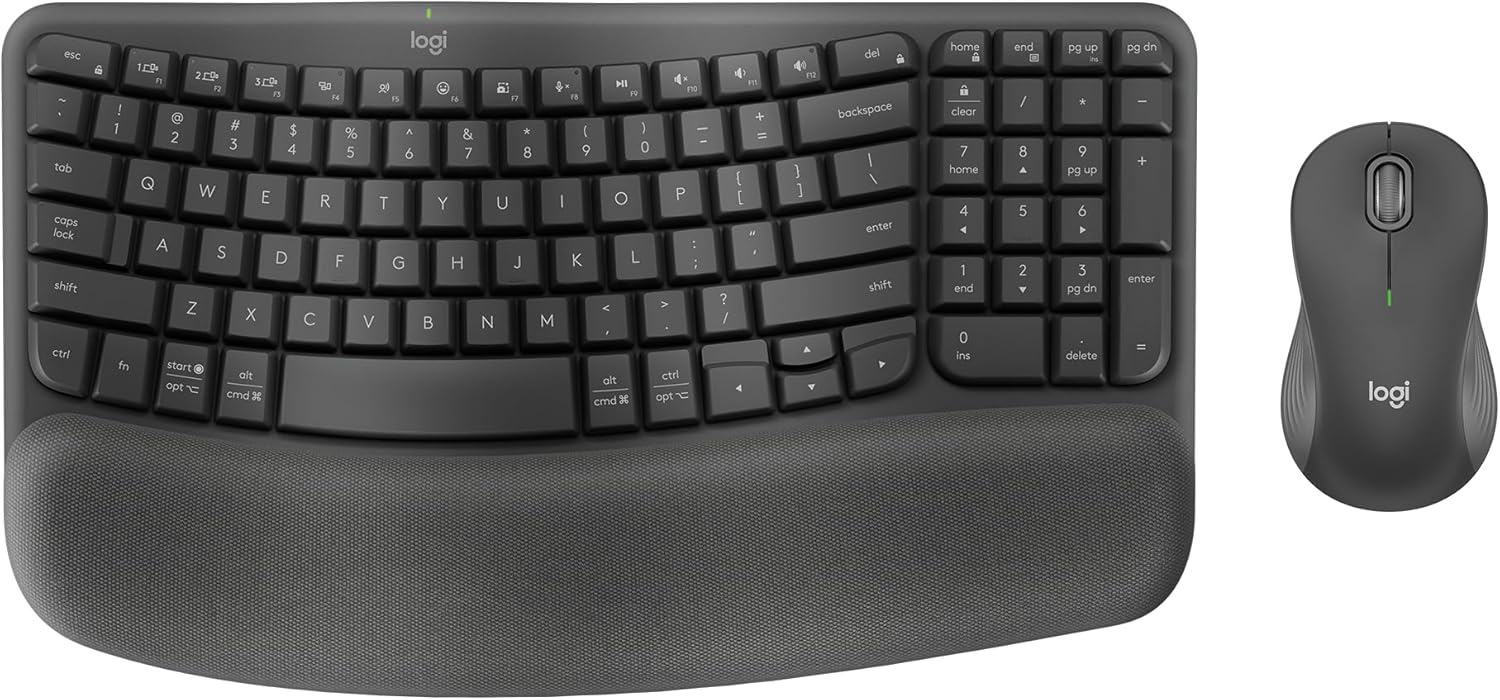
- Wave-shaped keyboard encourages more natural hand and wrist positioning
- Cushioned memory foam palm rest reduces pressure during long typing sessions
- Signature M550 mouse uses quiet clicks and comfortable sculpted shaping
- Bluetooth and Logi Bolt provide reliable flexible wireless connectivity
- Long battery life minimizes maintenance across everyday office workloads
The MK670 feels ergonomic without asking you to relearn how to type
The Logitech MK670 Wave Keys Combo earns our number three position for Best Ergonomic Wireless Keyboard And Mouse Combo because it improves everyday desk comfort without moving too far away from a normal office setup. The keyboard uses a curved wave-shaped ergonomic keyframe, while the included Signature M550 mouse keeps a familiar conventional mouse shape rather than switching to a fully vertical design.
That makes this bundle easier to adapt to than the two Logitech combinations ranked above it. You still get an ergonomic keyboard with a cushioned palm rest, but there is very little learning curve for the mouse.
The Wave Keys keyboard measures about 375.9 mm wide, 218.9 mm deep, and 30.5 mm high. It manages to include a number pad while staying relatively compact compared with many large ergonomic keyboards.
The compact width helps bring the mouse closer to the body. That matters because repeatedly reaching several extra inches toward the mouse can add up over an eight-hour office day.
The keyboard's wave design gradually changes the height and direction of the keys. The goal is to let the hands approach the board in a less rigid straight-line position while still maintaining a very recognizable layout.
This is different from a deeply split keyboard. There is no major center gap and no dramatic separation between the two hands.
For someone moving away from a conventional keyboard for the first time, that can be a major advantage. The layout remains familiar from the first day, so you can concentrate on work instead of constantly searching for keys.
The keyboard is also certified ergonomic by United States Ergonomics. That does not mean every hand will find it perfect, but it shows that the physical design has been developed around workstation comfort rather than appearance alone.
The palm rest and quiet mouse make long office sessions easier to live with
The integrated palm rest is one of the strongest features of Wave Keys. Logitech uses a cushioned design with memory foam intended to provide more wrist support and distribute pressure across a broader area.
The memory foam support reduces hard desk contact, which is useful if your current keyboard leaves the base of the hands resting directly against a desk edge. The surface is also designed to be easy to clean.
Do not press your wrists heavily into the palm rest while typing. It works best as light support during pauses and between movements rather than as a surface for carrying a large amount of body weight.
The key mechanism uses a plunger-style design with approximately 1.5 mm actuation distance and around 2.5 mm total travel. Standard keys require about 50 grams of force, with the space bar slightly heavier.
That gives the keyboard a fairly familiar office typing feel. It is not mechanical, and that is probably a positive point for the audience Logitech is targeting here.
The keyboard stays relatively quiet during continuous typing, making it practical in shared workspaces, remote meetings, libraries, or home offices where somebody else may be nearby.
The keyboard is rated for around 10 million presses on its standard keys. That is useful for a device likely to spend several years on a permanent office workstation.
The full number pad is another practical feature. Spreadsheet users, accountants, finance professionals, inventory staff, and anyone who regularly enters numerical data do not have to rely on the top number row.
The tradeoff is still width. Even though Wave Keys is relatively compact for a keyboard with a numpad, the numerical section keeps the mouse farther right than a tenkeyless keyboard would.
The number pad needs to justify its desk space. If you use it constantly, it is useful. If you never touch it, a smaller ergonomic keyboard may create a better mouse position.
The included Signature M550 is the medium-to-large hand version used with the MK670 bundle. It is a conventional sculpted wireless mouse rather than the Lift vertical mouse included with our second-ranked combination.
That difference is important. The M550 does not rotate the forearm into a 57-degree handshake position.
Instead, Logitech focuses on a comfortable curved shell, rubberized side grip, quiet clicking, and SmartWheel scrolling. The mouse prioritizes familiarity over stronger ergonomic correction.
For many office users, that may actually be easier. There is practically no adjustment period if you already use a standard mouse.
The M550 uses a 400 to 4000 DPI optical sensor. The default setting is around 1000 DPI, but software adjustment lets you increase cursor speed for larger displays.
Increasing sensitivity can reduce how far the hand has to move physically. This becomes useful when working across two large monitors.
Use sensitivity to reduce unnecessary mouse travel, but do not set it so high that every small movement causes the pointer to overshoot.
Start at the default setting and make gradual changes. A good DPI setting lets you cover the screen comfortably while still selecting small buttons and spreadsheet cells accurately.
The SmartWheel is particularly good for office productivity. Scroll slowly and it gives line-by-line control, then flick it faster and inertia scrolling moves quickly through longer documents.
Think about reviewing a 70-page PDF. You may want careful movement around one section, then fast scrolling when jumping toward another chapter.
SmartWheel handles both styles without changing modes manually. The behaviour simply changes based on how quickly you move the wheel.
The mouse also uses Logitech SilentTouch technology. Logitech states that the click mechanism produces around 90 percent less click noise than its conventional comparison mouse.
That is not directly an ergonomic feature, but it makes the combo easier to use for long periods. Repetitive clicking can become surprisingly irritating in a quiet room.
It also helps during online meetings. A microphone positioned beside the keyboard and mouse is less likely to pick up constant sharp clicking while you navigate through slides or documents.
Why the MK670 takes third place instead of moving higher
The main reason is the included mouse. The Wave Keys keyboard itself is excellent, but the M550 is a comfortable conventional mouse rather than a strongly ergonomic vertical design.
Our number one bundle combines the ERGO K860 with the MX Vertical. The second-place bundle combines Wave Keys with the Lift vertical mouse.
Those two combinations address forearm rotation more directly. The MK670 focuses more heavily on keyboard ergonomics and pairs it with a comfortable standard mouse.
That does not make the M550 poorly designed. Its sculpted shape, rubber side grips, quiet buttons, adjustable sensor, and low weight make it pleasant for normal productivity.
The difference is simply that the hand remains closer to a traditional palm-down mouse position. For someone specifically looking for maximum ergonomic change, the Lift and MX Vertical are stronger options.
The M550 is lighter too. Logitech lists the mouse at around 111 grams with its AA battery in the larger version, depending on configuration.
It moves easily across the desk and does not require the adaptation period associated with tall vertical mice. Familiar movement can be an advantage for new users.
Both keyboard and mouse connect through Bluetooth Low Energy or the included Logi Bolt receiver. The shared receiver option keeps the setup simple on desktops and laptops with an available USB port.
Logitech lists wireless range at roughly 10 metres under normal open conditions. For ordinary desk work, that is far more distance than necessary.
Bluetooth is useful when USB ports are limited. The Logi Bolt receiver is useful when you want a dedicated wireless connection in a busy office environment.
Dual connectivity makes the bundle easy to deploy across Windows, macOS, ChromeOS, Linux, iPadOS, Android, and other supported systems.
Wave Keys also includes three Easy-Switch controls for moving between paired devices. This is useful if a work laptop and personal computer share one desk.
You can keep the same keyboard position rather than physically swapping peripherals. That consistency is useful after you have already adjusted the desk around the keyboard.
Logi Options+ provides additional customization on supported Windows and macOS systems. Function keys and mouse buttons can be assigned to actions that better match the applications you actually use.
Application-specific shortcuts can reduce repetitive reaching. Someone spending all day in spreadsheets may want different controls from somebody using a browser and email.
Do not customize every function immediately. Use the default controls first and notice which commands genuinely interrupt your workflow.
The keyboard includes useful default shortcuts for screen capture, microphone mute, media controls, volume, emoji access, and task switching. Those are already practical for remote office work.
Home, End, Page Up, and Page Down are also directly available. You do not need to memorize compact-keyboard layers for routine navigation.
The Wave Keys battery life is excellent. Logitech rates it at up to 36 months using two AAA batteries.
The M550 uses one AA battery and is rated at up to about 24 months when used through the receiver, with Bluetooth endurance listed slightly lower in some documentation. Battery maintenance is almost nonexistent in normal use.
This is different from rechargeable premium devices that need to be connected every few weeks or months. Some people prefer rechargeables, but there is convenience in simply replacing one battery when necessary.
Keep spare batteries nearby and the devices can remain wireless essentially all the time. There is no charging cable taking over the desk.
The keyboard itself weighs about 750 grams with batteries. It stays planted reasonably well without becoming a particularly heavy peripheral.
The mouse is light enough to move without much effort. That combination works well for regular office tasks where neither device needs gaming-level speed or extreme construction.
This is primarily a productivity combo. Its strengths are writing, spreadsheets, browsing, administration, remote work, communication, and general computer use.
Desk placement still matters. Bring Wave Keys close enough that your elbows remain near your sides rather than reaching forward.
Do not push the keyboard deep underneath the monitor simply because the integrated palm rest makes it look large. The typing area should remain comfortably reachable.
Place the mouse immediately beside the keyboard. Avoid creating a large gap between both devices, because that causes unnecessary arm movement every time you switch from typing to pointing.
The keyboard includes tilt legs that can create around a four-degree typing angle. Do not automatically assume that raising the keyboard is more comfortable.
Try it flat first. If lifting the rear improves your position, use the feet, but watch whether the wrists begin bending upward.
Chair height is equally important. If your desk surface is much higher than your relaxed elbows, your shoulders may remain elevated while typing.
No ergonomic keyboard can compensate for a badly positioned desk. The keyboard is one part of the workstation rather than the whole solution.
The M550 also comes in sizing intended for medium and larger hands in this combo. Users with small hands should pay attention to fit.
If the mouse body feels too large, fingers may stretch toward the buttons. A smaller mouse may be more comfortable even if the larger model has good shaping.
Logitech's Wave Keys keyboard itself is relatively universal by comparison. The wave shape does not impose a dramatic split, so different users can adapt without major adjustment.
The gentle ergonomic approach is the MK670's strongest quality. It improves hand support and typing position while remaining familiar enough for a shared office or household workstation.
This is also why it works well for companies. Employees do not need extensive training before using it.
Someone can sit down, recognize the keyboard immediately, and begin working. The wave becomes noticeable through comfort rather than through a confusing key arrangement.
The M550 follows the same philosophy. It is sculpted and comfortable but intentionally familiar.
That coherence makes the bundle successful even though it lacks a vertical mouse. Both pieces prioritize easy adoption rather than extreme ergonomic specialization.
The quieter operation is another office advantage. The keyboard is restrained and the mouse's SilentTouch buttons are significantly quieter than conventional mechanical clicks.
For a shared workspace, that can be more useful than flashy features. Nobody needs another source of repetitive noise during concentrated work.
The MK670 also uses recycled plastic in substantial portions of both devices. Logitech lists at least 61 percent post-consumer recycled plastic in the keyboard's relevant plastic parts and around 65 percent in the mouse.
That does not change how the combo performs, but it is part of Logitech's current sustainability approach. The packaging also uses FSC-certified paper materials.
The main practical limitation remains the standard mouse shape. Rank three reflects that one compromise more than any major weakness in the keyboard.
If you already dislike vertical mice or simply want something comfortable that feels normal immediately, this drawback may not be a drawback for you at all.
In fact, someone buying ergonomic equipment for an entire office may deliberately choose the MK670 instead of a vertical-mouse bundle because employees are less likely to reject it.
The setup is approachable. The keyboard changes wrist and hand positioning gradually while the mouse stays familiar.
We give the Logitech Wave Keys MK670 Combo our number three rank out of seven because its ergonomic wave-shaped keyboard, integrated memory foam palm rest, compact full-size 99-key arrangement, Signature M550 mouse, 400 to 4000 DPI sensor, SmartWheel scrolling, SilentTouch buttons, Bluetooth connectivity, Logi Bolt receiver, multi-device support, Logi Options+ customization, 36-month keyboard battery life, and up to 24-month mouse battery life create a strong everyday ergonomic package.
For someone searching for the Best Ergonomic Wireless Keyboard And Mouse Combo, the MK670 is an excellent third-place choice because it improves typing posture and palm support while keeping the overall experience extremely familiar. It ranks behind the first two Logitech bundles because the included M550 does not provide the more neutral vertical grip of the MX Vertical or Lift, but for easy adaptation, quiet office work, reliable wireless performance, long battery life, and comfortable all-day productivity, the MK670 remains a very strong option.

- Full size ergonomic keyboard provides curved support for extended typing sessions
- Vertical mouse encourages a more neutral wrist and forearm position
- Cushioned wrist rest and adjustable base improve typing position flexibility
- Rechargeable keyboard and mouse reduce ongoing disposable battery requirements
- Single 2.4 GHz receiver connects both devices with simple setup
The keyboard and mouse both make a real attempt at changing desk posture
The Perixx PERIDUO 614 earns our number four position for Best Ergonomic Wireless Keyboard And Mouse Combo because it does something important that many cheaper bundles miss. Both devices are designed around ergonomic positioning, with a curved full size keyboard on one side and a proper vertical mouse on the other.
The keyboard measures approximately 487 by 228 by 63 mm, so this is not a compact setup. You get a full number pad and complete key arrangement, which makes it suitable for spreadsheets, accounting, administration, data entry, and office work where numerical input is part of the daily routine.
The larger footprint is worth thinking about before buying. A wide keyboard naturally positions a right handed mouse farther from the center of your body, so leaving extra empty space between the keyboard and mouse makes the situation worse.
Keep the mouse directly beside the keyboard and position both devices close enough that your elbows can remain reasonably relaxed. That simple setup change matters more than placing the keyboard at the back of a deep desk because it looks tidy.
The keyboard uses scissor switches rather than mechanical switches. That gives it a relatively low travel, familiar office typing feel and avoids much of the noise associated with louder mechanical boards.
For somebody writing reports or answering email all day, that can be useful. The keys do not require the adaptation of a specialized mechanical layout, and the board remains recognizable to anyone who has used a standard full size keyboard.
The built in cushioned wrist rest is another important part of the design. The soft palm support provides a broader contact area than resting your hands directly against a hard desk edge.
Perixx also includes a detachable tilt base that changes the front height of the keyboard. This lets you experiment with typing angle instead of being locked into one fixed position.
Do not automatically choose the most dramatic angle. Start in the neutral position, type for a normal work session, then try the alternative if your wrists feel excessively bent upward or downward.
The vertical mouse is what makes this much more convincing as a combo
The included mouse measures roughly 120 by 76 by 63 mm and weighs about 105 grams. Its vertical shell positions the hand more upright than a conventional flat mouse, with the thumb resting along one side and the fingers approaching the buttons from the opposite side.
The vertical grip reduces the usual palm down position associated with a standard office mouse. That is particularly relevant when someone spends hours moving between spreadsheets, browser tabs, documents, and email.
The mouse includes forward and back buttons for navigation. Those become useful in browser heavy work because you can move through pages without repeatedly sending the pointer toward the top corner of the screen.
Perixx lists adjustable sensitivity levels for the mouse, with current specifications showing settings from 1000 through 3200 DPI. This lets you increase pointer movement on larger displays without physically moving the mouse over a huge area.
Higher sensitivity should be used carefully. A comfortable DPI reduces unnecessary hand travel, but excessive sensitivity can create constant corrective movements because the pointer becomes difficult to place accurately.
Start around a middle setting. If you use two large monitors and find yourself repeatedly lifting the mouse to cross the desktop, increase sensitivity one step.
If you regularly overshoot small buttons or spreadsheet cells, reduce it again. The goal is not maximum DPI, just enough cursor speed to keep movement controlled.
The vertical shape also needs a little adaptation. Someone coming from a traditional flat mouse may initially move diagonally when trying to move horizontally because the direction of hand pressure has changed.
Give the mouse several normal work sessions before making a final judgment. Grip it lightly rather than squeezing the sides while your hand learns the new position.
A tight grip adds unnecessary finger and forearm tension. The mouse should rest against the hand rather than being held as if it might slip away.
The combo uses one 2.4 GHz nano receiver for both the keyboard and mouse. The receiver is stored inside the mouse when not in use, which is a useful detail if the set is moved between workstations.
Wireless range is rated at about 30 feet. For an office desk you will normally use a fraction of that distance, but the range gives flexibility when connecting to a desktop tower positioned farther away.
One receiver keeps setup pleasantly simple. Plug it into a USB port and both peripherals share the connection instead of taking two ports.
This is also useful on laptops with limited USB connectivity. The drawback is that the system relies on a USB A receiver rather than offering the broader multi device Bluetooth switching found on some premium Logitech options.
If your normal routine involves switching constantly among three computers, the higher ranked Logitech combinations are more flexible. If one workstation is the main target, Perixx's approach is simpler and perfectly workable.
Why the PERIDUO 614 takes fourth place instead of ranking higher
Both devices contain rechargeable batteries and charge through USB C. Perixx states that the keyboard and mouse can last around one month when used approximately six to eight hours per day, depending on actual usage.
Rechargeable power reduces disposable battery maintenance, which is convenient for a permanent workstation. Charge the devices periodically rather than discovering that you need fresh AA or AAA batteries during an important meeting.
The control knob on the keyboard is another useful productivity feature. It handles volume adjustment and mute with straightforward physical input.
A longer press can switch the knob into a task management mode for selecting or launching programs. This is not essential to ergonomics, but it can reduce some repeated reaches toward media controls or software menus.
The keyboard also includes a dedicated Windows and Mac mode switch. Hold the relevant system key for around three seconds and the board changes its operating mode, with the setting retained after reboot.
Cross platform support is useful for mixed offices where a Windows desktop and Mac laptop may both appear on the same desk. Perixx also lists functional compatibility with Linux, ChromeOS, iPadOS, Android, and Fire OS.
The important limitation is that the connection method remains receiver based. The peripheral set does not provide the same elegant multi device switching experience as higher end Logitech combinations.
The keyboard is also large and weighs around one kilogram. That keeps it stable on a desk, but this is not the set we would choose for someone carrying peripherals between home and work every morning.
It is much better suited to a permanent desktop setup. The PERIDUO 614 wants a proper workstation with enough depth for the wrist support and enough width for the keyboard and vertical mouse.
That full size arrangement can also work against mouse positioning. If you barely use the number pad, you are dedicating several inches of valuable desk width to keys that may sit untouched all day.
A compact ergonomic keyboard can position the vertical mouse closer to your shoulder. That is one reason the Logitech Wave Keys and Lift pairing ranked above this Perixx bundle.
The ERGO K860 and MX Vertical combination at number one also has a more refined overall ergonomic design. Logitech's split and curved keyframe, adjustable palm lift, deeper software ecosystem, and multi device features create a stronger premium package.
Perixx is more straightforward and less sophisticated, but that does not mean the ergonomic concept is weak. You still get a curved keyboard, cushioned wrist support, adjustable keyboard position, and a genuine vertical mouse in one coordinated set.
That is much better than buying a so called ergonomic combo where only the keyboard has an unusual shape and the mouse is a standard flat office design.
The scissor switches are another area where some users will actually prefer the Perixx. They are quiet, familiar, and suited to professional office environments.
There is no mechanical switch customization here. If you want to change actuation force, switch type, key travel, or key sound, this keyboard is not designed around that enthusiast workflow.
This set prioritizes office comfort over customization. Plug it in, adjust the keyboard angle, choose a mouse sensitivity, and start working.
That simplicity can be valuable in a business setting. Employees do not need configuration software just to access the core ergonomic features.
The combination can also help solve a common home office problem where someone has gradually built a workstation from unrelated peripherals. A straight keyboard, tiny travel mouse, and hard desk edge may all be functional individually, but together they do very little for long session comfort.
Replacing both input devices at once gives you a more consistent starting point. The wrist rest handles the keyboard side while the vertical mouse changes the pointing hand position.
Both hands benefit from a changed setup, which is the core reason this combination ranks well.
Still, equipment does not fix poor desk geometry. If the keyboard is too high, your shoulders may remain raised regardless of how curved the keys are.
Adjust chair height so the keyboard sits at a reasonable level relative to your elbows. Bring the devices toward you rather than reaching forward across a deep desk.
Use the tilt base only after checking wrist position. A keyboard angle that looks ergonomic can still feel wrong if your desk and chair heights do not match it.
Watch your actual wrist angle while typing rather than relying on the label on the box. The goal is a comfortable position that you can maintain without forcing your hands upward.
The same applies to the mouse. Keep it close enough that the upper arm remains near the side of the body instead of reaching outward.
Use the adjustable DPI to reduce excessive travel rather than compensating with very large shoulder movements. A medium sensitivity is usually a good place to start.
Take normal breaks during long computer sessions too. No keyboard and mouse combination removes the repetitive nature of office work.
Switch tasks when possible. Use keyboard shortcuts for actions that are quicker from the keyboard and mouse buttons for navigation that would otherwise require long cursor travel.
Good ergonomic hardware should support better working habits, not become an excuse to sit completely still for eight uninterrupted hours.
The rechargeable batteries also deserve some basic maintenance. Charge the devices before they are completely depleted so you do not suddenly lose input during a deadline.
USB C makes this easier because the connection is now common across laptops, phones, and other accessories. You may already have compatible charging cables on the desk.
The receiver should be stored carefully when transporting the set. Because both devices rely on the same nano receiver, losing that small component becomes more inconvenient than losing a receiver for a single peripheral.
The shared receiver is convenient but important. Put it back into the mouse storage compartment when the combo is being moved.
We place the PERIDUO 614 at rank four because the higher ranked Logitech combinations provide stronger wireless ecosystems, more refined device switching, and in the top two positions, more developed ergonomic shaping. The Perixx keyboard is also physically large and less adaptable for compact desks.
But the fundamentals are strong. A full size curved keyboard, cushioned wrist support, adjustable tilt base, rechargeable power, quiet scissor switches, multifunction knob, shared 2.4 GHz receiver, and proper vertical mouse form a coherent productivity package.
Rank four still represents a strong ergonomic option, particularly for users who want an integrated numpad and a vertical mouse without moving into premium Logitech pricing.
We give the Perixx PERIDUO 614 our number four rank out of seven because it tackles both typing and pointing posture while keeping setup simple. The rechargeable keyboard and mouse, single receiver, adjustable keyboard base, wrist rest, DPI control, quiet operation, and Windows and Mac support make it practical for everyday professional use.
For someone searching for the Best Ergonomic Wireless Keyboard And Mouse Combo, the PERIDUO 614 is a positive fourth place choice for full size office work, spreadsheets, administrative tasks, remote work, and long desktop sessions. It lacks some of the premium connectivity and refinement of the three products above it, but it delivers the core ergonomic features where they matter and does so as one well matched wireless set.

- Compact ergonomic keyboard reduces width without permanently losing numpad access
- Separate wireless numeric keypad can be positioned wherever needed
- Vertical mouse offers four adjustable DPI levels for controlled tracking
- Cushioned palm support and adjustable tilt improve typing position flexibility
- Rechargeable USB-C design provides around one month of typical use
The separate numpad is actually the smartest part of this ergonomic setup
The Perixx PERIDUO 606IIA earns our number five position for Best Ergonomic Wireless Keyboard And Mouse Combo because it takes a different approach to the usual full-size ergonomic bundle. Instead of permanently attaching the number pad to the keyboard, you get a compact ergonomic keyboard with separate numpad, plus a vertical mouse, all connected through one wireless receiver.
That sounds like a small design choice, but it changes how the desk can be arranged. When you are writing, browsing, coding, or answering email, the number pad can sit somewhere else and the mouse can stay much closer to the keyboard.
When numerical work starts, bring the keypad back. This is particularly useful for accounting, spreadsheets, inventory systems, finance, data entry, and other jobs where the number pad is important but not required every minute.
The keyboard itself measures roughly 13.6 by 8.6 by 1.46 inches. That is considerably easier to fit into a smaller home office than many oversized ergonomic keyboards with permanent numerical sections.
The compact width can reduce mouse reach, especially for right-handed users. Instead of reaching across a built-in number pad every time you move from typing to pointing, the vertical mouse can sit immediately beside the main keyboard.
The separate keypad also gives left-handed users an interesting option. Numerical input can be positioned on the left side if that arrangement feels more efficient, while the main keyboard remains centered with the monitor.
The keyboard uses a curved ergonomic layout with a cushioned palm support. It is designed to give the hands a more natural approach to the keys without using two completely separate keyboard halves.
That makes adaptation relatively manageable. You get ergonomic shaping without an extreme layout change, which is useful if this is your first move away from a conventional straight keyboard.
The quiet scissor keys and vertical mouse work well for everyday office use
The PERIDUO 606IIA uses low-profile X-type scissor switches rather than mechanical switches. The result is a laptop-style typing feel with relatively short travel and controlled noise.
For a shared office, this makes sense. You can type through reports, messages, spreadsheets, and customer records without producing the sharper sound associated with many mechanical keyboards.
Quiet typing is useful during remote meetings too. If your desk microphone sits near the keyboard, softer key noise is less likely to become distracting for everyone else on the call.
The keyboard includes 12 multimedia functions accessed through the function row. These provide quicker access to commonly used media and system controls without forcing you to reach for on-screen menus.
The cushioned wrist rest is another useful feature. It provides a softer contact area in front of the keyboard instead of leaving the base of the hands directly against a hard desk surface.
Do not push your wrists heavily into it while actively typing. The palm support should provide light support, not become a place where you concentrate pressure throughout the entire workday.
Perixx also includes adjustable front and rear tilt feet. This gives you some flexibility to experiment with typing angle rather than accepting one fixed keyboard position.
Start with a fairly neutral angle. If your wrists are bending noticeably upward, adding more positive tilt may actually make the situation worse rather than better.
The correct angle depends on desk height, chair height, arm position, and how your hands naturally approach the keys. There is no single tilt setting that works for everybody.
The vertical mouse completes the ergonomic concept. Instead of pairing the shaped keyboard with a conventional flat mouse, Perixx includes a mouse designed to keep the hand closer to a handshake-style position.
This reduces the amount of palm-down forearm rotation normally associated with a standard office mouse. It is a more coherent pairing than bundles where only the keyboard receives ergonomic treatment.
The mouse measures roughly 4.3 by 2.87 by 2.83 inches and weighs around 0.22 pounds. It is substantial enough to support the hand without being an unusually heavy pointing device.
Adjustable DPI settings include 800, 1200, 1600, and 2400 DPI. Four sensitivity settings help control physical mouse travel across different screen sizes and monitor configurations.
Someone using one laptop display may be comfortable at 1200 DPI. A user working across two large monitors may prefer 1600 or 2400 DPI so the pointer can cross both screens without repeatedly lifting and repositioning the mouse.
Maximum sensitivity is not automatically better. If the pointer constantly overshoots buttons, cells, and text selections, reduce the DPI until movement becomes controlled again.
The mouse also includes back and forward controls for navigation. These are particularly useful when browsing because the thumb can move between pages without sending the pointer toward the browser controls repeatedly.
Small shortcut buttons can reduce repetitive cursor movement when they are attached to actions you perform constantly. They matter much less if your workflow rarely involves browser or folder navigation.
The vertical grip will probably require some adaptation if you currently use a flat mouse. Give it several normal work sessions rather than judging the shape after ten minutes.
Try not to squeeze the sides while learning. Let the hand rest against the body and use a light grip to guide the pointer.
Why the PERIDUO 606IIA finishes fifth in our ranking
The entire three-piece set uses a single 2.4GHz nano receiver. One receiver connects keyboard mouse and numpad, so you do not need three separate USB dongles occupying ports on the computer.
Wireless range is rated at up to around 30 feet. For ordinary desktop work you will probably use a tiny fraction of that distance, but it gives enough flexibility for different workstation arrangements.
The plug-and-play approach is straightforward. Connect the receiver, turn on the peripherals, and the three devices operate as one coordinated set without requiring three separate wireless setups.
The downside is that this is primarily a 2.4GHz receiver-based system. It does not provide the sophisticated Bluetooth multi-device switching offered by the higher-ranked Logitech combinations.
Multi-computer users may find Logitech more flexible. If you constantly switch between a desktop, laptop, and tablet, the premium options above this Perixx set make that process easier.
If you mainly work from one computer, that difference matters much less. A dedicated 2.4GHz receiver provides a stable and simple connection for a permanent workstation.
The keyboard, mouse, and keypad are rechargeable through USB-C. Perixx rates typical battery endurance at up to around one month when the devices are used approximately six to eight hours per day.
That is a useful improvement over maintaining separate sets of disposable batteries. USB-C charging keeps the three-device setup manageable, especially if USB-C cables are already part of your desk setup.
The separate numpad is also rechargeable, which is important because it would be annoying to maintain three different battery types across one combo. Charge the devices periodically rather than waiting until they become completely empty during a deadline.
The keyboard weighs roughly 1.7 pounds, while the separate keypad weighs about 0.15 pounds. The keypad is small enough to move around the desk or store away when it is not needed.
This modularity is the biggest practical advantage over the PERIDUO 614 ranked above it. That model provides a full-size integrated keyboard, while the 606IIA lets you decide where the numerical section belongs.
The detached numpad makes desk positioning much more flexible. Put it on the right for conventional data entry, move it left, or remove it entirely during writing-heavy work.
This can solve a common ergonomic problem with full-size keyboards. A permanent number pad forces a right-handed mouse several inches farther away from the central typing area.
With the 606IIA, the mouse can stay close while the keypad moves somewhere else. That is a simple mechanical solution rather than something that requires software.
Compatibility is strongest with Windows 7 through Windows 11, while Perixx also lists macOS 11.2.1 or later and Android support for the current model. Check any operating-system-specific shortcut behavior if you use the set outside Windows.
Basic keyboard and mouse operation is straightforward, but specialized function keys can behave differently across operating systems. That is normal for productivity keyboards designed primarily around Windows.
The separate number pad is also useful for people who do not need it every day. A writer might store it away Monday through Thursday, then bring it out when handling invoices on Friday.
A spreadsheet-heavy accountant might keep it permanently beside the keyboard. A left-handed data-entry user could experiment with placing it on the opposite side.
This is the kind of feature that solves a real desk problem rather than simply adding another button. Modular hardware lets the workstation change with the task.
The compact keyboard also gives you more freedom to center the main letter keys directly in front of the body. That is often overlooked with full-size keyboards.
People frequently center the entire keyboard chassis with the monitor, which means the actual typing section sits slightly left because the number pad occupies the right side. A separate keypad removes that problem.
Center the main typing section with your body and display. Then position the mouse and keypad around it according to how often they are used.
Device placement matters as much as device shape. An ergonomic keyboard can still feel awkward if it is positioned too far away or off-center.
Chair height matters too. The shoulders should remain relatively relaxed rather than raised because the desk surface is too high.
Keep the elbows in a comfortable position and bring the keyboard toward you. Do not push it deep underneath the monitor and reach forward all day.
The cushioned palm rest increases keyboard depth, so make sure the desk has enough room. The support should sit where the hands can approach it naturally.
The vertical mouse should remain close to the keyboard. Avoid leaving unnecessary gaps between input devices, because those gaps turn into repeated shoulder movement during the workday.
The 2400 DPI maximum is adequate for office productivity, but it is not a high-performance gaming sensor. This combo is designed around work, not competitive gaming.
The same applies to the keyboard. Scissor switches prioritize quiet low-profile typing rather than mechanical switch customization.
If you want hot-swappable switches, per-key RGB, macros, and gaming-level polling rates, this is the wrong category of product. The PERIDUO 606IIA is focused on ergonomic office productivity.
That narrower focus is not necessarily a weakness. A lot of people simply need a comfortable keyboard and mouse that work reliably through an eight-hour office day.
The higher-ranked Logitech bundles offer more refined software ecosystems and stronger multi-device support. Their ergonomic designs also have extensive mainstream adoption and easier integration with mixed-device workstations.
The PERIDUO 614 ranked fourth offers a larger, more traditional integrated keyboard experience for users who want their number pad permanently attached. That makes it slightly simpler as a conventional office replacement.
The 606IIA asks you to manage three physical devices instead. Some users will love that flexibility, while others will find a separate keypad unnecessary clutter.
The modular design is both strength and compromise. It depends entirely on whether you actually want to move the number pad.
The USB receiver is another small thing to manage. Because all three devices depend on that one receiver, losing it can interrupt the entire setup rather than just one peripheral.
Store it carefully when transporting the combo. A dedicated compartment or consistent laptop-bag pocket is worth using.
Perixx does provide replacement receiver options for supported models, which is reassuring. Still, preventing the problem is easier than rebinding a replacement later.
The quiet scissor switches and silent mouse buttons make this combination particularly suitable for shared spaces. Low-noise input works well around coworkers, family members, and video-call microphones.
This is one area where a straightforward office-focused combo has an advantage over enthusiast equipment. You are not paying for a loud typing experience that everybody else in the room has to hear.
Maintenance is simple. Keep the keyboard and keypad free of debris, wipe the palm support appropriately, and clean the mouse sensor area when needed.
USB-C charging also means there are no battery compartments to open repeatedly. Use a regular charging routine and the devices should require little attention.
We rank the PERIDUO 606IIA fifth because the products above it provide stronger overall refinement, easier multi-device connectivity, or a simpler integrated design. The Perixx still offers a genuinely clever ergonomic layout, especially because the numpad can be moved completely away from the mouse.
For users who do not need Bluetooth switching and mainly work from one desktop or laptop, several of those ranking disadvantages become much less important. The core keyboard, vertical mouse, and separate keypad arrangement remains practical.
We give the Perixx PERIDUO 606IIA our number five rank out of seven because its compact curved ergonomic keyboard, separate wireless numeric keypad, cushioned palm support, adjustable tilt feet, quiet scissor switches, vertical mouse, 800 to 2400 DPI adjustment, back and forward buttons, USB-C rechargeable batteries, shared 2.4GHz nano receiver, and roughly one-month rated battery endurance create a flexible three-piece workstation setup.
For someone searching for the Best Ergonomic Wireless Keyboard And Mouse Combo, the PERIDUO 606IIA is a positive fifth-place choice if you like the idea of keeping the main keyboard compact while having a number pad available only when needed. It lacks the sophisticated multi-device features and premium refinement of our higher-ranked options, but the removable keypad, quiet typing, vertical mouse, rechargeable design, and flexible desk positioning make it a thoughtful ergonomic package for long office sessions.

- Curved split keyboard encourages more natural wrist and forearm positioning
- Memory foam wrist rest supports hands during extended typing sessions
- Sculpted ergonomic mouse provides dedicated palm and thumb support
- Three-device connectivity supports Bluetooth and 2.4GHz wireless switching
- Rechargeable 500mAh batteries provide up to 100 hours operation
The split keyboard is the strongest reason to consider this combo
The ProtoArc EKM01 Plus earns our number six position for Best Ergonomic Wireless Keyboard And Mouse Combo because it delivers a fairly complete ergonomic workstation without moving into premium pricing. You get a full-size curved split keyboard, cushioned memory foam wrist rest, sculpted ergonomic mouse, rechargeable batteries, and wireless support for up to three devices.
The keyboard uses a curved split keyframe that changes the direction from which each hand approaches the keys. Instead of keeping both wrists angled inward toward a completely straight keyboard, the left and right sections spread outward around the center.
This can feel unusual during the first few days. Keys around the middle of the board may be the ones you miss initially because years of muscle memory have trained your fingers around a conventional rectangular layout.
Give the split layout time to feel normal. ProtoArc itself suggests allowing roughly one to two weeks when adapting to unfamiliar ergonomic input hardware, particularly the mouse.
The keyboard is full size, so you still get a dedicated numerical keypad. That is useful for spreadsheets, accounting, data entry, finance work, inventory management, and office users who regularly enter long sequences of numbers.
The downside is physical size. The keyboard measures roughly 480 mm across and 244 mm deep, so this is not a compact ergonomic keyboard for a tiny desk.
That width matters because a right-handed mouse has to sit beyond the number pad. Keep the mouse directly beside the keyboard rather than leaving unnecessary empty desk space between both devices.
The integrated wrist rest is another major part of the design. ProtoArc uses soft memory foam to create a cushioned area beneath the palms instead of leaving the hands resting against a hard desk edge.
Use that support lightly. A wrist rest should help position the hands between typing movements rather than becoming somewhere you press the wrists down firmly for eight hours.
The rechargeable mouse is simple, but the practical features are well chosen
The included mouse uses a sculpted ergonomic shape with dedicated palm and thumb support. It is not an ordinary flat mouse bundled with an ergonomic keyboard simply to complete the package.
The mouse changes the hand position too, which makes the EKM01 Plus a more coherent ergonomic combination. Both primary input devices are designed around changing how your hands interact with the desk.
The mouse measures approximately 124.6 mm long, 83.6 mm wide, and 50.4 mm high. That gives it a substantial shape intended to support the hand rather than disappearing underneath the palm like a small travel mouse.
ProtoArc provides three sensitivity settings at 800, 1300, and 2000 DPI. This is not a gaming mouse with extreme sensitivity figures, but those three levels cover ordinary productivity work quite well.
A 2000 DPI maximum can be useful when working across a large monitor because the pointer covers more screen distance for the same physical hand movement. Adjustable DPI can reduce unnecessary mouse travel when it is configured sensibly.
Do not automatically use the highest setting. If you find yourself repeatedly overshooting buttons, text fields, or spreadsheet cells, drop the sensitivity until the cursor feels controlled.
Someone working on a laptop screen may prefer 800 or 1300 DPI. A person working across a larger desktop display may find 2000 DPI more comfortable.
The mouse also includes dedicated forward and backward buttons. These are useful during browser-heavy work because your thumb can navigate pages without moving the pointer toward the browser controls every time.
Side buttons reduce repetitive navigation movement when you actually use them. They are particularly useful for research, web administration, file browsing, and office workflows involving lots of page changes.
The keyboard uses low-profile scissor switches. This gives it a relatively quiet office-oriented typing feel rather than the longer travel and louder operation associated with many mechanical keyboards.
ProtoArc also uses scooped key surfaces designed to fit the fingertips. The combination of short travel and curved key tops makes the board familiar enough for someone moving from a normal office keyboard.
That is useful because the split layout already creates one adjustment. The familiar scissor switches reduce additional learning instead of asking the user to adapt to a completely different switch feel at the same time.
The keyboard includes adjustable tilt legs too. These let you change the typing angle according to the workstation and whether you are sitting or standing.
Do not assume a steeper angle is automatically more ergonomic. Look at what happens to your wrists after changing the tilt.
If raising the keyboard causes the wrists to bend upward, return to a flatter position. The correct angle depends on chair height, desk height, forearm position, and how you naturally approach the keys.
Keyboard angle should follow your posture, not the other way around. Adjust the workstation around a comfortable neutral position rather than forcing your hands to match the equipment.
Why the EKM01 Plus lands at number six in our ranking
Connectivity is one of the better features of the EKM01 Plus. The keyboard and mouse support a USB receiver connection plus Bluetooth Low Energy, with three available device channels overall.
This means you can use the 2.4GHz receiver with one computer and Bluetooth with two additional devices. Three-device switching suits modern hybrid workstations where a company laptop, personal desktop, and another device may share one desk.
That is useful in real work. Instead of keeping three keyboards on the desk or returning to a cramped laptop keyboard whenever the active computer changes, the same ergonomic setup can remain in place.
The wireless operating range is rated at around 10 metres, or 33 feet. Normal desktop use will require only a small fraction of that distance.
Windows and macOS are supported, along with broader compatibility including Android according to ProtoArc's current specifications. This gives the set enough flexibility for most home and office environments.
Multi-platform support makes the combo more versatile, particularly for users whose work computer and personal computer run different operating systems.
The keyboard and mouse each contain a 500mAh rechargeable lithium-polymer battery. ProtoArc rates battery life at up to 100 hours on a full charge depending on usage conditions.
Both devices recharge through USB-C. This is convenient because USB-C cables are already common around modern laptops, tablets, and phones.
Auto sleep helps conserve power when the devices are not actively being used. Rechargeable power eliminates routine disposable batteries, which is useful when both keyboard and mouse are being used every working day.
The 100-hour figure is good, but it is one reason this bundle does not outrank Logitech's strongest options. Logitech's battery-powered office peripherals can run for months or even years between battery changes.
Rechargeable batteries have their own advantage, though. You do not need to keep AA or AAA batteries stored in a drawer.
Charge the combo periodically before the batteries become critically low. Waiting until the middle of an important meeting is not a useful battery-management strategy.
The full-size keyboard is another reason for the sixth-place ranking. The permanent number pad increases mouse distance for right-handed users.
If you enter numbers constantly, that is a worthwhile compromise. If you almost never touch the numpad, a compact keyboard could position the mouse several inches closer to your normal typing position.
The Perixx PERIDUO 606IIA ranked above this ProtoArc partly solves that problem by separating the numpad from the main keyboard. You can move it away when it is not needed.
The higher-ranked Logitech Wave Keys options also offer highly refined productivity ecosystems and strong wireless implementations. The ERGO K860 and MX Vertical pairing at number one goes further with a more developed split keyboard design and a 57-degree vertical mouse.
The ProtoArc is good rather than category-leading. Its advantage is that it packages most of the important ergonomic ideas into one reasonably straightforward set.
You get the curved split keyframe, cushioned wrist support, adjustable tilt, ergonomic mouse, multiple DPI levels, side buttons, Bluetooth, 2.4GHz wireless, multi-device switching, and USB-C charging.
That is a strong list for everyday office work. Nothing about the setup feels wildly experimental.
The full-size layout also keeps familiar navigation and numerical controls available. Someone moving from a standard office keyboard does not need to learn layers just to access ordinary functions.
Familiar physical keys make adoption easier, which matters when ergonomic hardware is being purchased for an employee rather than an enthusiast who enjoys relearning layouts.
The split center still requires adaptation, but the rest of the keyboard remains recognizable. This is a reasonable middle ground between a straight keyboard and a fully separated two-piece ergonomic board.
Desk placement matters a lot with this particular model because the keyboard is large. Center the typing area with your body rather than blindly centering the entire plastic chassis.
Place the mouse close enough that the upper arm remains near your side. If the shoulder moves outward noticeably every time you reach for the mouse, the setup needs adjustment.
Ergonomic equipment still needs correct positioning. Buying a curved keyboard does not compensate for placing it too far away.
Desk height matters too. If the work surface is substantially above your relaxed elbow position, your shoulders may remain raised while typing.
Adjust the chair where practical. Keep the elbows comfortable and avoid forcing the wrists upward just to reach the keys.
The integrated palm rest makes the keyboard fairly deep, so check available desk depth before buying. A shallow desk may force the keyboard farther away than ideal.
That is a common mistake with large ergonomic keyboards. Do not sacrifice reach just to fit the wrist rest.
Move other objects farther back instead. The keyboard and mouse are the things your hands use continuously, so they deserve the most convenient part of the desk.
The mouse should also be used with a light grip. Its sculpted shape is there to support the hand.
Squeezing the sides harder does not improve optical tracking. If you notice yourself gripping tightly during precise work, try lowering or raising DPI slightly until movement feels easier to control.
The three DPI levels make that experimentation simple. Use the lowest movement effort that stays accurate.
The forward and backward buttons can also reduce some pointer travel. Use them for browser navigation if that is a frequent part of your work.
Keyboard shortcuts can reduce mouse use further. The best workstation distributes repetitive tasks instead of forcing one hand to perform every interaction.
Take breaks during long sessions as well. A split keyboard and sculpted mouse change physical positioning, but they do not remove the repetitive nature of computer work.
Ergonomic hardware supports better work habits. It does not make uninterrupted eight-hour typing sessions automatically comfortable.
The mouse is designed primarily around small to medium hands, with ProtoArc recommending it for hand lengths under roughly 7.5 inches or 19.05 cm. This sizing detail matters.
A user with very large hands may find the mouse less supportive than a larger vertical model. Fingers should reach the buttons naturally without stretching beyond the shell.
This is another place where Logitech offers a broader range of ergonomic mouse sizes. The Lift suits smaller hands while the MX Vertical is more substantial.
Mouse size is part of ergonomic fit, not an incidental specification. A good shape in the wrong size can still feel awkward.
The EKM01 Plus also uses a fixed split rather than two physically independent keyboard halves. You cannot move the left and right sections farther apart.
That limits fine adjustment compared with specialized split ergonomic keyboards. On the other hand, it makes the keyboard much easier to position and keeps the desk from becoming complicated.
For mainstream office use, that simplicity is probably the better choice. There are no cables between halves and no need to decide exactly how far apart each section should sit.
The 2-year limited hardware warranty is another positive. A two-year warranty adds some reassurance for a combo containing two rechargeable devices and multiple wireless connection modes.
Maintenance is straightforward. Keep debris out of the keyboard, wipe the wrist rest appropriately, and clean the mouse sensor area when tracking becomes inconsistent.
Avoid soaking the memory foam wrist rest. Use suitable cleaning methods for the surface material and let it dry properly.
USB-C charging ports should also be kept free of debris. If charging becomes intermittent, inspect the cable and connector before assuming the battery has failed.
Basic maintenance helps the combo stay consistent, particularly when it remains on the same desk for years.
The number six ranking comes mainly from comparison. The ProtoArc does many things correctly, but the five combinations above it either offer more refined ergonomics, better device ecosystems, more flexible layouts, or stronger battery convenience.
The EKM01 Plus still represents a sensible middle-priced ergonomic setup. It is considerably more thoughtful than pairing a normal keyboard with a random wireless mouse.
Both devices are designed around extended office use. The keyboard changes hand position and supports the palms, while the mouse changes how the pointing hand rests and moves.
That coordinated design keeps the EKM01 Plus competitive. It simply does not quite reach the level of refinement offered by the highest-ranked combinations.
We give the ProtoArc EKM01 Plus our number six rank out of seven because its full-size curved split keyboard, memory foam wrist rest, adjustable tilt legs, scissor switches, sculpted ergonomic mouse, 800 to 2000 DPI adjustment, forward and backward buttons, three-device wireless connectivity, Bluetooth, 2.4GHz receiver, dual 500mAh batteries, USB-C charging, and up to 100 hours of rated battery life create a complete ergonomic productivity package.
For someone searching for the Best Ergonomic Wireless Keyboard And Mouse Combo, the EKM01 Plus is a positive sixth-place choice for home offices, remote work, spreadsheets, writing, administration, and multi-device productivity. It ranks below our top five because the competing combinations provide more refined ergonomic hardware, better battery endurance, or more flexible desk layouts, but ProtoArc still delivers a practical split keyboard and ergonomic mouse pairing with the core features needed for comfortable everyday work.

- Full-size split keyboard encourages more natural wrist positioning while typing
- Curved memory foam wrist rest supports hands through extended work sessions
- Sculpted ergonomic mouse includes dedicated palm and thumb support
- Three-device connectivity supports Bluetooth and USB wireless switching
- Rechargeable keyboard and mouse eliminate routine disposable battery replacement
The EKM01 Plus gives you a proper split keyboard without making the desk feel experimental
The ProtoArc EKM01 Plus earns our number seven position for Best Ergonomic Wireless Keyboard And Mouse Combo because it covers most of the important ergonomic basics in one fairly straightforward package. You get a full-size curved split keyboard, a soft memory foam wrist rest, an ergonomic wireless mouse, multi-device connectivity, and rechargeable power.
The keyboard uses a split keyframe that angles the left and right typing sections away from each other. This changes the wrist position compared with a completely straight keyboard where both hands tend to turn inward toward the center.
For someone typing for six or eight hours, that layout can matter more than another row of shortcut buttons. The goal is not to make the keyboard look unusual, but to let each hand approach the keys from a less forced angle.
The split design can reduce inward wrist bending, although the amount of improvement depends on your hand size, desk position, chair height, and typing technique. Ergonomic hardware still needs to be positioned correctly.
The EKM01 Plus keeps a full-size layout with 117 keys, including a dedicated number pad. That makes it useful for spreadsheets, accounting, administrative work, finance, numerical data entry, and jobs where the numpad genuinely gets used.
The downside is width. A full-size ergonomic keyboard takes more horizontal desk space than a compact model, which pushes a right-handed mouse farther away from the central typing area.
That is worth considering if you almost never use the number pad. A narrower keyboard can let the mouse sit closer to the shoulder and reduce the repeated reach between typing and pointing.
The numpad should earn the space it occupies. If your work is heavily numerical, it probably does. If not, a more compact ergonomic combo may fit the desk better.
The wrist rest and sculpted mouse make this feel more complete than a basic office bundle
The built-in curved wrist rest uses a soft memory foam layer intended to support the hands during longer typing sessions. It creates a broader contact area than resting the base of your hands directly against a hard desk edge.
Use that support lightly. The wrist rest should support rather than compress, so avoid planting the wrists heavily into the foam while actively typing.
The ergonomic mouse is shaped with dedicated palm and thumb support rather than using the flat symmetrical shell found on many inexpensive keyboard-and-mouse sets. That helps this bundle feel more coherent because both input devices are trying to improve hand position.
The mouse is still more conventional than a steep vertical model such as Logitech's MX Vertical. That is one of the reasons the EKM01 Plus sits lower in our seven-product ranking.
A sculpted palm-support mouse can be easier to learn, though. The shape feels familiar while adding more support, so users moving from a standard mouse do not need as much adjustment time.
This can be useful in an office where several people might use the workstation. Deeply vertical mice can feel awkward to somebody who has never tried one before.
The keyboard also stays recognizable despite the split. You still have the function row, navigation keys, arrows, and number pad in generally expected positions.
That reduces one common problem with specialized ergonomic keyboards. A completely unfamiliar layout can improve one aspect of wrist position while introducing a large learning curve that some users simply reject.
The EKM01 Plus remains easy to understand, which matters if ergonomic comfort is the goal rather than keyboard experimentation.
The keyboard and mouse support up to three devices simultaneously using Bluetooth and USB wireless connectivity. This makes the combo practical for modern desks where a work laptop and personal computer might sit beside each other.
You can keep the same physical keyboard and mouse position while changing the active machine. That means the ergonomic setup does not disappear every time you switch computers.
For example, somebody could spend the morning on a company laptop, switch to a personal desktop later, and still use the same split keyboard and sculpted mouse. Consistent peripherals help preserve the same desk posture across those systems.
Multi-device switching is particularly useful for remote workers. It reduces the temptation to use a cramped laptop keyboard simply because moving peripherals feels inconvenient.
The rechargeable design is useful for the same reason. You do not need to keep replacing AA or AAA batteries across two separate devices.
USB charging makes the setup easier to maintain. Charge the keyboard and mouse before they become critically low rather than waiting until one stops responding in the middle of a deadline.
Rechargeable power keeps the desk simpler, especially if USB charging cables are already used for phones, headsets, and other office equipment.
Auto-sleep behaviour also helps conserve power when the devices are left unused. That matters on a workstation where the keyboard and mouse may remain switched on all day.
Why the ProtoArc EKM01 Plus finishes seventh in this comparison
The main reason is competition rather than one major flaw. The EKM01 Plus already includes the ergonomic features we want, but the six products ranked above it offer more refined mouse shapes, better battery systems, stronger software ecosystems, more flexible layouts, or more polished connectivity.
The Logitech ERGO K860 and MX Vertical bundle at number one goes much further with its pronounced curved split keyboard, adjustable palm lift, and 57-degree vertical mouse. That combination makes a stronger change to both typing and mouse-hand posture.
The Wave Keys and Lift combination ranked second is also extremely approachable while giving the mouse hand a true 57-degree vertical orientation. The ProtoArc mouse is less aggressively ergonomic by comparison.
The Logitech MK670 at number three uses a more conventional mouse, but Logitech's wireless ecosystem, long battery life, SmartWheel, software customization, and overall product refinement give it an edge.
The Perixx models above this ProtoArc also have more distinctive desk-layout advantages. The PERIDUO 606IIA, for example, separates the numpad from the main keyboard so the mouse can sit closer when numerical entry is not needed.
The ProtoArc EKM01 Plus instead remains full size all the time. That works well for users who constantly need the number pad, but it is less flexible for compact desks.
Desk width is the biggest ergonomic compromise here. The wider the keyboard, the farther a right-handed mouse usually moves away from the body's center line.
You can reduce this by placing the mouse directly beside the keyboard and eliminating unnecessary gaps. Do not leave several inches between them purely for appearance.
Center the main typing section with your body rather than blindly centering the entire keyboard chassis. The number pad extends the keyboard significantly to the right.
This is a common setup mistake. Somebody centers the whole board beneath the monitor, then both hands end up slightly offset during normal typing.
Center the letters rather than the plastic shell. The part your hands use most should sit directly in front of you.
Desk height also matters. If your elbows sit far below the work surface, your shoulders may remain raised no matter how ergonomic the keyboard shape is.
Adjust the chair or desk where possible. The keyboard should sit at a height where the forearms can approach it without excessive shoulder elevation.
The memory foam wrist rest also increases the keyboard's depth. Make sure the desk is deep enough to bring the board close rather than pushing it away underneath the monitor.
Do not reach forward just to fit the keyboard. Reposition other items farther back before sacrificing a comfortable typing distance.
The split shape can require some adaptation, particularly around the center keys. It is normal to hit the wrong letter occasionally during the first few days.
Give the keyboard a reasonable adjustment period. Switching back and forth every hour between a straight keyboard and the EKM01 Plus can slow down the process of building new muscle memory.
The same principle applies to the mouse. Let the palm and thumb rest against the sculpted areas instead of gripping tightly.
A relaxed grip makes the ergonomic shape more useful. Squeezing the mouse harder does not improve wireless tracking.
Pointer sensitivity should also be set deliberately. If sensitivity is too low, you may repeatedly sweep the mouse through large distances across the desk.
If sensitivity is too high, the pointer becomes difficult to control and you end up making constant tiny corrections. Use a setting that balances distance with accuracy.
Multi-device support is another area where real-world use matters. Connect only the machines you regularly use instead of pairing everything available simply because the keyboard supports three devices.
Simple device switching is better than unnecessary complexity. A work laptop and personal desktop may be enough for most people.
The combo supports Windows and macOS, making it suitable for mixed-platform office environments. This matters because remote workers often use different systems for professional and personal tasks.
Shortcut behaviour can differ slightly between operating systems, so give yourself time to adjust when switching. Modifier positions are usually where muscle memory notices the change first.
The keyboard's full-size design is useful for productivity, but it is not particularly portable. A large split keyboard with wrist support makes more sense as a permanent desk peripheral than something carried into a coffee shop every morning.
The complete bundle weighs around 2.5 pounds according to product listings, which reinforces that point. This is primarily a home or office workstation combo.
If portability is the priority, ProtoArc itself sells foldable ergonomic combinations that make more sense for travel. The EKM01 Plus is designed around desk comfort first.
Quiet operation is another practical advantage. The keyboard is not trying to behave like a loud mechanical gaming board, so it suits offices, libraries, shared apartments, and video-call-heavy work.
That matters during sustained typing. Keyboard noise that seems harmless during a short test can become irritating after several hours.
Low-noise peripherals work better in shared spaces, especially when the other person in the room is not the one doing the typing.
The rechargeable battery system also means fewer disposable batteries end up being replaced over the life of the combo. That adds convenience as well as reducing routine maintenance.
Keep the charging ports clean and avoid pulling charging cables sideways. Small habits like this help rechargeable peripherals last longer.
Cleaning the wrist rest matters too. Memory foam surfaces naturally collect skin oils and dust during daily contact.
Use a lightly damp cloth appropriate for the surface rather than soaking the material. Let it dry fully before returning to normal use.
Basic maintenance keeps ergonomic equipment pleasant to use, which matters if it stays on the desk for years.
The three-device feature also makes the EKM01 Plus useful for home offices with several systems but limited desk space. You can reduce the number of keyboards and mice sitting around even though the keyboard itself is relatively large.
One shared ergonomic set is usually cleaner than keeping a separate keyboard for every computer. That also keeps your hand position consistent.
What the EKM01 Plus lacks most compared with higher-ranked options is refinement. Logitech offers deeper software customization, more developed device switching, and mouse designs with stronger ergonomic angles.
Perixx offers some clever layout choices that reduce desk width or make the number pad movable. ProtoArc takes the straightforward middle path with a full-size split keyboard and supportive mouse.
That is not a bad thing. Some buyers specifically want a device they can understand immediately.
You connect it, center the keyboard, adjust your chair and desk position, pair the devices, and work. There is less setup complexity than with highly programmable or physically separated ergonomic keyboards.
The ranking also reflects the fact that this ASIN is an earlier EKM01 Plus configuration, while ProtoArc now markets newer versions of the same general ergonomic concept. The core design remains useful, but newer implementations can offer updated refinements.
Rank seven does not mean poor ergonomics. It means the six options above it present stronger overall combinations for this particular comparison.
For someone who values a full-size layout, split keyframe, memory foam support, rechargeable design, and multi-device wireless operation at a sensible level of complexity, the EKM01 Plus still makes sense.
We give the ProtoArc EKM01 Plus our number seven rank out of seven because its 117-key full-size layout, curved split keyframe, memory foam wrist rest, sculpted ergonomic mouse, palm and thumb support, Bluetooth connectivity, USB wireless connection, three-device switching, rechargeable batteries, and Windows and macOS compatibility create a complete ergonomic workstation package.
For someone searching for the Best Ergonomic Wireless Keyboard And Mouse Combo, the EKM01 Plus is a positive seventh-place choice for home offices, writing, administration, spreadsheets, remote work, and long desktop sessions. It ranks last because the products above it offer more refined vertical mice, better desk-layout flexibility, stronger battery systems, or more advanced wireless ecosystems, but the ProtoArc still delivers the important basics in one practical ergonomic combo.