

Quick Buying Guide: Choosing the best ergonomic mouse for carpal tunnel syndrome means reducing awkward wrist positions without expecting one shape to treat a medical condition. Compare vertical angles, grip size, button force, and pointer sensitivity, and keep the device close enough that your shoulder stays relaxed. A trackball may reduce arm travel, while a vertical mouse changes forearm rotation. Test any design gradually, check left-handed availability and return terms, and combine it with sensible desk height and breaks. Seek clinical advice for persistent or worsening symptoms.

- 47-degree vertical design promotes a more neutral wrist position
- PixArt 3950 sensor delivers precise tracking up to 30,000 DPI
- 8,000Hz polling provides exceptionally responsive cursor and click performance
- Dual scroll wheels simplify vertical and horizontal document navigation
- Tri-mode connectivity and 140-hour Bluetooth battery support flexible workstations

The 47-degree shape is the real reason the M5 earns first place
The Keychron M5 8K earns our number one position for Best Ergonomic Mouse For Carpal Tunnel Syndrome because its most important feature is not the 30,000 DPI sensor or even the 8,000Hz polling rate. It is the 47-degree vertical ergonomic design, which positions the hand closer to a natural handshake orientation instead of leaving the palm completely flat against the desk.
That matters for people trying to reduce unnecessary wrist rotation during long computer sessions. A conventional flat mouse normally places the forearm in greater pronation, while the M5's angled body lets the hand rest in a more upright position.
It is important to be precise here. An ergonomic mouse is not a treatment or cure for carpal tunnel syndrome, and persistent numbness, tingling, weakness, or pain should be assessed by an appropriate healthcare professional.
What a mouse can change is the physical position and repetitive movement involved in computer work. Reducing unnecessary wrist strain during mouse use is exactly where the M5's shape becomes useful.
The body also includes a dedicated thumb rest and a smooth contour designed to support the palm. That gives the hand somewhere to settle instead of making the thumb continuously grip the side of a narrow mouse.
There is an adjustment period. If you have spent years using a flat mouse, the 47-degree position can feel unusual during the first few days even when the shape ultimately suits you better.
The dual wheels and 30K sensor reduce how much you need to fight the mouse
The M5 8K uses Keychron's higher-end PixArt 3950 optical sensor, with sensitivity adjustable from 100 to 30,000 DPI. It also supports tracking speeds up to 750 IPS and an 8,000Hz polling rate through compatible 2.4GHz wireless and wired connections.
Those numbers are far beyond what ordinary office work requires. You do not need 30,000 DPI to move through a spreadsheet, and setting sensitivity excessively high can actually make precise cursor control more difficult.
The useful part is adjustability. You can tune pointer sensitivity to your movement rather than repeatedly dragging the mouse across a large section of the desk.
For somebody trying to improve an uncomfortable workstation, that matters. Very low sensitivity can encourage large repeated arm movements, while extremely high sensitivity may lead to constant small corrective movements because the pointer becomes difficult to control.
Start somewhere moderate and adjust gradually. The right DPI depends on monitor resolution, display count, desk space, and whether you tend to move the mouse from the wrist or use more of the forearm.
The 8,000Hz polling capability is more performance-oriented. At its maximum setting, the mouse reports movement to the computer much more frequently than a conventional 1,000Hz mouse.
High polling makes cursor response extremely immediate, which is useful for gaming and high-refresh-rate displays. For office ergonomics, though, it is not the feature that should determine the purchase.
There is also a battery tradeoff. Keychron rates the 8K version for up to around 40 hours at 8,000Hz in 2.4GHz mode, while lower polling rates can extend operating time considerably.
If you spend most of the day in Excel, Chrome, Photoshop, or email, there is little reason to run 8K constantly. A lower report rate can preserve battery while remaining extremely responsive for productivity.
The M5 has another feature that is more relevant to everyday work: two scroll wheels. The side thumb wheel handles horizontal scrolling, while the conventional top wheel handles normal vertical movement.
That sounds minor until you work with wide spreadsheets. Instead of holding Shift, dragging a horizontal scrollbar, or repeatedly moving the pointer toward the bottom of the window, your thumb can move across columns directly.
The same idea works in video editing. A horizontal wheel can help scrub across a long timeline while the main wheel remains available for normal vertical navigation.
This can reduce repetitive pointer travel during certain workflows. It also keeps more commands under the hand that is already resting on the mouse.
Reducing unnecessary repeated movement is useful, but do not overuse the thumb wheel simply because it exists. If your thumb starts doing hundreds of forceful repetitions that it never did before, you have only shifted the workload to another digit.
Use a light grip and let the wheel move under the thumb rather than clamping the entire mouse while scrolling. Grip pressure is one of those workstation habits people rarely notice until they deliberately pay attention to it.
The M5 also includes programmable buttons. Keychron Launcher allows button remapping, macros, DPI adjustment, polling-rate configuration, lift-off-distance settings, and up to five onboard profiles.
That customization can be genuinely useful for repetitive office tasks. Frequently used shortcuts can move onto the mouse, reducing the need to repeatedly reach across the keyboard for awkward combinations.
For example, someone editing documents all day could map useful navigation commands to convenient buttons. A designer might assign application-specific shortcuts instead.
Do not program every button immediately. Use the mouse normally first, then identify the actions you repeat constantly and move only the useful ones.
Why we believe the Keychron M5 8K deserves rank number one
Connectivity is another strong point. The M5 supports 2.4GHz wireless, Bluetooth 5.3 on the 8K version, and USB wired operation.
The Bluetooth system can switch between three paired devices using the control on the bottom. Multi-device support works well for hybrid desks where a work laptop, personal computer, and another machine share the same mouse.
That means you can maintain one familiar ergonomic grip instead of using a comfortable mouse on one computer and returning to a tiny laptop mouse on another. Consistency can make workstation habits easier to maintain.
The 600 mAh battery is rated for up to 140 hours in Bluetooth mode on the 8K version. Keychron also quotes up to 120 hours at 1,000Hz for this version, depending on connection and operating conditions.
That is useful because an ergonomic mouse should be available throughout the workday rather than constantly sitting on a charging cable. Wired operation remains available when charging or maximum performance is needed.
The M5 8K uses Huano micro switches rated for up to 80 million clicks on the relevant clicky configuration. That gives the mouse a strong durability specification for heavy daily use.
Long switch life matters for high-volume clicking, especially for professionals who spend most of the day inside software requiring constant selection, dragging, editing, and navigation.
The M5 weighs approximately 95 grams according to Keychron's current specifications. That is worth clarifying because some marketplace titles may describe the mouse using lightweight language that can be confusing.
A 95-gram vertical mouse is still reasonably manageable, but it is not a 50-gram ultralight gaming mouse. The ergonomic body and additional thumb-wheel hardware contribute to the overall mass.
Weight preference is personal. A very heavy mouse can require more effort to start and stop, while an extremely light mouse may encourage fast movements that some users find harder to control.
Use the lightest grip that maintains control. Squeezing the sides harder does not make the sensor more accurate.
The PixArt 3950 sensor can also track on glass according to Keychron's specifications. This adds flexibility if the mouse is used on different desk surfaces, although a consistent mouse pad can still provide predictable glide.
Lift-off distance can be configured at 0.7 mm, 1.0 mm, or 2.0 mm on the 8K version. That is useful for users who frequently lift and reposition the mouse.
A lower lift-off distance means the cursor stops responding sooner when the mouse leaves the surface. Gaming users tend to care about this more than ordinary office users, but having the adjustment available is useful.
The M5's biggest ergonomic advantage remains the vertical angle. The 47-degree position reduces full palm-down rotation without going all the way to the nearly 90-degree orientation found on some extreme vertical mice.
That middle angle may be easier for some people to adapt to. The buttons still feel familiar, but the hand is noticeably rotated away from the completely flat posture of a standard mouse.
Do not assume the mouse alone determines wrist position, though. Desk height matters enormously.
If the mouse sits too high, your shoulder may remain raised. If it sits too far away, you may constantly reach forward from the shoulder.
Keep the mouse close to the keyboard and position it so the elbow can remain relatively relaxed beside the body. A compact keyboard can help because it leaves more room for the mouse near your natural hand position.
This is especially relevant if you use a full-size keyboard with a number pad. The number pad pushes a right-handed mouse farther outward, increasing the distance between the shoulder and normal pointing position.
If you rarely use the number pad, a compact keyboard may improve the overall workstation more than changing mouse DPI ever could. Ergonomics works as a system.
Wrist movement is another thing to watch. A vertical mouse does not mean you should plant the wrist in one spot and pivot the entire mouse from that joint for eight hours.
Use the forearm for larger movements and keep the wrist relatively neutral rather than repeatedly bending it from side to side. Adjust pointer sensitivity so that this feels practical on your desk.
Take normal breaks too. No mouse shape makes continuous repetitive computer work consequence-free.
Alternate tasks when possible. Keyboard shortcuts can reduce mouse usage, while programmable mouse buttons can reduce certain keyboard reaches.
The point is distributing work sensibly rather than asking one hand to repeat the same movement continuously. This matters particularly when researching the Best Ergonomic Mouse For Carpal Tunnel Syndrome.
Do not treat ergonomic hardware as medical treatment. If you already have diagnosed carpal tunnel syndrome or persistent symptoms, equipment choices should complement professional medical advice rather than replace it.
Symptoms such as persistent numbness, tingling, weakness, loss of grip strength, or pain deserve proper assessment. Changing a mouse may improve workstation comfort, but it cannot determine the underlying cause of those symptoms.
There are a few drawbacks to the M5. The shape is clearly designed around right-handed use, so it is not an appropriate ergonomic solution for left-handed users.
The 47-degree angle also takes adaptation. Somebody accustomed to a conventional mouse may initially overshoot targets or feel slower during precise selections.
Give it several days before changing sensitivity constantly. Your hand needs time to learn the new angle, and changing five settings at once makes adaptation harder.
The 8K capability can also be unnecessary for many office buyers. It is excellent that Keychron includes enthusiast-level performance, but somebody working primarily with documents does not need to run maximum polling all day.
Use the performance level that suits the task. Lower polling preserves battery, while 8K remains available for gaming or situations where maximum responsiveness matters.
The M5 ranks first because it does not force a choice between ergonomic shape and high-end mouse performance. Many vertical mice prioritize comfort but use basic sensors, limited software, and slow connectivity.
The M5 combines ergonomics with enthusiast hardware. You get the 47-degree vertical grip, thumb support, dual scroll wheels, a PixArt 3950 sensor, up to 30,000 DPI, 8K polling, programmable controls, onboard profiles, multi-device Bluetooth, 2.4GHz wireless, and wired operation.
That combination makes it suitable for somebody who works all day and still wants accurate, responsive control for creative applications or gaming afterward. You do not need a second conventional performance mouse sitting beside it.
We therefore give the Keychron M5 8K our number one rank out of seven. Its 47-degree vertical ergonomic design, sculpted thumb support, dual scroll wheels, PixArt 3950 sensor, 100 to 30,000 DPI range, 8,000Hz polling capability, Bluetooth 5.3, 2.4GHz wireless, USB wired operation, 600 mAh battery, up to 140 hours of Bluetooth runtime, programmable buttons, and five onboard profiles create an unusually complete ergonomic mouse.
For someone searching for the Best Ergonomic Mouse For Carpal Tunnel Syndrome, the M5 8K deserves first place because the design directly addresses wrist and forearm positioning while still providing the precision and customization expected from a modern high-performance mouse. Use it with a light grip, sensible DPI, relaxed shoulder position, and a workstation that keeps the mouse close to your body, and it offers a very strong combination of everyday comfort and serious performance.

- 57-degree vertical angle promotes a more neutral wrist position
- Ergonomist-approved shape reduces muscular activity during extended computer use
- 4000 DPI sensor can reduce unnecessary hand movement significantly
- Three connection methods support flexible multi-device workstation setups
- Four-month rechargeable battery minimizes interruptions during daily work
The 57-degree angle is the main reason this mouse ranks so highly
The Logitech MX Vertical earns our number two position for Best Ergonomic Mouse For Carpal Tunnel Syndrome because its design is focused very clearly on wrist and forearm position. The mouse uses a 57-degree vertical handshake angle, a sculpted thumb rest, a textured rubber surface, and a taller body that lets the hand sit more upright than it would on a conventional flat mouse.
Logitech says this geometry was developed using criteria from ergonomists and reduces muscular activity by up to 10 percent compared with a standard mouse. That does not mean the MX Vertical treats carpal tunnel syndrome, but it does mean the physical shape was deliberately designed around reducing unnecessary muscular strain and wrist pressure during mouse use.
That distinction matters. If someone has persistent numbness, tingling, weakness, or pain, an ergonomic mouse should not replace appropriate medical assessment.
What the MX Vertical can change is how the hand approaches everyday computer work. The more upright position reduces forearm pronation, meaning the palm is not forced completely downward toward the desk for hours at a time.
The first few days can feel strange. A vertical mouse changes both the angle of your hand and the direction in which you apply force when clicking.
Give it time before deciding that the shape is too unusual. Years of using flat mice create muscle memory, and that does not disappear after twenty minutes.
The 4000 DPI sensor is useful because you can move less, not because bigger numbers are better
The MX Vertical uses a high-precision optical sensor adjustable from 400 to 4000 DPI. Logitech specifically points out that the 4000 DPI sensor can require up to four times less hand movement than a traditional 1000 DPI mouse when configured appropriately.
Reducing unnecessary hand travel can be useful during long working sessions. Someone using two large monitors does not necessarily want to repeatedly drag the mouse across a huge section of desk just to reach the opposite side of the screen.
The cursor speed button on top of the mouse lets you quickly change sensitivity. This can be useful when switching between broad navigation and more precise tasks.
For example, a spreadsheet user may prefer a moderately fast pointer for moving across a large worksheet. A designer selecting small objects may want greater precision.
Do not assume the maximum 4000 DPI setting is automatically best. Pointer sensitivity should match your actual movement, monitor resolution, desk space, and level of control.
If DPI is excessively high, the cursor may feel twitchy and require constant tiny corrections. If it is too low, you may find yourself repeatedly lifting and repositioning the mouse.
Start somewhere in the middle. Adjust in small increments until you can cross the display without making large wrist movements while still selecting small targets accurately.
The MX Vertical weighs about 135 grams. That is considerably heavier than some lightweight performance mice, but the larger sculpted body is designed around palm support rather than rapid gaming-style flick movements.
A light grip matters more than aggressive movement. Avoid squeezing the sides simply because the body is taller than a traditional mouse.
The textured rubber surface helps with that. Logitech designed the exterior to provide a stable grip without requiring the fingers to clamp down unnecessarily.
The thumb rests along the sculpted side rather than hanging awkwardly against the desk. This can make the whole hand feel more supported during long sessions.
The size is worth considering, though. Logitech positions the MX Vertical primarily for medium to large hands.
Mouse size should match your hand. If the body is too large, you may stretch the fingers toward the buttons instead of relaxing around the mouse.
People with smaller hands may find Logitech's smaller Lift Vertical easier to control. The ergonomic angle is similar, but the physical dimensions differ.
Why the MX Vertical finishes second rather than taking our top spot
Connectivity is one of the MX Vertical's practical strengths. You can connect through the Logitech Unifying USB receiver, Bluetooth, or the included USB-C cable.
Three connection methods make desk switching easy, especially if you move between a work laptop and personal computer. Logitech Easy-Switch allows the mouse to pair with up to three computers.
That is useful for people trying to maintain one consistent ergonomic setup across different machines. You do not have to return to a small flat travel mouse every time you switch devices.
Logitech Flow adds another productivity feature on supported systems. It can allow the pointer to move between computers and can help transfer text, images, and files between them.
This is convenient in a dual-computer workstation. You can keep your hand on the same mouse rather than reaching for a second pointing device.
Consistency can improve workstation habits, especially when you have already adjusted chair height, pointer speed, and mouse position around one ergonomic device.
The rechargeable battery is another strong point. Logitech rates it for up to four months on a full charge, depending on usage conditions.
A one-minute quick charge can provide about three hours of use. That means forgetting to charge the mouse does not necessarily stop an entire work session.
The USB-C cable can also be used while the mouse is charging. This gives the MX Vertical a genuine wired operating option rather than making the mouse unusable during charging.
Long battery life reduces unnecessary interruptions, which matters because an ergonomic mouse should ideally remain the device you use consistently rather than something you swap out whenever the battery runs low.
The MX Vertical includes four customizable buttons through Logitech's software. Those controls can be assigned to frequently used tasks depending on the application and operating system.
This can have an ergonomic benefit. If a repetitive command normally requires a large pointer movement or awkward keyboard shortcut, moving it onto a convenient mouse button may reduce unnecessary reaching.
Do this selectively. Program the actions you repeat most often instead of filling every button with shortcuts you barely remember.
A browser user might prioritize back and forward navigation. Someone editing documents may want application-specific commands.
The precision scroll wheel provides conventional vertical scrolling and a middle click. It is reliable, but this is one area where our number one Keychron M5 8K has a more interesting productivity feature set.
The Keychron adds a separate horizontal thumb wheel. For wide spreadsheets, timelines, and large documents, that extra control can reduce pointer travel.
The MX Vertical has a simpler control layout. Some users will prefer that simplicity, while others will get more value from the additional controls available on the Keychron.
The sensor is another reason it takes second place. A 4000 DPI maximum is more than enough for office productivity, but it cannot match the Keychron's 30,000 DPI PixArt 3950 sensor or its 8,000Hz polling capability.
Again, those extreme performance specifications do not make the Keychron automatically more ergonomic. They simply make it more versatile for someone who also wants gaming or enthusiast-level performance from the same mouse.
The MX Vertical is much more clearly focused on productivity. Its strongest feature is the ergonomic shape, not extreme sensor specifications.
That focus is actually attractive for office workers. There are fewer settings to obsess over, and the mouse feels designed around long work sessions first.
The 57-degree angle deserves another look because it is more upright than the 47-degree Keychron M5. A steeper angle can reduce forearm pronation further for some users.
Whether that feels better depends on the person. More vertical does not automatically mean more comfortable.
Some users prefer a moderate angle because it feels closer to a conventional mouse. Others find a stronger handshake orientation noticeably more natural.
This is why trying a vertical mouse when possible is useful. Hand size, arm position, shoulder width, and desk height all affect the final experience.
Desk height is especially important. If the mouse sits several inches above your relaxed elbow position, the shoulder may remain elevated no matter how well designed the mouse is.
Keep your shoulder relaxed while mousing. The upper arm should not need to lift simply to reach the device.
Place the mouse close to the keyboard too. A common mistake is using an ergonomic mouse beside a very wide keyboard that pushes the pointing device far to the right.
A full-size keyboard with a number pad can create this problem. If the number pad is rarely used, a more compact keyboard may allow the MX Vertical to sit much closer to the body.
This reduces lateral reaching from the shoulder. The mouse shape and keyboard width therefore work together.
Workstation ergonomics is a complete setup, not one isolated product. Chair height, desk position, keyboard width, mouse sensitivity, monitor placement, and breaks all contribute.
Wrist movement also matters. Do not plant the wrist rigidly against the desk and move the entire mouse using repeated side-to-side bending.
Use more of the forearm for larger movements. Keep the wrist relatively neutral and let the pointer sensitivity reduce how much physical travel is required.
A soft desk surface may also feel more comfortable than resting the wrist against a sharp desk edge. Avoid placing pressure directly across the wrist while gripping the mouse.
Do not compress the wrist against the desk edge. The vertical shape cannot compensate for poor support underneath the arm.
Take regular breaks during long sessions. Even a well-designed ergonomic mouse still involves repetitive movement and clicking.
Alternating between keyboard shortcuts and mouse actions can reduce continuous use of one hand. This is especially useful for tasks where the same pointing action repeats for hours.
The MX Vertical's high-precision sensor can help here by allowing smaller physical movement for the same cursor distance. Configure it deliberately rather than leaving the DPI wherever it happened to be when first connected.
The cursor speed button makes experimentation easy. Try several settings over a normal workday and see where accuracy and movement feel balanced.
The mouse is right-handed only. That is a significant limitation if you prefer using the left hand or want to alternate hands during the day.
Its shape is strongly sculpted around the right thumb and palm. It cannot simply be turned around and used comfortably by the other hand.
People who want a left-handed vertical mouse need a different model. Logitech offers left-handed versions of some newer ergonomic mice, but the MX Vertical itself is designed for right-handed operation.
Handedness matters with strongly sculpted mice. Always check it before buying.
Another potential downside is that the MX Vertical is an older design compared with newer ergonomic mice. It uses the Logitech Unifying receiver rather than the newer Logi Bolt system found on many current Logitech business products.
That may matter if you are trying to standardize one receiver ecosystem across several newer Logitech peripherals. For a standalone mouse, it is less important.
The overall design has lasted because the core ergonomics remain relevant. A 57-degree handshake angle, good thumb support, adjustable sensitivity, and multi-device connectivity are still useful features years after the mouse was introduced.
Mature design is not necessarily a disadvantage. The MX Vertical has a clear purpose and does not depend on novelty to justify itself.
It also has a rated service life of around 10 million clicks according to Logitech's business specifications. That is useful for people who mouse heavily throughout the workday.
The body measures approximately 120 mm long, 79 mm wide, and 78.5 mm high. That tall profile is what gives the hand its vertical orientation.
Measure storage space if you carry peripherals in a small laptop bag. The MX Vertical takes up more volume than a flat travel mouse.
This is primarily a desk mouse. Its size and shape make more sense in a workstation than in a tiny mobile setup.
For someone working from one or two regular locations, that is not a major drawback. Comfort during eight hours of work is usually more important than saving an inch inside a backpack.
The number two ranking ultimately comes down to versatility. The Keychron M5 8K in first place offers a somewhat less steep 47-degree ergonomic angle but adds a lighter body, horizontal thumb wheel, far more advanced sensor, 8K polling, more onboard customization, and strong modern connectivity.
The Logitech MX Vertical counters with a steeper 57-degree posture, a proven sculpted shape, excellent battery endurance, simpler software, and a design specifically validated around ergonomic criteria.
For pure office ergonomics the difference is close. Some people may actually prefer the Logitech shape over our first-ranked mouse.
Rankings cannot determine which grip angle matches every hand. What puts the Keychron slightly ahead is the broader feature set around the ergonomic core.
The MX Vertical remains one of the strongest choices for people who want a work-focused vertical mouse without gaming-style complexity. It has enough precision for productivity, strong multi-device support, and a shape that makes the ergonomic intent immediately obvious.
We therefore give the Logitech MX Vertical our number two rank out of seven. Its 57-degree vertical handshake position, ergonomist-approved design, 400 to 4000 DPI sensor, cursor speed switch, four customizable buttons, textured thumb support, Bluetooth, Unifying USB connectivity, USB-C wired operation, three-device Easy-Switch support, Logitech Flow compatibility, and up to four months of rechargeable battery life create a very complete productivity-focused ergonomic mouse.
For someone searching for the Best Ergonomic Mouse For Carpal Tunnel Syndrome, the MX Vertical is an excellent second-place choice because it prioritizes a more neutral wrist and forearm position while reducing unnecessary hand travel through its adjustable high-precision sensor. It ranks just below the Keychron because it offers fewer advanced controls and less performance headroom, but for long office sessions and users who prefer a stronger 57-degree vertical grip, it remains one of the most convincing ergonomic mice available.

- Left-handed 57-degree vertical shape promotes more neutral wrist positioning
- Soft textured grip and thumb rest support smaller hands comfortably
- Quiet clicks reduce distracting noise during long office sessions
- SmartWheel switches smoothly between precise and faster scrolling
- Bluetooth and Logi Bolt support flexible multi-device wireless setups
The left-handed shape is what makes the Lift genuinely important here
The Logitech Lift Left earns our number three position for Best Ergonomic Mouse For Carpal Tunnel Syndrome because it solves a problem that many ergonomic mouse lists barely address. It is a true left-handed vertical mouse, not a symmetrical design that simply claims to work for either hand.
The body is sculpted specifically around the left thumb and palm, with Logitech's 57-degree vertical angle placing the hand in what the company describes as a natural handshake position. That angle reduces how far the forearm has to rotate into the fully palm-down posture used with a conventional flat mouse.
This can matter during long computer sessions because the wrist and forearm remain in the same general position for hours. An ergonomic mouse is not a treatment for carpal tunnel syndrome, though, and persistent tingling, numbness, weakness, or pain should be assessed appropriately rather than managed only by changing peripherals.
What the Lift can change is the physical posture used while pointing and clicking. The 57-degree angle reduces full forearm pronation, while the rounded body gives the hand more surface area to rest against.
The Lift is specifically aimed at small to medium hands. That makes it noticeably different from Logitech's larger MX Vertical, which can feel bulky if your fingers do not naturally reach its buttons.
Mouse sizing matters more than people often realize. If a vertical mouse is too large, you may end up stretching the fingers or gripping harder just to maintain control, which defeats some of the point of buying an ergonomic design.
The quieter buttons and SmartWheel make it particularly good for office work
The Lift Left uses Logitech's quieter main clicks and a softly textured grip. Quiet clicking makes long work sessions less distracting, especially in shared offices, home workspaces, libraries, or environments where repeated mouse noise becomes noticeable.
The tactile feel is still clear enough that you know when a click has registered. You do not need to press aggressively simply because the mechanism is quieter.
That is a useful habit to develop. Some people hold the mouse tightly and click harder than necessary throughout the day, creating extra finger and forearm effort that provides no practical benefit.
Use the lightest grip that still gives you confident control. The textured exterior and thumb support are designed to help the mouse stay stable without requiring constant squeezing.
The Lift also uses Logitech's SmartWheel. The wheel balances precise and faster scrolling, allowing controlled line-by-line movement while also making longer documents easier to navigate.
This is useful in real office work. A lawyer reviewing a long PDF may want careful scrolling around a particular paragraph, then faster movement when jumping twenty pages ahead.
The same applies to spreadsheets, web pages, reports, and research documents. You should not have to repeatedly spin a stiff wheel just to travel through a long file.
The Lift provides a 400 to 4000 DPI adjustable optical sensor. That sensitivity range gives you enough control to reduce how far the mouse needs to travel physically across the desk.
Pointer sensitivity can reduce unnecessary hand movement when it is configured properly. Someone working across two high-resolution monitors may benefit from a higher sensitivity than somebody using a single small laptop display.
Do not immediately set the mouse to 4000 DPI. Very high sensitivity can create constant small corrections because the pointer moves farther than expected.
Start around a moderate setting and adjust gradually. The best value is the one that lets you reach the full screen comfortably while still selecting small icons and text without overshooting.
Logitech specifies the sensor in 100 DPI increments through its software. That gives you enough fine control to tune the pointer rather than being limited to a few large presets.
Small DPI changes are easier to evaluate than jumping from extremely slow to extremely fast. Give each setting a normal work session before changing it again.
The Lift Left has six physical controls in total, with four buttons customizable through Logitech software. Forward and back buttons sit within reach of the thumb, while the cursor-speed button provides another convenient control.
Customizable buttons can reduce repetitive movement if they are used sensibly. A browser user might map navigation, while someone working in editing software could assign a high-frequency command.
The useful principle is simple. Map the actions you repeat constantly, not obscure shortcuts you will forget by tomorrow.
If a command requires an awkward keyboard reach hundreds of times each day, moving it onto the mouse can make a real workflow difference. If you use it twice per month, there is little ergonomic benefit.
Why the Lift Left earns third place instead of ranking first
Connectivity is one of the Lift's strongest everyday features. It supports Bluetooth Low Energy and Logitech's Logi Bolt USB receiver, with a wireless range of up to roughly 10 metres under suitable conditions.
The mouse can switch among up to three paired devices. Three-device switching suits hybrid workstations well, particularly if you move between a work laptop, personal desktop, and tablet.
That means you can keep using the same ergonomic grip across multiple machines. You do not have to return to a small flat travel mouse every time you change computers.
Compatibility is broad too. Logitech lists support for Windows, macOS, Linux, ChromeOS, iPadOS, and Android through the relevant Bluetooth or Logi Bolt connection methods.
The mouse runs from one AA battery rather than an internal rechargeable battery. Logitech rates battery life at up to 24 months depending on use and operating conditions.
Two-year rated battery life is extremely convenient for office work because charging becomes something you rarely need to think about. Replace the battery when required and continue working.
Some users may prefer USB-C charging because they dislike disposable batteries. Others will prefer the Lift's approach because there is no built-in battery slowly losing capacity over several years.
The included AA battery is also easy to replace immediately. There is no waiting for the mouse to charge before an important work session.
The Lift weighs approximately 125 grams. That is not ultralight, but the mass makes sense for a sculpted productivity-focused vertical mouse rather than a competitive gaming device.
The goal here is controlled movement rather than rapid flicking. The mouse should glide comfortably under the hand without requiring a tight grip.
Use a surface with consistent friction. A decent desk mat can make starting and stopping the mouse feel smoother and more predictable.
The PTFE feet help with glide as well. Logitech rates the feet for substantial travel over their service life, which is useful for a mouse expected to sit at a workstation for years.
One of the Lift's biggest advantages in this ranking is handedness. Most strongly sculpted ergonomic mice are designed only for right-handed users.
This version is built specifically for the left hand. The thumb support, side buttons, and overall contour are mirrored appropriately rather than forcing a left-handed user to adapt to a right-handed shape.
That matters for someone who naturally works with the left hand or is deliberately moving mouse work to the opposite hand. A right-handed vertical mouse cannot simply be turned around.
The 57-degree angle is also a good middle ground. It is considerably more upright than a traditional mouse without reaching the near-vertical 80 or 90-degree position used by some specialized designs.
Some people find that moderate vertical orientation easier to learn. The hand feels different, but normal pointer movement still feels recognizable after a short adjustment period.
Give the new grip several days before deciding whether it works for you. Early awkwardness is common because the hand is learning a different relationship between movement and cursor direction.
You may initially move the pointer slightly diagonally when you intended to move horizontally. That normally improves as muscle memory adapts.
Do not compensate by gripping the mouse harder. That usually makes movement feel less natural rather than more accurate.
The Lift is designed for small to medium hands, which is both a strength and limitation. Someone with a very large hand may feel that the body does not provide enough support.
Proper mouse sizing affects finger position. Your index and middle fingers should reach the main buttons naturally without curling excessively or stretching forward.
If your hand extends well beyond the mouse, the larger MX Vertical may fit better. That model ranked second in our comparison partly because its larger chassis suits a different range of users.
The Keychron M5 ranked first offers another compromise. Its 47-degree vertical angle is slightly less upright, but it combines that shape with a lighter performance-focused design, dual scroll wheels, much higher sensor specifications, and 8K polling capability.
For pure office work, many of those performance features are unnecessary. The Logitech Lift is more focused on ergonomic productivity, and some users may actually prefer it over our first two models for that reason.
The ranking comes down to overall versatility. The Lift Left is exceptional for a left-handed small-to-medium-hand user, but it is less suitable for large hands and does not offer the advanced sensor and control set of the Keychron.
The Lift's polling and sensor performance are perfectly adequate for normal productivity, but this is not intended as a high-end gaming mouse. Anyone expecting extreme polling rates or competitive gaming specifications should choose accordingly.
The SmartWheel is useful, but it also lacks the dedicated horizontal scroll wheel found on our first-ranked M5. That matters for certain productivity tasks.
Horizontal scrolling helps with wide spreadsheets, video timelines, design canvases, and other applications where information extends far beyond the screen width.
The Lift can still navigate those applications using keyboard modifiers, scrollbars, or software shortcuts. It just does not give your thumb a dedicated horizontal wheel.
Workstation position remains more important than any missing button. Place the mouse close enough that the elbow can remain near the body rather than reaching outward.
A wide full-size keyboard can interfere with this. If you use the mouse on the left, the keyboard itself may be less of an issue than it is for right-handed users with a number pad, but desk layout still matters.
Keep the mouse within relaxed forearm reach. Your shoulder should not lift or move forward significantly just to reach it.
Desk height matters too. If the mouse surface sits above the natural height of the elbow, the shoulder may remain elevated throughout the day.
Adjust the chair or desk where possible. A vertical mouse cannot correct a workstation that is fundamentally too high.
Keep the wrist relatively neutral during movement. Avoid planting the wrist firmly on one spot and bending it side to side to move the cursor.
Use more forearm movement for larger travel, then let the adjustable DPI reduce how much physical distance is required overall.
The desk edge also matters. Resting the wrist against a hard sharp edge while using an ergonomic mouse can still create uncomfortable pressure.
A desk mat or appropriately positioned forearm support may help. The important part is avoiding concentrated pressure directly under the wrist.
Take breaks during long work sessions too. No mouse design removes the repetitive nature of computer input.
Keyboard shortcuts can sometimes reduce mouse use. Conversely, customizable mouse buttons can reduce some keyboard reaches.
Distributing repetitive tasks is often useful rather than making one hand perform every interaction for eight hours continuously.
The Lift's quiet clicks are particularly pleasant in this context. You can use the mouse heavily without producing the sharp repeated noise associated with some traditional switches.
This can matter during calls too. A sensitive microphone may pick up ordinary mouse clicks when someone is working while speaking.
Quieter switches reduce that distraction. They also make the mouse easier to use late at night in a shared home office.
Logitech's Logi Options+ software provides customization on supported Windows and macOS systems. This is where button assignments and other workflow preferences can be managed.
Software customization should solve real workflow problems. Do not spend an hour creating elaborate mappings that make the mouse harder to remember.
Start with back and forward, then add one or two commands that genuinely save movement. Keep the setup understandable.
Another useful feature is the SmartWheel's ability to change scrolling behaviour naturally depending on how you use it. Small movements provide control, while faster movement lets you travel farther through a long document.
This reduces repetitive wheel movement during research, reports, and web browsing. You can move quickly without losing the ability to stop precisely.
The Lift is also designed and tested around ergonomic criteria, with Logitech referencing development through its Ergo Lab and external ergonomic standards. That gives the shape a clear ergonomic purpose rather than simply making it look unusual.
Still, ergonomic certification should not be interpreted as a medical claim. Carpal tunnel syndrome involves compression of the median nerve, and a mouse cannot diagnose or reverse that condition.
If symptoms are persistent or worsening, particularly weakness or loss of sensation, changing peripherals should not delay proper assessment. The Lift is best understood as a workstation tool that may support a more neutral input posture.
That is ultimately why we rank it so highly. It changes hand position in a meaningful way while remaining easy to use, quiet, wireless, and practical for ordinary office tasks.
The left-handed design also fills a gap that the other top ergonomic mice often leave open. For a left-handed user with small or medium hands, the ranking could easily look different because this mouse is built specifically for that situation.
We therefore give the Logitech Lift Left our number three rank out of seven. Its dedicated left-handed shape, 57-degree vertical grip, soft textured surface, sculpted thumb rest, quiet buttons, SmartWheel, 400 to 4000 DPI sensor, four customizable buttons, Bluetooth connectivity, Logi Bolt receiver, three-device switching, and up to 24 months of battery life create an excellent ergonomic productivity mouse.
For someone searching for the Best Ergonomic Mouse For Carpal Tunnel Syndrome and specifically needing a left-handed option, the Lift Left is an exceptionally strong third-place choice. It ranks below the Keychron M5 and MX Vertical because those models offer broader performance or sizing advantages, but for small to medium left hands, quiet office work, and a more neutral 57-degree wrist position, the Lift Left may actually be the most sensible option of the three.

- 57-degree vertical shape promotes a more neutral forearm position
- Soft textured grip supports small to medium right hands comfortably
- Quiet buttons reduce repetitive clicking noise during office work
- SmartWheel provides precise scrolling and faster document navigation
- Bluetooth and Logi Bolt connect across three compatible devices
The 57-degree grip is the main reason this works so well for long office days
The Logitech Lift earns our number four position for Best Ergonomic Mouse For Carpal Tunnel Syndrome because its design is focused much more on hand position than extreme performance specifications. The most important feature is the 57-degree vertical ergonomic shape, which rotates the hand away from the fully palm-down position used with a conventional flat mouse.
That puts the forearm closer to a natural handshake posture. For people who spend most of the workday clicking, scrolling, selecting text, and moving between applications, changing that repeated wrist and forearm position can be a meaningful workstation adjustment.
There is an important limit to what any mouse can claim. An ergonomic mouse is not a treatment for carpal tunnel syndrome, and persistent numbness, tingling, weakness, or pain deserves appropriate medical assessment.
What the Lift can do is change how the hand interacts with the computer. The upright shape reduces full forearm pronation, while the sculpted thumb rest gives the hand somewhere to settle without constantly squeezing the sides.
The Lift is designed primarily for small to medium right hands. This is actually one of its strongest advantages compared with larger vertical mice that can make smaller hands stretch toward the main buttons.
Mouse size matters. If your fingertips barely reach the buttons, you may compensate by shifting the hand forward or gripping harder, which can make an ergonomic design feel less comfortable than expected.
The 4000 DPI sensor and SmartWheel are built around practical productivity
The Lift uses an adjustable optical sensor from 400 to 4000 DPI. That range is not trying to compete with gaming mice offering 20,000 or 30,000 DPI, but 4000 DPI is more than enough for office work, multi-monitor navigation, spreadsheets, browsing, and general productivity.
The useful part is being able to reduce how far the mouse physically travels. Someone working across two large monitors can raise sensitivity enough to cross both displays without repeatedly dragging the mouse through a huge arc.
Do not automatically use the maximum setting. Excessively high sensitivity can make the pointer difficult to control and create constant tiny corrective movements.
Start at a moderate DPI and adjust gradually. You want enough sensitivity to avoid large repetitive movement while retaining enough precision to click small interface elements comfortably.
Pointer sensitivity should match your workstation, not somebody else's recommended number. Screen resolution, monitor count, desk space, and personal movement style all affect what feels right.
The SmartWheel is another productivity-focused feature. It supports controlled scrolling when you need precision and faster movement when navigating longer documents.
That becomes useful with reports, research papers, long web pages, spreadsheets, and PDFs. Instead of repeatedly spinning the wheel just to move through fifty pages, the scrolling behaviour can make long-distance navigation easier.
The main buttons are also designed for quieter operation. Quiet clicks make repeated work less distracting, particularly in shared offices, libraries, home workspaces, and during video meetings where a sensitive microphone can pick up constant clicking.
Quiet does not mean you need to press harder. Use a light grip and let the switches register normally rather than squeezing the mouse every time you click.
The Lift includes several customizable controls through Logitech software. Frequently used commands can be moved onto the mouse instead of requiring repeated reaches across the keyboard.
For example, browser navigation is an obvious use for the side buttons. Someone editing documents could assign different commands depending on the application.
Customize the actions you actually repeat. Saving one awkward shortcut used 300 times every day matters much more than assigning a command you use once per month.
Why the Logitech Lift earns fourth place in our ranking
Connectivity is one of the Lift's strongest everyday features. It supports Bluetooth Low Energy and Logitech's Logi Bolt receiver, and it can switch among up to three paired devices.
This is useful on a desk containing a company laptop, personal desktop, and another computer or tablet. One ergonomic mouse can serve multiple devices, so you do not have to return to a tiny conventional mouse whenever you change systems.
Logitech lists compatibility across Windows, macOS, Linux, ChromeOS, iPadOS, and Android for the relevant basic functions. That makes the Lift particularly convenient in mixed-device home offices.
The mouse uses one replaceable AA battery and is rated for up to 24 months of battery life depending on usage. Some users may prefer an internal rechargeable battery, but there is something practical about replacing one AA cell and immediately continuing work.
Long battery life reduces everyday interruptions. An ergonomic mouse works best when it becomes the normal mouse you use consistently instead of a device that is frequently sitting on a charging cable.
The Lift weighs about 125 grams. That makes it heavier than performance-focused ultralight mice, but the design is built around supported, controlled movement rather than rapid gaming flicks.
Use a light grip. A vertical mouse should rest in the hand rather than being clamped between the thumb and fingers.
The soft textured surface helps here. It provides enough friction to maintain control without requiring excessive squeezing during normal cursor movement.
Grip pressure is easy to overlook. Someone can buy an expensive ergonomic mouse and still hold it unnecessarily tightly for eight hours every day.
Desk positioning matters just as much as the mouse shape. Keep the Lift close to your keyboard so the upper arm does not need to reach outward every time you move from typing to pointing.
A full-size keyboard can make this harder because the number pad pushes a right-handed mouse farther away. If you rarely use the number pad, a narrower keyboard can improve the overall workstation layout.
Keep the shoulder relaxed as well. Your shoulder should not lift to reach the mouse, because a vertical grip cannot compensate for a desk surface that is simply too high.
The wrist should stay relatively neutral during movement. Avoid planting the wrist in one spot and repeatedly bending it side to side to move the cursor.
For larger movement, let more of the forearm participate. Then use the adjustable pointer sensitivity to keep the overall travel reasonable.
The edge of the desk is another consideration. Resting the wrist directly against a hard edge while using an ergonomic mouse can still create uncomfortable pressure.
A good mouse needs a sensible desk setup. Chair height, keyboard width, mouse position, pointer speed, desk surface, and normal breaks all matter together.
The Lift also has a fairly clear target user. It works particularly well for small to medium right hands.
If you have a larger hand, the MX Vertical ranked above it may provide more complete palm support. If you use the left hand, Logitech offers a dedicated Lift Left rather than asking you to adapt this right-handed shell.
That specialization is good design, but it is also why one mouse cannot be the perfect ergonomic option for everybody. Hand size changes how a mouse fits, even when the grip angle itself is excellent.
Compared with the Keychron M5 in our number one position, the Lift is also much less performance-oriented. You do not get a 30K DPI sensor, 8K polling, or a dedicated horizontal thumb wheel.
For normal productivity, most users do not need those specifications anyway. The Lift focuses instead on simple everyday controls, quiet operation, long battery life, and a proven vertical form.
The MX Vertical at number two also offers a larger 57-degree design and rechargeable operation. The Lift is smaller and easier for medium or smaller hands but gives up some of that larger palm-supported feel.
Our third-ranked Lift Left fills another important niche because it provides this same ergonomic concept specifically for left-handed users. The right-handed Lift therefore settles naturally into fourth place in this particular seven-product comparison.
Fourth place is not a major criticism. In fact, for a right-handed office worker with small or medium hands who does not care about gaming specifications, the Lift could easily be the most sensible purchase in the entire list.
Its biggest limitation is simply that it is specialized. Large hands may prefer another model, serious gamers may want a faster performance mouse, and users who work heavily in wide spreadsheets or video timelines may miss a dedicated horizontal wheel.
For regular productivity, though, the controls are very well judged. The SmartWheel handles everyday document navigation, the quiet buttons keep office noise down, and multi-device wireless makes moving between computers straightforward.
Take some time to adapt after switching from a flat mouse. A vertical grip changes established muscle memory, so the pointer may initially feel less accurate even when the shape ultimately suits your hand better.
Do not change DPI every twenty minutes during the first day. Pick a sensible sensitivity, use it for a few normal work sessions, then make small adjustments.
The same applies to grip. Let the palm rest against the mouse and avoid holding it as if it might slip away.
Normal breaks still matter during long computer sessions. No mouse eliminates the repetitive nature of pointing, clicking, and scrolling.
Keyboard shortcuts can reduce some mouse use. Programmable mouse buttons can also reduce certain keyboard reaches, allowing work to be distributed more sensibly between both hands.
Ergonomic hardware should support better habits, not become a reason to ignore workstation setup or persistent symptoms. If discomfort continues or becomes worse, changing peripherals alone should not delay appropriate evaluation.
We therefore give the Logitech Lift our number four rank out of seven. Its 57-degree vertical ergonomic shape, sculpted thumb support, softly textured grip, quiet clicks, SmartWheel, adjustable 400 to 4000 DPI sensor, customizable buttons, Bluetooth connectivity, Logi Bolt support, three-device switching, and up to 24 months of battery life create an excellent productivity-focused ergonomic mouse.
For someone searching for the Best Ergonomic Mouse For Carpal Tunnel Syndrome, the Logitech Lift is a particularly strong option for small to medium right hands because it prioritizes a more neutral wrist and forearm position without making daily computer work complicated. It finishes fourth because the models above it offer broader performance, sizing, or handedness advantages, but its comfortable 57-degree grip, quiet operation, excellent wireless flexibility, and long battery life make it a very positive choice for long office sessions.

- Vertical ergonomic shape promotes a more natural handshake wrist position
- Dual Bluetooth and 2.4GHz connections simplify multi-device workstation switching
- Adjustable DPI levels provide flexible cursor speed and precision
- Rechargeable battery eliminates the need for frequent disposable batteries
- Quiet clicking helps reduce distractions during extended office sessions
The vertical shape gives your wrist a noticeably different working position
The TECKNET EWM010 earns our number five position for Best Ergonomic Mouse For Carpal Tunnel Syndrome because it delivers the main thing we want from this category without pushing the price or complexity too far. Its vertical ergonomic shape changes the hand position, while rechargeable power, Bluetooth, 2.4GHz wireless connectivity, adjustable DPI, and quiet buttons make it practical enough for everyday office use.
The vertical body is the important part. Instead of keeping the palm almost completely flat against the desk, the mouse allows the hand to sit closer to a handshake-style position.
That can reduce how much the forearm needs to rotate inward during mouse use. For somebody spending six or eight hours moving between email, spreadsheets, browser tabs, and documents, repeated positioning matters more than a feature you use twice per day.
This does need some context. An ergonomic mouse is not medical treatment for carpal tunnel syndrome, and persistent numbness, tingling, weakness, or pain should be properly assessed rather than managed only by changing computer equipment.
What the TECKNET can do is help change workstation mechanics. A more upright hand position may feel more comfortable than a conventional flat mouse for users who dislike keeping the forearm fully rotated toward the desk.
There will probably be an adjustment period. Vertical mice change the direction of your grip and the way your fingers apply pressure when clicking, so pointer movement can feel strange for the first few sessions.
The adjustable sensitivity matters more than it sounds
The EWM010 provides multiple adjustable DPI settings, allowing the cursor speed to be changed according to the task and display setup. Adjustable sensitivity can reduce unnecessary mouse travel, particularly on large monitors or multi-screen workstations.
Imagine working across two 27-inch displays with the pointer sensitivity set extremely low. Reaching from the far left side of one screen to the far right side of the other may require several large physical mouse movements.
Increasing DPI can shorten that movement. The goal is not to make the pointer extremely fast, though.
If sensitivity becomes excessive, small hand movements can send the cursor past buttons and text fields. You then spend the day making tiny corrective movements, which is not particularly useful either.
Find a DPI setting that feels controlled while still letting you cover the screen without repeatedly lifting and repositioning the mouse. Use one setting for a normal work session before deciding whether it needs another adjustment.
The wireless options are useful as well. The TECKNET supports Bluetooth along with a 2.4GHz wireless connection, making it easier to use with laptops and desktop computers without keeping the mouse permanently tethered by a cable.
Bluetooth is convenient for a laptop with limited USB ports. The 2.4GHz receiver is useful when you want a straightforward dedicated wireless connection to a desktop.
Multiple connection methods suit hybrid desks, especially when work and personal computers occupy the same workstation. Keeping one ergonomic mouse across those systems can also help maintain a consistent hand position.
The rechargeable design means you are not continually buying AA or AAA batteries. Charge the mouse as required and continue using the same device as your primary pointing tool.
This sounds minor, but consistency matters. An ergonomic mouse is less useful if it spends half its time in a drawer because the batteries are flat and you have returned to an old conventional mouse.
The buttons are designed for quieter clicking as well. Quiet switches make repetitive office work less distracting, particularly in shared workspaces and during calls where a microphone sits close to the mouse.
Quiet operation does not mean you need to click harder. Let the switches actuate normally and avoid squeezing the body every time you select something.
Grip pressure is an easy habit to miss. Some people hold a mouse much more tightly than necessary, particularly when trying a new vertical shape.
Let the hand rest against the contour. The thumb and fingers should guide the mouse rather than clamp it continuously.
A relaxed grip makes the ergonomic shape more useful. If the hand remains tense all day, changing the angle alone does not address the whole problem.
Why the TECKNET EWM010 takes fifth place in our ranking
The biggest advantage here is value and practicality. You get the core vertical-mouse concept together with modern wireless connectivity and rechargeable power without needing a premium productivity mouse.
For home offices, students, remote workers, and general business users, that can be enough. The feature set covers everyday productivity well without loading the mouse with controls that may never be used.
Where it loses ground against our higher-ranked choices is refinement. Logitech's Lift and MX Vertical have particularly well-developed sculpted shapes, established software ecosystems, and very clear sizing guidance.
The Keychron M5 at the top of our list goes much further on performance. It combines its ergonomic angle with an advanced sensor, high polling capability, dual scroll wheels, extensive customization, and several connectivity modes.
The TECKNET is simpler. That is not automatically bad, but it means there is less performance headroom and fewer advanced productivity controls.
The mouse focuses on ergonomic basics first. For somebody who mostly browses, writes, works in Microsoft Office, handles email, and joins online meetings, that may actually be the right balance.
Hand size should still be considered. A vertical mouse only works properly when your fingers reach the buttons naturally and the palm sits comfortably against the body.
If the mouse is too large, you may stretch forward toward the buttons. If it is too small, part of the hand may remain unsupported.
Do not assume that a product labelled ergonomic automatically fits every hand. Mouse shape and hand size need to match.
Desk position is just as important. Keep the TECKNET close to the keyboard rather than several inches off to the side.
A wide full-size keyboard can make this difficult for right-handed users because the numeric keypad pushes the mouse farther outward. If you rarely use the number pad, a compact keyboard may improve the overall workstation considerably.
The goal is to keep the upper arm relaxed. Your shoulder should not need to reach outward every time you move from typing to the mouse.
Keep the mouse within easy forearm reach. That setup change costs nothing and can matter regardless of which ergonomic mouse you buy.
Desk height matters too. If the mouse surface sits too high relative to your elbow, you may unconsciously raise the shoulder throughout the workday.
A vertical mouse cannot solve that. Adjust the chair or desk relationship where possible.
Watch what your wrist does while moving the cursor as well. Do not plant the wrist firmly in one spot and repeatedly bend it from side to side.
Use the forearm for larger movements, particularly when crossing large distances on the screen. Then adjust DPI so those movements do not need to be excessively large.
This is where sensitivity and ergonomics actually interact. A well-chosen pointer speed can help you move naturally rather than constantly lifting the mouse or pivoting sharply from the wrist.
The desk edge is another common problem. Resting the wrist directly against a hard edge while using a vertical mouse can still create concentrated pressure.
A suitable desk mat or better forearm position can help. Do not assume the unusual mouse shape cancels out everything happening underneath the arm.
Ergonomics depends on the complete workstation, including the chair, desk, keyboard, monitor, mouse position, pointer sensitivity, and how frequently you take breaks.
The rechargeable battery is convenient in that environment. You can keep the mouse as a permanent desk device without maintaining a supply of disposable batteries.
Charge it before it becomes critically low rather than waiting until the middle of an important task. If the mouse supports use while charging in your particular setup, that can further reduce downtime.
The wireless connection also helps keep the immediate mouse area free of a cable. Some users find that useful because a cable dragging against the back of the desk can slightly affect mouse movement.
Wireless operation gives the hand unrestricted movement across the available mouse surface. That is particularly useful when experimenting with a vertical mouse for the first time.
A consistent mouse pad can improve glide as well. Very rough or inconsistent desk surfaces can require more force to start each movement.
You do not need an enormous gaming mat. A normal surface with predictable friction is enough for office work.
The quiet buttons are especially useful for people who click constantly. Think about someone processing hundreds of records in a database or repeatedly selecting cells in a spreadsheet.
The sound of every click can become irritating in a shared room. Quieter operation makes repetitive work less intrusive, even though it does not directly change wrist posture.
It can also help during video calls. A desk microphone or laptop microphone may pick up loud mechanical mouse clicks while you navigate through a presentation.
The EWM010 is still designed primarily for right-handed use because of its sculpted vertical shape. Left-handed users should look for a purpose-built left-hand model rather than trying to operate a right-hand ergonomic shell backwards.
This is one area where Logitech's Lift family has an advantage. A dedicated left-handed version exists with properly mirrored controls and thumb support.
Strongly sculpted mice need correct handedness. The thumb rest and button angles are designed around one particular hand.
The TECKNET also does not need extreme gaming specifications to perform normal productivity work. A high polling rate and enormous DPI ceiling sound impressive, but they have limited relevance to someone primarily working in documents.
What matters more is stable tracking at a comfortable sensitivity. If the cursor moves predictably and accurately, the sensor is doing its job.
For gaming or highly demanding creative applications, our Keychron recommendation offers considerably more performance. For ordinary office work, the TECKNET remains perfectly sensible.
This is a productivity-focused ergonomic mouse, and judging it by competitive gaming specifications would miss the point.
Take a few days to adapt after switching. Your first instinct may be to move the vertical mouse using the same wrist technique you developed with a flat mouse.
Try to keep the wrist neutral and allow the forearm to participate. Adjust the pointer speed after you have had enough time to understand the new movement.
Do not change every setting immediately. If you alter DPI repeatedly while also learning a new grip angle, it becomes difficult to tell what is actually helping.
Make one adjustment at a time, use it for several hours, then decide whether another change is necessary.
Breaks remain important too. Even a comfortable mouse still involves repetitive finger movement and sustained computer use.
Use keyboard shortcuts when they genuinely reduce mouse activity. Alternate tasks when possible instead of performing the exact same pointing motion continuously for hours.
If symptoms are persistent, especially numbness, tingling, weakness, or loss of grip strength, changing equipment should not delay professional assessment. A mouse can improve workstation positioning, but it cannot determine why symptoms are occurring.
Ergonomic equipment supports better working posture, rather than functioning as a medical treatment. That distinction is particularly important when discussing products in the context of carpal tunnel syndrome.
Our fifth-place ranking comes mainly from comparison. The TECKNET provides the important vertical shape and a useful set of modern features, but the higher-ranked Keychron and Logitech models offer more refined ergonomics, stronger customization, better-defined sizing, or more advanced performance.
The EWM010 counters with simplicity and value. For someone who wants to try a rechargeable vertical mouse without paying premium productivity-mouse pricing, it is an appealing option.
We therefore give the TECKNET EWM010 our number five rank out of seven. Its vertical ergonomic design, adjustable DPI levels, rechargeable battery, quiet buttons, Bluetooth connectivity, 2.4GHz wireless support, and productivity-focused controls provide a practical package for long days of normal computer work.
For someone searching for the Best Ergonomic Mouse For Carpal Tunnel Syndrome, the EWM010 is a positive fifth-place choice because it provides the core benefit people are usually looking for: a more upright hand and forearm position without making everyday computer use complicated. It lacks some of the premium refinement and advanced controls of the models above it, but for office work, browsing, spreadsheets, remote work, and general productivity, it offers a sensible way to move away from the traditional flat-mouse posture.
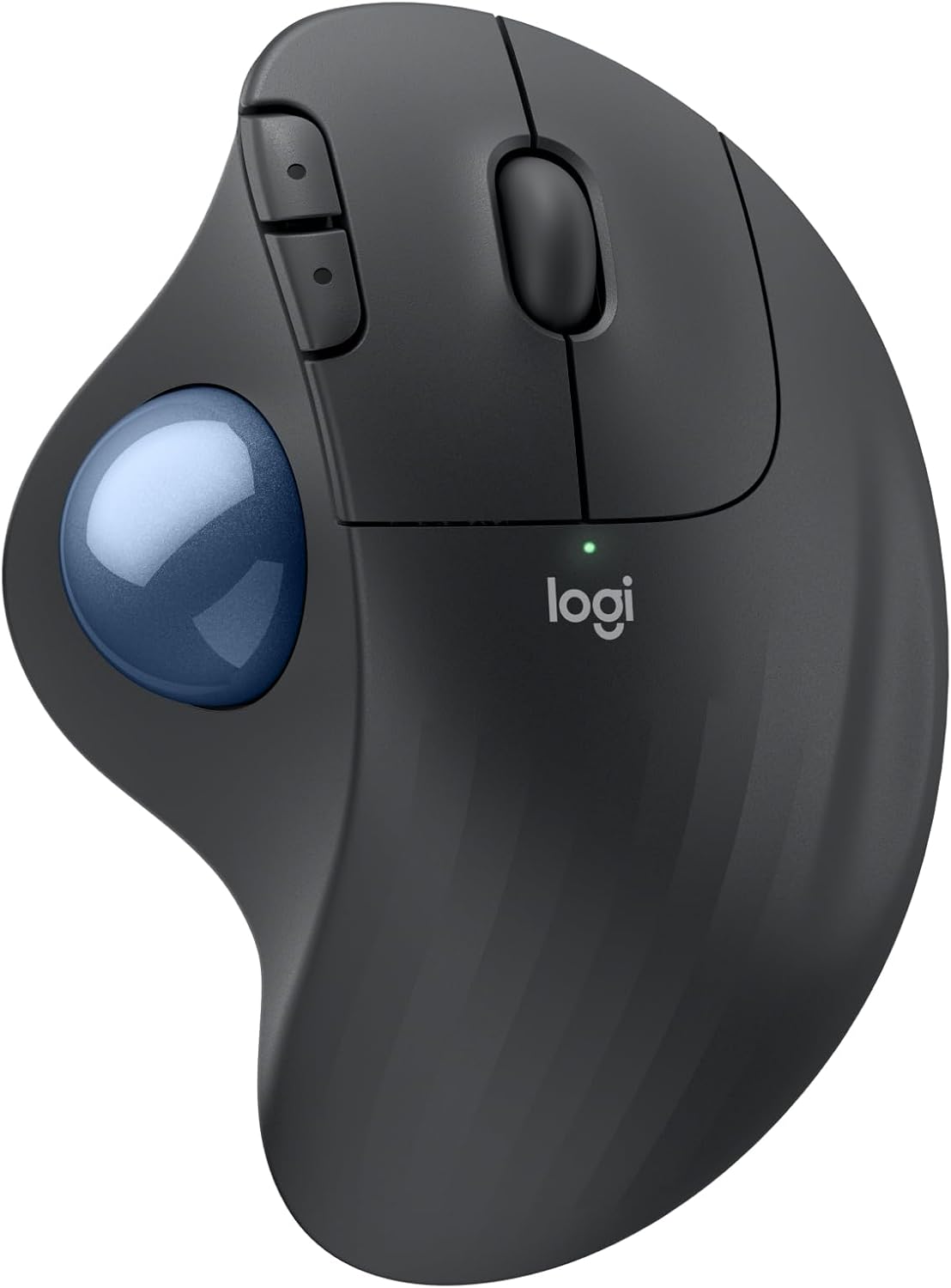
- Thumb-operated trackball minimizes large repetitive arm and wrist movements
- Sculpted ergonomic shape supports the palm during extended computer sessions
- Stationary design works especially well on small or crowded desks
- Bluetooth and USB receiver connectivity provide flexible wireless operation
- Up to 24 months battery life reduces everyday maintenance
The biggest difference is that you stop moving the mouse around the desk
The Logitech ERGO M575 earns our number six position for Best Ergonomic Mouse For Carpal Tunnel Syndrome because it approaches computer navigation very differently from the vertical mice above it. Instead of moving the entire mouse across the desk, your thumb controls a stationary trackball while the body of the mouse remains in one place.
That changes the movement pattern considerably. Large cursor movements no longer require repeatedly pushing the whole mouse forward, backward, and sideways across a mouse pad.
For somebody with limited desk space, that is immediately useful. The M575 can sit in one small area beside the keyboard and does not need extra room around it for normal pointer movement.
The ergonomic question is more complicated, though. A trackball reduces arm movement but increases thumb activity, so whether this feels better depends heavily on the individual user and the kind of discomfort they are trying to avoid.
That is one reason we place the M575 at number six rather than near the top. The vertical mice above it focus more directly on changing wrist and forearm rotation, while the M575 primarily changes how cursor movement is generated.
It is also important not to treat any ergonomic mouse as medical treatment. Persistent numbness, tingling, weakness, or pain should be appropriately assessed rather than managed only by switching computer peripherals.
The trackball can dramatically reduce how far your arm travels
The ERGO M575 uses a thumb-operated trackball positioned along the left side of the right-handed mouse body. Logitech combines this with a sculpted shell intended to support the hand while the thumb handles cursor movement.
The mouse itself stays almost completely stationary. That is the main practical advantage over a conventional optical mouse.
Imagine working across two monitors. With an ordinary mouse set to relatively low sensitivity, reaching from the far left of one display to the far right of the other may require a long physical movement or several lift-and-reposition cycles.
With the M575, the shell does not need to move. Roll the ball with the thumb and the cursor continues across the displays.
This can be particularly useful on a narrow desk, an airplane tray, a small home-office workstation, or a crowded table where there simply is not enough space for large mouse movements. The trackball requires very little operating space.
The M575 uses Logitech's optical tracking system with nominal sensitivity around 400 DPI and a maximum value up to approximately 2000 DPI. Pointer speed can be adjusted through software and operating-system settings.
Do not judge those numbers against gaming mice offering 20,000 or 30,000 DPI. A trackball has a different movement mechanism and is aimed primarily at productivity.
The useful question is whether you can move the cursor comfortably without repeatedly flicking the thumb excessively hard. Start with a moderate pointer speed and adjust from there.
Higher sensitivity can reduce thumb travel, but going too high makes precise selections harder. You may end up constantly correcting the cursor around small buttons and text fields.
Give yourself time to adapt. Trackball control feels strange if you have spent twenty years moving an entire mouse.
The first day may involve overshooting buttons or making slightly curved cursor movements. That usually improves as the thumb learns how much ball rotation corresponds to movement on screen.
Do not grip the body tightly while learning. The mouse is designed to remain stationary, so your hand can rest on it rather than holding it as if you are about to lift it.
A relaxed hand makes the stationary design more useful. Clamping the mouse unnecessarily creates effort without improving tracking.
The sculpted body gives the palm a broad resting area. The main buttons remain in familiar positions under the index and middle fingers, so only the cursor-control method requires major adaptation.
The scroll wheel remains conventional as well. You can navigate long documents without learning a completely new scrolling system.
Two additional buttons sit near the thumb area for forward and back navigation. These can be useful during browser-heavy work.
Extra buttons can reduce repetitive navigation movements, particularly if you regularly move between pages, folders, or application views. Logitech software allows supported controls to be customized further.
Use customization carefully. Assign the actions you perform frequently rather than filling buttons with shortcuts you rarely remember.
Why the ERGO M575 takes sixth place instead of ranking higher
The biggest limitation is the thumb-operated trackball itself. Every large pointer movement is transferred away from the arm and toward the thumb.
For some people, that is exactly what they want. For others, repetitive thumb movement may become uncomfortable, particularly during work involving constant cursor travel.
This is different from a finger-operated trackball where several fingers share the movement. The M575 relies heavily on one thumb.
That does not make it inherently poor ergonomically. It simply shifts the workload in a way that may suit one person much better than another.
This distinction matters when discussing the Best Ergonomic Mouse For Carpal Tunnel Syndrome. Carpal tunnel syndrome involves the median nerve at the wrist, but hand discomfort can have many causes and locations.
Changing devices changes the movement pattern, not necessarily the underlying condition. If symptoms persist, hardware experimentation should not replace appropriate medical assessment.
The M575 is also not a strongly vertical mouse. Its sculpted shape supports the hand, but it does not rotate the forearm as aggressively toward a handshake position as the Logitech Lift, MX Vertical, or Keychron M5.
That is the primary reason those products rank higher in our list. Their shapes more directly address the palm-down posture associated with a conventional mouse.
The M575 takes another route. It reduces large wrist and arm movement instead, which can be very useful for a different type of user.
Desk positioning remains important even though the mouse does not move. Place it close to the keyboard so the shoulder remains relaxed.
Because the M575 needs almost no surrounding movement space, it can sit immediately beside the keyboard. This is actually one of its strongest workstation advantages.
A normal mouse needs some open surface around it. The trackball does not.
Keeping the pointing device close reduces reaching, especially when your keyboard already occupies a large portion of the desk.
If you use a full-size keyboard with a number pad, the right-handed M575 can still end up farther outward than ideal. Consider whether the keyboard width is forcing your arm away from the body.
A compact keyboard may allow the trackball to sit in a more relaxed position. That can improve the workstation without changing the mouse itself.
Chair and desk height matter too. Your elbow should not be hanging far below the mouse surface while the shoulder stays raised.
Keep the shoulder relaxed during mouse use. The fact that the device stays stationary does not make poor desk height irrelevant.
The M575 connects through Bluetooth Low Energy or Logitech's included USB receiver. That gives users a choice between keeping a USB port free and using the dedicated wireless connection.
Bluetooth is convenient for laptops with limited ports. The receiver can be useful with a desktop where you want a straightforward dedicated connection.
Wireless range is rated at up to approximately 10 metres depending on the environment. For normal desk use, that is far more distance than necessary.
Wireless operation keeps the desk area uncluttered, which works particularly well with a stationary trackball because there is no cable dragging behind the device.
The M575 runs from a single AA battery. Logitech rates battery life at up to 24 months when using the USB receiver, depending on usage and operating conditions.
That is a strong practical advantage. There is no weekly charging routine and no cable required during normal operation.
Some people prefer rechargeable internal batteries. Others prefer being able to replace one AA cell immediately and continue working.
Long battery life makes the mouse low maintenance, which is useful for a device expected to remain on a workstation every day.
The M575 is compatible with Windows, macOS, Linux, ChromeOS, and iPadOS in supported configurations. That broad compatibility makes it useful in mixed-device workspaces.
It does not have the same multi-device switching system as some of Logitech's more expensive productivity mice, though. If you frequently jump between several computers, that limitation may matter.
The build is relatively compact for an ergonomic pointing device. Because you never need to physically sweep it across the desk, the actual operating footprint is even smaller than the dimensions suggest.
This is excellent for tight workspaces. Someone working from a small apartment desk can have a full cursor-control range without dedicating a large section of the table to a mouse pad.
The trackball itself needs occasional cleaning. Oils and dust can accumulate around the ball and internal support points over time.
If movement begins feeling rough or inconsistent, remove the ball according to Logitech's instructions and clean the appropriate surfaces. Do not simply increase pointer sensitivity to compensate for a dirty mechanism.
A smooth trackball should move with light thumb pressure. Regular cleaning keeps movement predictable and reduces the temptation to push harder against the ball.
This is one maintenance difference compared with a conventional optical mouse. A normal mouse sensor may only need occasional surface cleaning, while a physical trackball mechanism benefits from periodic attention.
The M575 also uses a conventional scroll wheel rather than Logitech's premium free-spinning MagSpeed wheel. For long documents, that makes scrolling less advanced than on some higher-end Logitech productivity mice.
It is still perfectly functional for ordinary web pages and documents. The product is designed around the trackball first rather than premium scrolling hardware.
The core value is stationary cursor control. Everything else is relatively straightforward.
That simplicity can be an advantage. There are fewer advanced settings to learn and the device behaves predictably once you adapt to the ball.
Precision tasks take some practice. Selecting individual spreadsheet cells or editing detailed graphics may initially feel slower than with a conventional mouse.
The thumb has to learn very small controlled movements. This usually improves with use, but not everyone enjoys the sensation.
Someone working heavily in Photoshop or CAD may prefer a conventional ergonomic mouse if they find thumb-based precision tiring. Another user may become extremely accurate with the trackball after adaptation.
Trackball preference is unusually personal. This is a device worth trying rather than buying solely because the word ergonomic appears in the product description.
One useful approach is gradually increasing trackball use. Start with browsing and general navigation, then move into more precise work as your control improves.
Avoid immediately changing every software setting. Learn the basic movement first.
After several days, adjust pointer sensitivity if you consistently need too much or too little thumb movement. Small changes are easier to evaluate than dramatic ones.
Let muscle memory develop before fine tuning. The first hour with a trackball is rarely representative of how it will feel after a week.
Breaks remain important. A stationary mouse can reduce arm travel, but the thumb is still performing repetitive work.
If you notice thumb fatigue, stop and reconsider sensitivity, grip, and workload. Do not assume discomfort should simply be pushed through because the product is marketed as ergonomic.
Keyboard shortcuts can help distribute work. If an action is faster on the keyboard, there is no reason to force the trackball to perform every navigation task.
Reducing repetitive input is often more useful than moving the repetition from one joint to another. This is a good principle for any ergonomic workstation.
The M575's right-handed design is another limitation. The thumb ball and sculpted shell are positioned specifically for right-hand use.
Left-handed users cannot simply mirror the setup. They need a different pointing device designed for their hand.
This makes the M575 less universally suitable than an ambidextrous trackball. It also explains why handedness should always be checked when buying strongly sculpted ergonomic peripherals.
The shape needs to match the hand you use. Otherwise the ergonomic contours become obstacles rather than support.
Our sixth-place ranking reflects these compromises. The M575 reduces arm travel dramatically, uses very little desk space, has excellent battery endurance, and offers a comfortable sculpted shell.
But it does not provide the strong vertical wrist orientation of our higher-ranked mice, and its thumb-operated ball can introduce a different repetitive movement that some users may dislike.
That makes it more specialized. For the right person, specialization is a strength.
A stationary trackball can completely change a workstation, particularly for somebody who dislikes repeatedly moving a conventional mouse or has very limited desk space.
We therefore give the Logitech ERGO M575 our number six rank out of seven. Its thumb-operated trackball, sculpted ergonomic body, stationary design, adjustable pointer sensitivity, forward and back controls, Bluetooth connectivity, USB wireless receiver, broad operating-system support, and up to 24 months of rated battery life create a practical alternative to traditional ergonomic mice.
For someone searching for the Best Ergonomic Mouse For Carpal Tunnel Syndrome, the ERGO M575 is a positive sixth-place option because it dramatically reduces the large repeated arm movements required by a conventional mouse. It ranks below the vertical models because it does less to rotate the forearm away from a palm-down posture and transfers more movement to the thumb, but for users who prefer stationary cursor control and want a compact, comfortable pointing device, the M575 remains a very interesting ergonomic choice.

- Adjustable vertical angle supports three different ergonomic hand positions
- Handshake-style grip reduces unnecessary flat forearm rotation during work
- Four DPI settings provide flexible cursor speed and precision
- Seven physical buttons provide convenient productivity controls and navigation
- Wired USB connection provides reliable operation without battery maintenance
The adjustable angle is what makes the iMouse V3 genuinely different
The Adesso iMouse V3 earns our number seven position for Best Ergonomic Mouse For Carpal Tunnel Syndrome because it does something most vertical mice do not. Instead of giving you one permanent hand angle, it provides three adjustable ergonomic mouse positions at plus 7.5 degrees, 0 degrees, and minus 7.5 degrees.
That sounds like a small adjustment on paper, but mouse angle can feel surprisingly different once your hand is resting on the device for several hours. One user may naturally want a slightly more upright grip while another feels better with the mouse rotated the opposite direction.
The important idea is reducing unnecessary forearm rotation compared with a completely flat conventional mouse. The vertical body encourages a handshake-style grip where the palm is turned more toward the side rather than lying completely downward against the desk.
The adjustable base lets you experiment instead of assuming one manufacturer-selected angle works equally well for every hand. Start at the neutral 0-degree position, use it through a normal work session, then compare the other two settings.
Do not select the most dramatic angle simply because it looks more ergonomic. The correct position is the one where your wrist, fingers, forearm, elbow, and shoulder remain reasonably relaxed together.
An ergonomic mouse should also not be treated as medical treatment for carpal tunnel syndrome. Persistent numbness, tingling, weakness, or pain deserves appropriate medical assessment rather than relying only on different computer equipment.
The 2400 DPI sensor is basic, but it gives you enough control for office work
The iMouse V3 uses an optical sensor with selectable sensitivity settings up to 2400 DPI. Adesso lists DPI levels including 800, 1200, 1600, and 2400 DPI, giving you several practical cursor speeds for different monitors and workflows.
Adjustable sensitivity can reduce unnecessary mouse travel. If you work across a large display and the pointer is too slow, you may repeatedly push the mouse across the desk, lift it, reposition it, and repeat the movement.
Increasing sensitivity reduces the physical distance required to move across the screen. But maximum DPI is not automatically better.
A very fast cursor can make buttons, spreadsheet cells, and small interface controls harder to hit accurately. You may end up making constant little corrections, which defeats the purpose of increasing sensitivity in the first place.
Start around 1200 or 1600 DPI and see how it feels on your display. Someone using two large monitors may prefer 2400 DPI, while a single laptop screen may not need anything close to that.
The iMouse V3 also provides seven controls including left and right click, forward and back buttons, a DPI switch, scroll wheel, and middle-click functionality. The forward and back buttons reduce repeated navigation when browsing websites, folders, or document histories.
That can be surprisingly useful during research-heavy work. Instead of repeatedly moving the pointer toward the browser's back button, your thumb can perform the command while the hand stays in roughly the same location.
The optical sensor is designed to operate across common desktop surfaces. A consistent mouse pad can still help because predictable friction makes it easier to move the mouse without changing grip pressure.
The mouse weighs roughly 118 to 127 grams depending on the published specification source. That is heavier than modern ultralight mice, but this is a productivity-focused vertical mouse with an adjustable base rather than a competitive gaming mouse.
Use a relaxed grip instead of squeezing. The hand should guide the mouse around the desk rather than clamp onto the sides every time the cursor moves.
This becomes particularly important when changing the angle. A new position may initially make you grip harder simply because the shape feels unfamiliar.
Give each setting some time. Muscle memory developed from years of flat mouse use does not disappear during the first hour.
Why the iMouse V3 finishes seventh in this comparison
The iMouse V3 uses a wired USB-A connection with a cable around six feet long. This gives you a simple connection with no charging, batteries, pairing procedures, or wireless receivers to manage.
For a permanent desktop workstation, that can actually be convenient. Plug the mouse into an available USB port and it is ready whenever the computer starts.
The downside is obvious on a modern multi-device desk. There is no quick Bluetooth switching between a work laptop, personal desktop, and tablet.
The Logitech and Keychron mice ranked above it handle that kind of workflow much better. Several can remain paired to multiple devices and switch without physically reconnecting cables.
A cable can also introduce a small amount of resistance if it catches against equipment behind the desk. Good cable routing matters with a wired mouse, so leave enough slack for comfortable movement without creating a pile of cable beside your hand.
The adjustable-angle mechanism is really where Adesso earns back some ground. The plus 7.5, 0, and minus 7.5 degree positions let you fine-tune the orientation after the mouse is already sitting in its vertical posture.
Imagine two coworkers using the same workstation. One may prefer the central position while another immediately notices that a slight rotation feels more natural.
With a fixed-shell vertical mouse, the only option is changing the entire mouse. Here you can adjust the existing device first.
The adjustability also helps during adaptation. Someone moving away from a conventional mouse might begin with one position and experiment as the vertical grip becomes more familiar.
The shape remains right-handed, though. The thumb support and controls are designed around the right hand, so this is not an appropriate solution for somebody who primarily uses a mouse with the left hand.
That is an important limitation compared with product families offering dedicated left-handed versions. Strongly sculpted ergonomic devices need to match the hand using them.
The wired design also means portability is not really its focus. You can certainly move it between computers, but unplugging and reconnecting a six-foot USB cable is less convenient than carrying a Bluetooth mouse.
This model makes the most sense on one desk. Office desktops, government workstations, administrative stations, and fixed home offices are logical environments.
The TAA-compliant version is made in Taiwan and is specifically designed for organizations requiring Trade Agreements Act compliant equipment. That is relevant for certain government agencies, military environments, suppliers, and institutional purchasing departments.
For an ordinary home user, TAA compliance will probably have no effect on day-to-day use. The adjustable vertical shape remains the more relevant feature.
The iMouse V3 measures roughly 3.31 inches wide, 3.46 inches high, and 5.28 inches long. This is a substantial mouse, so hand size should be considered.
An ergonomic mouse still needs to fit your hand. If your fingers have to stretch toward the main buttons or your palm cannot settle naturally onto the shell, the theoretical benefits of the shape become less useful.
Desk height matters too. The mouse should sit close enough to your body that the shoulder does not have to reach forward or outward.
This is especially important beside a full-size keyboard. A large numeric keypad can push a right-handed mouse several inches farther away from your normal typing position.
If you rarely use the number pad, a smaller keyboard can allow the mouse to sit closer to your body. That workstation change can matter just as much as selecting an ergonomic mouse.
Keep the shoulder relaxed during movement. If the shoulder stays slightly raised all day, adjusting the mouse angle alone will not fix the overall posture.
Try to keep the wrist fairly neutral as well. Do not anchor it firmly against the desk and perform every cursor movement by repeatedly bending the wrist sideways.
For larger movements, use some forearm motion. Then adjust the DPI so you do not need excessive physical travel to cross the display.
The desk edge deserves attention. Resting the wrist directly against a hard edge can create concentrated pressure even when the mouse itself has a good ergonomic shape.
The mouse is only one workstation component. Chair height, desk height, keyboard width, mouse distance, pointer speed, monitor placement, and working habits all interact.
The Adesso also lacks the premium software customization available from Logitech or Keychron. You get useful physical buttons and DPI adjustment, but this is not a mouse built around extensive profiles, macros, high-performance sensors, or application-specific control systems.
That simplicity is not necessarily negative. Some office users just want a mouse that plugs in, offers a better hand position, and works without installing another utility.
The optical sensor is also modest by modern performance standards. A maximum of 2400 DPI is far below the 30,000 DPI ceiling of our first-ranked Keychron M5.
For office work, though, 2400 DPI is already plenty for most users. Extreme sensor specifications are far more relevant to gaming and specialized high-speed input than ordinary document work.
What matters is whether tracking feels stable and whether you can select a sensitivity that lets you navigate without excessive movement. The iMouse V3 gives you enough range to do that.
The biggest reason it ranks seventh is therefore not one major defect. It is the level of competition above it.
The Keychron provides substantially more sensor performance, wireless flexibility, programmability, and additional scrolling controls. Logitech's vertical mice offer highly refined sculpted bodies, quieter operation, excellent software, and strong wireless ecosystems.
The ERGO M575 offers a completely different stationary trackball approach. The TECKNET adds rechargeable wireless convenience at a more accessible level.
The Adesso counters with physical angle adjustment, which is uncommon and genuinely useful. If that specific feature matters more to you than wireless connectivity or advanced software, its seventh-place ranking may matter much less.
It also remains very straightforward. There is no battery to maintain and no Bluetooth pairing to troubleshoot.
Plug it into USB, choose the physical angle, select a DPI setting, and begin working. For managed office environments, that simplicity can be valuable.
Maintenance is similarly basic. Keep the optical sensor area clean and periodically remove dust from the buttons and scroll wheel.
A mouse pad with consistent glide can reduce the amount of force needed to initiate movement. Smooth movement encourages a lighter grip, which works well with the vertical design.
Take normal breaks during long work sessions too. No vertical mouse makes eight uninterrupted hours of repetitive pointing consequence-free.
Keyboard shortcuts can reduce mouse dependence for some tasks. Likewise, the mouse's forward and back buttons can reduce unnecessary pointer travel during browser-heavy work.
The goal is not eliminating all hand movement. It is making repetitive computer work more sensible and reducing movements that are unnecessary.
Ergonomic equipment should support better working habits, not replace them. And if hand or wrist symptoms continue, changing mice should not delay appropriate evaluation.
We give the Adesso iMouse V3 our number seven rank out of seven because its adjustable vertical ergonomic design, three physical angle settings at plus 7.5 degrees, 0 degrees, and minus 7.5 degrees, optical sensor, 800 to 2400 DPI adjustment, seven controls, six-foot USB cable, right-handed contour, plug-and-play operation, and TAA-compliant construction create a practical workstation mouse.
It finishes seventh because the products above it offer stronger wireless connectivity, more refined ergonomic shapes, greater sensor performance, quieter operation, rechargeable convenience, or more extensive customization. But for someone searching for the Best Ergonomic Mouse For Carpal Tunnel Syndrome and wanting a simple wired vertical mouse with an unusual ability to fine-tune the physical hand angle, the iMouse V3 remains a positive option with a genuinely useful feature that many more expensive ergonomic mice do not provide.