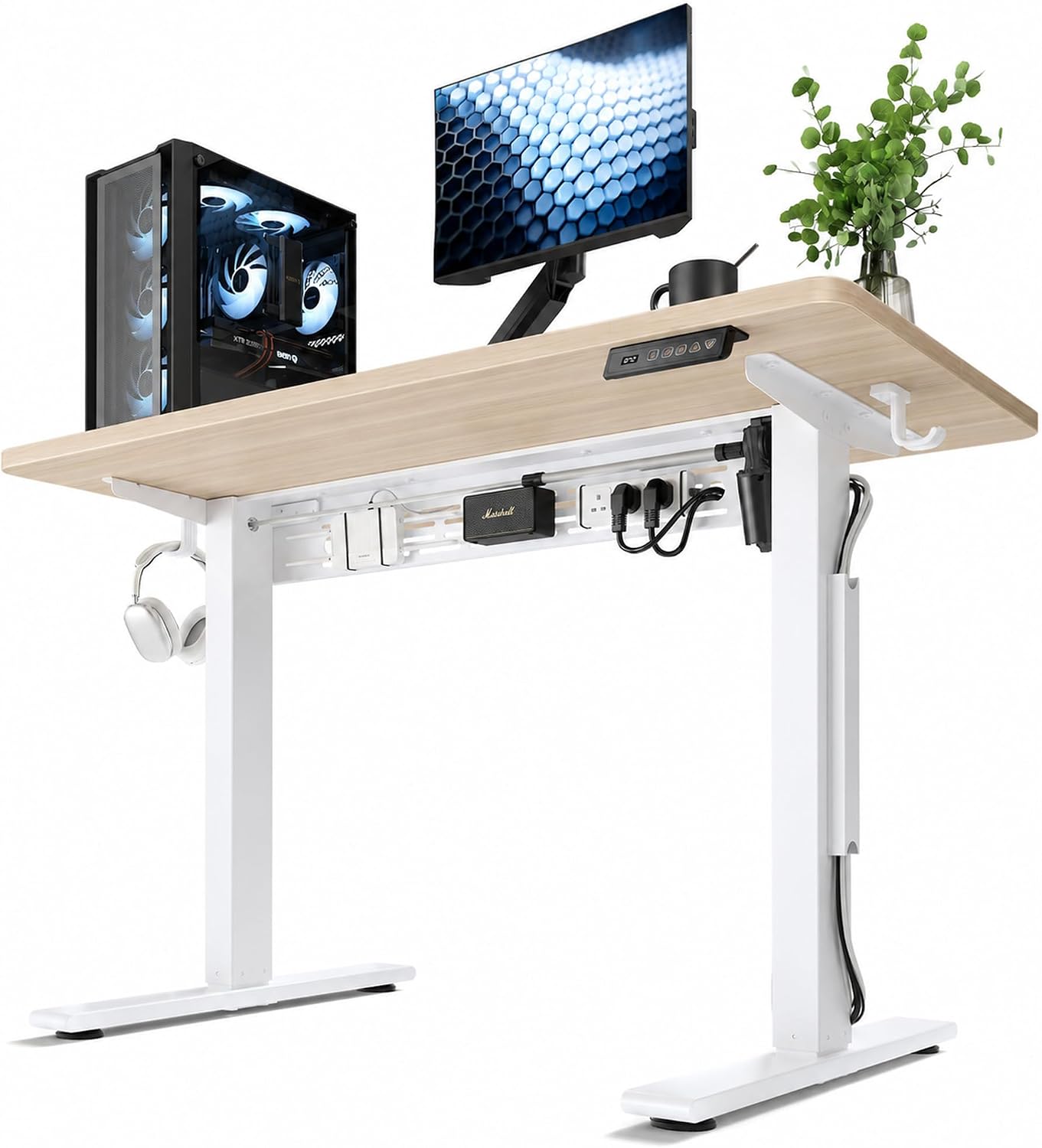
- Integrated cable management keeps power cords organized underneath.
- Built-in power strip reduces loose desktop charging cables.
- 55 by 28-inch whole-piece desktop provides generous workspace.
- Electric height adjustment supports comfortable sitting and standing positions.
- Memory controls make frequently used desk heights easier to restore.
The cable setup is one of the better reasons to choose this standing desk
The FLEXISPOT EN2 takes the number one position in our best desk with cable management comparison because its cable organization is built around how an electric workstation is actually used. You get a 55 by 28-inch whole-piece desktop, electric height adjustment, integrated cable management, and a built-in power solution that can reduce the number of cords traveling from the moving desktop down toward the wall.
That last part matters more on a standing desk than it does on a fixed desk. Every time the desktop rises, the monitor cables, computer power leads, chargers, and accessories have to move with it without becoming tight.
Good cable management needs to move safely with the desk rather than simply making the wires look tidy while everything is sitting at its lowest position. The EN2 gives you a cleaner starting point for doing that properly.
The 55-inch width also gives the desk enough room for a serious home-office setup. Two monitors, a laptop, keyboard, mouse, speakers, and a few smaller accessories can fit without immediately turning the work surface into a crowded charging station.
The whole-piece 55 by 28-inch top gives cables and equipment room to breathe
A 55 by 28-inch desktop is a useful middle ground for home offices. It is considerably more practical for dual-monitor work than a narrow compact desk, but it does not require the floor space of an oversized executive workstation.
The whole-piece construction is useful too. There is no center desktop seam running underneath the keyboard or monitor area, which creates a cleaner working surface and simplifies positioning for monitor stands, desk mats, and other accessories.
This matters if you use a large desk mat. A continuous surface means the mat can sit flat without crossing a joint between separate desktop panels.
The depth is equally important. Twenty-eight inches gives you more room to push monitors backward while keeping the keyboard and mouse in a comfortable working position.
That can be useful with larger 27 or 32-inch monitors. Putting a big screen on a shallow desk can leave the display uncomfortably close to the eyes, even when the desk is technically wide enough to hold it.
Desk depth affects monitor viewing distance, and it also creates more room for routing cables behind the main working area rather than having them cross directly underneath the keyboard.
The built-in cable management becomes particularly useful once several devices are connected. A normal two-monitor workstation can easily have two monitor power cables, two display cables, laptop power, a docking station, phone charger, desk lamp, speakers, and the desk's own electric power connection.
Without a plan, those cables tend to fall behind the desk individually. The result may look acceptable from the chair, but underneath the desk there can be a cluster of cords moving every time the desktop changes height.
The better approach is to group stationary and moving cables separately. Keep desktop equipment cables attached to the desktop for as much of their route as possible, then allow only the necessary power connection to travel down toward the wall.
This is where an integrated power strip can make a surprisingly large difference. Instead of several device power cables hanging independently from the desk to a floor-level outlet, multiple devices can connect closer to the desktop.
Imagine two monitors, a laptop charger, and a small desk lamp. If all four plug directly into a wall outlet, four cables need enough length to accommodate the desk's full height range.
Connect those devices to a desk-level power solution and the situation changes. Their cables can remain organized with the moving desktop while a smaller number of power connections handle the longer run.
Fewer hanging cables make height changes cleaner, and there is less opportunity for a short charger cable to become tight when somebody presses the standing-height button.
Do not simply bundle every cable tightly together, though. Power, display, USB, and peripheral cables may need different amounts of movement depending on where their devices are positioned.
A monitor on an articulated arm needs more cable slack than a monitor sitting permanently on its factory stand. Test the monitor movement separately before securing its cables.
The same applies to a laptop that is removed regularly. A cable-management setup should keep the desk organized without making it difficult to disconnect the computer when you need to leave.
Organization should not make equipment harder to use. Keep frequently disconnected connections accessible while hiding the cables that rarely need attention.
A USB-C or Thunderbolt dock can improve the EN2 setup further. With a compatible laptop, one connection may handle charging, external monitors, networking, storage, and other peripherals.
The dock can remain permanently on the desk while the laptop comes and goes. That reduces both visible cable clutter and the number of connectors you need to disconnect every morning.
The electric height adjustment is the other major reason the EN2 works well as a home-office desk. Instead of choosing one fixed desktop height, the workstation can move between seated and standing positions.
The useful part is changing positions easily, not assuming that standing continuously is automatically better than sitting continuously.
You might work seated while editing a detailed spreadsheet, raise the desk for a meeting, then return to sitting later. The electric mechanism makes those changes quick enough that they can realistically become part of the workday.
Memory controls are particularly useful once you find the right positions. Rather than tapping the controls repeatedly and guessing where the desk felt comfortable yesterday, a stored height can return the desktop to a familiar setting.
This also helps when more than one person uses the desk. Each person can establish a preferred height instead of manually searching for it every time.
Why we believe the EN2 deserves the number one ranking
A standing desk with cable management needs to do more than hide wires. It has to keep those wires under control while the desktop travels through its adjustment range.
That means installation is important. Always test cables at maximum height before deciding that the setup is finished.
Start with the desk at its lowest normal working position and connect the equipment. Route the cables through the management system with some extra slack rather than pulling everything tight.
Then raise the desk slowly to the highest position you expect to use. Watch every cable while it moves.
If a monitor power lead, HDMI cable, USB-C cable, or charger becomes tight, stop and add more slack. Do not assume the cable will stretch enough during normal operation.
A cable should never stop desk movement. The lifting system should reach the selected height without placing tension on equipment connectors or wall outlets.
This is one of the most common mistakes with electric standing desks. The workstation looks beautifully organized while seated, then somebody raises it and discovers that a power strip or short cable was effectively anchoring one side to the floor.
The opposite problem is leaving too much cable loose. Excessive loops can hang near the legs, catch on drawers, or become visible underneath an otherwise clean workstation.
The goal is controlled slack. Give moving connections enough length to travel safely while keeping the unused portion supported underneath the desktop.
Controlled slack is better than tight bundling, particularly around monitors, docking stations, and equipment that gets repositioned.
The desk's whole-piece top also makes accessory placement easier. Monitor arms, if compatible with the desktop construction and manufacturer requirements, can be positioned without having to work around a center seam between desktop sections.
That can free even more usable surface area. Removing large monitor bases gives the keyboard, mouse, documents, and other equipment more space.
Before adding a clamp-style monitor arm, check the desktop specifications and the underside structure. Do not assume that every point along the rear edge is suitable simply because a clamp physically fits there.
The same caution applies to heavy desktop computers. Keep the total load within the desk rating and distribute heavy equipment sensibly rather than concentrating everything at one extreme edge.
Standing-desk stability also changes with height. A desk that feels extremely solid at its lowest setting may show more movement when raised because the lifting columns are extended farther.
This is normal to some degree with height-adjustable furniture, but proper assembly matters. Tighten the frame hardware according to the instructions and place the desk on a stable floor.
If the desk rocks at floor level, adjust the feet before blaming the lifting mechanism. An uneven floor can make a perfectly good frame feel unstable.
Level the desk before loading equipment, then add monitors and other hardware after the frame itself is sitting correctly.
Height should be set around the person rather than around an arbitrary number on the controller. During seated work, the keyboard position should allow the shoulders to remain relaxed and the elbows to sit comfortably near the body.
During standing work, do the same thing again. Raising the desk too high can force the shoulders upward, while setting it too low can encourage leaning forward.
The monitor then needs to be adjusted around that working height. If the keyboard position feels right but the screen is too low, raise the monitor rather than raising the entire desk and ruining the typing position.
Keyboard height and monitor height are separate problems, which is why monitor stands or arms can still be useful on an adjustable desk.
The EN2's 55-inch width gives enough space for a two-monitor setup without forcing the displays against each other. A laptop can also sit beside them, although the exact arrangement depends on monitor size.
With two 32-inch screens, things become considerably tighter than with two 24-inch monitors. Measure the actual display widths if you are planning a large multi-screen workstation.
The 28-inch depth helps here because the monitors can sit farther away. It also leaves space behind the keyboard for a docking station or cable-management access without everything competing for the same few inches.
The desktop dimensions suit serious home-office use, which is one reason this model ranks above smaller desks that may have clever cable trays but limited working area.
The built-in power solution also reduces dependence on a loose power bar sitting on the floor. That is useful when the desk changes height because floor-mounted power strips often create long vertical cable runs.
Keep high-power equipment within the electrical specifications of the power solution being used. Do not overload outlets simply because several sockets are available.
If you have a desktop PC with a large power supply, multiple high-powered monitors, speakers, and other demanding equipment, calculate the electrical load and follow the manufacturer's ratings. Cable management does not change electrical safety requirements.
Clean wiring still needs safe electrical loading, and power strips should never be daisy-chained simply to create additional outlets.
Another practical benefit is cleaning. Cables lying across the floor collect dust and make vacuuming around the workstation more awkward.
Moving more of those cables underneath the desktop leaves the floor clearer. This is a small advantage until you have lived with a desk containing eight or ten separate cables for several months.
The cleaner floor area also reduces the chance of feet catching a loose charging cable. This matters when the desk is used in a shared room or when pets regularly move underneath it.
Under-desk organization improves more than appearance. It can make everyday maintenance and movement around the workstation easier as well.
The EN2 also works well for gaming setups where cable count tends to increase quickly. Monitors, speakers, RGB accessories, controllers, chargers, USB hubs, microphones, and other peripherals can create a complicated wiring arrangement.
Group those devices logically rather than creating one enormous cable bundle. Keep connections that may need troubleshooting accessible.
If a monitor suddenly loses signal, you should not have to cut ten cable ties just to reach its HDMI connection. Good cable management should make the system cleaner without making maintenance miserable.
Accessible cables are easier to troubleshoot, so hide what can remain hidden and keep important connection points reachable.
The standing function also introduces one maintenance habit worth keeping. Every few months, inspect the cables underneath the desk and make sure none have shifted into the lifting mechanism or become tighter over time.
Equipment changes can alter the routing. Replacing a monitor or adding a dock may seem minor, but it can change how the entire cable bundle moves.
Run the desk through its normal height range again after any major equipment change. That quick test can reveal a cable problem before it damages a connector.
Retest cable movement after hardware changes, especially when adding monitors, computers, speakers, or new power equipment.
Assembly is another reason to plan before loading the desk. Build and level the frame first, install the desktop and control hardware correctly, then test the electric movement before adding expensive electronics.
Once the desk raises and lowers smoothly, add the workstation equipment and cable management. This makes it easier to identify whether a problem comes from the desk itself or something attached afterward.
Do not position the desk flush against the wall before testing the complete height range. Monitor arms, cables, shelves, window ledges, and wall-mounted objects can interfere as the desktop rises.
Leave clearance behind the moving desktop, particularly when monitor screens or arms extend beyond the rear edge.
That matters with wall outlets too. A plug positioned directly behind the desk may be fine at sitting height but become awkward relative to the moving cables when the desk rises.
Plan the outlet location as part of the cable-management layout. The cleanest setup is normally one where most device cables remain with the desktop and only a small number of longer connections travel toward the wall.
This is ultimately why the FLEXISPOT EN2 earns first place. It combines useful cable organization with a large continuous work surface and electric sit-stand adjustment rather than treating cable management as one small plastic hole at the back of a fixed desk.
The cable features support the moving workstation, which is exactly what we want from a desk in this category.
The 55 by 28-inch size is large enough for substantial productivity setups without becoming unreasonable for a home office. The whole-piece desktop keeps the surface clean, while the electric frame allows the workstation to change height throughout the day.
There are still reasons to measure carefully. A 55-inch desk requires enough room for the complete desktop and the surrounding movement space, and users with very large multi-monitor setups should verify that the width suits their equipment.
Cable management also requires some effort during installation. No desk can automatically know which devices you will connect or how much slack each cable needs.
The best results still require thoughtful routing, but the EN2 gives you a much better foundation than a plain desk where every cable simply falls toward the floor.
We believe the FLEXISPOT EN2 deserves the number one ranking out of seven for Best Desk With Cable Management because it combines a spacious 55 by 28-inch whole-piece desktop, electric height adjustment, memory controls, integrated cable organization, and a convenient power solution in one workstation.
It works especially well for dual-monitor home offices, laptop docking setups, gaming workstations, and anyone who wants to alternate between sitting and standing without allowing the cables underneath the desk to become a moving mess.
Route the equipment cables with controlled slack, test everything at the desk's maximum working height, keep power loads within their ratings, and recheck the wiring whenever major equipment changes. Set up properly, the EN2 creates a clean adjustable workstation with enough surface area and cable control to justify its number one position.
- Included power strip centralizes desktop device power connections.
- Cable management keeps cords organized during height adjustments.
- Electric lifting system supports comfortable sitting and standing positions.
- Spacious desktop accommodates monitors, laptops, and office accessories.
- Programmable controls make preferred working heights easy to restore.
The included power strip makes cable management much easier on a moving desk
This FLEXISPOT standing desk bundle takes the number two position in our best desk with cable management comparison because it addresses one of the awkward parts of an electric workstation: getting power to several devices without leaving a collection of cables hanging toward the floor. The included power strip gives monitors, chargers, a laptop, and other desktop equipment a more centralized place to connect.
That becomes more important once the desk starts moving. A fixed desk only needs cables long enough to reach their destinations, while an electric standing desk needs those same connections to remain safe at both sitting and standing heights.
The power strip simplifies moving cable runs because several short device cables can remain closer to the desktop. Instead of every charger and monitor lead traveling independently toward a wall outlet, more of the wiring can move with the desk.
Imagine a typical home-office setup with two monitors, a laptop charger, phone charger, speakers, and a desk lamp. Without centralized power, the underside of the workstation can become crowded surprisingly quickly.
The power strip lets you group several of those connections around the desk itself. You still need power running to the wall, obviously, but there are fewer individual cords that need enough vertical length to follow every height change.
The standing adjustment only works properly when the cables are planned with it
The electric lifting system lets the workstation alternate between seated and standing positions. This is useful because the desk height can be adjusted around the user rather than forcing the chair, keyboard, and monitors to work around one fixed desktop height.
For seated work, position the desktop so the keyboard can be used without lifting the shoulders. When standing, raise it until the keyboard returns to a similarly comfortable relationship with the elbows.
The goal is easy position changes, rather than assuming the highest possible desk setting is somehow the correct standing height. Body height, keyboard thickness, footwear, and other factors all affect the useful setting.
Programmable controls make those changes more convenient once the preferred positions are established. Instead of repeatedly tapping the controller and trying to remember where the desk felt comfortable, stored positions can bring the work surface back to familiar heights.
This becomes particularly useful if the desk is adjusted several times per day. Convenience matters because a height-adjustable desk that is annoying to reposition tends to remain at one height.
The cable arrangement has to tolerate every one of those movements. Test the desk at maximum working height before deciding that the wiring is finished.
Start with the workstation at sitting height and connect the monitors, laptop, dock, chargers, and other equipment. Route the cables neatly but leave controlled slack rather than pulling everything tight.
Then raise the desktop slowly. Watch the power connection, monitor cables, USB-C leads, speaker cables, and anything else traveling between the moving desktop and a stationary point.
If one cable becomes tight before the desk reaches standing height, stop. Add more slack or change the routing rather than relying on the connector to absorb the tension.
No cable should restrict desk movement. HDMI, DisplayPort, USB-C, and power connectors are not intended to act as physical anchors for an electric lifting system.
The included power strip helps because the shorter equipment cables can remain attached to the moving portion of the workstation. The longer power connection can then handle the transition toward the stationary wall outlet.
This is a much cleaner approach than letting four or five individual device power leads drop toward the floor. It also makes the area underneath the desk easier to clean.
There is a second problem, though. Too much loose cable is not good cable management either.
Large loops can hang around the user's legs, catch on furniture, or become visible underneath the desktop. Controlled slack is the better approach, with enough cable for movement but the unused portion supported underneath the desk.
A dual-monitor workstation is a good example. Each monitor may have a power lead and a display cable, giving you four cables before the computer itself is connected.
If the displays use adjustable monitor arms, they need additional cable length around the arm joints. The monitors must be able to tilt, swivel, and move without pulling their connections tight.
Test the monitor arms independently from the desk. Pull the screens forward, push them backward, raise the desk, and then check the cables again.
Monitor movement and desk movement both matter, which is why cable management on an adjustable workstation requires more thought than simply attaching a few clips underneath the desktop.
A laptop docking station can make the setup considerably cleaner. With a compatible USB-C or Thunderbolt laptop, one connection can potentially handle charging, external monitors, networking, storage, and peripherals.
The dock stays on the desk while the notebook remains easy to remove. This is particularly useful for hybrid workers who take the same computer between home and an office.
Instead of disconnecting several cables every morning, unplug one main connection. A dock reduces repeated cable handling while the permanent workstation stays connected.
The power strip can then handle the dock, monitors, and smaller accessories closer to the work surface. That reduces the number of cables making the longer trip toward the wall.
Electrical load still matters. A convenient power strip should be used within its rated capacity, regardless of how many devices physically fit into the available outlets.
Do not daisy-chain power strips just because the workstation has accumulated more electronics. High-power desktop computers, monitors, heaters, and other equipment need particular attention to electrical ratings.
Clean wiring still needs safe power distribution. Cable organization should never encourage overloading outlets or using unsuitable extension arrangements.
Why this FLEXISPOT bundle earns second place rather than first
The desk gives you a generous working surface for a normal productivity setup. There is room for external monitors, a keyboard and mouse, a laptop or dock, and the smaller accessories that gradually appear on a working desk.
That workspace matters because cable management becomes easier when devices do not have to be stacked tightly together. A little space behind the keyboard gives you somewhere to place a dock or route connections before they disappear underneath the desktop.
Good desk depth helps cable routing, especially when monitors need enough viewing distance and cables need to pass behind their stands.
Monitor position should be planned before final cable routing. If you later move a monitor six inches to one side, the carefully secured display cable may suddenly be too short.
Set the major equipment first. Then connect and organize the wiring around the final layout.
The same applies to a desktop PC. If the computer remains on the floor while the desk moves, every cable running between the tower and desktop equipment needs enough vertical range.
That can include monitor cables, USB connections, audio cables, Ethernet, and peripherals. A floor-mounted PC requires extra cable planning on any height-adjustable desk.
One alternative is to use an appropriate under-desk computer mount so the tower moves with the desktop. That can simplify several cable runs, although the mount and desk must both be rated for the additional equipment weight.
If the PC remains on the floor, longer cables may be necessary. Do not stretch short cables diagonally from the computer simply because they barely reach at sitting height.
The desk also needs clearance around it. A monitor can move toward a wall as the desk rises, particularly if it is mounted on an articulated arm that extends behind the desktop edge.
Leave room behind the workstation before testing the standing position. Shelves, window ledges, wall decorations, and outlets can all become interference points.
The power cable itself needs similar attention. Position the desk close enough to a suitable outlet that the connection reaches throughout the adjustment range without being stretched.
Do not trap the power cable beneath a desk foot or heavy cabinet. Route it where normal desk movement will not repeatedly rub against a sharp edge.
The lifting frame should be assembled and tested before expensive equipment is added. Raise and lower the empty desk first and listen for anything unusual.
Once the frame is operating correctly, add the monitors and other equipment gradually. Testing the empty desk isolates setup problems, making it easier to tell whether an issue comes from the lifting system or something attached afterward.
Leveling matters as well. If the floor is uneven, adjust the desk feet before loading the desktop.
A small amount of rocking at floor level can become more noticeable when the desk rises and the lifting columns extend. Starting with a properly leveled frame helps the workstation feel more stable.
Standing desks naturally have different leverage at full height than they do while lowered. Do not judge stability solely from the lowest setting.
Test stability at your actual standing height, with the monitors and normal equipment installed but still within the desk's stated load limits.
Once everything is arranged, cable management should remain serviceable. This is where people sometimes go too far with cable ties.
If every cable is permanently bound into one thick bundle, replacing a monitor or troubleshooting a bad HDMI cable becomes frustrating. Organize cables by function where practical and keep important connectors accessible.
A reusable hook-and-loop strap is often more convenient than permanently locking every wire into place. Equipment changes over time.
Good cable management should remain maintainable, because a home office rarely keeps exactly the same hardware for years.
Phone chargers are a good example. You may replace a cable because a new device uses a different connector, and that should not require dismantling the entire underside of the desk.
The included power strip also gives frequently used chargers a logical connection point. Short charging cables can remain on the desktop rather than stretching from a wall outlet.
For gaming setups, the same principle applies but the number of devices can increase. Speakers, controller chargers, microphones, lighting, headphones, USB hubs, and additional displays can all add more wiring.
Group devices around how they are used, rather than trying to create one enormous cable bundle for everything connected to the desk.
Keep audio connections together where convenient. Keep monitor cables routed toward the display area, and keep frequently disconnected USB equipment accessible.
This also makes troubleshooting easier. If one monitor loses signal, you can identify its cable without opening an entire bundle containing every wire on the desk.
The electric controls themselves should remain accessible too. Do not route hanging cables where they interfere with the handset or where a chair can catch them.
The standing function is most useful when it feels simple. The workstation should change height without preparation, meaning you should not have to move a cable or unplug something before pressing the control.
That is the standard I would use when judging whether the cable setup is finished. Sit down, work normally, press the standing preset, and watch the entire workstation move without any cable requiring attention.
If that happens cleanly, the cable management is doing its job.
The desk can also be useful in shared workspaces because the electric adjustment accommodates different users. One person may prefer a lower seated position while another needs the desktop several inches higher.
Memory settings make those changes faster. Stored heights reduce repeated manual adjustment, particularly when the same two people share the workstation every day.
The monitor setup may still need individual adjustment if the users differ substantially in height. The desk controls keyboard height, but monitor stands or arms control screen height relative to the eyes.
This is another reason monitor arms pair well with standing desks. They allow the screens to be fine-tuned without changing the comfortable keyboard position.
Keep the monitor-arm cables loose enough for both adjustments. The screen may move relative to the desk while the entire desk also moves relative to the floor.
Two levels of movement require extra cable slack, but only around the points where that movement actually occurs.
Periodic inspection is useful after the desk has been used for a while. Cables can gradually shift, particularly when monitors or laptops are moved regularly.
Look underneath every few months and check that no cable has migrated toward the lifting columns or become pinched between moving components. Also check that adhesive cable-management accessories remain secure.
If new equipment is added, run the desk through its full normal height range again. A new speaker or monitor may introduce a cable that behaves differently from the existing setup.
Retest after every major equipment change. It takes a minute and can prevent a short cable from pulling against an expensive device later.
The reason this model sits at number two is not that its cable management is weak. It is actually one of the strongest parts of the bundle.
Our number one FLEXISPOT EN2 configuration gives us a slightly stronger overall combination for the ranking, particularly around the complete desktop and integrated workstation package. That is enough to separate two otherwise closely related options.
This second-ranked bundle remains especially appealing if the included power strip is a major priority. The power strip directly reduces cable clutter, which is more useful than a desk that simply provides a hole for wires to disappear through.
It also addresses the problem at the source. Several devices can receive power closer to where they are actually being used, leaving fewer long cables traveling toward the floor.
That is particularly helpful on an electric desk because every floor-bound cable needs to accommodate vertical movement. Reducing those long runs makes the entire workstation easier to organize.
The standing functionality adds practical value beyond cable management. You can alternate between sitting and standing while keeping the same monitors, computer, peripherals, and power arrangement intact.
The desk and cables work as one system, which is what we want from a product being evaluated specifically for cable management.
There are still limitations. Cable management requires setup time, and the power strip does not magically organize every HDMI, USB, Ethernet, and audio cable on the workstation.
You still need to decide where those connections should run and how much slack each one requires. Accessories such as reusable straps or additional under-desk organizers may be useful for a particularly complex workstation.
But the included power solution gives you a much better starting point than a basic standing desk with no thought given to where several powered devices will connect.
The foundation is already there, and the remaining organization can be tailored around the equipment you actually own.
We believe this FLEXISPOT Standing Desk and Power Strip Bundle deserves the number two ranking out of seven for Best Desk With Cable Management because it combines electric sit-stand adjustment with centralized desktop power and practical cable organization.
It is particularly useful for dual-monitor offices, laptop docking stations, gaming setups, and other workspaces where several powered devices need to rise and lower together without leaving a collection of cords hanging toward the floor.
It falls just behind our number one choice because the top-ranked EN2 gives us the slightly stronger complete package for this comparison. The difference is fairly narrow, though, and buyers who specifically value the bundled power arrangement have a strong reason to consider this second option.
Install the desk first, position the major equipment before routing cables, leave controlled slack for every moving connection, and test everything at both seated and standing heights. Set up correctly, this FLEXISPOT creates a clean powered workstation that handles cable clutter far better than a basic adjustable desk with devices plugged individually into the wall.
- Integrated cable management keeps workstation wiring more organized.
- Clamp power strip includes three outlets and two USB ports.
- Electric frame adjusts smoothly from 28.1 to 45.7 inches.
- Four programmable memory presets simplify regular height changes.
- Whole-piece 48 by 24-inch desktop avoids a center seam.
The 48-inch EN2 keeps the cable setup compact and easier to control
The FLEXISPOT EN2 takes the number three position in our best desk with cable management comparison because this 48 by 24-inch configuration combines electric height adjustment with a surprisingly practical approach to power and wiring. The removable clamp power strip provides three AC outlets and two USB charging ports, while the desk also includes cable management for keeping the rest of the workstation more controlled.
The smaller 48-inch width is worth talking about first. It gives you enough room for a normal home-office setup without requiring the floor space of a 55 or 60-inch workstation, which can be useful in bedrooms, apartments, or offices where the desk has to share the room with other furniture.
The desktop is a whole-piece design rather than several panels joined through the main working area. The continuous surface avoids a center seam, which is useful underneath a keyboard, desk mat, monitor stand, or drawing tablet.
At 24 inches deep, the desk is relatively compact front to back. That saves room, although monitor placement deserves more attention because a large screen positioned on its original stand can end up fairly close to the user.
A monitor arm can help recover some of that depth if the desktop and chosen mounting hardware are compatible. For a simple laptop and one-monitor arrangement, though, the 48 by 24-inch surface is a sensible size without feeling unnecessarily large.
The clamp power strip solves a real standing-desk cable problem
The removable desktop power outlet is one of the strongest features here. It provides three power outlets and two USB charging ports, and it can be clamped to the back or side of the desk depending on where access makes the most sense.
Desktop power reduces long hanging cables, which matters more on an electric standing desk than it does on fixed furniture. Several devices can connect close to the moving desktop rather than each requiring an individual cable running toward a wall outlet near the floor.
Imagine a workstation with two monitors, a laptop charger, phone, and desk lamp. Without a desk-level power solution, several of those cables may need enough length to reach the wall while the desk is fully raised.
With the clamp power strip, shorter device cables can remain around the desktop. You still need the main power connection to reach a suitable outlet, but the number of individual cables making that long vertical journey can be reduced.
This also makes cable routing underneath the desk simpler. The equipment wiring can be grouped around the desktop while the necessary power connection receives enough controlled slack for the entire lifting range.
Always test cables at standing height before deciding that the installation is complete. A workstation can look perfectly organized at its lowest position while hiding a cable that becomes tight halfway through the upward movement.
Start with the desk lowered and connect the monitors, computer, dock, speakers, and chargers. Route the cables neatly, but do not pull them tight simply to make the underside look cleaner.
Raise the desk slowly to the highest position you realistically expect to use. Watch every cable that travels between the moving desktop and something stationary.
If a power cable, HDMI connection, USB-C lead, or Ethernet cable becomes tight, stop and correct the routing. The lifting motor should never have to pull against a connected device.
Connectors should never limit desk movement, because repeated tension can eventually affect the cable, the device port, or both.
The opposite mistake is leaving huge loops hanging underneath the desktop. Too much unsupported cable can catch around legs, drawers, chairs, or other objects.
The goal is controlled slack. Keep enough cable for the complete movement range while supporting the unused portion with the desk's cable-management system.
A docking station can make this arrangement even cleaner. With a compatible laptop, one USB-C or Thunderbolt connection can potentially handle charging, external monitors, networking, storage, and peripherals.
A dock can reduce cable clutter substantially, particularly for hybrid workers who take their laptop away from the desk regularly.
The dock stays connected to the monitors and accessories. When it is time to leave, the laptop can be disconnected without pulling several individual cables out of the computer.
The clamp power strip is removable too, which gives you some flexibility over where charging happens. Someone who frequently connects a phone or tablet may want the USB ports close to one side rather than hidden at the back.
That is better than building a visually clean workstation where every useful charging connection is difficult to reach. Cable management should improve the workspace without making normal equipment changes annoying.
Frequently used connections should remain accessible, while the cables that rarely change can be routed farther underneath the desk.
The power strip still has electrical limits, of course. Do not treat several available sockets as permission to overload the circuit or connect inappropriate high-demand equipment.
Power strips should not be daisy-chained simply because the workstation needs additional outlets. Follow the electrical ratings of the strip and the equipment being connected.
Why this EN2 finishes third instead of taking one of our first two positions
The electric frame adjusts from approximately 28.1 to 45.7 inches. That gives the desk a useful range for switching between seated and standing work, although the correct setting depends on the individual rather than choosing one universal number.
The motor operates at under 50 dB according to the product specifications. The quieter motor suits shared workspaces, particularly when the desk is adjusted during calls or while another person is working nearby.
The six-button controller includes four programmable memory presets. Once you find comfortable seated and standing positions, those heights can be stored rather than manually searching for them every time.
Four presets can also be useful when two people share the desk. Each person can have more than one preferred position without constantly readjusting from scratch.
The standing function works best when it encourages position changes rather than replacing continuous sitting with continuous standing. Sit for one task, stand for another, then change again when appropriate.
Easy adjustment makes position changes realistic, which is why memory controls are more useful than they initially sound.
The keyboard height should guide the desk position. During seated work, the shoulders should remain relaxed rather than being pushed upward because the desktop is too high.
When standing, raise the desk until the keyboard returns to a similarly comfortable working level. Do not simply raise the desktop as high as possible.
Monitor height is a separate issue. If the keyboard feels right but the monitor is too low, adjust the monitor rather than changing the whole desk to compensate.
Typing height and viewing height need separate adjustment, especially on a standing workstation where the user changes position several times during the day.
The EN2 uses an industrial-grade steel frame and is listed with a 154-pound load capacity for this configuration. That is enough for many normal office setups, but all equipment still counts toward the total.
Two monitors, monitor arms, a desktop computer, speakers, and other accessories can add weight quickly. Check the complete setup rather than considering only the computer itself.
Heavy equipment should also be distributed sensibly. Putting every substantial device at one extreme edge is less desirable than maintaining a reasonably balanced workstation.
Stay within the stated desk capacity, especially after adding clamp-mounted monitor arms or other accessories that may not look heavy individually.
Assembly should be completed before loading the desk with electronics. Build the frame, attach the whole-piece desktop, connect the controller and motor system, then test the lifting mechanism while the surface is still relatively clear.
The product information notes that assembly may require an electric drill, which is not included. Having the appropriate tools ready before beginning can prevent an unfinished desk from sitting in the middle of the room.
Once assembled, lower and raise the empty desk several times. Check that nothing interferes with the lifting columns and that the frame sits level on the floor.
Test the lifting system before adding equipment, because that makes it much easier to identify whether a problem comes from the desk or from something attached afterward.
After the electronics are added, perform the movement test again. This time pay attention to monitor clearance, cable length, the power strip connection, and anything mounted underneath the desktop.
Do not place the rear edge directly against a wall before testing. Monitors, arms, and cables can move differently as the desk changes height.
A monitor arm that extends behind the desktop may contact the wall before the desk reaches standing height. Leave enough clearance for the complete workstation, not just the tabletop.
Rear clearance matters during height changes, especially in compact rooms where the natural instinct is to push the desk tightly against the wall.
The 48 by 24-inch surface is one of the reasons this model sits third rather than higher. It is practical and compact, but users with large dual-monitor setups may prefer the extra width and depth available from the larger EN2 configurations.
Two 32-inch monitors can consume a large amount of horizontal space. Measure the actual display widths before assuming that a 48-inch desktop will provide the arrangement you want.
For one monitor plus a laptop, or two more modest displays, the size makes much more sense. It keeps the workstation compact while still giving the cable-management system enough equipment to justify itself.
The smaller desktop suits tighter offices better, so the reduced size can be an advantage rather than a disadvantage depending on the room.
The whole-piece top also helps when using a large desk mat. There is no panel joint crossing the central work area, which creates a cleaner surface under the keyboard and mouse.
The FSC-certified wood desktop provides enough room for the essential equipment without turning the desk into a large piece of furniture that dominates a bedroom office.
Cable management is still the feature that matters most for this comparison. A standing desk creates a more complicated wiring problem than a fixed desk because the distance between desktop equipment and the floor changes constantly.
The EN2 addresses power close to the desktop, which is one of the more effective ways to simplify that problem.
Consider a floor-mounted desktop PC, though. If the computer remains stationary while the desk rises, display, USB, audio, and peripheral cables connecting the tower to the desktop need enough length for the full adjustment range.
This can require longer cables than a normal fixed-desk installation. Alternatively, a compatible under-desk computer mount can allow the PC to move with the desktop if both the mount and desk are rated for the load.
Do not improvise with a heavy computer tower. Use a proper mounting solution if the PC is going to hang underneath the moving desktop.
Floor-mounted computers need extra cable planning, particularly when multiple monitors and USB peripherals are involved.
Gaming setups create a similar challenge. Monitors, speakers, microphones, RGB lighting, controllers, chargers, and USB hubs can turn into a large number of cables very quickly.
Group connections by function instead of fastening everything into one giant bundle. Keep monitor cables together where practical and leave frequently changed USB equipment accessible.
If something stops working, you should be able to identify the relevant cable without dismantling the entire underside of the workstation.
Maintainable cable management is better cable management, because office equipment rarely remains unchanged for the entire life of a desk.
Reusable hook-and-loop straps can be useful for connections that may change later. Permanent ties are cleaner in some situations, but they can make hardware upgrades unnecessarily frustrating.
The same principle applies to the clamp power strip. Position it where you can still reach the outlets rather than hiding it purely for appearance.
Phone chargers and temporary equipment are going to be connected and disconnected. Give those devices an accessible power location.
Another practical benefit of getting cables off the floor is cleaning. Vacuuming underneath a desk becomes much easier when there are fewer loose cords to move around.
A clearer floor improves everyday maintenance, and it also reduces the chance of feet or a chair catching a loose cable.
This is especially useful if the desk is in a bedroom or shared living area where people regularly walk around it. Pets are another reason to avoid leaving unnecessary cable loops on the floor.
Periodic inspection is worthwhile after installation. Look underneath the desk every few months and make sure cables have not shifted toward the lifting mechanism.
If a monitor, dock, computer, or other major device is replaced, test the desk's full movement again. New equipment often means new cable lengths and different routing.
Retest after changing workstation hardware, because a setup that was safe with one monitor arrangement may not remain safe after an upgrade.
The EN2 is backed by stated warranty coverage of five years for the frame, motors, and other mechanical components, with two years for the controller, switches, and electronics. That adds some reassurance for a product containing a motorized lifting system.
Warranty coverage does not replace correct assembly and normal care, though. Keep the lifting columns clear and avoid exceeding the specified load.
The desk earns third place because our first two choices provide slightly stronger overall packages for this particular cable-management ranking. The larger number-one configuration gives more working area, while the second-ranked bundle offers another particularly compelling power-management arrangement.
This model trades some workspace for compactness, and that is the main reason it sits just below them rather than because of a major weakness.
For a smaller home office, the tradeoff may actually be preferable. A 48-inch desk is easier to fit against a bedroom wall or into an apartment workspace while still supporting a productive computer setup.
The clamp power strip remains a major advantage regardless of desk size. Three power outlets plus two USB ports give frequently used equipment a centralized charging point near the work surface.
The four memory presets make daily height changes easier, and the under-50 dB motor keeps those changes relatively unobtrusive. Combined with the one-piece desktop and cable management, the feature set feels coherent rather than being a collection of unrelated extras.
The features support one practical workstation goal: keeping the desk adjustable without letting the wiring underneath become difficult to manage.
We believe the FLEXISPOT EN2 deserves the number three ranking out of seven for Best Desk With Cable Management because it combines a 48 by 24-inch whole-piece desktop, removable clamp power strip with three AC outlets and two USB ports, integrated cable organization, four programmable memory positions, 28.1 to 45.7-inch electric adjustment, quiet operation under 50 dB, and a sturdy steel frame.
It falls behind our first two choices mainly because the smaller desktop provides less room for larger multi-monitor arrangements. For users working with one or two moderate-size monitors, however, that compact footprint may be exactly the reason to choose it.
Position the equipment before finalizing cable routing, keep the power strip within its electrical limits, leave controlled slack for every connection that moves, and test the desk at its full working height before considering the installation finished. Set up properly, the EN2 creates a compact and organized workstation that handles the wiring challenges of an electric standing desk very well.
- Integrated cable management helps organize wires beneath the desktop.
- Reinforced frame structure improves stability during everyday desk use.
- Electric height adjustment supports both seated and standing work.
- Memory controls make preferred working heights easier to restore.
- Spacious desktop accommodates monitors, computers, and office accessories.
The reinforced structure is useful when the desk is carrying a full workstation
The FEZIBO Reinforce Pro takes the number four position in our best desk with cable management comparison because it combines an electric standing desk with a more structured approach to keeping equipment and wiring organized. The reinforced frame is particularly relevant once monitors, a laptop, chargers, speakers, and other equipment start adding weight to the desktop.
This is not just about making the underside of the desk look cleaner. Cable management on an electric standing desk has to work while the desktop moves, and that creates a different problem from organizing cables underneath a fixed office desk.
The cables need to move safely from the lowest seated position to the user's normal standing height. A neat cable that becomes tight halfway through that movement is not properly managed.
The FEZIBO gives you a better foundation for controlling those connections underneath the workstation. That is useful in a home office where several powered devices remain connected throughout the day.
Think about a two-monitor workstation with a laptop dock. Two monitor power leads, two display connections, laptop power, Ethernet, speakers, a phone charger, and the desk's own electrical connection can easily end up underneath the same work surface.
That is where integrated organization starts mattering. Instead of letting every wire drop individually toward the floor, the cables can be routed closer to the desktop and grouped around the equipment they actually serve.
The standing function makes proper cable routing more important than usual
Electric height adjustment allows the FEZIBO to move between seated and standing working positions. The practical benefit is being able to change posture during the day without rebuilding the workstation or moving the monitors onto another surface.
Set the seated height around the keyboard first. Your shoulders should remain relaxed and your arms should not need to reach upward simply because the desktop was left too high.
Then establish the standing position using the same basic idea. Standing height should fit the user, not an arbitrary number or the maximum travel of the lifting columns.
Once those positions feel right, memory controls become useful. Instead of manually finding the same heights every morning, preferred settings can be recalled through the controller.
This sounds like a convenience feature, and it is, but it affects whether people actually use the standing function. If changing positions requires constant fine adjustment, it becomes easy to leave the desk at one height for most of the week.
Fast height changes encourage regular adjustment, which makes the electric mechanism more useful in normal work rather than something demonstrated once after assembly.
The cable setup needs to be tested at those same stored positions. Start at the lowest normal setting and connect the monitors, computer, docking station, and other equipment.
Route the wires underneath the desktop, but leave some controlled slack. Do not pull every cable tight against the frame just because that produces the cleanest photograph.
Raise the desk slowly to the highest position you intend to use. Watch the cables connected to anything stationary, especially wall outlets, floor-mounted computers, Ethernet connections, and other equipment that does not rise with the desk.
No cable should stop the desk movement. If a connection becomes tight before the desk reaches standing height, change the routing or use a suitably longer cable.
This is especially important with a desktop computer sitting on the floor. The tower remains stationary while the monitors, keyboard, mouse, USB hub, and other equipment rise with the desktop.
That can create several moving connections between the computer and the desk. DisplayPort, HDMI, USB, audio, and Ethernet cables may all require more length than they would on a conventional fixed-height workstation.
An appropriate under-desk computer mount can simplify that situation because the tower moves with the desktop. The desk and computer mount must both be rated for the additional load, though.
Do not improvise a PC mounting solution just to improve cable management. A heavy desktop computer needs hardware specifically designed to support it.
Laptop users have an easier situation. A USB-C or Thunderbolt dock can remain on the desktop while one cable connects the notebook to the permanent workstation.
The dock can handle external monitors, charging, networking, storage, and peripherals when the hardware supports those functions. That can remove several individual cables from the laptop itself.
For someone taking a work laptop home every evening, this becomes genuinely useful. Place the notebook on the desk, connect one main cable, and the larger workstation is ready.
A docking station can reduce cable clutter dramatically, particularly when the same portable computer drives two external monitors.
Monitor arms create another cable-management consideration. They can clear the original monitor bases from the desktop, but their moving joints need enough cable slack for the screens to tilt, swivel, and extend.
Test the monitor arm separately from the desk. Pull the screen forward, move it backward, rotate it if required, then raise the complete desk and check the cable again.
A cable can have enough length for the desk movement while still being too short for the monitor arm. Both movement ranges need to work together.
Monitor arms require their own cable slack, particularly around HDMI, DisplayPort, USB-C, and power connectors.
The reinforced desk structure becomes relevant once equipment is added. Monitors, arms, speakers, computers, and accessories can create significant combined weight even when each individual item seems fairly light.
Keep the complete workstation within the desk's stated load rating. Also distribute equipment sensibly instead of placing every heavy component at one end of the desktop.
Why the FEZIBO takes fourth place rather than moving into our top three
Stability matters more on an adjustable desk than many buyers expect. The lifting columns extend as the workstation rises, which changes the leverage acting on the frame.
A desk can feel extremely solid while lowered and show more movement at standing height. Test stability at the height you actually use, not only while the desktop is sitting near its lowest position.
Proper assembly makes a difference here. Tighten the structural hardware according to the instructions and make sure the feet sit evenly against the floor.
If the floor is uneven, adjust the leveling feet before loading the desktop. A frame that rocks at floor level will not become more stable after monitors are installed.
The reinforced structure is one reason this FEZIBO is appealing for heavier home-office configurations. It gives the lifting system a more substantial foundation when several devices remain on the desktop.
A stable frame protects the working setup, particularly when expensive monitors are mounted above the surface on articulated arms.
Cable management still needs to remain accessible. One common mistake is fastening every cable into one enormous bundle that looks clean but becomes difficult to troubleshoot.
If one monitor loses signal, you should be able to trace its HDMI or DisplayPort connection without dismantling the entire underside of the desk. Group cables logically rather than permanently trapping every connection together.
Reusable hook-and-loop straps can help here. They keep cables organized but can be reopened when hardware changes.
Maintainable cable management is more useful long term, because monitors, chargers, docks, and computers eventually get replaced.
Power cables should generally be separated into a sensible route around the desk rather than hanging near the user's legs. The same applies to excess charging cable.
Keep enough slack for movement, then support the unused portion underneath the desktop. Large unsupported loops are not better simply because they are technically long enough.
Too much hanging cable can catch on a chair, drawer, or foot. It can also make cleaning underneath the desk unnecessarily awkward.
Controlled slack is the goal, with enough movement range but no unnecessary loops hanging toward the floor.
Another mistake is finalizing the cable routing before deciding where the equipment will live. Moving a monitor or dock afterward can make a previously perfect cable several inches too short.
Place the main equipment first. Set the monitors at a comfortable viewing distance, decide where the laptop or desktop computer will sit, and position the speakers and dock.
Then route the cables around that actual workstation. This takes longer during installation but reduces the amount of rework later.
Equipment placement should come before cable routing, especially on a desk with several powered devices.
The monitor position itself deserves some thought. The desk can change height, but that does not mean the monitor automatically sits at the correct viewing level.
Set the desk around the keyboard and arms first. Then use the monitor stand or arm to establish the screen height.
If you raise the whole desk just because the monitor feels too low, the keyboard may end up too high. That defeats part of the ergonomic benefit of having an adjustable workstation.
Keyboard and monitor height need separate adjustment, particularly when switching regularly between sitting and standing.
The same principle applies to dual monitors. Angle the displays toward the normal viewing position rather than placing them in one completely flat line across the desk.
This can reduce how far the head needs to turn between screens. It also allows the monitors to sit slightly farther back on the desktop while still facing the user.
A spacious desk is useful for this reason. More surface area gives monitors, a keyboard, laptop, dock, and other equipment room to coexist without forcing every cable and device into one small area.
Workspace and cable space are closely connected. A crowded desktop usually creates a more complicated wiring problem underneath it.
Gaming setups can benefit from the same cable-management approach. A gaming workstation often adds speakers, a microphone, controller chargers, RGB equipment, USB hubs, headphones, and other peripherals beyond the basic computer and monitors.
Do not route all of those devices into one inaccessible bundle. Keep frequently disconnected accessories easier to reach.
A microphone or controller cable may change regularly, while monitor power cables may stay in place for years. They do not need identical cable-management treatment.
Organize cables according to how often they change. Permanent connections can be hidden more aggressively while temporary ones should remain accessible.
The desk should also have some clearance from the wall. A monitor arm may extend behind the rear edge, and cables need room to bend naturally as the desk rises.
Raise the desk before pushing it into its final position. Make sure monitors, shelves, window ledges, and wall-mounted equipment cannot interfere with the upward movement.
Wall outlets deserve the same check. The desk's power cable should reach without being stretched at the highest working position.
Rear clearance prevents avoidable collisions, particularly in smaller rooms where the desk is naturally pushed close to the wall.
Assembly should happen before expensive electronics are added. Build the frame, attach the desktop, connect the lifting system, and test the controls while the desk is still relatively clear.
Raise and lower it several times. Listen for unusual sounds and make sure both sides move correctly.
Only then add the computer equipment. If something behaves differently afterward, you know to check the newly added load or cable routing rather than immediately assuming the lifting system has failed.
Testing the empty frame simplifies troubleshooting, and it also gives you a chance to correct assembly issues before the desktop is crowded.
Once everything is installed, repeat the test with the full normal workstation. Watch every cable while the desk travels from the seated preset to the standing preset.
This is the moment to check for wires rubbing against the lifting columns or getting caught around frame components. Cable management should stay away from moving mechanical parts.
The motorized frame and cable system need to coexist without touching unnecessarily. A cable slowly rubbing against a moving part can become a problem even if nothing happens during the first few days.
Keep wiring clear of moving frame components, not merely hidden from view.
Periodic inspection is worth doing after a few months. Cable ties can loosen, adhesive mounts can shift, and new equipment may change the arrangement.
If you add a second monitor, replace a laptop dock, or move the computer, test the complete height range again. A new cable may not have the same length as the one it replaced.
That is particularly important when changing monitor arms. A longer arm can create a much larger cable movement range than the original stand.
Retest the desk after major equipment changes, even if the electric frame itself has not been modified.
The FEZIBO finishes fourth because our first three selections give us slightly stronger overall cable-management packages for this particular comparison. The FLEXISPOT options above it provide particularly convenient combinations of desktop power, whole-piece surfaces, and integrated organization.
That does not make the FEZIBO weak. Its reinforced structure and electric adjustment make it an appealing option for users who value a substantial standing-desk frame alongside cable organization.
Some buyers may actually prioritize frame stability over having the most elaborate integrated power arrangement. In that situation, this fourth-ranked desk becomes more interesting.
The reinforced structure is its clearest advantage, particularly for a workstation carrying multiple monitors and heavier office equipment.
The desk also makes sense for someone building the cable setup around their own accessories. A separate power strip, docking station, monitor arms, and reusable cable straps can be arranged around the exact equipment rather than relying entirely on a predetermined built-in system.
That flexibility can be useful when the workstation contains unusual hardware. Audio interfaces, studio monitors, external storage, drawing tablets, or specialized peripherals may need a different cable arrangement from a conventional office setup.
It takes a little more planning, but the result can be tailored closely to the actual desk.
Custom cable routing can suit complex workstations better, particularly when several devices are changed or upgraded regularly.
We believe this FEZIBO deserves the number four ranking out of seven for Best Desk With Cable Management because it combines electric sit-stand adjustment, a reinforced structural design, memory-based height control, and integrated cable organization in a workstation built for regular office use.
It sits below our top three because those desks provide somewhat stronger complete cable-management and power-integration packages. The FEZIBO instead leans more heavily into structural support and a flexible foundation that users can organize around their own equipment.
Position the equipment before routing the wires, leave controlled slack for every connection that moves, keep cables away from the lifting mechanism, and test the complete workstation at both sitting and standing heights. Set up carefully, the FEZIBO creates a strong organized workstation and remains a positive fourth-place choice for multi-monitor offices, laptop setups, gaming desks, and other cable-heavy workspaces.
- Integrated cable management helps contain wires beneath the desktop.
- Electric height adjustment supports seated and standing work positions.
- Memory controls simplify returning to preferred working heights.
- Spacious desktop provides room for monitors and office equipment.
- Steel frame provides stable support for everyday workstation setups.
The cable management is simple, but it deals with the problem that actually matters
The BEXEVUE standing desk takes the number five position in our best desk with cable management comparison because it combines an electric height-adjustable frame with integrated organization for the wiring underneath the work surface. That is important on a standing desk because cables have to remain organized while the entire workstation changes height.
A fixed desk can hide wires once and mostly forget about them. An electric desk is different. Every monitor cable, laptop charger, power lead, USB connection, and accessory cable has to remain safe when the desktop moves from sitting height to standing height.
The cable system needs room to move, not simply enough clips to make everything look neat. That is the practical issue the BEXEVUE setup needs to solve in a normal home office.
The desk provides enough working area for the equipment typically responsible for that cable clutter. A monitor or dual-monitor arrangement, laptop, keyboard, mouse, charging equipment, speakers, and smaller office accessories can all become part of the same workstation.
That makes cable organization more useful than it would be on a simple writing desk. Once several powered devices are sitting on the surface, controlling what happens underneath becomes part of the desk setup rather than an optional cosmetic detail.
The height adjustment makes cable routing a little more complicated
The BEXEVUE uses an electric lifting system to switch between seated and standing positions. This gives the workstation more flexibility during a long workday, but it also means the wiring has to accommodate the complete vertical travel of the desk.
Start by finding a comfortable seated position. The keyboard should sit at a height where the shoulders can remain relaxed rather than forcing the arms upward.
Then establish the standing position separately. The correct standing height depends on the user, so there is little value in simply raising the desk to its maximum setting.
Once useful heights have been found, the memory controls make repeated adjustment easier. Instead of holding a button and searching for the same position every morning, a stored height can return the desktop to a familiar level.
That is useful when switching several times during the day. The easier the adjustment process is, the more likely the standing function is to be used regularly rather than becoming a feature that stays permanently at one setting.
Memory settings make height changes more practical, especially when the desk is shared or the user has separate positions for focused work and standing meetings.
The cable-management setup should be tested only after those working heights have been established. Connect the computer equipment at sitting height, organize the wires underneath, and leave some controlled slack around anything that travels toward the floor.
Then raise the desk slowly to the normal standing preset. Watch every connection while the desktop moves.
If an HDMI cable, laptop charger, power lead, Ethernet cable, or USB connection becomes tight, stop and correct it. A cable should not become the physical limit that prevents the desk from moving farther.
Always test wiring at maximum working height, because the cleanest seated cable arrangement can be completely wrong once the desk rises.
This is especially important when a desktop PC remains on the floor. The computer does not move with the desk, but the monitors, keyboard, USB hub, microphone, and other peripherals probably do.
Every cable running between those two levels needs enough length to handle the height difference. A DisplayPort cable that is perfect at sitting height may be several inches too short when the desk is raised.
Longer cables can solve that problem. Another option is an appropriately rated under-desk computer mount that allows the PC to travel with the desktop.
Use a proper mount for heavy computers, rather than improvising a support underneath a moving desk. The mount and desk both need to be suitable for the added load.
Laptop users can create a cleaner arrangement with a docking station. A compatible USB-C or Thunderbolt dock may handle external displays, power, Ethernet, storage, and peripherals through one connection to the notebook.
The dock remains with the desk while the laptop can be disconnected quickly. This works particularly well for someone taking the same computer between home and an office.
A dock reduces repeated cable handling, and fewer individual laptop connections generally mean a cleaner workstation.
Monitor arms can improve the surface layout too. Removing the original monitor stands gives more room for the keyboard, laptop, documents, and other equipment.
But articulated monitor arms create their own cable movement. A display cable needs enough slack for the screen to move independently while also moving vertically with the desk.
Pull the monitor forward, push it backward, swivel it, then raise the desk. Check the cable after each movement.
Monitor arms require additional cable slack, particularly near power, HDMI, DisplayPort, and USB-C connections.
Do not confuse slack with leaving huge cable loops hanging below the desk. Excess cable can catch around a chair, drawer, leg, or storage unit.
Support the unused cable length underneath the work surface. Leave additional movement only where the cable actually needs it.
This is what makes cable management functional rather than decorative. The wiring stays out of the way while still being free enough to accommodate movement.
Why the BEXEVUE lands at number five in our seven-desk comparison
The BEXEVUE gives you the essential combination we want in this category: an adjustable workstation and a way to organize the equipment underneath it. The steel frame also provides the structure needed for a computer setup containing monitors and other everyday office hardware.
Still, our higher-ranked desks offer more complete cable and power-management arrangements. Some integrate desktop-level power more effectively, while others provide particularly strong whole-desk organization around a mature standing-desk platform.
The BEXEVUE takes a more straightforward approach, and that is the main reason it sits in fifth rather than challenging the top three.
For many users, straightforward may be enough. A cable tray or integrated management area can contain a power strip and excess wiring instead of leaving everything hanging directly toward the floor.
A useful setup is to secure the power strip underneath the desktop and plug the monitors, dock, speakers, and other desk-level equipment into it. Their short power leads remain with the moving desktop.
Then one longer power connection travels from the workstation toward the wall. Reducing floor-bound cables simplifies desk movement and can make the underside considerably easier to organize.
Electrical safety still applies. A hidden power strip should remain within its rated capacity and should not be buried where heat cannot dissipate normally.
Do not daisy-chain several power strips just because the cables can be hidden inside the management system. A cleaner appearance does not change the electrical load of the equipment.
This matters with higher-powered workstations. Desktop PCs, multiple monitors, powered speakers, chargers, and other equipment can collectively draw much more power than a basic laptop setup.
Organized power still needs safe loading, so check the specifications of the power equipment being used.
Equipment placement should be finalized before cable routing. Decide where the monitors, laptop, dock, speakers, and other major devices will sit first.
Moving a monitor later can make a carefully routed video cable too short. Moving a dock to the opposite side can create the same problem for USB and power connections.
Once the hardware layout feels right, organize the wiring around it. This reduces the amount of cable work that needs to be repeated.
Position devices before securing the cables, particularly with multi-monitor or gaming workstations where many connections are involved.
The desk should also have some clearance behind it. A standing desk does not only move upward in isolation because equipment mounted on the desktop can extend beyond its rear edge.
A monitor arm may hit a wall, shelf, or window ledge as the workstation rises. Cables can also become pinched if the rear of the desk is pushed tightly against another surface.
Test the entire standing position before choosing the final location. Make sure the monitor, desk accessories, and cable loops remain clear.
Rear clearance prevents avoidable interference, especially in smaller home offices where every inch of floor space matters.
Desk stability should be checked at standing height as well. Electric desks naturally change leverage as the lifting columns extend.
Build the frame carefully and make sure the feet sit level on the floor. If the desk rocks while lowered, correct that problem before loading it with expensive monitors.
Once equipment has been added, raise the workstation to the normal standing position and check again. Do not judge stability only from the lowest height.
Standing-height stability is the useful test, because that is when the lifting columns are more extended and screen movement becomes easier to notice.
The desktop size also needs to match the monitor setup. A large surface can accommodate dual displays comfortably, while a smaller configuration may require monitor arms to make better use of the available depth.
Two 32-inch monitors consume much more space than two 24-inch productivity displays. Measure the actual screen widths rather than relying only on the diagonal specification.
The monitor viewing distance matters too. A large display pushed too close to the chair can be uncomfortable even if it technically fits on the desktop.
Desk depth matters as much as width, particularly for large screens and monitor stands with deep bases.
A monitor arm can move the display farther back while reclaiming desk surface. Check that the desktop construction is suitable for the chosen clamp before installing one.
The same applies to microphone arms, lighting clamps, and other accessories. Several clamp-mounted devices can concentrate force along the rear edge.
Spread equipment sensibly and stay within the desk's specified load capacity. The motor has to lift the desktop and everything attached to it.
Every accessory contributes to total load, including monitor arms, speakers, computers, and equipment mounted underneath the desk.
Gaming workstations can particularly benefit from the BEXEVUE's cable organization. Gaming setups often accumulate more connections than a basic office desk.
Two monitors, speakers, microphone, headset, controller chargers, RGB lighting, USB hubs, webcam, and a desktop computer can produce a large cable bundle quickly. Group those connections by purpose rather than fastening every wire together.
Keep monitor wiring in one logical route and frequently disconnected accessories more accessible. That makes troubleshooting much easier.
A clean setup should still be serviceable. If a monitor loses signal, you should be able to reach its cable without dismantling the entire underside of the desk.
Reusable hook-and-loop straps work well for equipment that may change. They hold cables together while remaining easy to open when a new monitor or computer is installed.
Permanent cable ties can still be useful for connections that are unlikely to move, but do not overuse them simply because they produce a tighter bundle.
The cable-management area should also remain clear of the lifting mechanism. Wires should never be able to fall into or rub repeatedly against moving frame components.
Hidden cables still need safe routing, and being out of sight does not make contact with moving hardware acceptable.
Assembly is another good time to think about cable management. Build the desk first and test the lifting mechanism before adding the full computer setup.
Raise and lower the empty desk several times. Make sure the frame moves normally and the controller behaves as expected.
Then add the monitors and other equipment gradually. If a problem appears afterward, you can more easily identify whether it came from the equipment layout or the desk itself.
Test the desk before loading electronics, especially when assembling a motorized workstation for the first time.
Once the complete setup is installed, run the desk through the height range again. Watch the cables, listen for anything catching, and check that no accessory contacts the frame.
This should be repeated whenever the workstation changes significantly. A new monitor, desktop PC, docking station, or speaker arrangement can change cable lengths and movement.
Periodic inspection is useful even when the hardware stays the same. Cable mounts can loosen and wiring can shift gradually as equipment is moved.
Retest after major hardware changes, because the desk itself may be unchanged while the cable-management requirements are completely different.
One benefit of keeping wires off the floor is easier cleaning. Vacuuming around a desk with six loose power cables is unnecessarily awkward.
Keeping more of the wiring underneath the desktop leaves the floor clearer and reduces the chance of a chair wheel or foot catching a cable. It can also be useful in homes with pets.
This is not the headline feature people normally consider when shopping for a desk, but it becomes noticeable after several months of daily use.
Good cable management improves maintenance too, not only the appearance of the workstation.
The BEXEVUE ultimately earns its fifth-place position because it handles the essentials well without offering quite the same complete cable and power ecosystem as our higher-ranked choices. It is a practical electric desk first, with cable organization supporting that basic design.
That can be appealing for someone who already owns a preferred power strip, USB-C dock, and cable accessories. You are not forced into one very specific integrated arrangement.
The user can build the under-desk organization around the equipment actually being used. A simple laptop workstation can remain minimal, while a larger gaming or creative setup can add more cable-control hardware as required.
The flexible approach suits changing workstations, particularly if monitors and computers are upgraded regularly.
The main compromise is that buyers wanting the strongest integrated power features may find our first few selections more complete straight out of the box. Less integrated power means a little more planning during setup.
But that does not prevent the BEXEVUE from becoming a very clean workstation. It just places more responsibility on the user to decide where power distribution and accessory cables should live.
For some people, that is actually preferable. A custom arrangement can be easier to modify later than a highly specialized built-in system.
We believe the BEXEVUE deserves the number five ranking out of seven for Best Desk With Cable Management because it combines electric height adjustment, memory-based control, a supportive steel frame, a useful working surface, and integrated cable organization in a straightforward standing-desk package.
It sits below our first four because those desks offer stronger overall combinations of cable organization, power integration, desktop design, or structural refinement for this specific comparison. The BEXEVUE remains a sensible option for someone who wants an adjustable workstation and prefers to customize the final cable setup around their own equipment.
Place the major devices before routing cables, keep wires away from the lifting mechanism, leave controlled slack for every connection traveling toward the floor, and test the workstation at both seated and standing heights. Set up correctly, the BEXEVUE provides a clean adjustable workspace that can handle monitors, computers, chargers, and everyday office equipment without leaving the underside of the desk unnecessarily cluttered.
- Integrated cable management helps organize wires beneath the desktop.
- Reinforced frame structure provides additional support during height changes.
- Electric adjustment allows easy switching between sitting and standing.
- Memory controls help restore preferred working heights quickly.
- Spacious work surface accommodates monitors, laptops, and office accessories.
The reinforced frame gives a cable-heavy workstation a solid foundation
The FEZIBO Reinforce Pro takes the number six position in our best desk with cable management comparison because it combines electric height adjustment with a reinforced frame and built-in organization for the wiring underneath the workstation. It is a practical combination for someone running monitors, a computer, chargers, speakers, and other equipment from the same desk.
The reinforced structure is worth paying attention to because cable management is only one part of building a clean workstation. Once monitor arms, computers, speakers, and other accessories are added, the desk also needs to support that equipment while moving between seated and standing positions.
The frame and cables work together in that sense. The structure handles the physical equipment, while the cable-management area keeps the connections from simply hanging toward the floor.
That becomes especially useful with a dual-monitor office. Two monitor power cables, two display connections, laptop power, a dock, speakers, Ethernet, and chargers can create a surprisingly complicated underside before any additional accessories are connected.
The FEZIBO gives those cables somewhere more controlled to go. It does not eliminate the need to plan the wiring, but it gives you a much better starting point than a plain desktop with nothing underneath.
The standing adjustment means cable slack has to be planned properly
An electric standing desk creates a cable-management problem that fixed desks do not have. The distance between the desktop and the floor changes every time the desk moves.
That means every cable connecting the moving workstation to something stationary needs enough length for the complete adjustment range. Always test cables at standing height, not only while the desk is sitting at its lowest position.
Start by arranging the workstation normally. Position the monitors, keyboard, mouse, laptop, docking station, speakers, and other equipment before permanently securing the wiring underneath.
Then connect everything and route the cables through the management area. Leave enough slack for movement without creating large loops hanging near the user's legs.
Raise the desk slowly to the normal standing position. Watch every power cable, HDMI connection, DisplayPort lead, USB cable, and Ethernet connection while the desktop travels upward.
No connection should become tight before the desk reaches the intended height. If it does, stop and change the routing or use an appropriately longer cable.
This matters because the lifting motor can exert considerably more force than you want transferred into a laptop charging port or monitor connector. The desk should move independently without pulling attached equipment toward it.
A floor-mounted desktop computer needs particular attention. The PC stays in one position while the monitor and peripherals rise with the desk.
A setup with two monitors can therefore have several connections crossing the moving boundary between the floor and desktop. Display cables, USB leads, audio connections, and Ethernet may all require additional length.
Floor-mounted PCs need extra cable planning, particularly when the standing position is substantially higher than the normal seated setting.
An appropriate under-desk computer holder can reduce those long cable runs by allowing the tower to move with the workstation. The holder needs to be designed for the computer's dimensions and weight, and the additional load still counts against the desk's capacity.
Do not improvise a computer holder using straps or hardware that was never intended to suspend a heavy PC. Cable management is not worth creating a new equipment-safety problem.
Laptop workstations are easier to simplify. A compatible USB-C or Thunderbolt dock can handle several permanent connections while the notebook itself uses one main cable.
A docking station reduces visible connections, and it makes the desk particularly convenient for hybrid workers who remove their laptop frequently.
The monitors, keyboard, mouse, Ethernet, and other equipment remain connected to the dock. The user arrives, connects the laptop, and the larger workstation is ready.
This also means fewer cables need to remain accessible on top of the desk. The connections that rarely change can stay organized underneath while the laptop cable remains easy to reach.
Monitor arms can further clean up the surface by removing large factory monitor stands. They also introduce another moving component, though.
A monitor arm may extend forward, move vertically, swivel, or rotate while the desk itself is also changing height. Monitor cables need two levels of movement, one around the arm and another between the desktop and any stationary equipment.
Test the arm before fastening its cables tightly. Pull the monitor forward, push it backward, rotate it if required, then raise the desk and check everything again.
A cable can easily be long enough for the desk movement but too short for the monitor arm's full extension. This is one of those setup mistakes that only becomes obvious after the cable management has already been finished.
The better approach is controlled slack. Keep additional length close to the joints where movement occurs while supporting the remaining cable underneath the desktop.
Controlled slack keeps the setup functional without leaving unnecessary loops hanging below the workstation.
The electric controls also make it easier to use different working positions during the day. Rather than staying seated for every task, the desk can be raised for a meeting or another period of work and lowered again later.
The keyboard height should determine the basic desk position. Your shoulders should remain relaxed and the elbows should not need to lift unnaturally just to reach the keyboard.
The same principle applies while standing. Do not assume that a higher desk is automatically more ergonomic.
Set desk height around your arms, then adjust the monitor height separately if the screen is too high or too low.
This is another reason monitor stands and arms remain useful even on height-adjustable desks. The desktop controls keyboard height while the monitor hardware controls viewing height.
Why this FEZIBO finishes sixth despite having useful cable organization
The reinforced structure is one of the stronger parts of this FEZIBO configuration. A standing workstation carrying multiple monitors and other equipment needs a frame that remains reasonably controlled throughout its normal adjustment range.
Proper assembly is still important. A reinforced design still needs correct installation, and loose structural hardware can create unnecessary movement regardless of how substantial the frame looks.
Build the desk before adding expensive computer equipment. Level the frame on the floor and run the electric lifting system through its adjustment range while the desktop is still relatively clear.
Listen for anything unusual and make sure both sides travel correctly. Once that basic operation has been confirmed, start adding the normal workstation equipment.
After the monitors and computer are installed, repeat the movement test. This time watch the wiring and check how the additional weight affects the overall setup.
Test stability at standing height, because an adjustable desk can feel different when its lifting columns are extended farther upward.
Floor level matters too. A desk sitting on an uneven surface can rock before any issue with the frame itself is involved.
Use the leveling adjustments where provided and make sure all feet contact the floor properly. Do this before loading the desk with monitors.
The cable-management system should remain clear of the moving frame. Wires may be hidden underneath, but they should never rub repeatedly against lifting columns or other mechanical components.
Hidden wiring still needs safe clearance. Being out of sight does not make contact with moving hardware acceptable.
Power distribution deserves the same planning. A power strip mounted underneath the desktop can be an effective way to keep device power cables traveling with the desk.
Monitors, laptop chargers, speakers, and other desk-level equipment can plug into that strip. Then a smaller number of longer power connections travel toward the wall.
This can dramatically reduce the number of individual cables hanging toward the floor. It also makes cleaning underneath the desk easier.
Desktop-level power reduces cable travel, which is particularly useful on a height-adjustable workstation.
Do not overload the power strip, though. A hidden power solution still has electrical ratings that need to be respected.
High-powered desktop PCs, several monitors, speakers, and other equipment can collectively draw a substantial amount of power. Avoid daisy-chaining multiple strips simply because more outlets are needed.
The cable tray should also remain accessible enough for maintenance. An extremely neat workstation can become frustrating if replacing one HDMI cable requires dismantling the entire underside.
Good cable management should stay serviceable, because computers and peripherals change over time.
Reusable hook-and-loop straps are useful for this reason. They can hold related cables together without making future changes unnecessarily difficult.
Keep frequently changed cables easier to access. A phone charger or laptop connection may be removed regularly, while a monitor power lead might stay in place for years.
Those cables do not need the same type of routing. Permanent connections can be hidden more aggressively than the ones used every day.
Organize cables according to actual use, rather than forcing every wire into one large bundle.
This is particularly important for gaming desks. A gaming setup may add a microphone, speakers, headset, controller chargers, RGB lighting, webcam, USB hub, and several other accessories.
Putting all of those cables into one inaccessible bundle looks clean until something stops working. Grouping them logically makes troubleshooting much easier.
The same applies to creative workstations. Audio interfaces, drawing tablets, external storage, cameras, and other specialized equipment may be disconnected more often than a basic office monitor.
A cable-management system should accommodate those differences. Organization should make equipment easier to manage, not harder to replace.
The desk also needs clearance from the wall. This becomes important when monitors sit on articulated arms that extend behind the desktop edge.
Raise the desk through its complete normal range before pushing it into the final room position. Make sure the monitors, arms, and cables do not contact shelves, window ledges, or wall-mounted objects.
A power plug directly behind the desk can create another interference point. Check how the cable bends at both seated and standing positions.
Rear clearance should be tested before daily use, particularly in smaller rooms where desks are often positioned tightly against a wall.
Monitor size also changes the practical workspace. Two 32-inch displays need much more width than two 24-inch office monitors.
Measure the actual monitor dimensions rather than relying on the diagonal screen size. The bezels and physical chassis affect how much desk width the setup consumes.
Desk depth matters too. Large monitors sitting very close to the user can be uncomfortable even when there is technically enough horizontal room for them.
Monitor placement affects the usable desktop, which in turn affects where the laptop, dock, and cable connections can live.
Another common mistake is routing cables before the final equipment layout is established. Moving a monitor several inches afterward can turn a perfectly organized video cable into one that barely reaches.
Position the equipment first. Work with the desk for a short time if necessary and make sure the monitor locations actually feel comfortable.
Then finalize the cable routing. This takes slightly longer but avoids redoing the underside a few days later.
Final equipment placement should come first, especially when the workstation contains several monitors and peripherals.
Periodic inspection is useful after installation. Cables can shift as monitors move, and adhesive accessories can loosen over time.
Look underneath occasionally and make sure nothing has migrated toward the lifting mechanism. Check that power cables still have enough slack at standing height.
Any major hardware change deserves another complete movement test. Replacing a monitor, docking station, or desktop computer can change cable lengths substantially.
Retest after changing major equipment, even when the desk itself has not moved to another location.
One reason this FEZIBO sits sixth is that several products above it offer more complete cable and power integration straight from the box. Some provide convenient desktop power solutions or cable-management layouts that require less customization.
The FEZIBO is more of a foundation for an organized workstation. It gives you the electric desk, reinforced structure, and cable-management capability, then leaves more of the final power and accessory arrangement to the user.
That requires a little more setup effort. More planning is needed for the cleanest result, particularly when several devices need power close to the desktop.
For some buyers, that is not necessarily a disadvantage. Someone who already owns a preferred surge protector, docking station, monitor arms, and cable accessories may prefer to build the setup around those components.
A custom arrangement can also adapt more easily when the workstation changes. The cable system is not tied as closely to one fixed power configuration.
The reinforced frame remains useful in that situation because heavier multi-monitor setups can place more demand on the workstation than a simple laptop and single-screen office.
The structural focus suits equipment-heavy desks, particularly when stability is a bigger concern than having the most integrated charging features.
The sit-stand functionality also remains a meaningful advantage. A cable-managed desk is more useful when the wiring remains controlled while the user changes working position throughout the day.
The goal should be simple operation. Press the standing preset and the entire workstation should rise without unplugging, moving, or manually holding any cable.
If you have to reach underneath and free a wire before every height change, the cable setup is not finished.
Proper wiring should require no intervention during ordinary sitting and standing transitions.
The cleaner underside also makes floor maintenance easier. Fewer loose cables mean fewer obstacles when vacuuming and less chance of a chair wheel catching a wire.
This can be particularly useful in a home with pets. Keeping unnecessary power and charging cables away from the floor reduces the number of exposed connections around the workstation.
It also simply makes the office feel more controlled. Cable management is partly visual, but the practical improvements are what make it worth doing properly.
We believe this FEZIBO deserves the number six ranking out of seven for Best Desk With Cable Management because it combines electric sit-stand adjustment, reinforced structural support, memory-based height control, and integrated cable organization in a workstation suitable for everyday computer use.
It falls below the first five because those models offer somewhat stronger complete packages for this specific comparison, particularly around built-in power management, desktop convenience, or easier out-of-box cable organization. This FEZIBO asks the user to do a little more planning.
That does not stop it from becoming a clean workstation. Position the equipment before routing wires, mount power distribution safely, leave controlled slack for anything moving toward the floor, and keep every cable away from the lifting mechanism.
Once everything has been tested at both seated and standing heights, the FEZIBO provides a solid organized workspace with the structural support and electric adjustment needed for dual monitors, laptop docks, gaming equipment, and other cable-heavy desk setups.
- Integrated cable management keeps workstation wiring organized underneath.
- Reinforced frame provides stable support during height adjustments.
- Electric lifting system supports comfortable sitting and standing positions.
- Memory controls simplify returning to preferred working heights.
- Large work surface accommodates monitors, computers, and office accessories.
The reinforced design makes sense once a workstation starts getting heavy
The FEZIBO Reinforce Max takes the number seven position in our best desk with cable management comparison because it combines an electric standing frame with integrated cable organization and a structure intended for a substantial computer workstation. It is the sort of setup that makes more sense once a desk has monitors, chargers, a laptop or desktop computer, speakers, and several peripherals connected at the same time.
Cable management matters differently on a standing desk. A fixed desk can hide wires in one position, but an electric desk has to keep those same connections controlled while the complete work surface moves vertically.
The wiring has to move safely, and that is more important than simply making the underside look clean. A tightly organized cable that pulls against a monitor when the desk rises is not properly managed.
The reinforced structure is useful in this context because equipment weight adds up quickly. Monitor arms, multiple displays, docking stations, speakers, chargers, and other accessories all become part of the load carried by the electric frame.
That is why I would build the workstation gradually rather than installing everything at once. Assemble and test the desk first, then add the major equipment and deal with the cable routing afterward.
The cable setup needs to work at both sitting and standing height
The electric lifting system lets the workstation change between seated and standing positions. That gives the user more freedom during a long workday, but every connection running away from the moving desktop needs enough length for the full working range.
Start by establishing the seated position. The keyboard should sit where the shoulders can remain relaxed and the arms do not need to reach upward.
Then raise the desk and find a comfortable standing position using the same basic idea. The correct height depends on the user, so the maximum setting is not automatically the right standing position.
Memory controls are useful once those positions have been found. Instead of repeatedly adjusting the desk by small amounts, preferred heights can be restored more consistently.
This is useful if you change positions several times during the day. A height-adjustable desk is much more practical when the transition takes seconds rather than becoming another task.
The cable routing should be finalized only after those working heights are known. Test every cable at standing height before securing the final arrangement underneath the desktop.
Connect the monitors, computer, dock, speakers, chargers, and other equipment while the desk is lowered. Route the wires through the cable-management area, but leave some additional length around anything that travels toward the wall or floor.
Now raise the desk slowly. Watch the power cable, HDMI or DisplayPort connections, USB leads, Ethernet cable, and any other wire connecting the moving workstation to stationary equipment.
If one becomes tight, stop. A monitor connector or laptop charging port should never become the point that prevents the desk from moving farther.
No cable should act like an anchor between the desktop and the floor. Use a longer cable or change the route if the existing connection cannot comfortably handle the movement.
A floor-mounted desktop PC makes this particularly important. The computer stays stationary while monitors, keyboards, USB hubs, microphones, and other peripherals rise with the desk.
A dual-monitor computer can have two display cables, several USB connections, audio, and Ethernet all crossing that moving boundary. Cable length that works perfectly at sitting height may become inadequate after the desktop rises another foot.
Longer cables are one solution. Another is an appropriate under-desk computer holder that lets the PC move with the work surface.
Use hardware designed for computer mounting, though. A heavy PC should not be suspended underneath a moving desk with improvised brackets or straps.
Laptop users can create a simpler setup with a docking station. A compatible USB-C or Thunderbolt dock may handle power, monitors, networking, storage, and peripherals through one main laptop connection.
The dock stays with the desk while the computer remains easy to remove. This is especially useful for hybrid workers who carry the same notebook between home and another workplace.
One-cable docking can reduce clutter considerably, because most of the permanent equipment remains connected underneath or around the workstation rather than directly to the laptop.
The cable-management system should contain excess wire without making every connection inaccessible. There is a point where an extremely tight cable bundle becomes harder to maintain than a slightly less perfect arrangement.
If a monitor loses signal, you should be able to identify and replace its cable without dismantling every wire underneath the desk. Reusable straps can help with this.
Group permanent connections separately from equipment that changes frequently. A monitor power lead may stay connected for years, while a phone charger or laptop cable may be replaced much sooner.
Organize cables around actual usage, not simply around making one large bundle disappear from sight.
A power strip mounted underneath the desktop can also simplify the setup. Monitors, speakers, laptop chargers, and smaller accessories can connect closer to the moving work surface.
This reduces the number of individual power cables traveling toward a wall outlet. Instead, the shorter equipment leads move with the desktop while the main power connection handles the longer vertical run.
Electrical ratings still matter. Do not overload a power strip or connect several strips together simply because the resulting wiring can be hidden neatly underneath the desk.
Clean cable routing still needs safe power distribution, especially with desktop computers, multiple monitors, and other higher-power equipment.
Why this FEZIBO finishes seventh despite being a capable standing desk
The main reason is competition within this particular list. The desks ranked above it provide stronger combinations of integrated power, cable-routing convenience, desktop design, or out-of-box organization for someone specifically searching for the Best Desk With Cable Management.
This FEZIBO is more of a solid adjustable workstation that gives you a foundation for cable management. The final result still depends heavily on how well the user positions the power strip, computer, monitors, and accessories.
It requires more setup planning than some of the higher-ranked desks with more centralized power-management arrangements. That is a meaningful difference when cable organization is the primary reason for the comparison.
Still, the more flexible approach has advantages. Someone who already owns a preferred surge protector, docking station, monitor arms, and cable accessories can build the workstation around those components.
You are not forced to organize every device around one predetermined power location. That can be useful for creative or technical workstations with unusual equipment.
An audio interface, external storage array, drawing tablet, microphone, speakers, and camera equipment can require very different connections from a basic laptop office. A customizable cable arrangement can handle those differences more naturally.
Complex workstations benefit from flexible routing, provided the user is willing to spend some time setting everything up properly.
The reinforced frame also makes more sense when heavier equipment is involved. A simple laptop and one small monitor do not place the same demands on a desk as two large displays and a desktop computer.
Keep the complete equipment load within the manufacturer's stated capacity for the exact configuration purchased. Do not forget that monitor arms and under-desk accessories contribute to the total as well.
Weight distribution matters too. Avoid concentrating every heavy component at one extreme side when a more balanced arrangement is possible.
Heavy accessories count toward desk load, even when they are mounted underneath rather than sitting visibly on top.
Monitor arms can be particularly useful for cable management because they remove the large original monitor bases from the desktop. This creates more room for the keyboard, laptop, dock, and other equipment.
But the arms create their own movement. A monitor may extend forward, move backward, swivel, tilt, or rotate independently from the electric desk.
Leave extra cable length around those arm joints. Test the monitor in its farthest normal position and then raise the desk.
Monitor movement needs separate cable slack, otherwise an HDMI or power cable may become tight even though the desk itself still has plenty of cable length.
Desk placement also needs some thought. Do not push the rear edge tightly against a wall before testing the standing position.
A monitor arm can extend beyond the rear of the desktop and hit the wall as the workstation moves. Shelves, window ledges, and wall-mounted objects can create similar interference.
Cables also need enough room to bend naturally behind the desk. A power plug should not be crushed between the moving workstation and the wall.
Test rear clearance before final placement, particularly in smaller offices where the desk naturally gets positioned close to another surface.
Stability should be checked at standing height. The lifting columns are extended farther at that point, so movement can feel different from the lowest setting.
Make sure the feet sit evenly on the floor and that the structural hardware has been tightened according to the assembly instructions. An uneven floor can create rocking before the frame itself is responsible.
Test the desk before loading it with expensive electronics. Raise and lower the empty workstation several times and make sure the movement feels normal.
Verify the frame before adding monitors, because troubleshooting is easier when the desk is not already covered with equipment and cables.
Once the monitors and computer are installed, repeat the test. Watch the wiring and make sure no cable enters the lifting mechanism.
This is an important distinction. Cable management should keep wires close to the desktop, but not so close to moving frame components that they can be pinched.
Check the route from several angles underneath the desk. A wire can look safe from the front while sitting directly beside a moving component farther back.
Keep every cable clear of moving hardware, even when that means the underside looks slightly less compact.
Equipment placement should also happen before final cable organization. Moving a monitor or dock later can make an existing cable several inches too short.
Use the desk for a short period if necessary before committing to the final routing. Make sure the monitor distance, keyboard position, and computer location actually work.
Then organize the cables around that layout. This reduces the chance of having to remove every strap and start again.
Finalize the hardware layout first, then make the wiring fit the workstation rather than arranging the workstation around short cables.
The monitor height should be adjusted independently from the desktop whenever possible. Set the desk according to comfortable keyboard and arm position first.
If the screen then sits too low, raise the monitor with its stand or arm rather than raising the entire desk. Otherwise the keyboard may end up too high.
This matters during standing work as well. The correct keyboard height and the correct screen height are related, but they are not necessarily identical adjustments.
Separate monitor and keyboard positioning makes an adjustable workstation easier to configure properly.
Gaming setups can create an especially large cable-management job. A gaming desk may include two monitors, speakers, microphone, webcam, RGB lighting, controller chargers, headset equipment, USB hubs, and a desktop computer.
Do not force every connection into one bundle. Keep monitor wiring grouped logically and leave temporary peripherals more accessible.
If one device stops working, the relevant connection should be traceable without cutting open the entire cable arrangement.
Serviceability matters on cable-heavy desks, because complex computer setups change more frequently than simple office workstations.
The same applies to creative work. Cameras, audio equipment, drawing tablets, external SSDs, card readers, and other devices may be connected only for particular projects.
Keep those temporary connections easy to reach. Hide the permanent wiring more aggressively and leave the working connections where they can be accessed without crawling underneath the desk.
The cleaner floor area is another benefit of good organization. Fewer loose cables make vacuuming easier and reduce the chance of a chair wheel catching a wire.
Cable management improves everyday maintenance, not only how the workstation looks from the front.
This can also matter in homes with pets. Keeping unnecessary cables away from the floor reduces the amount of exposed wiring around the workstation.
Periodic inspection is still necessary. Cables can shift gradually as monitors and other equipment are repositioned.
Every few months, look underneath and make sure nothing has moved toward the lifting columns. Check that floor-bound cables still have enough length for standing height.
Repeat the complete movement test after major equipment upgrades. A replacement monitor, docking station, desktop PC, or power strip can completely change the cable-routing requirements.
Retest after changing major hardware, even if the desk itself remains exactly where it was.
The seventh-place ranking ultimately reflects the fact that the six products above it provide more convenient overall packages for this specific cable-management comparison. Some require less additional planning or offer more integrated power features straight from the box.
That is the primary compromise. The FEZIBO gives you the framework for an organized workstation, but you may need to add or arrange power distribution and cable accessories around your own equipment.
For a buyer who wants everything integrated from day one, that makes the higher-ranked options more convenient. For someone who prefers choosing their own power strip, dock, monitor arms, and cable organizers, it becomes much less of a drawback.
The customization potential remains useful, particularly for workstations that do not fit the standard laptop-and-one-monitor layout.
The reinforced frame is also a positive way to finish this comparison. It provides a substantial base for a workstation carrying multiple pieces of computer equipment while retaining electric sit-stand functionality.
That combination can suit home offices, gaming rooms, editing workstations, and other setups where equipment weight and cable count are both higher than average.
We believe this FEZIBO deserves the number seven ranking out of seven for Best Desk With Cable Management because its cable organization requires more user planning than our higher-ranked choices and does not offer the same level of integrated power convenience as the strongest models in the group.
It still provides the important fundamentals: electric height adjustment, memory-based control, a reinforced structure, usable cable organization, and enough flexibility to build a clean workstation around the equipment you actually own.
Position the major devices before routing the cables, keep power distribution within its electrical limits, leave controlled slack for every floor-bound connection, and make sure no wire can enter the lifting mechanism. Test everything at both sitting and standing heights before considering the installation complete.
Used that way, the FEZIBO remains a capable organized standing desk. Its seventh-place position reflects stronger cable-management convenience elsewhere in our list, while its reinforced construction and flexible setup still make it a positive option for users willing to customize their workstation properly.